Order Desk
With the Order Desk modules in Boost.space Integrator, you can:
-
Watch, create, update, search, retrieve, and delete the orders
-
Watch, create, update, search, retrieve, and delete the order items
-
Watch, create, update, search, retrieve, and delete the shipments
-
Watch, create, update, search, retrieve, and delete the inventory items
To get started with the Order Desk, create an account at app.orderdesk.me
Connect Order Desk with Boost.space Integrator
To connect the Order Desk app with the Boost.space Integrator:
-
Log in to your Order Desk account.
-
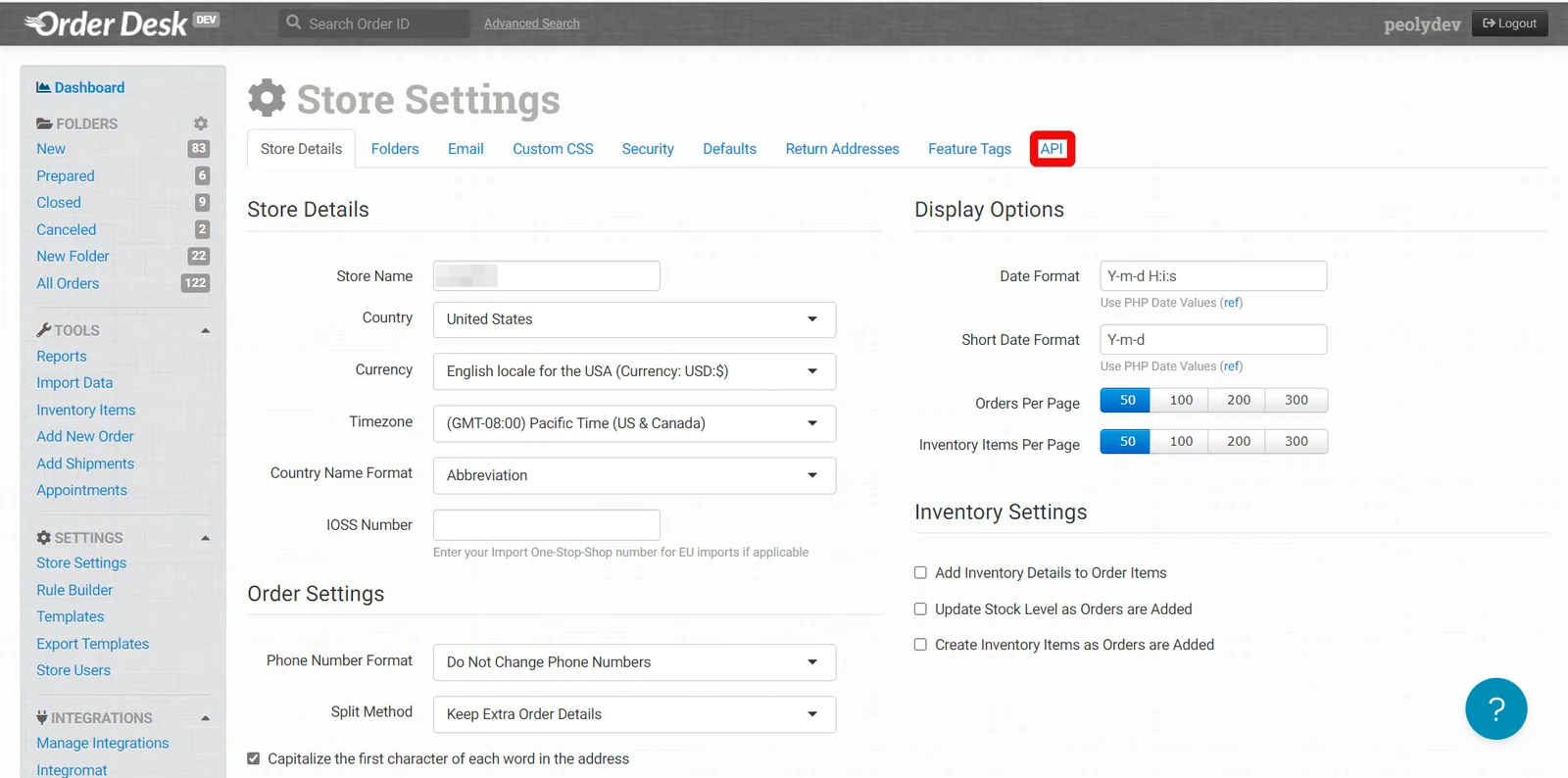
Click Store Settings > API.
-
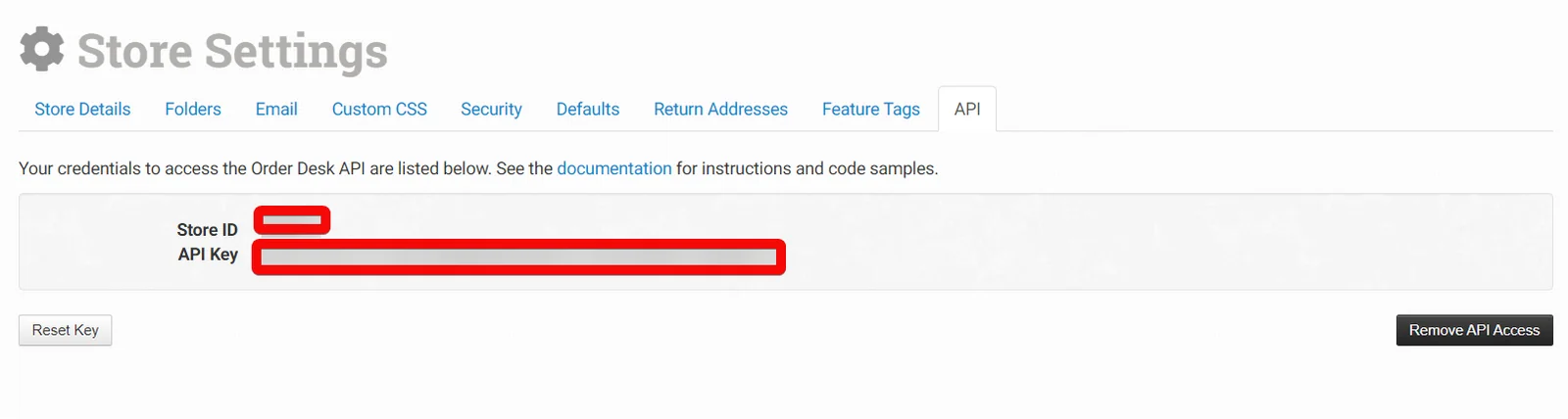
Copy the Store ID and API Key details to a safe place.
-

Log in to your Boost.space Integrator and add a module from the Order Desk into a Boost.space Integrator scenario.
-
Click Add next to the Connection field.
-
In the Connection name field, enter a name for the connection.
-
In the Store ID and API Key fields, enter the details copied in step 3 and click Save.
You have successfully connected the Boost.space Integrator app with the Order Desk and can now build scenarios.
Orders
You can watch, create, update, retrieve, search and delete the order using the following modules.
To set up the webhooks, see the section, Setting Up Order Desk Webhooks.
Watch Orders Created Manually
Triggers when an order has been created manually.
Webhook Name
Enter a name for the webhook.
Connection
Establish a connection to your Order Desk account.
Watch Orders
Triggers when an order has been created outside of the Order Desk.
Webhook Name
Enter a name for the webhook.
Connection
Establish a connection to your Order Desk account.
Watch Order Folder Changed
Triggers when an order’s folder has been changed.
Webhook Name
Enter a name for the webhook.
Connection
Establish a connection to your Order Desk account.
Search Orders
Searches for orders.
Connection
Establish a connection to your Order Desk account.
Limit
Set the maximum number of orders Boost.space Integrator will return during one execution cycle. The default value is 10.
Folder ID
Select or map the Folder IDs to search for orders. You can select multiple folders.
Folder Name
Enter (map) a folder name to search the orders.
Enter the folder’s exact name instead of its ID.
Source Name
Enter (map) the source name to search the orders.
Start Date
Enter (map) the start date to search the orders created on or after the specified date. See the list of supported date and time formats.
End Date
Enter (map) an end date to search the orders created on or before the specified date. See the list of supported date and time formats.
Modified Start Date
Enter (map) the start date to search the orders that were modified on or after the specified date. See the list of supported date and time formats.
Modified End Date
Enter (map) the date to search the orders that were modified on or before the specified date. See the list of supported date and time formats.
Enter (map) the email address to search the orders that match the specified email address.
Customer ID
Enter (map) the Customer ID to search the orders that match the specified ID.
Customer First Name
Enter (map) the customer’s first name to search for the orders that match the specified name.
Customer Last Name
Enter (map) the customer’s last name to search for the orders that match the specified name.
Customer Company
Enter (map) the customer’s company name to search for the orders that match the specified company name.
Customer Address 1
Enter (map) the customer’s address to search for the orders that match the specified address.
Shipping First Name
Enter (map) the shipping first name to search for the orders that match the specified name.
Shipping Last Name
Enter (map) the shipping last name to search for the orders that match the specified last name.
Shipping Company
Enter (map) the shipping company to search for the orders that match the specified company name.
Shipping Address 1
Enter (map) the shipping address to search for the orders that match the specified address.
Customer Phone
Enter (map) the customer phone number to search for the orders that match the specified phone number.
Shipping Phone
Enter (map) the shipping phone number to search for the orders that match the specified phone number.
Get Order History
Select whether to include order history in the search results.
Order By
Select or map the option to arrange the search results. The default value is date_added.
Order
Select or map the order to sort the results. For example, asc for ascending.
Get an Order
Retrieves an order.
Connection
Establish a connection to your Order Desk account.
Order ID
Select or map an Order ID whose details you want to retrieve.
Create an Order
Creates an order.
Connection
Establish a connection to your Order Desk account.
Order Items
Enter (map) the details of the order items:
Name
Enter (map) the item name.
Price
Enter (map) the item price.
Quantity
Enter (map) the total number of items in the order.
Weight
Enter (map) the total weight of all the items in the order.
Item SKU or Product Code
Enter (map) the item’s unique product code.
Variation List
Enter (map) the details of the variation list:
Key
Enter (map) a key. For example, Size.
Value
Enter (map) a value. For example, Large.
Metadata
Enter (map) the details of metadata:
Key
Enter (map) a key. For example, Image.
Value
Enter (map) a value. For example, Link.
Source ID
Enter (map) your Order ID. If blank, Order Desk’s internal ID will be used.
Source Name
Select or map the source for the order. The default value is Order Desk.
Folder ID
Select or map the Folder ID in which you want to create the ordered item.
Customer
Enter (map) the customer details:
Customer First Name
Enter (map) the customer’s first name.
At least one of the Customer First Name, Customer Last Name, Customer Company, Shipping First Name, Shipping Last Name, and Shipping Company is required.
Customer Last Name
Enter (map) the customer’s last name.
Customer Company
Enter (map) the customer’s company name.
Address 1
Enter (map) the customer’s address.
Address 2
Enter (map) the customer’s address.
City
Enter (map) the customer’s city name.
State
Enter (map) the customer’s state name.
Postal Code
Enter (map) the customer’s area postal code.
Country
Enter (map) the customer’s country name.
Phone
Enter (map) the customer’s phone number.
Enter (map) the customer’s email address.
Shipping Method
Enter (map) the shipping method for the order.
Shipping Total
Enter (map) the total price of shipping for the order.
Handling Total
Enter (map) the total handling price of the order.
Tax Total
Enter (map) the total tax applicable to the order.
Shipping
Enter (map) the shipping details:
Shipping First Name
Enter (map) the contact’s first name to mention in the shipping address.
At least 1 of the Customer First Name, Customer Last Name, Customer Company, Shipping First Name, Shipping Last Name, and Shipping Company is required.
Shipping Last Name
Enter (map) the contact’s last name.
Shipping Company
Enter (map) the shipping company name.
Address 1
Enter (map) the street name.
City
Enter (map) the shipping city name.
State
Enter (map) the state name.
Postal Code
Enter (map) the area postal code
Country
Enter (map) the country name.
Phone
Enter (map) the phone number.
Return Address
Enter (map) the details of the return address:
First Name
Enter (map) the contact’s first name to mention on the return address.
Last Name
Enter (map) the contact’s last name.
Company
Enter (map) the company name.
Address 1
Enter (map) the street name.
City
Enter (map) the city name.
State
Enter (map) the state name.
Postal Code
Enter (map) the area postal code.
Country
Enter (map) the country name.
Phone
Enter (map) the phone number.
Checkout Data
Enter (map) the checkout data:
Key
Enter (map) a key. For example, Gift Messages.
Value
Enter (map) a value. For example, Happy Birthday.
Discount List
Enter (map) the discount list properties:
Discount Name
Enter (map) the name of the discount.
Code
(Optional) Enter (map) the code used for the discount.
Amount
Enter (map) the discount amount. Discounts should be stored as positive numbers.
Order Notes
Enter (map) the order note properties:
Date Added
Enter (map) the date on which the note was added in UTC. See the list of supported date and time formats.
Username
Enter (map) the user’s name who added the note.
Note Content
Enter (map) the note text.
Metadata
Enter (map) the details:
Key
Enter (map) a key. For example, Image.
Value
Enter (map) a value. For example, Link.
Date Added
Enter (map) the order date stored. See the list of supported date and time formats.
Update an Order
Updates an order.
Connection
Establish a connection to your Order Desk account.
Order
Select or map an order whose details you want to update.
Order Items
Select or map the action you want to perform. For example, add new.
Add New
Enter (map) the details of the order items:
Name
Enter (map) the item name of the ordered item.
Price
Enter (map) the item price.
Quantity
Enter (map) the total number of items in the order.
Weight
Enter (map) the total weight of all the items in the order.
Item SKU or Product Code
Enter (map) the unique product code.
Variation List
Enter (map) the details of the variation list.
Metadata
Enter (map) the Key-Value pair details of metadata.
Update
Enter (map) the details of the updated order items:
Item ID
Select or map an Item ID whose details you want to update.
Name
Enter (map) the item name of the ordered item.
Price
Enter (map) the item price.
Quantity
Enter (map) the total number of items in the order.
Weight
Enter (map) the total weight of all the items in the order.
Item SKU or Product Code
Enter (map) the unique product code.
Variation List
Enter (map) the item’s variation list.
Metadata
Enter (map) the key-value pair of the item’s metadata.
Delete
Select or map an Item ID to delete.
Source ID
Enter (map) your order ID source information. If blank, Order Desk’s internal ID will be used.
Source Name
Select or map the source name. Defaults to Order Desk.
Folder ID
Select or map the Folder ID in which you want to add the order item.
Customer
Enter (map) the customer details:
Customer First Name
Enter (map) the customer’s first name.
Customer Last Name
Enter (map) the customer’s last name.
Customer Company
Enter (map) the customer’s company name.
Address 1
Enter (map) the customer’s address line.
City
Enter (map) the city name.
State
Enter (map) the state name.
Postal Code
Enter (map) the area postal code.
Country
Enter (map) the country name.
Phone
Enter (map) the contact’s phone number.
Enter (map) the customer’s email address.
Shipping Method
Enter (map) the shipping method name of the order.
Shipping Total
Enter (map) the total shipping price for the order.
Handling Total
Enter (map) the total order handling price.
Tax Total
Enter (map) the total tax applicable on the order.
Shipping
Enter (map) the shipping details:
Shipping First Name
Enter (map) the contact’s first name to mention on the shipping address.
Shipping Last Name
Enter (map) the contact’s last name.
Shipping Company
Enter (map) the shipping company name.
Address 1
Enter (map) the shipping street address 1.
City
Enter (map) the city name.
State
Enter (map) the state name.
Postal Code
Enter (map) the area postal code.
Country
Enter (map) the country name.
Phone
Enter (map) the phone number.
Return Address
Enter (map) the details of the return address:
First Name
Enter (map) the contact’s first name to mention on the return address.
Last Name
Enter (map) the contact’s last name.
Company
Enter (map) the company name.
Address 1
Enter (map) the street address.
City
Enter (map) the city name.
State
Enter (map) the state name.
Postal Code
Enter (map) the area postal code.
Country
Enter (map) the country name.
Phone
Enter (map) the phone number.
Checkout Data
Enter (map) the checkout data:
Key
Enter (map) a key. For example, Gift Messages.
Value
Enter (map) a value. For example, Happy Birthday.
Discount List
Enter (map) the discount list properties:
Discount Name
Enter (map) the discount name.
Code
Enter (map) the code used for discount optional.
Amount
Enter (map) the discount amount. Discounts should be stored as positive numbers.
Order Notes
Enter (map) the order note properties:
Date Added
Enter (map) the date the note was added in UTC. See the list of supported date and time formats.
Username
Enter (map) the user’s name who wrote the note.
Note Content
Enter (map) the note text.
Metadata
Enter (map) the Key-Value pair of item’s metadata.
Date Added
Enter (map) the date the order is stored. See the list of supported date and time formats.
Delete an Order
Deletes an order.
Connection
Establish a connection to your Order Desk account.
Order ID
Select or map an Order ID you want to delete.
Order Items
You can watch, create, update, search, retrieve, and delete the order items using the following modules.
List Order Items
Returns a list of items for a specific order.
Connection
Establish a connection to your Order Desk account.
Order
Select or map an order to list its order items.
Limit
Set the maximum number of order items Boost.space Integrator will return during one execution cycle. The default value is 10.
Get an Order Item
Retrieves an order item.
Connection
Establish a connection to your Order Desk account.
Order ID
Select or map an Order ID to retrieve an order item.
Item ID
Select or map an Item ID to retrieve an order item.
Create an Order Item
Creates an order item.
Connection
Establish a connection to your Order Desk account.
Order
Select or map an order for which you want to add an order item.
Name
Enter (map) the item name of the ordered item.
Price
Enter (map) the item price defaults to 0.00.
Quantity
Enter (map) the item quantity in integer format. The default value is 1.
Weight
Enter (map) the item’s weight in decimal format.
Code
Enter (map) the item’s Stock Keeping Unit (SKU) or product code.
Delivery Type
Enter (map) the item’s delivery type. For example, ship. The default value is ship.
Category Code
Enter (map) the item’s category code.
Fulfillment Method
Enter (map) the item’s fulfillment method details.
Variation List
Enter (map) the details of the variation list:
Key
Enter (map) a key. For example, Size.
Value
Enter (map) a value. For example, Large.
Metadata
Enter (map) the details of metadata:
Key
Enter (map) a key. For example, Image.
Value
Enter (map) a value. For example, Link.
Update an Order Item
Updates an order item.
Connection
Establish a connection to your Order Desk account.
Order ID
Select or map an Order ID whose item details you want to update.
Item ID
Select or map an Item ID whose details you want to update.
Name
Enter (map) a new name for the ordered item.
Price
Enter (map) the item price.
Quantity
Enter (map) the item quantity in integer format. The default value is 1.
Weight
Enter (map) the item’s weight in decimal format.
Code
Enter (map) the item’s SKU or product code details.
Delivery Type
Enter (map) the item’s delivery type. For example, ship. The default value is ship.
Category Code
Enter (map) the item’s category code.
Fulfillment Method
Enter (map) the item’s fulfillment method details.
Variation List
Enter (map) the details of the variation list:
Key
Enter (map) a key. For example, Size.
Value
Enter (map) a value. For example, Large.
Metadata
Enter (map) the details of metadata:
Key
Enter (map) a key, for example, Image.
Value
Enter (map) a value, for example, Link.
Delete an Order Item
Deletes an order item.
Connection
Establish a connection to your Order Desk account.
Order ID
Select or map an Order ID whose item you want to delete.
Item ID
Select or map an Item ID you want to delete.
Shipments
You can create, update, list, retrieve, and delete the shipments using the following modules.
List Shipments
Returns a list of shipments for a specific order.
Connection
Establish a connection to your Order Desk account.
Order ID
Select or map an Order ID to list the shipments of a specific order.
Limit
Set the maximum number of shipments Boost.space Integrator will return during one execution cycle. The default value is 10.
Get a Shipment
Retrieves a shipment.
Connection
Establish a connection to your Order Desk account.
Order ID
Select or map an Order ID whose shipment details you want to retrieve.
Shipment ID
Select or map a Shipment ID whose details you want to retrieve.
Create a Shipment
Creates a shipment.
Connection
Establish a connection to your Order Desk account.
Order
Select or map an order for which you want to create a shipment.
Tracking Number
Enter (map) the carrier’s assigned tracking number. Use n/a if no tracking number is applicable.
Carrier Code
Enter (map) the carrier code of the order. For example, USPS or FedEx if available.
Shipment Method
Enter (map) the shipment method name. For example, First Class International.
Weight
Enter (map) the final weight of the shipment.
Cost
Enter (map) the cost to send the shipment.
Status
Enter (map) the shipment’s current status – used by EasyPost webhook.
Tracking URL
Enter (map) the tracking URL of the shipment.
If not entered, Order Desk will try to guess it based on the tracking number format and carrier code
Update a Shipment
Updates a shipment.
Connection
Establish a connection to your Order Desk account.
Order ID
Select or map an Order ID whose shipment details you want to update.
Shipment ID
Select or map a Shipment ID whose details you want to update.
Tracking Number
Enter (map) the carrier’s assigned tracking number. Use n/a if no tracking number is applicable.
Carrier Code
Enter (map) the carrier code of the shipment. For example, USPS or FedEx if available.
Shipment Method
Enter (map) the shipping method name. For example, First Class International.
Weight
Enter (map) the final weight of the shipment.
Cost
Enter (map) the cost to send the shipment.
Status
Enter (map) the shipment’s current status – used by EasyPost webhook.
Tracking URL
Enter (map) the tracking URL of the shipment.
If not entered, Order Desk will try to guess it based on the tracking number format and carrier code.
Delete a Shipment
Deletes a shipment.
Connection
Establish a connection to your Order Desk account.
Order ID
Select or map an Order ID whose shipment you want to delete.
Shipment ID
Select or map a Shipment ID you want to delete.
Inventory Items
You can search, create, update, retrieve, and delete the inventory items using the following modules.
Search Inventory Items
Searches for inventory items.
Connection
Establish a connection to your Order Desk account.
Search
Enter (map) the metadata or name or code for this value to search for inventory items.
Name
Enter (map) the name of the inventory item.
Code
Enter (map) the inventory item’s unique SKU code.
Metadata
Enter (map) a value that must be found somewhere in the list of the metadata keys and values.
Location
Enter (map) the warehouse or fulfillment method responsible for this inventory item.
Update Source Not
Enter (map) the integration slug. For example, Shopify details for the item have been updated not by Shopify integration.
The item must not have been updated by this integration
Updated Start Date
Enter (map) the date this item was updated in UTC format. See the list of supported date and time formats.
Limit
Set the maximum number of inventory items will Boost.space Integratorreturn during one execution cycle. The default value is 10.
Get an Inventory Item
Retrieves an inventory item.
Connection
Establish a connection to your Order Desk account.
Inventory Item ID
Select or map an Inventory Item ID whose details you want to retrieve.
Create an Inventory Item
Creates an inventory item.
Connection
Establish a connection to your Order Desk account.
Code
Enter (map) the product’s unique SKU code.
Name
Enter (map) the product name.
Price
Enter (map) the item price (decimal).
Cost
Enter (map) the item cost (decimal).
Weight
Enter (map) the shipping weight of the item.
Stock
Enter (map) the number of available units.
Variation List
Enter (map) the details of the variation list:
Key
Enter (map) a key. For example, Size.
Value
Enter (map) a value. For example, Large.
Metadata
Enter (map) the details of metadata:
Key
Enter (map) a key. For example, Image.
Value
Enter (map) a value. For example, Link.
Location
Enter (map) the warehouse or fulfillment method responsible for this item.
Update Source
Enter (map) the name of the last system used to update the item’s details.
Update an Inventory Item
Updates an inventory item.
Connection
Establish a connection to your Order Desk account.
Inventory Item
Select or map an inventory item whose details you want to update.
Code
Enter (map) the product’s unique SKU code.
Name
Enter (map) the item name.
Price
Enter (map) the item price (decimal).
Cost
Enter (map) the item cost (decimal).
Weight
Enter (map) the shipping weight of the item.
Stock
Enter (map) the number of available units.
Variation List
Enter (map) the details of the variation list:
Key
Enter (map) a key. For example, Size.
Value
Enter (map) a value. For example, Large.
Metadata
Enter (map) the details of metadata:
Key
Enter (map) a key. For example, Image.
Value
Enter (map) a value,. For example, Link.
Location
Enter (map) the warehouse or fulfillment method responsible for this item.
Update Source
Enter (map) the name of the last system details for which the item details was updated.
Delete an Inventory Item
Deletes an inventory item.
Connection
Establish a connection to your Order Desk account.
Inventory Item ID
Select or map an Inventory Item ID you want to delete.
Other
You can call APIs using the following module.
Make an API Call
Performs an arbitrary authorized API call.
Connection
Establish a connection to your Order Desk account.
URL
Enter a path relative to https://app.orderdesk.me/api. For example: /v2/orders.
For all the available endpoints, refer to the Order Desk API documentation.
Method
GET
to retrieve information for an entry.
POST
to create a new entry.
PUT
to update/replace an existing entry.
PATCH
to make a partial entry update.
DELETE
to delete an entry.
Headers
Enter the desired request headers. You don’t have to add authorization headers; we already did that for you.
Query String
Enter the request query string.
Body
Enter the body content for your API call.
Example of Use – Get all Order Items
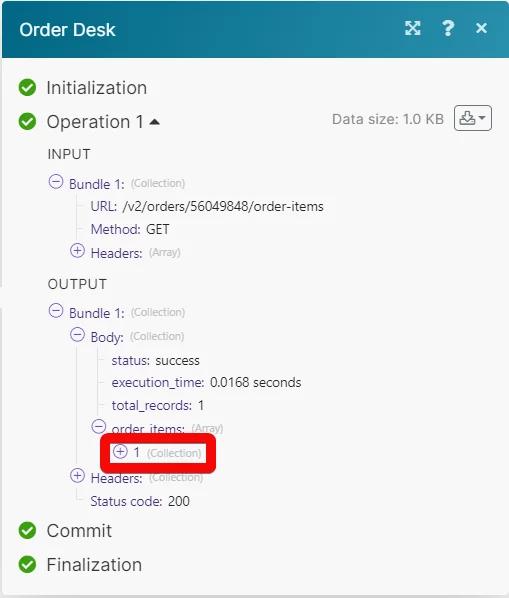
The following API call returns all the order items of an order from your Order Desk account:
URL:
/v2/orders/56049848/order-items
Method:
GET
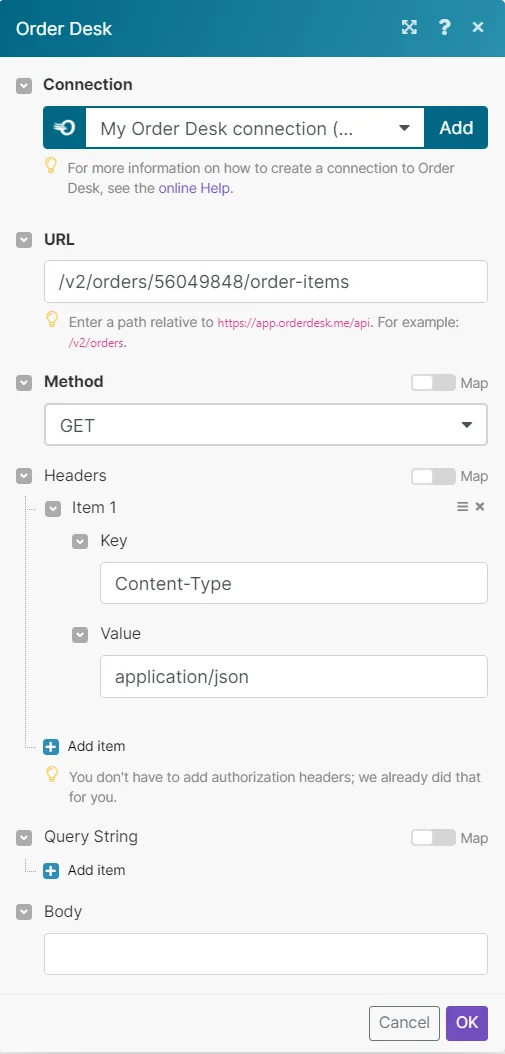
Matches of the search can be found in the module’s Output under Bundles > Body > order items.
In our example, specified contact was added:
Watch New Event
Triggers when a selected event has occurred.
Webhook Name
Enter a name for the webhook.
Connection
Establish a connection to your Order Desk account.
Setting Up Order Desk Webhooks
To set up the webhook:
-

Open any Watch module, enter the details as provided in the respective module, click Save and copy the URL address to your clipboard.
-
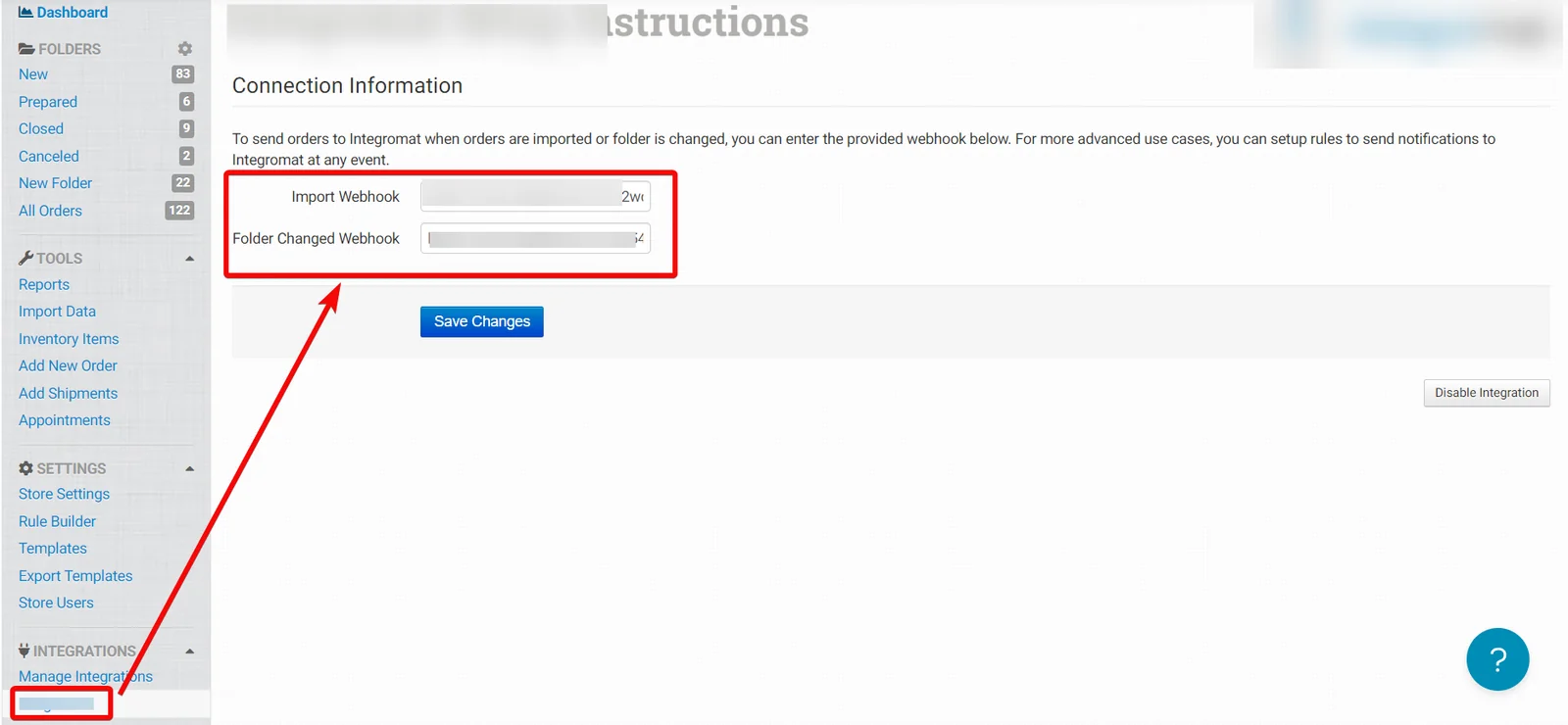
Log in to your Order Desk account. From the left menu, in the Integration Settings section, click Integromat.
-
For Watch Orders Created Manually and Watch Orders module webhooks, in the Import Webhook field, enter the URL address copied in step 1. For Watch Order Folder Changed module webhooks, enter the URL address in the Folder Changed field module.
-
Click Save.
You have successfully added webhooks to your Order Desk account.
Legacy article, imported from the original Boost.space knowledge base (/knowledge-base/applications/business-operations-and-erps/order-desk/).

