Printify
With the Printify modules, you can
-

Retrieve, list, upload and archive the uploaded image.
-
List shops and delete a shop in the shop’s module.
-
Retrieve provider, blueprint, and shipping info, list blueprint variants, blueprints, blueprint providers, and all providers in the catalog module.
-
Create, update, retrieve, list, publish and delete the product.
-
Retrieve, list, submit and cancel the order.
To get started with the Printify, create an account at printify.com
Connect Printify with Boost.space Integrator
To connect the Printify app with the Boost.space Integrator:
-
Log in to your Printify account.
-
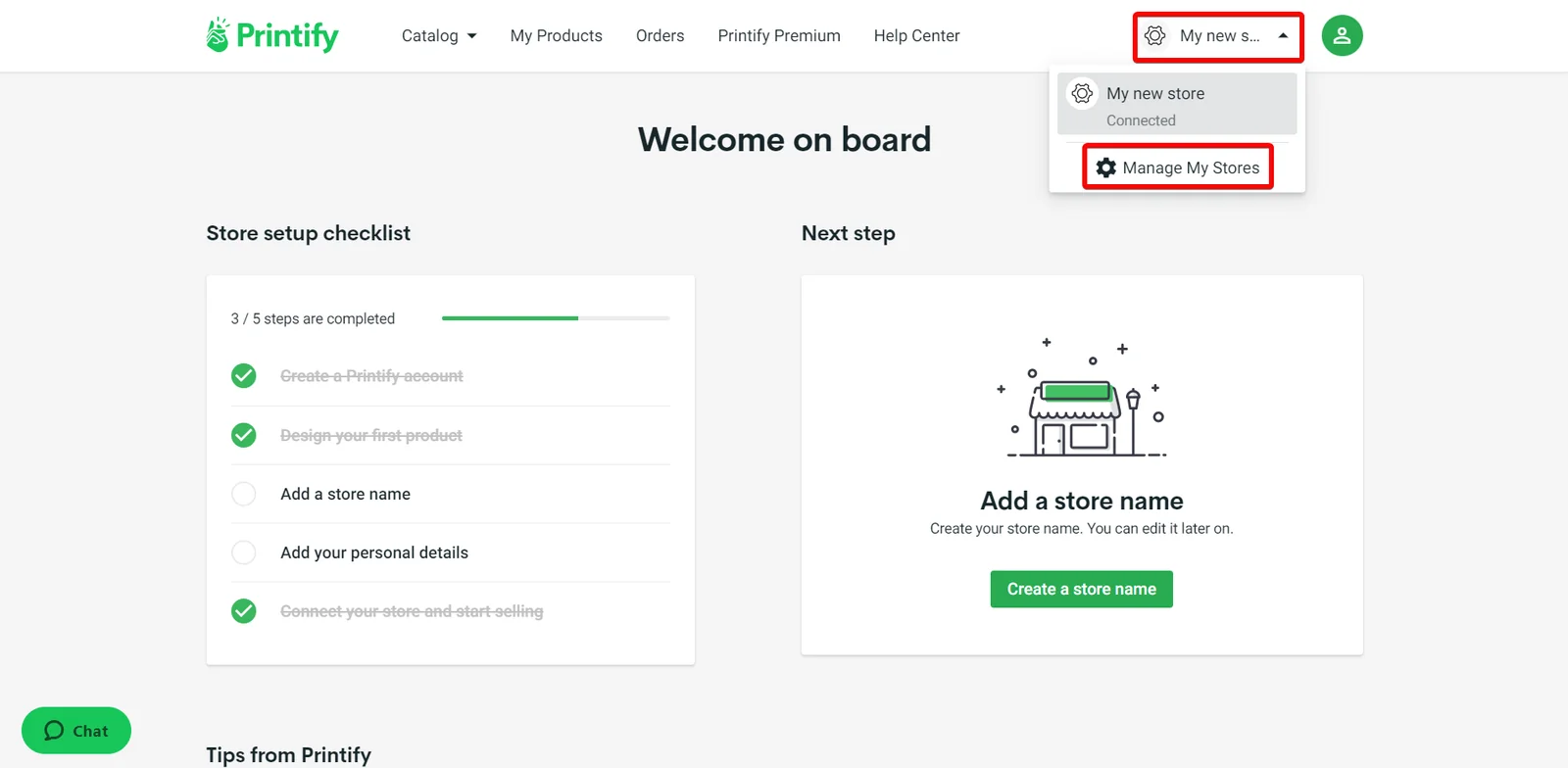
Click My new store > Manage My Stores.
-
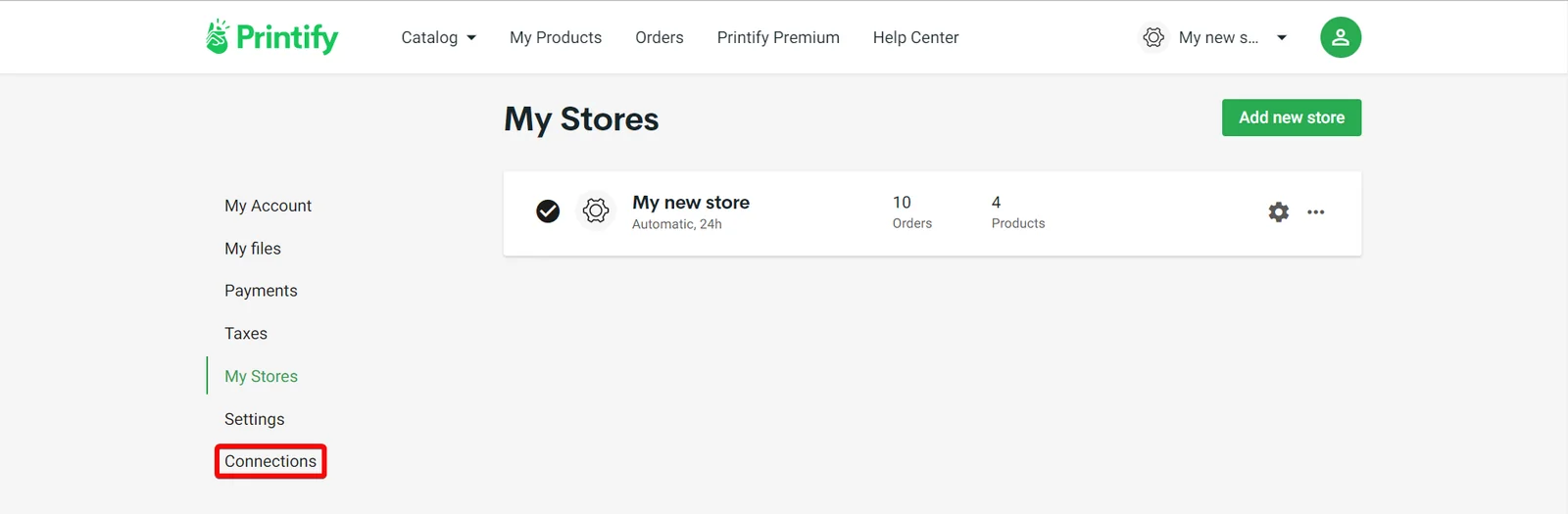
Click Connections to see the existing API tokens. To generate a new API token, click Generate, enter a token name, and click Generate token.
-
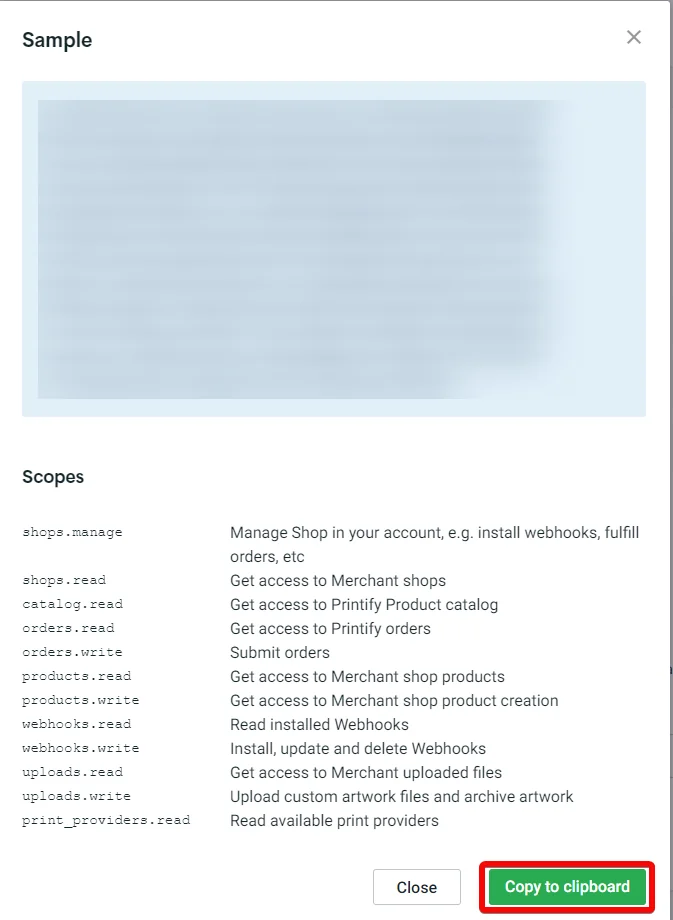
Copy the API token to a safe place.
-
Log in to your Boost.space Integrator and add a module from the Printify into a Boost.space Integrator scenario.
-
Click Add next to the Connection field.
-
In the Connection name field, enter a name for the connection.
-
In the API Key field, enter the details copied in step 5, and click Save.
You have successfully connected the Printify app with Boost.space Integrator and can now build scenarios.
Uploads
You can retrieve, list, upload, and archive an uploaded image using the following modules.
Get an Image
Returns an Image
Connection
Establish a connection to your Printify account.
Image ID
Select or map an Image ID whose details you want to retrieve.
List Uploaded Images
Returns a list of uploaded images
Connection
Establish a connection to your Printify account.
Limit
Set the maximum number of images Boost.space Integrator should return during one execution cycle. The default value is 10.
Upload an Image
Uploads image files either via image URL, or image file base64-encoded contents. The file will be stored in the Merchant’s account Media Library.
Connection
Establish a connection to your Printify account.
File
Enter (map) the file name of the image.
Upload Image By
Select a method to upload the image:
-
URL
-
Content
Image URL
Enter (map) the URL address of the image.
File
Enter (map) the base64-encoded contents of the image file.
Archive an Uploaded Image
Archives an uploaded image.
Connection
Establish a connection to your Printify account.
Image ID
Select or map the Image ID you want to archive.
Shops
You can list and delete the shops using the following modules.
Lists Shops
Returns a list of shops.
Connection
Establish a connection to your Printify account.
Limit
Set the maximum number of shops Boost.space Integrator should return during one execution cycle. The default value is 10
Delete a Shop
Disconnects a shop.
Connection
Establish a connection to your Printify account.
Shop ID
Select or map the Shop ID you want to delete.
Catalog
You can retrieve providers, blueprints, shipping info, and list the blueprint variants.
Get a Provider
Returns a specific print provider and a list of associated blueprint offerings.
Connection
Establish a connection to your Printify account.
Print Provider ID
Select or map a Print Provider ID whose details you want to retrieve.
Get a Blueprint
Returns a specific blueprint.
Connection
Establish a connection to your Printify account.
Blueprint ID
Select or map the Blueprint ID whose details you want to retrieve.
Get Shipping Info
Returns shipping information.
Connection
Establish a connection to your Printify account.
Blueprint ID
Select or map a Blueprint ID whose shipping info details you want to retrieve.
Print Provider ID
Select or map a Print Provider ID whose details you want to retrieve.
List Blueprint Variants
Returns a list of variants of a blueprint from a specific print provider.
Connection
Establish a connection to your Printify account.
Blueprint ID
Select or map the Blueprint ID whose variants you want to list.
Print Provider ID
Select or map a Print Provider ID to list the blueprint variants.
Limit
Set the maximum number of blueprint variants Boost.space Integrator should return during one execution cycle. The default value is 10.
List Blueprints
Returns a list of all available blueprints.
Connection
Establish a connection to your Printify account.
Limit
Set the maximum number of blueprints Boost.space Integrator should return during one execution cycle. The default value is 10.
List All Providers
Returns all available print providers.
Connection
Establish a connection to your Printify account.
Limit
Set the maximum number of providers Boost.space Integrator should return during one execution cycle. The default value is 10.
List Blueprint Providers
Returns all print providers that fulfill orders for a specific blueprint.
Connection
Establish a connection to your Printify account.
Blueprint ID
Select or map a Blueprint ID whose blueprint providers you want to list.
Limit
Set the maximum number of blueprint providers Boost.space Integrator should return during one execution cycle. The default value is 10.
Products
You can create, update, retrieve, list, and delete the products using the following modules.
Create a Product
Creates a new product.
Connection
Establish a connection to your Printify account.
Shop ID
Select or map a Shop ID of a shop whose product you want to create.
Title
Enter (map) the name of the product.
Description
Enter (map) a description of the product. Supports HTML formatting.
Blueprint ID
Select or map a Blueprint ID for creating a product.
Print Provider ID
Select or map a Print Provider ID for creating a product.
Variants
Enter (map) the properties of the variants:
Variant ID
Select or map a Variant ID to represent the version of the product.
Price
Enter (map) the price of the variant.
Is Enabled
Select whether or not to publish the variant.
Print Areas
Enter (map) the properties of the print areas:
Variant IDs
Select or map a Variant ID whose print area you want to use.
Placeholders
Enter (map) the properties of the placement:
Position
Enter (map) the available printable areas for a blueprint fulfilled by a specific print provider. For example, front.
Images
Enter (map) the image properties:
ID
Select or map an Image ID to assign the placeholders.
X
Enter (map) the float value to position an image on the x-axis. For example, 100.
Y
Enter (map) the float value to position an image on the y axis. For example, 100.
Scale
Enter (map) a float value to scale the image up or down.
Angle
Enter (map) an integer value, if the image is a rotated image.
For more details please refer to Product Details.
Tags
Enter (map) the tags to be published in sales channels. For example, T-shirt, Men’s.
Print Details
Select the print details used to set the type of side printing for canvases:
-
Regular
-
Mirror
-
Off
Update a Product
Updates a product.
Connection
Establish a connection to your Printify account.
Shop ID
Select or map a Shop ID whose product details you want to update.
Product ID
Select or map a Product ID whose details you want to update.
Blueprint ID
Select or map a Blueprint ID for applicable to the product.
Print Provider ID
Select or map the Print Provider ID for the product.
Variants
Enter (map) the properties of the variants:
Variant ID
Select or map a Variant ID to represent the version of the product.
Price
Enter (map) the price of the variant.
Is Enabled
Select whether or not to publish the variant.
Print Areas
Enter (map) the properties of the print areas:
Variant IDs
Select or map a Variant ID whose print area you want to use.
Placeholders
Enter (map) the properties of the placement:
Position
Enter (map) the available printable areas for a blueprint fulfilled by a specific print provider. For example, front.
Images
Enter (map) the image properties:
ID
Select or map an Image ID to assign the placeholders.
X
Enter (map) the float value to position an image on the x-axis. For example, 100.
Y
Enter (map) the float value to position an image on the y-axis. For example, 100.
Scale
Enter (map) a float value to scale the image up or down.
Angle
Enter (map) an integer value, if the image is a rotated image.
Title
Enter (map) the name of the product.
Description
Enter (map) a description of the product. Supports HTML formatting.
Tags
Enter (map) the tags to be published in sales channels. For example, T-shirt, Men’s.
Print Details
Select the print details used to set the type of side printing for canvases:
-
Regular
-
Mirror
-
Off
Get a Product
Returns a product.
Connection
Establish a connection to your Printify account.
Shop ID
Select or map the Shop ID whose product details you want to retrieve.
Product ID
Select or map the Product ID whose details you want to retrieve.
List Products
Returns a list of all products.
Connection
Establish a connection to your Printify account.
Shop ID
Select or map a Shop ID whose products you want to list.
Limit
Set the maximum number of products Boost.space Integrator should return during one execution cycle. The default value is 10.
Publish a Product
Publishes a product.
Connection
Establish a connection to your Printify account.
Shop ID
Select or map a Shop ID whose product you want to publish.
Product ID
Select or map a Product ID you want to publish.
Title
Select Yes to update the product title.
Description
Select Yes to update the product description.
Images
Select Yes to publish the images. Select “No” to use the existing images.
Variants
Select Yes to publish the product variations.
Tags
Select Yes to update the product tags.
Set Product Publish Status to Succeeded
Removes the product from the locked status on the Printify app and sets its external property with the handle you provide in the request body.
Connection
Establish a connection to your Printify account.
Shop ID
Select or map a Shop ID whose product status you want to set as publish succeeded.
Product ID
Select or map a Product ID whose status you want to change.
External ID
Enter (map) an External ID of a product. This is used by the Sales channel. For example, A123abceASd.
URL Handle
Enter (map) an URL Handle of a product. This is used by the Sales channel. For example, /path/to/product.
Set Product Publish Status to Failed
Removes the product from the locked status on the Printify app.
Connection
Establish a connection to your Printify account.
Shop ID
Select or map the Shop ID whose product publish status you want to set as failed.
Product ID
Select or map the Product ID whose status you want to change.
Reason
Enter (map) the reason for making the publish status to failed.
Delete a Product
Deletes a product.
Connection
Establish a connection to your Printify account.
Shop ID
Select or map the Shop ID whose product you want to delete.
Product ID
Select or map the Product ID you want to delete.
Orders
You can retrieve orders, order’s shipping cost, list, submit, and cancel the orders using the following modules.
Get an Order
Returns order details by ID.
Connection
Establish a connection to your Printify account.
Shop ID
Select or map a Shop ID whose order details you want to retrieve.
Order ID
Select or map an Order ID whose details you want to retrieve.
Get the Shipping Cost
Returns shipping cost of an order.
Connection
Establish a connection to your Printify account.
Shop ID
Select or map the Shop ID whose product’s shipping cost details you want to retrieve.
Line Items
Enter (map) the line item properties:
Using Product ID
Enter (map) the details of the Product ID:
Product ID
Select or map the Product ID whose shipping cost details you want to retrieve.
Variant ID
Select or map the product Variant ID from the blueprint.
Quantity
Enter (map) the number of products ordered as an integer. For example, 1.
Using SKU
Enter (map) the SKU details:
SKU
Enter (map) the SKU of the product variant.
Quantity
Enter (map) the number of products ordered as an integer. For example, 1.
Use Blueprint ID
Enter (map) the details of Blueprint ID:
Blueprint ID
Select or map a Blueprint ID.
Print Provider ID
Select or map a Print Provider ID.
Variant ID
Select or map a Variant ID.
Quantity
Enter (map) the number of products ordered as an integer. For example, 1.
Address
Enter (map) the delivery details of the order’s recipient:
First Name
Enter (map) the recipient’s first name.
Last Name
Enter (map) the recipient’s last name.
Enter (map) the recipient’s email address.
Phone
Enter (map) the recipient’s phone number.
Country
Enter (map) the country name.
Region
Enter (map) the region name.
Address 1
Enter (map) the street name.
Address 2 (Optional)
Enter (map) the street name address.
City
Enter (map) the recipient’s city name.
ZIP
Enter (map) the area ZIP code.
List Orders
Returns orders.
Connection
Establish a connection to your Printify account.
Shop ID
Select or map a Shop ID of shop whose orders you want to list.
Limit
Set the maximum number of orders Boost.space Integrator should return during one execution cycle.
Submit an Order
Orders an existing product.
Connection
Establish a connection to your Printify account.
Shop ID
Select or map a Shop ID of a shop whose product’s shipping cost you want to retrieve.
Line Items
Enter (map) the details of the line items:
Product ID
Select or map the Product ID whose shipping cost you want to retrieve.
Variant ID
Select or map the product Variant ID from the blueprint.
Quantity
Enter (map) the number of products ordered as an integer. For example, 1.
External ID
Enter (map) a unique string identifier from the sales channel specifying the order name or ID.
Label
Enter (map) an optional value to specify order label instead of using external_id.
Shipping Method
Select the shipping method:
-
Standard Shipping
-
Express Shipping
Send Shipping Notification
Select whether to send a shipping notification to the recipient.
Address
Enter (map) the delivery details of the order’s recipient:
First Name
Enter (map) the recipient’s first name.
Last Name
Enter (map) the recipient’s last name.
Enter (map) the recipient’s email address.
Phone
Enter (map) the recipient’s phone number.
Country
Enter (map) the recipient’s country name.
Region
Enter (map) the recipient’s region name.
Address 1
Enter (map) the street name.
Address 2 (Optional)
Enter (map) the street name.
City
Enter (map) the city name.
ZIP
Enter (map) the area ZIP code.
Send an Order to Production
Sends a production
Connection
Establish a connection to your Printify account.
Shop ID
Select or map a Shop ID whose order you want to send to the production.
Order ID
Select or map an Order ID to send it to production.
Cancel an Order
Cancels an unpaid order. The request will only be accepted if the order to be canceled has the status “on-hold” or “payment-not-received”.
Connection
Establish a connection to your Printify account.
Shop ID
Select or map a Shop ID whose order you want to cancel.
Order ID
Select or map an Order ID you want to cancel.
Other
You can watch events, and call APIs using the following modules.
Watch Events
Triggers when a specified event occurs.
Webhook name
Enter (map) a name for the webhook.
Connection
Establish a connection to your Printify account.
Shop ID
Select or map a Shop ID whose events you want to watch.
Topic
Select an event to watch:
-
The order was created.
-
The order’s status was updated.
-
The order was sent to production.
-
Some/all items have been fulfilled.
-
Some/all items have been delivered.
Make an API Call
Performs an arbitrary authorized API call.
Connection
Establish a connection to your Printify account.
URL
Enter a path relative to https://api.printify.com/. For example, /v1/catalog/print_providers.json.
For the list of available endpoints, refer to the Printify API Documentation.
Method
GET
to retrieve information for an entry.
POST
to create a new entry.
PUT
to update/replace an existing entry.
PATCH
to make a partial entry update.
DELETE
to delete an entry.
Headers
Enter the desired request headers. You don’t have to add authorization headers; we already did that for you.
Query String
Enter the request query string.
Body
Enter the body content for your API call.
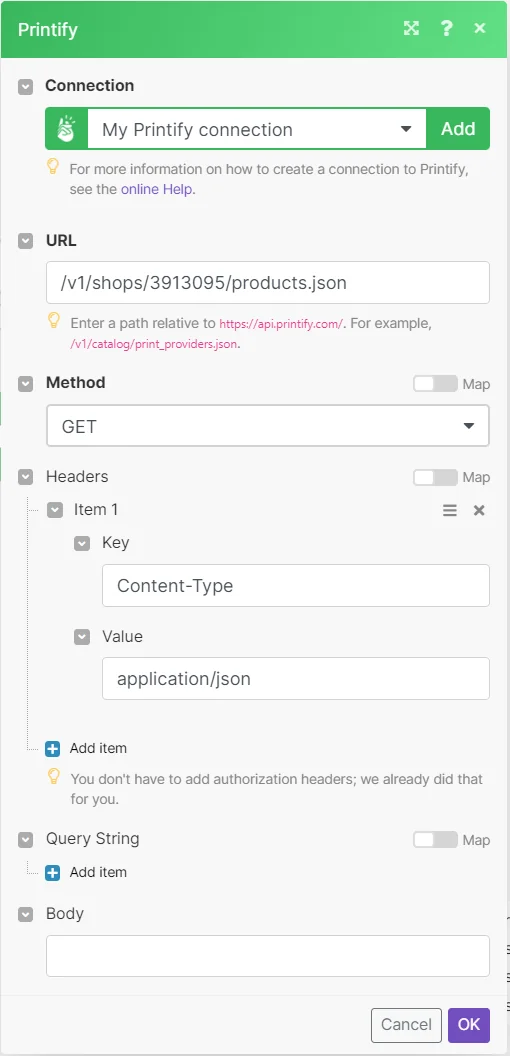
Example of Use – List Products
The following API call returns all the products from your Printify account:
URL:
/v1/shops/3913095/products.json
Method:
GET
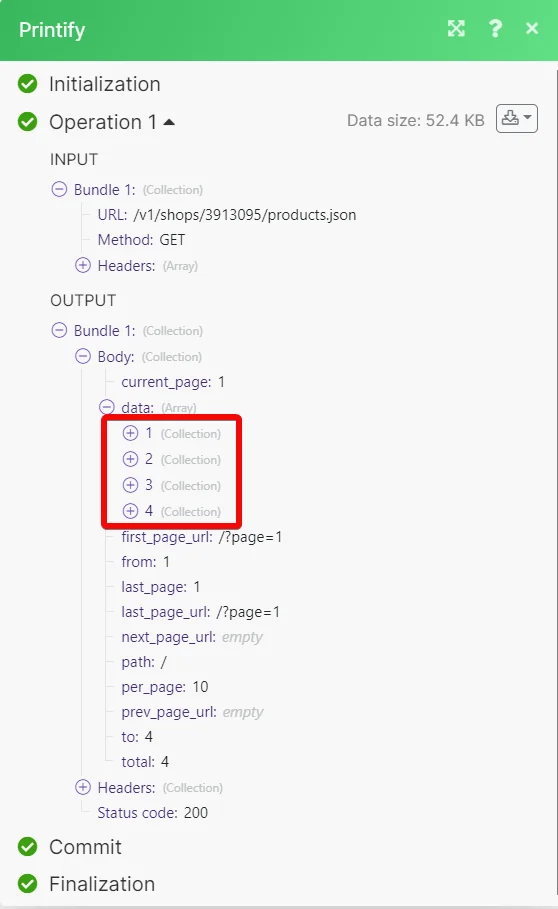
Matches of the search can be found in the module’s Output under Bundles > Body > data.
In our example, four collections were returned:
Legacy article, imported from the original Boost.space knowledge base (/knowledge-base/applications/business-operations-and-erps/printify/).

