YNAB
With YNAB modules in Boost.space Integrator, you can create and list transactions, update budgets in a category, and make API calls.
To get started with YNAB, create an account at YNAB.com.
Refer to the YNAB API documentation for a list of available endpoints.
Connect YNAB to Boost.space Integrator
To connect your YNAB account to Boost.space Integrator, you must retrieve a personal access token from your YNAB account.
-
Log in to your YNAB account and go to your Account Settings page.
-
Scroll down to the Developer Settings section and click the Developer Settings button.
Note: If you have not already confirmed your email, you will receive an email from YNAB to do so.
If you have not set an account password, click the set an account password link, follow the instructions to do so, then return to the Developer Settings page.
-
Click the New Token button.
-
Enter your account password and click the Generate button.
-
The token appears at the top of the screen. Copy the token and store it in a safe place as you will not be able to view the token again.
-
Log in to your Boost.space Integrator account, add a YNAB module to your scenario, and click Create a connection.
-
Optional: In the Connection name field, enter a name for the connection.
-
In the Personal Access Token field, paste the token copied in Step 5.
-
Click Save.
You have successfully established the connection. You can now edit your scenario and add more YNAB modules. If your connection requires reauthorization at any point, follow the connection renewal steps here.
Transactions
Create Transactions
Create multiple transactions. Scheduled transactions cannot be created with this module.
Connection
Establish a connection to your YNAB account.
Budget ID
Select or map the Budget ID to which you want to create a transaction.
Transactions
Add or map the transactions:
Account ID
Select or map the Account ID for which you are creating the transaction.
Date
Enter the date of the transactions.
Amount
Enter the amount of transaction.
Payee ID
Select the Payee ID of the transaction:
-
Starting Balance
-
Manual Balance Adjustment
-
Reconciliation Balance Adjustment
-
Transfer: My Savings
-
Transfer: Credit Card
Payee Name
Enter or map the name of the payee.
Category ID
Enter or map the Category ID of the transaction. For example, Credit Card.
Memo
Enter the memo notes for the transaction.
Cleared
Select or map the status of the transaction:
-
Cleared
-
Uncleared
-
Reconciled
Approved
Select or map whether the transaction is approved:
-
Yes
-
No
-
Empty
Flag Color
Select or map the transaction flag:
-
Red
-
Orange
-
Yellow
-
Green
-
Blue
-
Purple
List Transactions
Lists budget’s transactions.
Connection
Establish a connection to your YNAB account.
Budget ID
Select or map the Budget ID whose transactions you want to list.
Type of Transaction
Select the transaction type you want to list:
-
All
-
Scheduled
-
In Specific Account
-
In Specific Category
-
In Specific Payee
Category ID
Select the Category ID whose associated transactions you want to list.
Account ID
Select the Account ID whose transactions you want to list
Payee ID
Select or map the Payee ID whose transaction you want to list.
Since Date
Enter the date to list the transaction created on or after the specified date.
Transaction Type
Select or map the transaction type you want to list:
-
Uncategorized
-
Unapproved
Limit
Enter the maximum number of transactions Boost.space Integrator should return during one scenario execution cycle.
Categories
Budget to a Category
Updates the budget of a category for a specific month.
Connection
Establish a connection to your YNAB account.
Budget ID
Select or map the id of the budget you want to update.
Category ID
Select or map the id of the category whose budget you want to update.
Budget’s Month
Enter the month of the budget you want to update.
Budgeted Amount
Enter the updated amount of the budget.
Other
Make an API Call
Performs an arbitrary authorized API call.
Connection
Establish a connection to your YNAB account.
URL
Enter a path relative to https://api.ynab.com. For example: /v1/budgets.
For the list of available endpoints, refer to the YNAB API Documentation.
Method
Select the HTTP method you want to use:
GET to retrieve information for an entry.
POST to create a new entry.
PUT to update/replace an existing entry.
PATCH to make a partial entry update.
DELETE to delete an entry.
Headers
Enter the desired request headers. You don’t have to add authorization headers; we already did that for you.
Query String
Enter the request query string.
Body
Enter the body content for your API call.
Example of Use – List Transactions
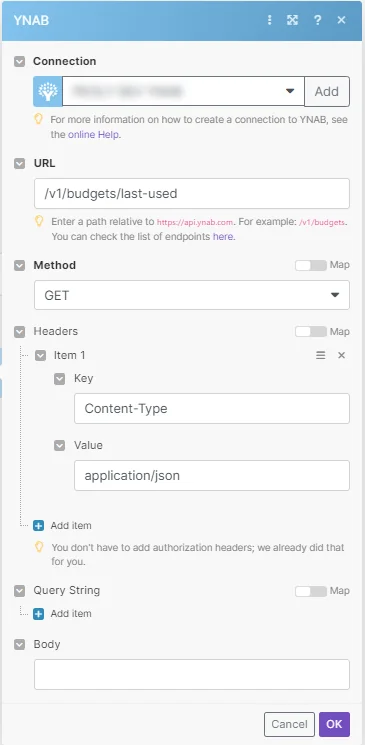
The following API call returns the last used budget with all related entities:
URL: /v1/budget/last-used
Method: GET
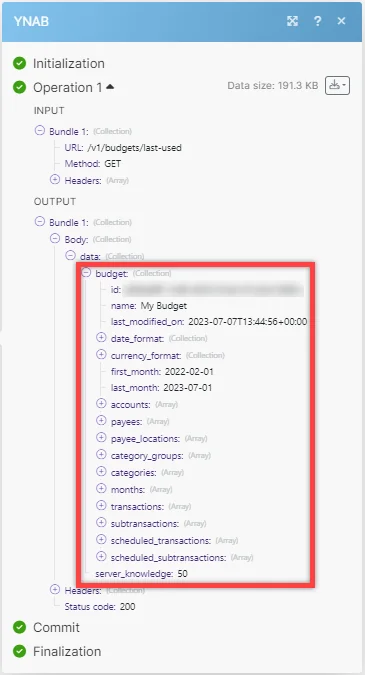
Matches of the search can be found in the module’s Output under Bundle > Body > Data. In our example, all entities of the last used budget and their details were returned:
Getting Started with YNAB
Prerequisites
- A YNAB account
In order to use YNAB with Boost.space Integrator, it is necessary to have a YNAB account. You can use your Google account or create a YNAB account at youneedabudget.com.
The module dialog fields that are displayed in bold (in the Boost.space Integrator scenario, not in this documentation article) are mandatory!
Connect YNAB to Boost.space Integrator
To connect your YNAB account to Boost.space Integrator, you must retrieve a personal access token from your YNAB account.
-
Log in to your YNAB account and go to your Account Settings page.
-
Scroll down to the Developer Settings section and click the Developer Settings button.
Note: If you have not already confirmed your email, you will receive an email from YNAB to do so.
If you have not set an account password, click the set an account password link, follow the instructions to do so, then return to the Developer Settings page.
-
Click the New Token button.
-
Enter your account password and click the Generate button.
-
The token appears at the top of the screen. Copy the token and store it in a safe place as you will not be able to view the token again.
-
Log in to your Boost.space Integrator account, add a YNAB module to your scenario, and click Create a connection.
-
Optional: In the Connection name field, enter a name for the connection.
-
In the Personal Access Token field, paste the token copied in Step 5.
-
Click Save.
You have successfully established the connection. You can now edit your scenario and add more YNAB modules. If your connection requires reauthorization at any point, follow the connection renewal steps here.
Transactions
Create Transactions
Create multiple transactions. Scheduled transactions cannot be created with this module.
Connection
Establish a connection to your YNAB account.
Budget ID
Select or map the Budget ID to which you want to create a transaction.
Transactions
Add or map the transactions:
Account ID
Select or map the Account ID for which you are creating the transaction.
Date
Enter the date of the transactions.
Amount
Enter the amount of transaction.
Payee ID
Select the Payee ID of the transaction:
-
Starting Balance
-
Manual Balance Adjustment
-
Reconciliation Balance Adjustment
-
Transfer: My Savings
-
Transfer: Credit Card
Payee Name
Enter or map the name of the payee.
Category ID
Enter or map the Category ID of the transaction. For example, Credit Card.
Memo
Enter the memo notes for the transaction.
Cleared
Select or map the status of the transaction:
-
Cleared
-
Uncleared
-
Reconciled
Approved
Select or map whether the transaction is approved:
-
Yes
-
No
-
Empty
Flag Color
Select or map the transaction flag:
-
Red
-
Orange
-
Yellow
-
Green
-
Blue
-
Purple
List Transactions
Lists budget’s transactions.
Connection
Establish a connection to your YNAB account.
Budget ID
Select or map the Budget ID whose transactions you want to list.
Type of Transaction
Select the transaction type you want to list:
-
All
-
Scheduled
-
In Specific Account
-
In Specific Category
-
In Specific Payee
Category ID
Select the Category ID whose associated transactions you want to list.
Account ID
Select the Account ID whose transactions you want to list
Payee ID
Select or map the Payee ID whose transaction you want to list.
Since Date
Enter the date to list the transaction created on or after the specified date.
Transaction Type
Select or map the transaction type you want to list:
-
Uncategorized
-
Unapproved
Limit
Enter the maximum number of transactions Boost.space Integrator should return during one scenario execution cycle.
Categories
Budget to a Category
Updates the budget of a category for a specific month.
Connection
Establish a connection to your YNAB account.
Budget ID
Select or map the id of the budget you want to update.
Category ID
Select or map the id of the category whose budget you want to update.
Budget’s Month
Enter the month of the budget you want to update.
Budgeted Amount
Enter the updated amount of the budget.
Other
Make an API Call
Performs an arbitrary authorized API call.
Connection
Establish a connection to your YNAB account.
URL
Enter a path relative to https://api.ynab.com. For example: /v1/budgets.
For the list of available endpoints, refer to the YNAB API Documentation.
Method
Select the HTTP method you want to use:
GET to retrieve information for an entry.
POST to create a new entry.
PUT to update/replace an existing entry.
PATCH to make a partial entry update.
DELETE to delete an entry.
Headers
Enter the desired request headers. You don’t have to add authorization headers; we already did that for you.
Query String
Enter the request query string.
Body
Enter the body content for your API call.
Example of Use – List Transactions
The following API call returns the last used budget with all related entities:
URL: /v1/budget/last-used
Method: GET
Matches of the search can be found in the module’s Output under Bundle > Body > Data. In our example, all entities of the last used budget and their details were returned:
Legacy article, imported from the original Boost.space knowledge base (/knowledge-base/applications/commerce/ynab/).

