Zoho Books
With Zoho Books modules in Boost.space Integrator, you can create, list, retrieve, update, and delete contacts, persons, invoices, payments, expenses, and bills in your Zoho Books account.
To get started with Zoho Books, create an account at zoho.com/books/signup.
Refer to the Zoho Books API documentation for a list of available endpoints.
Connect Zoho Books to Boost.space Integrator
To connect your Zoho Books account:
-
Log in to your Boost.space Integrator account, add a Zoho Books module to your scenario, and click Create a connection.
Note: If you add a module with an
instanttag, click Create a webhook, then Create a connection. -
Optional: In the Connection name field, enter a name for the connection.
-
In the Region field, select your Zoho account region. For example,
US. -
Optional: Click Show Advanced Settings, and enter the client credentials from your custom app or add additional scopes. See Create Custom App and Client Credentials for Zoho Books.
-
Click Save.
-
If prompted, authenticate your account and confirm access.
You can now edit your scenario and add more Zoho Books modules. If your connection requires reauthorization at any point, follow the connection renewal steps here.
Create Custom App and Client Credentials for Zoho Books
-
Log in to your Zoho API Console.
-
Click the + Add Client button and select Server-based Applications.
-
Enter the details below and click Create.
Client Name
Enter the application name you want to register with Zoho.
Homepage URL
Enter your homepage URL, for example,
https://www.make.com/en.Authorized Redirect URIs
Add the redirect URI:
https://integrator.boost.space/oauth/cb/zoho-books. -
Copy the Client ID and Client Secret and store them in a safe place.
You now have the client credentials to connect to Boost.space Integrator.
Set Up Zoho Books Webhooks
The process consists of two main steps:
Step 1: Create a Webhook
-
Add a Zoho Books
instantmodule to your scenario and click Create a webhook. -
Optional: Enter a name for the webhook in the Webhook name field.
-
Click Save > Copy address to clipboard.
-
Log in to your Zoho Books account.
-
In the top-right corner, click on the Settings icon > Automation.
-
From the Automation options, select Webhooks, then click the + New Webhook button.
-
Update the following required information (all other fields can be left as the auto-selected defaults):
Name
Enter a name for the webhook.
Module
Select the corresponding Module to the
instantmodule you added to your scenario.URL & Parameters
Select the Post method and paste the webhook address you copied in Step 3.
Body
Ensure the Default Payload option is selected.
-
Click Save.
Step 2: Create a Workflow Rule
-
In the top-right corner of your Zoho Books account, click on the Settings icon > Automation > Workflow Rules.
-
Click the + New Workflow Rule button in the top-right corner.
-
Enter the following information:
Workflow Rule Name
Enter a name for the workflow rule.
Module
Select the corresponding Module to your webhook.
Choose when to Trigger
Choose when to execute the workflow.
Filter the triggers
Optional: add filter criteria for your trigger.
Actions
Type
Select the Webhooks option.
Name
Select the webhook you configured in Step 1: Creating a Webhook.
-
Click the Save button.
Now, when a specified event is performed, the respective webhook is triggered in your scenario.
Please see the Zoho Books Automation help for further details about automation functions.
Contacts
You can create, retrieve, list, update, and delete contacts and watch vendors and customers with the following modules.
Watch Vendor
Triggers when a vendor is created, edited, or deleted.
Please see the Setting Up Zoho Books Webhookssection.
Watch Customer
Triggers when a customer is created, edited, or deleted.
Please see the Setting Up Zoho Books Webhookssection.
Create a Contact
Creates a new customer contact.
Required Permissions: ZohoBooks.contacts.CREATE, ZohoBooks.settings.READ
Connection
Establish a connection to your Zoho Books account.
Organization
Select the organization you want to create a contact for.
Contact Name
Enter the name of the new customer.
Company Name
Enter the company name of the contact.
Website
Enter the contact’s website.
Language Code
Enter the language code for the customer.
Contact Type
Enter the contact type. Enter customer or vendor. The default value is a customer.
Is Portal Enabled
Select the Yes option to allow client portal access for this contact.
Contact persons in the Contact Persons field must be added in order to use this function.
Currency
Select the currency for the new contact.
Payment Terms
Enter the net payment term for the contact. E.g., 15. The invoice due date will be calculated based on this.
Payment Terms Label
Enter a custom label for the payment term specified above to override the default payment term label. E.g., the default value for 15 days is “Net 15 Days”.
Notes
Enter remarks about the payment made by the contact.
Enter the contact’s Facebook account URL.
Enter the contact’s Twitter account URL.
Contact Persons
Here you can add the primary contact for the new contact.
Get a Contact
Retrieves contact details.
Required Permissions: ZohoBooks.contacts.READ
Connection
Establish a connection to your Zoho Books account.
Organization
Select the organization you want to retrieve the contact from.
Contact ID
Map or select the Contact ID of the contact you want to retrieve information about.
List Contacts
Returns contacts based on the filter settings.
Required Permissions: ZohoBooks.contacts.READ
Connection
Establish a connection to your Zoho Books account.
Organization
Select the organization you want to retrieve the contact from.
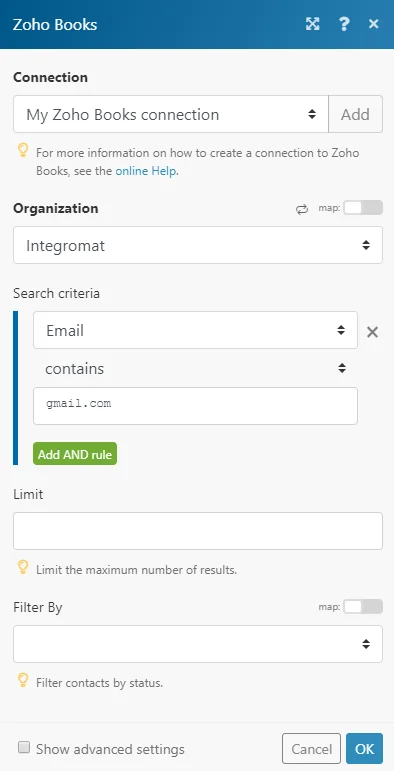
Search Criteria
Here you can define the search criteria for your search.
For example, the following search returns all contacts whose email address contains “gmail.com“.
Limit
Set the maximum number of contacts Boost.space Integrator will return during one execution cycle.
Filter By
Select the status you want to use to filter the contacts.
Search Text
Returns only contacts that contain entered text in the contact name or the comments fields.
Sort Column
Select the parameter you want to filter results by.
Update Contact
Updates an existing contact.
Required Permissions: ZohoBooks.contacts.UPDATE, ZohoBooks.contacts.READ, ZohoBooks.settings.READ
Connection
Establish a connection to your Zoho Books account.
Organization
Select the organization that contains the contact you want to update.
Contact ID
Map or select the Contact ID of the contact you want to update.
Please find the descriptions of the fields in the Create a Contact section above.
Delete a Contact
Deletes an existing contact.
Required Permissions: ZohoBooks.contacts.DELETE, ZohoBooks.contacts.READ
Connection
Establish a connection to your Zoho Books account.
Organization
Select the organization that contains the contact you want to delete.
Contact ID
Map or select the Contact ID of the contact you want to delete.
Contact Persons
You can crate, retrieve, list, update and delete contact persons with the following modules.
Create a Contact Person
Creates and assigns a contact person to the existing contact.
Required Permissions: ZohoBooks.contacts.CREATE, ZohoBooks.settings.READ
Connection
Establish a connection to your Zoho Books account.
Organization
Select the organization that contains the contact you want to delete.
Contact ID
Map or select the Contact ID of the contact you want to assign the contact person to.
First Name
Enter the person’s first name.
Last Name
Enter the person’s last name.
Salutation
Enter the salutation for the contact.
Enter the contact’s email.
Phone
Enter the contact’s phone number.
Mobile
Enter the contact’s mobile phone number.
Skype
Enter the contact’s Skype name.
Designation
Enter the designation of the person.
Department
Enter the department to which the person belongs.
Enable Portal
Select the Yes option to enable the client portal access.
Get a Contact Person
Retrieves details for a specified contact person.
Required Permissions: ZohoBooks.contacts.READ
Connection
Establish a connection to your Zoho Books account.
Organization
Select the organization that contains the contact person you want to retrieve information about.
Contact ID
Map or select the Contact ID of the contact that contains the contact person.
Contact Person ID
Enter (map) the Contact Person ID of the contact person you want to retrieve details about.
List Contact Persons
Lists all contact persons.
Required Permissions: ZohoBooks.contacts.READ
Connection
Establish a connection to your Zoho Books account.
Organization
Select the organization that contains the contact persons you want to list.
Contact ID
Map or select the Contact ID you want to list contact persons from.
Limit
Set the maximum limit of contact persons Boost.space Integrator will return during one execution cycle.
Update a Contact Person
Updates an existing contact person.
Required Permissions: ZohoBooks.contacts.UPDATE, ZohoBooks.contacts.READ
Connection
Establish a connection to your Zoho Books account.
Organization
Select the organization that contains the contact person you want to update.
Contact ID
Map or select the Contact ID of the contact person you want to update.
Contact Person ID
Enter (map) the Contact Person ID of the contact person whose details you want to update.
Please find the descriptions of the fields in the Create a Contact Person section above.
Delete a Contact Person
Deletes an existing contact person.
Required Permissions: ZohoBooks.contacts.DELETE, ZohoBooks.contacts.READ
Connection
Establish a connection to your Zoho Books account.
Organization
Select the organization that contains the contact person you want to delete.
Contact ID
Map or select the Contact ID that contains the contact person you want to delete.
Contact Person ID
Enter (map) the Contact Person ID of the contact person you want to delete.
Credit Notes
You can create, update, retrieve, list, and delete credit notes with the following modules.
Create a Credit Note
Create a new credit note.
Connection
Establish a connection to your Zoho Books account.
For the field descriptions, refer to Zoho Book Credit Notes API reference.
Get a Credit Note
Returns the selected credit note.
Connection
Establish a connection to your Zoho Books account.
Organization ID
Select or map the organization whose credit note details you want to retrieve.
Credit Note ID
Select or map the Credit Note ID whose details you want to retrieve.
List Credit Note
Lists all credit notes.
Connection
Establish a connection to your Zoho Books account.
For the field descriptions, refer to Zoho Books Credit Note API reference.
Update a Credit Note
Updates the selected credit note.
Connection
Establish a connection to your Zoho Books account.
For the field descriptions, refer to Zoho Books Credit Note API reference.
Delete a Credit Note
Deletes the selected credit note.
Connection
Establish a connection to your Zoho Books account.
Organization
Select or map the organization whose credit note you want to delete.
Credit Note ID
Select or map the Credit Note ID you want to delete.
Estimates
You can watch, create, update, list, retrieve, and delete estimates with the following modules.
Watch Estimates
Triggers when an estimate is created, edited, or deleted.
Webhook Name
Enter a name for the webhook.
Connection
Establish a connection to your Zoho Books account.
See the Set Up Zoho Books Webhooks to add webhooks in your Zoho Books account.
Create an Estimate
Creates an estimate for your customer.
Connection
Establish a connection to your Zoho Books account.
For the field descriptions, see the Zoho Books Estimate API reference.
Get an Estimate
Gets the details of an estimate.
Connection
Establish a connection to your Zoho Books account.
Organization
Select or map the organization whose estimate details you want to retrieve.
Estimate ID
Select or map the Estimate ID whose details you want to retrieve.
List Estimates
Lists all estimates.
Connection
Establish a connection to your Zoho Books account.
Organization
Select or map the organization whose estimates you want to list.
Search Method
Select an option to search for the estimates.
Search Criteria
Choose the query to search for the estimates that match specified criteria.
Status
Select or map the estimated status you want to list.
Customer ID
Select or map the Customer ID whose estimates you want to list.
Item ID
Select or map the Item ID whose estimates you want to list.
Sort By
Select or map the option to sort the search results.
Sort Order
Select or map the order in which you want to sort the search results.
Limit
Set the maximum number of estimates Boost.space Integrator will return during one execution cycle.
Update an Estimate
Updates an existing estimate. To delete a line item, remove it from the line_item list.
Connection
Establish a connection to your Zoho Books account.
For the field descriptions, see the Zoho Books Estimate API reference.
Delete an Estimate
Deletes an existing estimate.
Connection
Establish a connection to your Zoho Books account.
Organization
Select or map the organization whose estimate you want to delete.
Estimate ID
Select or map the Estimate ID you want to delete.
Sales Orders
You can get the watch, create, update, retrieve, list, and delete sales orders.
Watch Sales Orders
Triggers by a sales order workflow.
Webhook Name
Enter a name for the webhook.
Connection
Establish a connection to your Zoho Books account.
Create a Sales Order
Creates a sales order for your customer.
Connection
Establish a connection to your Zoho Books account.
Organization
Select or map the organization whose sales order you want to create.
For the field descriptions, see the Zoho Book Sales Order API reference.
Get a Sales Order
Get the details of a sales order.
Connection
Establish a connection to your Zoho Books account.
Organization
Select or map the organization whose sales order to retrieve.
Sales Order ID
Select or map the Sales Order ID whose details you want to retrieve.
List Sales Orders
List all sales orders.
Connection
Establish a connection to your Zoho Books account.
Organization
Select or map the organization whose sales orders you want to list.
Search Method
Select or map an option to search
Search Criteria
Select and enter the query to filter the sales orders that match the specified criteria.
Status
Select the status to list the sales orders that match the specified status.
Sort By
Select or map the option to sort the search results.
Sort Order
Select or map the order to arrange the results. For example, Ascending order.
Limit
Set the maximum number of Boost.space Integrator will return during one execution cycle.
Update a Sales Order
Updates an existing sales order. To delete a line item, remove it from the line_items list.
Connection
Establish a connection to your Zoho Books account.
For the field descriptions, see the Zoho Book Sales Order API reference.
Add an Attachment to a Sales Order
Adds an attachment to a sales order.
Connection
Establish a connection to your Zoho Books account.
Organization
Select or map the organization to whose sales order you want to add an attachment.
Sales Order ID
Select or map the Sales Order ID to which you want to add an attachment.
File
Add the file name and map the file data. Supported file formats are gif, png, jpeg, jpg, bmp, and pdf.
Can Send in Mail
Select whether you want to send the file by mail.
Delete a Sales Order
Deletes an existing sales order. An invoiced sales order cannot be deleted.
Connection
Establish a connection to your Zoho Books account.
Organization
Select or map the organization whose sales order you want to delete.
Sales Order ID
Select or map the Sales Order ID you want to delete.
Mark a Sales Order as Open
Adds an attachment to a sales order.
Connection
Establish a connection to your Zoho Books account.
Organization
Select or map the organization whose sales order you want to mark as open.
Sales Order ID
Select or map the Sales Order ID as open.
Void a Sales Order
Marks a sales order as void.
Connection
Establish a connection to your Zoho Books account.
Organization
Select or map the organization whose sales order you want to void.
Sales Order ID
Select or map the Sales Order ID you want to void.
Reason to Void
Enter a reason to void the sales order.
Email a Sales Order
Emails a sales order to the customer.
Connection
Establish a connection to your Zoho Books account.
Organization
Select or map the organization to whose sales order you want to send an email.
Sales Order ID
Select or map the Sales Order ID to which you want to send an email.
Mail Content
Select or map an option to send the mail. For example, default.
Custom Content
Add the email details: such as From email address,
-
From Address: Add the email address from which you want to send the email.
-
Send from the org email id: select whether you want to send the email from the Organization Email ID.
-
To mail ids: Add the email address to which you want to send an email.
-
CC mail IDs: Add the email addresses of the recipients you want to copy the email.
-
BCC mail IDs: Add the email addresses of the recipients you want to BCC the email.
-
Subject: Add the email’s subject line.
-
Invoice ID: Select or map the Invoice ID related to the email.
-
Body: Enter the email body text.
Purchase Orders
You can watch purchase orders using the following module.
Watch Purchase Orders
Triggers when a purchase order is created.
Connection
Establish a connection to your Zoho Books account.
Organization
Select or map the organization whose purchase orders you want to watch.
Limit
Set the maximum number of purchase orders Boost.space Integrator will return during one execution cycle.
Invoices
You can watch, create, retrieve, download, list, update, delete, email, and void invoices, remind customers of unpaid invoices, mark invoices as drafts, and list and delete invoice payments with the following modules.
Watch Invoice
Triggers when an invoice is created, edited or deleted.
Please see the Setting Up Zoho Books Webhookssection.
Create an Invoice
Creates an invoice for the customer.
Required Permissions: ZohoBooks.invoices.READ, ZohoBooks.invoices.CREATE, ZohoBooks.contacts.READ, ZohoBooks.expenses.READ, ZohoBooks.projects.READ, ZohoBooks.settings.READ
Connection
Establish a connection to your Zoho Books account.
Organization
Select your organization.
Customer ID
Map or select the Customer ID of the customer you want to create the invoice for.
Contact Persons
Add contact persons you want to associate with the invoice.
Ignore Auto Number Generation?
Enable this option to define the invoice number manually.
If this option is enabled, the Invoice Number field must be filled.
Send this invoice?
Enable this option to send the invoice to the contact person(s) associated with the invoice.
Invoice Date
Set the date when the invoice is issued. Please use the yyyy-mm-dd date format
Due Date
Set the due date of the invoice. Please use the yyyy-mm-dd date format
Payment Terms
Enter net payment terms in days e.g. 15, 30, 60. Invoice due date will be calculated based on this.
Payment Terms Label
Enter a custom label for the payment term specified above to override the default payment terms label. E.g. default value for 15 days is “Net 15 Days”.
Discount
Discount applied to the invoice. It can be either in % or in amount. e.g. 12.5% or 190.
Is discount before tax?
Enable this option to apply the discount before the calculation of the tax.
Discount type
Select whether to provide discount on the item level or entity level.
Is inclusive tax?
Enable this option to set the line item rates as tax inclusive.
Exchange Rate
Enter the currency exchange rate.
Salesperson name
Enter the name of the salesperson.
Line items
Add the desired line items to the invoice.
Payment Gateways
Add the supported payment gateways.
Get an Invoice
Retrieves the details of an invoice.
Required Permissions: ZohoBooks.invoices.READ
Connection
Establish a connection to your Zoho Books account.
Organization
Select your organization.
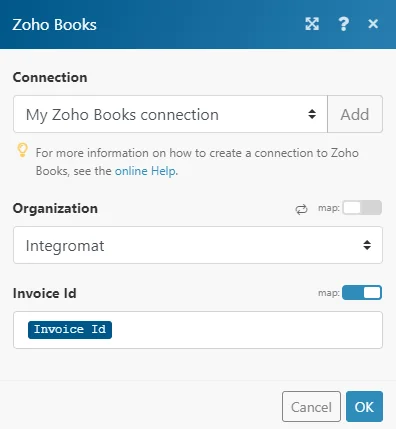
Invoice ID
Map or select the Invoice ID of the invoice you want to retrieve information about.
Download an Invoice
Downloads the invoice in PDF format.
Required Permissions: ZohoBooks.invoices.READ
Connection
Establish a connection to your Zoho Books account.
Organization
Select your organization.
Invoice ID
Map or select the Invoice ID of the invoice you want to download in PDF.
You can then map the downloaded file in the other modules, e.g. Dropbox > Upload a file to copy the file to your Dropbox folder.
List Invoices
Returns invoices based on the filter settings.
Required Permissions: ZohoBooks.invoices.READ,ZohoBooks.contacts.READ, ZohoBooks.settings.READ
Connection
Establish a connection to your Zoho Books account.
Organization
Select your organization.
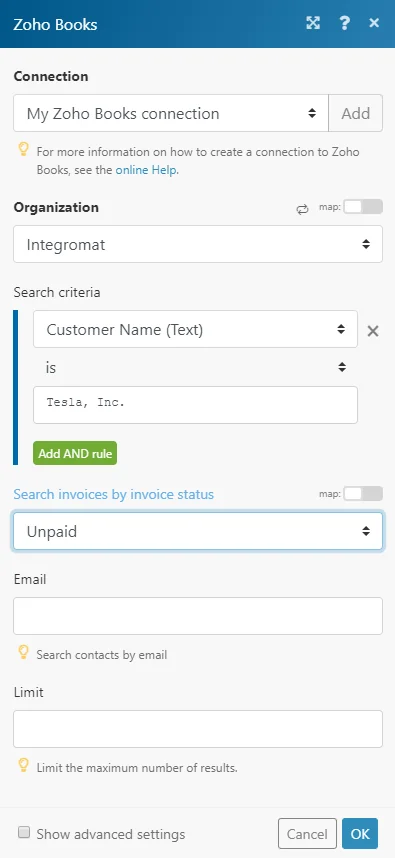
Search Criteria
Here you can define the search criteria for your search.
For example, the following search returns all invoices whose customer name is “Tesla, Inc.”.
Search Text
Returns only contacts that contain entered text in the contact name or in comments fields.
Sort Column
Select the parameter you want to filter results by.
Status
Select the status of the invoices you want to return.
Enter the email to filter the searched invoices by.
Limit
Set the maximum number of invoices Boost.space Integrator will return during one execution cycle.
Update an Invoice
Updates an existing invoice.
Required Permissions: ZohoBooks.invoices.READ, ZohoBooks.invoices.UPDATE, ZohoBooks.expenses.READ, ZohoBooks.projects.READ, ZohoBooks.settings.READ, ZohoBooks.contacts.READ
Connection
Establish a connection to your Zoho Books account.
Organization
Select your organization.
Invoice ID
Map or select the Invoice ID of the invoice you want to update.
Customer ID
Select or map the customer associated with the invoice.
Please find the descriptions of the fields in the Create an Invoicesection above.
Delete an Invoice
Deletes an existing invoice.
Required Permissions: ZohoBooksinvoices.DELETE, ZohoBooks.invoices.READ*
Invoices which have payment or credits note applied cannot be deleted.
Connection
Establish a connection to your Zoho Books account.
Organization
Select your organization.
Invoice ID
Map or select the Invoice ID of the invoice you want to delete.
Email an Invoice
Send an email with the invoice to the customer’s contact person associated with the selected invoice.\
Required Permissions: ZohoBooksinvoices.CREAETE, ZohoBooks.invoices.READ*
Connection
Establish a connection to your Zoho Books account.
Organization
Select your organization.
Invoice ID
Map or select the Invoice ID of the invoice you want to send to the customer.
Attach Customer Statement PDF?
Sends the Customer Statement PDF with the email.
Mail Content
Select whether you want to send an email with default mail content, or you want to define custom mail content.
Remind Customer about an Unpaid Invoice
Reminds your customer about an unpaid invoice by email.
Required Permissions: ZohoBooksinvoices.CEAETE, ZohoBooks.invoices.READ*
Reminder will be sent only for the invoices which have an open or overdue status.
Connection
Establish a connection to your Zoho Books account.
Organization
Select your organization.
Invoice ID
Map or select the Invoice ID of the invoice you want to send to the customer.
Attach Customer Statement PDF?
Sends the Customer Statement PDF with the email.
Mail Content
Select whether you want to send an email with default mail content, or you want to define custom mail content.
Void an Invoice
Set the invoice status as void.
Required Permissions: ZohoBooksinvoices.CEAETE, ZohoBooks.invoices.READ
Upon voiding, the payments and credits associated with the invoices will be unassociated and will be under customer credits.
Connection
Establish a connection to your Zoho Books account.
Organization
Select your organization.
Invoice ID
Map or select the Invoice ID of the invoice you want to mark as void.
Mark an Invoice as Draft
Marks a void invoice as a draft.
Required Permissions: ZohoBooksinvoices.CREATE, ZohoBooks.invoices.READ
Open invoices cannot be changed to draft.
Connection
Establish a connection to your Zoho Books account.
Organization
Select or map the organization whose invoice you want to mark as a draft.
Invoice ID
Map or select the Invoice ID of the invoice you want to mark as a draft.
List Invoice Payments
Retrieves the list of payments made for an invoice.
Required Permissions: ZohoBooks.invoices.READ
Connection
Establish a connection to your Zoho Books account.
Organization
Select your organization.
Invoice ID
Map or select the Invoice ID of the invoice you want to list payments for.
Limit
Set the maximum number of payments Boost.space Integrator will return during one cycle.
Delete an Invoice Payment
Deletes a payment made to an invoice.
Required Permissions: ZohoBooksinvoices.DELETE, ZohoBooks.invoices.READ
Connection
Establish a connection to your Zoho Books account.
Organization
Select your organization.
Invoice ID
Map or select the Invoice ID of the invoice that contains the invoice payment you want to delete.
Invoice Payment ID
Map or select the Invoice Payment ID of the invoice payment you want to delete.
Do not confuse Invoice Payment ID with Payment ID!
Retainer Invoices
You can list, create, update, retrieve, void, and delete retainer invoices with the following modules.
List Retainer Invoices
List all retainer invoices.
Connection
Establish a connection to your Zoho Books account.
Organization
Select or map the organization whose retainer invoices you want to list.
Status
Select or map the status of the retainer invoices you want to list.
Sort By
Select or map the field to sort the search results.
Sort Order
Select or map the order to sort the search results.
Limit
Set the maximum number of retainer invoices Boost.space Integrator will return during one execution cycle.
Create a Retainer Invoice
Creates a new retainer invoice.
Connection
Establish a connection to your Zoho Books account.
For the field descriptions, see the Zoho Book Retainer Invoice API reference.
Get a Retainer Invoice
Get the details of a retainer invoice.
Connection
Establish a connection to your Zoho Books account.
Organization
Select or map the organization whose retainer invoice details you want to retrieve.
Retainer Invoice ID
Enter the Retainer Invoice ID whose details you want to retrieve. Alternatively, you can click Search button and select the invoice.
Update a Retainer Invoice
Updates an existing retainer invoice.
Connection
Establish a connection to your Zoho Books account.
For the field descriptions, see the Zoho Book Retainer Invoice API reference.
Void a Retainer Invoice
Marks an invoice status as void. Upon voiding, the payments and credits associated with the retainer invoices will be unassociated and will be under customer credits.
Connection
Establish a connection to your Zoho Books account.
Organization
Select or map the organization whose retainer invoice you want to void.
Retainer Invoice ID
Enter the Retainer Invoice ID you want to void. Alternatively, you can click Search button to select the invoice.
Delete a Retainer Invoice
Deletes an existing retainer invoice.
Connection
Establish a connection to your Zoho Books account.
Organization
Select or map the organization whose retainer invoice you want to delete.
Retainer Invoice ID
Enter the Retainer Invoice ID you want to delete. Alternatively, you can click Search button to select the invoice.
Customer Payments
You can watch, create, retrieve, list, update, and delete customer payments with the following modules.
Watch Payment
Triggers when a payment is created, edited or deleted.
Please see the Setting Up Zoho Books Webhookssection.
Create a Payment
Creates a new payment.
**Required Permissions:**ZohoBooks.customerpayments.CREATE, ZohoBooks.accountants.READ, ZohoBooks.contacts.READ, ZohoBooks.invoices.READ
Connection
Establish a connection to your Zoho Books account.
Organization
Select your organization.
Customer ID
Map or select the Customer ID of the customer involved in the payment.
Contact Persons
Add the IDs of the contact persons that the thank you mail has to be sent.
Payment mode
Select the mode through which payment is made.
Amount
Enter the amount paid in the respective payment.
Invoices
Add invoices associated with the payment.
Payment date
Enter the date when payment is made. Format: yyyy-mm-dd.
Reference Number
Enter the reference number generated for the payment. A string of your choice can also be used as the reference number. Max 100 characters.
Payment Description
Enter the payment description.
Get a Payment
Retrieves details about the specified payment.
Required Permissions: ZohoBooks.customerpayments.READ
Connection
Establish a connection to your Zoho Books account.
Organization
Select your organization.
Payment ID
Map or select the Payment ID of the payment you want to retrieve details about.
List Customer Payments
Returns all the payments made by your customer.
Required Permissions: ZohoBooks.customerpayments.READ
Connection
Establish a connection to your Zoho Books account.
Organization
Select your organization.
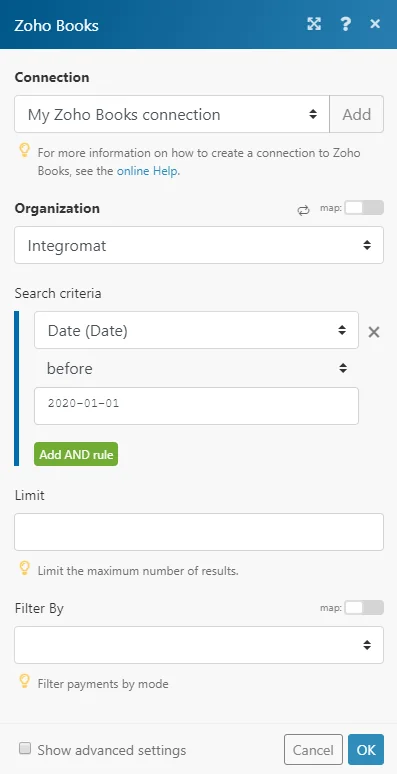
Search Criteria
Here you can define the search criteria for your search.
For example, the following search returns all payments made before the 1st of January 2020.
Limit
Set the maximum number of payments Boost.space Integrator will return during one execution cycle.
Filter By
Select the mode you want to filter search results by.
Update a Payment
Updates information for an existing payment.
Required Permissions: ZohoBooks.customerpayments.UPDATE, ZohoBooks.contacts.READ, ZohoBooks.invoices.READ.customerpayments.READ
Connection
Establish a connection to your Zoho Books account.
Organization
Select your organization.
Payment ID
Enter (map) the Payment ID of the payment you want to update.
Invoices
Add invoices associated with the payment.
Please find the descriptions of the fields in the Create a Payment section above.
Delete a Payment
Deletes an existing payment.
Required Permissions: ZohoBook.customerpayments.READ
Connection
Establish a connection to your Zoho Books account.
Organization
Select your organization.
Payment ID
Enter (map) the Payment ID of the payment you want to delete.
Expenses
You can watch, create, retrieve, list, update, and delete expenses and employees with the following modules.
Watch Expense
Triggers when an expense is created, edited or deleted.
Please see the Setting Up Zoho Books Webhookssection.
Create an Expense
Creates a billable or non-billable expense.
Required Permissions: ZohoBooks.expenses.CREATE, ZohoBooks.accountants.READ, ZohoBooks.contacts.READ, ZohoBooks.settings.READ, ZohoBooks.projects.READ
Connection
Establish a connection to your Zoho Books account.
Organization
Select your organization.
Account ID
Enter (map) or select the Account ID of the expense account.
Paid through account ID
Select the Paid Through account – the account from which money is paid.
Date
Enter the date of the expense in the YYYY-MM-DD format.
Amount
Enter the amount of the expense.
Tax ID
Enter or map the Tax ID you want to apply.
Line Items
Add the expense line items in the case where there are multiple items.
Is inclusive tax
Specify whether the line item rates are inclusive or exclusive of tax.
Is billable?
Select the Yes option to set the expense as billable.
Reference Number
Enter the reference number of the invoice.
Description
Enter the description of the expense.
Get an Expense
Retrieves an expense’s details.
Required Permissions: ZohoBooks.expenses.READ
Connection
Establish a connection to your Zoho Books account.
Organization
Select your organization.
Expense ID
Map or select the Expense ID of the expense you want to retrieve details about.
List Expenses
Lists all the expenses.
Required Permissions: ZohoBooks.expenses.READ
Connection
Establish a connection to your Zoho Books account.
Organization
Select your organization.
Search Criteria
Enter the search criteria to filter the results.
Status
Select the status of returned expenses.
Limit
Set the maximum number of expenses Boost.space Integrator will return during one execution cycle.
Update an Expense
Updates an existing expense.
**Required Permissions:**ZohoBooks.expenses.UPDATE, ZohoBooks.expenses.READ, “ZohoBooks.accountants.READ”, ZohoBooks.contacts.READ,ohoBooks.settings.READ, “ZohoBooks.projects.READ”
Connection
Establish a connection to your Zoho Books account.
Organization
Select your organization.
Expense ID
Select or map the Expense ID of the expense you want to update.
Account ID
Enter (map) or select the Account ID of the expense account.
Paid through account ID
Select the Paid Through account – the account from which money is paid.
Date
Enter the date of the expense in the YYYY-MM-DD format.
Amount
Enter the amount of the expense.
Please find the descriptions of the fields in the Create an Expensesection above.
Delete an Expense
Deletes an existing expense.
Required Permissions: ZohoBooks.expenses.DELETE, ZohoBooks.expenses.READ
Connection
Establish a connection to your Zoho Books account.
Organization
Select your organization.
Expense ID
Select or map the Expense ID of the expense you want to delete.
Create an Employee
Creates an employee for an expense.
Required Permissions: ZohoBooks.expenses.CREATE
Connection
Establish a connection to your Zoho Books account.
Organization
Select your organization.
Name
Enter the name of the employee.
Enter employee’s email address.
Get an Employee
Retrieves employee details.
Required Permissions: ZohoBooks.expenses.READ
Connection
Establish a connection to your Zoho Books account.
Organization
Select your organization.
Employee ID
Map or select the employee you want to get information about.
List Employees
Retrieves employees based on filter settings.
Required Permissions: ZohoBooks.expenses.READ
Connection
Establish a connection to your Zoho Books account.
Organization
Select your organization.
Filter By
Select or map the option to filter the employees.
Sort By
Select or map the field to sort the search results.
Sort Order
Select or map the order to sort the search results.
Limit
Set the maximum number of employees Boost.space Integrator will return during one cycle.
Delete an Employee
Deletes an existing employee.
**Required Permissions:**ZohoBooks.expenses.READ
Connection
Establish a connection to your Zoho Books account.
Organization
Select your organization.
Employee ID
Map or select the employee you want to delete.
Bills
You can watch, create, retrieve, list, update, and delete bills with the following modules.
Watch Bill
Triggers when a bill is created, edited or deleted.
Please see the Setting Up Zoho Books Webhookssection.
Create a Bill
The module creates a bill received from your vendor.
**Required Permissions:**ZohoBooks.bills.CREATE”, ZohoBooks.purchaseorder.READ”, ZohoBooks.settings.READ, ZohoBooks.projects.READ, ZohoBooks.contacts.READ, “ZohoBooks.accountants.READ
Connection
Establish a connection to your Zoho Books account.
Organization
Select your organization.
Vendor ID
Select or map the vendor of the bill that has to be created.
Bill Number
Enter the bill number.
Is update customer?
Enable this option to update the customer.
Purchase Order IDs
Add the purchase orders.
Date
Enter the creation date of the bill in the yyyy-mm-dd format.
Due Date
Enter the due date of the bill in the yyyy-mm-dd format.
Payment Terms
Enter the net payment term.
Payment Terms Label
Enter the label for net payment term
Recurring Bill ID
Enter the ID of the recurring bill.
Line Items
Add line items of a bill.
Is Item Level Tax Calculation?
Enable if the Item Level Tax Calculation is present.
Is inclusive tax?
Enable to set line item rates as inclusive of tax.
Reference Number
Enter the Reference Number of the entity
Adjustment
Add the bill adjustments. The amount entered as adjustment is added to the invoice total.
Adjustment Description
Enter the adjustment description. E.g. Rounding off.
Get a Bill
Retrieves details of a specified bill.
Required Permissions: ZohoBooks.bills.READ
Connection
Establish a connection to your Zoho Books account.
Organization
Select your organization.
Bill ID
Select or map the Bill ID of the bill that you want retrieve details about.
List Bills
Retrieves all bills based on the filter settings.
Required Permissions: ZohoBooks.bills.READ, ZohoBooks.contacts.READ, ZohoBooks.settings.READ, ZohoBooks.purchaseorders.READ
Connection
Establish a connection to your Zoho Books account.
Organization
Select your organization.
Search Criteria
Enter the search criteria to filter the results by.
Status
Select the status of returned bills.
Limit
Set the maximum number of bills Boost.space Integrator will return during one execution cycle.
Update a Bill
Updates an existing bill.
**Required Permissions:**ZohoBooks.bills.UPDATE, ZohoBooks.bills.READ, ZohoBooks.purchaseorders.READ, ZohoBooks.settings.READ, ZohoBooks.projects.READ, ZohoBooks.contacts.READ
Connection
Establish a connection to your Zoho Books account.
Organization
Select your organization.
Bill ID
Enter (map) the Bill ID of the bill you want to update.
Vendor ID
Select or map the vendor of the bill that has to be updated.
Bill Number
Enter the bill number of the bill you want to update.
Please find the descriptions of the fields in the Create a Bill section above.
Delete a Bill
Deletes a specified bill.
Required Permissions: ZohoBooks.bills.DELETE, ZohoBooks.bills.READ
Connection
stablish a connection to your Zoho Books account.
Organization
Select your organization.
Bill ID
Select or map the Bill ID of the bill you want to update.
Items
You can create, update, list, retrieve, and delete items and mark items as active and inactive with the following modules.
Watch Item
Triggers when an item is created, edited or deleted.
Please see the Setting Up Zoho Books Webhookssection.
List Items
Required Permissions: ZohoBooks.settings.READ
Connection
Establish a connection to your Zoho Books account.
Organization
Select your organization.
Search Criteria
Enter the search criteria to filter the results.
Limit
Set the maximum number of items Boost.space Integrator will return during one execution cycle.
Tax ID
Enter the Tax ID to filter the results.
Tax name
Search items by the tax name.
Is Taxable?
Filter items by taxability.
Tax Exemption ID
Enter the ID of the tax exemption.
Account ID
Enter the ID of the account with which the item is associated.
Filter by
Select the status you want to filter returned items by.
Search Text
Filter items by name or description.
Sort Column
Select whether you want to sort results by name, rate, or tax name.
Create an Item
Creates a new item.
Connection
Establish a connection to your Zoho Books account.
For the field descriptions, see the Zoho Books Item API reference.
Get an Item
Retrieves details of an existing item.
Connection
Establish a connection to your Zoho Books account.
Organization
Select or map the organization whose item details you want to retrieve.
Item ID
Select or map the Item ID whose details you want to retrieve.
Update an Item
Updates the details of an item.
Connection
Establish a connection to your Zoho Books account.
For the field descriptions, see the Zoho Books Item API reference.
Delete an Item
Deletes an existing item. Items that are part of the transaction cannot be deleted.
Connection
Establish a connection to your Zoho Books account.
Organization
Select or map the organization whose item you want to delete.
Item ID
Select or map the Item ID you want to delete.
Mark an Item as Active
Marks an inactive item as active.
Connection
Establish a connection to your Zoho Books account.
Organization
Select or map the organization whose item you want to mark as active.
Item ID
Select or map the Item ID you want to mark as active.
Mark an Item as Inactive
Marks an active item as inactive.
Connection
Establish a connection to your Zoho Books account.
Organization
Select or map the organization whose item you want to mark as inactive.
Item ID
Select or map the Item ID you want to mark as inactive.
Other
You can call APIs with the following module.
Make an API Call
Allows you to perform a custom API call.
Connection
Establish a connection to your Zoho Books account.
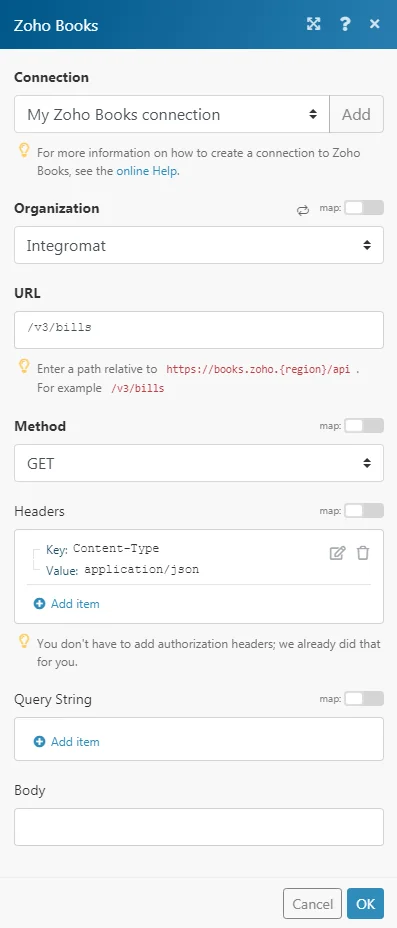
URL
Enter a path relative to https://books.zoho.{region}/api (e.g. /v3/bills)
For the list of available endpoints, refer to the Zoho Books API Documentation.
Method
Select the HTTP method you want to use:
GET
to retrieve information for an entry.
POST
to create a new entry.
PUT
to update/replace an existing entry.
PATCH
to make a partial entry update.
DELETE
to delete an entry.
Headers
Enter the desired request headers. You don’t have to add authorization headers; we already did that for you.
Query String
Enter the request query string.
Body
Enter the body content for your API call.
Example of Use – List Bills
The following API call returns a list of all your bills in your Zoho Books account:
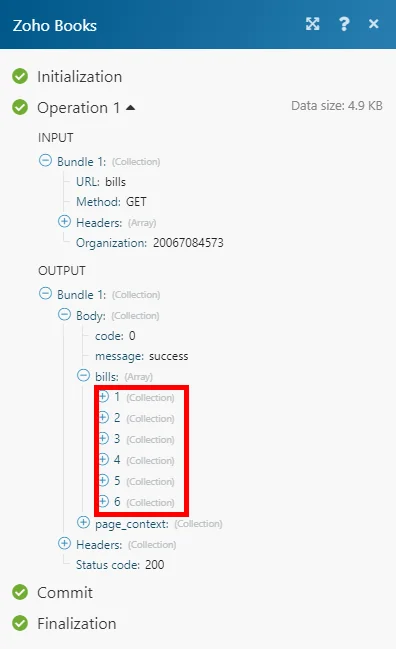
Matches of the search can be found in the module’s Output under Bundle > Body > bills.
In our example, 6 bills were returned:
Legacy article, imported from the original Boost.space knowledge base (/knowledge-base/applications/commerce/zoho-books/).

