Zoho Invoice
The Zoho Invoice modules allow you to create, update, list, and/or delete items, price lists, contacts, estimates, invoices, payments, credit notes, expenses, projects, time entries in your Zoho Invoice account.
Prerequisites
- A Zoho Invoice account
In order to use Zoho Invoice with Boost.space Integrator, it is necessary to have a Zoho Invoice account. If you do not have one, you can create a Zoho Invoice account at www.zoho.com/invoice/signup.
The module dialog fields that are displayed in bold (in the Boost.space Integrator scenario, not in this documentation article) are mandatory!
Connecting Zoho Invoice to Boost.space Integrator
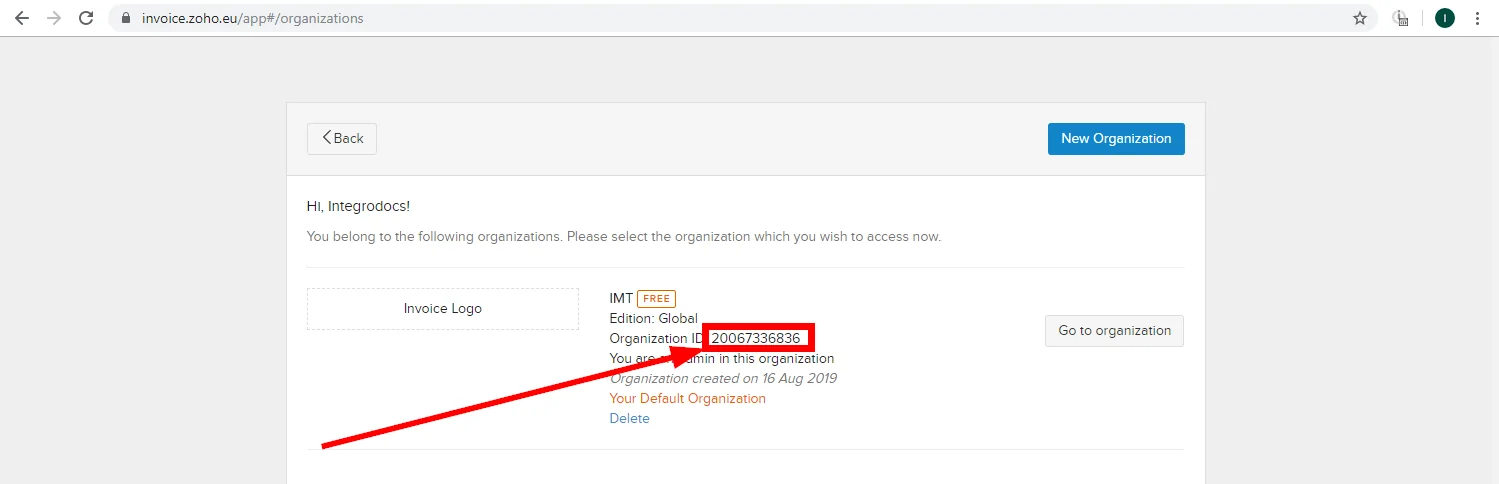
To connect your Zoho Invoice account to Boost.space Integrator, you need to obtain your organization ID and region.
-
Log into your Zoho Invoice Account.
-
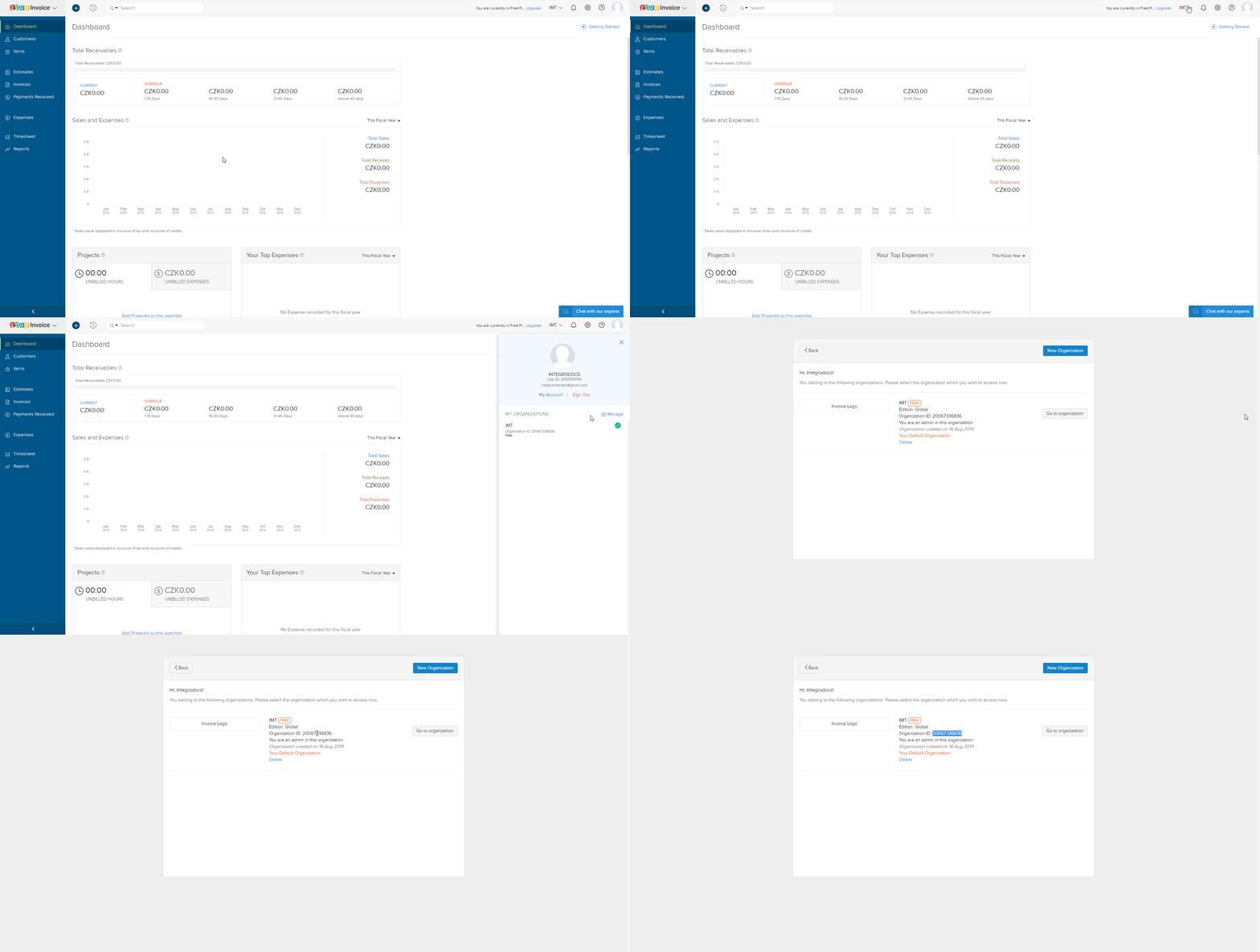
Open your profile menu in the top-right corner.
-
Click on the Manage button next to the My Organizations section.
-
Copy the Organization ID to the clipboard.
-
Go to Boost.space Integrator and open the Zoho Invoice module’s Create a connection dialog.
-
Enter the Organization ID you have copied in step 4 to the respective field.
-
Select the region of your Zoho Invoice account. If the URL of your account is e.g.
https://invoice.zoho.eu, then select the EU option. -
Click the Continue button.
Confirm the dialog by clicking the Accept button.
The connection has been established.
Items
Watch Items
Triggers when an item is created or updated.
Connection
Establish a connection to your Zoho Invoice account.
Watch
Select which kind of item updates you want to watch for:
- Created Date
- Updated Date
Tax
Select the tax applicable for the item you want to watch for.
Filter By
Select the status applicable for the item.
Sort Column
Select the column by which you want to sort the items:
- Name
- Rate
- Tax
Limit
The maximum number of items Boost.space Integrator should return during one scenario execution cycle.
Create Item
Creates a new item.
Required Permissions: ZohoInvoice.settings.CREATE
Connection
Establish a connection to your Zoho Invoice account.
Name
Select a new name for the item.
Rate
Select the price of the item.
Description
Enter the details of the item.
Unit
Select the number of items.
Stock Keeping Unit Value
Select the quantity of the items keeping as stock.
Add Tax ID
Select the Tax ID applicable for the item.
Product Type
Select the type of item:
- Goods
- Services
Item Tax Preferences
Add the tax preferences for the item:
- Add Tax ID Select the Tax ID applicable for the item.
- Tax Specification Select tax type applicable for the item.
Update Item
Updates the details of an existing item.
Required Permissions: ZohoInvoice.settings.UPDATE
Connection
Establish a connection to your Zoho Invoice account.
Item ID
Select the Item ID of the item you want to update.
Name
Enter a new name for the item.
Rate
Select or enter a new price for the item.
Description
Enter new details for the item.
Unit
Enter the quantity of the item.
Add Tax ID
Select the Tax ID applicable for the item.
Stock Keeping Unit Value
Select the quantity of the items keeping as stock.
Product Type
Select the type of item:
- Goods
- Services
Item Tax Preferences
Add the tax preferences for the item:
- Add Tax ID Select the Tax ID applicable for the item.
- Tax Specification Select tax type applicable for the item.
List Items
Gets the list of all active items with pagination.
Required Permissions: ZohoInvoice.settings.READ
Connection
Establish a connection to your Zoho Invoice account.
Filter
Select the option to search the item you want to list:
- Name
- Description
- Rate
OR
Enter the first few letters of the item to search.
Tax
Select the tax applicable to the item you want to list.
Filter By
Select the option to filter the item you want to list:
- Status All
- Status Active
- Status Inactive
Sort Column
Select the option to sort the item:
- Name
- Rate
- Tax Name
Limit
The maximum number of items Boost.space Integrator should return during one scenario execution cycle.
Get Item
Fetches details of an existing item.
Connection
Establish a connection to your Zoho Invoice account.
Item ID
Select the Item ID whose details you want to retrieve.
Delete Item
Deletes an existing item. Items that are part of a transaction cannot be deleted.
Connection
Establish a connection to your Zoho Invoice account.
Item ID
Select the Item ID you want to delete.
Mark Item Active/Inactive
Marks an item as active or inactive.
Connection
Establish a connection to your Zoho Invoice account.
Item ID
Select the Item ID you want to mark active or inactive.
Select Active or Inactive
Select the action to mark the item:
- Active
- Inactive
Contact
Watch Contacts
Triggers when a contact is created or updated.
Connection
Establish a connection to your Zoho Invoice account.
Watch
Select which contacts you want to watch for:
- Created Date
- Updated Date
Filter By
Select the option to filter the contacts you want to watch:
- Status All
- Status Active
- Status Inactive
- Status Duplicate
- Status CRM
Sort Column
Select the option to sort the contacts by columns:
- Contact Name
- First Name
- Last Name
- Outstanding Receivable Amount
- Created Time and Last Modified Name
Limit
The maximum number of contacts Boost.space Integrator should return during one scenario execution cycle.
Create Contact
Creates a contact with given information.
Connection
Establish a connection to your Zoho Invoice account.
Contact Name
Enter the contact name.
Contact name can either be a company name or a person name.
Currency ID
Select the currency of the contact.
Company Name
Enter the company name of the contact.
Net Payment Terms
Enter the payment terms applicable for the contact.
Website
Enter the website URL of the contact.
Language Code
Select the language code of the contact.
Remark
Enter any comments for the payment made by the contact.
Facebook Profile Account
Enter the Facebook account URL of the contact.
Twitter Profile Account
Enter the Twitter account URL of the contact.
Attention
Enter the contact name residing in the address.
Address
Enter the address of the contact.
Street 2
Enter the street name of the contact.
City
Enter the city name of the contact.
State
Enter the state name of the contact.
ZIP
Enter the zip code of the contact’s address.
Country
Enter the country name of the contact.
Fax
Enter the fax number of the contact.
Phone
Enter the phone number of the contact.
Attention
Enter the contact name residing in the shipping address.
Address
Enter the address of the contact.
Street 2
Enter the street name of the contact.
City
Enter the city name of the contact.
State
Enter the state name of the contact.
ZIP
Enter the zip code of the contact’s address.
Country
Enter the country name of the contact.
Fax
Enter the fax information of the contact.
Phone
Enter the phone number of the contact.
Contact Persons
Add the contact persons for the contact:
-
Salutation Select the salutation for the contact person.
-
First Name Enter the first name of the contact person.
-
Last Name Enter the first name of the contact person.
-
Email Enter the email address of the contact person.
-
Mobile Enter the mobile number of the contact person.
-
Mark as Primary Contact Select Yes if this is primary contact person details:
- Yes
- No
- Not defined
Update Contact
Update an existing contact. To delete a contact person remove it from the contact persons list.
Connection
Establish a connection to your Zoho Invoice account.
Contact Name
Select the contact name you want to update.
Currency ID
Select the Currency ID of the contact.
Company Name
Enter the company name of the contact.
Net Payment Terms
Enter the payment terms applicable for the contact.
Website
Enter the website URL of the contact.
Language Code
Select the language code of the contact.
Remark
Enter any comments for the payment made by the contact.
Facebook Profile Account
Enter the Facebook account URL of the contact.
Twitter Profile Account
Enter the Twitter account URL of the contact.
Attention
Enter the contact person name residing in the address.
Address
Enter the address of the contact.
Street 2
Enter the street name of the contact.
City
Enter the city name of the contact.
State
Enter the state name of the contact.
ZIP
Enter the zip code of the contact’s address.
Country
Enter the country name of the contact.
Fax
Enter the fax number of the contact.
Phone
Enter the phone number of the contact.
Attention
Enter the shipping address of the contact.
Address
Enter the address of the contact.
Street 2
Enter the street name of the contact.
City
Enter the city name of the contact.
State
Enter the state name of the contact.
ZIP
Enter the zip code of the contact’s address.
Country
Enter the country name of the contact.
Fax
Enter the fax number of the contact.
Phone
Enter the phone number of the contact.
Contact Persons
Add the contact person’s information for the contact:
-
Salutation Select the salutation for the contact person.
-
First Name Enter the first name of the contact person.
-
Last Name Enter the last name of the contact person.
-
Email Enter the email address of the contact person.
-
Mobile Enter the mobile number of the contact person.
-
Mark as Primary Contact Select Yes if this is primary contact person details:
- Yes
- No
- Not defined
List Contacts
Lists all contacts with pagination.
Connection
Establish a connection to your Zoho Invoice account.
Filter
Select the option by which to search the contacts you want to list:
- Contact Name
- Company Name
- First Name
- Last Name
- Address
- Phone
OR
Enter the first few letters of the contact name to search.
Filter By
Select the option by which to filter the contacts you want to list.
- Status All
- Status Active
- Status Inactive
- Status Duplicate
- Status CRM
Sort Column
Select the option by which column to sort the contacts.
- Contact Name
- First Name
- Last Name
- Outstanding Receivable Amount
- Created Time and Last Modified Name
Limit
The maximum number of contacts Boost.space Integrator should return during one scenario execution cycle.
Get Contact
Gets details of a contact.
Connection
Establish a connection to your Zoho Invoice account.
Contact ID
Select the Contact ID you want to retrieve.
Delete Contact
Deletes an existing contact.
Connection
Establish a connection to your Zoho Invoice account.
Contact ID
Select the Contact ID you want to delete.
Mark Contact Active/Inactive
Marks a contact as active or inactive.
Connection
Establish a connection to your Zoho Invoice account.
Contact ID
Select the Contact ID you want to make active or inactive.
Select Active or Inactive
Select the action you want to mark the contact:
- Active
- Inactive
Contact Person
Create Contact Person
Creates a contact person for the contact.
Connection
Establish a connection to your Zoho Invoice account.
Contact ID
Select the Contact ID of the contact person.
First Name
Select the first name of the contact person.
Last Name
Select the last name of the contact person.
Salutation
Select the applicable salutation of the contact person.
Enter the email address of the contact person.
Phone
Enter the phone number of the contact person.
Mobile
Enter the mobile number of the contact person.
Skype ID
Enter the Skype ID of the contact person.
Department
Enter the department of the contact person.
Enable Portal
Select Yes if this contact person can access the portal:
- Yes
- No
- Not defined
Update Contact Person
Update details of an existing contact person.
Connection
Establish a connection to your Zoho Invoice account.
Contact ID
Select the Contact ID of the contact person you want to update.
Contact Person ID
Select the Contact Person ID you want to update.
First Name
Select the first name of the contact person.
Last Name
Select the last name of the contact person.
Salutation
Select the applicable salutation of the contact person.
Enter the email address of the contact person.
Phone
Enter the phone number of the contact person.
Mobile
Enter the mobile number of the contact person.
Skype ID
Enter the Skype ID of the contact person.
Department
Enter the department of the contact person.
Enable Portal
Select Yes if this contact person can access the portal:
- Yes
- No
- Not defined
List Contact Persons
List all contact persons with pagination.
Connection
Establish a connection to your Zoho Invoice account.
Contact ID
Select the Contact ID of the contact person you want to list.
Limit
The maximum number of contact persons Boost.space Integrator should return during one scenario execution cycle.
Get Contact Person
Get the details of a contact person.
Connection
Establish a connection to your Zoho Invoice account.
Contact ID
Select the Contact ID of the contact person whose details you want to retrieve.
Contact Person ID
Select the Contact Person ID whose details you want to retrieve.
Delete Contact Person
Delete an existing contact person.
Connection
Establish a connection to your Zoho Invoice account.
Contact ID
Select the Contact ID of the contact person you want to delete.
Contact Person ID
Select the Contact Person ID you want to delete.
Mark Contact Person Primary
Marks a contact person as primary for contact.
Connection
Establish a connection to your Zoho Invoice account.
Contact ID
Select the Contact ID of the contact person which you want to make the primary contact.
Contact Person ID
Select the Contact Person ID you want to mark as primary contact.
Estimate
Watch Estimates
Triggers when an estimate is created or updated.
Connection
Establish a connection to your Zoho Invoice account.
Watch
Select which kind of estimate you want to watch for:
- Created Date
- Updated Date
Select Customer
Select the customer whose estimate you want to watch.
Select Item
Select the item of the customer whose estimates you want to watch.
Expiry Date
Select the expiry date of the estimate.
Date on the Estimate
Select date of the estimate.
Status
Select the status of the estimate:
- Draft
- Sent
- Invoiced
- Accepted
- Declined
- Expired
Filter by
Select the option by which to filter the estimates you want to watch:
- Status All
- Status Draft
- Status Sent
- Status Invoiced
- Status Accepted
- Status Declined
- Status Expired
Sort Column
Select the option by which to sort the estimates you want to watch:
- Customer Name
- Estimate Number
- Date
- Total
- Created Time
Limit
The maximum number of estimates Boost.space Integrator should return during one scenario execution cycle.
Create Estimate
Creates an estimate for your customer.
Connection
Establish a connection to your Zoho Invoice account.
Customer ID
Select the Customer ID whose estimate you want to create.
Contact Persons
Select the contact person of the customer to send the estimate.
Line Items
Add the line items of the estimate:
- Item ID Select the Item ID of the item you want to add.
- Edit Name If Required Enter the new name of the item if required.
- Edit Description If Required Enter the new details for the item.
- Item Order Enter the order details of the line item.
- Rate Enter the price of the item.
- Quantity Enter the number of items.
- Edit Unit If Required Enter the new measuring unit of the item. For example, gms, ml, etc.,
- Tax ID Select the Tax ID of the item.
Send
Select Yes if you want to send the estimate to the contact person:
- Yes
- No
- Not defined
Ignore Auto Number Generation
Select Yes if you want to ignore auto number generation for this estimate:
- Yes
- No
- Not defined
Estimate Number
Enter the estimate serial number.
Reference Number
Enter the transaction reference number of the estimate.
Date
Select the date of the estimate.
Expiry Date
Select the expiry date of the estimate.
Exchange Rate
Enter the foreign currency exchange rate applicable for the estimate.
Discount
Enter the discount applicable on the estimate.
Discount applied to the invoice. It can be in percentage (%) or in amount. For example, 12.5% or 190.
Discount Before Tax
Specify how the discount is applied for the estimate and the discount amount before applying the taxes.
Discount Type
Select the type of discount applied for the estimate:
- Entity Level
- Item Level
Custom Body
Enter the message for the email to be sent with the estimate.
Custom Subject
Enter the subject of the email to be sent with the estimate.
Salesperson Name
Select the salesperson name.
Notes
Enter any additional information about the estimate you want to convey.
Terms
Specify the terms and conditions of the estimate.
Shipping Charge
Enter the shipping charges applied for the invoice.
Adjustment
Enter the amount adjustments made to the invoice.
Adjustment Description
Enter the details of the adjustment made to the invoice. For example, rounding off.
Update Estimate
Updates an existing estimate. To delete a line item just remove it from the line items list.
Connection
Establish a connection to your Zoho Invoice account.
Customer ID
Select the Customer ID whose estimates you want to update.
Estimate ID
Select the Estimate ID you want to update.
Contact Persons
Select the contact person of the customer to send the estimate.
Line Items
Add the line items of the estimate:
- Item ID Select the Item ID of the item you want to add.
- Edit Name If Required Enter the new name of the item if required.
- Edit Description If Required Enter the new details for the item.
- Item Order Enter the order details of the line item.
- Rate Enter the price of the item.
- Quantity Enter the number of items.
- Edit Unit If Required Enter the new measuring unit of the item. For example, gms, ml, etc.,
- Tax ID Select the Tax ID of the item.
Send
Select Yes if you want to send the estimate to the contact person:
- Yes
- No
- Not defined
Ignore Auto Number Generation
Select Yes if you want to ignore auto number generation for this estimate:
- Yes
- No
- Not defined
Estimate Number
Enter the estimate serial number.
Reference Number
Enter the transaction reference number of the estimate.
Date
Select the date of the estimate.
Expiry Date
Select the expiry date of the estimate.
Exchange Rate
Enter the foreign currency exchange rate applicable for the estimate.
Discount
Enter the discount applicable on the estimate.
Discount applied to the invoice. It can be in percentage (%) or in amount. For example, 12.5% or 190.
Discount Before Tax
Specify how the discount is applied for the estimate and the discount amount before applying the taxes.
Discount Type
Select the discount type applied for the estimate:
- Entity Level
- Item Level
Custom Body
Enter the message for the email to send with the estimate.
Custom Subject
Enter the new subject of the email to send with the estimate.
Salesperson Name
Select the new salesperson name for the estimate.
Notes
Enter any additional information about the estimate you want to mention.
Terms
Specify the terms and conditions of the estimate.
Shipping Charge
Enter the shipping charges applied for the invoice.
Adjustment
Enter the amount adjustments made to the invoice.
Adjustment Description
Enter the details of the adjustment made to the invoice. For example, rounding off.
List Estimates
List all estimates with pagination.
Connection
Establish a connection to your Zoho Invoice account.
Filter
Select the option by which to search the estimate you want to list:
- Estimate Number
- Reference Number
- Customer Name
- Total Value
- Item Name
- Item Description
OR
Enter the first few letters of the estimate to search.
Select Customer
Select the customer whose item estimate you want to list.
Select Item
Select the item whose estimate you want to list.
Expiry Date
Select the expiry date of the estimate.
Date on the Estimate
Select the date mentioned on the estimate you want to list.
Status
Select the status of the estimate you want to list:
- Draft
- Sent
- Invoiced
- Accepted
- Declined
- Expired
Filter By
Select the option by which to filter the estimate you want to list:
- Status All
- Status Draft
- Status Sent
- Status Invoiced
- Status Accepted
- Status Declined
- Status Expired
Sort Column
Select the option by which to sort the estimate you want to list:
- Customer Name
- Estimate Number
- Date
- Total
- Created Time
Limit
The maximum number of estimates Boost.space Integrator should return during one scenario execution cycle.
Get Estimate
Get the details of an estimate.
Connection
Establish a connection to your Zoho Invoice account.
Estimate ID
Select the Estimate ID whose details you want to retrieve.
Accept
Select the format of the estimate you want to retrieve:
- JSON
- HTML
Delete Estimate
Deletes an existing estimate.
Connection
Establish a connection to your Zoho Invoice account.
Estimate ID
Select the Estimate ID you want to delete.
Mark Estimate Sent/Accepted/Declined
Marks a draft estimate as sent, accepted, or declined.
Connection
Establish a connection to your Zoho Invoice account.
Estimate ID
Select the Estimate ID you want to change.
Select Sent, Accepted, and Declined
Select the action you want to make to the estimate:
- Sent
- Accepted
- Declined
Invoice
Watch Invoices
Triggers when an invoice is created or updated.
Connection
Establish a connection to your Zoho Invoice account.
Watch
Select which kind of invoices you want to watch for:
- Created Date
- Updated Date
Select Item
Select the item of the customer whose invoice you want to watch.
Status
Select the status of the invoice:
- Sent
- Draft
- Overdue
- Paid
- Void
- Unpaid
- Partially Paid
- Viewed
Filter By
Select the option by which to filter the invoices you want to watch:
- Status All
- Status Draft
- Status Sent
- Status Overdue
- Status Paid
- Status Void
- Status Unpaid
- Status Partially Paid
- Status Viewed
- Date PaymentExpected Date
Sort Column
Select the option by which to sort the invoices by column:
- Customer Name
- Invoice Number
- Date
- Due Date
- Total
- Balance
- Created Time
Limit
The maximum number of invoices Boost.space Integrator should return during one scenario execution cycle.
Create Invoice
Creates an invoice for your customer.
Connection
Establish a connection to your Zoho Invoice account.
Customer ID
Select the Customer ID whose item invoice you want to create.
Contact Persons
Select the contact person associated with the invoice.
Line Items
Add the line items of the invoice:
- Item ID Select the Item ID of the item you want to add.
- Edit Name If Required Enter the new name of the item if required.
- Edit Description If Required Enter the new details for the item.
- Item Order Enter the order details of the line item.
- Rate Enter the price of the item.
- Quantity Enter the number of items.
- Edit Unit If Required Enter the new measuring unit of the item. For example, gms, ml, etc.,
- Tax ID Select the Tax ID of the item.
Send
Select Yes if you want to send the invoice to the contact person:
- Yes
- No
- Not defined
Ignore Auto Number Generation
Select Yes if you want to ignore auto number generation for this estimate:
- Yes
- No
- Not defined
Invoice Number
Enter the invoice number.
Reference Number
Enter the transaction reference number of the invoice.
Template ID
Enter the Template ID of the PDF associated with the invoice.
Date
Enter the invoice date.
Payment Terms
Enter the payment terms in days. For example, 15, 30, 45.
Invoice due date is calculated based on these days.
Discount
Enter the discount applicable on the invoice.
Discount applied to the invoice. It can be in percentage (%) or in amount. For example, 12.5% or 190.
Discount Before Tax
Specify how the discount is applied for the invoice and the discount amount before applying the taxes.
Discount Type
Select the discount applied for the invoice:
- Entity Level
- Item Level
Inclusive Tax
Select Yes if the discount is including tax:
- Yes
- No
- Not defined
Exchange Rate
Enter the foreign currency exchange rate applicable for the invoice.
Salesperson Name
Select the salesperson responsible for the invoice.
Payment Gateways
Add the payment gateway to make an online payment for the invoice.
-
Configured Select Yes if payment gateway has been configured:
- Yes
- No
- Not defined
-
Additional Field Applicable only for Paypal payment method:
- Standard
- Adaptive
-
Gateway Name Select the payment gateway method associated with the invoice:
- Paypal
- Authorize Net
- Payflow Pro
- Stripe
- 2checkout
- Braintree
Allow Partial Payments
Select Yes if partial payments are allowed for the invoice:
- Yes
- No
- Not defined
Custom Body
Enter the message for the email of the sent invoice.
Custom Subject
Enter the subject of the email of the sent invoice.
Notes
Enter any additional information about the invoice you want to convey.
Terms & Condition
Specify the terms and conditions of the invoice.
Shipping Charge
Enter the shipping charges applied to the invoice.
Adjustment
Enter the amount adjustments made to the invoice.
Adjustment Description
Enter the details of the adjustments made to the invoice. For example, rounding off.
Reason
Enter the description for the attachment of the email.
Custom Fields
Add the custom fields for the invoice. You can add multiple items. For example, address.
Update Invoice
Updates an existing invoice. To delete a line item, remove it from the line items list.
Connection
Establish a connection to your Zoho Invoice account.
Customer ID
Select the Customer ID whose item invoice you want to update.
Invoice ID
Select the Invoice ID you want to update.
Contact Persons
Select the contact person for the invoice.
Line Items
Add the line items of the invoice:
- Item ID Select the Item ID of the item you want to add.
- Edit Name If Required Enter the new name of the item if required.
- Edit Description If Required Enter the new details for the item.
- Item Order Enter the order details of the line item.
- Rate Enter the price of the item.
- Quantity Enter the number of items.
- Edit Unit If Required Enter the new measuring unit of the item. For example, gms, ml, etc.,
- Tax ID Select the Tax ID of the item.
Ignore Auto Number Generation
Select Yes if you want to ignore auto number generation for this invoice:
- Yes
- No
- Not defined
Invoice Number
Enter the invoice number.
Reference Number
Enter the transaction reference number of the invoice.
Template ID
Enter the Template ID of the PDF associated with the invoice.
Date
Enter the invoice date.
Payment Terms
Enter the payment terms in days. For example, 15, 30, 45.
Note: Invoice due date is calculated based on these days.
Discount
Enter the discount applicable on the invoice.
It can be in percentage (%) or in amount. For example, 12.5% or 190.
Discount Before Tax
Specify how the discount is applied for the estimate and the discount amount before applying the taxes.
Discount Type
Select the type of discount applied for the invoice:
- Entity Level
- Item Level
Inclusive Tax
Select Yes if the discount is including tax:
- Yes
- No
- Not defined
Exchange Rate
Enter the foreign currency exchange rate applicable for the invoice.
Salesperson Name
Enter the salesperson responsible for the invoice.
Payment Gateways
Add the payment gateway to make an online payment for the invoice.
-
Configured Select Yes if payment gateway has been configured:
- Yes
- No
- Not defined
-
Additional Field Applicable only for Paypal payment method:
- Standard
- Adaptive
-
Gateway Name Select the payment gateway method associated with the invoice:
- Paypal
- Authorize_Net_
- Payflow_Pro_
- Stripe
- 2checkout
- Braintree
Allow Partial Payments
Select Yes if partial payments are allowed for the invoice:
- Yes
- No
- Not defined
Custom Body
Enter the message for the email for the sent invoice.
Custom Subject
Enter the subject of the email for the sent invoice.
Notes
Enter any additional information about the invoice you want to convey.
Terms
Specify the terms and conditions of the invoice.
Shipping Charge
Enter the shipping charges applied for the invoice.
Adjustment
Enter the amount adjustments made to the invoice.
Adjustment Description
Enter the details of the adjustments made to the invoice. For example, rounding off.
Reason
Enter the description for the attachment of the email.
Custom Fields
Add the custom fields for the invoice. You can add multiple items. For example, address.
List Invoices
List all invoices with pagination.
Connection
Establish a connection to your Zoho Invoice account.
Filter
Select the option by which to search the invoice you want to list:
- Invoice Number Reference Number
- Item Name
- Item Description
- Reference Number
- Customer Name
- Total Value
- Balance
- Date
- Due Date
OR
Enter the first few letters of the invoice to search.
Select Item
Select the item whose invoice you want to list.
Status
Select the status of the invoice:
- Sent
- Draft
- Overdue
- Paid
- Void
- Unpaid
- Partially Paid
- Viewed
Filter By
Select the option by which to filter the invoices you want to list:
- Status All
- Status Draft
- Status Sent
- Status Overdue
- Status Paid
- Status Void
- Status Unpaid
- Status Partially Paid
- Status Viewed
- Date PaymentExpected Date
Sort Column
Select the option by which columns to sort the invoices:
- Customer Name
- Invoice Number
- Date
- Due Date
- Total
- Balance
- Created Time
Limit
The maximum number of invoices Boost.space Integratorshould return during one scenario execution cycle.
Get Invoice
Get the details of an invoice.
Connection
Establish a connection to your Zoho Invoice account.
Invoice ID
Select the Invoice ID whose details you want to retrieve.
Select the format to print:
- JSON
- HTML
Delete Invoice
Delete an existing invoice. Invoices which have payment or credits note applied cannot be deleted.
Connection
Establish a connection to your Zoho Invoice account.
Invoice ID
Select the Invoice ID you want to delete.
Mark Invoice Sent/Void/Draft
Marks an invoice as sent, void, or draft.
Connection
Establish a connection to your Zoho Invoice account.
Invoice ID
Select the Invoice ID you want to change the status.
Select Sent, Void, or Draft
Select the new status for the invoice:
- Sent
- Void
- Draft
Email Invoice
Emails an invoice to the customer. Input JSON string is not mandatory. If input JSON string is empty, mail will be sent with default mail content.
Connection
Establish a connection to your Zoho Invoice account.
Invoice ID
Select the Invoice ID you want to email.
To Emails
Add the email address of the person to receive the invoice.
Send From Organization’s Email ID
Select Yes if you want to send the invoice from the company email address.
- Yes
- No
- Not defined
CC Emails
Add the email address that should be in the CC.
Subject
Enter the subject of the email.
Body/Content
Enter the message to be included in the email.
Recurring Invoice
Create Recurring Invoice
Creates a new recurring invoice.
Connection
Establish a connection to your Zoho Invoice account.
Customer ID
Select the Customer ID whose recurring invoice you want to create.
Recurrence Name
Enter the recurring profile name given by the user for the invoice.
Recurrence Frequency
Enter the interval at which the recurring invoice is generated.
Line Items
Add the line items of the recurring invoice:
- Item ID Select the Item ID of the item you want to add.
- Edit Description If Required Enter the new details for the item.
- Item Order Enter the order details of the line item.
- Rate Enter the price of the item.
- Quantity Enter the number of items.
- Edit Unit If Required Enter the new measuring unit of the item. For example, gms, ml, etc.,
- Tax ID Select the Tax ID of the item.
Reference Number
Enter the order number of the recurring invoice.
Start Date
Enter the start date of the recurring invoice.
End Date
Enter the expiry date of the recurring invoice.
Update Recurring Invoice
Updates a recurring invoice.
Connection
Establish a connection to your Zoho Invoice account.
Customer ID
Enter the Customer ID whose recurring invoice you want to update.
Recurrence Name
Enter a new recurring profile name given by the user for the invoice.
Reference Number
Enter the order number of the recurring invoice.
Start Date
Enter the start date of the recurring invoice.
End Date
Enter the expiry date of the recurring invoice.
Recurrence Frequency
Enter the interval at which the recurring invoice is generated.
Line Items
Add the line items of the recurring invoice:
- Item ID Select the Item ID of the item you want to add.
- Edit Name If Required Enter the new name of the item if required.
- Edit Description If Required Enter the new details for the item.
- Item Order Enter the order details of the line item.
- Rate Enter the price of the item.
- Quantity Enter the number of items.
- Edit Unit If Required Enter the new measuring unit of the item. For example, gms, ml, etc.,
- Tax ID Select the Tax ID of the item.
Get Recurring Invoice
Gets the details of a recurring invoice.
Connection
Establish a connection to your Zoho Invoice account.
Recurring Invoice ID
Select the Recurring Invoice ID whose details you want to retrieve.
List Recurring Invoices
Lists the details of all recurring invoices.
Connection
Establish a connection to your Zoho Invoice account.
Search Text
Enter the details of the recurring invoice you want to list.
For example, invoice number, purchase order, or customer name.
Filter By
Select the option by which to filter the recurring invoices you want to list:
- Status All
- Status Active
- Status Stopped
- Status Expired
Sort Column
Select the option by which column to sort the recurring invoices:
- Customer Name
- Total
- Created Time
Limit
The maximum number of recurring invoices Boost.space Integrator should return during one scenario execution cycle.
Delete Recurring Invoice
Deletes an existing recurring invoice.
Connection
Establish a connection to your Zoho Invoice account.
Recurring Invoice ID
Select the Recurring Invoice ID you want to delete.
Mark Recurring Invoice Stop/Resume
Stops or resumes an active recurring invoice.
Connection
Establish a connection to your Zoho Invoice account.
Recurring Invoice ID
Select the Recurring Invoice ID you want to stop or resume.
Select Stop or Resume
Select the action item for the recurring invoice:
- Stop
- Resume
Credit Note
Create Credit Note
Creates a new credit note.
Connection
Establish a connection to your Zoho Invoice account.
Customer ID
Select the Customer ID for whom you want to raise a credit note.
Contact Persons
Select the contact person associated with the credit note.
Date
Select the date on which you are raising the credit note.
Line Items
Add the line items included in the credit note:
- Item ID Select the Item ID of the item you want to add.
- Edit Name If Required Enter the new name of the item if required.
- Edit Description If Required Enter the new details for the item.
- Item Order Enter the order details of the line item.
- Rate Enter the price of the item.
- Quantity Enter the number of items.
- Edit Unit If Required Enter the new measuring unit of the item. For example, gms, ml, etc.,
- Tax ID Select the Tax ID of the item.
Credit Note Number
Enter the credit note number.
Exchange Rate
Enter the foreign currency exchange rate applicable for the customer.
Reference Number
Enter the reference number generated for the payment.
Salesperson Name
Enter the salesperson name for the credit note.
Shipping Charge
Enter the shipping charges applied for the credit note.
Adjustment
Enter the amount adjustments made to the credit note.
Adjustment Description
Enter the details of the adjustments made to the credit note. For example, rounding off.
Notes
Enter any additional information about the credit note for the customer.
Terms & Condition
Specify the terms and conditions of the credit note.
Template ID
Enter the Template ID of the credit note template used.
Ignore Auto Number Generation
Select Yes if you want to provide your own credit note number for this credit note:
- Yes
- No
- Not defined
Invoice ID
Select the Invoice ID applicable for the credit note.
Update Credit Note
Updates details of an existing credit note.
Connection
Establish a connection to your Zoho Invoice account.
Credit Note ID
Select the Credit Note ID you want to update.
Customer ID
Select the Customer ID for whom the credit note is raised.
Date
Select the date on which the credit note is raised.
Exchange Rate
Enter the foreign currency exchange rate applicable for the customer.
Line Items
Add the line items included in the credit note:
- Item ID Select the Item ID of the item you want to add.
- Edit Name If Required Enter the new name of the item if required.
- Edit Description If Required Enter the new details for the item.
- Item Order Enter the order details of the line item.
- Rate Enter the price of the item.
- Quantity Enter the number of items.
- Edit Unit If Required Enter the new measuring unit of the item. For example, gms, ml, etc.,
- Tax ID Select the Tax ID of the item.
Credit Note Number
Enter the credit note number.
Reference Number
Enter the reference number generated for the payment.
Salesperson Name
Enter the salesperson name for the credit note.
Shipping Charge
Enter the shipping charges applied for the credit note.
Adjustment
Enter the amount adjustments made to the credit note.
Adjustment Description
Enter the details of the adjustments made to the credit note. For example, rounding off.
Notes
Enter any additional information about the credit note for the customer.
Terms&Condition
Specify the terms and conditions of the credit note.
Template ID
Enter the Template ID of the credit note template used.
Ignore Auto Number Generation
Select Yes if you want to provide your own credit note number for this credit note:
- Yes
- No
- Not defined
List Credit Notes
List all the credit notes.
Connection
Establish a connection to your Zoho Invoice account.
Filter
Select the option by which to search the invoice you want to list:
- Credit Note Number
- Date
- Total Value
- Reference Number
- Customer Name
- Item Name
- Item Description
OR
Enter the first few letters of the credit note to search.
Customer ID
Select the Customer ID whose credit note details you want to list.
Item ID
Select the Item ID generated for the item for which refund is made.
Status
Select the status of the credit note:
- Open
- Closed
- Total
Filter By
Select the option by which to filter the credit note you want to list:
- Status All
- Status Open
- Status Draft
- Status Closed
- Status Void
Sort Column
Select the option by which to sort the credit note by column:
- Customer Name
- Credit Note Number
- Balance
- Total
- Date
- Created Time
Search
Search the credit note you want to list by credit note number, customer name, or credit note reference number.
Limit
The maximum number of credit notes Boost.space Integrator should return during one scenario execution cycle.
Get Credit Note
Gets details of an existing credit note.
Connection
Establish a connection to your Zoho Invoice account.
Credit Note ID
Select the Credit Note ID whose details you want to retrieve.
Accept
Select the format in which you want to retrieve the details of the credit note:
- JSON
- HTML
Delete Credit Note
Deletes an existing credit note.
Connection
Establish a connection to your Zoho Invoice account.
Credit Note ID
Select the Credit Note ID you want to delete.
Email Credit Note
Emails a credit note.
Connection
Establish a connection to your Zoho Invoice account.
Credit Note ID
Select the Credit Note ID that you want to email.
To
Enter the email address to whom the credit note has to send.
Subject
Enter the subject of the email.
Body
Enter the message of the email.
CC
Enter the email address to be included in the CC.
Customer ID
Select the Customer ID for whom the credit note is raised.
Refund Credit Note
Refunds credit note amount.
Connection
Establish a connection to your Zoho Invoice account.
Credit Note ID
Select the Credit Note ID that you want to refund.
Date
Select the date on which the credit note is raised.
Amount
Enter the amount to be refunded.
Refund Mode
Select the method of refund:
- Check
- Cash
- Credit Card
- Bank Transfer
- Bank Remittance
- Others
Exchange Rate
Enter the foreign currency exchange rate applicable for the customer.
Description
Enter the details of the refund that you want to notify the customer.
Expense
Watch Expenses
Triggers when an expense is created or updated.
Connection
Establish a connection to your Zoho Invoice account.
Watch
Select which kind of expenses you want to watch for:
- Created Date
- Updated Date
Sort Column
Select the option by which column to sort the expenses:
- Date
- Account Name
- Total
- BYC Total
- Reference Number
- Customer Name
- Created Time
Filter By
Select the option to filter the expenses you want to watch:
- Status All
- Status Billable
- Status Nonbillable
- Status Reimbursed
- Status Invoiced
- Status Unbilled
Limit
The maximum number of expenses Boost.space Integrator should return during one scenario execution cycle.
Create Expense
Creates billable or non-billable expense.
Connection
Establish a connection to your Zoho Invoice account.
Amount
Enter the amount of the expense.
Reference Number
Enter the reference number of the expense.
Account ID
Select an Account ID for the expense.
Date
Select the date of the expense.
Tax ID
Select the Tax ID applicable for the expense.
Tax Inclusive
Select Yes if the expense amount is including tax:
- Yes
- No
- Not defined
Line Items
Add the line items of the expense:
- Item ID Select the Item ID of the item you want to add.
- Edit Name If Required Enter the new name of the item if required.
- Edit Description If Required Enter the new details for the item.
- Item Order Enter the order details of the line item.
- Rate Enter the price of the item.
- Quantity Enter the number of items.
- Edit Unit If Required Enter the new measuring unit of the item. For example, gms, ml, etc.,
- Tax ID Select the Tax ID of the item.
Billable
Select Yes if the expense amount is billable.
- Yes
- No
- Not defined
Description
Enter the details of the expense.
Customer ID
Select the Customer ID of the expense.
Project ID
Select the Project ID of the associated customer.
Currency ID
Select the Currency ID of the customer.
Exchange Rate
Enter the foreign currency exchange rate applicable for the expense.
Mileage Type
Select the mileage expense type if the expense is for travel.
Start Reading
Enter the start reading of the odometer for creating the mileage expense.
End Reading
Enter the end reading of the odometer for creating the mileage expense.
Distance
Enter the distance travelled.
Mileage Rate
Enter the mileage rate applicable for the expense.
Mileage Unit
Select the unit of the distance travelled. For example, km, and mile.
Employee ID
Select the Employee ID of the employee submitting the expense.
Update Expense
Update an existing expense.
Connection
Establish a connection to your Zoho Invoice account.
Expense ID
Select the Expense ID you want to update.
Amount
Enter the amount of the expense.
Reference Number
Enter the reference number of the expense.
Account ID
Select an Account ID for the expense.
Date
Select the date of the expense.
Tax ID
Select the Tax ID applicable for the expense.
Tax Inclusive
Select Yes if the expense amount is including tax:
- Yes
- No
- Not defined
Line Items
Add the line items of the expense:
- Item ID Select the Item ID of the item you want to add.
- Edit Name If Required Enter the new name of the item if required.
- Edit Description If Required Enter the new details for the item.
- Item Order Enter the order details of the line item.
- Rate Enter the price of the item.
- Quantity Enter the number of items.
- Edit Unit If Required Enter the new measuring unit of the item. For example, gms, ml, etc.,
- Tax ID Select the Tax ID of the item.
Billable
Select Yes if the expense amount is billable.
- Yes
- No
- Not defined
Description
Enter the details of the expense.
Customer ID
Select the Customer ID of the expense.
Project ID
Select the Project ID of the associated customer.
Currency ID
Select the Currency ID of the customer.
Exchange Rate
Enter the foreign currency exchange rate applicable for the expense.
Mileage Type
Select the mileage expense type if the expense is for travel.
Distance
Enter the distance travelled.
Mileage Rate
Enter the mileage rate applicable for the expense.
Mileage Unit
Select the unit of the distance travelled. For example, km, and mile.
Start Reading
Enter the start reading of the odometer for creating the mileage expense.
End Reading
Enter the end reading of the odometer for creating the mileage expense.
Employee ID
Select the Employee ID of the employee submitting the expense.
List Expenses
List all the expenses with pagination.
Connection
Establish a connection to your Zoho Invoice account.
Filter
Select the option by which to search the expenses you want to list:
- Description
- Reference Number
- Date
- Amount
- Status
- Account Name
- Customer Name
OR
Enter the first few letters of any information about the expense to search.
Sort Column
Select the option by which column to sort the expenses:
- Date
- Account Name
- Total
- BCY Total
- Reference Number
- Customer Name
- Created Time
Filter By
Select the option by which to filter the expenses you want to list:
- Status All
- Status Billable
- Status Nonbillable
- Status Reimbursed
- Status Invoiced
- Status Unbilled
Search Text
Search the credit note you want to list by expense number, customer name, or credit note reference number.
Limit
The maximum number of expenses Boost.space Integrator should return during one scenarioexecution cycle.
Get Expense
Gets the detail of the expense.
Connection
Establish a connection to your Zoho Invoice account.
Expense ID
Select the Expense ID whose details you want to retrieve.
Delete Expense
Deletes an existing expense.
Connection
Establish a connection to your Zoho Invoice account.
Expense ID
Select the Expense ID you want to delete.
List Expense Categories
List expense categories along with pagination.
Connection
Establish a connection to your Zoho Invoice account.
Filter By
Select the option by which to filter the expense categories you want to list:
- Expense Category All
- Expense category Active
- Expense Category Inactive
Limit
The maximum number of expense categories Boost.space Integrator should return during one scenario execution cycle.
Create Expense Category
Creates a new expense category.
Connection
Establish a connection to your Zoho Invoice account.
Category Name
Enter the new expense category name.
Description
Enter the details of the expenses.
Recurring Expense
Create Recurring Expense
Creates a new recurring expense.
Connection
Establish a connection to your Zoho Invoice account.
Recurrence Name
Enter the recurrence expense name.
Account ID
Select the Account ID of the recurring expense.
Start Date
Select the start date of the recurrence expense.
End Date
Select the expiry date of the recurrence expense.
Recurrence Frequency
Enter the interval at which the recurring expense is generated:
- Week
- Weeks
- Month
- Months
- Year
- Years
Line Items
Add the line items of the recurring expense:
- Item ID Select the Item ID of the item you want to add.
- Edit Name If Required Enter the new name of the item if required.
- Edit Description If Required Enter the new details for the item.
- Item Order Enter the order details of the line item.
- Rate Enter the price of the item.
- Quantity Enter the number of items.
- Edit Unit If Required Enter the new measuring unit of the item. For example, gms, ml, etc.,
- Tax ID Select the Tax ID of the item.
Description
Enter the details of the recurring expense.
Amount
Enter the amount of the recurring expense.
Tax ID
Select the Tax ID applicable for the recurring expense.
Tax Inclusive
Select Yes if the expense amount is including tax:
- Yes
- No
- Not defined
Billable
Select Yes if the expense amount is billable:
- Yes
- No
- Not defined
Customer ID
Select the Customer ID of the expense.
Project ID
Select the Project ID of the associated customer.
Currency ID
Select the Currency ID of the customer.
Exchange Rate
Enter the foreign currency exchange rate applicable for the expense.
Update Recurring Expense
Updates an existing recurring expense.
Connection
Establish a connection to your Zoho Invoice account.
Recurring Expense ID
Select the Recurring Expense ID you want to update.
Recurrence Name
Enter the recurrence expense name.
Account ID
Select the Account ID of the recurring expense.
Start Date
Select the start date of the recurrence expense.
End Date
Select the expiry date of the recurrence expense.
Recurrence Frequency
Enter the interval at which the recurring expense is generated:
- Week
- Weeks
- Month
- Months
- Year
- Years
Line Items
Add the line items of the recurring expense:
- Item ID Select the Item ID of the item you want to add.
- Edit Name If Required Enter the new name of the item if required.
- Edit Description If Required Enter the new details for the item.
- Item Order Enter the order details of the line item.
- Rate Enter the price of the item.
- Quantity Enter the number of items.
- Edit Unit If Required Enter the new measuring unit of the item. For example, gms, ml, etc.,
- Tax ID Select the Tax ID of the item.
Description
Enter the details of the recurring expense.
Amount
Enter the amount of the recurring expense.
Tax ID
Select the Tax ID applicable for the recurring expense.
Tax Inclusive
Select Yes if the expense amount is including tax:
- Yes
- No
- Not defined
Billable
Select Yes if the expense amount is billable:
- Yes
- No
- Not defined
Customer ID
Select the Customer ID of the expense.
Currency ID
Select the Currency ID of the customer.
Exchange Rate
Enter the foreign currency exchange rate applicable for the expense.
List Recurring Expenses
Lists all the expenses with pagination.
Connection
Establish a connection to your Zoho Invoice account.
Filter
Select the option by which to search the recurring expenses you want to list:
- Recurrence Name
- Last Created Date
- Net Expense Date
- Account Name
- Amount
- Customer Name
OR
Enter the first few letters of any information about the expense to search.
Status
Select the status of the recurring expense you want to list:
- Active
- Stopped
- Expired
Sort Column
Select the option by which column to sort the recurrence expenses:
- Net Expense Date
- Account Name
- Total
- Last Created Date
- Recurrence Name
- Customer Name
- Created Time
Filter By
Select the option by which to filter the recurring expenses you want to list:
- Status All
- Status Active
- Status Expired
- Status Stopped
Search Text
Search the recurring expense by account name, description, customer name or vendor name.
Limit
The maximum number of recurring expenses Boost.space Integrator should return during one scenario execution cycle.
Get Recurring Expense
Gets the details of the recurring expense.
Connection
Establish a connection to your Zoho Invoice account.
Recurring Expense ID
Select the Recurring Expense ID whose details you want to retrieve.
Delete Recurring Expense
Deletes an existing recurring expense.
Connection
Establish a connection to your Zoho Invoice account.
Recurring Expense ID
Select the Recurring Expense ID you want to delete.
Project
Watch Projects
Triggers when a project is created.
Connection
Establish a connection to your Zoho Invoice account.
Customer ID
Select the Customer ID whose projects you want to watch for.
Filter By
Select the option by which to filter the projects you want to watch:
- Status All
- Status Active
- Status Inactive
Sort Column
Select the option by which column to sort the projects:
- Project Name
- Customer Name
- Rate
- Created Time
Limit
The maximum number of projects Boost.space Integrator should return during one scenario execution cycle.
Create Project
Creates a new project.
Connection
Establish a connection to your Zoho Invoice account.
Project Name
Enter the new project name.
Customer ID
Select the Customer ID of the customer whose project you are creating.
Description
Enter the details of the project.
Billing Type
Select the billing method of the project:
- Fixed Cost for Project
- Based on Project Hours
- Based on Staff Hours
- Based on Task Hours
Budget Type
Select the budget type of the project:
- Total Project Cost
- Total Project Hours
- Hours Per Task
- Hours Per Staff
Tasks
Add the task items of the project:
- Task Name Enter the task name.
- Description Enter the details of the task.
Users
Add the users to the project:
- User ID Select the User ID to be added to the project.
Update Project
Updates details of a project.
Connection
Establish a connection to your Zoho Invoice account.
Project ID
Select the Project ID you want to update.
Project Name
Enter the new project name.
Customer ID
Select the Customer ID of the customer whose project you are creating.
Description
Enter the details of the project.
Billing Type
Select the billing method of the project:
- Fixed Cost for Project
- Based on Project Hours
- Based on Staff Hours
- Based on Task Hours
Budget Type
Select the budget type of the project:
- Total Project Cost
- Total Project Hours
- Hours Per Task
- Hours Per Staff
Tasks
Add the task items of the project:
- Task Name Enter the task name.
- Description Enter the details of the task.
Users
Add the users to the project:
- User ID Select the User ID to be added to the project.
List Projects
List all projects with pagination.
Connection
Establish a connection to your Zoho Invoice account.
Project ID
Select the Project ID whose details you want to list.
Customer ID
Select the Customer ID whose project details you want to list.
Filter By
Select the option by which to filter the projects you want to list:
- Status All
- Status Active
- Status Inactive
Sort Column
Select the option by which column to sort the projects:
- Project Name
- Customer Name
- Rate
- Created Time
Get Project
Gets the details of a project.
Connection
Establish a connection to your Zoho Invoice account.
Project ID
Select the Project ID whose details you want to retrieve.
Delete Project
Deletes an existing project.
Connection
Establish a connection to your Zoho Invoice account.
Project ID
Select the Project ID you want to delete.
Mark Project Active/Inactive
Marks project active or inactive.
Connection
Establish a connection to your Zoho Invoice account.
Project ID
Select the Project ID you want to make changes to.
Select Active or Inactive
Select the action to apply to the projects:
- Active
- Inactive
Customer Payment
Create Payment
Creates a new payment.
Connection
Establish a connection to your Zoho Invoice account.
Customer ID
Select the Customer ID whose payment you want to create.
Invoices
Add the invoices associated with the payment:
-
Invoice ID Select the Invoice ID to add to the payment.
-
Payment Amount of the invoice.
Payment Mode
Select the method of payment:
- Check
- Cash
- Credit Card
- Bank Transfer
- Bank Remittance
- Auto Transaction
- Others
Amount
Enter the amount of the payment.
Date on Payment Mode
Select the date on which the payment is made.
Reference Number
Enter the reference number generated for the payment.
Description
Enter the details of the payment.
Exchange Rate
Enter the foreign currency exchange rate applicable for the customer invoices and payment.
Bank Charges
Enter the bank charges if any are applicable for this payment.
Update Payment
Updates an existing payment information.
Connection
Establish a connection to your Zoho Invoice account.
Customer ID
Select the Customer ID whose payment you want to update.
Payment ID
Select the Payment ID you want to update.
Invoices
Add the invoices associated with the payment:
-
Invoice ID Select the Invoice ID to add to the payment.
-
Payment Amount of the invoice.
Payment Mode
Select the method of payment:
- Check
- Cash
- Credit Card
- Bank Transfer
- Bank Remittance
- Auto Transaction
- Others
Amount
Enter the amount of the payment.
Date on Payment Made
Select the date on which payment is made.
Reference Number
Enter the reference number generated for the payment.
Description
Enter the details of the payment.
Exchange Rate
Enter the foreign currency exchange rate applicable for the customer.
Bank Charges
Enter the bank charges if any applicable for this payment.
List Payments
List all the payments made by your customer.
Connection
Establish a connection to your Zoho Invoice account.
Filter
Select the option to search the payment you want to list:
- Customer Name
- Reference Number
- Amount
- Notes
- Payment Mode
OR
Enter the first few letters of any information about the expense to search.
Date
Select the date on the payment you want to list.
Filter By
Select the option by which to filter the payment based on their status:
- PaymentMode All
- PaymentMode Check
- PaymentMode Cash
- PaymentMode Bank Transfer
- PaymentMode Paypal
- PaymentMode CreditCard
- PaymentMode GoogleCheckout
- PaymentMode Credit
- PaymentMode Authorizenet
- PaymentMode Bankremittance
- PaymentMode PayflowPro
- PaymentMode Stripe
- _Paymen_tMode 2checkout
- PaymentModeBraintree
- Others
Search Text
Search the payments you want to list by reference number, customer name, or payment description.
Limit
The maximum number of payments Boost.space Integratorshould return during one scenario execution cycle.
Get Payment
Gets the details of an existing payment.
Connection
Establish a connection to your Zoho Invoice account.
Payment ID
Select the Payment ID whose details you want to retrieve.
Delete Payment
Deletes an existing payment.
Connection
Establish a connection to your Zoho Invoice account.
Payment ID
Select the payment ID of the payment to delete.
List Payment Refunds
List all the refunds pertaining to an existing customer payment.
Connection
Establish a connection to your Zoho Invoice account.
Payment ID
Select the Payment ID whose refunds you want to list.
Limit
The maximum number of payment refunds Boost.space Integrator should return during one scenario execution cycle.
Refund Payment
Refund the excess amount paid by the customer.
Connection
Establish a connection to your Zoho Invoice account.
Payment ID
Select the Payment ID of the payment you want to refund.
Date
Select the date of the payment.
Amount
Enter the amount to be refund.
Refund Mode
Select the method of refund:
- Check
- Cash
- Credit Card
- Bank Transfer
- Bank Remittance
- Auto Transaction
- Others
Reference Number
Enter the reference number generated for the payment.
Exchange Rate
Enter the foreign currency exchange rate applicable for the customer.
Description
Enter the details of refund.
Price List
Create Price List
Creates a new price list.
Connection
Establish a connection to your Zoho Invoice account.
Name
Enter the name of the price list.
Pricebook Type
Select the pricebook type for the price list:
- Fixed Percentage
- Per Item
Increase
Select to increase the item prices by percentage.
Rounding Type
Select the option to round off the payment:
- No Rounding
- Round to Dollar Minus
- Round to Half Dollar
- Round to Half Dollar minus
- Round to Dollar
Currency ID
Select the Currency ID applicable for this price list.
Pricebook Items
Add the pricebook items:
- Item ID Select the Item ID for which you want to create the price list.
- Pricebook Rate Enter the price of the item for your price list.
Update Price List
Updates an existing price list.
Connection
Establish a connection to your Zoho Invoice account.
Pricebook ID
Select the Pricebook ID whose price list you want to update.
Name
Enter a new name of the price list.
Currency ID
Select the Currency ID applicable for this price list.
Pricebook Type
Select the pricebook type for the price list:
- Fixed Percentage
- Per Item
Increase
Select Yes if you want to increase the price for the items in the price list:
- Yes
- No
- Not defined
Rounding Type
Select the option to round off the payment:
- No Rounding
- Round to Dollar Minus
- Round to Half Dollar
- Round to Half Dollar minus
- Round to Dollar
List Price Lists
Gets the list of all the price lists with pagination.
Connection
Establish a connection to your Zoho Invoice account.
Limit
The maximum number of price lists Boost.space Integrator should return during one scenario execution cycle.
Get Price List
Fetches the details of an existing price list.
Connection
Establish a connection to your Zoho Invoice account.
Pricebook ID
Select the Pricebook ID of the price list item you want to retrieve.
Delete Price List
Deletes a price list.
Connection
Establish a connection to your Zoho Invoice account.
Pricebook ID
Select the Pricebook ID of the price list you want to delete.
Time Entry
Log Time Entries
Logs time entries.
Connection
Establish a connection to your Zoho Invoice account.
Project ID
Select the project ID whose task time entries you want to log.
Task ID
Select the Task ID for which you want to log the time entry.
Log Date
Select the date on which the user spent working on the task.
Select Log Time or Begin & End Time
Select the action for the time entry to update:
- Log Time
Logs the time the user spent on the task.
- Begin & End Time
Time the user started working on the task and the time user has stopped working on the task.
Billable
Select Yes if the time entry is billable:
- Yes
- No
- Not defined
Notes
Enter the details of the work done.
Update Time Entry
Updates logged time entry.
Connection
Establish a connection to your Zoho Invoice account.
Project ID
Select the Project ID whose time entries you want to update.
Time Entry ID
Select the Time Entry ID you want to update.
Task ID
Select the Task ID of the task whose time entry you want to update.
User ID
Select the User ID assigned to the task whose time entry you want to update.
Select Log Time or Begin & End Time
Select the action for the time entry to update:
-
Log Time
Logs the time the user spent on the task.
-
Begin & End Time
Time the user started working on the task and the time user has stopped working on the task.
Log Date
Logs the date the user spent working on the task.
Billable
Select Yes if the time entry is billable:
- Yes
- No
- Not defined
Notes
Enter the details of the work done on the task.
List Time Entries
List all time entries with pagination.
Connection
Establish a connection to your Zoho Invoice account.
Filter By
Select the kind of time entries you want to list:
- Date All
- Date Today
- Date ThisWeek
- Date ThisMonth
- Date ThisQuarter
- Date ThisYear
- Date PreviousDay
- Date PreviousWeek
- Date PreviousMonth
- Date PreviousQuarter
- Date PreviousYear
- Date CustomiDate
- Status Unbilled
- Status Invoiced
Project ID
Select the Project ID whose assigned user entries you want to list.
User ID
Select the User ID whose time entries you want to list.
Sort Column
Select the option to sort the time entries by columns:
- Project Name
- Task Name
- User Name
- Log Date
- Time Started at
- Customer Name
Limit
The maximum number of time entries Boost.space Integrator should return during one scenario execution cycle.
Get Time Entry
Gets details of a time entry.
Connection
Establish a connection to your Zoho Invoice account.
Time Entry ID
Select the Time Entry ID whose details you want to retrieve.
Delete Time Entry.
Deletes a logged time entry.
Connection
Establish a connection to your Zoho Invoice account.
Time Entry ID
Select the Time Entry ID you want to delete.
Other
Update Task
Updates the details of an existing task.
Connection
Establish a connection to your Zoho Invoice account.
Project ID
Select the Project ID whose task you want to update.
Task ID
Select the Task ID you want to update.
Task Name
Select a new task name.
Description
Enter the details of the task.
Rate
Enter the new rate of the task.
Budget Hours
Select the new budget hours allocated for the task.
Delete Task
Deletes a task added to a project.
Connection
Establish a connection to your Zoho Invoice account.
Project ID
Select the Project ID whose task you want to delete.
Task ID
Select the Task ID to you want to delete.
Make an API Call
Allows you to perform a custom API call.
Connection
Establish a connection to your Zoho Invoice account.
URL
Enter a path relative to https://invoice.zoho.com/api/v3/. E.g. contacts.
For the list of available endpoints, refer to the Zoho Invoice API Documentation.
Method
Select the HTTP method you want to use:
GET
to retrieve information for an entry.
POST
to create a new entry.
PUT
to update/replace an existing entry.
PATCH
to make a partial entry update.
DELETE
to delete an entry.
Headers
Enter the desired request headers. You don’t have to add authorization headers; we already did that for you.
Query String
Enter the request query string.
Body
Enter the body content for your API call.
Example – List Contacts
Following API call returns all contacts:
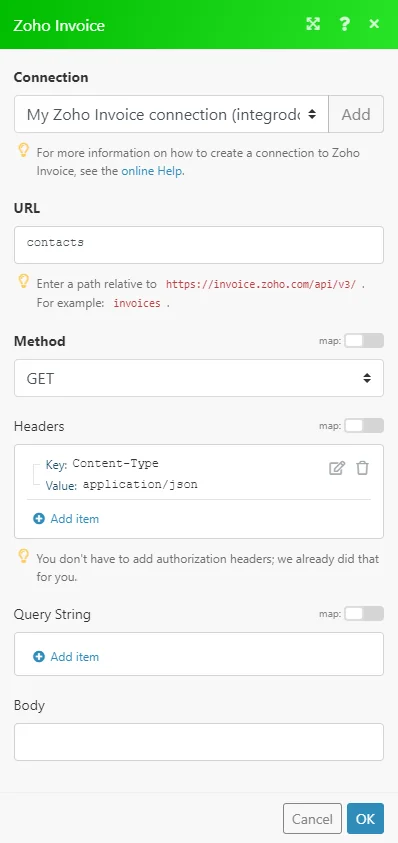
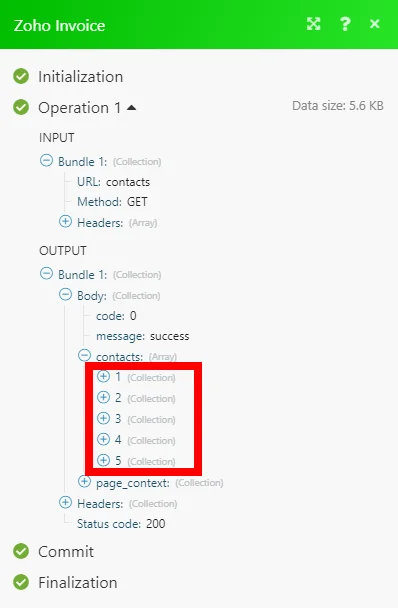
Matches of the search can be found in the module’s Output under Bundle > Body > contacts.
In our example, 5 contacts were returned:
Legacy article, imported from the original Boost.space knowledge base (/knowledge-base/applications/commerce/zoho-invoice/).

