Dialpad
The Dialpad modules allow you to watch, create, update, retrieve, and delete call states, company, contacts, departments, offices, numbers, rooms, statistics, and users in your Dialpad account.
Getting Started with Dialpad
Prerequisites
- A Dialpad account
In order to use Dialpad with Boost.space Integrator, it is necessary to have a Dialpad account. If you do not have one, you can create a Dialpad account at dialpad.com/products.
The module dialog fields that are displayed in bold (in the Boost.space Integrator scenario, not in this documentation article) are mandatory!
Connecting Dialpad to Boost.space Integrator
To connect your Dialpad account to Boost.space Integrator you need to obtain the Token from your Dialpad account and insert it in the Create a connection dialog in the Boost.space Integrator module.
-
Login to your Dialpad account.
-
Click Settings > My Company > Authentication > API Keys > Add a Key. Enter a name for the API key, select the expiry date, and click Save. Click the Click to Show Value link and copy the Token to your clipboard.

For more information, see API Key Generation.
Go to Boost.space Integrator and open the Dialpad module’s Create a connection dialog.
In the Connection name field, enter a name for the connection.
In the Token field, enter the value copied in step 2 and click Continue.

The connection has been established.
Call
Watch Call State Changed
Triggers when a call state changes.
You do not have to add the webhooks in the Dialpad as it is automatically done for you once you add and save an instant trigger module to your scenario.
Webhook Name
Enter the name of the webhook.
Connection
Establish a connection to your Dialpad account.
Call States
Enter the call states whose changes you want to watch.
Group Calls Only
Select whether you want to watch the call state changes only for the group calls:
-
Yes
-
No
-
Not defined
Secret
Enter the call event subscription’s signature secret whose call states you want to watch.
Target ID
Enter the Target ID whose call state changes you want to watch.
Target Type
Select the target whose call state changes you want to watch. For example, user, or a department.
Initiate Outbound Call
Initiates an outbound call to ring all devices (or a single specified device).
Connection
Establish a connection to your Dialpad account.
User ID
Select the User ID from whose account you want to initiate the call.
Phone Number
Enter the phone number including the country code to make the call.
Device ID
Enter the Device ID
Group ID
Enter the Group ID that will be used to initiate the call.
Group Type
Select the group which will be used to initiate the call. For example, Call Center.
Company
Get a Company
Retrieves the company information.
Connection
Establish a connection to your Dialpad account.
Contacts
List Contacts
Returns a list of all contacts, or user’s local contacts if the owner ID is provided.
Connection
Establish a connection to your Dialpad account.
Owner ID
Select the Owner ID whose contacts you want to list.
Limit
Set the maximum number of contacts Boost.space Integrator should return during one scenario execution cycle.
Get a Contact
Gets contact by ID.
Connection
Establish a connection to your Dialpad account.
Contact ID
Select the Contact ID whose details you want to retrieve.
Create a Contact
Creates a new contact.
Connection
Establish a connection to your Dialpad account.
First Name
Enter the first name of the contact.
Last Name
Enter the last name of the contact.
Company Name
Enter the contact’s company name.
Emails
Add the email address of the contact.
Extension
Enter the contact’s extension number.
Job Title
Enter the position of the contact in the company.
Owner ID
Select the Owner ID who owns the contact. If no Owner ID is specified, the contact will be created as a shared contact in your company.
Phones
Add the phone numbers of the contact.
Trunk Group
Enter the contact’s trunk group.
URLs
Add the contact’s website URL address.
Update a Contact
Updates the provided fields for an existing contact.
Connection
Establish a connection to your Dialpad account.
Contact ID
Select the Contact ID whose details you want to update.
First Name
Enter the first name of the contact.
Last Name
Enter the last name of the contact.
Company Name
Enter the contact’s company name.
Emails
Add the email address of the contact.
Extension
Enter the contact’s extension number.
Job Title
Enter the position of the contact in the company.
Owner ID
Select the Owner ID who owns the contact. If no Owner ID is specified, the contact will be created as a shared contact in your company.
Phones
Add the phone numbers of the contact.
Trunk Group
Enter the contact’s trunk group.
URLs
Add the contact’s website URL address.
Delete a Contact
Deletes a contact by ID.
Connection
Establish a connection to your Dialpad account.
Contact ID
Select the Contact ID you want to delete.
Departments
Get a Department
Gets a department by ID.
Connection
Establish a connection to your Dialpad account.
Office ID
Select the Office ID whose department details you want to retrieve.
Department ID
Select the Department ID whose details you want to retrieve.
Numbers
List Blocked Numbers
List all numbers that have been blocked via API.
Connection
Establish a connection to your Dialpad account.
Limit
Set the maximum number of blocked numbers Boost.space Integrator should return during one scenario execution cycle.
List Numbers
Returns a list of numbers in your company-wide.
Connection
Establish a connection to your Dialpad account.
Limit
Set the maximum number of numbers Boost.space Integrator should return during one scenario execution cycle.
Status
Select the status of the number you want to list. For example, blocked.
Get a Number
Returns information about a specified number.
Connection
Establish a connection to your Dialpad account.
Number
Enter the number with the country code whose details you want to retrieve.
Add Blocked Numbers
Blocks the specified number company-wide.
Connection
Establish a connection to your Dialpad account.
Numbers
Add the phone numbers including the country code you want to block.
Remove Blocked Numbers
Unblocks the specified numbers company-wide.
Connection
Establish a connection to your Dialpad account.
Numbers
Add the phone numbers including the country code you want to remove from the blocked number list.
Offices
List Offices
Returns a list of offices.
Connection
Establish a connection to your Dialpad account.
Limit
Set the maximum number of offices Boost.space Integrator should return during one scenario execution cycle.
List Operators
Returns a list of offices.
Connection
Establish a connection to your Dialpad account.
Get Operators for
Select the option whose operators you want to list:
-
Office
-
Department
-
Call Center
Office ID
Select the Office ID whose operators you want to list.
Department ID
Select the Department ID whose operators you want to list.
Call Center ID
Select the Call Center ID whose operators you want to list.
Limit
Set the maximum number of contacts Boost.space Integrator should return during one scenario execution cycle.
List Office Call Centers
Returns a list of operators for the selected place of registration.
Connection
Establish a connection to your Dialpad account.
Office ID
Select the Office ID whose office call centers you want to list.
Limit
Set the maximum number of office call centers Boost.space Integrator should return during one scenario execution cycle.
List Office Departments
Returns a list of departments for a specified office.
Connection
Establish a connection to your Dialpad account.
Office ID
Select the Office ID whose departments you want to list.
Limit
Set the maximum number of office departments Boost.space Integrator should return during one scenario execution cycle.
Get a Call Center
Gets a call center by ID.
Connection
Establish a connection to your Dialpad account.
Office ID
Select the Office ID whose call center details you want to retrieve.
Call Center ID
Select the Call Center ID whose details you want to retrieve.
Get an Office
Gets an office by ID.
Connection
Establish a connection to your Dialpad account.
Office ID
Select the Office ID whose details you want to retrieve.
Get a Plan
Gets the plan for an office.
Connection
Establish a connection to your Dialpad account.
Office ID
Select the Office ID whose plan details you want to retrieve.
Rooms
List Rooms
Returns a list of rooms, optionally filtered by the office.
Connection
Establish a connection to your Dialpad account.
Office ID
Select the Office ID whose rooms you want to list.
Limit
Set the maximum number of rooms Boost.space Integrator should return during one scenario execution cycle.
Get a Room
Gets a room by ID.
Connection
Establish a connection to your Dialpad account.
Room ID
Select the Room ID whose details you want to retrieve.
List a Room’s Desk Phones
Returns a list of desk phones for a specified room.
Connection
Establish a connection to your Dialpad account.
Room ID
Select the Room ID whose desk phone details you want to list.
Limit
Set the maximum number of desk phones Boost.space Integrator should return during one scenario execution cycle.
Create a Room
Creates a new room.
Connection
Establish a connection to your Dialpad account.
Office ID
Select the Office ID in which you want to create a new room.
Name
Enter a name for the room.
Update a Room
Updates room details by ID.
Connection
Establish a connection to your Dialpad account.
Room ID
Select the Room ID whose details you want to update.
Office ID
Select the Office ID in which you want to create a new room.
Name
Enter a name for the room.
Phone Number
Add the phone numbers allocated for the room.
Delete a Room
Deletes a room by ID.
Connection
Establish a connection to your Dialpad account.
Room ID
Select the Room ID you want to delete.
Stats
Get Statistics Results
Retrieves the status and results of a specified statistics request.
Connection
Establish a connection to your Dialpad account.
Request ID
Enter the Request ID returned by a POST or stats request. For example, processing.
Limit
Set the maximum number of statuses Boost.space Integrator should return during one scenario execution cycle.
Process Statistics
Begins processing statistics asynchronously returning a request ID to get the status and result of the result.
Connection
Establish a connection to your Dialpad account.
Export Type
Select the export type you want to process:
-
Stats
-
Records
Stat Type
Select the stat type:
-
Calls
-
Csat
-
Texts
-
Recordings
-
Voicemails
-
Onduty
-
Dispositions
Coaching Group
Select whether the statistics should be for the trainees of the coach with the given Target ID.
-
Yes
-
No
-
Not defined
Days Ago Start
Enter the date from which you want to get the statistics. This is the number of days to look back relative to the current day.
Days Ago End
Enter the date until which you want to get the statistics for. This is the number of days to look back relative to the current day.
Is Today
Select whether the statistics are for the current day:
-
Yes
-
No
-
Not defined
Office ID
Select the Office ID for which you want to process the statistics.
Target ID
Select the Target ID whose statistics you want to process.
Target Type
Select the target type whose statistics you want to process. For example, user, or a department.
Timezone
Select the timezone in which you want to process the statistics.
User Devices
List a User’s Devices
Returns a list of devices for a specific user.
Connection
Establish a connection to your Dialpad account.
User ID
Select the User ID whose devices you want to list.
Limit
Set the maximum number of devices Boost.space Integrator should return during one scenario execution cycle.
Get a Device
Gets a device by ID.
Connection
Establish a connection to your Dialpad account.
Device ID
Enter the Device ID whose details you want to retrieve.
Users
List Users
Returns a list of users, optionally filtered by email.
Connection
Establish a connection to your Dialpad account.
State
Select the status of the user you want to list:
-
Active
-
All
-
Canceled
-
Deleted
-
Pending
Enter the user’s email address whose details you want to list.
Limit
Set the maximum number of users Boost.space Integrator should return during one scenario execution cycle.
Get a User
Gets a user by ID.
Connection
Establish a connection to your Dialpad account.
User ID
Select the User ID whose details you want to retrieve.
List a User’s Desk Phones
Returns a list of desk phones for a specified user.
Connection
Establish a connection to your Dialpad account.
User ID
Select the User ID whose desk phones you want to list.
Limit
Set the maximum number of desk phones Boost.space Integrator should return during one scenario execution cycle.
Assign a Number to a User
Assigns a number to a user.
Connection
Establish a connection to your Dialpad account.
User ID
Select the User ID to whom you want to assign the number
Area Code
Enter the area code of the user.
Number
Enter the phone number of the user.
Create a User
Creates a new user.
Connection
Establish a connection to your Dialpad account.
Enter the email address of the user.
Office ID
Select the user’s Office ID.
First Name
Enter the first name of the user.
Last Name
Enter the last name of the user.
License
Select the license for the user:
-
Agents
-
Lite support agents
-
Lite lines
-
Talk
Update a User
Updates the provided fields for an existing user.
Connection
Establish a connection to your Dialpad account.
User ID
Select the User ID whose details you want to update.
Admin Office IDs
Add the admin office IDs for the user.
Enter the email address of the user.
Forwarding Numbers
Add the forwarding numbers of the user.
Extension
Enter the extension number of the user.
First Name
Enter the first name of the user.
Last Name
Enter the last name of the user.
Is Super Admin
Select whether the user has super admin permissions:
-
Yes
-
No
-
Not defined
Job Title
Select the position of the user in the company.
License
Select the license for the user:
-
Agents
-
Lite support agents
-
Lite lines
-
Talk
Office ID
Select the Office ID of the user.
State
Select the state of the user:
-
Active
-
Suspended
Delete a User
Deletes a user by ID.
Connection
Establish a connection to your Dialpad account.
User ID
Select the User ID you want to delete.
Other
Make an API Call
Performs an arbitrary authorized API call.
Connection
Establish a connection to your Dialpad account.
URL
Enter a path relative to https://dialpad.com/api. For example: /v2/numbers
For the list of available endpoints, refer to the Dialpad API Documentation.
Method
Select the HTTP method you want to use:
GET
to retrieve information for an entry.
POST
to create a new entry.
PUT
to update/replace an existing entry.
PATCH
to make a partial entry update.
DELETE
to delete an entry.
Headers
Enter the desired request headers. You don’t have to add authorization headers; we already did that for you.
Query String
Enter the request query string.
Body
Enter the body content for your API call.
Example of Use – List Users
The following API call returns all the users from your Dialpad account:
URL:
/v2/users
Method:
GET
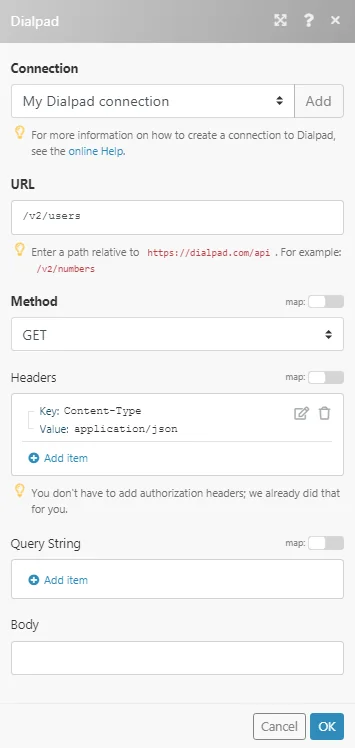
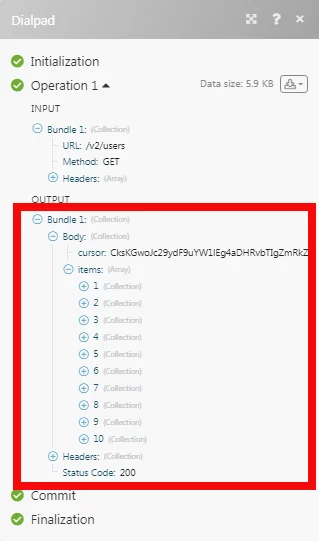
Matches of the search can be found in the module’s Output under Bundle > Body > items.
In our example, 10 users were returned:
Legacy article, imported from the original Boost.space knowledge base (/knowledge-base/applications/communication/dialpad/).

