Discord
The Discord modules allow you to create, update, list, and/or delete channels, channel messages, reactions, and webhooks in your Discord account.
To get started with Discord, create an account at https://discordapp.com/register.
According to Discord, message content will be categorized as Privileged Intent starting September 1, 2022.
This means that users who have installed our verified bot on their Discord server will not be able to use the following Boost.space Integrator modules with the bot:
- Watch Channel Messages
- List Channel Messages
- Get a Message
Users who installed the Boost.space Integrator verified bot to connect to the Discord app on our platform will see the empty values of messages that the channel member sends for the fields, content, embeds, attachments, and components in the output.
The Boost.space Integrator verified bot is still able to receive the messages for the above modules under the following conditions:
- Messages the bot sends
- Messages the bot receives in DMs
- Messages in which the bot is mentioned
If you want to use the aforementioned modules, you can create a custom connection using a separate client ID.
Connect Discord to Make
To make you connection with Discord please create your own app credentials.
You can connect the Discord app to Boost.space Integrator in two ways.
Connect Discord to Boost.space Integrator using OAuth2
To connect your Discord account to Boost.space Integrator, you need to create a server and channels.
-

Login to your Discord account and create a server.
-
Enter the details of the server and click Create.
-
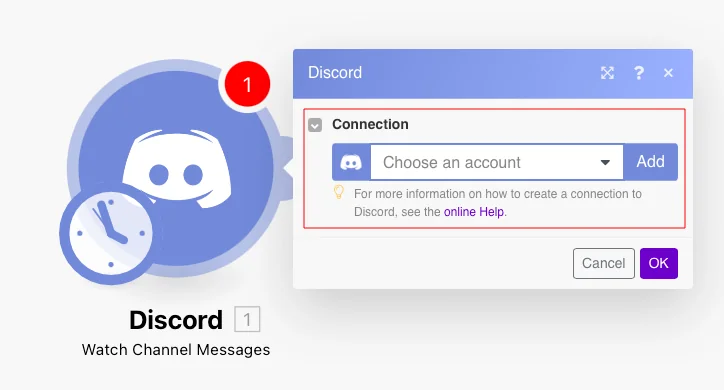

Go to Boost.space Integrator and open the Discord module’s Create a connection dialog.
-
Select the server created in step 1, allow the permissions for messages and channels, and click Authorize.
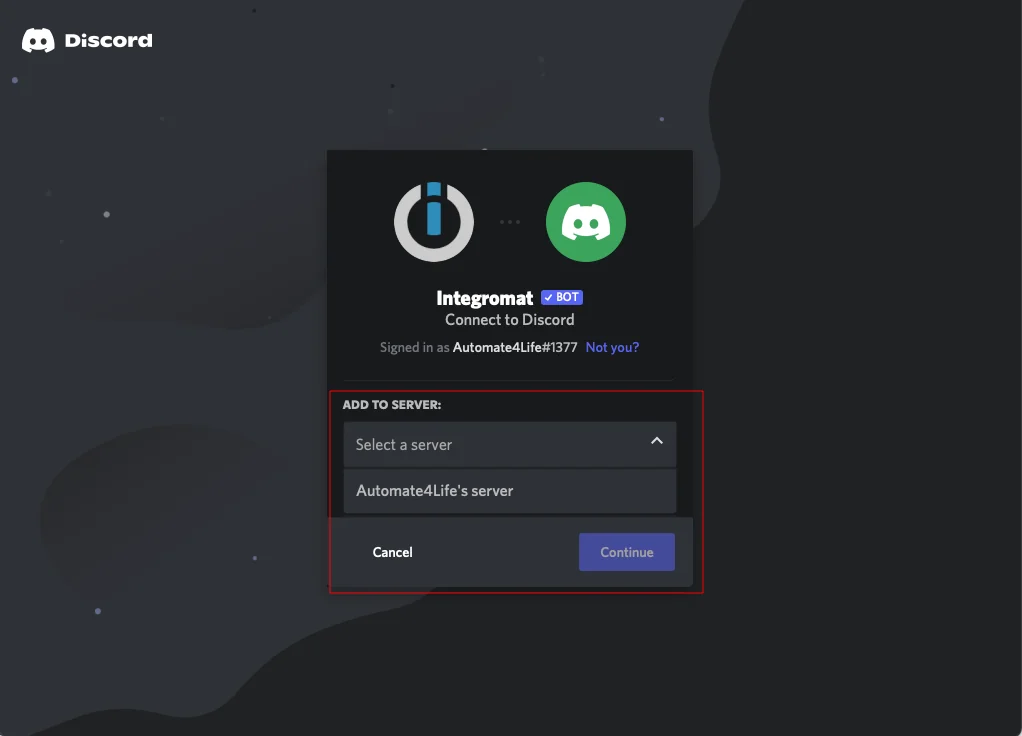
You have successfully connected the Discord app and can now build scenarios.
.
Connect to Discord using OAuth2 and your own credentials
To connect to Discord, you need to create a developer account to obtain the bot token, client ID, and client secret values by creating a custom application from your Discord developer account.
-
Log in to the Discord developer account.
-
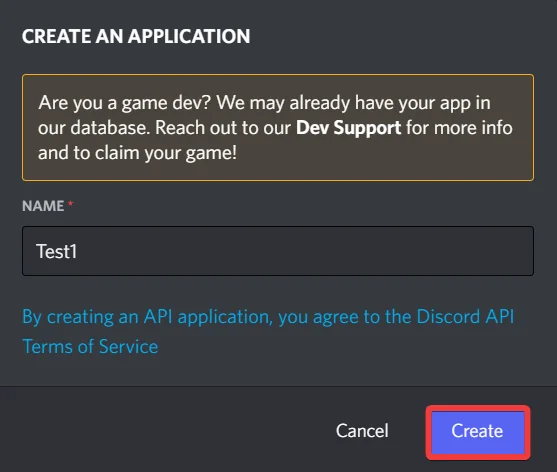
Click Create New Application, enter a name for the application, and click Create.
-
On the left menu, click OAuth2, add the following redirect URIs, and clickSave Changes.
https://integrator.boost.space/oauth/cb/discord``https://www.integrator.boost.space/oauth/cb/discord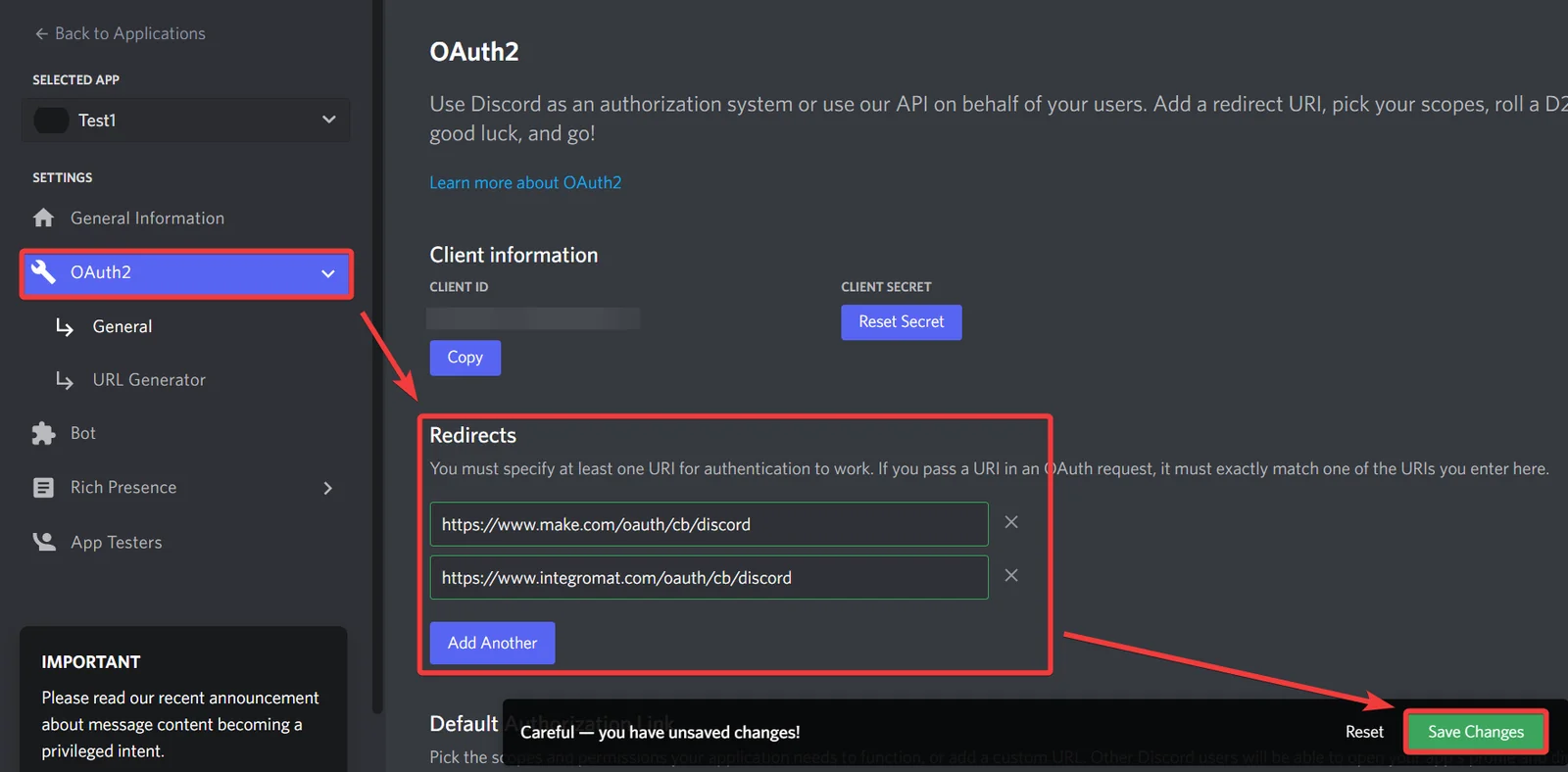
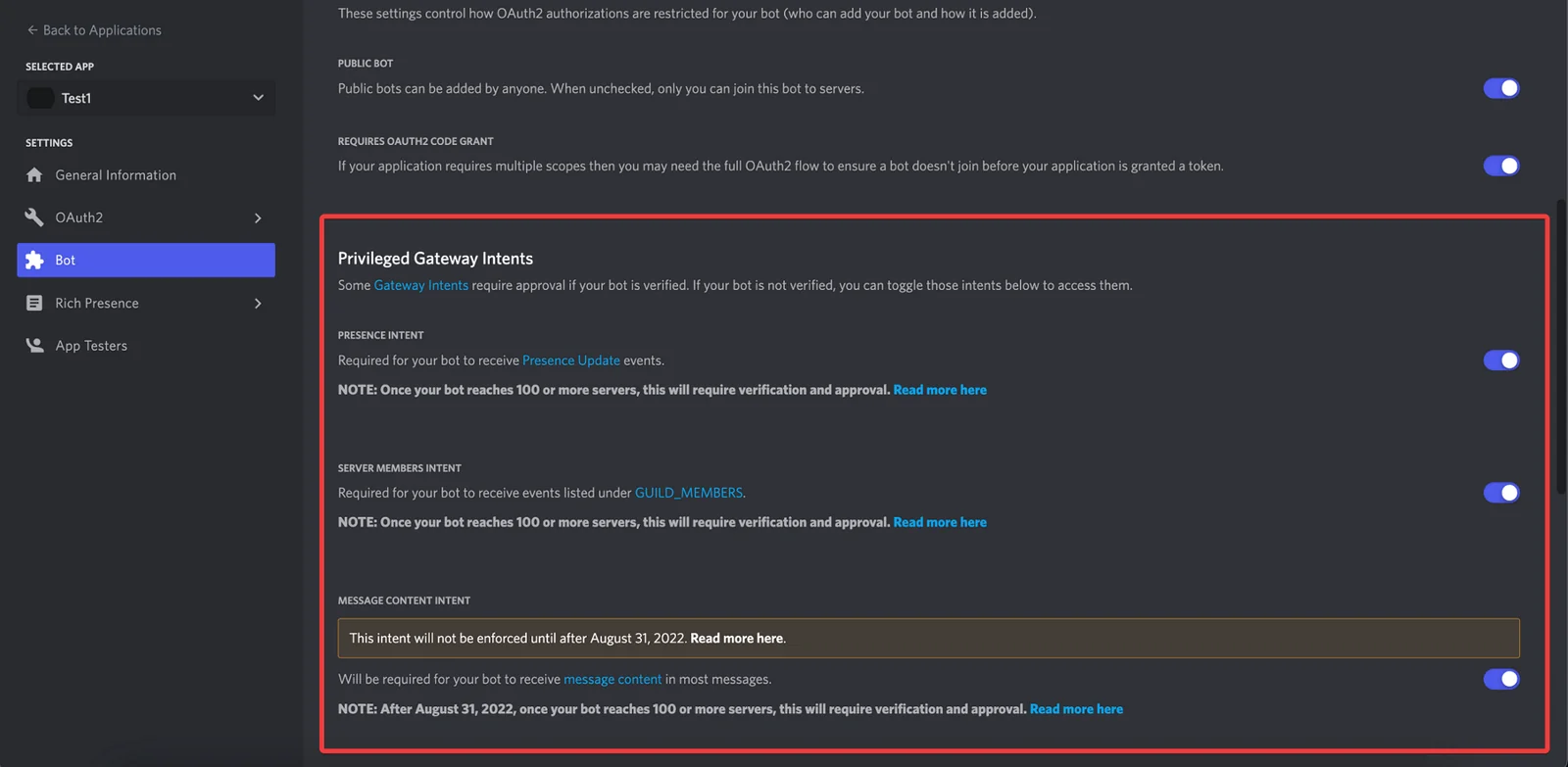
Enable Message Content Intent in your app settings if you want to receive the full message content.
In the Client Information section, copy the CLIENT ID value to a safe place. In the CLIENT SECRET field, click Reset secret, accept the warning, and copy the secret value to a safe place.
�NOTE� Every time you reset the token, the existing connections will stop working. You need to reauthenticate the connection with this new token.
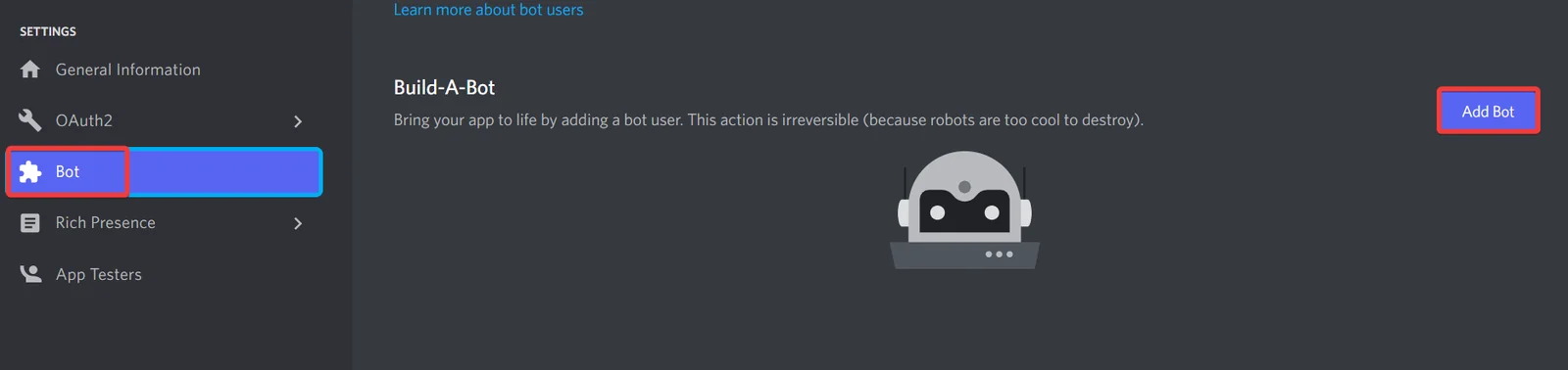
On the left menu, click Bot > Add bot.
Optional: Change the default name of the bot.
Optional: Enable the Privileged Gateway Intent settings if you want to receive full message content from all the modules.
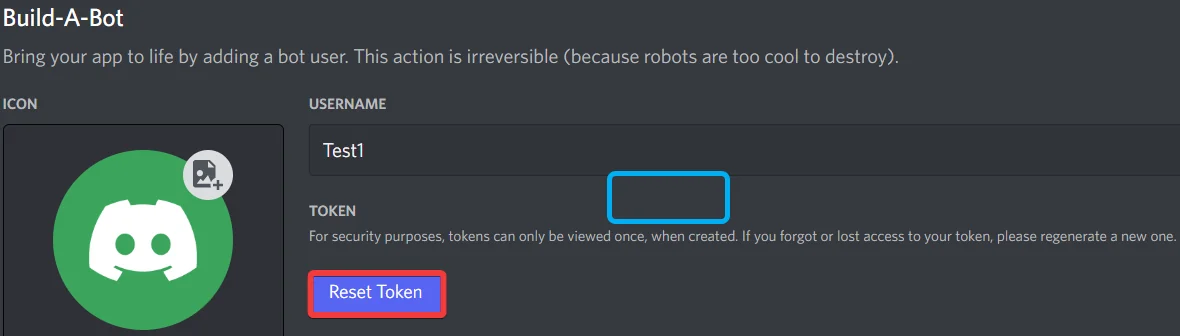
Click Reset to generate the bot token, accept the alert, and copy the bot token to a safe place as you can see the token only once.
�NOTE� Every time you reset the token, the existing connections will stop working. You need to reauthenticate the connection with this new token.
Log in to your Boost.space Integrator, add a module from the Discord app, click Add next to the Connection field, and click Show Advanced Settings.
Optional: In the Connection name field, enter a name for the connection.
In the Bot Token field, enter the token copied in step 7.
In the Client ID and Client Secret fields, enter the values copied in step 4 in the respective fields, select the bot permissions, and click Save.
Select the server to which you connect.
Confirm the access by clicking Authorise.
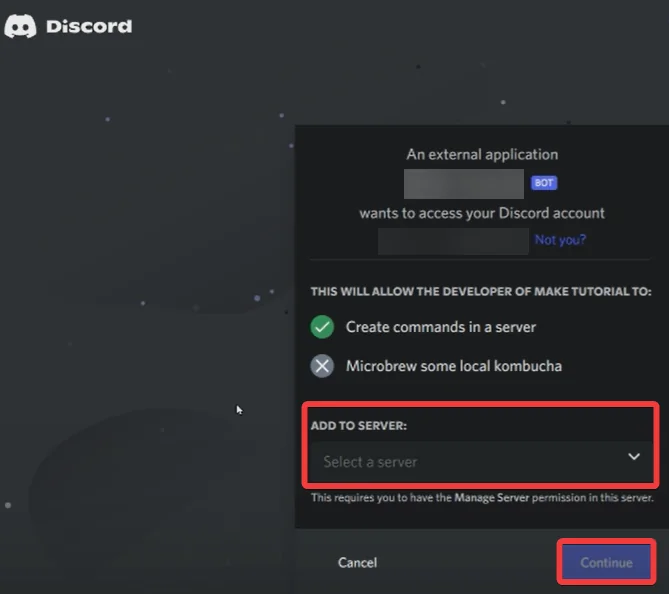
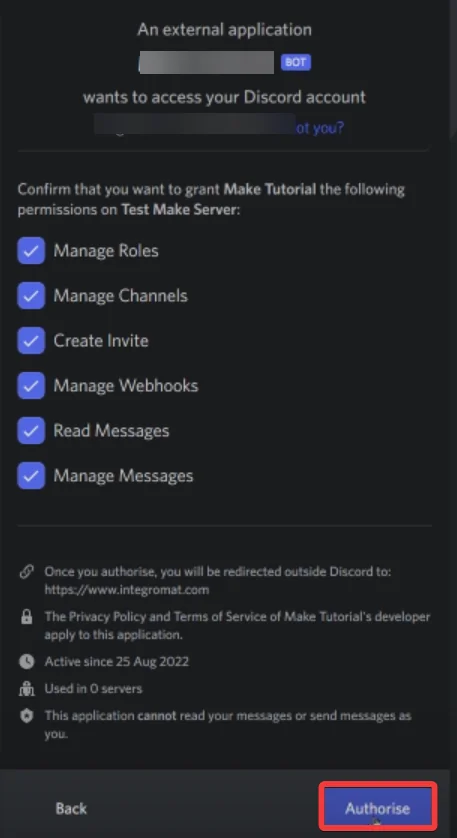
You have successfully the Discord bot to Boost.space Integrator and can now access messages content.
Messages
You can watch, list, retrieve, send, edit, and delete messages with the following modules.
Watch Channel Messages
Triggers when a new message is posted to the channel.
Connection
Establish a connection to your Discord App account.
Channel ID
Select the Channel ID whose message you want to watch.
Limit
The maximum number of channel messages Boost.space Integrator should return during one scenario execution cycle.
List Channel Messages
Returns the message for the channel.
Connection
Establish a connection to your Discord App account.
Channel ID
Select the Channel ID whose messages you want to list.
Limit
The maximum number of messages Boost.space Integrator should return during one scenario execution cycle. The default value is 10.
Before
Enter the User ID to list the channel messages before this user ID.
Get a Message
Returns a specific message in the channel.
Connection
Establish a connection to your Discord App account.
Channel ID
Select the Channel ID whose messages you want to retrieve.
Message ID
Select the Message ID whose details you want to retrieve.
Send a Message
Sends a message to a specified channel, thread, or guild member.
Connection
Establish a connection to your Discord App account.
Choose a Method
Select a method:
- Send a Message to a Channel
- Send a Message to a Thread
- Send a DM (Direct Message) to a Guild Member
Channel ID
Select the Channel ID to send a message.
Message
Enter the message you want to send.
Is TTS message
Select whether the message is a TTS message.
Embeds
Enter the details of embedded objects:
Title
Enter Embed’s title.
Type
Enter the Embed’s type. For example, rich, image, video, image, article, and link.
Description
Enter the embed’s description.
URL
Enter the embed’s URL address.
Timestamp
Enter the embed’s timestamp in ISO8601 format. See the list of supported date and time formats.
Color
Enter the embed’s color code.
For field descriptions, see the Discord Messages API reference.
Stickers
Enter the Sticker ID to be sent along with the message.
Components
Enter the components you want to send or respond to a slash command or other interaction. For field descriptions, see the Discord Messages API reference.
Files
Enter the file’s details:
File Name
Enter the file name, including the extension, for example, invoice.xml.
Data
Enter the file’s data.
Message Reference
Enter the Message ID if you are replying to a message.
Edit a Message
Edits a specified message.
Connection
Establish a connection to your Discord account.
Choose a Method
Select a method:
- Send a Message to a Channel
- Send a Message to a Thread
- Send a DM (Direct Message) to a Guild Member
Channel ID
Select or map the Channel ID whose message you want to edit.
Message ID
Select or map the Message ID whose details you want to edit.
Content
Enter the message contents up to a maximum of 2000 characters.
Flags
Select a flag for the message. For field descriptions, see the Discord Message API reference.
Embeds
Enter the embeds you want to add to your message. For field descriptions, see the Discord Message API reference.
Components
Enter the components you want to send or respond to a slash command or other interaction. For field descriptions, see the Discord Messages API reference.
Files
Enter the file’s details:
File Name
Enter the file name, including the extension, for example, invoice.xml.
Data
Enter the file’s data.
Delete a Message
Deletes a message.
Connection
Establish a connection to your Discord App account.
Channel ID
Enter the Channel ID whose message you want to delete.
Message ID
Enter the Message ID you want to delete.
Channels
You can watch, list, create, update, and delete channels, channel invites, and guild channels.
Watch Channel Invites
Triggers when a new channel invite is created.
Connection
Establish a connection to your Discord App account.
Channel ID
Select the Channel ID whose channel invites you want to watch.
Limit
The maximum number of channel invites Boost.space Integrator should return during one scenario execution cycle. The default value is 2.
List Channel Invites
Returns a list of invites (with invite metadata) for the channel.
Connection
Establish a connection to your Discord App account.
Channel ID
Select the Channel ID whose channel invite you want to list.
Limit
The maximum number of channel invites Boost.space Integrator should return during one scenario execution cycle. The default value is 10.
List Channels
Returns a list of bot’s channels.
Connection
Establish a connection to your Discord App account.
Limit
The maximum number of channels Boost.space Integrator should return during one scenario execution cycle. The default value is 10.
List root channels too
Select whether to list root channels.
Create a Guild Channel
Creates a new channel for the guild.
Connection
Establish a connection to your Discord App account.
Name
Enter a name for the guild channel.
Type
Select the type of guild channel:
- Guild text
- DM
- Guild voice
- Guild DM
- Guild Category
- Guild News
- Guild store
Topic
Enter the topic name for the guild channel.
Position
Enter the sorting position of the guild channel.
Rate Limit Per User
Enter the number of seconds the user has to wait before sending the next message in the guild channel.
Parent ID
Select the Parent ID of the guild channel:
- Text Channel
- Voice Channel
NSFW Channel
Select Yes if this guild channel is NSFW (Not Suitable For Wumpus).
- Yes
- No
- Not defined
For more information on NSFW, see NSFW Channels and Content.
Permission Overwrites
Add the permission overwrites for the channel:
- Role ID Select the Role ID of the user.
- Allow permission bit set Enter the number of permission bit set to allow.
- Deny permission bit set Enter the number of permission bit set to deny.
Create a Channel Thread
Creates a new channel thread.
Connection
Establish a connection to your Discord App account.
Choose a Method
Select a method:
- Create a Thread from Message
- Create a Thread without Message
Channel ID
Select the Channel ID whose thread you want to create.
Message ID
Select the Message ID whose thread you want to create.
Name
Enter a name for the channel thread.
Auto Archive Duration
Select the duration to stop the thread from showing in the channel list:
- 60 Minutes
- 1440 Minutes
- 4320 Minutes
- 10080 Minutes
Rate Limit per User
Enter the number of seconds the user has to wait before sending the next message in the guild channel.
Create a Channel Invite
Creates a new invite for the channel. It works only with a connection that has permission to manage invites.
Connection
Establish a connection to your Discord App account.
Channel ID
Select the Channel ID whose invite you want to create.
Max age in Seconds
Enter the maximum duration after which the invite expires.
Enter the duration of the invite in seconds before expiry, or 0 for never. Note: 86400 is 24 hours.
Max uses
Enter the maximum number of times the channel invite can be used.
Enter Zero for unlimited.
Is temporary?
Select if this channel invite gives a temporary membership.
Is unique?
Select if this channel invite can be used only once. If selected, you cannot create a similar channel invite.
Update a Channel
Updates a channel’s settings.
Connection
Establish a connection to your Discord App account.
Channel ID
Enter the Channel ID you want to modify.
Name
Enter a new name for the channel.
Type
Select the channel type.
Only conversion between text and news is supported and only in guilds with the ‘NEWS’ feature.
Topic
Enter a topic for the channel.
Position
Enter the channel sorting position of the guild channel.
Rate Limit per User
Enter the time in seconds a user has to wait before sending another message (0-21600).
Parent ID
Select the Parent ID of the guild channel:
- Text Channel
- Voice Channel
NSFW Channel
Select Yes if this guild channel is NSFW (Not Suitable For Wumpus).
- Yes
- No
- Not defined
For more information on NSFW, see NSFW Channels and Content.
Permission Overwrites
Add the permissions for members to overwrite:
Role ID
Select the role or members to whom you want to assign the permission.
Allow Permission Bit Set
Enter the permission allowed in a bit set.
Deny Permission Bit Set
Enter the permission denied in a bit set.
Bitrate
Enter the bitrate (in bits) if this is a voice channel.
User Limit
Enter the maximum number of users you can add to the channel.
Delete a Channel
Deletes a channel.
Connection
Establish a connection to your Discord App account.
Channel
Select the Channel ID you want to delete.
Reactions
You can post a reaction with emojis with the following module.
Post a Reaction with an Emoji
Post a reaction for the message with an emoji.
Connection
Establish a connection to your Discord App account.
Channel ID
Select the Channel ID where you want to post a reaction with an emoji.
Message ID
Enter the Message ID that you want to post a reaction with an emoji.
Emoji
Enter the emoji to post as a reaction to the message.
Member
You can watch, search, list and update guild members and add or remove roles from guild members with the following modules.
Watch Guild Members
Triggers when a member has joined the bot’s guild.
Connection
Establish a connection to your Discord App account.
Limit
The maximum number of guild members Boost.space Integrator should return during one scenario execution cycle. The default value is 2.
Search Guild Members
Searches for Guild Members.
Connection
Establish a connection to your Discord App account.
Query
Enter a username or a nickname to return the guild members.
Limit
The maximum number of guild members Boost.space Integrator should return during one scenario execution cycle. The default value is 10.
List Guild Members
Returns a list of members that are members of the bot’s guild.
Connection
Establish a connection to your Discord App account.
After
Enter the User ID to list the guild member after this ID.
Limit
The maximum number of Guild Members Boost.space Integrator should return during one scenario execution cycle.
List Guild Members with Reactions on Message
Returns a list of guide member that reacted with the emoji on the message.
Connection
Establish a connection to your Discord App account.
Choose a Method
Select a Method:
- Get a Message from a Channel
- Get a Message from a Thread
- Get a DM (Direct Message) from a Guild Member
Channel ID
Select the Channel ID whose users reacted with an emoji you want to list.
Message ID
Select the Message ID that has the reaction with an emoji that you want to list the users of.
Guild Member
Enter the Guild member whose reaction to the message you want to list. Alternatively, you can search for guild members.
Query
Enter a username or nickname to list the guild members with the string.
Limit
The maximum number of guild members Make: Product name should return during one Make: scenario execution cycle. The default value is 10.
Emoji
Select the emoji you want to list.
Limit
The maximum number of users Boost.space Integrator should return during one scenario execution cycle.
Update a Guild Member
Updates an existing guild member.
Connection
Establish a connection to your Discord App account.
Guild Member ID
Enter the Guild Member ID whose details you want to update. Alternatively, you can search for a guild member.
Query
Enter a username or a nickname to list the guild members with the string.
Limit
The maximum number of guild members Boost.space Integrator should return during one Boost.space Integrator execution cycle. The default value is 10.
Nickname
Enter a nickname for the guild member.
Role IDs
Select the Role ID to assign them to the guild member.
Is Mute
Select whether the user is muted in voice channels.
Is Deaf
Select whether the user is deafened in voice channels.
Channel ID
Select the Channel ID to move the user.
Communication Disabled Until
Enter the timeout, after which the user can communicate in the guild again (up to 28 days in the future), and set it to null to remove the timeout.
Add a Role to a Guild Member
Adds a Role to a Guild Member.
Connection
Establish a connection to your Discord App account.
User ID
Select the User ID whose role you want to add to a guild member.
Role ID
Select the Role ID of the user you want to add.
Remove a Role from a Guild Member
Removes a role from a guild member,
Connection
Establish a connection to your Discord App account.
User ID
Select the User ID whose role you want to remove from a guild member.
Role ID
Select the Role ID of the user you want to remove.
Event
You can create, update, list, retrieve, and delete guild events with the following modules.
List Guild Events
Retrieves a list of scheduled events for guild.
Connection
Establish a connection to your DIscord App account.
Include number of users subscribed to each event
Select whether to list the users subscribed to each event.
Limit
The maximum number of guild members Boost.space Integrator should return during one scenario execution cycle. The default value is 10.
Get a Guild Event
Gets a specified guild event.
Connection
Establish a connection to your DIscord App account
Guild Event ID
Select or map the Guild Event ID whose details you want to retrieve.
Include number of users subscribed to each event
Select whether to retrieve the users subscribed to each event.
Create a Guild Event
Creates a new guild event.
Connection
Establish a connection to your DIscord App account.
Event Name
Enter a name for the event.
Entity Type
Select the entity type:
- Stage Instance
- Voice
- External
Location
Enter the event’s location. This field is required if the event type is External.
Channel ID
Enter the Channel ID whose event you want to create. This field is required if the event type is Stage Instance or Voice.
Start Time
Enter a time when the event is scheduled to start in ISO8601 format. See the list of supported date and time formats.
End Time
Enter a time when the event is scheduled to end in ISO8601 format. See the list of supported date and time formats.
Description
Enter a description for the event.
File
Enter the file’s details:
Image File Name
Enter the file name, including its extension. For example, invoice.xml.
Image Data
Enter the image data.
Update a Guild Event
Updates an existing guild event.
Connection
Establish a connection to your DIscord App account.
Guild Event ID
Select or map the Guild Event ID whose details you want to update.
Event Name
Enter a name for the event.
Entity Type
Select the entity type:
- Stage
- InstanceVoice
- External
Location
Enter the event’s location. This field is required if the event type is External.
Channel ID
Enter the Channel ID whose event you want to create. This field is required if the event type is Stage Instance or Voice .
Start Time
Enter a time when the event is scheduled to start in ISO8601 format. See the list of supported date and time formats.
End Time
Enter a time when the event is scheduled to end in ISO8601 format. See the list of supported date and time formats.
Description
Enter a description for the event.
File
Enter the file’s details:
Image File Name
Enter the file name, including its extension. For example, invoice.xml.
Image Data
Enter the image data.
Delete a Guild Event
Deletes a guild event.
Connection
Establish a connection to your DIscord App account.
Guild Event ID
Select or map the Guild Event ID you want to delete.
Webhooks
You can create, send messages, and delete webhook bots with the following modules.
Create a Webhook Bot
Creates a new webhook.
Connection
Establish a connection to your Discord App account.
Channel ID
Select the Channel ID whose webhook you want to create.
Name
Enter a name for the webhook bot.
Send a Message by Webhook Bot
Sends a new message by executing a (custom) webhook bot.
Connection
Establish a connection to your Discord App account.
Channel ID
Select the Channel ID whose webhook you want to execute.
Name
Enter the webhook name you want to execute.
Delete a Webhook Bot
Deletes a webhook permanently
Connection
Establish a connection to your Discord App account.
Webhook ID
Enter the Webhook ID you want to delete.
Other
You can update current bots and call APIs with the following modules.
Update a Current Bot
Updates a current and connected user’s bot.
Connection
Establish a connection to your Discord App account.
Bot Name
Enter a name for the bot.
File
Enter the bot image data.
Make an API Call
Performs an arbitrary authorized API call to manage data in Discord.
Connection
Establish a connection to your Discord App account.
URL
Enter a path relative to https://discordapp.com/api.
For the list of available endpoints, refer to the Discord API Documentation
Method
Select the HTTP method you want to use:
GET
to retrieve information for an entry.
POST
to create a new entry.
PUT
to update/replace an existing entry.
PATCH
to make a partial entry update.
DELETE
to delete an entry.
Headers
Enter the desired request headers. You don’t have to add authorization headers; we already did that for you.
Query String
Enter the request query string.
Body Type
Select the method in which you want to map the body content.
Body
Enter the body content for your API call.
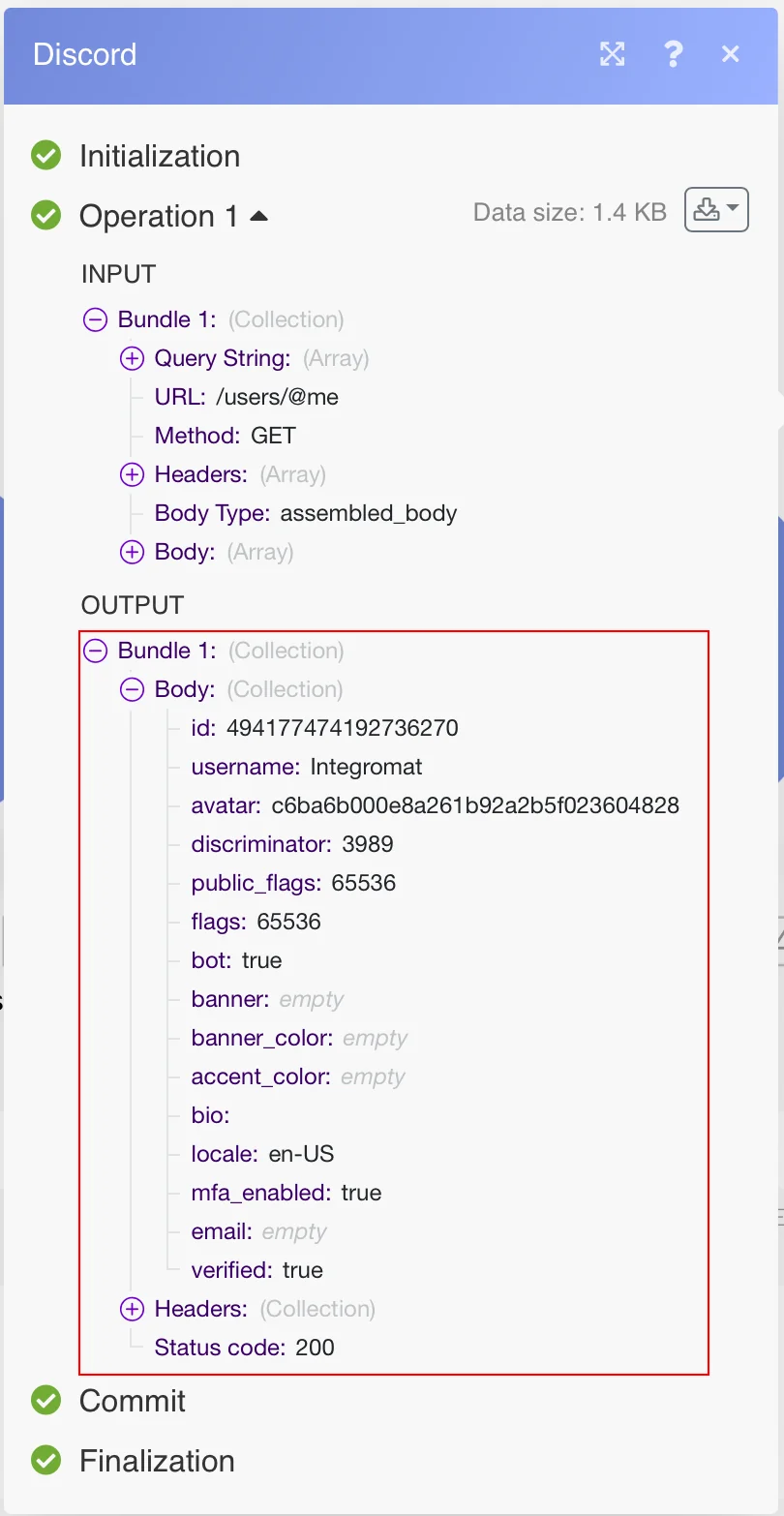
Example of Use – Get User
The following API call returns all the information about the selected user:
URL:
/users/@me
Method:
GET
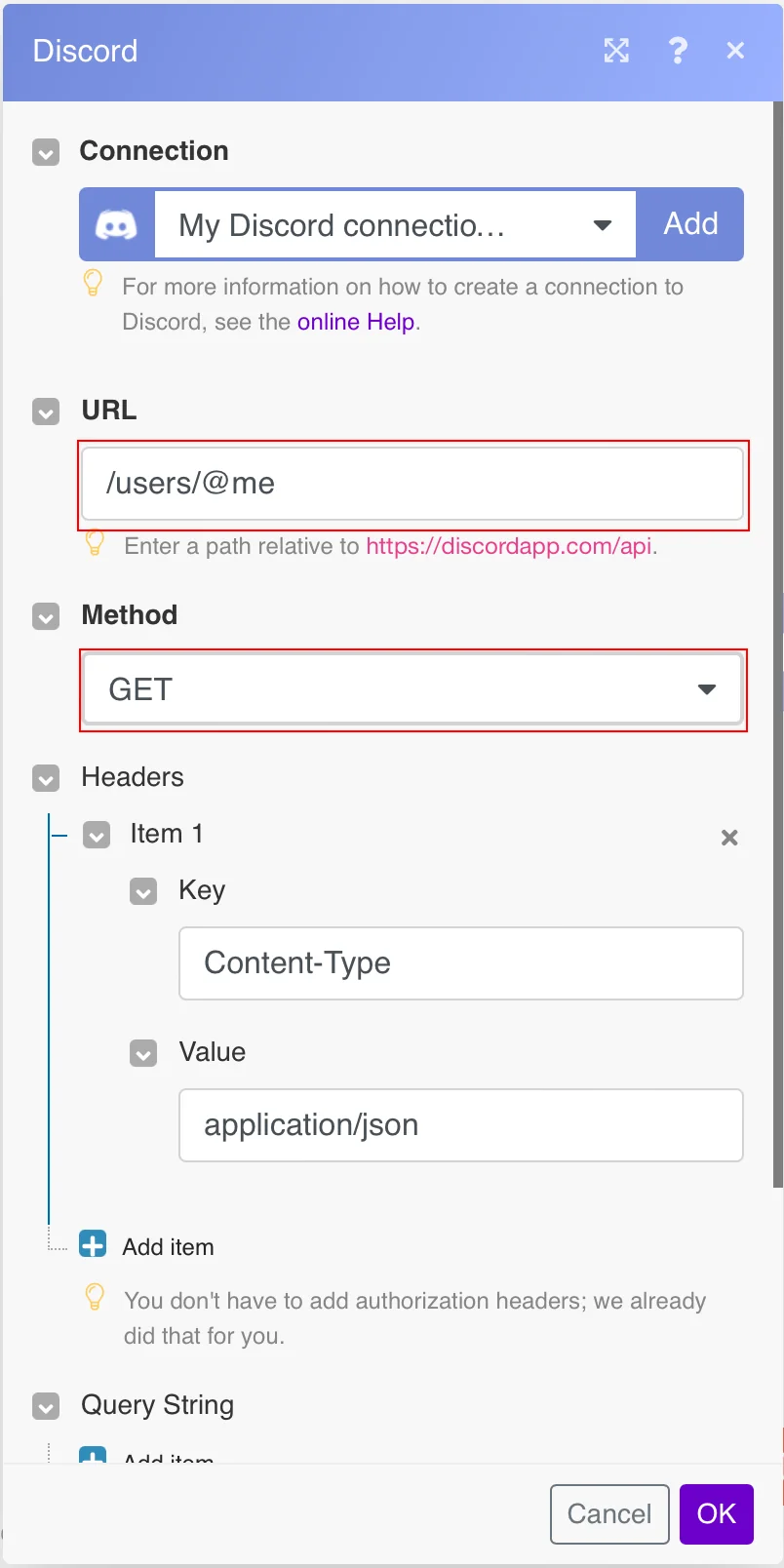
Matches of the search can be found in the module’s Output under Bundle > Body.
In our example, the details of the user were returned:
Legacy article, imported from the original Boost.space knowledge base (/knowledge-base/applications/communication/discord/).

