Drift
The Drift modules enable you to create, update, retrieve, delete, or unsubscribe contacts, tags, users, and conversations in your Drift account.
Getting Started with Drift
Prerequisites
- A Drift account
In order to use Drift with Boost.space Integrator, it is necessary to have a Drift account. If you do not have one, you can create a Drift account at app.drift.com/letsgo/start/signup.
The module dialog fields that are displayed in bold (in the Boost.space Integrator scenario, not in this documentation article) are mandatory!
Connecting Drift to Boost.space Integrator
To connect your Drift account to Boost.space Integrator follow the general instructions for Connecting to services.
After you click the Continue button, Boost.space Integrator will redirect you to the Drift website where you will be prompted to grant Boost.space Integrator access to your account.
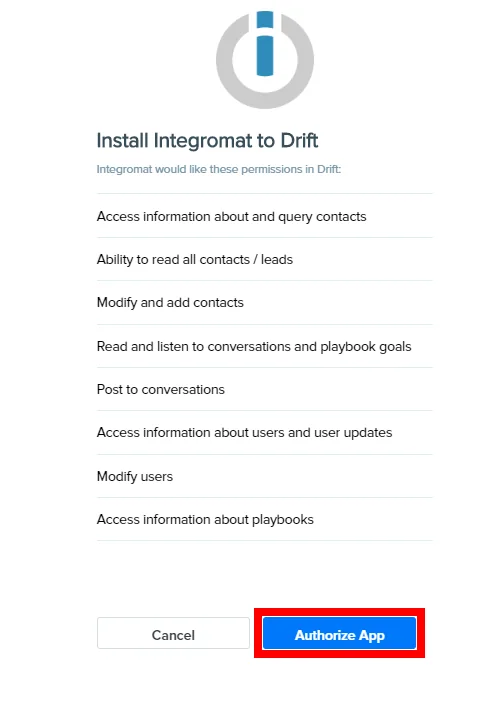
Confirm the dialog by clicking the Authorize App button.
Contacts
Create a New Contact
Creates a new contact. If the contact already exists, the module will throw an error.
Connection
Establish a connection to your Drift account.
Email Address
Enter the email address of the contact. It is the only required field when adding the contact.
The rest of the fields are dynamically generated.
Please see the fields in the Contacts Settings or API Documentation.
Get a Contact
Retrieves contact details.
Connection
Establish a connection to your Drift account.
Contact ID or Email
-
Contact ID
Enter (map) the contact you want to retrieve details about. Only one contact will be returned.
-
External ID
Use if you identified a contact with a custom identifier. Only one contact will be returned.
-
Email
If there are more contacts with the same email address, multiple contacts will be returned.
Limit
For Email only. Set the maximum number of contacts Boost.space Integrator will return during one execution cycle.
Update a Contact
Updates an existing contact.
Connection
Establish a connection to your Drift account.
Contact ID or External ID
Select whether you want to specify contact by Contact ID or External ID and then enter the ID to the respective field below.
The rest of fields are dynamically generated.
Please see the fields in the Contacts Settings or API Documentation.
Delete a Contact
Deletes a contact.
This only removes a contact from indexing in your Drift account’s Contacts view, for full GDPR-compliant deletion, please go to https://devdocs.drift.com/docs/gdpr-deletion.
Connection
Establish a connection to your Drift account.
Contact ID
Enter (map) the ID of the contact you want to delete.
Unsubscribe a Contact
Unsubscribes contact from emails.
Connection
Establish a connection to your Drift account.
Enter an email or emails you want to unsubscribe from the contact.
Post a Timeline Event
Posts a timeline event to a contact.
Connection
Establish a connection to your Drift account.
Contact ID or External ID
Select whether you want to specify the contact by Contact ID or External ID and then enter (map) the ID to the respective field below.
Created At
Enter the date and time of the event. The list of supported time and date formats.
Event
Enter the name of the event you want to add to the contact’s timeline.
List Attributes
Retrieves a description of all the created/enabled custom contact fields in your account.
Connection
Establish a connection to your Drift account.
Limit
Set the maximum number of attributes Boost.space Integrator will return during one execution cycle.
Tags
Add Tags
Adds tags to the specified contact.
Connection
Establish a connection to your Drift account.
Contact ID
Enter (map) ID of the contact you want to assign a tag to.
Tags
Add tags that will be assigned to the contact.
List Tags
Retrieves tags that are assigned to the specified contact.
Connection
Establish a connection to your Drift account.
Contact ID
Enter (map) ID of the contact you want to retrieve tags for.
Limit
Set the maximum number of tags Boost.space Integrator will return during one execution cycle.
Delete Tags
Removes tags from the specified contact.
Connection
Establish a connection to your Drift account.
Contact ID
Enter (map) ID of the contact you want to remove a tag from.
Tags
Specify tags you want to remove from the contact.
Users
List Users
Retrieves all users in your Drift account.
Connection
Establish a connection to your Drift account.
Limit
Set the maximum number of users Boost.space Integrator will return during one execution cycle.
Get a User
Retrieves details of selected users.
Connection
Establish a connection to your Drift account.
User IDs
Select users you want to retrieve details about.
Limit
Set the maximum number of users Boost.space Integrator will return during one execution cycle. Max 20 users.
Update a User
Edits user details.
Connection
Establish a connection to your Drift account.
User ID
Select or map the user you want to update.
Name
Enter the name of the user whose details you want to edit.
Alias
Enter the alias of the user.
Enter the email address of the user.
Phone
Enter the phone number of the user.
Locale
Enter the locale of the user.
Avatar URL
Enter the URL to the user’s avatar.
Availability
Set the user’s availability.
Conversations
List Conversations
Connection
Establish a connection to your Drift account.
Status ID
Select the status of the conversations you want to retrieve.
Limit
Set the maximum number of statuses Boost.space Integrator will return during one execution cycle.
Get a Conversation
Retrieves conversation details.
Connection
Establish a connection to your Drift account.
Conversation ID
Select or map the conversation you want to retrieve details about.
Create a Conversation
Creates a new conversation.
Connection
Establish a connection to your Drift account.
Email Address
Enter the email address of the contact.
First Conversation Message
Enter the text content of the message.
Integration Source
Enter a message to inform the user where this conversation originates from. It will be placed in the header of the newly started conversation. If left empty the header will show ‘Conversation started from integration’.
Auto Assignee ID
Map or select the user you want to assign this conversation to.
Get a Conversation Attachment
Downloads an attachment from the selected conversation.
Connection
Establish a connection to your Drift account.
Conversation ID
Select or map the conversation you want to download an attachment from.
Attachment URL
Select the attachment name or enter the attachment URL of the attachment you want to download.
Attachment File Name
Select the file you want to download. It must be the same file as in the Attachment URL field above!
Get Conversation Statuses
Retrieves a count of conversations by status in your account.
Connection
Establish a connection to your Drift account.
Generate a Conversation Report
Retrieves desired information about the conversation by the filter settings.
Connection
Establish a connection to your Drift account.
Filters
Add properties you want to filter conversations by and set up the filter.
The list of filter properties.
The list of filter operations.
Metrics
Select the properties you want to return in the module’s output.
Conversation Messages
List Conversation Messages
Retrieves conversation messages from the specified conversation.
Connection
Establish a connection to your Drift account.
Conversation ID
Select or map the conversation you want to retrieve messages from.
Limit
Set the maximum number of messages Boost.space Integrator will return during one execution cycle.
Create/Edit/Delete a Message
Allows you to create, update, or delete a conversation message.
Connection
Establish a connection to your Drift account.
Conversation ID
Select or map the conversation where you want to create, edit or delete a message.
Type
Select the message type. Chat is used for creating a public message in the conversation, while the private notes will be shown only to the agents.
-
chatMessages are the most ubiquitous type. They correspond to a regular text-based communication from either a Contact or a User and are visible to both.chattype messages may also contain buttons, in which case they’re only visible to the Conversation’s Contact. -
private_notes are Messages that can only be created by a User and seen by other Users. These are useful for sharing sensitive, but useful information to Users in the context of the communication they’re having with a given Contact -
private_prompts are similarly only visible to Users, but can only be created by Apps. They’re intended to allow developers to present Users with an interactive context (via buttons) to perform an action in the context of the Conversation. -
edits allow to change Messages that have already been created. Edits are restricted to pertain to those types of Messages for now.
Buttons
Add buttons that will be included in the message body. These will show up as clickable buttons in the posted message – can be used to trigger events on click.
For more information about buttons please refer to the Drift documentation.
Message Body
Enter the message text that will be sent to the contact/client.
Some basic html tags are allowed. <b>, <em>, and <a> tags are allowed, but most others are automatically stripped, as well as any styles on the allowed ones. Ultimately, you can treat this field as plain text and not include any tags.
Note for urls to expand or unfurl as clickable links in the conversation view, ex: when posting a youtube link in the chat, you should post the link as an a tag.
{ "body": "hey there, check this out <a href='https://www.youtube.com/watch?v=kD30F_tjogs'>here</a>", "type": "chat" }
Javascript in the message is not supported.
Author User ID
Select or map the author of the message. If the user is not specified, the bot user for the account will be used as the message author. You can also specify a User ID of a known user in the organization’s account here. The message from the API will appear as if posted by that particular user/agent in the conversation.
Bugs
-
Update an author never works.
-
When clicking a button, the message above will return the original state ignoring edits. Example: “original message” + button (action replace type). When you change this to “edited message” with the same button. If you click that action button, the button is replaced with text (because it is a Replace Edit Type) but also the message above “edited message” becomes “original message” again.
Other
List Bot Playbooks
Retrieves active playbooks in your account.
Connection
Establish a connection to your Drift account.
Limit
Set the maximum number of playbooks Boost.space Integrator will return during one execution cycle.
Make an API Call
Allows you to perform a custom API call.
Connection
Establish a connection to your Drift account.
URL
Enter a path relative to https://driftapi.com. For example /conversations/list
For the list of available endpoints, refer to the Drift API Documentation.
Method
Select the HTTP method you want to use:
GET
to retrieve information for an entry**.**
POST
to create a new entry.
PUT
to update/replace an existing entry.
PATCH
to make a partial entry update.
DELETE
to delete an entry.
Headers
Enter the desired request headers. You don’t have to add authorization headers; we already did that for you.
Query String
Enter the request query string.
Body
Enter the body content for your API call.
Example of Use – List Conversations
The following API call returns conversations in your Drift account:
URL:
/conversations/list/
Method:
GET
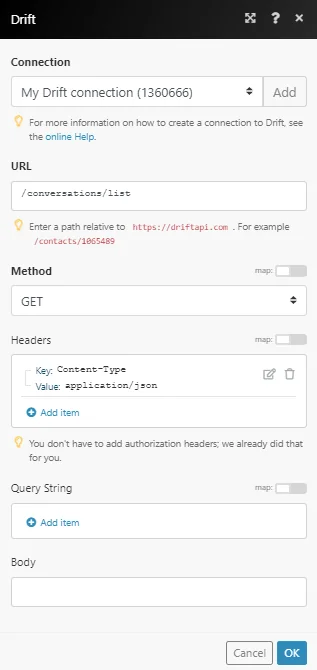
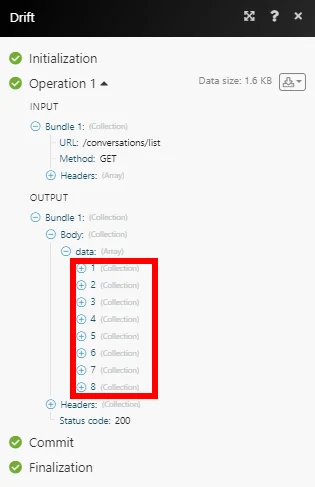
The result of the operation can be found in the module’s Output under Bundle > Body > data.
In our example, 8 conversations were returned:
Legacy article, imported from the original Boost.space knowledge base (/knowledge-base/applications/communication/drift/).

