GetResponse
With the GetResponse modules in Boost.space Integrator, you can:
-
watch, list, retrieve, create, send, cancel and delete the newsletters
-
watch, list, retrieve, create, update and delete the contacts
-
watch, list, retrieve, create, and update the campaigns
-
list, retrieve, create, update and delete the tags
To get started with GetResponse, create an account at GetResponse.com.
Connect GetResponse to Boost.space Integrator
To connect the GetResponse app with the Boost.space Integrator:
-
Log in to your Boost.space Integrator account, and add a module from the GetResponse app into a Boost.space Integrator scenario.
-
Click Add next to the Connection field.
-
In the Connection name field, enter a name for the connection and click Save.
-
If you did not log in earlier, enter your GetResponse credentials and click Log in.
-
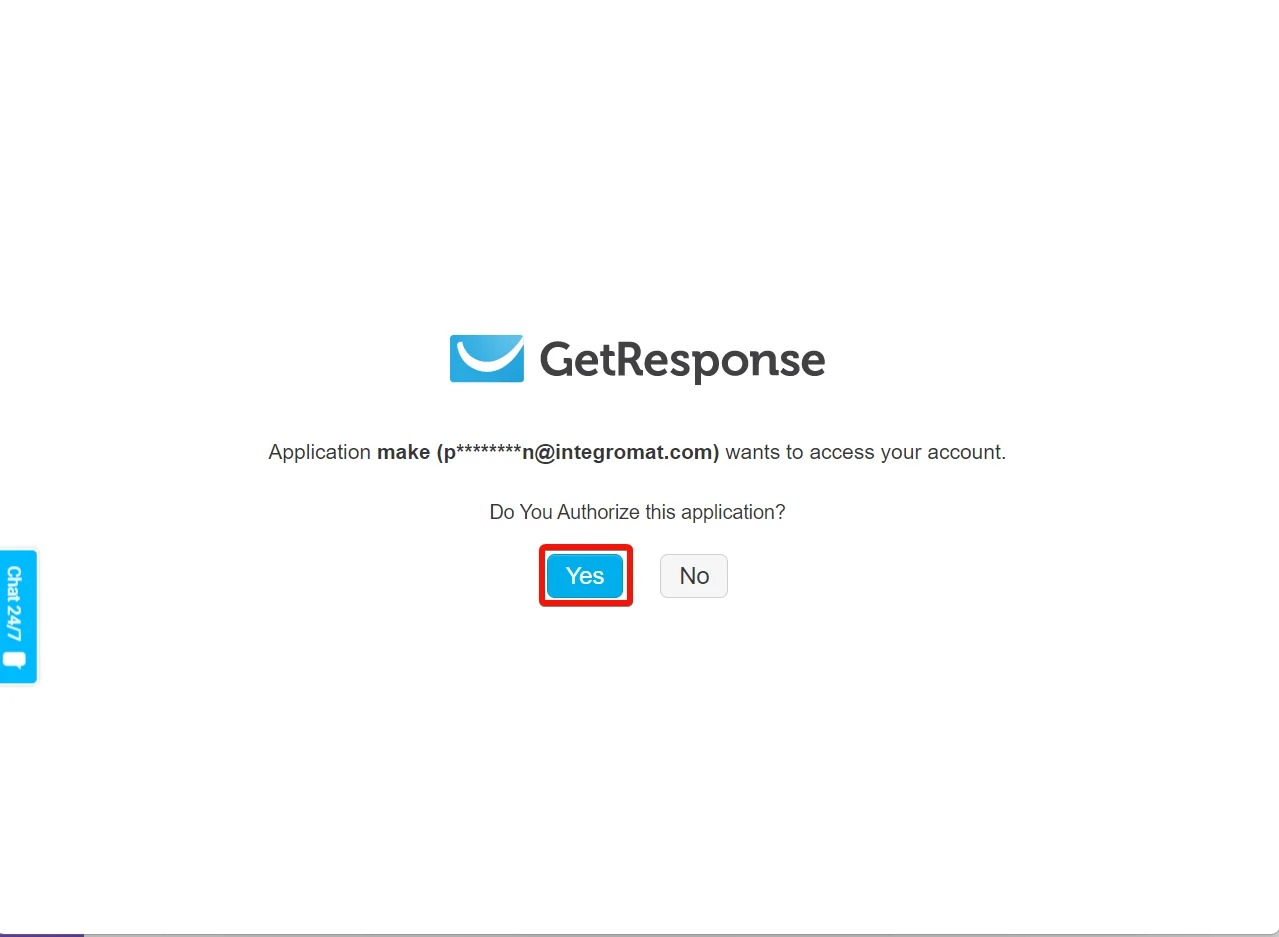
Confirm the access by clicking Yes.
You have successfully connected the GetResponse app with Boost.space Integrator and can now build scenarios.
Newsletters

You can watch, list, retrieve, create, send, cancel and delete the newsletters using the following modules.
Watch Newsletters
Triggers when a new newsletter has been created.
Connection
Establish a connection to your GetResponse account.
Limit
Set the maximum number of newsletters Boost.space Integrator will return during one execution cycle. The default value is 2.
List Newsletters
Lists all newsletters or searches for them by specified criteria.
Connection
Establish a connection to your GetResponse account.
Type
Select the type of the newsletter:
-
Draft
-
Broadcast
-
Splittest
-
Automation
Subject
Enter (map) a subject to search newsletters by subject.
Name
Enter (map) a newsletter name to search newsletters by name.
Status
Select the status:
-
Enabled
-
Disabled
Created on (from)
Enter (map) a date to search newsletters created on or after the specified date. See the list of supported date and time formats.
Created on (to)
Enter (map) a date to search newsletters created on or before the specified date. See the list of supported date and time formats.
Campaign ID
Select or map a Campaign ID whose newsletters you want to list.
Sort by Creation Date
Select the order of sorting:
-
Ascending
-
Descending
Limit
Set the maximum number of newsletters Boost.space Integrator will return during one execution cycle. The default value is 10.
Get a Newsletter
Returns a specified newsletter.
Connection
Establish a connection to your GetResponse account.
Newsletter ID
Select or map a Newsletter ID whose details you want to retrieve.
Create a Newsletter
Create a new newsletter and puts it in a queue to send.
Connection
Establish a connection to your GetResponse account.
Content
Enter (map) the content for the newsletter.
HTML
Enter (map) the message content in HTML format.
Plain
Enter (map) the newsletter text plain text format.
Subject
Enter (map) the subject line for the newsletter.
From Field
Enter (map) the email address from which you will send the newsletter.
Campaign
Select or map a Campaign ID to which you want to assign the newsletter.
The newsletter must be assigned to a campaign.
Send on
Enter (map) the scheduled send date and time for the newsletter in the ISO 8601 format. See the list of supported date and time formats.
To send your message immediately, omit the sendon section.
Attachments
Enter (map) the attachment details. The size of all attachments combined should not exceed 400KB.
File
Enter (map) the file details:
File Name
Enter (map) the file name.
Content
Enter (map) the content in base64 encoded.
Mime Type
Enter (map) the file MIME media type.
Send Settings
Select or map the send settings:
Select the method to deliver the message to the subscriber. You can specify multiple parameters, the system uses AND logic.
Selected Campaigns
Select or map the campaigns to send the newsletter.
At least one of selectedCampaigns, selectedSegments or selectedContacts is required.
Selected Segments
Select or map the segments to send the newsletter.
At least one of selectedCampaigns, selectedSegments or selectedContacts is required.
Selected Contacts
Select or map the contacts to send the newsletter.
At least one of selectedCampaigns, selectedSegments or selectedContacts is required.
Selected Suppressions
Select or map the list of selected suppressions. Note that suppressions exclude contacts.
Excluded Campaigns
Select or map the campaigns to exclude from the newsletter.
Excluded Segments
Select or map the segments to exclude from the newsletter.
Time Travel
Select whether to use the time travel functionality.
The system will match the scheduled sending hour for the message to the time zone of each recipient. As a result, sending may take up to 24 hours.
Perfect Timing
Select whether to use the perfect timing functionality.
External Lexpad
Enter (map) the external lexpad details:
Data Source URL
Enter ( map) a URL to the endpoint that will provide data for External Lexpad.
Data Source Token
Enter (map ) a token that will be sent in X-Auth-Token header to authenticate the requests made to the endpoint.
Reply to
Select or map the email that will be used as the reply-to address.
Flags
Select the message flags:
-
Openrate
-
Clicktrack
-
Google Analytics
Name
Enter (map) a name for the newsletter. Note that it must be between 2 and 128 characters long.
Type
Select the type of the newsletter:
-
Broadcast
-
Draft
Editor
Select the editor for the newsletter:
-
Custom
-
Text
-
GetResponse
-
Legacy
-
HTML 2
This describes how the content of the message was created.
Send a Newsletter
Sends a newsletter draft.
Connection
Establish a connection to your GetResponse account.
Newsletter ID
Select the Newsletter ID of a newsletter that you want to send.
Send Settings
Select or map the send settings:
Select how to deliver the message to the subscriber. You can specify multiple parameters, the system uses AND logic.
Selected Campaigns
Select or map the campaigns to send the newsletter.
At least one of selectedCampaigns, selectedSegments or selectedContacts is required.
Selected Segments
Select or map the segments to send the newsletter.
At least one of selectedCampaigns, selectedSegments or selectedContacts is required.
Selected Contacts
Select or map the contacts to send the newsletter.
At least one of selectedCampaigns, selectedSegments or selectedContacts is required.
Selected Suppressions
Select or map the list of selected suppressions. Note that suppressions exclude contacts.
Excluded Campaigns
Select or map the campaigns to be excluded from sending the newsletter.
Excluded Segments
Select or map the segments to be excluded from sending the newsletter.
Time Travel
Select whether to use the time travel functionality.
The system will match the scheduled sending hour for the message to the time zone of each recipient. As a result, sending may take up to 24 hours.
Perfect Timing
Select whether to use the perfect timing functionality.
External Lexpad
Enter (map) the external lexpad details:
Data Source URL
Enter ( map) a URL to the endpoint that will provide data for External Lexpad.
Data Source Token
Enter (map ) a token that will be sent in X-Auth-Token header to authenticate the requests made to the endpoint.
Send on
Enter (map) the scheduled send date for the message in the ISO 8601 format. See the list of supported date and time formats.
Cancel a Newsletter Sending
Cancels the sending of the newsletter and turns the newsletter into a draft.
Connection
Establish a connection to your GetResponse account.
Newsletter ID
Select or map a Newsletter ID of a newsletter whose you want to change to draft.
Delete a Newsletter
Deletes a specified newsletter.
Connection
Establish a connection to your GetResponse account.
Newsletter ID
Select or map a Newsletter ID of a newsletter to delete.
Contacts
With the contacts module you can watch, list, retrieve, create, update and delete the contacts.
Watch Contacts
Triggers when a new contact has been created.
Connection
Establish a connection to your GetResponse account.
Limit
Set the maximum number of contacts Boost.space Integrator will return during one execution cycle. The default value is 2.
List Contacts
Lists all contacts or searches for them by specified criteria.
Connection
Establish a connection to your GetResponse account.
Enter (map) the contact’s email address whom you want to search.
Name
Enter (map) the name of the contact you want to search for.
Campaign ID
Select or map a Campaign ID of a campaign whose contacts you want to list.
Origin
Select or map an origin to search the contacts.
Created on (from)
Enter (map) a date to count data from this date. See the list of supported date and time formats.
Created on (to)
Enter (map) a date to count data to this date. See the list of supported date and time formats.
Changed on (from)
Enter (map) a date to search contacts edited from this date. See the list of supported date and time formats.
Changed on (to)
Enter (map) a date to search contacts edited to this date. See the list of supported date and time formats.
Sort by Names
Select the order of sorting by names:
Sort by Email
Select the order of sorting by Email address:
Sort by Creation Date
Select the order of sorting by date created
Sort by Updating Date
Select the order of sorting by date updated:
Sort by Campaign ID
Select the order of sorting by Campaign ID:
Limit
Set the maximum number of contacts Boost.space Integrator will return during one execution cycle. The default value is 10.
Get a Contact
Returns a specified contact.
Connection
Establish a connection to your GetResponse account.
Contact ID
Select or map the Contact ID of the contact whose details you want to retrieve.
Create a Contact
Creates a new contact.
Connection
Establish a connection to your GetResponse account.
Campaign
Select or map the Campaign ID of a campaign for which you want to create the contact.
Scoring
Contact scoring, pass null to remove the score from a contact.
IP Address
Enter (map) the contact’s IP address. The formats accepted are IPv4 and IPv6.
Update a Contact
Updates a specified contact.
Connection
Establish a connection to your GetResponse account.
Contact ID
Select or map a Contact ID whose details you want to update.
Campaign
Select or map the Campaign ID whose contact details you want to update.
Enter (map) the contact’s email address.
Name
Enter (map) an updated name for the contact.
Delete a Contact
Deletes a specified contact.
Connection
Establish a connection to your GetResponse account.
Contact ID
Select or map the Contact ID you want to delete.
IP Address
Enter (map) an IP address to make it possible to pass the IP from which the contact unsubscribed.
Used only if the messageId was sent.
Campaigns
With the campaigns module you can watch, list, retrieve, create, and update the campaigns.
Watch Campaigns
Triggers when a new campaign has been created.
Connection
Establish a connection to your GetResponse account.
Limit
Set the maximum number of campaigns Boost.space Integrator will return during one execution cycle. The default value is 2.
List Campaigns
Lists all campaigns or searches for them by specified criteria.
Connection
Establish a connection to your GetResponse account.
Name
Enter (map) the name of the campaign you want to search for.
Sort by Names
Select the order of sorting by names. For example, Ascending Order.
Is Default
Select whether this is a default campaign.
Sort by Date
Select the order of sorting by creation date. For example, Ascending order.
Limit
Set the maximum number of campaigns Boost.space Integrator will return during one execution cycle. The default value is 10.
Get a Campaign
Returns a specified campaign.
Connection
Establish a connection to your GetResponse account.
Campaign ID
Select or map a Campaign ID whose details you want to retrieve.
Create a Campaign
Updates a new campaign.
Connection
Establish a connection to your GetResponse account.
Name
Enter (map) a name for the campaign.
For the field descriptions, see the Campaigns API reference.
Update a Campaign
Updates a specified campaign.
Connection
Establish a connection to your GetResponse account.
Campaign ID
Select or map a Campaign ID whose details you want to update.
For the field descriptions, see the Campaign API reference.
Tags
With the tags module you can List, retrieve, create, update and delete the tags.
List Tags
Lists all tags or searches for them by specified criteria.
Connection
Establish a connection to your GetResponse account.
Name
Enter (map) the name of the tag you want to search.
From
Enter (map) a date to search the tags created from this date. See the list of supported date and time formats.
To
Enter (map) a date to search the tags created to this date. See the list of supported date and time formats.
Sort
Select the order to sort the tags by created date:
-
Ascending
-
Descending
Limit
Set the maximum number of tags Boost.space Integrator should return during one execution cycle. The default value is 10.
Get a Tag
Retrieves a specified tag.
Connection
Establish a connection to your GetResponse account.
Tag ID
Enter (map) the Tag ID of a tag whose details you want to retrieve.
Create a Tag
Creates a new tag.
Connection
Establish a connection to your GetResponse account.
Name
Enter (map) the tag name. Note that the name must be between 2 and 255 characters long.
Update a Tag
Updates a specified tag.
Connection
Establish a connection to your GetResponse account.
Tag ID
Enter (map) the Tag ID of a tag whose details you want to update.
Name
Enter (map) a new name for the tag.
Delete a Tag
Deletes a specified tag.
Connection
Establish a connection to your GetResponse account.
Tag ID
Enter (map) the Tag ID of a tag to delete.
Other
Make an API Call
Performs an arbitrary authorized API call.
Connection
Establish a connection to your GetResponse account.
URL
Enter a path relative to https://api.getresponse.com. For example, /v3/accounts
For the list of available endpoints, refer to the GetResponse API documentation.
Method
GET
to retrieve information for an entry.
POST
to create a new entry.
PUT
to update/replace an existing entry.
PATCH
to make a partial entry update.
DELETE
to delete an entry.
Headers
Enter the desired request headers. You don’t have to add authorization headers; we already did that for you.
Query String
Enter the request query string.
Body
Enter the body content for your API call.
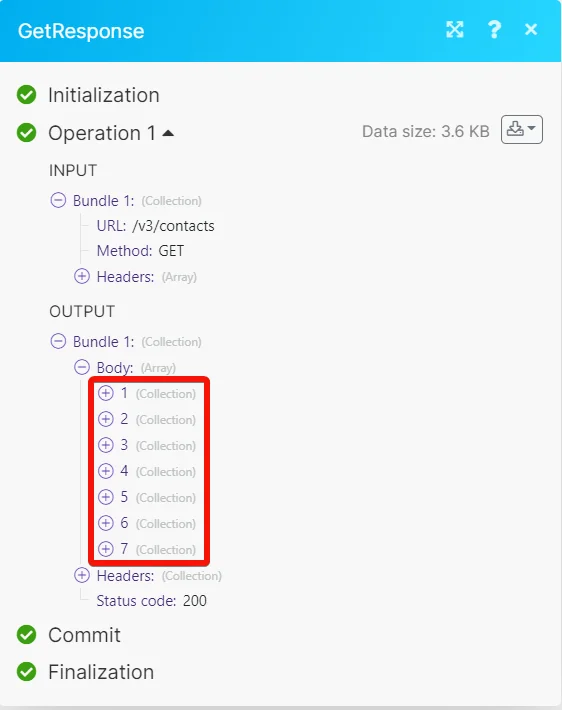
Example of Use – List Contacts
The following API call will list all the contacts from your GetResponse account:
URL:
/v3/contacts
Method:
GET
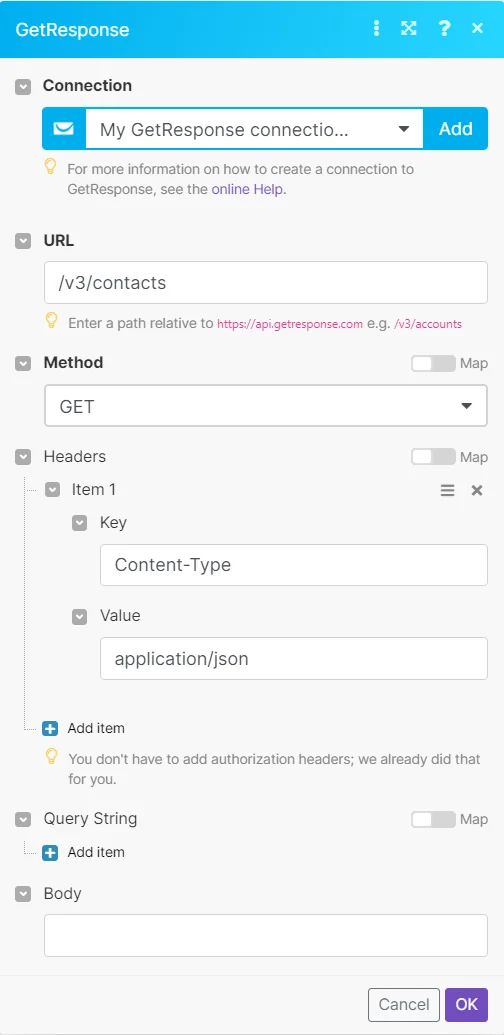
Matches of the search can be found in the module’s Output under Bundles > Body. In our example, 7 contacts were returned:
Legacy article, imported from the original Boost.space knowledge base (/knowledge-base/applications/communication/getresponse/).

