JustCall
The JustCall modules allow you to watch, create, update, list, retrieve, and delete the appointments, calls, contacts, campaigns, and text in your JustCall account.
To get started with the JustCall account, create an account at justcall.io/signup.
Connecting JustCall to Boost.space Integrator
To connect your JustCall app, you need to obtain the API Key and API Secret from your JustCall account and insert them in the JustCall module scenario.
-
Log in to your JustCall account.
-
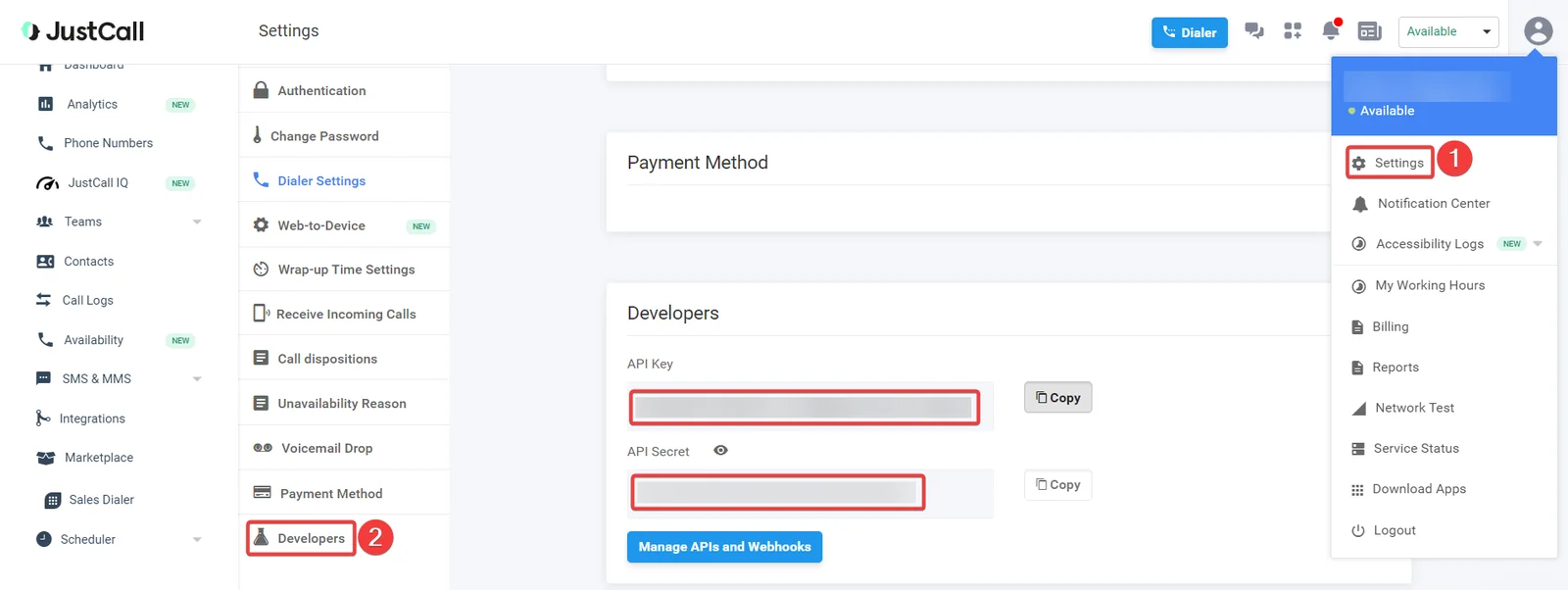
Click Profile Icon > Settings > Developers. Copy the API Key and API Secret to a safe place.
-
Log in to your Boost.space Integrator account, insert a JustCall module scenario and click the Add button next to the Connection field.
-
In the Connection name field, enter a name for the connection.
-
In the API Key and API Secret fields, enter the details copied in step 2, and click Save.
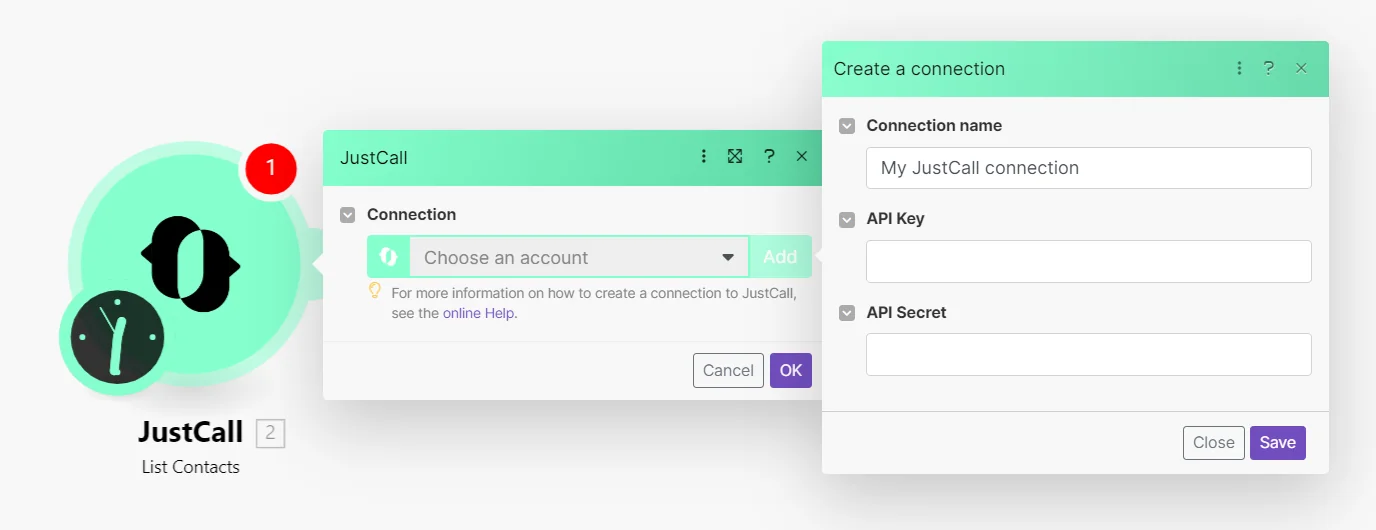
You have successfully established the connection. You can now begin editing your scenario and adding more JustCall modules. If your connection needs reauthorization at any point, follow the connection renewal steps here.
Contacts
You can watch, list, create, update, retrieve, and delete contacts with the following modules.
Watch Contacts
Triggers when a new contact is added to your JustCall address book.
Connection
Establish a connection to your JustCall account.
Limit
Set the maximum number of contacts Boost.space Integrator will return during one scenario execution cycle.
List Contacts
Gets all contacts.
Connection
Establish a connection to your JustCall account.
Limit
Set the maximum number of contacts Boost.space Integrator will return during one scenario execution cycle.
Get a Contact
Gets contact.
Connection
Establish a connection to your JustCall account.
Contact ID
Select the Contact ID whose details you want to retrieve.
Create a Contact
Creates contact.
Connection
Establish a connection to your JustCall account.
First Name
Enter the first name of the contact.
Phone
Enter the contact’s phone number.
Last Name
Enter the last name of the contact.
Enter the contact’s email address.
Company
Enter the contact’s company name.
Notes
Enter any additional information about the contact you want to mention.
Update a Contact
Updates contact.
Connection
Establish a connection to your JustCall account.
Contact ID
Select the Contact ID whose details you want to update.
First Name
Enter the first name of the contact.
Phone
Enter the contact’s phone number.
Last Name
Enter the last name of the contact.
Enter the contact’s email address.
Company
Enter the contact’s company name.
Notes
Enter any additional information about the contact you want to mention.
Label
Enter the applicable label to add an additional phone number.
Number
Enter an additional phone number of contact with the country code.
Delete a Contact
Deletes a contact.
Connection
Establish a connection to your JustCall account.
Contact ID
Select the Contact ID you want to delete.
Calls
You can watch voicemails, and calls, list, retrieve, and update calls with the following modules.
Watch Voicemails
Triggers whenever there is a new voicemail.
Connection
Establish a connection to your JustCall account.
Limit
Set the maximum number of contacts Boost.space Integrator will return during one scenario execution cycle.
Watch Calls
Triggers when a call is completed and logged.
For the module to work properly, you need to switch the type of webhook response to JSON. To do this, click Settings > Developers > Manage APIs and Webhooks > The icon of the letter i next to the name of the first event.
Webhook Name
Enter a name for the webhook.
Connection
Establish a connection to your JustCall account.
See Connecting to JustCall Webhook using Boost.space Integrator to add the webhook in your JustCall account.
List Calls
Gets all calls.
Connection
Establish a connection to your JustCall account.
Limit
Set the maximum number of calls Boost.space Integrator will return during one scenario execution cycle.
Get a Call
Gets a call.
Connection
Establish a connection to your JustCall account.
Call ID
Select the Call ID whose details you want to retrieve.
Update a Call
Updates a call.
Connection
Establish a connection to your JustCall account.
Call ID
Select the Call ID whose details you want to update.
Notes
Enter the information about the call which you want to update.
Texts
You can watch and create text messages, list, and retrieve texts, create scheduled text messages, and check replies with the following modules.
Watch Text Messages
Triggers when SMS are sent or received.
For the module to work properly, you need to switch the type of webhook response to JSON. To do this, click Settings > Developers > Manage APIs and Webhooks > The icon of the letter i next to the name of the first event.
Webhook Name
Enter a name for the webhook.
Connection
Establish a connection to your JustCall account.
See Connecting to JustCall Webhook using Boost.space Integrator to add the webhook in your JustCall account.
List Texts
Gets all texts.
Connection
Establish a connection to your JustCall account.
Limit
Set the maximum number of texts Boost.space Integrator should return during one scenario execution cycle.
Get a Text
Gets a text.
Connection
Establish a connection to your JustCall account.
Text ID
Select the Text ID whose details you want to retrieve.
Create a Text Message
Creates a text message.
Connection
Establish a connection to your JustCall account.
From
Enter the phone number including the country code from which you want to send the text message. For example, +14155552671.
To
Enter the phone number including the country code to which you want to send the text message. For example, +14155552671.
Body
Enter the message text.
Media URL
Enter the public links if you would like to add to the message. A maximum of five public links of the media having MIME type, image/jpeg, image/gif, image/x-png, image/png, image/vnd.wap.wbmp, image/x-bmp, audio/amr, audio/x-amr, audio/x-wav, audio/midi, audio/mid, audio/x-midi, audio/sp-midi, audio/rmf, audio/x-rmf, audio/x-beatnik-rmf, audio/basic, audio/mp3, video/3gpp, video/mp4, application/mp4, image/mp4, text/mp4, audio/mp4 are allowed. The media file should not exceed the cumulative size of 5 MB.
Create a Scheduled Text Message
Creates a scheduled text message. This message goes out on a particular date and time in the future.
Connection
Establish a connection to your JustCall account.
From
Enter the phone number including the country code from which you want to send the text message. For example, +14155552671.
To
Enter the phone number including the country code to which you want to send the text message. For example, +14155552671.
Body
Enter the message text.
Schedule
Enter the date and time to send the message in the 2020-07-14 09:00 +2:00 where the last part after ‘+’ denotes the difference from UTC.
Offset Time
Enter the time that can be added or subtracted from the specified schedule to send the message.
Check Reply
Checks reply.
Connection
Establish a connection to your JustCall account.
Client Number
Enter the customer’s phone number including the country code whose replies you want to check. For example, +14155552671.
Just Call Number
Enter your JustCall SMS enabled number whose message reply you are looking for.
Country Number
Enter the country number of the customer. If your customer’s phone number is not available in the international format, you can use this optional parameter to specify the country to which their number belongs. This has to be ISO 3166-1 alpha-2 country code. Check country codes here.
Campaigns
You can list campaigns, create, and delete contacts, and list calls in the autodialer campaigns,
List Campaigns
Gets all campaigns.
Connection
Establish a connection to your JustCall account.
Limit
Set the maximum number of campaigns Boost.space Integrator should return during one scenario execution cycle.
List Calls in the AutoDialer Campaign
Gets all calls in the auto-dialer campaign.
Connection
Establish a connection to your JustCall account.
Limit
Set the maximum number of campaigns Boost.space Integrator should return during one scenario execution cycle.
Create a Contact in the AutoDialer Campaign
Creates contact in the auto-dialer campaign.
Connection
Establish a connection to your JustCall account.
Campaign ID
Select the Campaign ID in which you want to create the contact.
Phone
Enter the contact’s phone number.
First Name
Enter the contact’s first name.
Last Name
Enter the contact’s last name.
Custom Prop
Add the custom fields and their values for the contact.
Delete a Contact in the AutoDialer Campaign
Deletes a contact in the auto-dialer campaign.
Connection
Establish a connection to your JustCall account.
Phone
Enter the contact’s Phone number whose details you want to delete from the campaign.
Campaign ID
Select the Campaign ID from which you want to delete the contact.
Appointments
You can watch appointments with the following module.
Watch Appointments
Triggers when a new appointment is scheduled via JustCall Appointment Scheduler.
For the module to work properly, you need to switch the type of webhook response to JSON. To do this, click Settings > Developers > Manage APIs and Webhooks > icon of the letter i next to the name of the first event.
Webhook Name
Enter a name for the webhook.
Connection
Establish a connection to your JustCall account.
See Connecting to JustCall Webhook using Boost.space Integrator to add the webhook in your JustCall account.
Other
You can make API calls with the following module.
Make an API Call
Performs an arbitrary authorized API call.
Connection
Establish a connection to your JustCall account.
URL
Enter a path relative to https://api.justcall.io/. For example, /v1/contacts/list.
For the list of available endpoints, refer to the JustCall API Documentation.
Method
Select the HTTP method you want to use:
GET to retrieve information for an entry**.**
POST to create a new entry.
PUT to update/replace an existing entry.
PATCH to make a partial entry update.
DELETE to delete an entry.
Headers
Enter the desired request headers. You don’t have to add authorization headers; we already did that for you.
Query String
Enter the request query string.
Body
Enter the body content for your API call.
Example of Use – List Campaigns
The following API call returns all the campaigns from your JustCall account:
URL: /v1/autodialer/campaigns/list
Method: GET
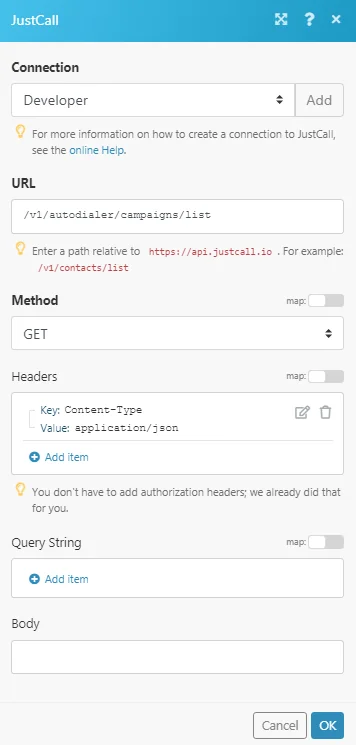
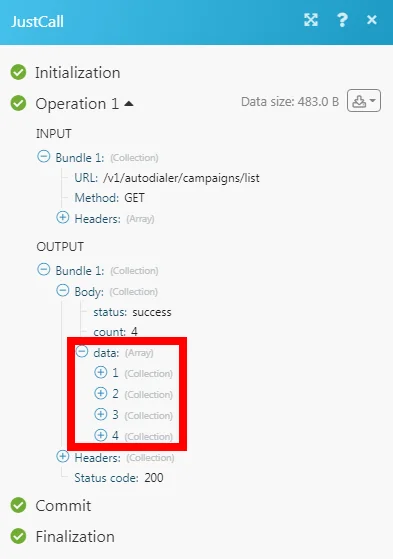
Matches of the search can be found in the module’s Output under Bundle > Body > data. In our example, 4 campaigns were returned:
Connecting to JustCall Webhook Using Boost.space Integrator
-

Open any trigger module, establish the connection, click Save, and copy the URL address to your clipboard.
-
Log in to your JustCall account. Click Your Profile Icon > Settings > Developers > Manage API Webhooks.
In the respective webhook section, add the URL address copied in step 1 and click + icon.
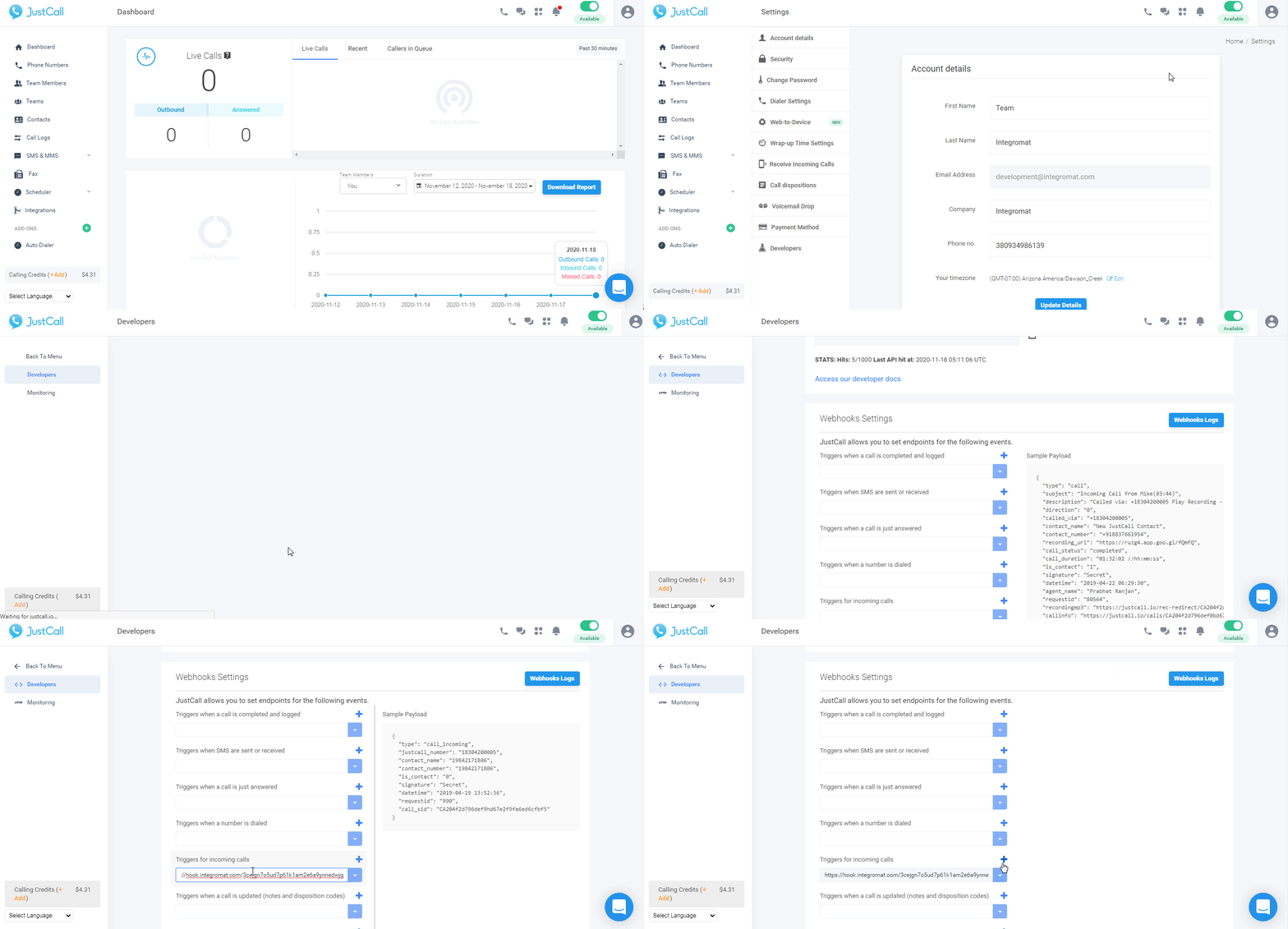
The webhook is successfully added.
Legacy article, imported from the original Boost.space knowledge base (/knowledge-base/applications/communication/justcall/).

