LINE
The Line modules enable you to monitor, publish or update posts, photos and videos in your Line account.
Getting Started with Line
Prerequisites
-
A Line app installed
-
A developer account in the LINE Developers console
-
Created a dedicated Messaging API channel for your bot
The module dialog fields that are displayed in bold (in the Boost.space Integrator scenario, not in this documentation article) are mandatory!
Connecting Line to Boost.space Integrator
To connect your Line account to Boost.space Integrator follow these steps:
1. Log in to the LINE Developers console.
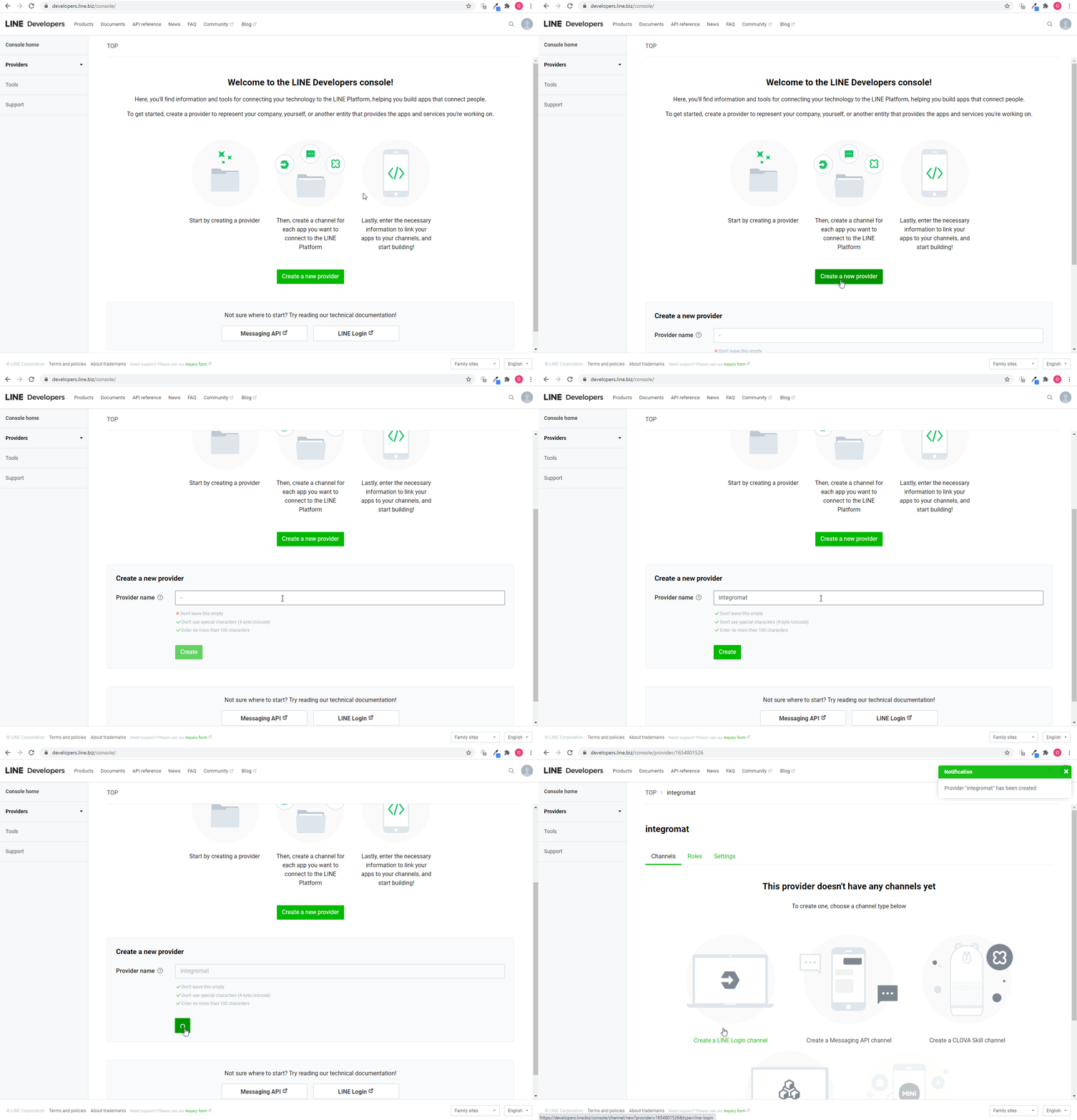
2. Create a new provider.
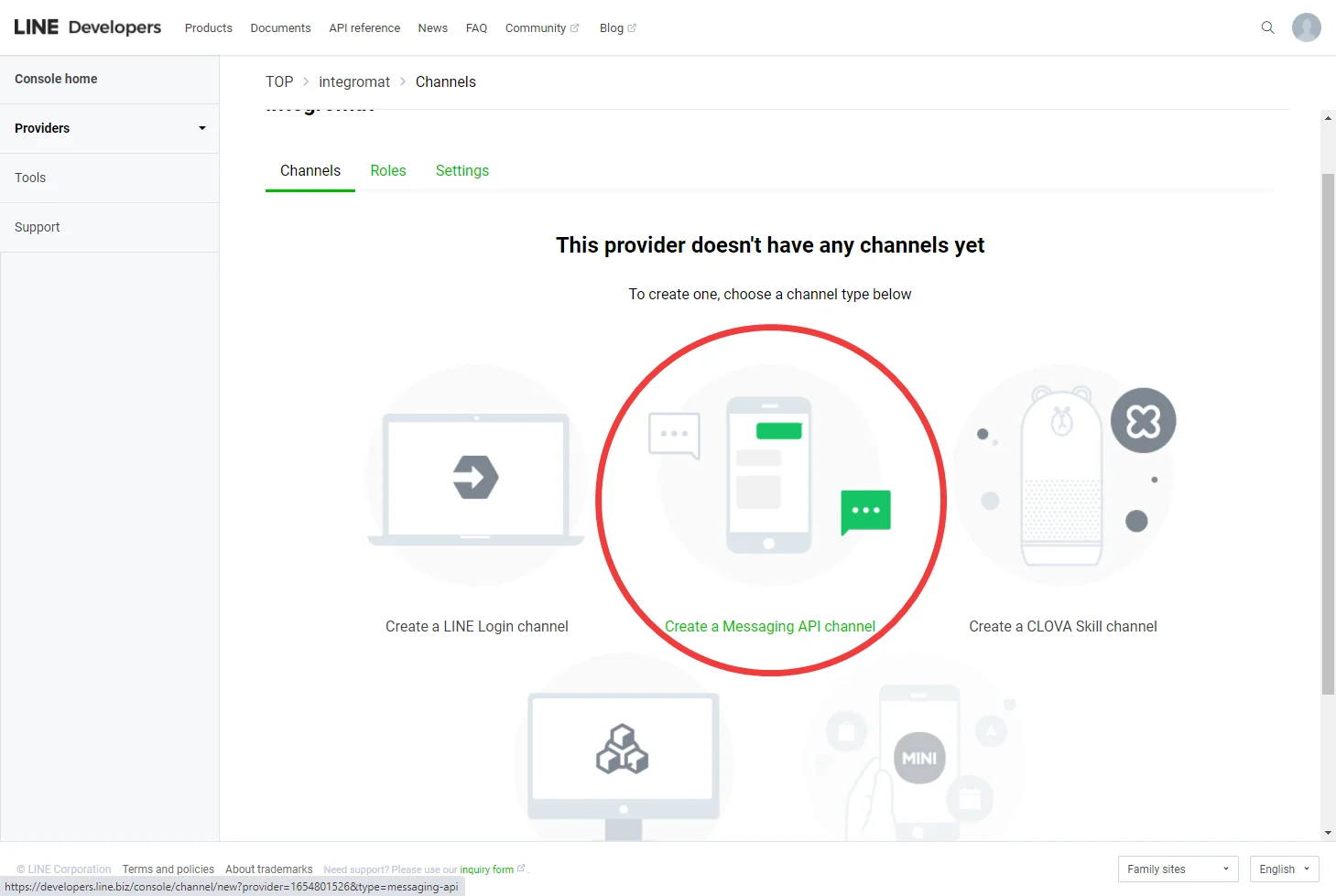
3. Click the Create a Messaging API channel.
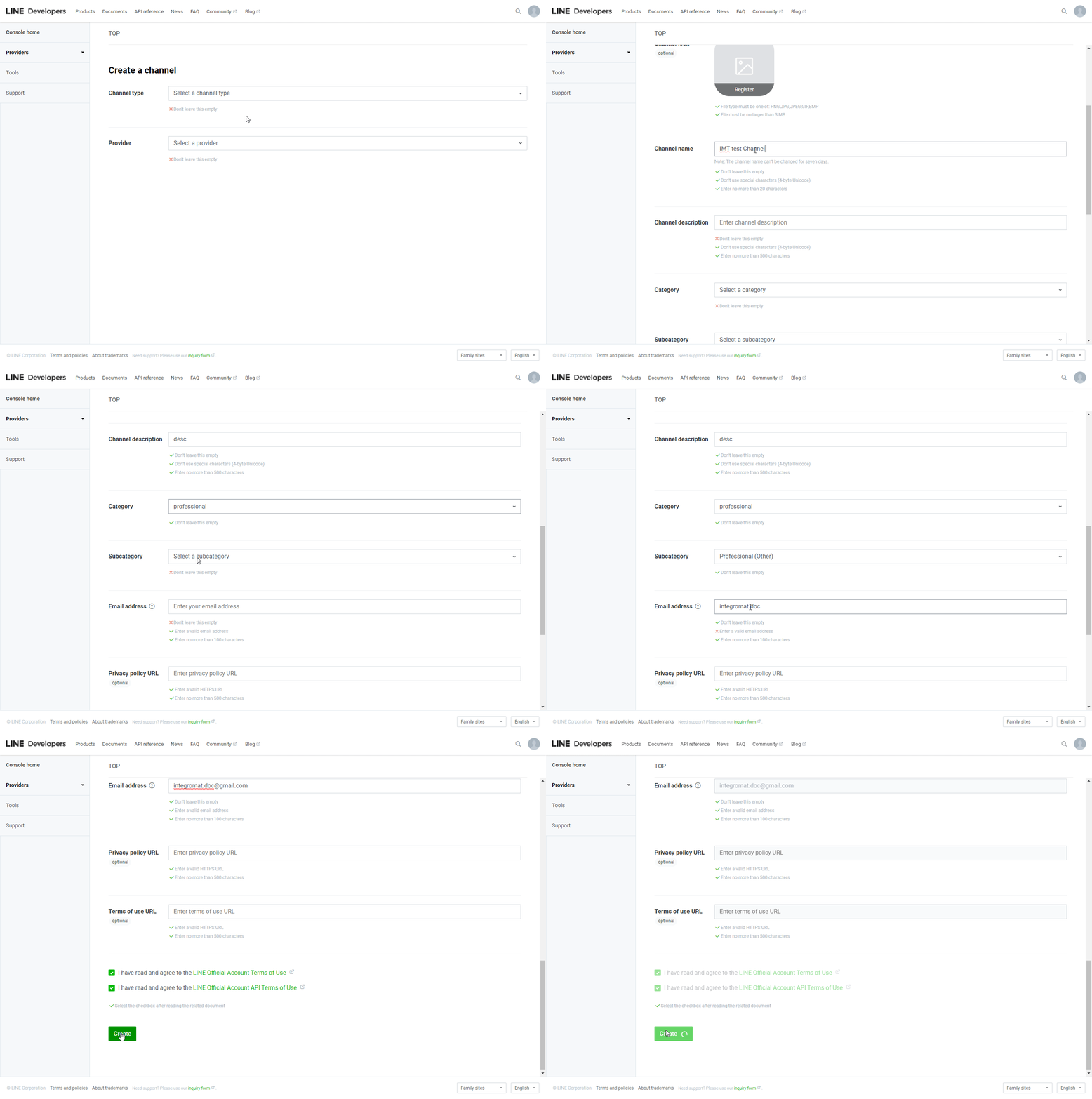
4. Provide the required information and click Create to create a channel.
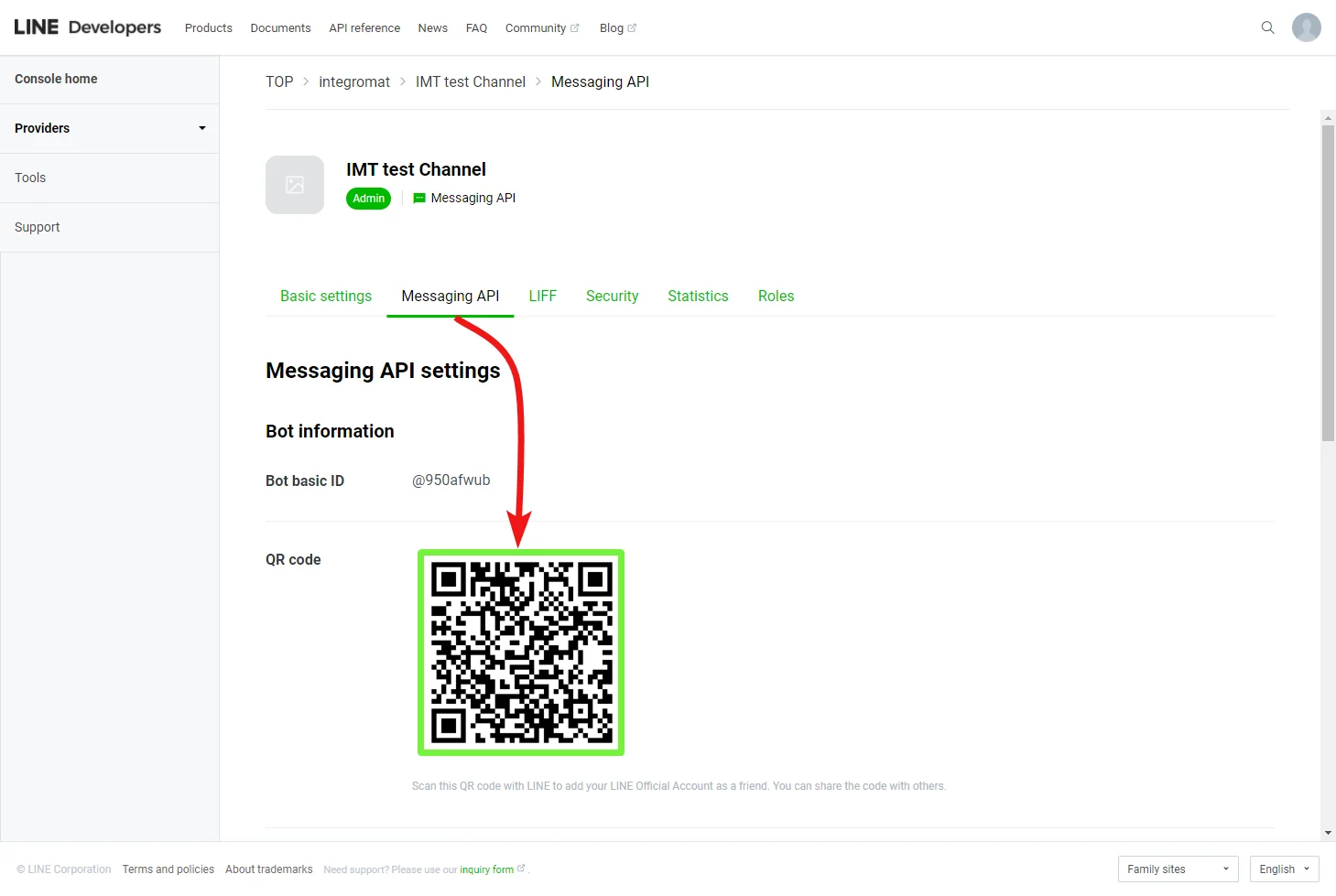
5. In the channel created above, open the Messaging API tab and scan the QR code using your LINE app to add the channel as a friend.
6. In the Messaging API tab, scroll down to the Channel access token section and click the Issue button (
 ) to generate the Channel Access Token.
7. Navigate to the Basic settings tab, scroll down and copy the provided User ID.

8. Go to Boost.space Integrator and open the LINE module’s Create a connection dialog.
9. Enter the Channel access token you have generated in step 6 and the User ID copied in step 7 to respective fields and click the Continue button to establish the connection.
The connection has been established. You can proceed with setting up the module.
Message
Watch Events
Triggers when an event occurs.
The webhook URL needs to be generated in Boost.space Integrator and then added to LINE’s developer settings.
1. Add the Watch New Activity module to your Boost.space Integrator scenario.
2. Generate and copy the webhook URL.
3. Log in to your LINE Developers account.
4. Navigate to Providers > {your provider} > {your messaging API channel} > Messaging API tab.
5. Enter the webhook URL copied in step 2 above to the Webhook URL field and click Update.
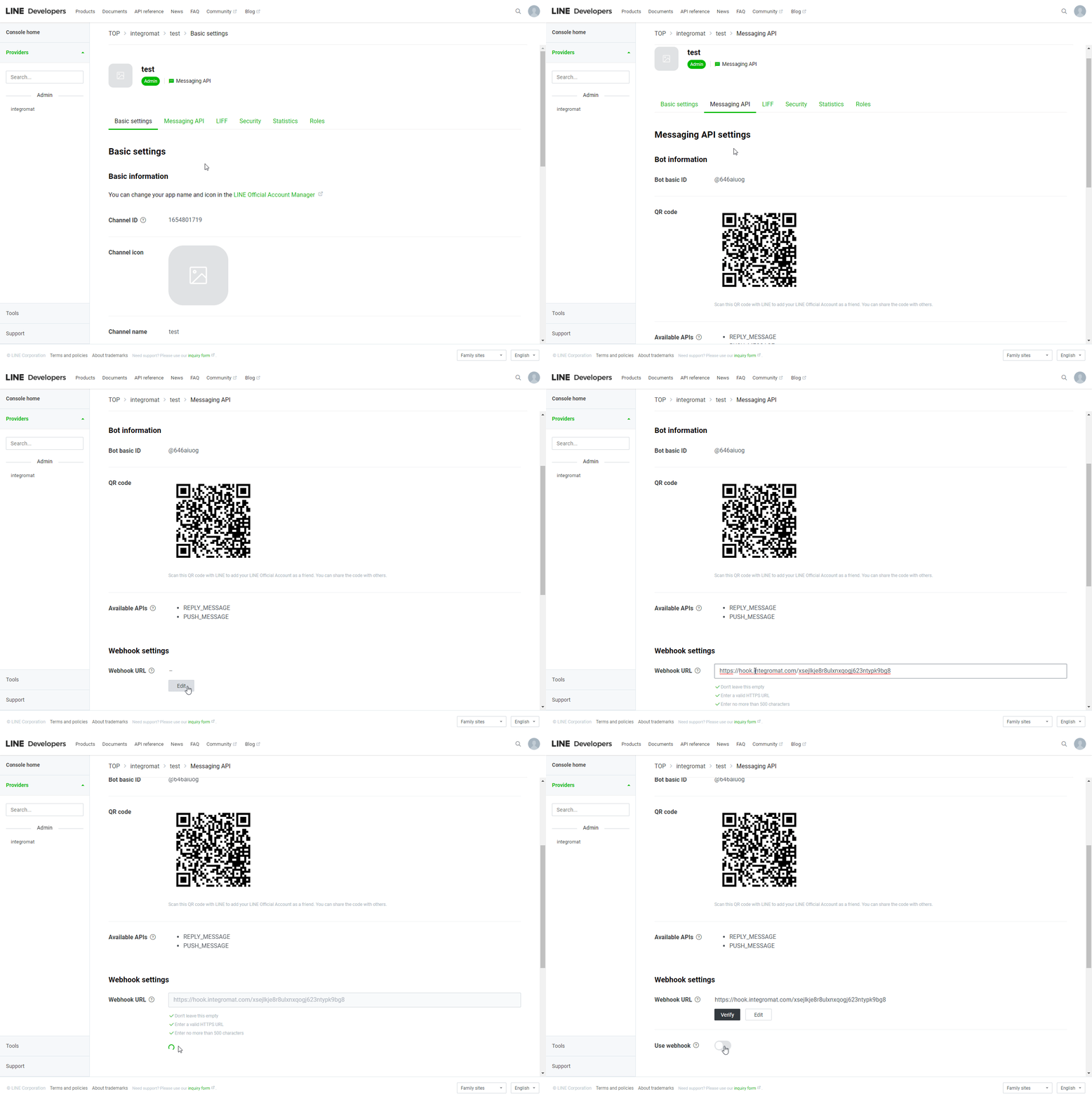
6. Activate the Use webhook option.
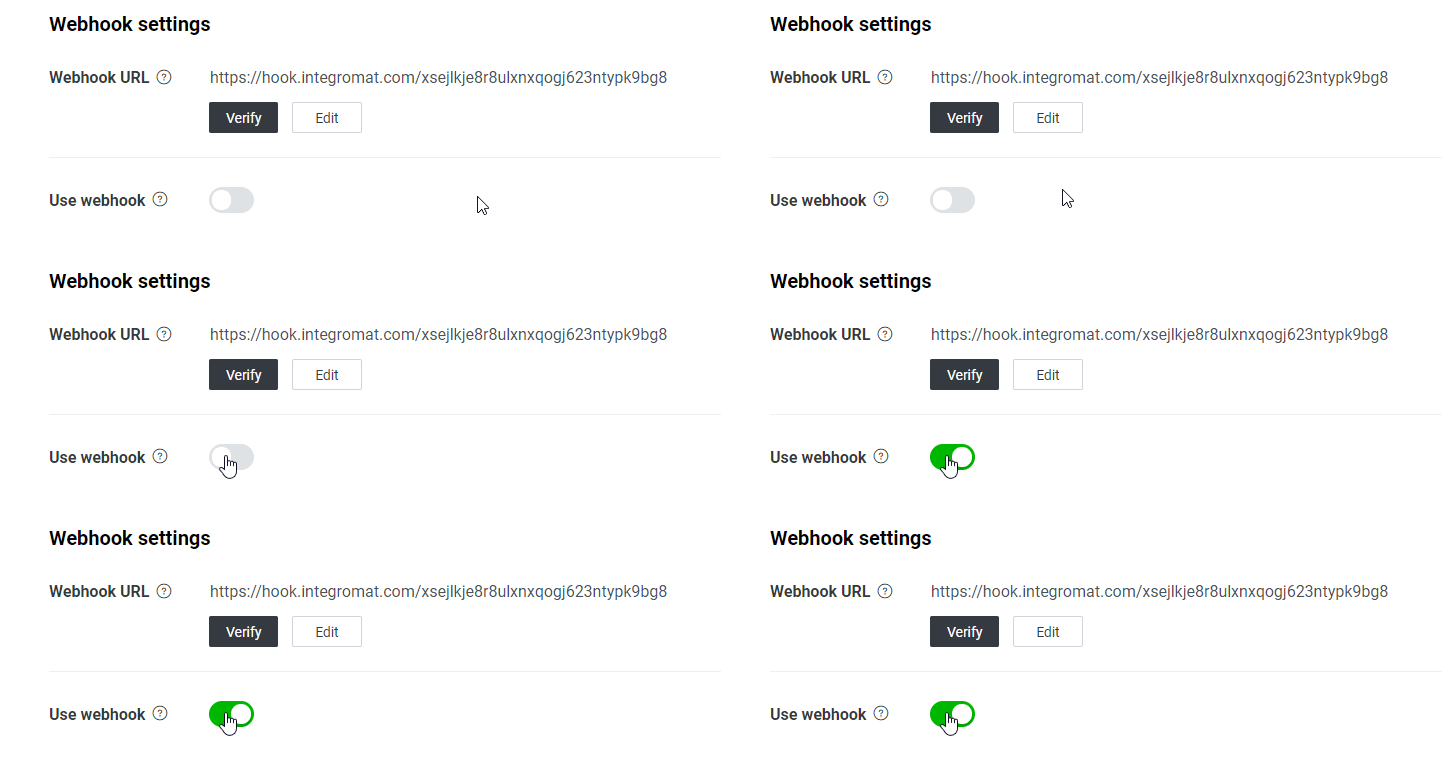
Now, every time an event occurs, the Watch Events module in your Boost.space Integrator scenario is triggered.
Send a Reply Message
Sends a reply message in a response to an event from user, group, or room.
Connection
Establish a connection to your LINE account.
Reply Token
Map the reply token from the Watch Events module.
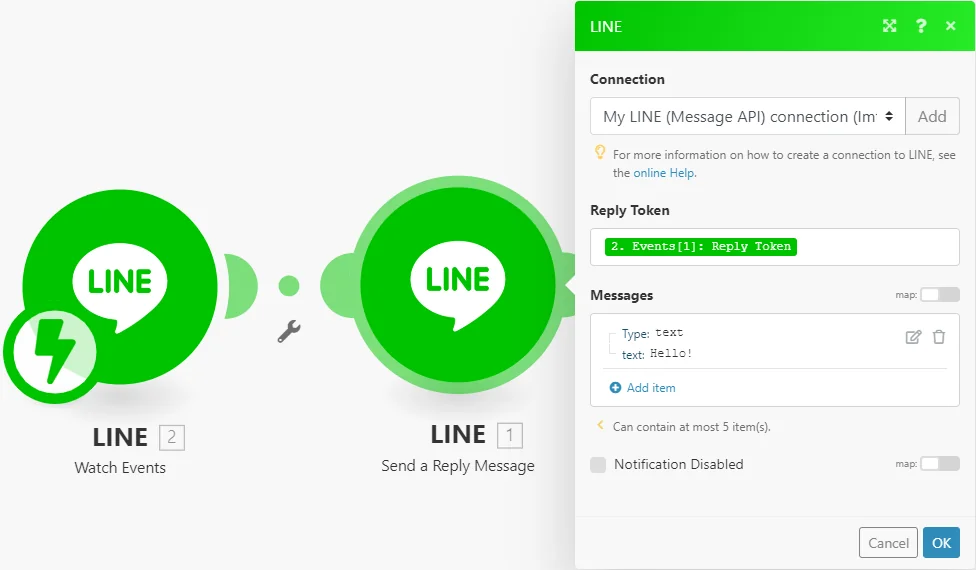
Because the reply token becomes invalid after a certain period of time, responses should be sent as soon as a message is received. Reply tokens can only be used once.
Messages
Set the messages you want to send as reply. Max 5 messages.
Type
Select the type of the message:
Text
Text
Enter the message text. You can include the following emoji:
-
Unicode emoji
-
LINE emoji (Use a
$character as a placeholder and specify details in theemojisproperty)
Max character limit: 5000
LINE Emojis
Add one or more LINE emoji.
The number of emoji items must be equal to the number of $ in the Text field above.
-
Product ID for a set of LINE emojis. See Sendable LINE emoji list.
-
Emoji ID for a LINE emoji inside a set. See Sendable LINE emoji list.
Sticker
Package ID
Enter the Package ID for a set of stickers. For information on package IDs, see the Sticker list.
Sticker ID
Enter the Sticker ID. For a list of sticker IDs for stickers that can be sent with the Messaging API, see the Sticker list.
Image
Original Content URL
Enter the image URL (Max character limit: 1000) HTTPS over TLS 1.2 or later JPG, JPEG, or PNG Max image size: No limits Max file size: 10 MB
Preview Image URL
Enter the preview image URL (Max character limit: 1000) HTTPS over TLS 1.2 or later JPG, JPEG or PNG Max image size: No limits Max file size: 1 MB
Video
Original Content URL
URL of the video file (Max character limit: 1000) HTTPS over TLS 1.2 or later mp4 Max file size: 200 MB A very wide or tall video may be cropped when played in some environments.
Preview Image URL
URL of the preview image (Max character limit: 1000) HTTPS over TLS 1.2 or later JPEG or PNG Max file size: 1 MB
Audio
Original Content URL
Enter the URL of the audio file (Max character limit: 1000) HTTPS over TLS 1.2 or later m4a Max file size: 200 MB Note: Only M4A files are supported on the Messaging API. If a service only supports MP3 files, you can use a service like FFmpeg to convert the files to M4A.
Duration
Specify the length of the audio file (milliseconds)
Location
Enter the title, address, latitude and longitude of the location.
Image Map
Imagemap messages are messages configured with an image that has multiple tappable areas. You can assign one tappable area for the entire image or different tappable areas on divided areas of the image.
For more details please refer to the LINE documentation.
Template
Template messages are messages with predefined layouts that you can customize. For more information, see Template messages.
For more details please refer to the LINE documentation.
Notification Disabled
Enable this option to disable a push notification to the user when the message is sent.
Send a Push Message
Sends a push message to a user, group, or room at any time.
Connection
Establish a connection to your LINE account.
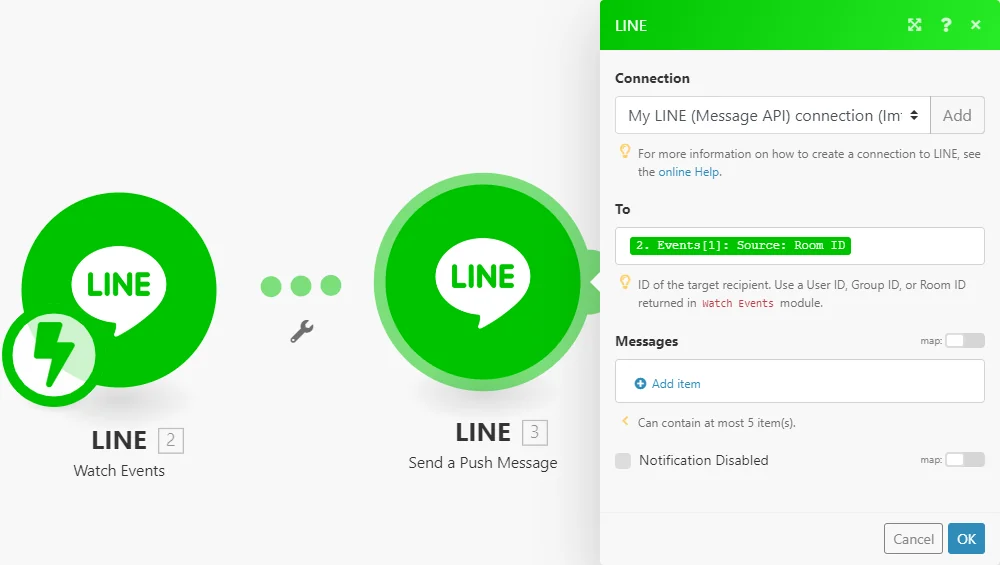
To
Map the ID of the target recipient. Use a User ID, Group ID, or Room ID returned in the Watch Eventsmodule.
Messages
Set the messages you want to send. Max 5 messages.
Type
Select the type of the message:
Text
Text
Enter the message text. You can include the following emoji:
-
Unicode emoji
-
LINE emoji (Use a
$character as a placeholder and specify details in theemojisproperty)
Max character limit: 5000
LINE Emojis
Add one or more LINE emoji.
The number of emoji items must be equal to the number of $ in the Text field above.
-
Product ID for a set of LINE emojis. See Sendable LINE emoji list.
-
Emoji ID for a LINE emoji inside a set. See Sendable LINE emoji list.
Sticker
Package ID
Enter the Package ID for a set of stickers. For information on package IDs, see the Sticker list.
Sticker ID
Enter the Sticker ID. For a list of sticker IDs for stickers that can be sent with the Messaging API, see the Sticker list.
Image
Original Content URL
Enter the image URL (Max character limit: 1000) HTTPS over TLS 1.2 or later JPG, JPEG, or PNG Max image size: No limits Max file size: 10 MB
Preview Image URL
Enter the preview image URL (Max character limit: 1000) HTTPS over TLS 1.2 or later JPG, JPEG or PNG Max image size: No limits Max file size: 1 MB
Video
Original Content URL
URL of the video file (Max character limit: 1000) HTTPS over TLS 1.2 or later mp4 Max file size: 200 MB A very wide or tall video may be cropped when played in some environments.
Preview Image URL
URL of the preview image (Max character limit: 1000) HTTPS over TLS 1.2 or later JPEG or PNG Max file size: 1 MB
Audio
Original Content URL
Enter the URL of the audio file (Max character limit: 1000) HTTPS over TLS 1.2 or later m4a Max file size: 200 MB Note: Only M4A files are supported on the Messaging API. If a service only supports MP3 files, you can use a service like FFmpeg to convert the files to M4A.
Duration
Specify the length of the audio file (milliseconds)
Location
Enter the title, address, latitude and longitude of the location.
Image Map
Imagemap messages are messages configured with an image that has multiple tappable areas. You can assign one tappable area for the entire image or different tappable areas in divided areas of the image.
For more details please refer to the LINE documentation.
Template
Template messages are messages with predefined layouts that you can customize. For more information, see Template messages.
For more details please refer to the LINE documentation.
Notification Disabled
Enable this option to disable a push notification to the user when the message is sent.
Send a Broadcast Message
Sends push messages to multiple users at any time.
Connection
Establish a connection to your LINE account.
Messages
Set the messages you want to send as reply. Max 5 messages.
Type
Select the type of the message:
Text
Text
Enter the message text. You can include the following emoji:
-
Unicode emoji
-
LINE emoji (Use a
$character as a placeholder and specify details in theemojisproperty)
Max character limit: 5000
LINE Emojis
Add one or more LINE emoji.
The number of emoji items must be equal to the number of $ in the Text field above.
-
Product ID for a set of LINE emojis. See Sendable LINE emoji list.
-
Emoji ID for a LINE emoji inside a set. See Sendable LINE emoji list.
Sticker
Package ID
Enter the Package ID for a set of stickers. For information on package IDs, see the Sticker list.
Sticker ID
Enter the Sticker ID. For a list of sticker IDs for stickers that can be sent with the Messaging API, see the Sticker list.
Image
Original Content URL
Enter the image URL (Max character limit: 1000) HTTPS over TLS 1.2 or later JPG, JPEG, or PNG Max image size: No limits Max file size: 10 MB
Preview Image URL
Enter the preview image URL (Max character limit: 1000) HTTPS over TLS 1.2 or later JPG, JPEG or PNG Max image size: No limits Max file size: 1 MB
Video
Original Content URL
URL of the video file (Max character limit: 1000) HTTPS over TLS 1.2 or later mp4 Max file size: 200 MB A very wide or tall video may be cropped when played in some environments.
Preview Image URL
URL of the preview image (Max character limit: 1000) HTTPS over TLS 1.2 or later JPEG or PNG Max file size: 1 MB
Audio
Original Content URL
Enter the URL of the audio file (Max character limit: 1000) HTTPS over TLS 1.2 or later m4a Max file size: 200 MB Note: Only M4A files are supported on the Messaging API. If a service only supports MP3 files, you can use a service like FFmpeg to convert the files to M4A.
Duration
Specify length of the audio file (milliseconds)
Location
Enter the title, address, latitude and longitude of the location.
Image Map
Imagemap messages are messages configured with an image that has multiple tappable areas. You can assign one tappable area for the entire image or different tappable areas in divided areas of the image.
For more details please refer to the LINE documentation.
Template
Template messages are messages with predefined layouts that you can customize. For more information, see Template messages.
For more details please refer to the LINE documentation.
Notification Disabled
Enable this option to disable a push notification to the user when the message is sent.
Download a Message Attachment
Downloads images, videos, audio, and files sent by users.
Connection
Establish a connection to your LINE account.
Message ID
Enter (map) the ID of the message you want to download an attachment from.
The message must contain image, video, audio, and file.
Text, sticker or emoji cannot be downloaded.
Notify API
Send a Notification
Sends a notification to LINE.
You need to establish a new connection. When establishing a new connection you will be redirected to the LINE website. After you log in, you need to select a chat you want to send notification to and click the Agree and connect button.
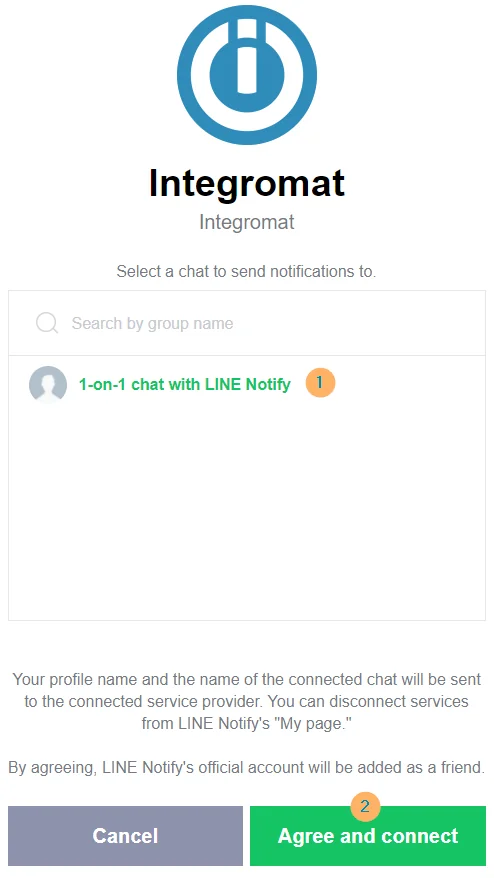
Connection
Establish a connection to the Notify API.
Message
Enter the message content. Max 1000 characters.
Upload an Image
Select whether you want to provide an image by file data or URL.
Image Full Size URL
Enter the URL to the full size image in the JPEG format. Maximum size of 2048×2048 px.
Image Thumbnail URL
Enter the URL to the image Thumbnail in the JPEG format. Maximum size of 240×240 px.
Source file
Map the file you want to upload from the previous module (e.g. HTTP > Get a File or Google Drive > Download a File) in the JPG or PNG format, or enter the file name and file data manually.
Add Sticker
Enable this option to add the sticker to the notification.
Sticker Package ID
Enter the Sticker Package ID. You can find it in the STKPKGID column in the following PDF document https://devdocs.line.me/files/sticker_list.pdf.
Sticker ID
Enter the Sticker Package ID. You can find it in the STKID column in the following PDF document https://devdocs.line.me/files/sticker_list.pdf.
Disable a Push Notification
Enable this option to disable a push notification to the user when the message is sent.
Group/Room
List Group/Room Members
Retrieves the user IDs of the members of a group that the bot is in. To invite a bot, make sure that the Allow bot to join group chats option is enabled in your bot channel settings.
This includes user IDs of users who have not added the LINE Official Account as a friend or have blocked the LINE Official Account.
This feature is available only for verified or premium accounts. For more information about account types, see the Account Types of LINE Official Account page on LINE for Business.
Connection
Establish a connection to your LINE account.
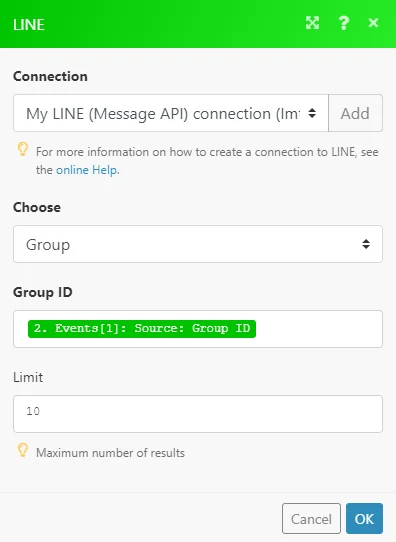
Choose
Select whether you want to retrieve members from the group or room.
Group ID
Enter (map) the group ID of the group you want to retrieve members from. You can retrieve the group ID using the Watch Events module (triggers when a user joins a group/room).
Room ID
Enter (map) the room ID of the room you want to retrieve members from. You can retrieve the room ID using the Watch Events module (triggers when a user joins a group/room).
Limit
Set the maximum number of members Boost.space Integrator will return during one scenario execution.
Get a Group/Room Member Profile
Retrieves a display name and profile image URL of the group/room member.
Connection
Establish a connection to your LINE account.
Choose
Select whether you want to retrieve member information from the group or room.
Room ID/Group ID
Enter (map) the group ID or Room ID of the group/room you want to retrieve member information from. You can retrieve the IDs using the Watch Events module (triggers when a user joins a group/room).
User ID
Enter (map) the user ID of the user you want to retrieve the display name and profile image for.
Leave Group/Room
Leaves a group or room.
Connection
Establish a connection to your LINE account.
Choose
Select whether you want to leave a group or a room.
Room ID/Group ID
Enter (map) the group ID or Room ID of the group/room you want to leave. You can retrieve the ID using the Watch Eventsmodule.
Rich Menu
List Rich Menus
Retrieves a list of all rich menus and their details that have been created by the API.
Connection
Establish a connection to your LINE account.
Limit
Set the maximum number of rich menus Boost.space Integrator will return during one execution cycle.
Get a Rich Menu
Retrieves rich menu details.
Connection
Establish a connection to the Notify API.
Rich Menu ID
Enter (map) the Rich Menu ID or select the Rich Menu you want to retrieve details about.
Create a Rich Menu
Creates a new rich menu.
You can create up to 1000 rich menus for one LINE Official Account.
Connection
Establish a connection to your LINE account.
Name
Enter the name of the rich menu. This value can be used to help manage your rich menus and is not displayed to users. Max character limit: 300
Chat Bar Text
Enter the text displayed in the chat bar. Max 14 characters.
Set the Rich Menu by Default
Enable this option to display the rich menu by default.
Source File
Map the file you want to upload from the previous module (e.g. HTTP > Get a File or Google Drive > Download a File), or enter the file name and file data manually.
-
Image format: JPEG or PNG
-
Image width size (pixels): 800 to 2500
-
Image height size (pixels): 250 or more
-
Image aspect ratio (width/height): 1.45 or more
-
Max file size: 1 MB
Select Size of Rich Menu
Select the size of the rich menu.
-
Large Size – 2500 x 1686
-
Small Size – 2500 x 843
Areas
Define the coordinates and size of tappable areas. Max 20 areas.
X Axis
Enter the horizontal position of the top-left corner of the tappable area relative to the left edge of the image.
Y Axis
Enter the vertical position of the top-left corner of the tappable area relative to the left edge of the image.
Width
Enter the width of the tappable area.
Height
Enter the height of the tappable area.
Type
Select the type of action performed when the area is tapped.
Postback
Data
String returned via webhook in the postback.data property of the postback event Max character limit: 300
Display Text
Text displayed in the chat as a message sent by the user when the action is performed. Required for quick reply buttons. Optional for the other message types. Max character limit: 300
Label
Enter the label for the action
-
Required for templates other than image carousel. Max character limit: 20
-
Optional for image carousel templates. Max character limit: 12
-
Optional for rich menus. Spoken when the accessibility feature is enabled on the client device. Max character limit: 20. Supported on LINE 8.2.0 or later for iOS.
-
Required for quick reply buttons. Max character limit: 20. Supported on LINE 8.11.0 or later for both LINE for iOS and LINE for Android.
-
Required for the button of Flex Message. This property can be specified for the box, image, and text but its value is not displayed. Max character limit: 20
Message
Text
Enter the text sent when the action is performed Max character limit: 300
Label
Enter the label for the action
-
Required for templates other than image carousel. Max character limit: 20
-
Optional for image carousel templates. Max character limit: 12
-
Optional for rich menus. Spoken when the accessibility feature is enabled on the client device. Max character limit: 20. Supported on LINE 8.2.0 or later for iOS.
-
Required for quick reply buttons. Max character limit: 20. Supported on 8.11.0 or later for both LINE for iOS and LINE for Android.
-
Required for the button of Flex Message. This property can be specified for the box, image, and text but its value is not displayed. Max charater limit: 20
URL
When a control associated with this action is tapped, the URL specified is opened.
URL
URI opened when the action is performed (Max character limit: 1000) The available schemes are http, https, line, and tel. For more information about the LINE URL scheme, see Using LINE features with the LINE URL scheme.
Label
Enter the label for the action
-
Required for templates other than image carousel. Max character limit: 20
-
Optional for image carousel templates. Max character limit: 12
-
Optional for rich menus. Spoken when the accessibility feature is enabled on the client device. Max character limit: 20. Supported on LINE 8.2.0 or later for iOS.
-
Required for the button of Flex Message. This property can be specified for the box, image, and text but its value is not displayed. Max character limit: 20
URL for Desktop
Enter the URI opened on LINE for macOS and Windows when the action is performed (Max character limit: 1000).
Datetime Picker
When a control associated with this action is tapped, a postback event is returned via webhook with the date and time selected by the user from the date and time selection dialog. The datetime picker action does not support time zones.
Data
String returned via webhook in the postback.data property of the postback event. Max character limit: 300
Mode
Select the action mode.
Label
Label for the action
-
Required for templates other than image carousel. Max character limit: 20
-
Optional for image carousel templates. Max character limit: 12
-
Optional for rich menus. Spoken when the accessibility feature is enabled on the client device. Max character limit: 20. Supported on LINE 8.2.0 or later for iOS.
-
Required for quick reply buttons. Max character limit: 20. Supported on 8.11.0 or later for both LINE for iOS and LINE for Android.
-
Required for the button of Flex Message. This property can be specified for the box, image, and text but its value is not displayed. Max character limit: 20
Download a Rich Menu Image
Downloads an image associated with a rich menu created by the API.
Connection
Establish a connection to your LINE account.
Rich Menu ID
Select the rich menu you want to download the image from.
Delete a Rich Menu
Deletes a Rich Menu.
Connection
Establish a connection to your LINE account.
Rich Menu ID
Enter (map) the ID of the rich menu or select the rich menu you want to delete.
Insight
Get a Number of Message Deliveries
Returns the number of messages sent from LINE Official Account on a specified day.
Connection
Establish a connection to your LINE account.
Date
Enter the date for which to retrieve number of sent messages.
- Format:
yyyyMMdd(Example:20191231)
Get a Number of Followers
Returns the number of users who have added the LINE Official Account on or before a specified date.
Connection
Establish a connection to your LINE account.
Date
Enter the date for which to retrieve the number of followers.
- Format:
yyyyMMdd(Example:20191231)
Other
Make an API Call
Allows you to perform a custom API call.
Connection
Establish a connection to your LINE account.
URL
Enter a path relative to https://api.line.me.
For example: /v2/bot/richmenu/list.
For the list of available endpoints, refer to the LINE Messaging API Documentation.
Method
Select the HTTP method you want to use:
-
GET: to retrieve information for an entry.
-
POST: to create a new entry.
-
PUT: to update/replace an existing entry.
-
PATCH: to make a partial entry update.
-
DELETE: to delete an entry.
Headers
Enter the desired request headers. You don’t have to add authorization headers; we already did that for you.
Query String
Enter the request query string.
Body
Enter the body content for your API call.
Example of Use – List Rich Menus
The following API call returns all rich menus in your LINE account:
URL:
/v2/bot/richmenu/list
Method:
GET
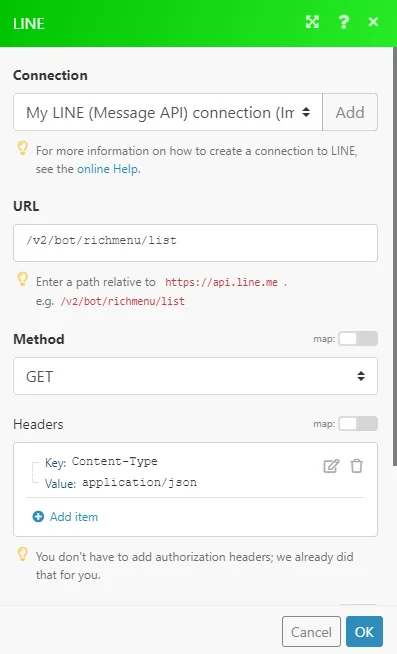
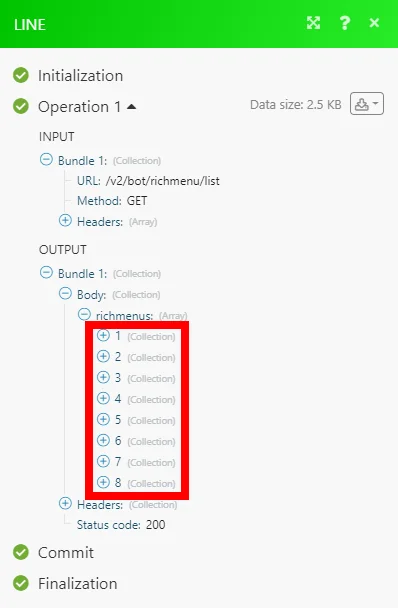
The result can be found in the module’s Output under Bundle > Body > richmenus.
In our example, 8 rich menus were returned:
Legacy article, imported from the original Boost.space knowledge base (/knowledge-base/applications/communication/line/).

