Plivo
Getting started with Plivo

The Plivo modules allow you to send SMS, make a call and play the audio message, or a voice message, receive calls, and receive SMS in your Plivo account.
Prerequisites
- A Plivo account
In order to use Plivo with Boost.space Integrator, it is necessary to have a Plivo account. If you do not have one, you can create a Plivo account at plivo.com/register.
The module dialog fields that are displayed in bold (in the Boost.space Integrator scenario, not in this documentation article) are mandatory!
Connecting the Plivo to Boost.space Integrator
To connect your Plivo account to Boost.space Integrator you need to obtain the Access Key from your Plivo account and insert it in the Create a connection dialog in the Boost.space Integrator module.
1. Log in to your Plivo account.
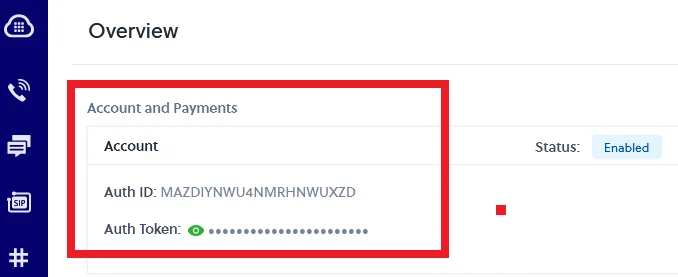
2. On the Dashboard, copy the Auth ID and Auth Token to your clipboard.
3. Go to Boost.space Integrator and open the Plivo module’s _Create a Connection_dialog.
4. In the Connection name field, enter a name for the connection.
5. In the Authentication ID and Authentication Token fields, enter the values copied in step 2 respectively.
6. Click Continue.
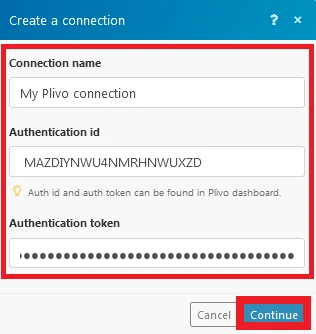
The connection has been established.
Triggers
Call Received
Instant trigger activates when a new call is received.
Webhook Name
Enter a name for the webhook.
Connection
Establish a connection to your Plivo account.
Application Name
Enter the application from which you want to watch when a new call is received.
Mobile Number
Enter the mobile number whose received calls you want to watch.
New Recording Added
Trigger activates when there is a new recording.
Connection
Establish a connection to your Plivo account.
SMS Received
Instant trigger activates when a new SMS is received.
Webhook Name
Enter a name for the webhook.
Connection
Establish a connection to your Plivo account.
Application Name
Enter the application from which you want to watch when a new call is received.
Mobile Number
Enter the mobile number whose received SMS you want to watch.
Call Received
Trigger activates when a new call is received.
Connection
Establish a connection to your Plivo account.
SMS Received
Trigger activates when a new SMS is received.
Connection
Establish a connection to your Plivo account.
Actions
Respond to Incoming Call
Responds to an incoming call with instructions.
Elements
Add the elements to respond to the incoming calls:
Type
Select the method in which you want to respond to the incoming calls:
-
GetDigits
-
Hangup
-
Play
-
PreAnswer
-
Redirect
-
Speak
-
Wait
GetDigits
URL Address
Enter the URL to redirect the incoming call.
Method
Select the method to request the URL:
-
POST
-
GET
Timeout
Enter the time in seconds after which the request
Elements
Add the elements:
-
Play
-
Speak
Hang Up
Reason
Enter the reason for hanging up the call.
Schedule
Enter the time in seconds by when the call should be hang up.
Play
Audio URL
Enter the URL address of the audio you want to play after making the call.
Loop
Enter the number of times to play the audio. If the value is set to 0, it plays indefinitely.
PreAnswer
Elements
Add the elements:
Type
Select the Pre answer type:
-
Play
-
Speak
-
Wait
Redirect
URL Address
Enter the URL address to redirect the call.
Method
Select the Method to redirect:
-
POST
-
GET
Speak
Text
Enter the text to speak.
Voice
Select the voice type:
-
Male
-
Female
Language
Select the language in which you want to speak.
Loop
Enter the number of times to speak the message repeatedly. If the value is set to 0, speaks indefinitely.
Wait
Length
Enter the time in seconds to wait.
Silence
When selected, if there is no sound detected for the specified silent duration, ends the wait time, and continues to the next element.
Minimum Silence
Enter the silence duration n milliseconds after which the call moves to next element.
Beep
When selected, detects the voice mail machine. Use only when Silence and Minimum Silence is disabled.
Make Call and Play Audio
Makes a call and plays audio.
Connection
Establish a connection to your Plivo account.
Caller Number
Select the number from which you want to make the call.
Receiver Number
Select the number to which you want to make the call.
URL of the audio to be played to the receiver.
Enter the URL link of the audio clip which you want to play after making the call.
Make Call and Speak Text
Makes a call and plays a message.
Connection
Establish a connection to your Plivo account.
Caller Number
Select the number from which you want to make the call.
Receiver Number
Select the number to which you want to make the call.
Message to be played to the receiver
Enter the message text to be played after making the call.
Choose the language to speak the message
Select the language in which you want to play the message.
Choose the voice to speak the message
Select the voice in which you want to play the message:
-
Male
-
Female
Send SMS
Sends SMS to a Plivo number when there is a trigger.
Connection
Establish a connection to your Plivo account.
Sender Number
Select the phone number from which you want to send the SMS.
Destination Number
Select the phone number to which you want to send the SMS.
Message Text
Enter the message text.
Useful flows to do with Plivo
-
Send your SMS via a call to your number
-
Send an SMS at a specified time before an event starts
-
Automatically forward your emails via SMS
-
Forward your SMS via email
-
Automatically forward your SMS to your Slack channel
-
Send an SMS when a new card is added to a Trello board
Things to keep in mind with Plivo on Boost.space Integrator
-
Webhooks are required only for instant triggers.
-
When a webhook is created for instant triggers for a particular number, that number will automatically be assigned to Boost.space Integrator. Any other applications assigned to that number will be removed.
-
You cannot have instant SMS and instant call webhook for a single number. Only one of these will work for a particular number.
Legacy article, imported from the original Boost.space knowledge base (/knowledge-base/applications/communication/plivo/).

