rocket.chat
The rocket.chat modules allow you to create, update, list, retrieve. and delete the channels, private groups, and messages in your rocket.chat account.
Getting Started with rocket.chat
Prerequisites
- A rocket.chat account
In order to use rocket.chat with Boost.space Integrator, it is necessary to have a rocket.chat account. If you do not have one, you can create a rocket .chat account at cloud.rocket.chat/trial.
The module dialog fields that are displayed in bold (in the Boost.space Integrator scenario, not in this documentation article) are mandatory!
Connecting rocket.chat to Boost.space Integrator
You can connect to rocket.chat using your username and password or with an auth code.
1. Go to Boost.space Integrator and open the rocket.chat module’s Create a connection dialog.
2. In the Connection name field, enter a name for the connection.
3. In the Workspace URL field, enter your rock.chat account’s URL address. For example, https://integrodev.rocket.chat.
4. Select the Auth Type to establish the connection:
-
Username and Password
-
Auth Code
5. In the Username and Password fields, enter your rocket.chat credentials.
6. In the Auth Code field, enter the authentication code details. This field is required if two-factor via OTP is enabled. If you have installed rocket.chat on the cloud then the link to obtain the code is https://open.rocket.chat/accounts/security. You have to login to your account. If you have installed rocket.chat on your server, then the link to obtain the code is https://<domain_name>.rocket.chat/accounts/security.
7. Click Continue.
The connection has been established.

Channels
List Channels
Get a list of channels.
Connection
Establish a connection to your rocket.chat account.
Limit
Set the maximum number of channels Boost.space Integrator should return during one scenario execution cycle.
Get a Channel
Gets a channel.
Connection
Establish a connection to your rocket.chat account.
Identificator Type
Select the option to choose the channel details:
-
Channel ID
-
Channel Name
Channel ID
Select the Channel ID whose details you want to retrieve.
Channel Name
Select the channel whose details you want to retrieve.
Create a Channel
Creates a new channel.
Connection
Establish a connection to your rocket.chat account.
Channel Name
Enter a name for the channel.
Read Only
Select whether the channel is read-only. The member can only view the messages but cannot send them.
Members
Add the members to the channels by entering their usernames.
Rename a Channel
Renames a channel.
Connection
Establish a connection to your rocket.chat account.
Channel Name
Enter a name for the channel.
New Name
Enter a new name for the channel.
Delete a Channel
Deletes a channel.
Connection
Establish a connection to your rocket.chat account.
Identificator Type
Select the option to choose the channel details:
-
Channel ID
-
Channel Name
Channel ID
Select the Channel ID you want to delete.
Channel Name
Select the channel name you want to delete.
Private Groups
List Private Groups
Gets a list of private groups.
Connection
Establish a connection to your rocket.chat account.
Limit
Set the maximum number of private groups Boost.space Integrator should return during one scenario execution cycle.
Get a Private Group
Gets a private group.
Connection
Establish a connection to your rocket.chat account.
Identificator Type
Select the option to choose the private group details:
-
Private Group ID
-
Private Group Name
Private Group ID
Select the Private Group ID whose details you want to retrieve.
Private Group Name
Select the private group name whose details you want to retrieve.
Create a Private Group
Creates a new private group.
Connection
Establish a connection to your rocket.chat account.
Group Name
Enter a name for the group.
Read Only
Select whether the group is read-only. The member can only view the messages but cannot send them.
Members
Add the members to the channels by entering their usernames.
Rename a Private Group
Renames a private group.
Connection
Establish a connection to your rocket.chat account.
Group ID
Select the Group ID whose name you want to update.
New Name
Enter a new name for the private group.
Delete a Private Group
Deletes a private group.
Connection
Establish a connection to your rocket.chat account.
Identificator Type
Select the option to choose the private group details:
-
Private Group ID
-
Private Group Name
Private Group ID
Select the Private Group ID you want to delete.
Private Group Name
Select the group name you want to delete.
Messages
Send a Message
Post a new message to channel direct or a private group.
Connection
Establish a connection to your rocket.chat account.
Choose ID
Select the option to send the messages:
-
Generate Automatically
-
Write Own ID
Message To
Select the option to which you want to send the message:
-
Channel
-
Private Group
-
Direct With
TM ID
Enter the Message ID to create the thread.
Message Text
Enter the message text which you want to send.
Alias
Enter a message name to display when the message is received.
Emoji ID
Enter the Emoji ID to display along with the message text.
Avatar
Enter the URL address sender’s avatar in the message.
Attachments
Add the attachments to the message:
Color
Enter the color for the attachment.
Text
Enter the text to display for the attachment.
Ts
Enter the time to display next to the message text portion. For example, 2016-12-09T16:53:06.761Z
Thumb URL
Enter the image URL address that appears next to the message text.
Message Link
This is only applicable if the ts is provided. Enter the URL address to make the time clickable to this link.
Collapsed
Select the checkbox to hide the image, audio, and video files.
Author Name
Enter the name of the attachment author.
Author Link
Enter the URL address to make the author name clickable and points to this link.
Author Icon
Enter the URL address to the image that appears on the left side of the message text.
Title
Enter a name for the attachment.
Title Link
Enter the URL address to make the message name clickable. For example, www.youtube.com
Title Link Download
Select the checkbox if you want to provide a download icon in the message.
Image URL
Enter the URL address to the image which you want to send with the message.
Audio URL
Enter the URL address to the audio file which you want to send with the message.
Video URL
Enter the URL address to the video file which you want to send with the message.
Fields
Add the fields:
Short
Select whether it is a short field.
Title
Enter a name for the field.
Value
Enter the value of the field.
Other
Make an API Call
Performs an arbitrary authorized API call.
Connection
Establish a connection to your rocket.chat account.
URL
Enter a path relative to https://your-workspace-url.com/api. For example: /v1/rooms.get
For the list of available endpoints, refer to the rocket.chat API Documentation.
Method
Select the HTTP method you want to use:
GET to retrieve information for an entry.
POST to create a new entry.
PUT to update/replace an existing entry.
PATCH to make a partial entry update.
DELETE to delete an entry.
Headers
Enter the desired request headers. You don’t have to add authorization headers; we already did that for you.
Query String
Enter the request query string.
Body
Enter the body content for your API call.
Example of Use – List Private Groups

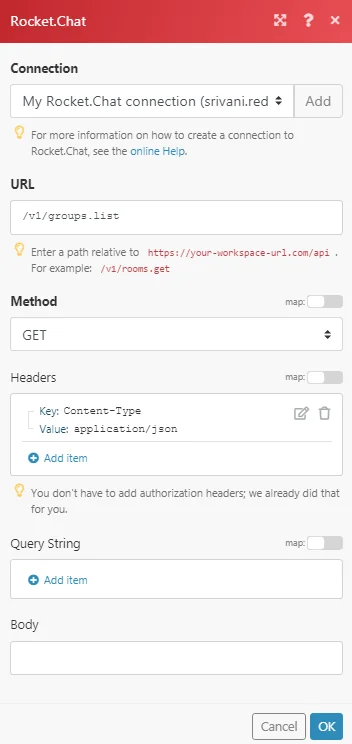
The following API call returns all the groups from your rocket.chat account:
URL: /v1/groups.list
Method: GET
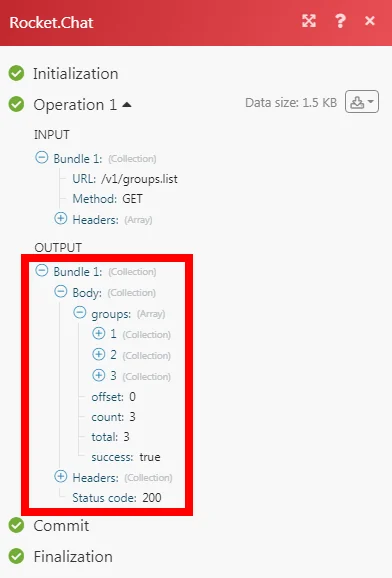
Matches of the search can be found in the module’s Output under Bundle > Body > groups. In our example, 3 groups were returned:
Legacy article, imported from the original Boost.space knowledge base (/knowledge-base/applications/communication/rocket-chat/).

