Telegram Bot
With the Telegram Bot modules in Boost.space Integrator, you can:
-
edit, forward, delete, pin, and unpin messages, and send text message or replies
-
send audio files, documents, images, albums, photos, stickers, videos, video notes, voice messages, and invoices
-
send media by URL or ID
-
edit media messages, and message captions
-
download files
-
create, revoke, and edit chat invite links
-
watch, and list updates, and chats
-
kick, promote, and restrict chat members
-
list administrators in a chat
-
retrieve number of members in chat
-
call APIs
-
answer inline queries
Getting Started with Telegram Bot
Prerequisites
-
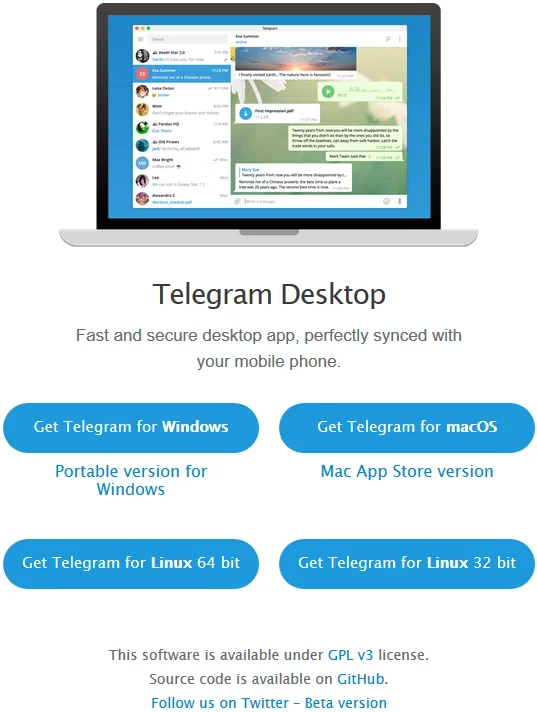
A configured Bot via Telegram app. You can download the Telegram Desktop app at desktop.telegram.org.
-
In order to use the Telegram app, your mobile phone number has to be provided.
Configuring the Telegram Bot

1. Go to https://telegram.me/BotFather.

2. To create a new bot type /newbot to the message box and press enter.
3. Enter the name of the user name of your new bot.
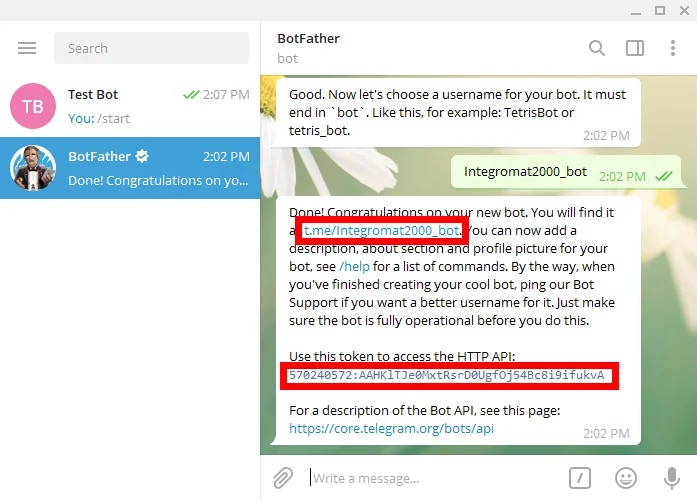
You have received the message from BotFather containing the token, which you can use to connect Telegram Bot to Boost.space Integrator.
To add your bot to your Telegram application, click the link in the message from BotFather or enter it manually to your browser. The link is t.me/yourBotName.
Adding Telegram Bot to your Scenario
Follow Step 1 in the Creating a scenario article (choose the Telegram Bot module instead of Twitter and Facebook module).
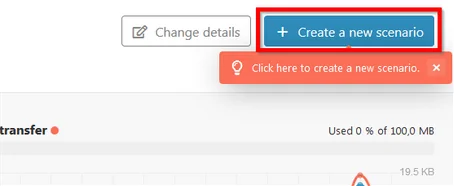
After the module is added to your scenario you can then see the Scenario editor.
Define what function you need your module to have. Here you can choose between three types of modules – Triggers, Actions, and Searches.
Did you know?
You can find a lot of sample scenario templates with Telegram Bot modules at www.make.com/en/integrations/telegram.
Messages
Send a Text Message or Reply
Sends a text message or a reply to your Telegram Desktop application.
Connection
Establish a connection to your Telegram Bot using the provided token
Chat ID
To set the Chat ID, follow these instructions
User ID
To set the UserID, follow these instructions
Text
Enter (or map) the text content of the message you want to send.
Message Thread ID
A Unique identifier for the forum’s target message thread (topic). Applicable for forum supergroups only.
Parse mode
Specify how you want your text to be recognized. HTML or Markdown.
Markdown syntax:
*bold text* _italic text_ [inline URL](http://www.example.com/) [inline mention of a user](tg://user?id=123456789) `inline fixed-width code` ```block_language pre-formatted fixed-width code block ```
HTML syntax:
bold, bold italic, italic inline URL inline mention of a user inline fixed-width code
pre-formatted fixed-width code block
Disable Notifications
Select whether you want to send messages silently. iOS users will not receive a notification; Android users will receive a notification with no sound.
Disable Link Previews
Select whether you want to disable link previews for links in this message.
Original Message ID
The ID of the original message if the message is a reply.
Enter/Assemble the Reply Markup Field
Enter additional interface options that are a JSON-serialized object for an inline keyboard, custom reply keyboard, instructions to remove reply keyboard or to force a reply from the user, e.g.:
{"inline_keyboard":[[{"text":"Some button text 2","url":"https://botpress.org"}\]\]} or {"keyboard":[["Yes","No"],["Maybe"]]}
More information about custom keyboards can be found on the Telegram Bot API page.
Reply Markup
Enter additional interface options that are a JSON-serialized object, including an inline keyboard, a custom reply keyboard, instructions to remove the reply keyboard, or instructions to force a reply from the user, e.g.{"inline_keyboard":[[{"text":"Some button text 2","url":"https://botpress.org"}]]} or {"keyboard":[["Yes","No"],["Maybe"]]}.
The keyboard cannot be used with channels.
Edit a Text Message
Edits text or game messages.
Connection
Establish a connection to your Telegram Bot using the provided token
Edit
Select the message type you want to edit.
Chat ID
To set the Chat ID, follow these instructions
Message ID
Enter the Message ID you want to forward.
Text
Enter (or map) the text content of the message you want to send.
Parse mode
Specify how you want your text to be recognized. HTML or Markdown.
Markdown syntax:
*bold text* _italic text_ [inline URL](http://www.example.com/) [inline mention of a user](tg://user?id=123456789) `inline fixed-width code` ```block_language pre-formatted fixed-width code block ```
HTML syntax:
bold, bold italic, italic inline URL inline mention of a user inline fixed-width code
pre-formatted fixed-width code block
Disable Link Previews
Select whether you want to disable link previews.
Enter/Assemble the Reply Markup Field
Enter additional interface options that are a JSON-serialized object for an inline keyboard, custom reply keyboard, instructions to remove reply keyboard or to force a reply from the user, e.g.:
{"inline_keyboard":[[{"text":"Some button text 2","url":"https://botpress.org"}\]\]} or {"keyboard":[["Yes","No"],["Maybe"]]}
More information about custom keyboards can be found on the Telegram Bot API page.
Reply Markup
Enter additional interface options that are a JSON-serialized object for an inline keyboard, custom reply keyboard, instructions to remove reply keyboard or to force a reply from the user, e.g.:
{"inline_keyboard":[[{"text":"Some button text 2","url":"https://botpress.org"}\]\]} or {"keyboard":[["Yes","No"],["Maybe"]]}
More information about custom keyboards can be found on the Telegram Bot API page.
Keyboards cannot be used with channels.
Forward a Message
Forwards messages of any kind. This module can be used to forward messages only within Telegram.
Connection
Establish a connection to your Telegram Bot using the provided token
Chat ID
To set the Chat ID, follow these instructions
From chat ID
Enter the Chat ID where the original message was sent (or channel username in the format @channelusername).
Message ID
Enter the message ID of the message you want to forward in the from_chat_id format.
Disable Notifications
Select whether you want to send the message silently. iOS users will not receive a notification; Android users will receive a notification with no sound.
Delete a Message
Deletes a message. A message can only be deleted if it was sent less than 48 hours ago.
Only a message sent less than 48 hours ago can be deleted.
Connection
Establish a connection to your Telegram Bot using the provided token
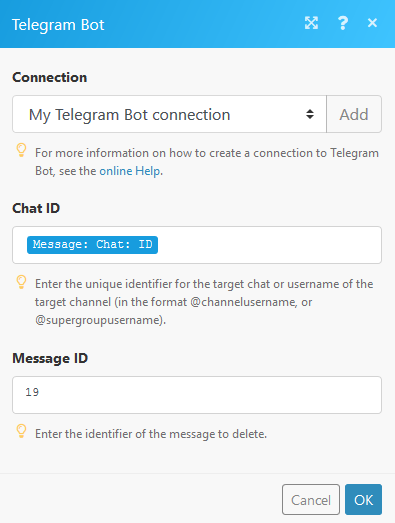
Chat ID
To set the Chat ID, follow these instructions
Message ID
Enter the Message ID.
Pin a Message
Pins a message.
Connection
Establish a connection to your Telegram Bot using the provided token.
Chat ID
To set the Chat ID, follow these instructions.Restrict a Chat Member
Message ID
Enter the message ID you want to pin.
Disable Notifications
Select whether you want to disable the notifications. If selected Yes, sends the message silently. iOS users will not receive a notification, Android users will receive a notification with no sound.
Unpin a Message
Unpins a message.
Connection
Establish a connection to your Telegram Bot using the provided token.
Chat ID
To set the Chat ID, follow these instructions.Restrict a Chat Member
Message ID
Enter the message ID you want to unpin.
Media
Send an Audio File
Sends an audio file to your Telegram Desktop application.
Connection
Establish a connection to your Telegram Bot using the provided token
Chat ID
To set the Chat ID, follow these instructions
Message Thread ID
A unique identifier for the target message thread (topic) of the forum. For forum supergroups only.
Caption
Enter the caption of the audio.
Send by
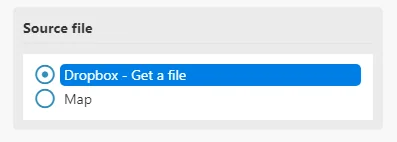
Audio file to send. Pass a file_id as a string to send an audio file that exists on the Telegram servers (recommended), pass an HTTP URL as a string for Telegram to get an audio file from the Internet, or upload a new one using multipart/form-data. Further details about sending audio files can be found on the Telegram Bot API page.
For example, you can use your Dropbox to process the file.
Parse Mode
Select Markdown-style or HTML-style of the text, if you want Telegram apps to show bold, italic, fixed-width text or inline URLs in your bot’s message.
Disable notification
Select Yes to send messages silently. iOS users will not receive a notification, Android users will receive a notification with no sound.
Duration
Enter the duration of the video sent in seconds.
Performer
Enter a performer.
Title
Enter a track name.
Reply markup – additional interface options
Enter additional interface options that are a JSON-serialized object for an inline keyboard, custom reply keyboard, instructions to remove reply keyboard or to force a reply from the user, e.g.:
{"inline_keyboard":[[{"text":"Some button text 2","url":"https://botpress.org"}\]\]} or {"keyboard":[["Yes","No"],["Maybe"]]}
More information about custom keyboards can be found on the Telegram Bot API page.
Content type
Select or enter the MIME type of data.
Send a Document or an Image
Sends a document or an image to your Telegram Desktop application.
Connection
Establish a connection to your Telegram Bot using the provided token
Chat ID
To set the Chat ID, follow these instructions
Message Thread ID
A unique identifier for the target message thread (topic) of the forum. For forum supergroups only.
Caption
Enter the caption of the audio.
Send by
Image file to send. Pass a file_id as a string to send a file that exists on the Telegram servers (recommended), pass an HTTP URL as a string for Telegram to get a file from the Internet, or upload a new one using multipart/form-data. Further details about sending files can be found on the Telegram Bot API page.
Parse mode
Specify how you want your text to be recognized. HTML or Markdown.
Markdown syntax:
*bold text* _italic text_ [inline URL](http://www.example.com/) [inline mention of a user](tg://user?id=123456789) `inline fixed-width code` ```block_language pre-formatted fixed-width code block ```
HTML syntax:
bold, bold italic, italic inline URL inline mention of a user inline fixed-width code
pre-formatted fixed-width code block
Disable notification
Select Yes to send messages silently. iOS users will not receive a notification, Android users will receive a notification with no sound.
Content type
Select or enter the MIME type of data.
ID of the original message
The ID of the original message if the message is a reply.
Reply markup – additional interface options
Enter additional interface options that are a JSON-serialized object for an inline keyboard, custom reply keyboard, instructions to remove reply keyboard or to force a reply from the user, e.g.:
{"inline_keyboard":[[{"text":"Some button text 2","url":"https://botpress.org"}\]\]} or {"keyboard":[["Yes","No"],["Maybe"]]}
More information about custom keyboards can be found on the Telegram Bot API page.
Send an Album
Sends a group of photos or videos as an album.
Connection
Establish a connection to your Telegram Bot using the provided token
Chat ID
To set the Chat ID, follow these instructions
Media
Select the items you want to add to your album.
Message Thread ID
A unique identifier for the target message thread (topic) of the forum. Applicable only for forum supergroups only.
Disable notification
Select Yes to send messages silently. iOS users will not receive a notification, Android users will receive a notification with no sound.
Enter/Assemble the Reply Markup Field
Select the option to enter or assemble the reply markup field.
Reply Markup
Enter additional interface options that are a JSON-serialized object for an inline keyboard, custom reply keyboard, instructions to remove reply keyboard or to force a reply from the user, e.g.:
{"inline_keyboard":[[{"text":"Some button text 2","url":"https://botpress.org"}\]\]} or {"keyboard":[["Yes","No"],["Maybe"]]}
More information about custom keyboards can be found on the Telegram Bot API page.
Send a Photo
Sends a photo to your Telegram Desktop application.
Connection
Establish a connection to your Telegram Bot using the provided token
Chat ID
To set the Chat ID, follow these instructions
Message Thread ID
A unique identifier for the target message thread (topic) of the forum. For forum supergroups only.
Caption
Enter the caption of the video.
Send by
Image file to send. Pass a file_id as a string to send a file that exists on the Telegram servers (recommended), pass an HTTP URL as a string for Telegram to get a file from the Internet, or upload a new one using multipart/form-data. Further details about sending files can be found on the Telegram Bot API page.
Parse mode
Specify how you want your text to be recognized. HTML or Markdown.
Markdown syntax:
*bold text* _italic text_ [inline URL](http://www.example.com/) [inline mention of a user](tg://user?id=123456789) `inline fixed-width code` ```block_language pre-formatted fixed-width code block ```
HTML syntax:
bold, bold italic, italic inline URL inline mention of a user inline fixed-width code
pre-formatted fixed-width code block
ID of the original message
ID of the original message if the message is a reply.
Reply markup – additional interface options
Enter additional interface options that are a JSON-serialized object for an inline keyboard, custom reply keyboard, instructions to remove reply keyboard or to force a reply from the user, e.g.:
{"inline_keyboard":[[{"text":"Some button text 2","url":"https://botpress.org"}\]\]} or {"keyboard":[["Yes","No"],["Maybe"]]}
More information about custom keyboard can be found on the Telegram Bot API page.
Send a Sticker
Sends a .webp sticker to your Telegram Desktop application.
Connection
Establish a connection to your Telegram Bot using the provided token
Chat ID
To set the Chat ID, follow these instructions
Message Thread ID
A unique identifier for the target message thread (topic) of the forum. For forum supergroups only.
Send by
Image file to send. Pass a file_id as a string to send a file that exists on the Telegram servers (recommended), pass an HTTP URL as a string for Telegram to get a file from the Internet, or upload a new one using multipart/form-data. Further details about sending files can be found on the Telegram Bot API page.
Disable Notifications
Select Yes to send messages silently. iOS users will not receive a notification, Android users will receive a notification with no sound.
Original Message ID
ID of the original message if the message is a reply.
Reply Markup
Enter additional interface options that are a JSON-serialized object for an inline keyboard, custom reply keyboard, instructions to remove reply keyboard or to force a reply from the user, e.g.:
{"inline_keyboard":[[{"text":"Some button text 2","url":"https://botpress.org"}\]\]} or {"keyboard":[["Yes","No"],["Maybe"]]}
More information about custom keyboards can be found on the Telegram Bot API page.
Send a Video
Sends a video file to your Telegram Desktop Application.
Connection
Establish a connection to your Telegram Bot using the provided token
Chat ID
To set the Chat ID, follow these instructions
Message Thread ID
A unique identifier for the target message thread (topic) of the forum. For forum supergroups only.
Caption
Enter the caption of the video.
Send by
Image file to send. Pass a file_id as a string to send a file that exists on the Telegram servers (recommended), pass an HTTP URL as a string for Telegram to get a file from the Internet, or upload a new one using multipart/form-data. Further details about sending files can be found on the Telegram Bot API page.
Disable notification
Select Yes to send messages silently. iOS users will not receive a notification, Android users will receive a notification with no sound.
Content type
Select or enter the MIME type of data.
Duration
Enter the duration of the video sent in seconds.
Width
Enter the video width.
Height
Enter the video height.
Enter/Assemble the Reply Markup Field
Select if to enter or assemble the reply markup field.
Reply Markup
Enter additional interface options that are a JSON-serialized object for an inline keyboard, custom reply keyboard, instructions to remove reply keyboard or to force a reply from the user, e.g.:
{"inline_keyboard":[[{"text":"Some button text 2","url":"https://botpress.org"}\]\]} or {"keyboard":[["Yes","No"],["Maybe"]]}
More information about custom keyboards can be found on the Telegram Bot API page.
Send a Video Note
As of v4.0, Telegram clients support rounded square mp4 videos of up to one minute long. Use this method to send video messages.
Connection
Establish a connection to your Telegram Bot using the provided token
Chat ID
To set the Chat ID, follow these instructions
Message Thread ID
A unique identifier for the forum’s target message thread (topic). For forum supergroups only.
Send by
Image file to send. Pass a file_id as a string to send a file that exists on the Telegram servers (recommended), pass an HTTP URL as a string for Telegram to get a file from the Internet, or upload a new one using multipart/form-data. Further details about sending files can be found on the Telegram Bot API page.
Disable notification
Select Yes to send messages silently. iOS users will not receive a notification, Android users will receive a notification with no sound.
Content type
Select or enter the MIME type of data.
Length
Video width and height, i.e., the diameter of the video message.
Duration
Enter the duration of the sent video (in seconds).
Reply Markup
Enter additional interface options that are a JSON-serialized object for an inline keyboard, custom reply keyboard, instructions to remove reply keyboard or to force a reply from the user, e.g.:
{"inline_keyboard":[[{"text":"Some button text 2","url":"https://botpress.org"}\]\]} or {"keyboard":[["Yes","No"],["Maybe"]]}
More information about custom keyboards can be found on the Telegram Bot API page.
Original Message ID
ID of the original message if the message is a reply.
Enter/Assemble the Reply Markup Field
Select if to enter or assemble the reply markup field.
Reply Markup
Enter additional interface options that are a JSON-serialized object including an inline keyboard, a custom reply keyboard, instructions to remove the reply keyboard, or instructions to force a reply from the user, e.g. {"inline_keyboard":[[{"text":"Some button text 2","url":"https://botpress.org"}]]} or {"keyboard":[["Yes","No"],["Maybe"]]}.
Note: keyboard cannot be used with channels.
Send a Voice Message
Send a voice message.
Connection
Establish a connection to your Telegram Bot using the provided token
Chat ID
To set the Chat ID, follow these instructions
Message Thread ID
A unique identifier for the forum’s target message thread (topic). For forum supergroups only.
Caption
Enter the caption of the voice message.
Send by
Image file to send. Pass a file_id as a string to send a file that exists on the Telegram servers (recommended), pass an HTTP URL as a string for Telegram to get a file from the Internet, or upload a new one using multipart/form-data. Further details about sending files can be found on the Telegram Bot API page.
Disable notification
Select Yes to send messages silently. iOS users will not receive a notification, Android users will receive a notification with no sound.
Content type
Select or enter the MIME type of data.
Duration
Enter the duration of the video sent in seconds.
Enter/Assemble the Reply Markup Field
Select if to enter or assemble the reply markup field.
Reply Markup
Enter additional interface options that are a JSON-serialized object for an inline keyboard, custom reply keyboard, instructions to remove reply keyboard or to force a reply from the user, e.g.:
{"inline_keyboard":[[{"text":"Some button text 2","url":"https://botpress.org"}\]\]} or {"keyboard":[["Yes","No"],["Maybe"]]}
More information about custom keyboards can be found on the Telegram Bot API page.
Edit a Media Message
Edits photo or video messages.
Connection
Establish a connection to your Telegram Bot using the provided token
Chat ID
To set the Chat ID, follow these instructions
Message ID
Enter the message ID of the message you want to forward.
Media type
Select whether you want to edit a photo or video.
Caption
Enter the photo/video caption.
Source file
Define the source file you want to edit. More information about working with files.
Parse mode
Specify how you want your text to be recognized. HTML or Markdown.
Markdown syntax:
*bold text* _italic text_ [inline URL](http://www.example.com/) [inline mention of a user](tg://user?id=123456789) `inline fixed-width code` ```block_language pre-formatted fixed-width code block ```
HTML syntax:
bold, bold italic, italic inline URL inline mention of a user inline fixed-width code
pre-formatted fixed-width code block
Enter/Assemble the Reply Markup Field
Select whether to enter or assemble the reply markup field.
Reply Markup
Enter additional interface options that are a JSON-serialized object including an inline keyboard, a custom reply keyboard, instructions to remove the reply keyboard or instructions to force a reply from the user, e.g. {"inline_keyboard":[[{"text":"Some button text 2","url":"https://botpress.org"}]]} or {"keyboard":[["Yes","No"],["Maybe"]]}.
Keyboard cannot be used with channels.
Edit a Message Caption
Edits a caption of a message.
Connection
Establish a connection to your Telegram Bot using the provided token
Chat ID
Message ID
Caption
Parse Mode
Enter/Assemble the Reply Markup Field
Select whether to enter or assemble the reply markup field.
Reply Markup
Enter additional interface options that are a JSON-serialized object including an inline keyboard, a custom reply keyboard, instructions to remove the reply keyboard or instructions to force a reply from the user, e.g. {"inline_keyboard":[[{"text":"Some button text 2","url":"https://botpress.org"}]]} or {"keyboard":[["Yes","No"],["Maybe"]]}. Note: keyboard cannot be used with channels.
Send an Invoice
Sends an invoice.
Connection
Establish a connection to your Telegram Bot using the provided token
Chat ID
To set the Chat ID, follow these instructions.Restrict a Chat Member
Title
Enter the product name for which you want to send invoice.
Description
Enter the product details.
Payload
A Bot-defined invoice payload, 1-128 bytes. This will not be displayed to the user, use for your internal processes.
Provide Token
Payment provider token, obtained via @BotFather.
Currency
Three-letter ISO 4217 currency code, see more on currencies.
Prices
Add the product label and price details.
Max Tip Amount
The maximum accepted amount for tips in the smallest units of the currency (integer, not float/double). For example, for a maximum tip of US$ 1.45 pass Max Tip Amount = 145. See the exp parameter in currencies.json, it shows the number of digits past the decimal point for each currency (2 for the majority of currencies). Defaults to 0
Suggested Tip Amounts
Add the tip amounts suggested for this invoice.
Message Thread ID
Enter the unique identifier for the target message thread (topic) of the forum (for forum supergroups only).
Start Parameter
Unique deep-linking parameter. If left empty, forwarded copies of the sent message will have a Pay button, allowing multiple users to pay directly from the forwarded message, using the same invoice. If non-empty, forwarded copies of the sent message will have a URL button with a deep link to the bot (instead of a Pay button), with the value used as the start parameter
Provider data
A detailed description of required fields should be provided by the payment provider.
Photo URL
Enter URL address of the product photo for the invoice. Can be a photo of the goods or a marketing image for a service.
Need Name
Select whether if you require the user’s full name to complete the order
Need Phone Number
Select whether if you require the user’s phone number to complete the order.
Need Email
Select whether if you require the user’s email address to complete the order.
Need Shipping Address
Select whether if you require the user’s shipping address to complete the order.
Send Phone Number to Provider
Select whehter if the user’s phone number should be sent to the provider.
Send Email to Provider
Select whether if the user’s email address should be sent to the provider.
Is Flexible
Select whether Pass true if the final price depends on the shipping method.
Disable Notifications
Select whether you disable notifications. IF so, sends the message silently. iOS users will not receive a notification; Android users will receive a notification with no sound.
Original Message ID
Enter the ID of the original message.
Enter/Assemble the Reply Markup Field
Select if to enter or assemble the reply markup field.
Reply Markup
Enter additional interface options that are a JSON-serialized object including an inline keyboard, a custom reply keyboard, instructions to remove the reply keyboard or instructions to force a reply from the user, e.g. {"inline_keyboard":[[{"text":"Some button text 2","url":"https://botpress.org"}]]} or {"keyboard":[["Yes","No"],["Maybe"]]}.
Keyboard cannot be used with channels.
Send media by URL or ID
Connection
Establish a connection to your Telegram Bot using the provided token
Chat ID
To set the Chat ID, follow these instructions
Media type
Select whether you want to edit a photo or video.
Caption
Enter the photo/video caption.
Send by
Select a file. Set a file_id as a string to send a file that exists on the Telegram servers (recommended), or select an HTTP URL as a string for Telegram to get a file from the Internet.
Disable notification
Select Yes to send messages silently. iOS users will not receive a notification, Android users will receive a notification with no sound.
ID of the original message
ID of the original message if the message is a reply.
Reply markup – additional interface options
Enter additional interface options that are a JSON-serialized object for an inline keyboard, custom reply keyboard, instructions to remove reply keyboard or to force a reply from the user, e.g.:
{"inline_keyboard":[[{"text":"Some button text 2","url":"https://botpress.org"}\]\]} or {"keyboard":[["Yes","No"],["Maybe"]]}
More information about custom keyboards can be found on the Telegram Bot API page.
Download a File
Downloads a file from the Telegram server.
Connection
Establish a connection to your Telegram Bot using the provided token
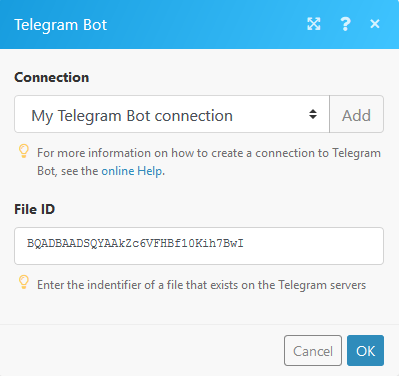
File ID
Enter the ID of the file already uploaded to the Telegram server.
Chats and Updates
Using the following modules, you can create, revoke, and edit chat invite link, lit and watch updates, and list chats.
Create a Chat Invite Link
Creates an additional invite link for a chat.
Edit a Chat Invite Link
Edits a non-primary invite link created by the bot.
List Updates
Retrieves a list of updates from the Telegram server. By default, updates starting with the earliest unconfirmed update are returned. If you want to list more, you need to set the offset. This module cannot be used with webhooks. To use this module, you must switch off and remove all your Telegram webhooks.
List Chats
List available Telegram chats. By default, chats starting with the earlier unconfirmed update are returned. If you want to list more, you need to set the offset. This module cannot be used with webhooks. To use this module, you must switch off and remove all your Telegram webhooks.
Revoke a Chat Invite Link
Revokes an invite link created by the bot.
Watch Updates
Triggers when there is a new update from your Telegram Desktop Application.
The Watch updates trigger cannot be combined with the Get Updates or Get Chats modules.
Webhook
To add a webhook you need to establish a connection to your Telegram bot. Use the token provided by the BotFather (see the steps above, Configuring the Telegram Bot).

The connection between Telegram Bot and Boost.space Integrator is now established. You can continue with other Telegram Bot actions.
Members
Using the following modules, you can list administrators, retrieve members, kick, promote, and restrict chat members.
List Administrators in a Chat
Retrieves a list of administrators from a selected chat.
Get the Number of Members in a Chat
Use this module to get the number of members in a chat.
Kick a Chat Member
Use this method to kick a user from a group, a supergroup, or a channel. The bot must be an administrator in the chat for this to work and must have the appropriate admin rights.
Promote a Chat Member
Promotes or demotes a user in a supergroup or a channel. The bot must be an administrator in the chat for this to work and must have the appropriate admin rights.
Restrict a Chat Member
Restricts a user in a supergroup.
Other
Using the following modules, you can call APIs, and answer inline queries.
Make an API Call
Performs an arbitrary authorized API call.
Answer an inline Query
Sends answer to an inline query.
Troubleshooting
Check the following procedures if you are facing difficulties when using the Telegram bot app.
How to find out the ID of a private channel/group:
One possible way to determine the ID of a private channel/group is as follows:
-
Create a new scenario
-
Place Telegram Bot >; Watch updates module in the scenario.
-
Configure the module by creating a webhook.
-
Execute the scenario.
-
Send a message to the private channel/group.
-
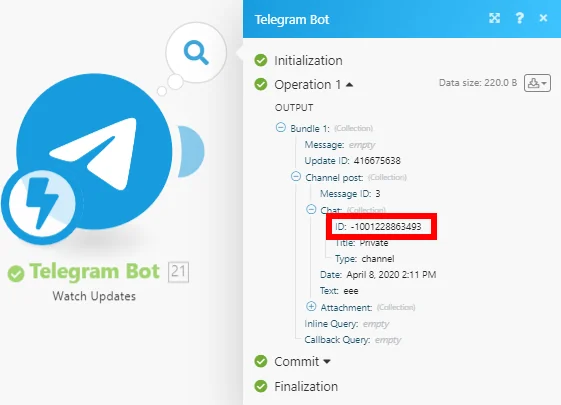
Verify the output of the module by clicking the bubble above the module.
-
Find the ID in the output bundle:
How to find out the user ID
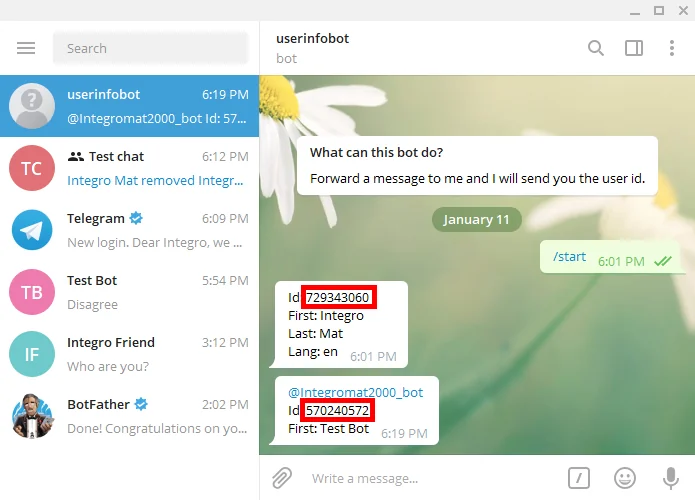
To find out the ID of a Telegram user, forward their message to the userinfobot. Check out the following procedure for steps on how to do that:
-
Add the userinfobot to your Telegram app. You can do that by entering
@userinfobotin the search bar and selecting the userinfobot.
-
Go to the chat with the user you want to retrieve the ID from.
-
Forward his message to userinfobot.
-
Copy the User ID and paste it to the Boost.space Integrator module.
Adding Your Bot To the Channel:
-
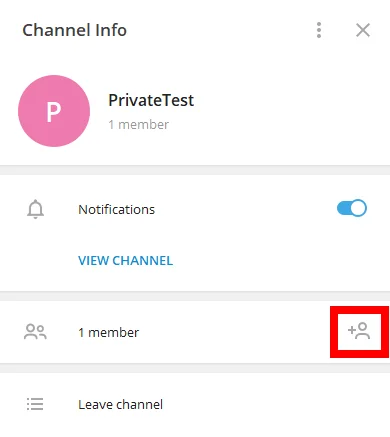
Click the right mouse button on the channel name and select the View channel info option_._
-
Click the Add Member icon next to the member number.
-
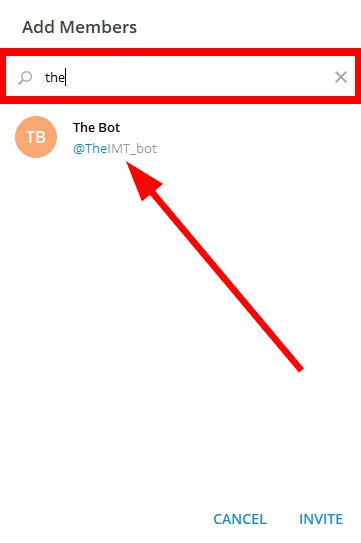
Start typing the name of your bot in the search field.
-
Click on the bot name to select the bot you want to add to the channel.
-
Click the INVITE button.
-
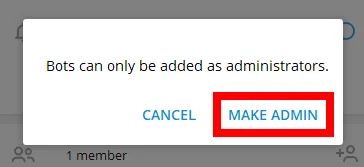
Make the bot admin by clicking the respective button.
-
Assign the permissions to your bot and click the SAVE button.
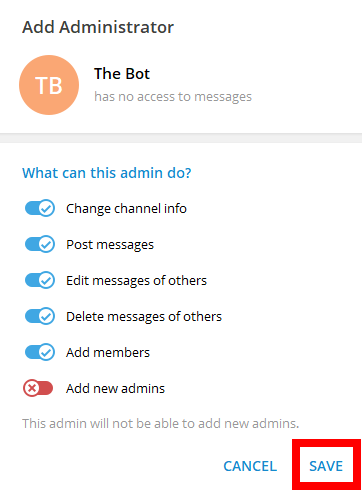
The bot has been added to the channel.
Testing a Public Channel
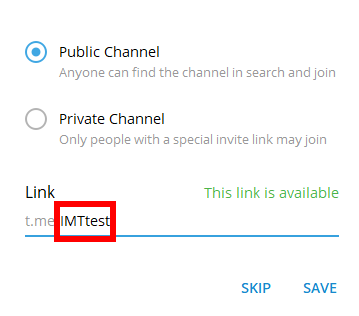
To test the public channel you need to obtain the Chat ID. The Chat ID is part of the channel link.
The channel name is NOT the channel link/chat ID.
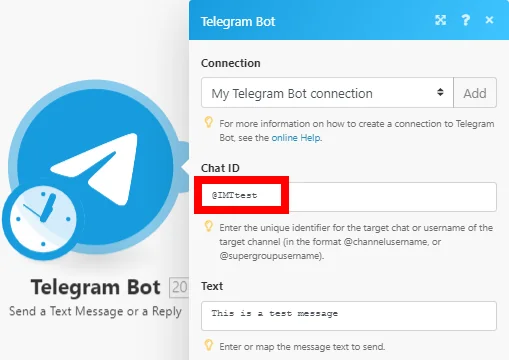
If the public channel link is, for example, t.me/IMTtest, then @IMTtest is your Chat ID.
Now, you can send a message to the public channel using the Send a Text Message or a Reply module.
Testing a Private Channel:
You need to obtain the Chat ID to test the private channel. There are three options to retrieve the ID:
-
Switch the private channel to the public channel, then retrieve the ID (by sending or receiving the message in Boost.space Integrator) and switch back the channel type to private.
-
Invite the bot
get_id_botto your private channel and using the/my_id@get_id_botcommand.
Retrieving the ID From the Web Version of Telegram
-
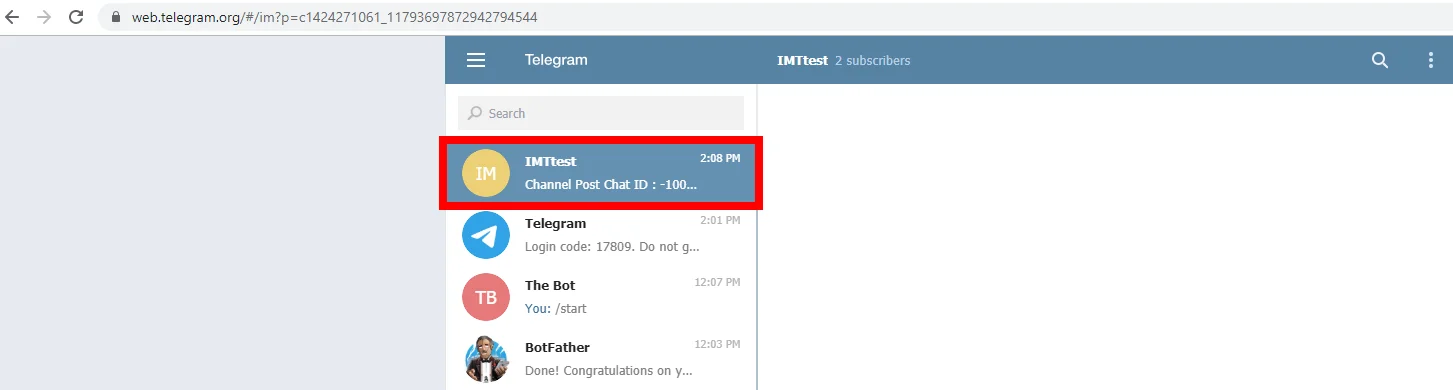
Log in to your Telegram account via https://web.telegram.org.
-
Click on the private channel you want to retrieve the chat ID for.
-
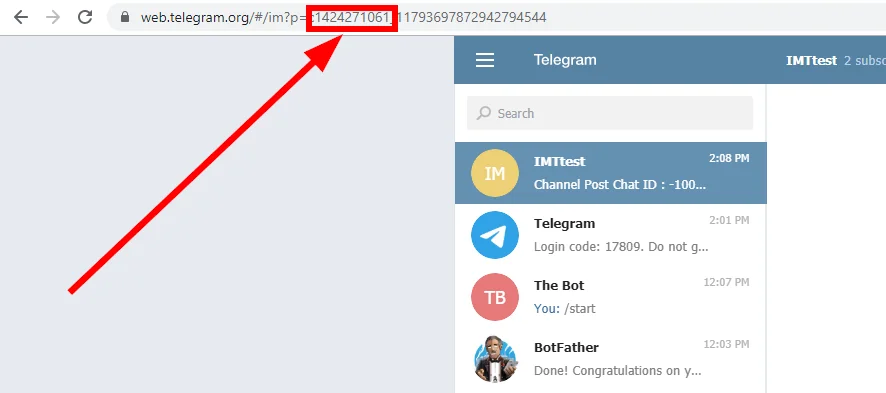
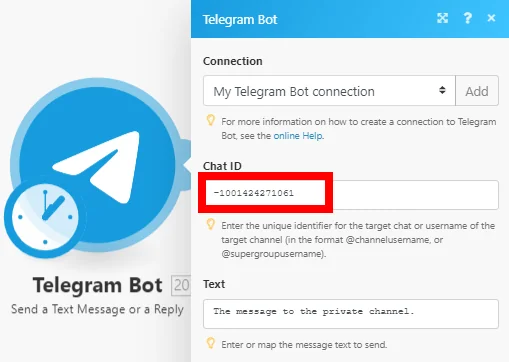
Copy the number between the c letter and the underscore from the URL. If the URL is https://web.telegram.org/#/im?p=c1424271061\_11793697872942794544 then copy the 1424271061
-
Paste the number to the desired field and add the prefix
-100 -
The Chat ID of the private channel is then -1001424271061.
You can now use the ID in the desired Telegram Bot module in Boost.space Integrator.
Registration and Login
It is not required. You can sign in on the site, telegram.org/auth where you can change your public settings. You will receive a key in your desktop application to submit your login.
My bot is hitting limits, how do I avoid this?
When sending messages inside a particular chat, avoid sending more than one message per second. We may allow short bursts that go over this limit, but eventually you’ll begin receiving 429 errors.
If you’re sending bulk notifications to multiple users, the API will not allow more than 30 messages per second or so. Consider spreading out notifications over large intervals of 8—12 hours for best results.
Also note that your bot will not be able to send more than 20 messages per minute to the same group.
(source: https://core.telegram.org/bots/faq#my-bot-is-hitting-limits-how-do-i-avoid-this)
Legacy article, imported from the original Boost.space knowledge base (/knowledge-base/applications/communication/telegram/).

