Axonaut
With the Axonaut modules, you can:
-
watch, create, update, retrieve, search, and delete the companies
-
watch, create, update, retrieve, search, and delete the employees
-
watch, create, list events, and list the company’s events in events
-
watch, create, retrieve, and search, the quotations
-
watch, create, update, retrieve, and search the tickets
-
watch, create, update, retrieve, and search the products
-
watch, create, update, retrieve, and search the orders
-
create, retrieve and search the suppliers
-
watch, create, update, register, retrieve, search, and delete the opportunities
-
watch, create, update, retrieve, and search the invoices
-
create and search for the payments
-
watch, create, retrieve, and search the expenses
-
watch, create, update, retrieve, list, and delete the projects
-
watch created, updated, and deleted tasks
To get started with Axonaut, create an account at axonaut.com
The module dialog fields that are displayed in bold (in the Boost.space Integrator scenario, not in this documentation article) are mandatory!
Connect Axonaut with Boost.space Integrator
To connect the Axonaut app with the Boost.space Integrator:
-
Log in to your Axonaut account.
-
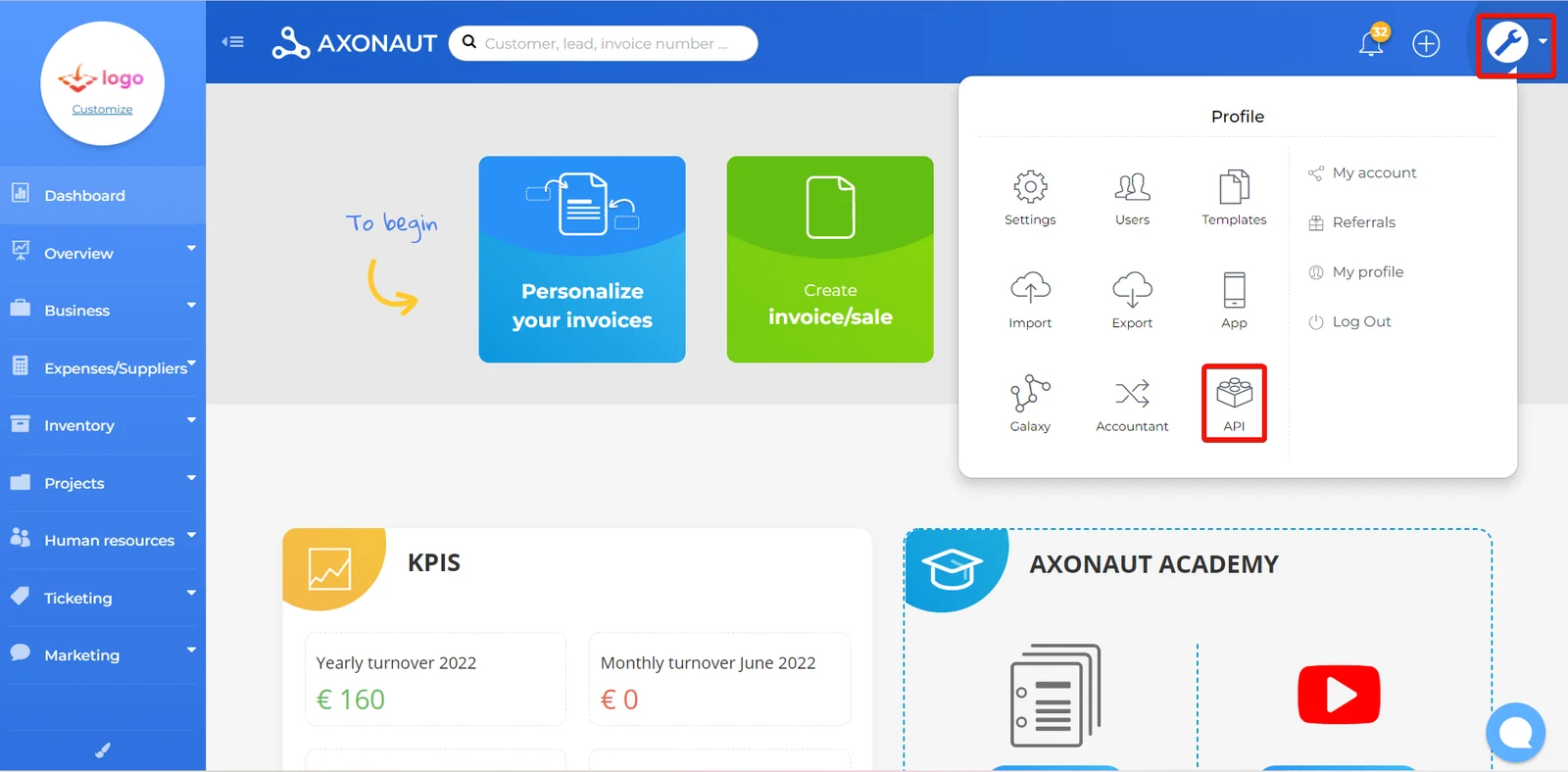
Click Wrench Icon > API.
-
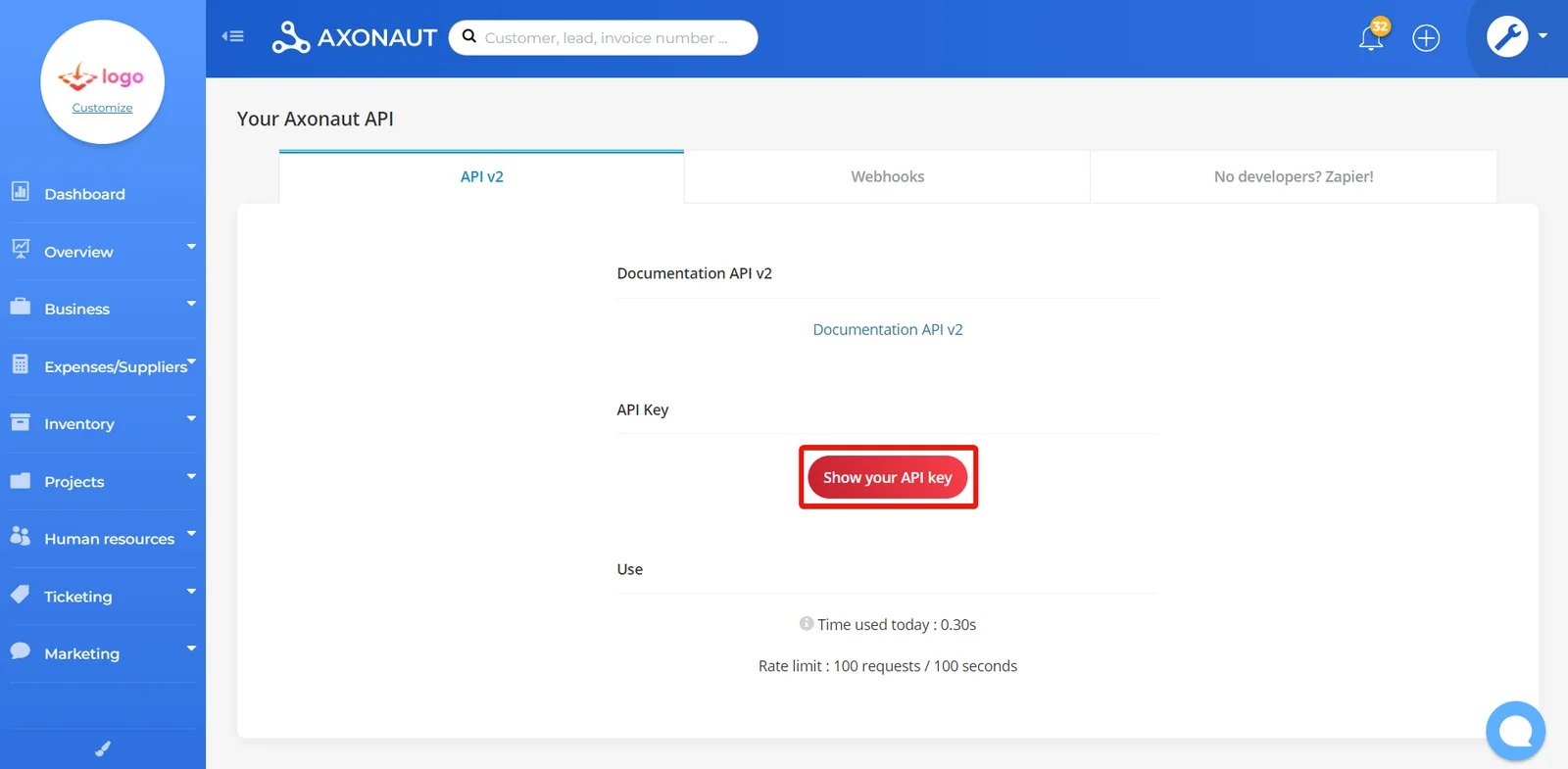
Click Show your API key and then click ok to see the API key.
-
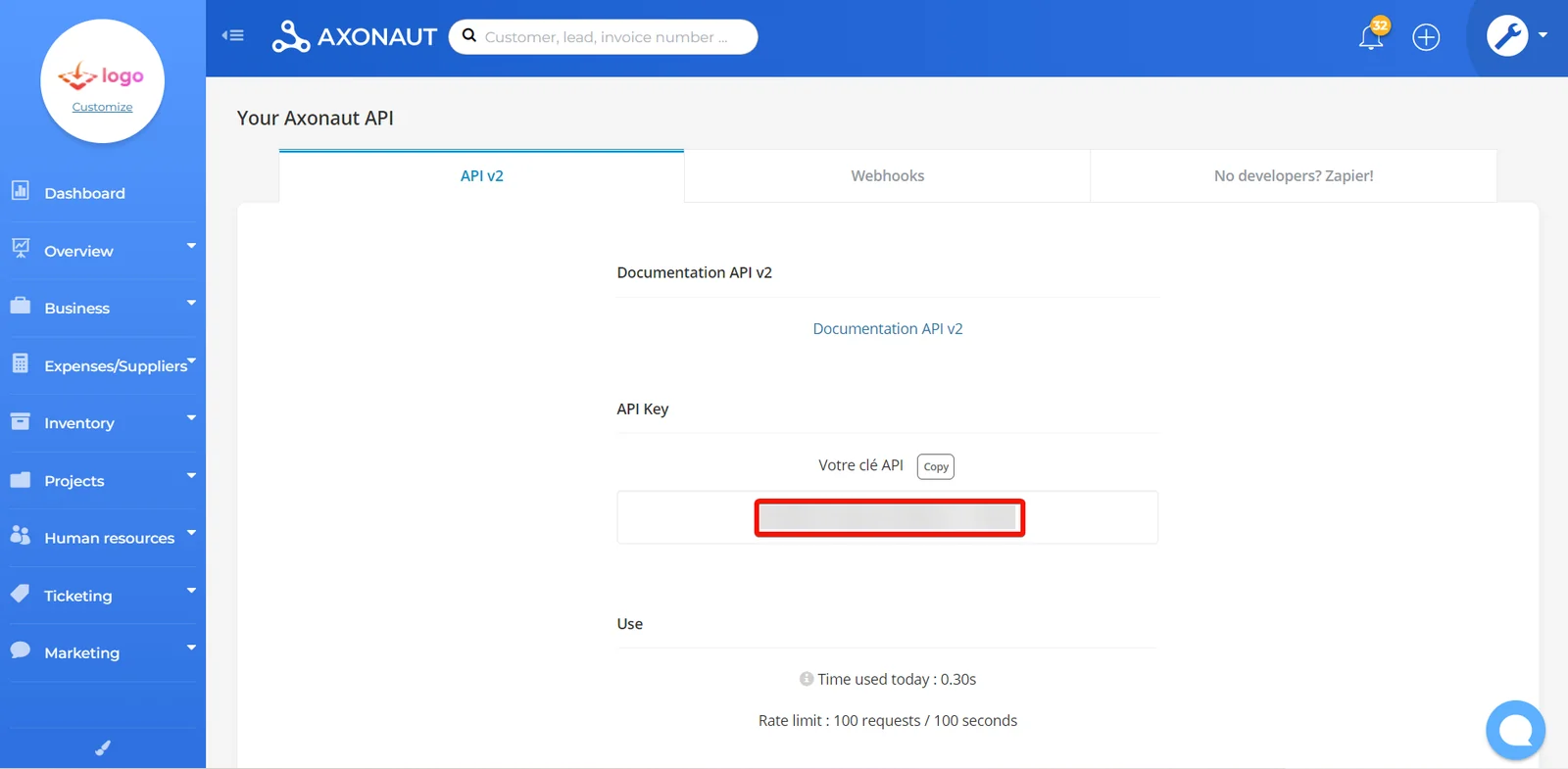
Copy the API key to a safe place.
-

Log in to your Boost.space Integrator and add a module from the Axonaut into a Boost.space Integrator scenario.
-
Click Add next to the Connection field.
-
In the Connection name field, enter a name for the connection.
-
In the API Key field, enter the API key copied in step 4 and click Save.
You have successfully connected the Axonaut app with Boost.space Integrator and can now build scenarios.
Companies
You can watch, create, update, list, retrieve, and delete the companies using the following modules.
Watch Created Companies
Triggers when a new company is created.
Webhook name
Enter a name for the webhook.
Connection
Establish a connection to your Axonaut account.
To set up the Axonaut webhooks, see Setting Up Axonaut Webhooks.
Watch Updated Companies
Triggers when a new company is updated.
Webhook name
Enter a name for the webhook.
Connection
Establish a connection to your Axonaut account.
To set up the Axonaut webhooks, see Setting Up Axonaut Webhooks.
Watch Deleted Companies
Triggers when a new company is deleted.
Webhook name
Enter a name for the webhook.
Connection
Establish a connection to your Axonaut account.
To set up the Axonaut webhooks, see Setting Up Axonaut Webhooks.
Create a Company
Creates a new company.
Connection
Establish a connection to your Axonaut account.
Name
Enter (map) the company’s name.
Business Manager
Select or map the company’s business manager.
Address Contact Name
Enter (map) the company’s contact person’s name.
Address Street
Enter (map) the company’s street address.
Address Zip Code
Enter (map) the area zip code.
Address City
Enter (map) the company’s city name.
Address Country
Enter (map) the company’s country name.
Is Prospect
Select whether the company is a prospect.
Is Customer
Select whether the company is a customer.
Currency
Enter (map) a three-letter currency code. For example, USD.
For information please visit, https://fr.iban.com/currency-codes.
Third-party Code
Enter (map) the company’s third-party code.
Intracommunity Number
Enter (map) the company’s intra-community number.
Siret
Enter (map) the company’s 14-digit identifying SIRET number.
Comments
Enter (map) any additional information about the company.
Custom Fields
Enter (map) the custom fields key-value pair. You can add multiple fields. For example, contact number.
Categories
Enter (map) the company’s categories.
Internal ID
Enter (map) the company’s Internal ID.
Update a Company
Updates an existing company.
Connection
Establish a connection to your Axonaut account.
Company ID
Select or map a Company ID whose details you want to update.
Name
Enter (map) the updated company’s name.
Business Manager
Select or map the company’s business manager.
Address Contact Name
Enter (map) the company’s contact person’s name.
Address Street
Enter (map) the company’s street address.
Address Zip Code
Enter (map) the company’s zip code.
Address City
Enter (map) the company’s city name.
Address Country
Enter (map) the company’s country name.
Third-party Code
Enter (map) the company’s third-party code.
Intracommunity Number
Enter (map) the company’s intracommunity number.
Siret
Enter (map) the company’s 14-digit SIRET number.
Comments
Enter (map) additional information about the company.
Custom Fields
Enter (map) the custom fields key-value pair. You can add multiple fields. For example, contact number.
Categories
Enter (map) the company’s categories.
Internal ID
Enter (map) the company’s Internal ID.
Get a Company
Retrieves an existing company.
Connection
Establish a connection to your Axonaut account.
Company ID
Select or map a Company ID whose details you want to retrieve.
Search Companies
Searches for companies or lists them all.
Connection
Establish a connection to your Axonaut account.
Search
Enter (map) the search fields to filter the companies that match the selected options. For example, company name.
Internal ID
Enter (map) the company’s Internal ID to search the companies that match the specified ID.
Type
Select the company type:
-
Customer
-
Prospect
-
Supplier
-
All
Address City
Enter (map) the company’s city name.
Address Zip Code
Enter (map) the company’s zip code.
Is Prospect
Select whether the company is a prospect.
Is Customer
Select whether the company is a customer.
Is Supplier
Select whether the company is a supplier.
Sort
Select or map a parameter to sort the returned data:
-
Company ID
-
Name
-
Address city
Limit
Set the maximum number of companies Boost.space Integrator will return during one execution cycle. The default value is 10.
Add a Document to a Company
Adds a document for a specific company.
Connection
Establish a connection to your Axonaut account.
Name
Enter (map) the document’s name.
Company ID
Select or map a Company ID to which you want to add a document.
Document’s URL
Enter (map) the document’s URL address you want to add to the company.
Delete a Company
Deletes an existing company.
Connection
Establish a connection to your Axonaut account.
Company ID
Select or map a Company ID you want to delete.
Employees
You can watch, create, update, retrieve, and delete the employees using the following modules.
Watch Created Employees
Triggers when a new employee is created.
Webhook name
Enter a name for the webhook.
Connection
Establish a connection to your Axonaut account.
To set up the Axonaut webhooks, see Setting Up Axonaut Webhooks.
Watch Updated Employees
Triggers when an existing employee is updated.
Webhook name
Enter a name for the webhook.
Connection
Establish a connection to your Axonaut account.
To set up the Axonaut webhooks, see Setting Up Axonaut Webhooks.
Watch Deleted Employees
Triggers when an existing employee is deleted.
Webhook name
Enter a name for the webhook.
Connection
Establish a connection to your Axonaut account.
To set up the Axonaut webhooks, see Setting Up Axonaut Webhooks.
Create an Employee
Creates a new employee.
Connection
Establish a connection to your Axonaut account.
Company ID
Select or map a Company ID whose employee you want to create.
Enter (map) the employee’s email address.
Gender
Select the employee’s gender:
-
Male
-
Female
First Name
Enter (map) the employee’s first name.
Last Name
Enter (map) the employee’s last name.
Phone Number
Enter (map) the employee’s phone number.
Cellphone Number
Enter (map) the employee’s mobile number.
Job
Enter (map) the employee’s job title.
Custom Fields
Enter (map) the employee’s custom fields key-value pair. For example, employee address.
Update an Employee
Updates an existing employee.
Connection
Establish a connection to your Axonaut account.
Employee ID
Select or map an Employee ID of an employee whose details you want to update.
Enter (map) the employee’s updated Email address.
Gender
Select the employee’s gender:
-
Male
-
Female
First Name
Enter (map) the employee’s first name.
Last Name
Enter (map) the employee’s last name.
Phone Number
Enter (map) the employee’s phone number.
Cellphone Number
Enter (map) the employee’s mobile number.
Job
Enter (map) the employee’s job title.
Custom Fields
Enter (map) the employee’s custom fields key-value pair. For example, employee address.
Get an Employee
Retrieves an existing employee.
Connection
Establish a connection to your Axonaut account.
Employee ID
Select or map an Employee ID whose details you want to retrieve.
Search Employees
Search for employees or lists them all.
Connection
Establish a connection to your Axonaut account.
Enter (map) the employee’s email address to search the employees.
Phone
Enter (map) the employee’s phone number to search the employees.
Limit
Set the maximum number of employees Boost.space Integrator will return during one execution cycle. The default value is 10.
Delete an Employee
Retrieves an existing employee.
Connection
Establish a connection to your Axonaut account.
Employee ID
Select or map an Employee ID you want to delete.
Events
You can watch, create, update, and list the events using the following modules.
Watch Created Events
Triggers when a new event is created.
Webhook name
Enter (map) a name for the webhook.
Connection
Establish a connection to your Axonaut account.
To set up the Axonaut webhooks, see Setting Up Axonaut Webhooks.
Watch Deleted Events
Triggers when an existing event is deleted.
Webhook name
Enter (map) a name for the webhook.
Connection
Establish a connection to your Axonaut account.
To set up the Axonaut webhooks, see Setting Up Axonaut Webhooks.
Create an Event
Creates a new event.
Connection
Establish a connection to your Axonaut account.
Company ID
Select or map a Company ID whose events you want to create.
Employee Email
Select or map an employee’s email address to create an event.
Date
Enter (map) the event’s happening date. See the list of supported date and time formats.
Content
Enter (map) the event’s content.
Nature
Select the nature of the event:
-
Meeting
-
Email
-
Phone call
-
Mail
-
Text Message
Title
Enter (map) a title for the event.
Duration
Enter (map) the event duration in minutes.
Is Done
Select whether the event is done.
Users
Select or map the users for the event.
Attachments
Enter (map) the details of the attachments:
Attachments are available only for emails.
Invoices IDs
Select or map the Invoice IDs to attach.
Quotations IDs
Select or map the Quotation IDs to attach.
Documents IDs
Enter (map) the Document ID’s to attach. Alternately, you can search for the Document ID.
Lists Events
Lists existing events.
Connection
Establish a connection to your Axonaut account.
Limit
Set the maximum number of events Boost.space Integrator will return during one execution cycle. The default value is 10.
List Company’s Events
List existing events of a specific company.
Connection
Establish a connection to your Axonaut account.
Company ID
Select or map a Company ID whose events you want to list.
Limit
Set the maximum number of company events Boost.space Integrator will return during one execution cycle. The default value is 10.
Quotations
You can watch, create, retrieve, and search the quotations using the following modules.
Watch Created Quotations
Triggers when a new quotation is created.
Webhook name
Enter a name for the webhook.
Connection
Establish a connection to your Axonaut account.
To see tup the Axonaut webhooks, see Setting Up Axonuat Webhooks.
Create a Quotation
Creates a new quotation.
Connection
Establish a connection to your Axonaut account.
Company ID
Select or map a Company ID whose quotation you want to create.
Products
Enter (map) the Product details.
Product ID
Select or map a Product ID of a product to create a quotation.
If the properties, Product ID and Product Internal ID are empty or missing, a new Product will be created.
Internal ID
Enter (map) the Internal ID of the product.
If the properties, Product ID and Product Internal ID are empty or missing, a new Product will be created.
Product Code
Enter (map) the product’s code.
Name
Enter (map) the product’s name.
Price
Enter (map) the product’s price.
Tax Rate
Enter (map) the product’s tax rate.
Quantity
Enter (map) the product’s quantity.
Unit
Enter (map) the product’s unit.
Description
Enter (map) the product’s description.
Unit Job Costing
Enter (map) the product’s code.
Chapter
Enter (map) the product’s chapter.
Discount Percent
Enter (map) the product’s discount percentage.
Discount Flat
Enter (map) the product’s flat discount.
Date
Enter (map) the quotation date. See the list of supported date and time formats.
Expiry Date
Enter (map) the quotation’s expiry date. See the list of supported date and time formats.
Company Address ID
Enter (map) the Address ID of the company. Alternatively, you can search the address by company.
Online Payment
Select whether to enable the online payment.
Comments
Enter (map) additional information about the quotation.
Project ID
Select or map a Project ID for which you are creating the product quotation.
Theme ID
Enter (map) a Theme ID applicable to the product quotation.
Get a Quotation
Retrieves an existing quotation.
Connection
Establish a connection to your Axonaut account.
Quotation ID
Select or map a Quotation ID whose details you want to retrieve.
Search Quotations
Search for quotations or list them all.
Connection
Establish a connection to your Axonaut account.
Sort
Select or map the order of returned data. The default is ID.
-
ID
-
Update Time
Status
Select or map the quotation status. The default is All.
-
Accepted
-
Refused
-
Pending
-
All
Limit
Set the maximum number of quotations Boost.space Integrator will return during one execution cycle. The default value is 10.
Tickets
You can watch, create, update, retrieve, search, and delete the tickets using the following modules.
Watch Created Tickets
Triggers when a new ticket is created.
Webhook name
Enter a name for the webhook.
Connection
Establish a connection to your Axonaut account.
To set up the Axonaut webhooks, see Setting Up Axonuat Webhooks.
Watch Updated Tickets
Triggers when an existing ticket is updated.
Webhook name
Enter a name for the webhook.
Connection
Establish a connection to your Axonaut account.
To set up the Axonaut webhooks, see Setting Up Axonuat Webhooks.
Watch Deleted Tickets
Triggers when an existing ticket is deleted.
Webhook name
Enter a name for the webhook.
Connection
Establish a connection to your Axonaut account.
To set up the Axonaut webhooks, see Setting Up Axonuat Webhooks.
Create a Ticket
Create a new ticket.
Connection
Establish a connection to your Axonaut account.
Title
Enter (map) a name for the ticket.
Description
Enter (map) the ticket details.
Priority
Select or map the priority of the ticket. For example, High.
Company ID
Select or map a Company ID to create a ticket.
Project ID
Select or map a Project ID in which you want to create the ticket.
Workforce ID
Select or map a Workforce ID applicable to the ticket.
Custom Fields
Enter (map) the custom field key-value pair. For example, ticket status.
Update a Ticket
Updates an existing ticket.
Connection
Establish a connection to your Axonaut account.
Ticket ID
Select or map a Ticket ID whose details you want to update.
Title
Enter (map) a new name for the ticket.
Priority
Select or map the ticket priority. For example, high.
Company ID
Select or map a Company ID with which the ticket is associated.
Workforce ID
Select or map a Workforce ID applicable to the ticket.
Is Closed
Select whether the ticket is closed.
Get a Ticket
Retrieves an existing ticket.
Connection
Establish a connection to your Axonaut account.
Ticket ID
Select or map a Ticket ID whose details you want to retrieve.
Search Tickets
Searches for tickets or lists them all.
Connection
Establish a connection to your Axonaut account.
Company ID
Select or map a Company ID whose tickets you want to search.
Is Closed
Select whether you want to search the closed tickets.
Order by
Select the order of the returned data:
-
ID
-
Last Update Date
Limit
Set the maximum number of tickets Boost.space Integrator will return during one execution cycle. The default value is 10.
Products
You can watch, create, update, retrieve, and search the products using the following modules.
Watch Created Products
Triggers when a new product is created.
Webhook name
Enter a name for the webhook.
Connection
Establish a connection to your Axonaut account.
To set up the webhooks, see Setting Up Axonaut Webhooks.
Watch Updated Products
Triggers when an existing product is updated.
Webhook name
Enter a name for the webhook.
Connection
Establish a connection to your Axonaut account.
To set up the webhooks, see Setting Up Axonaut Webhooks.
Watch Deleted Products
Triggers when an existing product is deleted.
Webhook name
Enter a name for the webhook.
Connection
Establish a connection to your Axonaut account.
To set up the webhooks, see Setting Up Axonaut Webhooks.
Create a Product
Creates a new product.
Connection
Establish a connection to your Axonaut account.
Name
Enter (map) the product’s name.
Price
Enter (map) the product’s price.
Tax Rate
Enter (map) the product’s tax rate.
Description
Enter (map) the product’s details.
Internal ID
Enter (map) the product’s Internal ID.
Product Code
Enter (map) the product’s product code.
Supplier Product Code
Enter (map) the product’s supplier product code.
Weight
Enter (map) the product’s weight.
Job Costing
Enter (map) the product’s job costing.
Location
Enter (map) the product’s location.
Unit
Enter (map) the product’s unit.
Product Type
Select the product type:
-
Raw Material Purchase
-
Sales of Finished Goods
-
Sales of Services
-
Sales of Merchandise
Accounting Code
Enter (map) the product’s accounting code.
Category
Enter (map) the product’s category.
Stock
Enter (map) the product’s stock availability.
Custom Fields
Enter (map) the custom fields key-value pair. For example, product brand name.
Update a Product
Updates an existing product.
Connection
Establish a connection to your Axonaut account.
Product ID
Select or map a Product ID of a product whose details you want to update.
Name
Enter (map) the updated product’s name.
Description
Enter (map) the product’s details.
Product Code
Enter (map) the product’s product code.
Weight
Enter (map) the product’s weight.
Location
Enter (map) the product’s location.
Unit
Enter (map) the product’s unit.
Price
Enter (map) the product’s price.
Tax Rate
Enter (map) the product’s tax rate.
Job Costing
Enter (map) the product’s job costing.
Accounting Code
Enter (map) the product’s accounting code.
Category
Enter (map) the product’s category.
Disabled
Select whether the product is disabled.
Custom Fields
Enter (map) the custom field key-value pairs. For example, product brand name.
Get a Product
Updates an existing product.
Connection
Establish a connection to your Axonaut account.
Product ID
Select or map a Product ID whose details you want to retrieve.
Search Products
Searches for products or lists them all.
Connection
Establish a connection to your Axonaut account.
Internal ID
Enter (map) the Product’s Internal ID to search for the products that match the Internal ID.
Product Code
Enter (map) the Product code to search the products that match the specified code.
Limit
Set the maximum number of products Boost.space Integrator will return during one execution cycle. The default value is 10.
Orders
You can watch, create, update, retrieve, and search the orders using the following modules.
Watch Created Orders
Triggers when a new order is created.
Webhook name
Enter a name for the webhook.
Connection
Establish a connection to your Axonaut account.
To set up the Axonaut webhooks, see Setting Up Axonuat Webhooks.
Watch Updated Orders
Triggers when an existing order is updated.
Webhook name
Enter a name for the webhook.
Connection
Establish a connection to your Axonaut account.
To set up the Axonaut webhooks, see Setting Up Axonuat Webhooks.
Watch Deleted Orders
Triggers when an existing order is deleted.
Webhook name
Enter a name for the webhook.
Connection
Establish a connection to your Axonaut account.
To set up the Axonaut webhooks, see Setting Up Axonuat Webhooks.
Create an Order
Create a new order.
Connection
Establish a connection to your Axonaut account.
Name
Enter (map) a name for the order.
Company ID
Select or map a Company ID of a company whose order you want to create.
Start Date
Enter (map) the order’s start date in the RFC3339 format. See the list of supported date and time formats.
End Date
Enter (map) the order’s end date in the RFC3339 format. See the list of supported date and time formats.
Expected Delivery Date
Enter (map) the order’s expected delivery date in the RFC3339 format. See the list of supported date and time formats.
First Invoice Planned Date
Enter (map) the order’s first invoice planned date in the RFC3339 format. See the list of supported date and time formats.
Comments
Enter (map) additional information about the order.
User ID
Select or map a User ID assigned to the order.
Invoice Frequency in Months
Enter (map) the order invoice frequency in months.
Generate and Send Recurring Invoices
Select or map a method to generate and send recurring invoices:
-
Do not generate and send invoices
-
Generate and send automatically.
-
Generate without sending
Preauthorized Debit
Select whether the order is preauthorized for debit.
Products
Enter (map) the product details:
Product ID
Select or map a Product ID whose order you want to create.
Internal ID
Enter (map) the product’s Internal ID.
Name
Enter (map) the product’s name.
Description
Enter (map) the product’s details.
Price
Enter (map) the product’s price.
Tax Rate
Enter (map) the product’s tax rate.
Quantity
Enter (map) the product’s quantity.
Get an Order
Retrieves an existing order.
Connection
Establish a connection to your Axonaut account.
Order ID
Select or map an Order ID whose details you want to retrieve.
Search Orders
Searches for an existing order or lists them all.
Connection
Establish a connection to your Axonaut account.
Order ID
Select or map an Order ID whose details you want to search.
Updated Before
Enter (map) a date to retrieve the orders updated before the specified date. See the list of supported date and time formats.
Updated After
Enter (map) a date to retrieve the orders updated after the specified date. See the list of supported date and time formats.
Limit
Set the maximum number of orders Boost.space Integrator will return during one execution cycle. The default value is 10.
Suppliers
You can create, search and retrieve supplier information using the following modules.
Create a Supplier
Creates a new supplier.
Connection
Establish a connection to your Axonaut account.
Name
Enter (map) the supplier’s name.
Address Contact Name
Enter (map) the supplier’s contact name to mention in the address.
Address Street
Enter (map) the supplier’s street address.
Address Zip Code
Enter (map) the supplier’s zip code.
Address City
Enter (map) the supplier’s city name.
Address Country
Enter (map) the supplier’s country name.
Intracommunity Number
Enter (map) the supplier’s intracommunity number (a unique identifier of the user).
Siret
Enter (map) the supplier’s 14-digit SIRET number referring to the supplier’s business location.
Comments
Enter (map) the supplier’s details or any information.
Get a Supplier
Retrieves an existing supplier.
Connection
Establish a connection to your Axonaut account.
Supplier ID
Select or map a Supplier ID whose details you want to retrieve.
Search Suppliers
Searches for suppliers or lists them all.
Connection
Establish a connection to your Axonaut account.
Search
Enter (map) a word or phrase to search for suppliers that match the specified query.
Limit
Set the maximum number of suppliers Boost.space Integrator will return during one execution cycle. The default value is 10.
Opportunities
You can watch, create, update, retrieve, and delete the opportunity using the following modules.
Watch Created Opportunities
Triggers when a new opportunity is created.
Webhook name
Enter a name for the webhook.
Connection
Establish a connection to your Axonaut account.
To set up the Axonaut webhooks, see Setting Up Axonaut Webhooks.
Watch Updated Opportunities
Triggers when an existing opportunity is updated.
Webhook name
Enter a name for the webhook.
Connection
Establish a connection to your Axonaut account.
To set up the Axonaut webhooks, see Setting Up Axonaut Webhooks.
Watch Deleted Opportunities
Triggers when an existing opportunity is updated.
Webhook name
Enter a name for the webhook.
Connection
Establish a connection to your Axonaut account.
To set up the Axonaut webhooks, see Setting Up Axonaut Webhooks.
Create an Opportunity
Creates a new opportunity.
Connection
Establish a connection to your Axonaut account.
Business Manager Email
Select or map the business manager’s email address related to the opportunity.
Company ID
Select or map a Company ID associated with the opportunity.
Pipe Name
Select or map the pipe name.
Pipe Step Name
Enter (map) the pipe step name. Alternatively, you can search the pipe step name.
Name
Enter (map) a name for the opportunity.
Amount
Enter (map) the opportunity’s amount.
Probability
Enter (map) the opportunity’s probability.
Comments
Enter (map) additional information about the opportunity.
Due Date
Enter (map) the due date for the opportunity. See the list of supported date and time formats.
Pipe Step Date
Enter (map) the pipe step date for the opportunity. See the list of supported date and time formats.
Employees
Enter (map) the employee details:
Employee First Name
Enter (map) the employee’s first name.
Employee Last Name
Enter (map) the employee’s last name.
Employee Email
Enter (map) the employee’s email address.
Employee Phone
Enter (map) the employee’s phone number.
Employee Cellphone
Enter (map) the employee’s mobile number.
Custom Fields
Enter (map) the custom field key-value pair.
Update an Opportunity
Updates an existing opportunity.
Connection
Establish a connection to your Axonaut account.
Opportunity ID
Select or map an Opportunity ID whose details you want to update.
Name
Enter (map) the updated opportunity’s name.
Comments
Enter (map) additional information about the opportunity.
Amount
Enter (map) the opportunity’s amount.
Probability
Enter (map) the opportunity’s probability.
Pipe Step Name
Enter (map) the pipe step name. Alternatively, you can search the pipe step name.
Business Manager Email
Select or map the business manager’s email address to update an opportunity.
Due Date
Enter (map) the due date for the opportunity. See the list of supported date and time formats.
Register an Opportunity as Won
Registers an existing opportunity as won.
Connection
Establish a connection to your Axonaut account.
Opportunity ID
Select or map an Opportunity ID you want to register as won.
Date
Enter (map) a date when the opportunity was won in the RFC3339 format. See the list of supported date and time formats.
Register an Opportunity as Lost
Registers an existing opportunity as lost.
Connection
Establish a connection to your Axonaut account.
Opportunity ID
Select or map an Opportunity ID to register as lost.
Date
Enter (map) a date when the opportunity will be lost in the RFC3339 format. See the list of supported date and time formats.
Get an Opportunity
Retrieves an existing opportunity.
Connection
Establish a connection to your Axonaut account.
Opportunity ID
Select or map an Opportunity ID whose details you want to retrieve.
Search Opportunities
Searches for opportunities or lists them all.
Connection
Establish a connection to your Axonaut account.
Status
Select or map the opportunity status. For example, ongoing.
Limit
Set the maximum number of opportunities Boost.space Integratorwill return during one execution cycle. The default value is 10.
Delete an Opportunity
Deletes an existing opportunity.
Connection
Establish a connection to your Axonaut account.
Opportunity ID
Select or map an Opportunity ID you want to delete.
Invoices
You can watch, create, search, and retrieve the invoices using the following modules.
Watch Created Invoices
Triggers when a new invoice is created.
Webhook name
Enter a name for the webhook.
Connection
Establish a connection to your Axonaut account.
To set up the Axonaut webhooks, see Setting Up Axonuat Webhooks.
Create an Invoice
Creates a new invoice.
Connection
Establish a connection to your Axonaut account.
Company
Select or map an option to choose the company:
-
Company ID
-
Employee Email
Company ID
Select or map a Company ID for which you want to create an invoice.
Employee Email
Select or map an employee’s email address to mention in the invoice.
Products
Enter (map) the product details:
Product ID
Select or map a Product ID whose details you want to update.
If the properties, Product ID and Internal ID are empty or missing, a new product will be created.
Internal ID
Enter (map) the product’s Internal ID.
If the properties, Product ID and Internal ID are empty or missing, a new product will be created.
Product Code
Enter (map) the product’s product code.
Name
Enter (map) the product’s name.
Price
Enter (map) the product’s price.
Tax Rate
Enter (map) the product’s tax rate.
Quantity
Enter (map) the product’s quantity.
Unit
Enter (map) the product’s unit.
Description
Enter (map) the product’s details.
Chapter
Enter (map) the product’s chapter.
Discount Percent
Enter (map) the product’s discount percentage applicable to the invoice.
Discount Flat
Enter (map) the product’s flat discount applicable to the invoice.
Unit Job Costing
Enter (map) the product’s unit job costing.
Contract ID
Enter (map) the Contract ID applicable to the invoice.
Date
Enter (map) a date posterior to the last invoice’s date. The default value is the date of the request.
Due Date
Enter (map) the due date for the invoice.
Delivery Address
Enter (map) the delivery address details.
Company Name
Enter (map) the recipient’s company name.
Contact Name
Enter (map) the recipient’s contact name.
Street
Enter (map) the recipient’s street name.
Zip Code
Enter (map) the recipient’s zip code.
Region
Enter (map) the recipient’s region name.
Country
Enter (map) the recipient’s country name.
Mandatory Mentions
Enter (map) the mandatory mentions of the members on the invoice.
Payment Terms
Enter (map) the items applicable to the invoice payment.
Allow GoCardless Payment
Select whether to allow for a GoCardless payment.
Allow Stripe Payment
Select whether to allow for a strive payment.
Service Start Date
Enter (map) the date on which the service starts. See the list of supported date and time formats.
Service End Date
Enter (map) the date on which the service ends. See the list of supported date and time formats.
Order Number
Enter (map) an order number to mention in the invoice.
Get an Invoice
Retrieves an existing invoice.
Connection
Establish a connection to your Axonaut account.
Invoice ID
Select or map an Invoice ID of an invoice to retrieve.
Search Invoices
Searches for invoices or lists them all.
Connection
Establish a connection to your Axonaut account.
Sort
Select the order of the returned data:
-
ID
-
Updated Time
Number
Enter (map) a number to search for the invoices which contain the specified character string.
Internal Reference
Enter (map) an internal reference to search for the invoices containing the specified character string.
Is Paid
Select whether the invoice is a paid invoice.
Date Before
Enter (map) a date to search all the invoices before the specified date. See the list of supported date and time formats.
Date After
Enter (map) a date to search all the invoices after the specified date. See the list of supported date and time formats.
Paid Date
Enter (map) an invoice date of payment in the format (DD/MM/YYYY). See the list of supported date and time formats.
Updated Before
Enter (map) a date to search all the invoices updated before the specified date. See the list of supported date and time formats.
Updated After
Enter (map) a date to search all the invoices updated after the specified date. See the list of supported date and time formats.
Limit
Set the maximum number of invoices Boost.space Integrator should return during one execution cycle. The default value is 10.
Payments
You can create payments using the following module.
Create a Payment
Creates a new payment.
Connection
Establish a connection to your Axonaut account.
Invoice ID
Select or map an Invoice ID whose payment you want to create.
Nature
Select the nature of the payment. For example, debit.
Amount
Enter (map) the amount paid for the payment.
Date
Enter (map) the date of payment is made. See the list of supported date and time formats.
Reference
Enter (map) any reference to the payment.
Search Payments
Searches for payments or lists them all.
Connection
Establish a connection to your Axonaut account.
Invoice ID
Select or map an Invoice to search the payments.
Company ID
Select or map the Company ID whose payments you want to search.
Date Before
Enter (map) a date to search all the payments made before the specified date. See the list of supported date and time formats.
Date After
Enter (map) a date to search all the payments made after the specified date. See the list of supported date and time formats.
Invoice Number
Enter (map) the invoice number to search the payments.
Limit
Set the maximum number of payments Boost.space Integrator will return during one execution cycle. The default value is 10.
Expenses
You want to watch, create, retrieve, and search the expenses using the following modules.
Watch Created Expenses
Triggers when a new expense is created.
Webhook name
Enter (map) a name for the webhook.
Connection
Establish a connection to your Axonaut account.
To set up the Axonaut webhooks, see Setting Up Axonaut Webhooks.
Watch Updated Expenses
Triggers when an existing expense is updated.
Webhook name
Enter (map) a name for the webhook.
Connection
Establish a connection to your Axonaut account.
To set up the Axonaut webhooks, see Setting Up Axonaut Webhooks.
Watch Deleted Expenses
Triggers when an existing expense is deleted.
Webhook name
Enter (map) a name for the webhook.
Connection
Establish a connection to your Axonaut account.
To set up the Axonaut webhooks, see Setting Up Axonaut Webhooks.
Create an Expense
Creates a new expense.
Connection
Establish a connection to your Axonaut account.
Title
Enter (map) the expense name.
Pre Tax Amount
Enter (map) the expense’s pre-tax amount.
Supplier ID
Select or map the Supplier ID for whom you want to create the expense.
Project ID
Select or map the Project ID applicable to the expense.
Supplier Third-party Code
Enter (map) the supplier’s third-party code.
Date
Enter (map) the date applicable to the expense. See the list of supported date and time formats.
Taxes
Enter (map) the tax details:
Tax Rate
Enter (map) the tax rate in percentage applicable to the expense.
Accounting Code
Enter (map) the accounting code applicable to the expense.
Amount
Enter (map) the expense amount.
Get an Expense
Retrieves an existing expense.
Connection
Establish a connection to your Axonaut account.
Expense ID
Select or map an Expense ID whose details you want to retrieve.
Search Expenses
Searches for expenses or lists them all.
Connection
Establish a connection to your Axonaut account.
Order by
Select or map the order of the returned data:
-
Last Update Date
-
ID
Creation Date Before
Enter (map) a date to search all the expenses created before the specified date. See the list of supported date and time formats.
Creation Date After
Enter (map) a date to search all the expenses created after the specified date. See the list of supported date and time formats.
Is Paid
Select whether you want to include the paid expenses in the search results.
Limit
Set the maximum number of expenses Boost.space Integrator will return during one execution cycle. The default value is 10.
Projects
You can watch, create, update, retrieve, search, and delete the projects using the following modules.
Watch Created Project
Triggers when a new project is created.
Webhook name
Enter a name for the webhook.
Connection
Establish a connection to your Axonaut account.
To set up the Axonaut webhooks, see Setting Up Axonuat Webhooks.
Watch Updated Projects
Triggers when an existing project is updated.
Webhook name
Enter a name for the webhook.
Connection
Establish a connection to your Axonaut account.
To set up the Axonaut webhooks, see Setting Up Axonuat Webhooks.
Watch Deleted Projects
Triggers when an existing project is deleted.
Webhook name
Enter a name for the webhook.
Connection
Establish a connection to your Axonaut account.
To set up the Axonaut webhooks, see Setting Up Axonuat Webhooks.
Create a Project
Creates a new project.
Connection
Establish a connection to your Axonaut account.
Name
Enter (map) a name for the project.
Number
Enter (map) the project’s number.
Comments
Enter (map) the additional information about the project.
Workforces IDs
Select or map the Workforce IDs associated with the projects.
Company ID
Select or map a Company ID whose project you want to create.
Parent Project ID
Select or map the parent Project ID if any for this project.
Estimated Start
Enter (map) the estimated start date of the project. See the list of supported date and time formats.
Estimated End
Enter (map) the estimated end date of the project. See the list of supported date and time formats.
Expected Workload Hours
Enter (map) the estimated work hours for the project.
Expected Cost
Enter (map) the estimated cost for the project.
Expected Revenue
Enter (map) the expected revenue for the project.
Custom Fields
Enter (map) the custom field key-pair values. You can add multiple fields.
Update a Project
Updates an existing project.
Connection
Establish a connection to your Axonaut account.
Project ID
Select or map a Project ID whose details you want to update.
Number
Enter (map) the project’s number.
Comments
Enter (map) the additional information about the project.
Name
Enter (map) the updated project’s name.
Company ID
Select or map a Company ID whose project you want to create.
Estimated Start
Enter (map) the estimated start date of the project. See the list of supported date and time formats.
Estimated End
Enter (map) the estimated end date of the project. See the list of supported date and time formats.
Actual End
Enter (map) the actual end date of the project. See the list of supported date and time formats.
Expected Workload Hours
Enter (map) the estimated workload hours for the project.
Expected Cost
Enter (map) the estimated cost for the project.
Expected Revenue
Enter (map) the estimated revenue for the project.
Custom Fields
Enter (map) the custom field key-pair values. You can add multiple fields.
Get a Project
Retrieves an existing project.
Connection
Establish a connection to your Axonaut account.
Project ID
Select or map a Project ID whose details you want to retrieve.
List Projects
Lists all existing projects.
Connection
Establish a connection to your Axonaut account.
List
Set the maximum number of projects Boost.space Integrator will return during one execution cycle. The default value is 10.
Delete a Project
Deletes an existing project.
Connection
Establish a connection to your Axonaut account.
Project ID
Select or map a Project ID you want to delete.
Tasks
You can watch the created, updated, and deleted tasks using the following modules.
Watch Created Tasks
Triggers when a new task is created.
Webhook name
Enter a name for the webhook.
Connection
Establish a connection to your Axonaut account.
To set up the Axonaut webhooks, see Setting Up Axonaut Webhooks.
Watch Updated Tasks
Triggers when an existing task is updated.
Webhook name
Enter a name for the webhook.
Connection
Establish a connection to your Axonaut account.
To set up the Axonaut webhooks, see Setting Up Axonaut Webhooks.
Watch Deleted Tasks
Triggers when an existing task is deleted.
Webhook name
Enter a name for the webhook.
Connection
Establish a connection to your Axonaut account.
To set up the Axonaut webhooks, see Setting Up Axonaut Webhooks.
Other
You can call APIs using the following module.
Make an API Call
Performs an arbitrary authorized API call.
Connection
Establish a connection to your Axonaut account.
URL
Enter a path relative to https://axonaut.com. For example, /api/v2/me.
For the list of available endpoints, refer to the Axonaut API Documentation.
Method
GET
to retrieve information for an entry.
POST
to create a new entry.
PUT
to update/replace an existing entry.
PATCH
to make a partial entry update.
DELETE
to delete an entry.
Headers
Enter the desired request headers. You don’t have to add authorization headers; we already did that for you.
Query String
Enter the request query string.
Body
Enter the body content for your API call.
Example of Use – List All Projects
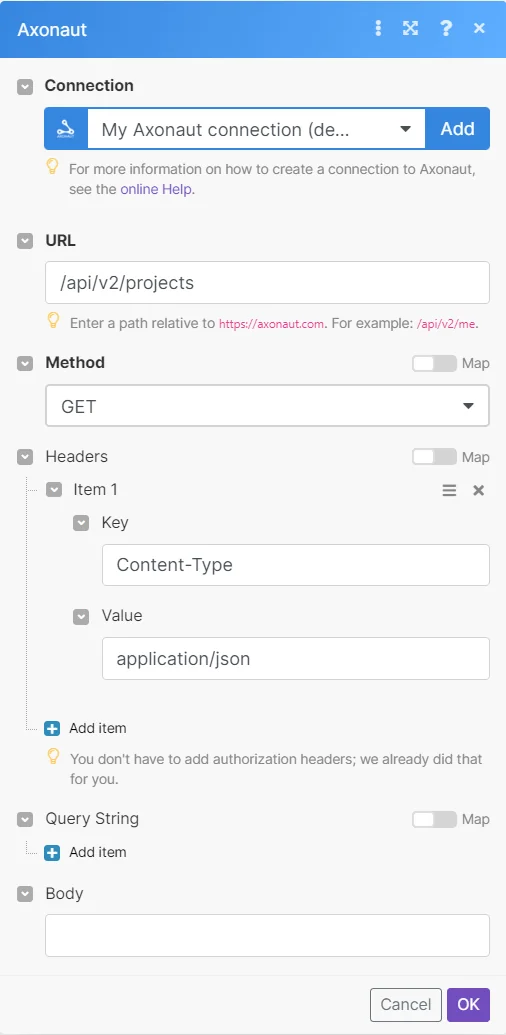
The following API call returns all the projects from your Axonaut account:
URL:
/api/v2/projects
Method:
GET
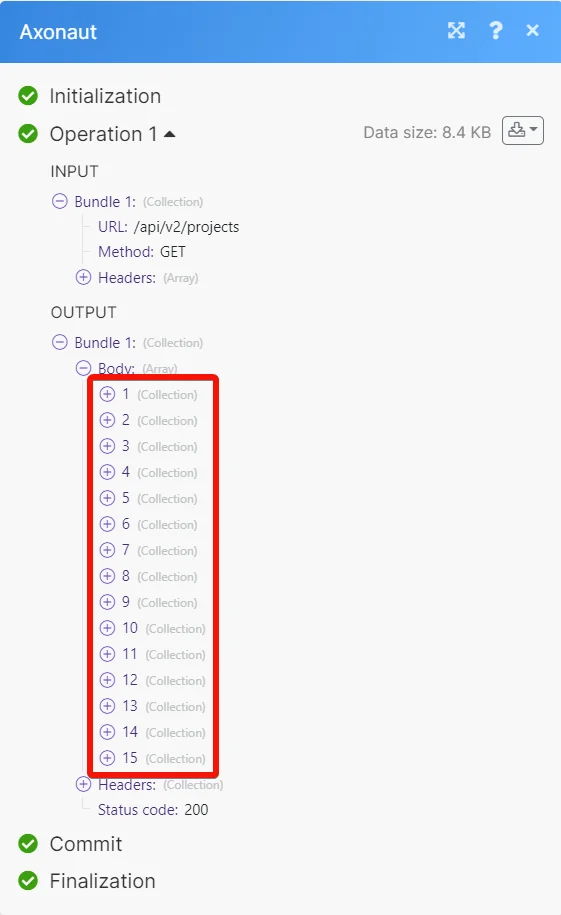
Matches of the search can be found in the module’s Output under Bundles > Body.
In our example, 15 projects were returned:
Setting Up Axonaut Webhooks
-

Open any Watch module, establish a connection, and copy the URL address to your clipboard. Click OK and save the trigger.
-
Log in to your Axonaut account.
-
Click Settings > API > Webhooks > Add an app.
-
Enter the following details:
-
app name: Enter (map) the app name.
-
Callback URL: Enter the URL address copied in step 1.
-
Version: Select the version number.
-
-
In the Subscribed topics section, subscribe to the topics you watch to watch.
The webhook is successfully set up. Go back to Boost.space Integrator and run the module to receive triggers when the specified event occurs.
Legacy article, imported from the original Boost.space knowledge base (/knowledge-base/applications/crm-and-sales-tools/axonaut/).

