Cloze
The Cloze modules allow you to monitor, create, update, send, retrieve, list, and delete the communication records, companies, content, people, and projects in your Cloze account.
Getting Started with Cloze
Prerequisites
- A Cloze account – create an account at cloze.com/.
The module dialog fields that are displayed in bold (in the Boost.space Integrator scenario, not in this documentation article) are mandatory!
Connecting Cloze to Boost.space Integrator
To connect your Cloze account to Boost.space Integrator you need to obtain the Email address and API Key from your Cloze account and insert it in the Create a connection dialog in the Boost.space Integrator module.
-
Log in to your Cloze account.
-
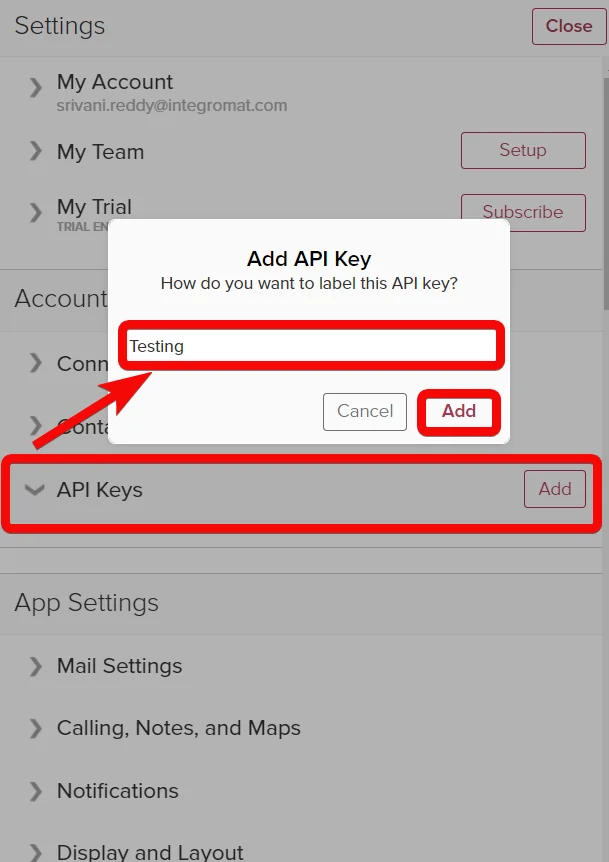
Click More > Settings > API Keys > Add.
-
Enter a name for the API Key and click Add.
-
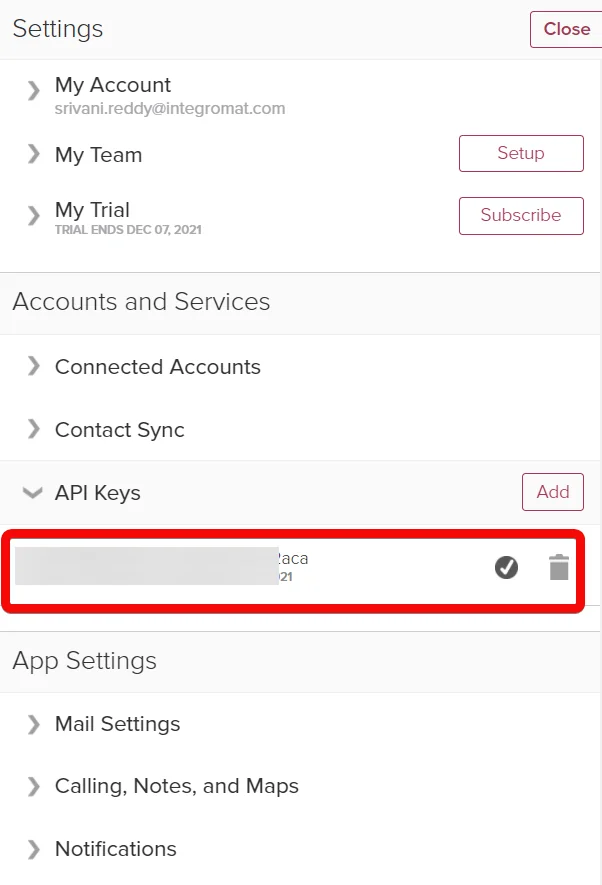
Copy the API Key to your clipboard.
-

Log in to your Boost.space Integrator account, and add a scenario module from Cloze app into an Boost.space Integrator scenario.
-
Click Add next to the Connection field.
-
In the _Connection_field, enter a name for the connection.
-
In the Email field, enter the email address with which you want to establish the connection.
-
In the API Key field, enter the API Key copied in step 4, and click Continue.
The connection has been established.
People
Watch Person Audit Changed
Triggers on the major timeline audited changes like Segment, Stage, or Step have been changed.
Boost.space Integrator automatically creates a webhook in Cloze once you add an instant trigger to your scenario
Webhook Name
Enter (map) a name for the webhook.
Connection
Establish a connection to your Cloze account.
Find People
Searches people that match search parameters.
Connection
Establish a connection to your Cloze account.
Sort Order
Select or map the order in which you want to sort the search results. For example, Last Changed.
Group Order
Select or map the order to group the people. For example, Stage.
Scope
Select or map the scope of the people you want to search. For example, Local.
Free From Query
Enter (map) the natural language query expressions that can be entered directly using the Cloze UI, or as a selected suggestion from the Cloze UI. May be used in conjunction with the other structured query parameter forms.Use # followed by internal field name to indicate a custom field. By itself, this indicated presence followed with operator and expression further matching condition. For example, name Johnstone.
Segment
Select or map the segment whose people you want to search.
Stage
Select or map the stage of the person, company, or project whose people you want to search.
Step
Select or map the step whose people you want to search.
Assigned
Select whether you want to search only the assigned people.
Limit
Set the maximum number of people Boost.space Integrator should return during one execution cycle.
Get a Person
Retrieves details of a person specified by a unique identifier.
Connection
Establish a connection to your Cloze account.
Person Sync Key
Select or map the person whose details you want to retrieve.
Team
Select the checkbox to retrieve the team relation or local relation information.
Create a Person
Creates a new person.
Connection
Establish a connection to your Cloze account.
Full Name
Enter (map) the person’s full name.
Headline
Enter (map) the headline for the person. For example, a person's position.
Picture
Enter (map) the publicly accessible URL address of the person’s profile picture.
Private
Select whether the person is marked as private.
Segment
Select or map the segment of the person. For example, Lead.
Stage
Select or map the stage of the person.
Step
Select or map the next step of the person.
Notes
Enter (map) any additional information about the person.
Keywords
Add the keywords applicable for the person.
Twitter Handle
Enter (map) the Twitter Account ID of the person.
Facebook ID
Enter (map) the Facebook Account ID of the person.
LinkedIn ID
Enter (map) the LinkedIn Account ID of the person.
Emails
Add the email addresses of the person:
Value
Enter (map) the email address of the person you want to add.
Work
Select whether this is a work email address.
Home
Select whether this is a personal email address.
Phone
Add the phone numbers of the person:
Value
Enter (map) the phone number of the person you want to add.
Work
Select whether this is a work number.
Home
Select whether this is the home number.
Mobile
Select whether this is the mobile number of the person.
Faxes
Add the fax numbers of the person:
Value
Enter (map) the fax number you want to add.
Work
Select whether this fax number belongs to work.
Home
Select whether this is the home number.
Addresses
Add the person addresses:
Street
Enter (map) the street name and house/flat number.
City
Enter (map) the city name.
Region
Enter (map) the state or province name.
Country
Enter (map) the country name.
Postal/Zip Code
Enter (map) the area postal code.
Work
Select whether this is the office address.
Home
Select whether this is the person’s home address.
Latitude
Enter (map) the location’s latitude details.
Longitude
Enter (map) the location’s longitude details.
App Links
Add the app links related to the person:
Source
Enter (map) the app domain name. For example, na16.salesforce.com.
Unique ID
Enter (map) the Unique ID of the app within the source. For example, Salesforce's key.
App Link Name
Enter (map) the app link name.
URL
Enter (map) the app’s URL address.
Contact URLs
Enter (map) the person’s contact URL address:
Address
Enter (map) the contact URL address.
Name
Enter (map) a contact name.
Type
Enter (map) the segment type to organize the contact.
Role
Select or map the person’s role. For example, Manager.
Department
Select or map the department to which the person reports.
Lead Source
Add the lead source information of the person.
Update a Person
Updates a person specified by ID.
Connection
Establish a connection to your Cloze account.
Person Sync Key
Select or map the person whose details you want to update. For example, People can be referenced with just an email address or both a name and another unique identifier such as a mobile phone number, Twitter handle, or Facebook ID.
Full Name
Enter (map) the person’s full name.
Headline
Enter (map) the headline for the person. For example, a person's position.
Picture
Enter (map) the publicly accessible URL address of the person’s profile picture.
Private
Select whether the person is marked as private.
Segment
Select or map the segment of the person. For example, Lead.
Stage
Select or map the stage of the person.
Step
Select or map the next step of the person.
Notes
Enter (map) any additional information about the person.
Keywords
Add the keywords applicable for the person.
Twitter Handle
Enter (map) the Twitter Account ID of the person.
Facebook ID
Enter (map) the Facebook Account ID of the person.
LinkedIn ID
Enter (map) the LinkedIn Account ID of the person.
Emails
Add the email addresses of the person:
Value
Enter (map) the email address of the person you want to add.
Work
Select whether this is a work email address.
Home
Select whether this is a personal email address.
Phone
Add the phone numbers of the person:
Value
Enter (map) the phone number of the person you want to add.
Work
Select whether this is a work number.
Home
Select whether this is the home number.
Mobile
Select whether this is the mobile number of the person.
Faxes
Add the fax numbers of the person:
Value
Enter (map) the fax number you want to add.
Work
Select whether this fax number belongs to work.
Home
Select whether this is the home number.
Addresses
Add the person addresses:
Street
Enter (map) the street name and house/flat number.
City
Enter (map) the city name.
Region
Enter (map) the state or province name.
Country
Enter (map) the country name.
Postal/Zip Code
Enter (map) the area postal code.
Work
Select whether this is the office address.
Home
Select whether this is the person’s home address.
Latitude
Enter (map) the location’s latitude details.
Longitude
Enter (map) the location’s longitude details.
App Links
Add the app links related to the person:
Source
Enter (map) the app domain name. For example, na16.salesforce.com.
Unique ID
Enter (map) the Unique ID of the app within the source. For example, Salesforce's key.
App Link Name
Enter (map) the app link name.
URL
Enter (map) the app’s URL address.
Contact URLs
Enter (map) the person’s contact URL address:
Address
Enter (map) the contact URL address.
Name
Enter (map) a contact name.
Type
Enter (map) the segment type to organize the contact.
Role
Select or map the person’s role. For example, Manager.
Department
Select or map the department to which the person reports.
Lead Source
Add the lead source information of the person.
Delete a Person
Deletes a person specified by a unique identifier.
Connection
Establish a connection to your Cloze account.
Person Sync Key
Select or map the person’s sync key whom you want to delete.
Team
Select whether you want to delete the person’s team relation or local relation.
Companies
Watch Company Audit Changed
Triggers on the major timeline audited changes like Segment, Stage, or Step have been changed.
Webhook Name
Enter a name for the webhook.
Connection
Establish a connection to your Cloze account.
Find Companies
Searches companies.
Connection
Establish a connection to your Cloze account.
Sort Order
Select or map the order to sort the search results. For example, Last Changed.
Group Order
Select or map the order to group the search results. For example, Stage.
Scope
Select or map the scope of the companies you want to search. For example, Local.
Free Form Query
Enter (map) the query to search the companies that match the specified query. For example, name Johnstone.Note: This field supports the same natural language query expressions that can be entered directly using the Cloze UI, or as a selected suggestion from the Cloze UI. May be used in conjunction with the other structured query parameter forms.Use # followed by internal field name to indicate a custom field. By itself, this indicated presence followed with operator and expression further matching condition.
Segment
Select or map the segment of the company you want to search.
Stage
Select or map the stage of the company you want to search.
Step
Select or map the next step of the company you want to search.
Assigned
Select whether you want to retrieve the companies that match the specific assignee.
Assignee
Enter (map) the assignee to retrieve the companies that match the assignee.
Limit
Set the maximum number of companies Boost.space Integrator should return during one execution cycle.
Get a Company
Retrieves details of a company specified by a unique identifier.
Connection
Establish a connection to your Cloze account.
Company Sync Key
Select or map the Company Sync Key whose details you want to retrieve.
Team
Select the checkbox to retrieve the team relation or local relation details of the company.
Create a Company
Creates a new company.
Connection
Establish a connection to your Cloze account.
Name
Enter (map) the name of the company.
Required Field
Choose one of the required fields for the company:
-
Email
-
Domain
Emails
Add the email addresses of the company:
Enter (map) the email address of the yo company want to add.
Work
Select whether this is a work email address.
Home
Select whether this is a personal email address.
Domains
Add the domains of the company. For example, domain.com.
Description
Enter (map) the details of the company.
Twitter Handle
Enter (map) the Twitter Account ID of the company.
Facebook ID
Enter (map) the Facebook Account ID of the company.
Keywords
Enter (map) the keywords of the company.
Segment
Select or map the segment of the company. For example, Lead.
Stage
Select or map the stage of the company.
Step
Select or map the next step of the company.
Notes
Enter (map) any additional information about the company.
Phones
Add the phone numbers of the company:
Value
Enter (map) the phone number of the company you want to add.
Work
Select whether this is a work number.
Home
Select whether this is the home number.
Mobile
Select whether this is the mobile number of the company.
Faxes
Add the fax numbers of the company:
Value
Enter (map) the fax number you want to add.
Work
Select whether this fax number belongs to work.
Home
Select whether this is the home number.
Addresses
Add the company addresses:
Street
Enter (map) the street name and house/flat number.
City
Enter (map) the city name.
Region
Enter (map) the state or province name.
Country
Enter (map) the country name.
Postal/Zip Code
Enter (map) the area postal code.
Work
Select whether this is the office address.
Home
Select whether this is the person’s home address.
Latitude
Enter (map) the location’s latitude details.
Longitude
Enter (map) the location’s longitude details.
App Links
Add the app links related to the company:
Source
Enter (map) the app domain name. For example, na16.salesforce.com.
Unique ID
Enter (map) the Unique ID of the app within the source. For example, Salesforce's key.
App Link Name
Enter (map) the app link name.
URL
Enter (map) the app’s URL address.
Contact URLs
Enter (map) the company’s contact URL address:
Address
Enter (map) the contact URL address.
Name
Enter (map) a contact name.
Type
Enter (map) the segment type to organize the company.
Lead Source
Add the lead source information of the person.
Update a Company
Updates a company specified by ID.
Connection
Establish a connection to your Cloze account.
Name
Enter (map) the name of the company.
Required Field
Choose one of the required fields for the company:
-
Email
-
Domain
Emails
Add the email addresses of the company:
Enter (map) the email address of the yo company want to add.
Work
Select whether this is a work email address.
Home
Select whether this is a personal email address.
Domains
Add the domains of the company. For example, domain.com.
Description
Enter (map) the details of the company.
Twitter Handle
Enter (map) the Twitter Account ID of the company.
Facebook ID
Enter (map) the Facebook Account ID of the company.
Keywords
Enter (map) the keywords of the company.
Segment
Select or map the segment of the company. For example, Lead.
Stage
Select or map the stage of the company.
Step
Select or map the next step of the company.
Notes
Enter (map) any additional information about the company.
Phones
Add the phone numbers of the company:
Value
Enter (map) the phone number of the company you want to add.
Work
Select whether this is a work number.
Home
Select whether this is the home number.
MobileSelect whether this is the mobile number of the company.
Faxes
Add the fax numbers of the company:
Value
Enter (map) the fax number you want to add.
Work
Select whether this fax number belongs to work.
HomeSelect whether this is the home number.
Addresses
Add the company addresses:
Street
Enter (map) the street name and house/flat number.
City
Enter (map) the city name.
Region
Enter (map) the state or province name.
Country
Enter (map) the country name.
Postal/Zip Code
Enter (map) the area postal code.
Work
Select whether this is the office address.
Home
Select whether this is the person’s home address.
Latitude
Enter (map) the location’s latitude details.
Longitude
Enter (map) the location’s longitude details.
App Links
Add the app links related to the company:
Source
Enter (map) the app domain name. For example, na16.salesforce.com.
Unique ID
Enter (map) the Unique ID of the app within the source. For example, Salesforce's key.
App Link Name
Enter (map) the app link name.
URL
Enter (map) the app’s URL address.
Contact URLs
Enter (map) the company’s contact URL address:
Address
Enter (map) the contact URL address.
Name
Enter (map) a contact name.
Type
Enter (map) the segment type to organize the company.
Lead Source
Add the lead source information of the company.
Delete a Company
Deletes a company specified by a unique identifier.
Connection
Establish a connection to your Cloze account.
Company Sync Key
Select or map the company sync key you want to delete.
Team
Select whether you want to delete the team relation or local relation.
Projects
Watch Project Audit Changed
Triggers on the major timeline audited changes like segment, stage, or step have been changed.
Webhook Name
Enter a name for the webhook.
Connection
Establish a connection to your Cloze account.
Find Projects
Searches projects.
Connection
Establish a connection to your Cloze account.
Sort Order
Select or map the order in which you want to sort the search results. For example, Last Changed.
Group Order
Select or map the group order in which you want to sort the search results. For example, Last Changed.
Scope
Select or map the scope of the people you want to search. For example, Local.
Free Form Query
Enter (map) the natural language query expressions that can be entered directly using the Cloze UI, or as a selected suggestion from the Cloze UI. May be used in conjunction with the other structured query parameter forms.Use # followed by internal field name to indicate a custom field. By itself, this indicated presence followed with operator and expression further matching condition.For example,name Johnstone.
Hide Lost or Done Projects
Select whether you want to include the lost or done projects in the search results.
Segment
Select or map the segment of the project you want to search.
Stage
Select or map the stage of the project you want to search.
Step
Select or map the step of the project you want to search.
Assigned
Select whether you want to search the projects that were assignee to a specific user.
Assignee
Select or map the assignee to search for the projects that match the specified user.
Collaborator
Enter (map) the email of the project deal-team collaborator.
Limit
Set the maximum number of projects Boost.space Integrator should return during one execution cycle. The default value is 10.
Create a Project
Creates a new project.
Connection
Establish a connection to your Cloze account.
Name
Enter (map) a name for the project.
App Links
Add the app links related to the project:
Source
Enter (map) the app domain name. For example, na16.salesforce.com.
Unique ID
Enter (map) the Unique ID of the app within the source. For example, Salesforce's key.
Label
Enter (map) the app label name.
App’s URL
Enter (map) the app’s URL address.
Summary
Enter (map) a summary of the project.
Picture
Enter (map) the publicly accessible URL of the project profile picture.
Keywords
Add the keywords applicable to the project.
Address
Add the company addresses related to the project:
Street
Enter (map) the street name and house/flat number.
City
Enter (map) the city name.
Region
Enter (map) the state or province name.
Country
Enter (map) the country name.
Postal/Zip Code
Enter (map) the area postal code.
Work
Select whether this is the office address.
Home
Select whether this is a home address.
Latitude
Enter (map) the location’s latitude details.
Longitude
Enter (map) the location’s longitude details.
Segment
Select or map the segment of the project. For example, project name.
Stage
Select or map the project stage. For example, pending.
Step
Select or map the project step information.
Created
Enter (map) the date on which the project is created.
Start
Enter (map) the date on which the project started or planned to start.
End
Enter (map) the date on which the project ended or planned to end.
Matching Changed
Enter (map) the date on which the project became active or the price/value changed for matching.
Value
Enter (map) the monetary value or the budget assigned for the project.
Type
Select the project type to organize within a segment.
Forecast
Select the current forecast of the project:
-
Commit
-
Best Case
Lead Source
Add the lead source information of the project.
Get a Project
Retrieves project details specified by a unique identifier.
Connection
Establish a connection to your Cloze account.
Project Sync Key
Select or map the project sync key whose details you want to retrieve.
Team
Select the check to retrieve the local relation or team relation information.
Update a Project
Updates a project specified by name.
Connection
Establish a connection to your Cloze account.
Project Sync Key
Select or map the project sync key of the project whose details you want to update.
Project Name
Enter (map) a name for the project.
App Links
Add the app links related to the project:
Source
Enter (map) the app domain name. For example, na16.salesforce.com.
Unique ID
Enter (map) the Unique ID of the app within the source. For example, Salesforce's key.
Label
Enter (map) the app label name.
App’s URL
Enter (map) the app’s URL address.
Summary
Enter (map) a summary of the project.
Picture
Enter (map) the publicly accessible URL of the project profile picture.
Keywords
Add the keywords applicable to the project.
Address
Add the company addresses related to the project:
Street
Enter (map) the street name and house/flat number.
City
Enter (map) the city name.
Region
Enter (map) the state or province name.
Country
Enter (map) the country name.
Postal/Zip Code
Enter (map) the area postal code.
Work
Select whether this is the office address.
Home
Select whether this is a home address.
Latitude
Enter (map) the location’s latitude details.
Longitude
Enter (map) the location’s longitude details.
Segment
Select or map the segment of the project. For example, project name.
Stage
Select or map the project stage. For example, pending.
Step
Select or map the project step information.
Created
Enter (map) the date on which the project is created.
Start
Enter (map) the date on which the project started or planned to start.
End
Enter (map) the date on which the project ended or planned to end.
Matching Changed
Enter (map) the date on which the project became active or the price/value changed for matching.
Value
Enter (map) the monetary value or the budget assigned for the project.
Type
Select the project type to organize within a segment.
Forecast
Select the current forecast of the project:
-
Commit
-
Best Case
Lead Source
Add the lead source information of the project.
Delete a Project
Deletes a project specified by ID.
Connection
Establish a connection to your Cloze account.
Project Sync Key
Select or map the project sync key you want to delete.
Team
Select whether you want to delete the team relation or local relation details.
Communication Record
Create a Communication Record
Creates a new communication record.
Connection
Establish a connection to your Cloze account.
From
Enter (map) the email address of the person who is initiating the communication. This can be an email address, phone number, social handle (twitter:
na16.salesforce.com.
Communication Type
Select or map the communication type:
-
Call
-
Text
-
Meeting
-
Email
-
Direct Message
Name
Enter (map) the name of the communication.
Communication Subject
Enter (map) the subject line of the communication.
Date
Enter (map) the date when the communication actually happened or when the meeting is scheduled for. This can be a string or a UTC timestamp in ms since the epoch.
Recipients
Add the recipients of the communication.
References
Add the references of the communication:
Value
Enter (map) the email address of the person whom you want to add as a reference.
Name
Enter (map) the name of the person.
Role
Select the reference position you want to add. For example, To, CC, BCC.
Duration
Enter (map) the number duration of the communication in minutes. For example, 12 for 12 minutes.
Thread ID
Enter (map) the unique identifier describing the thread this belongs to. All messages with this same thread ID will be threaded together in cloze. An example of a good thread ID would be a unique support ticket number.
Preview
Enter (map) the preview of the body. If no preview provided, it is automatically created from the body. Must be no longer than 1 kb.
Body Type
Select or map the body type of the communication. For example, HTML, or Text.
Body
Enter (map) the body text of the communication record.
Due
Enter the Date stamp for the reminder (1 if “someday”). Can be a string or a UTC timestamp in ms since the epoch. If not provided the remainder is treated as “someday”.
Duration
Enter (map) the duration of the communication in minutes. For example, meeting duration.
Location
Enter (map) the location of the communication. For example, Meeting conference room, meeting URL link.
Outcome
Select or map the communication outcome status:
-
Connected
-
Left VM
-
No Answer
Direction
Select or map the communication direction:
-
Inbound
-
Outbound
Links
Add the links to include with this communication:
URL
Enter (map) the link URL address.
Name
Enter a name for the link.
To Do
Create a To Do
Creates a new to-do.
Connection
Establish a connection to your Cloze account.
Subject
Enter (map) the subject line of the to-do.
Participants
Add the people and companies related to the To-Do. Each must be an email address or other unique identifier. For example, mobile phone numbers for people, or domain names for companies.
When
Enter (map) the date and time the to-do must be completed or performed.
Assigner
Enter (map) the details of the person who is assigning this to-do. This value must be the email address or other unique identifiers of the user.
Assignee
Enter (map) the user to whom the to-do is assigned. The user must have permission to view team members and import team data to do this.
Content
Create a Content
Creates a new note, event, or external to do.
Connection
Establish a connection to your Cloze account.
Content Type
Select or map the content type you want to create:
-
Note
-
Timeline Event
-
External To Do
From
Enter (map) the email address from which you are initiating the communication.
Date
Enter (map) the date and time at which the content should appear in the timeline.
Source
Enter (map) the source from which the content has originally come. For example, todoist.com.
Content Unique ID
Enter (map) a unique identifier for this content record. This will often be the unique Id in an external system so that updates can be matched up with the record in Cloze.
Name
Enter (map) the name of the person who created the content record.
Subject
Enter (map) the subject line of the communication record.
Body Type
Select or map the communication record message type. For example, HTML, plain text.
Body
Enter (map) the body text of the communication record.
Preview
Enter (map) the preview of the body. If no preview provided, it is automatically created from the body). Must be no longer than 1 kb.
Thread ID
Enter (map) the unique identifier describing the thread this belongs to. All messages with this same thread ID will be threaded together in cloze. An example of a good thread ID would be a unique support ticket number.
References
Add the references to include with this communication:
Value
Enter (map) the email address of the person.
Name
Enter (map) the person’s name.
Role
Select or map the role in which you want to add the person. For example, To, CC, BCC.
Links
Add the links to include with this communication:
URL
Enter (map) the link URL address.
Name
Enter a name for the link.
Other
Make an API Call
Performs an arbitrary API call.
Connection
Establish a connection to your Cloze account.
URL
Enter a path relative to https://api.cloze.com For example,/v1/people/findFor the list of available endpoints, refer to the Cloze API Documentation.
Method
Select the HTTP method you want to use:
GET
to retrieve information for an entry.
POST
to create a new entry.
PUT
to update/replace an existing entry.
PATCH
to make a partial entry update.
DELETE
to delete an entry.
Headers
Enter the desired request headers. You don’t have to add authorization headers; we already did that for you.
Query String
Enter the request query string.
Body
Enter the body content for your API call.
Example of Use – Find Companies
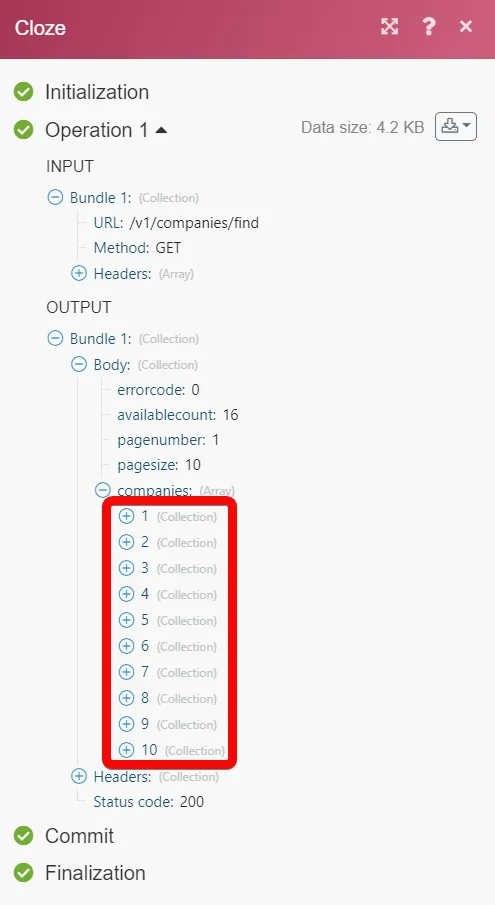
The following API call returns all the companies from your Cloze account:
URL:
/v1/companies/find
Method
:GET
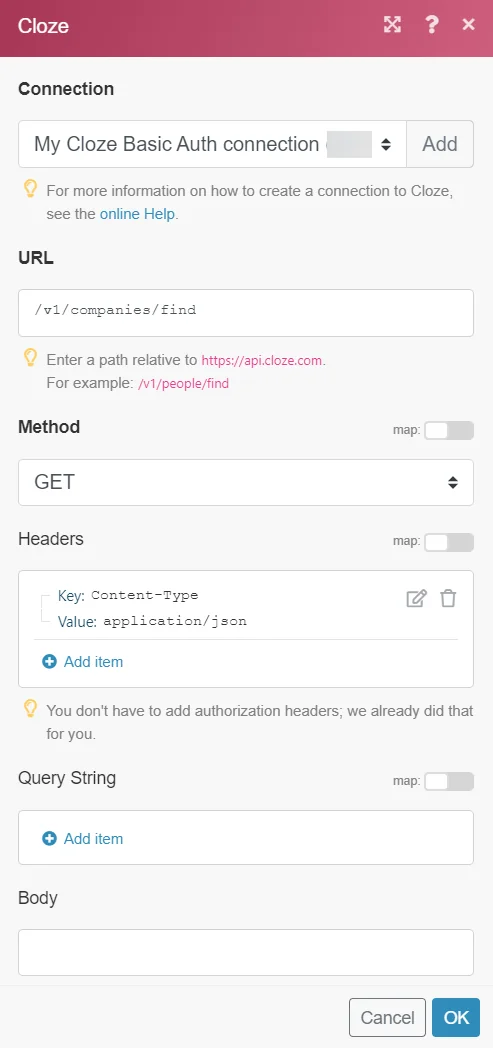
Matches of the search can be found in the module’s Output under Bundle > Body > companies.
In our example, 10 companies were returned:
Legacy article, imported from the original Boost.space knowledge base (/knowledge-base/applications/crm-and-sales-tools/cloze/).

