Costbucket
With Costbucket modules in Boost.space Integrator, you can create, update, and retrieve all your customers, stock categories, and products in your Costbucket account.
To get started with Costbucket, create an account at costbucket.com.
Connecting Costbucket to Boost.space Integrator
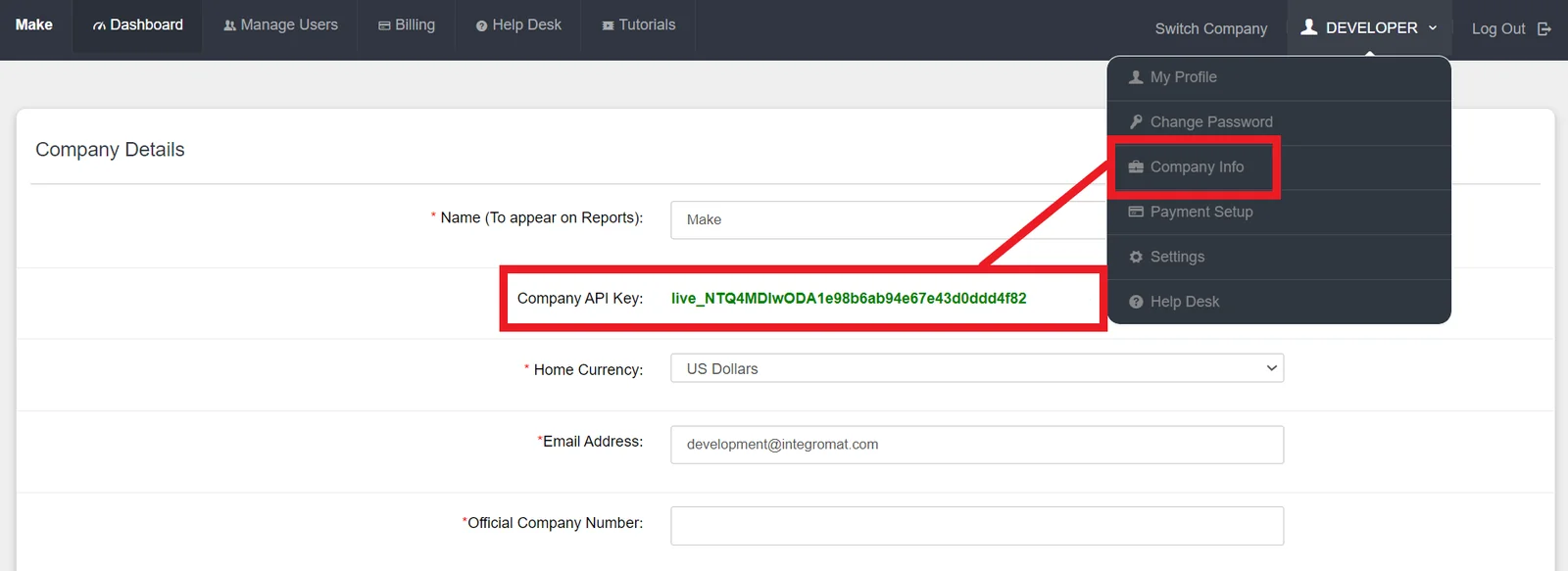
To make a connection you need to obtain your company API key from your Costbucket account.
-
Log in to your Costbucket account.
-
Click your avatar in the top-right corner, then click Company info.
-
Copy your company API key to your clipboard.
-
Go to your Boost.space Integrator scenario and select the Costbucket module you want to use.
-
Under Connection, click Add.
-
Give your new connection a name.
-
Copy your Costbucket username in the field provided.
-
Copy your company API key in the field provided.
-
Click Save.
You have successfully established the connection. You can now begin editing your scenario and adding more Costbucket modules.
Customers
Add a Customer
Adds a new customer.
Connection
Establish a connection to your Costbucket account.
Customer Name
Enter the customer’s name.
Customer Email
Enter the customer’s email address.
Customer Phone
Enter the customer’s phone number.
Customer Street 1
Enter the first line of the customer’s address.
Customer Street 2
Enter the second line of the customer’s address.
Customer City
Enter the customer’s city.
Customer State
Enter the customer’s state.
Customer ZIP Code
Enter the customer’s zip code.
Customer Country
Enter the customer’s country.
Update a Customer
Updates an existing customer.
Connection
Establish a connection to your Costbucket account.
Customer Code
Enter the customer’s code.
Customer Name
Enter the customer’s name.
Customer Email
Enter the customer’s email address.
Customer Phone
Enter the customer’s phone number.
Customer Street 1
Enter the first line of the customer’s address.
Customer Street 2
Enter the second line of the customer’s address.
Customer City
Enter the customer’s city.
Customer State
Enter the customer’s state.
Customer ZIP Code
Enter the customer’s zip code.
Customer Country
Enter the customer’s country.
Get a Customer
Retrieves a customer by email.
Connection
Establish a connection to your Costbucket account.
Email address
Enter the customer’s email address.
Stock Categories
List Stock Categories
Retrieves a list of stock categories.
Connection
Establish a connection to your Costbucket account.
Limit
Select the maximum number of stock categories Boost.space Integrator returns during one scenario execution cycle.
Update a Stock Category
Updates an existing stock category.
Connection
Establish a connection to your Costbucket account.
Category code
Enter the category code.
Category Description
Enter a description of the category.
Stock Type
Enter the stock type.
Background Color
Enter the background color.
Text Color
Enter a text color.
Get a Stock Category
Retrieves a stock category by description.
Connection
Establish a connection to your Costbucket account.
Category Description
Enter a description of the category.
Add a Stock Category
Adds a new stock category.
Connection
Establish a connection to your Costbucket account.
Category Description
Enter a description of the category.
Stock Type
Enter the stock type.
Background Color
Enter the background color.
Text Color
Enter a text color.
Products
Add a Product
Adds a new product.
Connection
Establish a connection to your Costbucket account.
Stock Category
Select the stock category.
Item Code
Enter the item code.
Barcode
Enter the barcode number.
Batch Control
Enter the batch control.
Current
Enter the current.
Item Type
Enter the item type.
Long Description
Enter the long description of the product.
Price List
Enter the price list.
Sales Price
Enter the sales price.
Serialised
Enter the serialised.
Short Description
Enter the short description.
Tax Category
Select the tax category.
Unit Cost
Enter the unit cost.
Units
Enter the units.
Update a Product
Updates an existing product.
Connection
Establish a connection to your Costbucket account.
Stock Category
Select the stock category.
Item Code
Enter the item code.
Barcode
Enter the barcode number.
Batch Control
Enter the batch control.
Current
Enter the current.
Item Type
Enter the item type.
Long Description
Enter the long description of the product.
Price List
Enter the price list.
Sales Price
Enter the sales price.
Serialised
Enter the serialised.
Short Description
Enter the short description.
Tax Category
Select the tax category.
Unit Cost
Enter the unit cost.
Units
Enter the units.
Get a Product
Retrieves a product by Stock ID.
Connection
Establish a connection to your Costbucket account.
Stock code
Enter the stock code of the product.
Other
Check id Order Reference Number Exists
Checks whether an order reference number exists.
Connection
Establish a connection to your Costbucket account.
Filename
Enter the file name.
Legacy article, imported from the original Boost.space knowledge base (/knowledge-base/applications/crm-and-sales-tools/costbucket/).

