EspoCRM
The EspoCRM modules enable you to monitor, create, retrieve, update, and delete accounts, contacts, leads, opportunities, cases, meetings, or calls in your EspoCRM.
Getting Started with EspoCRM
Prerequisites
- An EspoCRM cloud or on-premise installation
In order to use EspoCRM with Boost.space Integrator, it is necessary to have an EspoCRM account. If you do not have one, you can create an EspoCRM account at www.espocrm.com/self-hosted-vs-cloud-crm.
The module dialog fields that are displayed in bold (in the Boost.space Integrator scenario, not in this documentation article) are mandatory!
Connecting EspoCRM to Boost.space Integrator
To connect your EspoCRM account to Boost.space Integrator you need to create an API user in your EspoCRM to generate the API Key and Secret Key.
1. Log in to your EspoCRM.
2. Click the three dots (
 ) in the top-right corner and select Administration from the drop-down menu.

3. Navigate to API Users and click the +Create API User button.
4. Fill the required fields, add teams and/or roles, select the desired authentication method, and click Save.
Do not forget to assign teams and/or roles that possess scopes you want to use with Boost.space Integrator. Go to Administration > Roles and create a new role with permissions you want to grant to the API user.
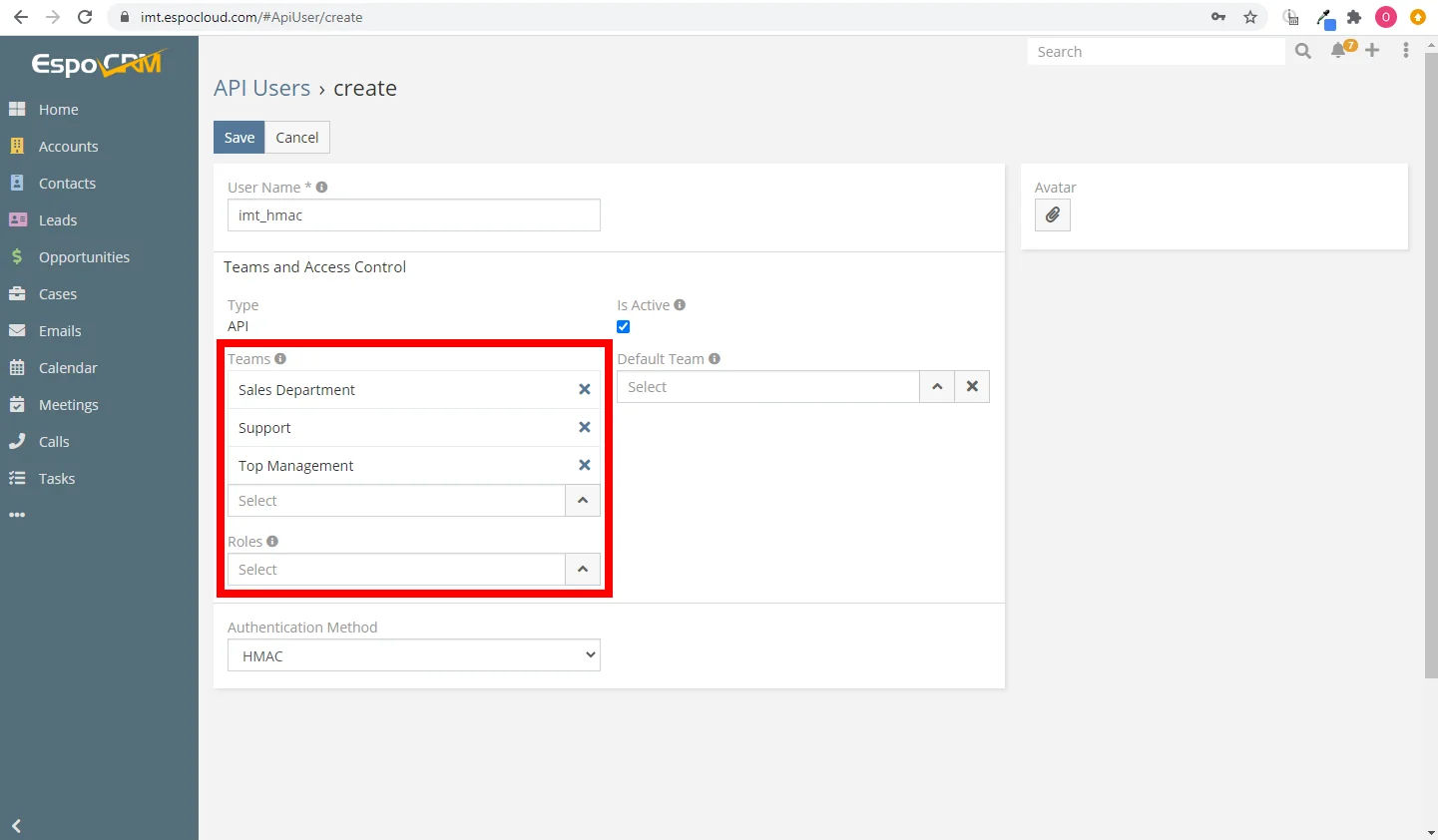
5. Find the generated API Key and API Secret in the created user’s profile.
6. Go to Boost.space Integrator and open the EspoCRM module’s Create a connection dialog.
7. Enter the domain name of your EspoCRM installation, select the desired authentication method, and enter API Key and API Secret provided in step 5 to the respective fields. Click the Continue button to establish the connection.
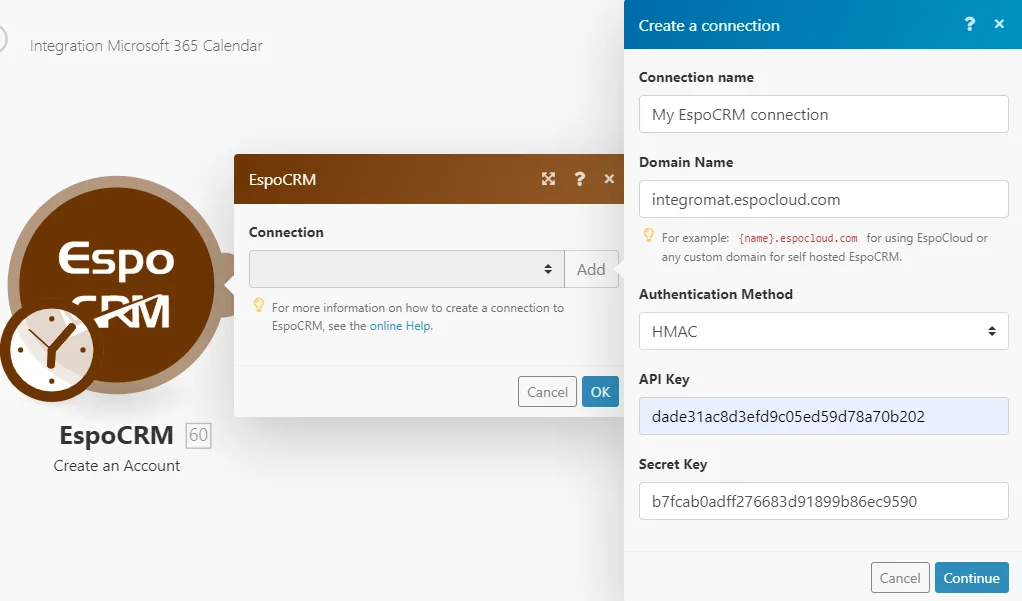
The connection has been established. You can proceed with setting up the module.
Other
Watch Changes
Triggers when a specified event occurs for the account, contact, lead, or opportunity entity.
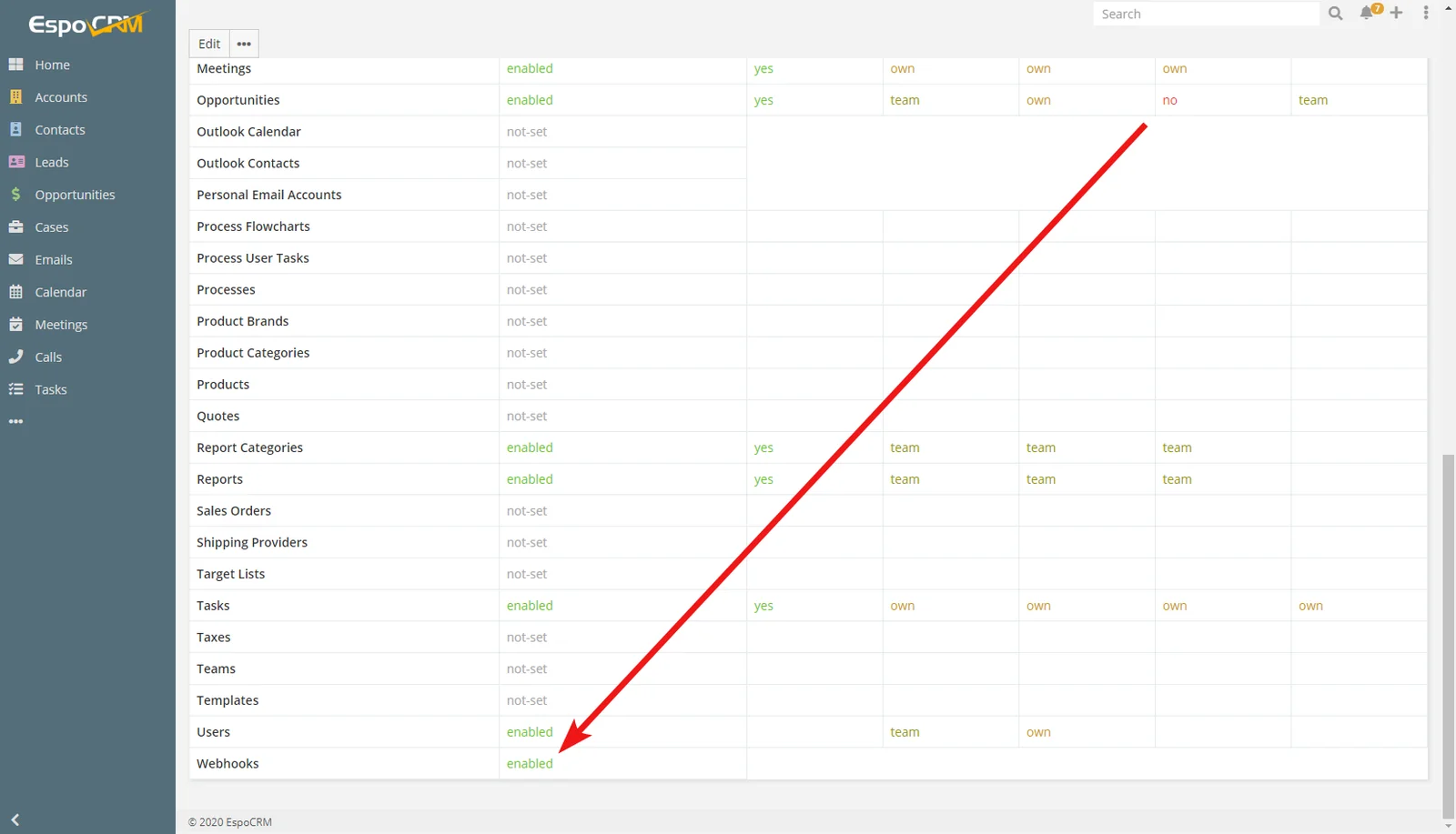
The Webhooks and corresponding entity (account, contact, lead, opportunity) scopes must be enabled for the API user’s team/role you are using to connect to your EspoCRM account.
Webhook name
Enter the name of the webhook, e.g. Account Updated.
Connection
Establish a connection to your EspoCRM account.
Entity Type
Select the entity you want to watch for changes.
Event
Select the event that will trigger the Watch Changes module.
Create an Attachment
Provides an attachment for Create a Task, Create a Case, or Compose an Email modules.
Connection
Establish a connection to your EspoCRM account.
Source
Select whether you want to provide an attachment from the documents in your EspoCRM account or upload an external file using Boost.space Integrator.
Document
Select the document you want to provide as an attachment.
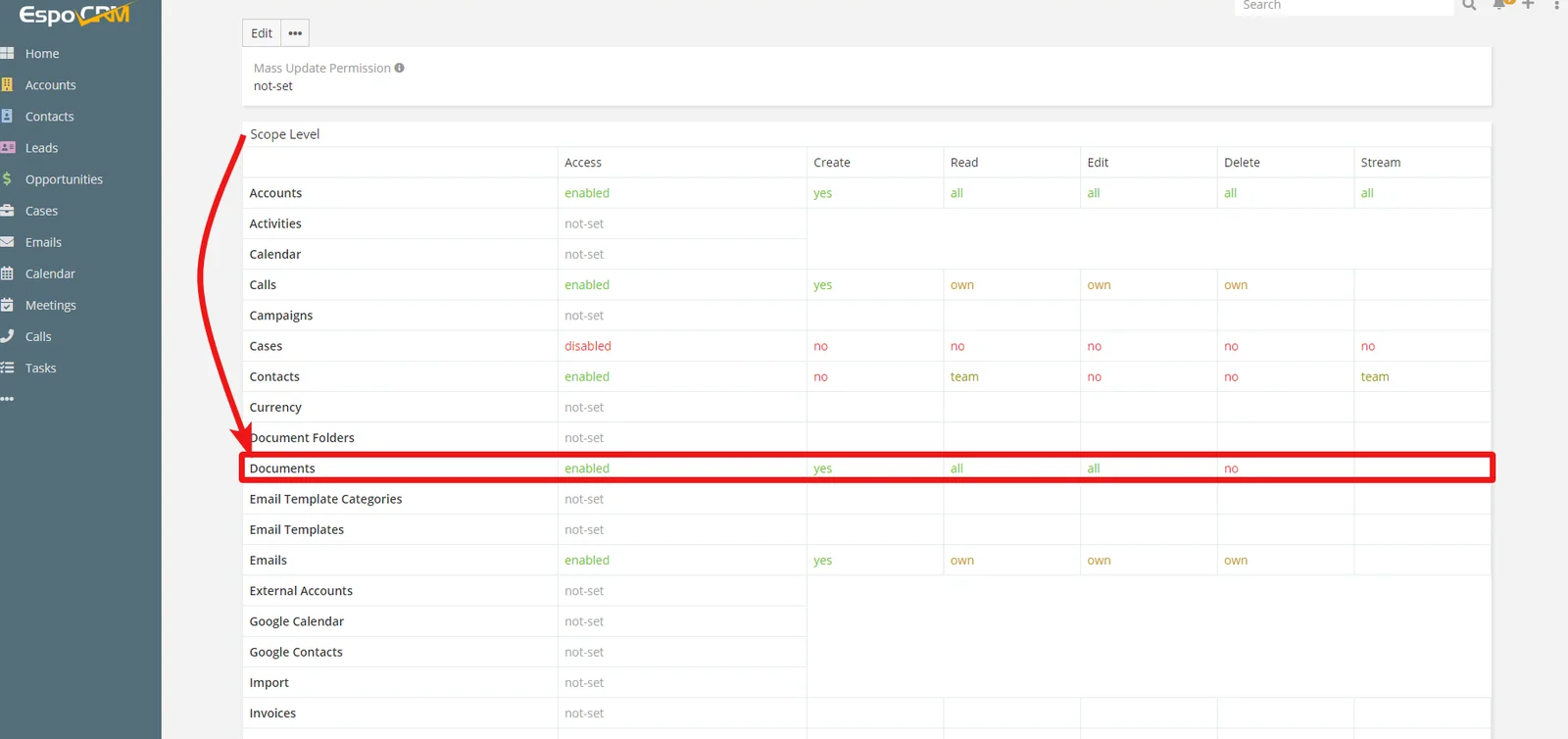
When selecting a document, make sure the role you are using has a corresponding scope enabled.
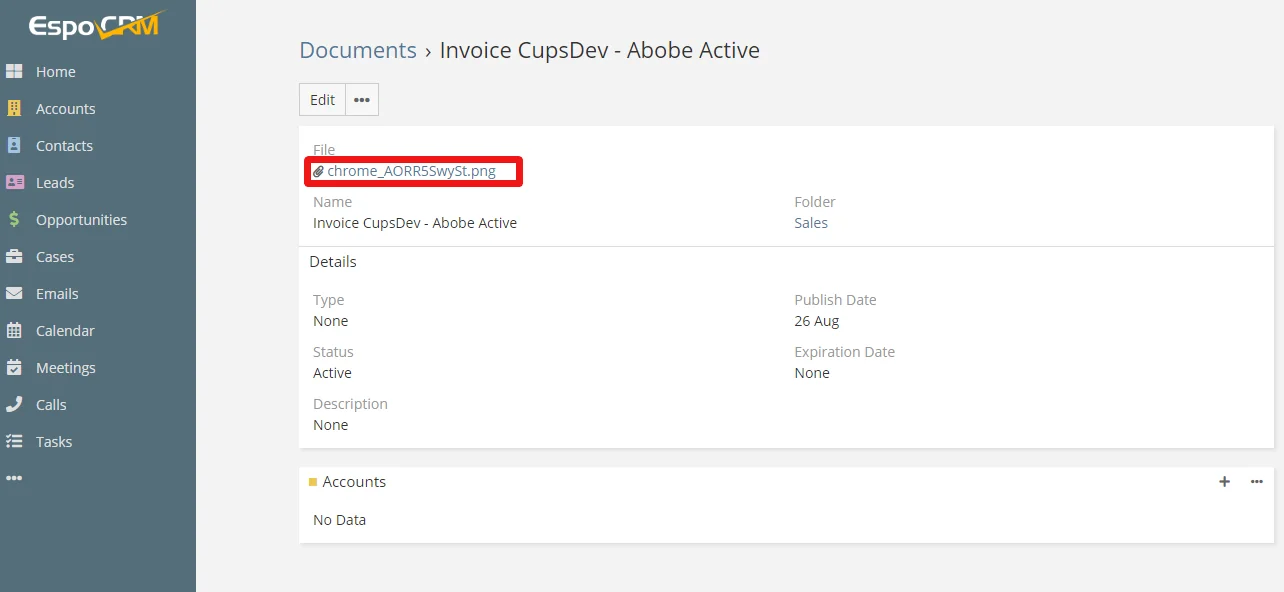
And that the document contains the actual file.
Source File
Map the file you want to upload from the previous module (e.g. HTTP > Get a File or Google Drive > Download a File), or enter the file name and file data manually.
MIME type
Select the type of the uploaded file.
Attach To
Select whether you want to attach the file to the case (Create a Case module), email (Compose an Email module), or task (Create a Task module).
Make an API Call
Allows you to perform a custom API call.
Connection
Establish a connection to your EspoCRM account.
URL
Enter a path relative to https://{your-espocrm-domain}. For example: /v1/account.
For the list of available endpoints, refer to the EspoCRM API Documentation.
Method
Select the HTTP method you want to use:
GET to retrieve information for an entry.
POST to create a new entry.
PUT to update/replace an existing entry.
PATCH to make a partial entry update.
DELETE to delete an entry.
Headers
Enter the desired request headers. You don’t have to add authorization headers; we already did that for you.
Query String
Enter the request query string.
Body
Enter the body content for your API call.
Example of Use – List Documents
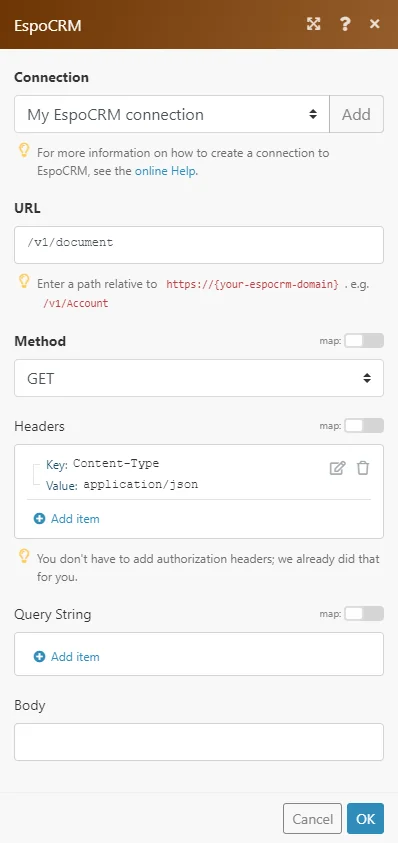
The following API call returns all documents in your EspoCRM account:
URL: /v1/document
Method: GET
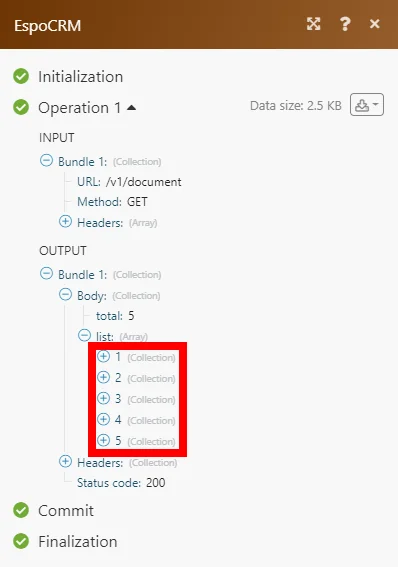
The result can be found in the module’s Output under Bundle > Body > list. In our example, 5 documents were returned:
Legacy article, imported from the original Boost.space knowledge base (/knowledge-base/applications/crm-and-sales-tools/espocrm/).

