Fireberry
Powerlink is now rebranded to Fireberry.
With the Fireberry modules in Boost.space Integrator, you can:
-
add comments to the object
-
create a call record
-
create, update, and delete objects
-
upload files
-
call APIs
To get started with Fireberry, create an account at fireberry.com.
For the list of available endpoints, refer to the Fireberry API documentation.
Connect Fireberry with Boost.space Integrator
To connect the Fireberry app with the Boost.space Integrator:
-
Log in to your Fireberry account.
-
Click Settings.
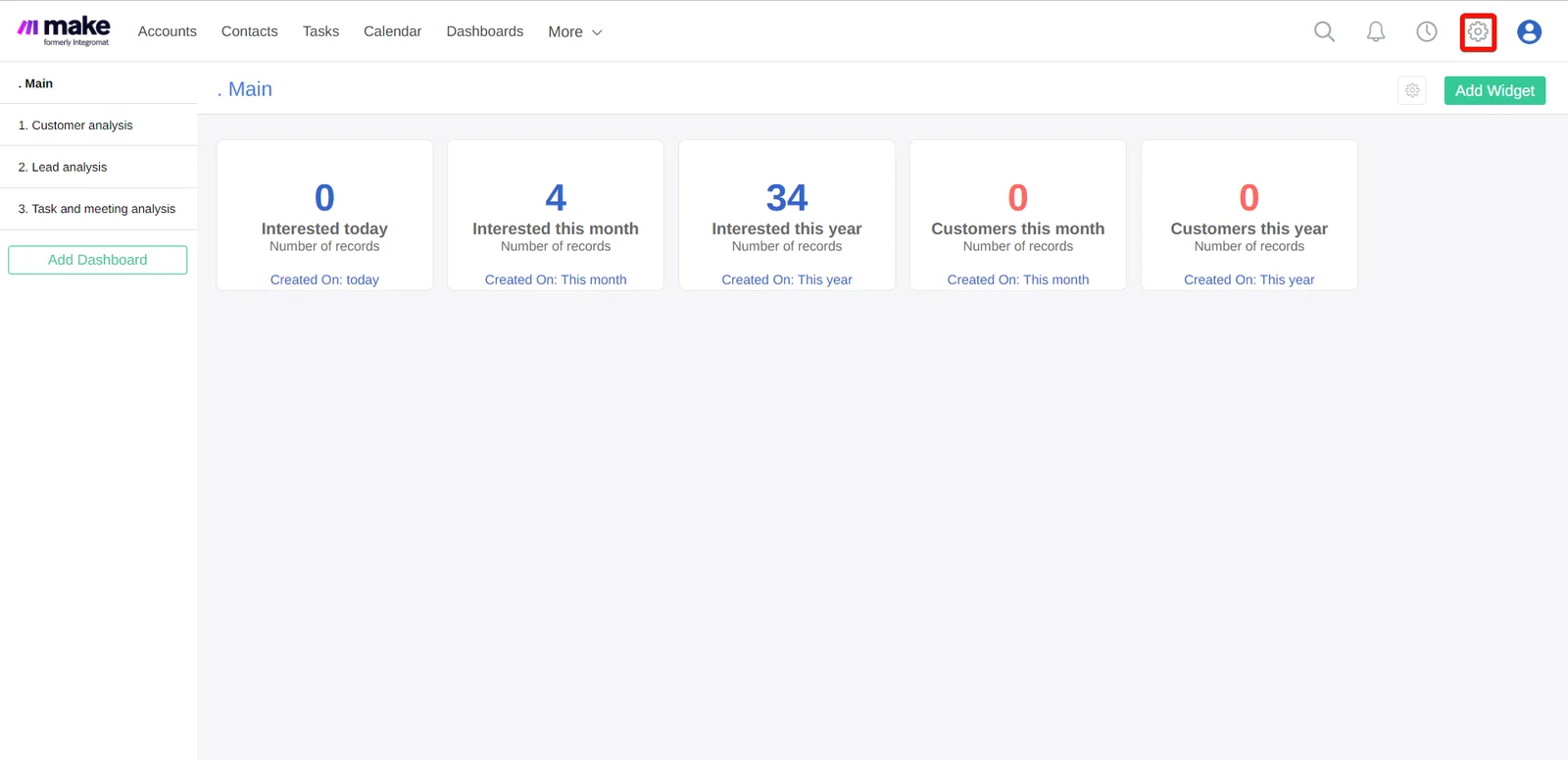
-
Click Integrations >Web Forms and copy the My Token value to your clipboard.
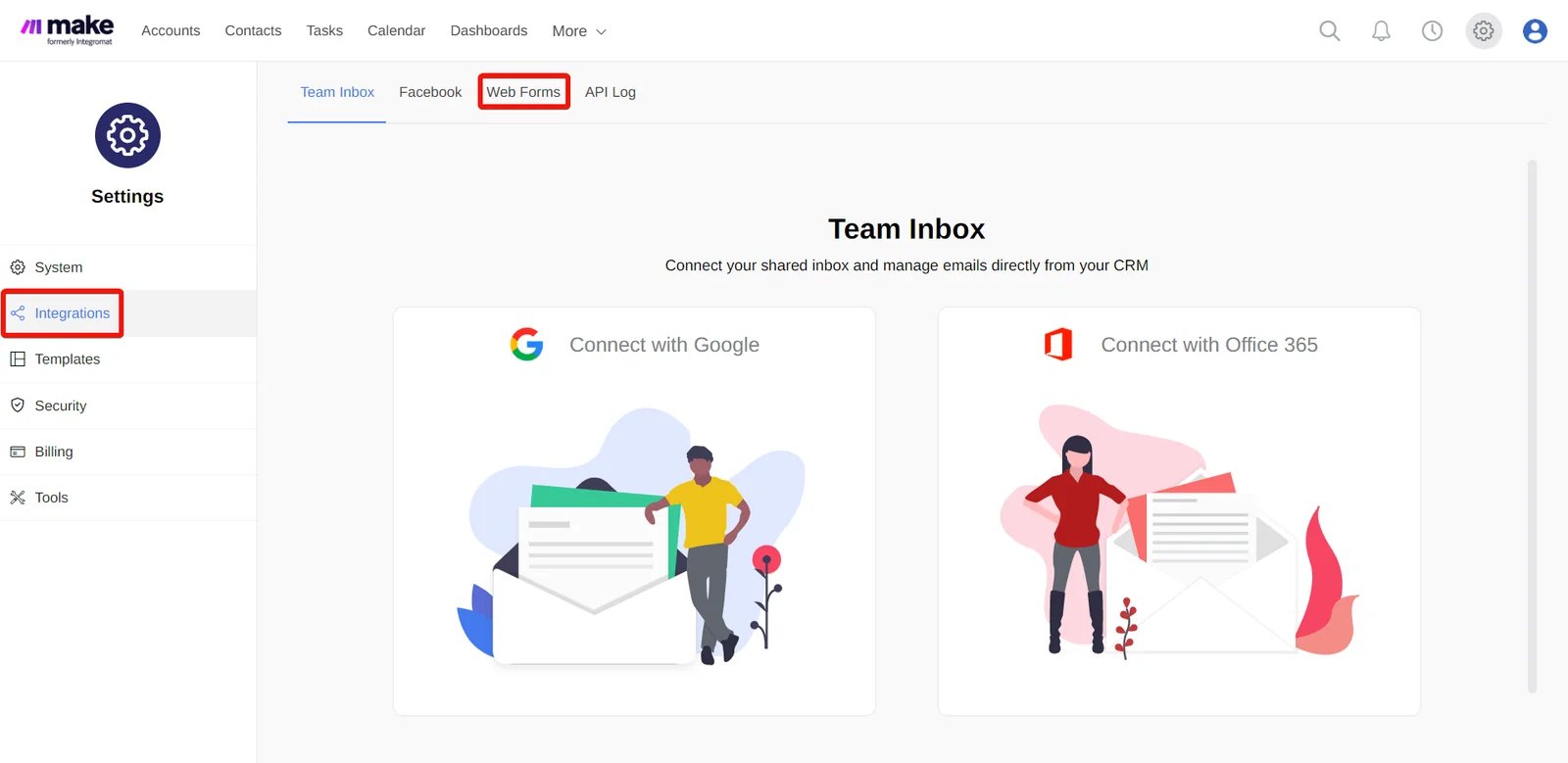
-
Log in to your Boost.space Integrator and add a module from the Fireberry into a Boost.space Integrator scenario.
-
Click Add next to the Connection field.
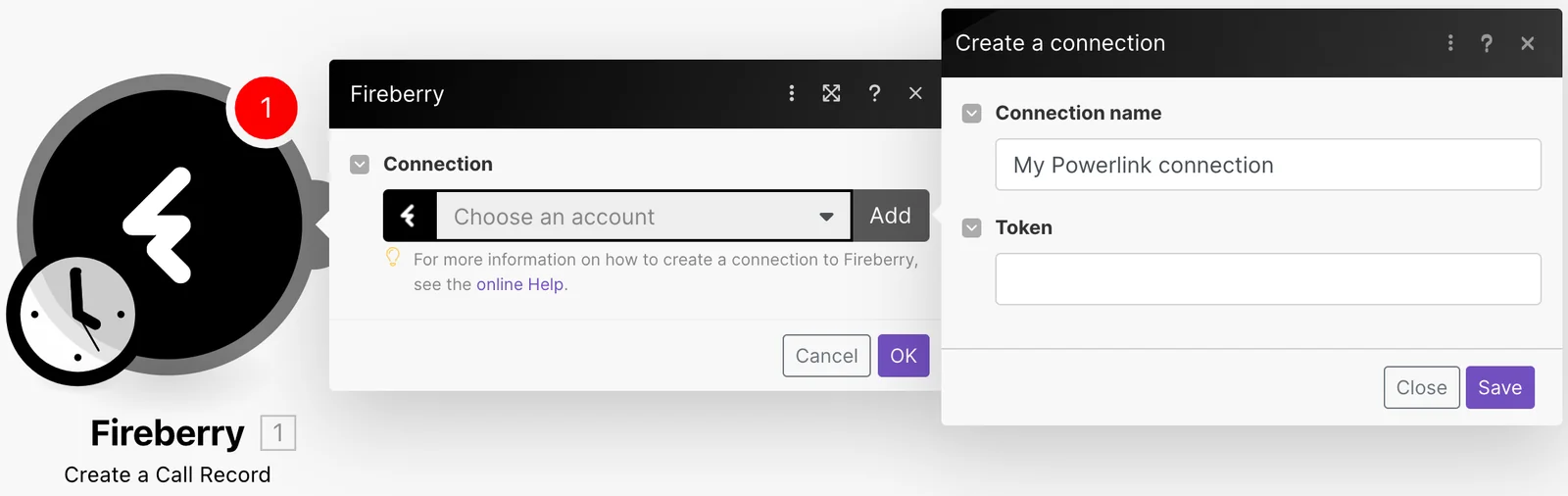
-
Optional: In the Connection name field, enter a name for the connection.
-
In the Token field, enter the details copied in Step 3 and click Save.
You have successfully connected the Fireberry app with Boost.space Integrator and can now build scenarios.
Actions
You can add a comment to a Fireberry object, create a call record, and add, update, and delete the objects and files using the following modules.
Add a Comment
Adds a comment to a Fireberry object.
Create a Call Record
Creates a new call record.
Create an Object
Creates a new Fireberry object.
Delete an Object
Deletes a Fireberry object.
Make an API Call
Performs an arbitrary authorized API call.
Update an Object
Updates a Fireberry object.
Upload a File
Uploads a file to a Fireberry object.
Searches
You can search the objects using the following module.
Query Objects
Performs a query for Fireberry objects.
Legacy article, imported from the original Boost.space knowledge base (/knowledge-base/applications/crm-and-sales-tools/fireberry/).

