Flexie CRM
The Flexie CRM modules allow you to monitor, create, update, send, retrieve, list, and delete the deals, leads, contact, accounts, and custom entities in your Flexi CRM account.
Getting Started with Flexie CRM
Prerequisites
- A Flexie CRM account – create an account at flexie.io
The module dialog fields that are displayed in bold (in the Boost.space Integrator scenario, not in this documentation article) are mandatory!
Connecting Flexie CRM to Boost.space Integrator
To connect your Flexie CRM account to Boost.space Integrator you need to obtain the API Key from your Flexie CRM account and insert it in the Create a connection dialog in the Boost.space Integrator module.
1. Log in to your Flexie CRM account.
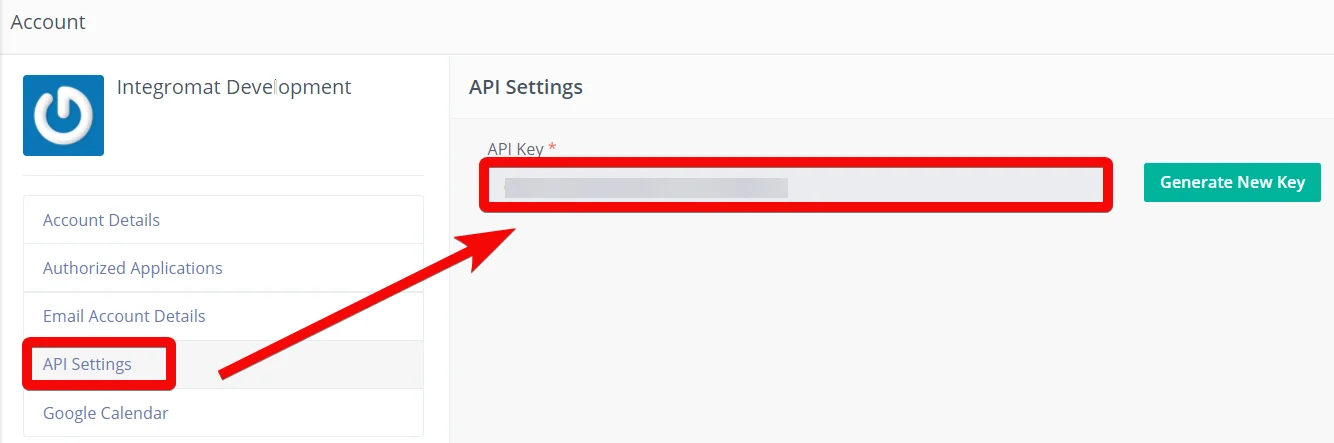
2. Click Your Account Name > Accounts > API Settings.

3. Copy the API Key to your clipboard.
4. Go to Boost.space Integratorand open the Flexie CRM module’s_Create a connection_dialog.

5. In the Connection name field, enter a name for the connection.
6. In the Subdomain field, enter your Flexie CRM account’s domain name. For example, if your account’s URL address is https://www.xyz.flexi.io then your subdomain is xyz.
7. In the API Key field, enter the API key copied in step 3, and click Continue.
The connection has been established.
Deals
List Deals
Gets all deals.
Connection
Establish a connection to your Flexi CRM account.
Limit
Set the maximum number of deals Boost.space Integrator should return during one execution cycle.
Order By
Select or map the option to sort the deals. For example, first_name, last_name.
Order Direction
Select or map the order in which you want to list the deals. For example, ASC for ascending order.
Get a Deal
Gets a deal.
Connection
Establish a connection to your Flexi CRM account.
Deal ID
Select or map the Deal ID whose details you want to retrieve.
Create a Deal
Creates a deal.
Connection
Establish a connection to your Flexi CRM account.
Pipeline
Select or map the pipeline to create the deal.
Stage
Select or map the deal stage:
-
Prospection
-
Qualification
-
Negotiating
-
Confirmation
-
Won
-
Lost
Name
Enter (map) the deal name.
Amount
Enter (map) the amount expected in the deal.
Close Date
Enter (map) the date by which the deal is closed.
Update a Deal
Updates a deal.
Connection
Establish a connection to your Flexi CRM account.
Deal ID
Select or map the Deal ID whose details you want to update.
Pipeline ID
Select or map the pipeline to create the deal.
Stage
Select or map the deal stage:
-
Prospection
-
Qualification
-
Negotiating
-
Confirmation
-
Won
-
Lost
Name
Enter (map) the deal name.
Amount
Enter (map) the amount expected in the deal.
Close Date
Enter (map) the date by which the deal is closed.
Delete a Deal
Deletes a deal.
Connection
Establish a connection to your Flexi CRM account.
Deal ID
Select or map the Deal ID you want to delete.
Leads
List Leads
Gets all leads.
Connection
Establish a connection to your Flexi CRM account.
Limit
Set the maximum number of leads Boost.space Integrator should return during one execution cycle.
Order By
Enter (map) the option to search the leads by the specified filter.
Order Direction
Select or map the direction to list the leads:
-
ASC – Ascending
-
DESC – Descending
Search
Enter (map) the keyword or phrase to list the leads that match the specified query.
Get a Lead
Gets a lead.
Connection
Establish a connection to your Flexi CRM account.
Lead ID
Select or map the Lead ID whose details you want to retrieve.
Create a Lead
Creates a lead.
Connection
Establish a connection to your Flexi CRM account.
Source
Select or map the source of the lead. For example, Cold Call.
Status
Select or map the status of the lead and enter the details in the dynamic field that auto-populates based on the selected status. For example, new.
First Name
Enter (map) the first name of the lead.
Country
Select or map the lead’s country name.
State
Select or map the lead’s state name.
UTM Content
Fill in this field to differentiate ads within the campaign.
Last Name
Select or map the lead’s last name.
Enter (map) the lead’s email address.
UTM
Enter the source where the user comes from. For example, Twitter.
Title
Enter (map) the lead’s title. For example, Mr..
Phone
Enter (map) the lead’s phone number.
Company
Enter (map) the lead’s company name.
UTM Medium
Enter the marketing medium. For example, banner.
Address Line 1
Enter (map) the lead’s street name.
Address Line 2
Enter (map) the lead’s street name.
City
Enter (map) the lead’s city name.
UTM Campaign
Enter the name of the campaign. For example, feature launch.
ZIP
Enter (map) the lead’s area zip code.
UTM Term
Enter the term to track specific keywords for paid organic campaigns.
URL Field
Enter (map) the URL address lead’s profile or social media.
Time Field
Enter (map) the lead’s preferred time.
Email Volume Preferences
Enter (map) the lead’s email preferences.
Campaign Preferences
Enter (map) the lead’s campaign preference details.
Latitude
Enter (map) the lead’s latitude’s longitude details.
Longitude
Enter (map) the lead’s location’s longitude details.
Lookup Field
Select or map the contact’s username.
Boolean Field
Select whether the contact is a boolean.
Area Field
Add the contact’s area’s latitude and longitude details.
Date Type
Enter (map) the date type applicable to the lead.
Tags Field
Add the tags for the lead.
Additional Notes
Enter (map) the additional details of the lead.
Update a Lead
Updates a lead.
Connection
Establish a connection to your Flexi CRM account.
Lead ID
Select or map the Lead ID whose details you want to update.
See the Create a Lead section for the field descriptions.
Delete a Lead
Deletes a lead.
Connection
Establish a connection to your Flexi CRM account.
Lead ID
Select or map the Lead ID you want to delete.
Contacts
List Contacts
Gets all contacts.
Connection
Establish a connection to your Flexi CRM account.
Limit
Set the maximum number of contacts Boost.space Integrator should return during one execution cycle.
Order By
Select or map the option to sort the contacts. For example, first_name, last_name.
Order Direction
Select or map the order in which you want to list the contacts. For example, ASC for ascending order.
Search
Enter (map) the keyword or phrase to list the contacts that match the specified query.
Get a Contact
Gets a contact.
Connection
Establish a connection to your Flexi CRM account.
Contact ID
Select or map the Contact ID whose details you want to retrieve.
Create a Contact
Creates a contact.
Connection
Establish a connection to your Flexi CRM account.
First Name
Enter (map) the contact’s first name.
Enter (map) the contact’s email address.
Status
Enter (map) the contact’s status:
-
New
-
Nurture
-
Pending
-
Qualify
-
Trash
-
Watch
-
Closed
Source
Select or map the source from where the contact has come:
-
None
-
Ads Workflow
-
Cold Call
-
Referral
-
Random
-
Meeting
-
Website
Title
Enter (map) the contact’s title. For example, Mr..
Last Name
Enter (map) the contact’s last name.
Phone
Enter (map) the contact’s phone number.
Company
Enter (map) the contact’s company name.
Country
Enter (map) the contact’s country name.
State
Enter (map) the contact’s state name.
City
Enter (map) the contact’s city name.
Zip
Enter (map) the contact’s area zip code.
Address Line 1
Enter (map) the contact’s street address.
Address Line 2
Enter (map) the contact’s street name.
UTM Source
Enter the source where the user comes from. For example, Twitter.
UTM Medium
Enter the marketing medium. For example, banner.
UTM Campaign
Enter the name of the campaign. For example, feature launch.
UTM Term
Enter the term to track specific keywords for paid organic campaigns.
UTM Content
Enter the details in this field to differentiate ads within the campaign.
Start
Enter the contact’s start time for availability.
End
Enter the contact’s availability end time.
Update a Contact
Updates a contact.
Connection
Establish a connection to your Flexi CRM account.
Contact ID
Select or map the Account ID whose details you want to update.
See the Create a Contact section for the field descriptions.
Delete a Contact
Deletes a contact.
Connection
Establish a connection to your Flexi CRM account.
Contact ID
Select or map the Contact ID you want to delete.
Accounts
List Accounts
Get all accounts.
Connection
Establish a connection to your Flexi CRM account.
Limit
Set the maximum number of accounts Boost.space Integrator should return during one execution cycle.
Order By
Select or map the option to sort the contacts. For example, first_name, last_name.
Order Direction
Select or map the order in which you want to list the contacts. For example, ASC for ascending order.
Get an Account
Gets an account.
Connection
Establish a connection to your Flexi CRM account.
Account ID
Select or map the Account ID whose details you want to retrieve.
Create an Account
Creates an account.
Connection
Establish a connection to your Flexi CRM account.
First Name
Enter (map) the account’s first name.
Enter (map) the account’s contact email address.
Status
Enter (map) the account’s status:
-
New
-
Nurture
-
Pending
-
Qualify
-
Trash
-
Watch
-
Closed
Source
Select or map the account’s source. For example, Referral.
Title
Enter (map) the account’s title.
Last Name
Enter (map) the account’s last name.
Phone
Enter (map) the account’s phone number.
Company
Enter (map) the account’s company name.
Country
Enter (map) the account’s country name.
State
Enter (map) the account’s state name.
City
Ente (map) the account’s city name.
Zip
Enter (map) the account’s area zip code.
Address Line 1
Enter (map) the account’s street address.
Address Line 2
Enter (map) the account’s street address.
UTM Source
Enter the source where the account comes from. For example, Twitter.
UTM Medium
Enter the marketing medium. For example, banner.
UTM Campaign
Enter the name of the campaign. For example, feature launch.
UTM Term
Enter the term to track specific keywords for paid organic campaigns.
UTM Content
Enter the details in this field to differentiate ads within the campaign.
Start
Enter (map) the account’s start time.
End
Enter (map) the account’s end time.
Update an Account
Updates an account.
Connection
Establish a connection to your Flexi CRM account.
Account ID
Select or map the Account ID whose details you want to update.
See the Create an Account section for the field descriptions.
Delete an Account
Deletes an account.
Connection
Establish a connection to your Flexi CRM account.
Account ID
Select or map the Account ID you want to delete.
Custom Entities
List Custom Entities
Gets all custom entities.
Connection
Establish a connection to your Flexi CRM account.
Custom Entity
Select or map the custom entity whose entities you want to list.
Limit
Set the maximum number of custom entities Boost.space Integrator should return during one execution cycle.
Order By
Select or map the option to sort the contacts. For example, first_name, last_name.
Order Direction
Select or map the order in which you want to list the contacts. For example, ASC for ascending order.
Get a Custom Entity
Gets a custom entity.
Connection
Establish a connection to your Flexi CRM account.
Custom Entity
Select or map the custom entity whose entity details you want to retrieve.
Custom Entity ID
Select or map the Custom Entity ID whose details you want to retrieve.
Create a Custom Entity
Creates a custom entity.
Connection
Establish a connection to your Flexi CRM account.
Custom Entity
Select or map the custom entity in which you want to create the entity.
Name
Enter (map) the entity name.
Update a Custom Entity
Updates a custom entity.
Connection
Establish a connection to your Flexi CRM account.
Custom Entity
Select or map the custom entity whose entity details you want to update.
Custom Entity ID
Select or map the entity whose details you want to update.
Name
Enter (map) a new name for the entity. If there are any additional dynamic fields related to the entity, update the details.
Delete a Custom Entity
Deletes a custom entity.
Connection
Establish a connection to your Flexi CRM account.
Custom Entity
Select or map the custom entity whose entities you want to delete.
Custom Entity ID
Select or map the Custom Entity ID you want to delete.
Tiggers

See Setting Up Flexie CRM Webhooks to add webhooks in your Flexie CRM account.
Universal Trigger
Triggers when the entity to which you attached the webhook is executed.
Webhook Name
Enter a name for the webhook.
Connection
Establish a connection to your Flexi CRM account.
Other
Make an API Call
Performs an arbitrary authorized API call.
Connection
Establish a connection to your Flexi CRM account.
URL
Enter a path relative to https://<subdomain>.flexie.io/api For example: /leads
For the list of available endpoints, refer to the Flexie CRM API Documentation.
Method
Select the HTTP method you want to use:
GET to retrieve information for an entry**.**
POST to create a new entry.
PUT to update/replace an existing entry.
PATCH to make a partial entry update.
DELETE to delete an entry.
Headers
Enter the desired request headers. You don’t have to add authorization headers; we already did that for you.
Query String
Enter the request query string.
Body
Enter the body content for your API call.
Example of Use – List Accounts
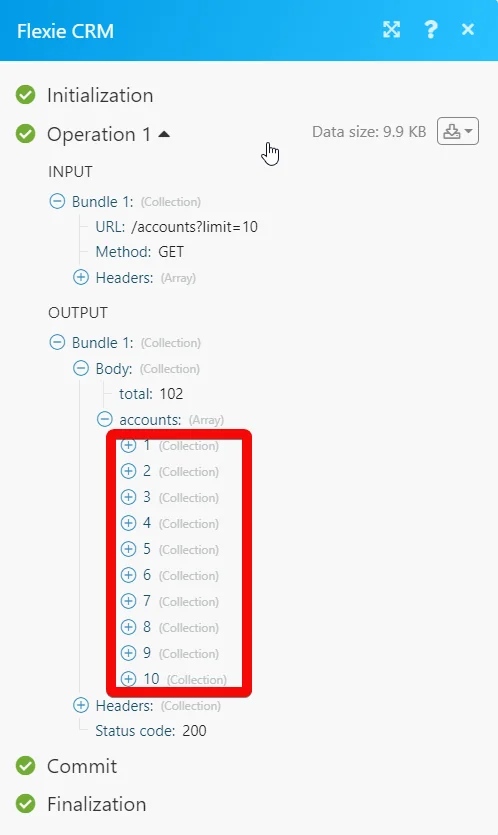
The following API call returns all the accounts from your Flexie CRM account:
URL: /accounts?limit=10
Method: GET
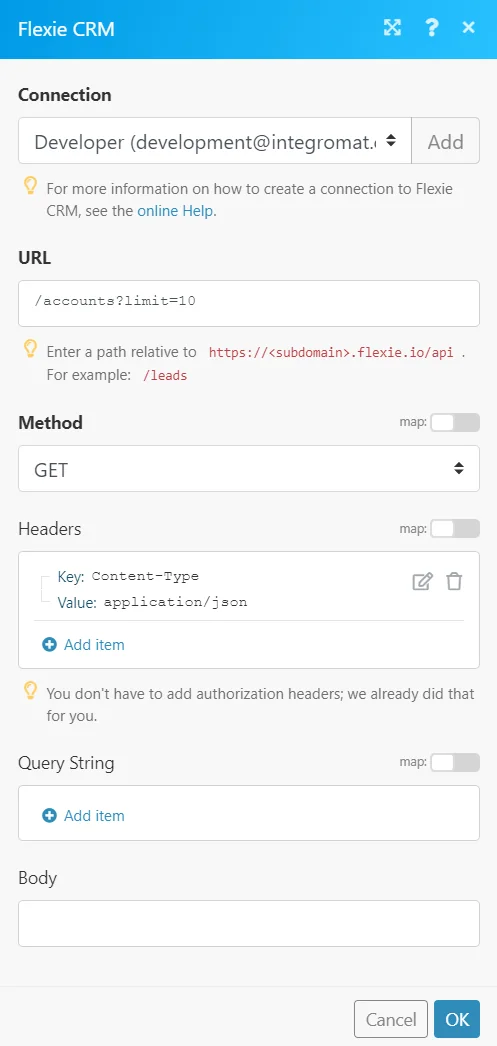
Matches of the search can be found in the module’s Output under Bundle > Body > accounts. In our example, 10 (of total 102) accounts were returned:
Setting Up Flexie CRM Webhooks
1. Open the Universal Trigger module, establish a connection, click Save and copy the URL address to your clipboard. Click OK and save the trigger.
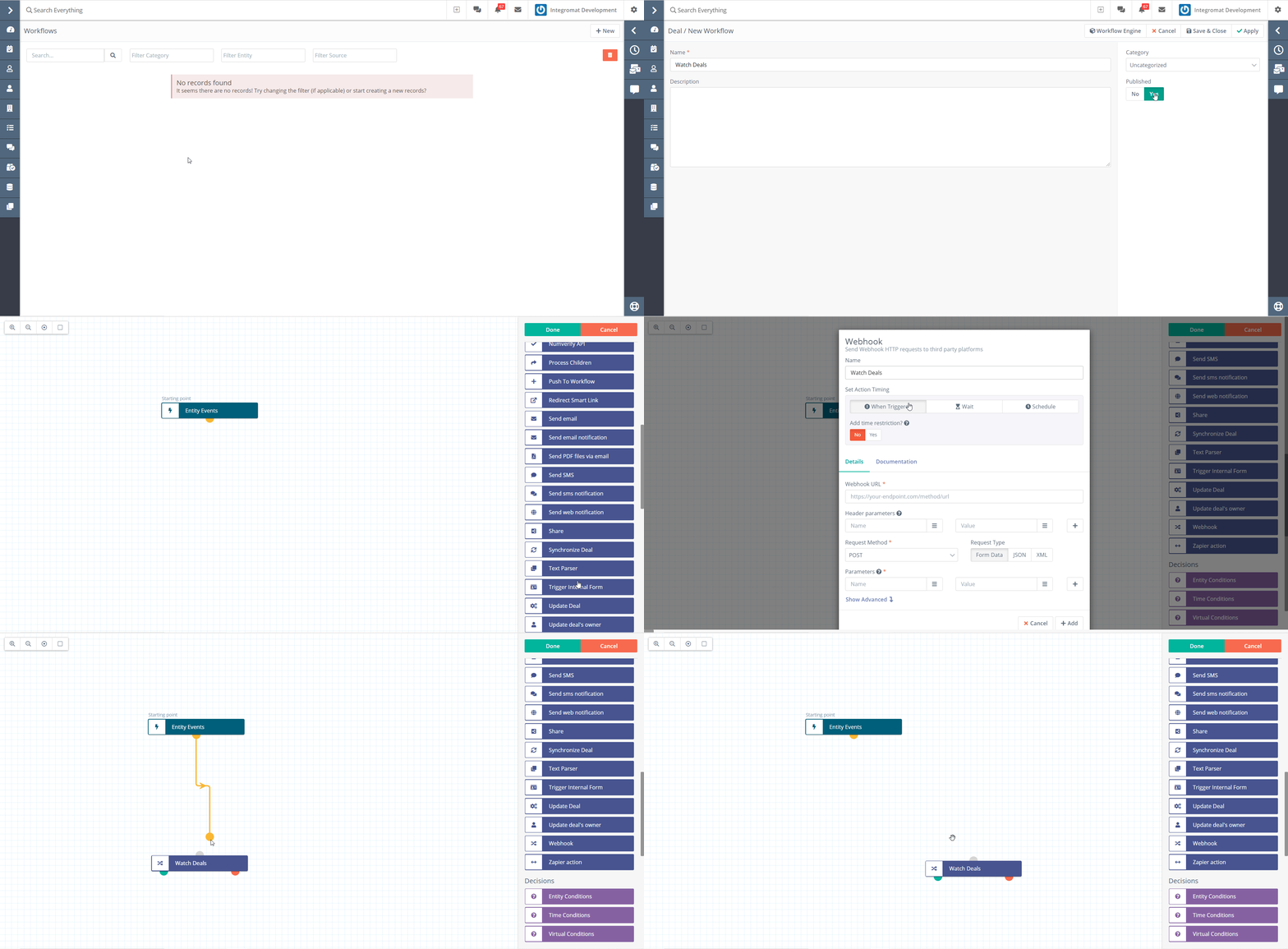
2. Log in to your Flexie CRM account. Click Workflows > enter a name for the workflow > Click Apply. In the Published section, select Yes.
3. Click Workflow Engine, click Entity Engine and select the events for which you want to receive the triggers.
4. In the Actions sections, click Webhooks. Enter a name for the webhook, in the URL field, add the URL address copied in step 1, fill in the other field details as required, and click Add.
5. Connect the workflows using the connector, and Click Done.
6. Click Save and Close.
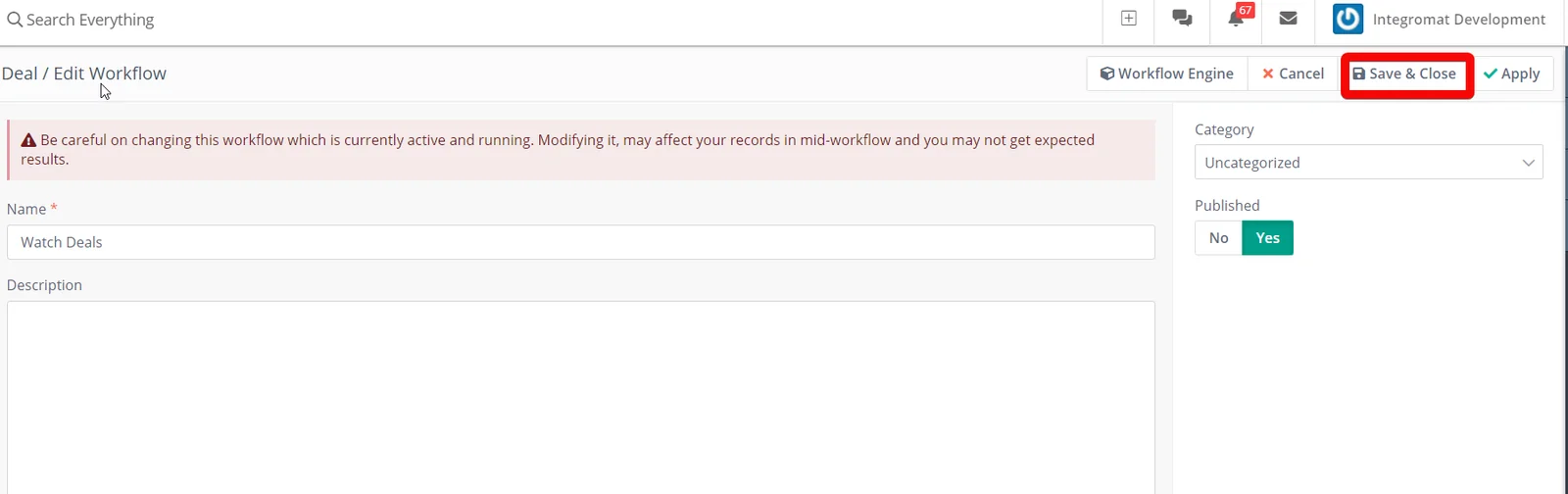
You have successfully added the webhooks.
Legacy article, imported from the original Boost.space knowledge base (/knowledge-base/applications/crm-and-sales-tools/flexie-crm/).

