FluentCRM
With FluentCRM modules in Boost.space Integrator, you can manage your contacts, lists, tags, and campaigns.
To use the FluentCRM modules, you must have a FluentCRM account. You can create an account at fluentcrm.com
Refer to the FluentCRM API documentation for a list of available endpoints.
Connect FluentCRM to Boost.space Integrator
You can establish a connection between FluentCRM and Boost.space Integrator using either your login credentials or the WordPress Make Connector plugin.
Connect FluentCRM using login credentials
To establish the connecting using your login credentials:
-
Log in to your Boost.space Integrator account, add a FluentCRM module to your scenario, and click Create a connection.
-
In the Connection type dropdown, select FluentCRM.
-
Optional: In the Connection name field, enter a name for the connection.
-
In the Domain field, enter your FluentCRM WordPress URL or domain name. For example,
https://my-wordpress-site.comormy-wordpress-site.com. If you do not includehttp://orhttps://, we will automatically addhttps://for you. -
In the Username field, enter your FluentCRM account login.
-
In the Application Password field, enter the application password created in your WordPress account at Users > Profile > Application Password.
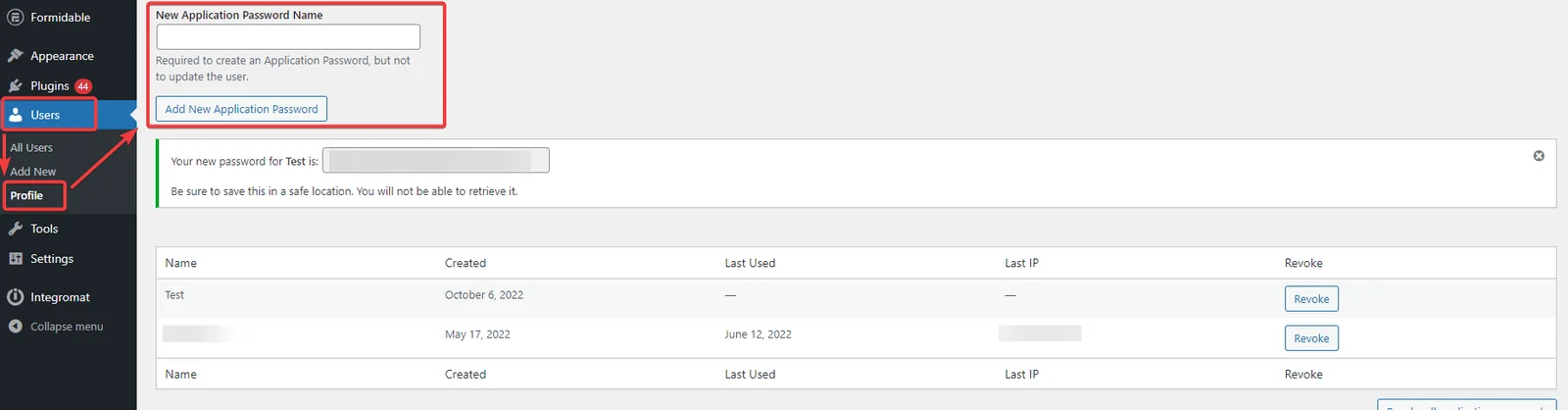
-
Click Save.
-
If prompted, authenticate your account and confirm access.
You have successfully established the connection. You can now edit your scenario and add more FluentCRM modules. If your connection requires reauthorization at any point, follow the connection renewal steps here.
Connect FluentCRM using the Make Connector
You must have the WordPress Make Connector plugin downloaded in your WordPress account in order to establish this connection.
To establish the connection using the Make Connector:
-
Log in to your WordPress account with the Make Connector plugin downloaded.
-
In the left sidebar, click on the Make plugin.
-
Copy the API Key value. You will use this key in the API Key field in Boost.space Integrator.
-
Log in to your Boost.space Integrator account, add a FluentCRM module to your scenario, and click Create a connection.
-
In the Connection type dropdown, select FluentCRM Make Connector.
-
Optional: In the Connection name field, enter a name for the connection.
-
In the WordPress REST API base URL field, enter your base URL or domain name in the following format:
https://yourdomain.com/wp-json/oryourdomain.com/wp-json/. If you do not includehttp://orhttps://, we will automatically addhttps://for you. -
In the API Key field, enter the API key copied in Step 3.
-
Click Save.
-
If prompted, authenticate your account and confirm access.
You have successfully established the connection. You can now begin editing scenarios and adding more FluentCRM modules. If your connection needs reauthorization at any point, follow the connection renewal steps here.
Build FluentCRM Scenarios
Contacts
Search Contacts
Searches for specific contacts or lists all of them.
Connection
Establish a connection to your FluentCRM account.Connect FluentCRM to Boost.space Integrator
Limit
Set the maximum number of contacts Boost.space Integrator will return during one execution cycle. The default value is 10.
See FluentCRM Contacts API reference for entering the field values to search the contacts that match the specified value.
Get a Contact
Returns a specific contact.
Connection
Establish a connection to your FluentCRM account.Connect FluentCRM to Boost.space Integrator
Subscriber ID
Select or map the subscriber’s ID whose details you want to retrieve.
Meta Properties
Select or map additional meta properties to return.
Create a New Contact
Creates a new contact.
Connection
Establish a connection to your FluentCRM account.Connect FluentCRM to Boost.space Integrator
For field descriptions, see the FluentCRM Contacts API reference.
Delete a Contact
Deletes a specific contact or multiple contacts.
Connection
Establish a connection to your FluentCRM account.Connect FluentCRM to Boost.space Integrator
Subscriber ID
Select or map the subscriber ID you want to delete.
Update a Contact
Updates a specific contact.
Connection
Establish a connection to your FluentCRM account.Connect FluentCRM to Boost.space Integrator
Contact ID
Select or map the subscriber ID whose details you want to update.
For field descriptions, see the FluentCRM Contacts API reference.
Lists
Search Lists
Searches for specific lists or lists all of them.
Connection
Establish a connection to your FluentCRM account.Connect FluentCRM to Boost.space Integrator
Search
Enter the value to search for.
Sort By
Select or map whether to sort by ID or title.
Sorting Order
Select or map whether to sort the list in ascending or descending order.
Limit
Set the maximum number of lists Boost.space Integrator will return during one execution cycle. The default value is 10.
Create a New List
Creates a new list.
Connection
Establish a connection to your FluentCRM account.Connect FluentCRM to Boost.space Integrator
For the field descriptions, see the FluentCRM List API Reference.
Update a List
Updates a specific list.
Connection
Establish a connection to your FluentCRM account.Connect FluentCRM to Boost.space Integrator
List ID
Select or map the List ID whose details you want to update.
For the field descriptions, see the FluentCRM List API reference.
Delete a List
Deletes a specific list.
Connection
Establish a connection to your FluentCRM account.Connect FluentCRM to Boost.space Integrator
List ID
Select or map the List ID you want to delete.
Tags
Create a New Tag
Creates a new tag.
Connection
Establish a connection to your FluentCRM account.Connect FluentCRM to Boost.space Integrator
For the field descriptions, see FluentCRM Tag API reference.
Search Tags
Searches for specific tags or lists all of them.
Connection
Establish a connection to your FluentCRM account.Connect FluentCRM to Boost.space Integrator
Search
Enter the value to search for.
Sort By
Select or map whether to sort by ID or title.
Sorting Order
Select or map whether to sort the list in ascending or descending order.
Limits
Set the maximum number of tags Boost.space Integrator will return during one execution cycle. The default value is 10.
Update a Tag
Updates a specific tag.
Connection
Establish a connection to your FluentCRM account.Connect FluentCRM to Boost.space Integrator
Tag ID
Select or map the Tag ID whose details you want to update.
For the field descriptions, see FluentCRM Tag API reference.
Delete a Tag
Deletes a specific tag.
Connection
Establish a connection to your FluentCRM account.Connect FluentCRM to Boost.space Integrator
Tag ID
Select or map the Tag ID you want to delete.
Campaign
Search Campaigns
Searches for specific campaigns or lists all of them.
Connection
Establish a connection to your FluentCRM account.Connect FluentCRM to Boost.space Integrator
Search
Enter the value to search for.
Campaign Status
Add or map campaign statuses to filter the list by.
Limit
Set the maximum number of campaigns Boost.space Integrator will return during one execution cycle. The default value is 10.
Delete a Campaign
Deletes a specified campaign.
Connection
Establish a connection to your FluentCRM account.Connect FluentCRM to Boost.space Integrator
Campaign ID
Select or map the Campaign ID you want to delete.
Send a Campaign
Sends a campaign
Connection
Establish a connection to your FluentCRM account.Connect FluentCRM to Boost.space Integrator
Campaign Title
Enter the campaign name.
Email Subject
Enter the campaign email’s subject line.
Email Body
Enter the campaign email’s message text.
From Name
Enter the name that appears in the From field of the campaign email.
From Email
Enter the email address from which you want to send the campaign.
Subscribers
Select or map Lists and Tags that you want to send emails for this campaign. You can create multiple rows to send to all of them. By default, sends to all.
Excluded Subscribers
Select or map Lists and Tags that you want to exclude from this campaign. Excluded contacts will be subtracted from your included selection.
Scheduled At
Enter the date and time at which you want to send the email. To send the campaign immediately, leave this field blank.
See the list of supported date and time formats.
Others
Make an API Call
Performs an arbitrary authorized API call.
For the list of available endpoints, refer to the FluentCRM API documentation.
Connection
Establish a connection to your FluentCRM account.Connect FluentCRM to Boost.space Integrator
URL
Enter a path relative to https://your_domain/wp-json/fluent-crm. For example, /v2/subscribers.
Method
GET
to retrieve information for an entry.
POST
to create a new entry.
PUT
to update/replace an existing entry.
PATCH
to make a partial entry update.
DELETE
to delete an entry.
Headers
Enter the desired request headers. You don’t have to add authorization headers; we already did that for you.
Query String
Enter the request query string.
Body
Enter the body content for your API call.
Example of use – SEARCH SUBSCRIBERS
The following API call returns all the subscribers from your account.
URL: /v2/subscribers
Method: GET
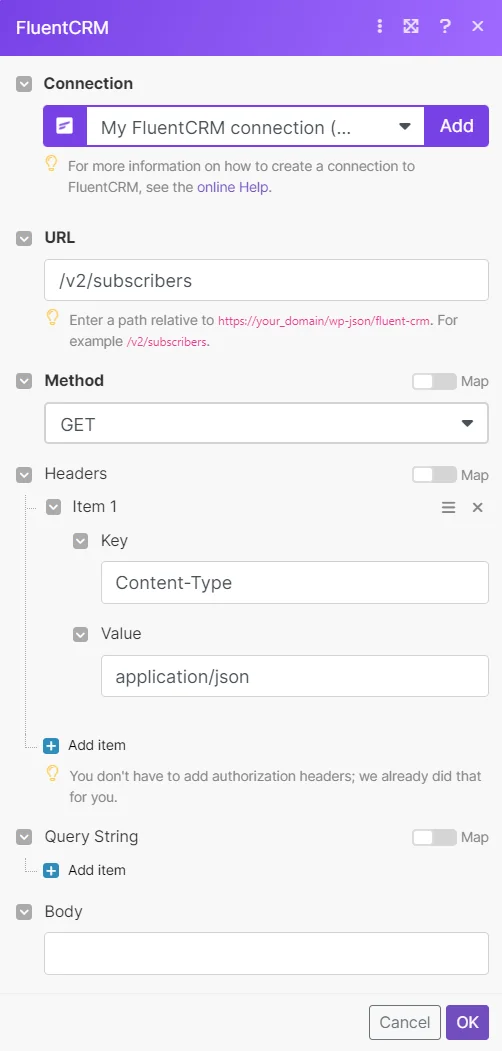
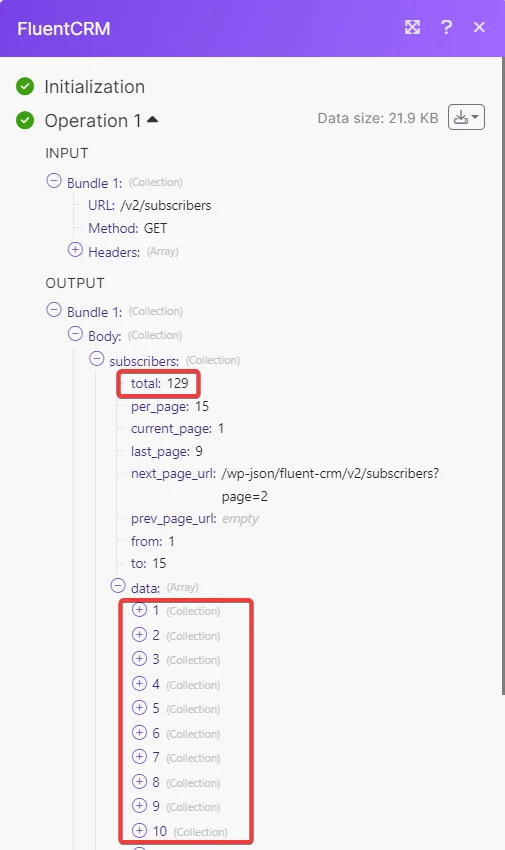
The search matches can be found in the module’s Output under Bundle > Body > subscribers > data.
In our example, 129 subscribers were returned:
Legacy article, imported from the original Boost.space knowledge base (/knowledge-base/applications/crm-and-sales-tools/fluentcrm/).

