Redtail CRM
With the Redtail CRM modules in Boost.space Integrator, you can:
-
Create, update, search, retrieve and delete the contacts
-
Create, update, search, retrieve, and delete the opportunities
-
Create, update, search, list, retrieve, and delete the activities
To get started with Retail CRM create an account at redtailtechnology.com
The module dialog fields that are displayed in bold (in the Boost.space Integrator scenario, not in this documentation article) are mandatory!
Connect Redtail CRM with Boost.space Integrator
-

Log in to your Boost.space Integrator and add a module from the Redtail CRM into a Boost.space Integrator scenario.
-
Click Add next to the Connection field.
-
In the Connection name field, enter a name for the connection.
-
In the Usernameand Password fields, enter your account login credentials respectively.
-
In the API Key field, enter your account API key. You can obtain the API Key here.
-
In the URL field, enter your Redtail CRM account access URL address and click Save.
You have successfully connected Redtail CRM app with Boost.space Integrator and can now build scenarios.
Activities
You can create, update, search, list, retrieve, and delete the activities using the following modules.
Create an Activity
Creates a new activity.
Connection
Establish a connection to your Redtail CRM account.
Subject
Enter (map) a subject line for the activity.
Start Date
Enter (map) the start date for the activity. See the list of supported date and time formats.
End Date
Enter (map) the end date for the activity. See the list of supported date and time formats.
Repeats
Select or map the repetition option of the activity and enter the details.
Activity Code ID
Select or map the Activity Code ID:
-
Appointment
-
Phone Call
-
Task
-
Unassigned
Category ID
Select or map the Category ID:
-
Customer Service
-
General Information
-
Policy Support
-
Technical Support
-
Underwriting Information
All Day
Select whether this is an all-day activity.
Description
Enter (map) the activity details.
Location
Enter (map) the location where you want to conduct this activity.
Importance
Select or map the importance of the activity:
-
Low
-
Normal
-
High
Priority
Select or map the priority of the activity between one to six.
Percent Done
Select or map the percentage of the activity done between 0 and 100.
Completed
Select whether this activity is completed.
Deleted
Select whether this activity is deleted.
Instanced
Select whether this activity is instanced.
Attendees
Select or map the attendees:
Guest
Add the guest details. You can add multiple guests.
Name
Enter (map) the guest name.
Enter (map) the guest’s email address.
User
Select or map the User ID of the attendee. You can add multiple users.
Linked Contacts
Select or map the linked contacts for the acitivity. You can add multiple associations.
Activity Associations
Select or map the associations for the activity. You can add multiple associations.
Actable ID
Enter (map) the actable ID for the activity associations.
Actable Type
Enter (map) the actable type for the activity associations.
Update an Activity
Updates an activity specified by ID.
Connection
Establish a connection to your Redtail CRM account.
Activity ID
Select or map an activity ID whose details you want to update.
Subject
Enter (map) a new subject line for the activity.
Start Date
Enter (map) the start date for the activity. See the list of supported date and time formats. See the list of supported date and time formats.
End Date
Enter (map) the end date for the activity. See the list of supported date and time formats. See the list of supported date and time formats.
Repeats
Select or map the activity repetition option and enter the details.
Activity Code ID
Select or map the Activity Code ID:
-
Appointment
-
Phone
-
Call Task
-
Unassigned
Category ID
Select or map the Category ID:
-
Customer Service
-
General Information
-
Policy Support
-
Technical Support
-
Underwriting Information
All Day
Select whether this is an all-day activity.
Description
Enter (map) the activity details.
Location
Enter (map) the location where you want to conduct this activity.
Importance
Select the importance of the activity:
-
Low
-
Normal
-
High
Priority
Select or map the priority of the activity between one to six.
Percent Done
Select or map the percentage of the activity done between 0 to 100.
Completed
Select whether this activity is completed.
Deleted
Select whether this activity is deleted.
Instanced
Select whether this activity is instanced.
Attendees
Select or map the attendees. You can add multiple attendees.
Guest
Add the guest details.
Name
Enter (map) the guest name.
Enter (map) the guest’s email address.
User
Select or map the User ID of the attendee. You can multiple users.
Linked Contacts
Select or map the any linked contacts for the activity. You can multiple contacts.
Activity Associations
Enter the activity association details. You can add multiple associations.
Actable ID
Enter (map) the actable ID for the activity associations.
Actable Type
Enter (map) the actable type for the activity associations.
Search Activities
Searches for activities based on the specified start and end dates.
Connection
Establish a connection to your Redtail CRM account.
Start Date
Enter (map) the date to search the activities started on or after the specified date. See the list of supported date and time formats.
End Date
Enter (map) the date to search the activities ended on or before the specified date. See the list of supported date and time formats.
Updated Since
Enter (map) a date to search the activities on or from the specified date. See the list of supported date and time formats.
User IDs
Enter (map) the User IDs whose activities you want to search.
Contact ID
Select or map the Contact ID whose activities you want to search for.
Limit
Set the maximum number of activities Boost.space Integrator will return during one scenario execution cycle. The default value is 10.
Get an Activity
Retrieves an activity specified by ID.
Connection
Establish a connection to your Redtail CRM account.
Activity ID
Select or map the Activity ID whose details you want to retrieve.
Delete an Activity
Deletes an activity specified by ID.
Connection
Establish a connection to your Redtail CRM account.
Activity ID
Select or map the Activity ID you want to delete.
Opportunities
You can create, update, search, retrieve, and delete the opportunities using the following modules.
Create an Opportunity
Creates a new opportunity.
Connection
Establish a connection to your Redtail CRM account.
Opportunity Type
Select or map the opportunity type:
-
New Business
-
Existing Business
Name
Enter (map) the opportunity name.
Source ID
Select or map the opportunity’s Source ID:
-
COI
-
Internet Advertisement
-
Internet Lead
-
Mailing Advertisement
-
Radio Advertisement
-
Referral
-
Seminar
-
Workshop
Description
Enter (map) the opportunity details.
Assigned to
Select or map the assignee to whom you want to assign the opportunity.
Amount
Enter (map) the projected amount at stake for this opportunity.
Close Date
Enter (map) a date on which this opportunity closes.
Next Step
Enter (map) the next step to be taken for this opportunity.
Probability
Enter (map) the percentage which you believe represents the chance of winning this opportunity.
Projected Revenue
Enter (map) the revenue expected from the opportunity.
Actual Revenue
Enter (map) the actual revenue generated if the opportunity is won.
Deleted
Select whether this opportunity is deleted.
Linked Contacts
Select or map the linked contacts with this opportunity. You can add mulitple contacts.
Update an opportunity
Updates an opportunity specified by ID.
Connection
Establish a connection to your Redtail CRM account.
Opportunity ID
Select or map an opportunity ID to update.
Opportunity Type
Select the opportunity type:
-
New Business
-
Existing Business
Name
Enter (map) a new name for the opportunity.
Source ID
Select or map the opportunity’s Source ID:
-
COI Internet Advertisement Internet
-
Lead Mailing Advertisement
-
Radio Advertisement
-
Referral
-
Seminar
-
Workshop
Description
Enter (map) the opportunity details.
Assigned to
Select or map the user to whom you want to assign this opportunity.
Amount
Enter (map) the projected amount at stake for this opportunity.
Close Date
Enter (map) a date on which this opportunity closes.
Next Step
Enter (map) the next step to be taken for this opportunity.
Probability
Enter (map) the percentage which you believe represents the chance of winning this opportunity.
Projected Revenue
Enter (map) the revenue you anticipate from this opportunity.
Actual Revenue
Enter (map) the actual revenue generated if the opportunity is won.
Deleted
Select whether this opportunity is deleted.
Linked Contacts
Select or map the linked contacts with this opportunity. You can add multiple contacts.
Search Opportunities
Searches for opportunities or lists them all.
Connection
Establish a connection to your Redtail CRM account.
Stage ID
Select or map the option to filter the opportunities:
-
Closed Lost
-
Closed Won
Limit
Set the maximum number of opportunities Boost.space Integrator will return during one scenario execution cycle. The default value is 10.
Get an Opportunity
Retrieves an opportunity specified by ID.
Connection
Establish a connection to your Redtail CRM account.
Opportunity ID
Select or map an Opportunity ID whose details you want to retrieve.
Delete an Opportunity
Deletes an opportunity specified by ID.
Connection
Establish a connection to your Redtail CRM account.
Opportunity ID
Select or map an Opportunity ID you want to delete.
Contacts
You can create, update, search, retrieve, and delete the contacts using the following modules.
Create a Contact
Creates a new contact.
Connection
Establish a connection to your Redtail CRM account.
Type
Select pr map the contact type you want to create:
Individual
Enter (map) the contact type details:
Last Name
Enter (map) the contact’s last name.
First Name
Enter (map) the contact’s first name.
Middle Name
Enter (map) the contact’s middle name.
Date of Birth
Enter (map) the contact’s date of birth in the YYYY-MM-DD format.
Business
Enter the company name with which contact is associated to.
Source ID
Select the contact’s Source ID:
-
COI
-
Internet Advertisement
-
Internet Lead
-
Mailing Advertisement
-
Radio Advertisement
-
Referral
-
Seminar
-
Workshop
Status ID
Select the contact’s Status ID. For example, Prospect or an Active Client.
Category ID
Select or map the contact’s Category ID. For example, partners.
Tax ID
Enter (map) the contact’s Tax ID.
Update a Contact
Updates a contact specified by ID.
Connection
Establish a connection to your Redtail CRM account.
Contact ID
Select or map the Contact ID whose details you want to update.
Type
Select or map the contact type:
-
Individual
-
Business
-
Association
-
Trust
-
Union
Last Name
Enter (map) an cotnact’s last name.
First Name
Enter (map) conact’s first name.
Middle Name
Enter (map) the contact’s middle name.
Source ID
Select or map the cotnact’s Source ID:
-
COI
-
Internet Advertisement
-
Internet Lead
-
Mailing Advertisement
-
Radio Advertisement
-
Referral
-
Seminar
-
Workshop
Status ID
Select or map the contact’s Status ID. For example, Prospect or an Active Client.
Category ID
Select or map the contact’s Category ID. For example, partners.
Tax ID
Enter (map) the contact’s Tax ID.
Date of Birth
Enter (map) the contact’s date of birth in the YYYY-MM-DD format.
Search Contacts
Searches for contacts or lists them all.
Connection
Establish a connection to your Redtail CRM account.
Last Name
Enter (map) the contact’s last name to search contacts that matches specified name.
First Name
Enter (map) the contact’s first name to search contacts that matches specified name..
Status ID
Select or map the contact’s Status ID to search contacts that matches specified ID. For example, active client or a prospect.
Category ID
Select or map the contact’s Category ID to search contacts that matches specified ID. For example, partners.
Account Number
Enter (map) the contact’s account number to search contacts that matches specified number.
Phone
Enter (map) the contact’s phone number to search contacts that matches specified number.
Name
Enter (map) the contact name to search contacts that matches specified name..
Tax ID
Enter (map) the contact’s Tax ID to search contacts that matches specified ID.
Tag ID
Select or map the Tag ID to search contacts that matches specified tag.
Favorite
Select whether the contact you want to search is marked as favorite.
Has Email
Select whether you want to search the contacts with an email address.
Has Phone
Select whether you want to search the contacts that has a phone number.
Has Address
Select whether you want to search contact which has an address.
Deleted
Select whether the include the deleted contacts in the search results.
Limit
Set the maximum number of contacts Boost.space Integrator will return during one scenario execution cycle. The default value is 10.
Get a Contact
Retrieves a contact specified by ID.
Connection
Establish a connection to your Redtail CRM account.
Contact ID
Select or map the Contact ID whose details you want to retrieve.
Recently Viewed
Select whether the contact was recently viewed.
Delete a Contact
Deletes a contact specified by ID.
Connection
Establish a connection to your Redtail CRM account.
Contact ID
Select or map the Contact ID you want to delete.
Other
You can call APIs using the following module.
Make an API Call
Performs an arbitrary authorized API call.
Connection
Establish a connection to your Redtail CRM account.
URL
Enter a path relative to dev.otw.redtailtechnology.com/api/public. For example, /v1/contacts.
For the list of available endpoints, refer to the Redtail CRM API Documentaiton.
Method
Select the HTTP method you want to use:
GET
to retrieve information for an entry.
POST
to create a new entry.
PUT
to update/replace an existing entry.
PATCH
to make a partial entry update.
DELETE
to delete an entry.
Headers
Enter the desired request headers. You don’t have to add authorization headers; we already did that for you.
Query String
Enter the request query string.
Body
Enter the body content for your API call.
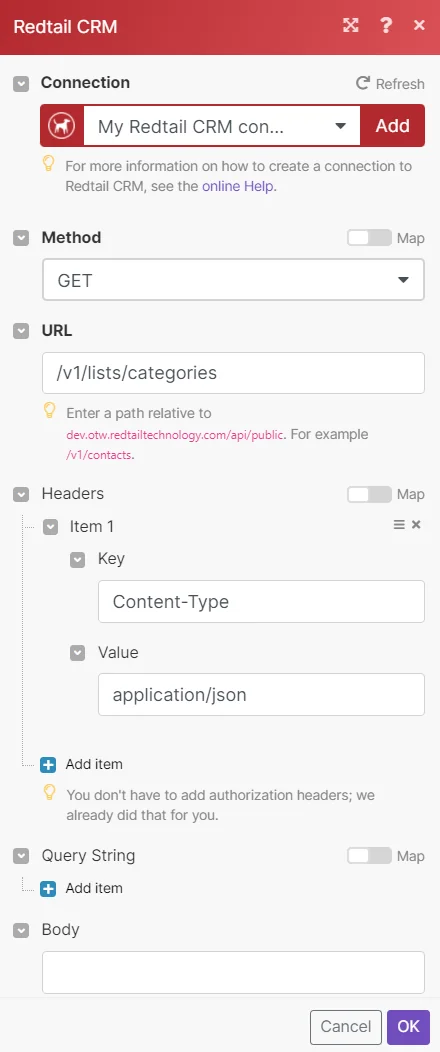
Example of use – List Categories
The following API call returns all the categories from your Redtail CRM account:
URL:
/v1/lists/categories
Method:
GET
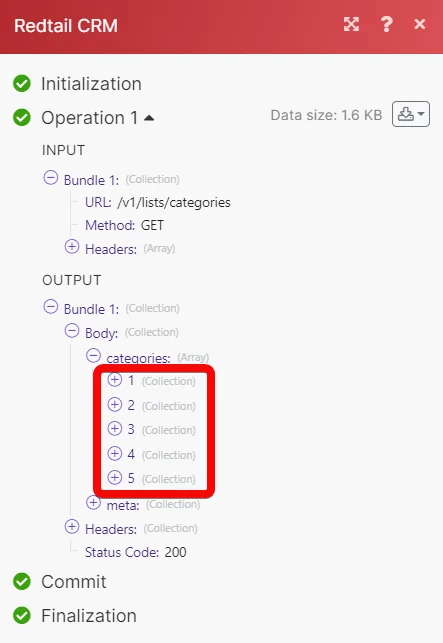
Matches of the search can be found in the module’s Output under Bundle > Body > catagories. In our example, 5 categories were returned:
Legacy article, imported from the original Boost.space knowledge base (/knowledge-base/applications/crm-and-sales-tools/redtail-crm/).

