Streak
The Streak modules allow you to watch, create, update, list, and/or delete boxes, comments, contacts, fields, organizations, pipelines, stages, and tasks in your Streak account.
Prerequisites
-
A Streak account
-
A Streak CRM for Gmail extension installed in your Google Chrome browser
In order to use Streak with Boost.space Integrator, it is necessary to add Streak as an extension to your Gmail account using the Google Chrome browser. If you do not have one, you can add Streak to your Gmail account at https://www.streak.com/.
The module dialog fields that are displayed in bold (in the Boost.space Integrator scenario, not in this documentation article) are mandatory!
Connecting Streak to Boost.space Integrator
To connect your Streak account to Boost.space Integrator, you need to obtain your Streak API Key.
1. Log into your Gmail account and click Streak >Integrations> Get API Key.

2. Copy the API Key to the clipboard.

3. Go to Boost.space Integrator and open the Streak module’s Create a connection dialog.

4. Enter the Connection name and the API Key you have copied in step 2 to the respective field.
5. Click Continue.
The connection has been established.
Pipeline
List Pipelines
Lists all pipelines.
Connection
Establish a connection to your Streak account.
Sort By
Select the option to sort the pipelines:
-
Date Created
-
Date Updated
Limit
The maximum number of pipelines Boost.space Integrator should return during one scenario execution cycle.
Get a Pipeline
Lists a selected pipeline’s details.
Connection
Establish a connection to your Streak account.
Pipeline Key
Select the pipeline key whose details you want to retrieve.
Create a Pipeline
Creates a new pipeline.
Connection
Establish a connection to your Streak account.
Pipeline Name
Enter the name of the pipeline.
Share with all users in the team
Select if you want to share the pipeline with all the users on the team.
Pipeline Fields
Add pipeline fields:
-
Field Names
Enter the name for the pipeline field.
-
Field Type
Select the field type:
-
Text
-
Date
-
Tag
-
Formula
-
Dropdown
-
Checkbox
-
Team Contact
-
Stages
Add the stage items:
-
Stage name:
Enter the stage name.
Update a Pipeline
Updates a selected pipeline.
Connection
Establish a connection to your Streak account.
Pipeline Key
Select the pipeline key you want to update.
Name
Enter a name for the pipeline key.
Shared with Organization
Select if you want to share the pipeline key with the organization.
Team Key
Select the team key to which the pipeline key is associated.
Delete a Pipeline
Deletes a selected pipeline.
Connection
Establish a connection to your Streak account.
Pipeline Key
Select the pipeline key you want to delete.
Box
Watch Boxes
Receives notifications about box events (creation, deletion, etc.).
Webhook Name
Enter a webhook name.
Connection
Establish a connection to your Streak account.
Pipeline Key
Select the pipeline key whose box events you want to watch.
Event
Select the Events you want to watch:
-
Box Created
-
Box Deleted
-
Email Thread Added to Box
-
Box Changed Stage
-
Box Changed Pipeline
List Boxes
Lists all boxes in a selected pipeline.
Connection
Establish a connection to your Streak account.
Pipeline Key
Select the pipeline key whose boxes you want to list.
Stage Key
Select the stage key of the boxes you want to list.
Sort By
Select the option to sort the boxes:
-
Date Created
-
Date Updated
Limit
The maximum number of boxes Boost.space Integrator should return during one scenario execution cycle.
Get a Box
Retrieves details for a selected box.
Connection
Establish a connection to your Streak account.
Pipeline Key
Select the pipeline key whose box details you want to retrieve.
Box Key
Select the box key whose details you want to retrieve.
Create a Box
Creates a new box inside a selected pipeline.
Connection
Establish a connection to your Streak account.
Box Name
Enter the box name.
Pipeline Key
Select the pipeline key in which you want to create the box.
Stage Key
Select the stage key of the pipeline to which you want to add the box.
Lead Source
Enter the lead source of the deal.
Priority
Enter the priority of the deal.
Industry
Enter the industry of the company.
Deal Size
Enter the size of the deal.
Company Size
Enter the number of employees in the company.
Close Date
Enter the date of the sale closing date.
Box Notes
Enter the details of the box.
Update a Box
Updates a selected box.
Connection
Establish a connection to your Streak account.
Pipeline Key
Select the pipeline key to whose box details you want to update.
Box Key
Select the box key you want to update.
Stage Key
Select the stage key:
-
Lead
-
Contacted
-
Pitched
-
Demo
-
Negotiating
-
Closed – Lost
-
Closed – Down
-
Nurturing
Lead Source
Enter the lead source of the deal.
Priority
Enter the priority of the deal.
Industry
Enter the industry of the company.
Deal Size
Enter the size of the deal.
Company Size
Enter the number of employees in the company.
Close Date
Enter the date of the sale closing date.
Box Name
Enter a new name for the box.
Box Notes
Enter the details of the box.
Delete a Box
Deletes a selected box.
Connection
Establish a connection to your Streak account.
Pipeline Key
Select the pipeline key whose boxes you want to delete.
Box Key
Select the box key you want to delete.
Put Email in a Box
Makes an email thread a part of a selected box. A thread can only be part of a single box at any one time. Trying to add it to a second box will result in an error.
Connection
Establish a connection to your Streak account.
Pipeline Key
Select the pipeline key to whose box you want to add the email.
Box Key
Select the box key to which you want to add the email.
Gmail Thread ID
Enter the Gmail thread you want to add to the box.
Stages
Watch Stages
Receives notifications about stage events.
Webhook name
Enter a webhook name.
Connection
Establish a connection to your Streak account.
Pipeline Key
Select the team key whose stage events you want to watch.
Event
Select the events you want to watch:
- Stage Created
List Stages
Lists all stages in a selected pipeline.
Connection
Establish a connection to your Streak account.
Pipeline Key
Select the pipeline key whose stages you want to list.
Limit
The maximum number of stages Boost.space Integrator should return during one scenario execution cycle.
Get a Stage
Retrieves details for a selected stage.
Connection
Establish a connection to your Streak account.
Pipeline Key
Select the pipeline key whose stage details you want to retrieve.
Stage Key
Select the stage key whose details you want to retrieve.
Create a Stage
Creates a new stage for a selected pipeline.
Connection
Establish a connection to your Streak account.
Pipeline Key
Select the pipeline key where you want to create a stage.
Stage Name
Enter the stage name.
Update a Stage
Updates a selected stage.
Connection
Establish a connection to your Streak account.
Pipeline Key
Select the pipeline key whose stage key you want to update.
Stage Key
Select the stage key you want to update.
New Stage Name
Enter a new name for the stage.
Delete a Stage
Deletes a selected stage. This call will only succeed if there are no boxes tagged with the key of the selected stage.
Connection
Establish a connection to your Streak account.
Pipeline Key
Select the pipeline key whose stage key you want to delete.
Stage Key
Select the stage key you want to delete.
Field
List Fields
Lists all fields in a selected pipeline.
Connection
Establish a connection to your Streak account.
Pipeline Key
Select the Pipeline key whose fields you want to list.
Limit
The maximum number of fields Boost.space Integrator should return during one scenario execution cycle.
List Field Values
List the values of custom fields for a selected box.
Connection
Establish a connection to your Streak account.
Pipeline Key
Select the pipeline key whose fields you want to list.
Box Key
Select the box key whose fields you want to list.
Limit
The maximum number of fields Boost.space Integrator should return during one scenario execution cycle.
Get a Field
Retrieves details for a selected field.
Connection
Establish a connection to your Streak account.
Pipeline Key
Select the pipeline key whose field details you want to retrieve.
Field Key
Select the field key whose details you want to retrieve.
Create a Field
Creates a new field for a selected pipeline.
Connection
Establish a connection to your Streak account.
Pipeline Key
Select the pipeline key in which you want to create the field.
Field Name
Enter the field name.
Field Type
Select the field type:
-
Text Input
-
Date
-
Tag
-
Formula
-
Dropdown
-
Checkbox
-
Team Contact
Update a Field
Updates the selected field.
Connection
Establish a connection to your Streak account.
Pipeline Key
Select the pipeline key to whose field you want to update.
Field Key
Select the field key you want to update.
New Field Name
Enter the new field name.
Delete a Field
Deletes a selected field and remove the values of this field for every box in the pipeline.
Connection
Establish a connection to your Streak account.
Pipeline Key
Select the pipeline key whose field key you want to delete.
Field Key
Select the field key you want to delete.
Contact
List Contacts
Lists all contacts for a selected team.
Connection
Establish a connection to your Streak account.
Team Key
Select the Team Key whose contacts you want to list.
Limit
The maximum number of contacts Boost.space Integrator should return during one scenario execution cycle.
Watch Contacts
Receives notifications about contact events.
Webhook name
Enter a webhook name.
Connection
Establish a connection to your Streak account.
Team Key
Select the team key whose contact events you want to watch.
Event
Select the events you want to watch:
-
Contact Created
-
Contact Updated
-
Contact Deleted
Get a Contact
Retrieves details for a selected contact.
Connection
Establish a connection to your Streak account.
Team Key
Select the team key whose contacts you want to retrieve.
Contact Key
Select the contact key whose details you want to retrieve.
Create a Contact
Creates a new contact.
Connection
Establish a connection to your Streak account.
Team Key
Select the team key in which you want to add the contact.
Given Name
Enter the given name of the contact.
Family Name
Enter the family of the contact.
Email Addresses
Add the email address of the contact:
-
Email Address
Enter the email address of the contact.
Title
Enter the title of the contact.
Phone Numbers
Add the phone number of the contact:
-
Phone Number
Enter the phone number of the contact.
Addresses
Add the address of the contact:
-
Address
Enter the address.
Photo URL
Enter the contact image URL.
Twitter Handle
Enter the Twitter URL of the contact.
Facebook Handle
Enter the Facebook URL of the contact.
LinkedIn Handle
Enter the LinkedIn URL of the contact.
Notes
Enter the details of the contact.
Update a Contact
Updates a selected contact. For any field on a contact that is a list, only the values you put into the array will appear for that contact; calls are not aware of previous values and will not keep them.
Connection
Establish a connection to your Streak account.
Team Key
Select the team key to whose contact you want to update.
Contact Key
Select the contact key you want to update.
Given Name
Enter the given name of the contact.
Family Name
Enter the family name of the contact.
Email Addresses
Add the email address of the contact:
- Email Address Enter the email address of the contact.
Title
Enter the title of the contact.
Phone Numbers
Add the phone number of the contact:
- Phone Number Enter the phone number of the contact.
Addresses
Add the address of the contact:
- Address Enter the address.
Photo URL
Enter the contact image URL.
Twitter Handle
Enter the Twitter URL of the contact.
Facebook Handle
Enter the Facebook URL of the contact.
LinkedIn Handle
Enter the LinkedIn URL of the contact.
Notes
Enter the details of the contact.
Delete a Contact
Deletes a selected contact.
Connection
Establish a connection to your Streak account.
Team Key
Select the team key whose contact key you want to delete.
Contact Key
Select the contact key you want to delete.
Add Contacts to Box
Adds selected contacts to a box.
Connection
Establish a connection to your Streak account.
Pipeline Key
Select the pipeline key to which you want to add contacts.
Box Key
Select the box key to which you want to add contacts.
Team Key
Select the team key to which you want to add contacts.
Contacts
Add the contacts:
-
Contact Key
Enter the contact key.
-
Starred
Select if the contact is starred.
Organizations
Watch Organizations
Receives notifications about organization events.
Webhook name
Enter a webhook name.
Connection
Establish a connection to your Streak account.
Team Key
Select the team key whose organization events you want to watch.
Event
Select the events you want to watch:
-
Organization Created
-
Organization Updated
-
Organization Deleted
List Organizations
Lists all organizations for a selected team.
Connection
Establish a connection to your Streak account.
Team Key
Select the team key whose organizations you want to list.
Limit
The maximum number of organizations Boost.space Integrator should return during one scenario execution cycle.
Get an Organization
Retrieves details for a selected organization.
Connection
Establish a connection to your Streak account.
Team Key
Select the team key whose organization details you want to retrieve.
Organization Key
Select the organization key whose field details you want to retrieve.
Update an Organization
Updates a selected organization. For any field on an organization that is a list, only the values you put into the array will appear for that organization; calls are not aware of previous values and will not keep them.
Connection
Establish a connection to your Streak account.
Team Key
Select the team key whose organization you want to update.
Organization Key
Select the organization key you want to update.
Organization Name
Enter the name of the organization.
Domains
Add the domains:
- Domain URL Enter the website URL of the domain.
Organization Industry
Enter the industry name to which the organization belongs to.
Phone Numbers
Add the phone number of the organization:
- Phone Number Enter the phone number of the organization.
Addresses
Add the address of the organization:
- Address Enter the address of the organization.
Employee Count
Enter the number of employees in the organization.
Logo URL
Enter the organization logo URL.
Notes
Enter the details of the organization.
Twitter Handle
Enter the Twitter URL of the organization.
Facebook Handle
Enter the Facebook URL of the organization.
LinkedIn Handle
Enter the LinkedIn URL of the organization.
Delete an Organization
Deletes a selected organization.
Connection
Establish a connection to your Streak account.
Team Key
Select the team key whose organization key you want to delete.
Organization Key
Select the organization key you want to delete.
Add Organizations to Box
Adds selected organizations to a box.
Connection
Establish a connection to your Streak account.
Pipeline Key
Select the pipeline key to which you want to add organizations.
Box Key
Select the box key to which you want to add organizations.
Team Key
Select the team key to which you want to add organizations.
Organizations
Add the organizations:
-
Organization Key
Select the contact key.
-
Starred
Select if the contact is starred.
Tasks
Watch Tasks
Receives notifications about task events.
Webhook name
Enter a webhook name.
Connection
Establish a connection to your Streak account.
Pipeline Key
Select the team key whose task events you want to watch.
Event
Select the events you want to watch:
-
Task Created
-
Task Completed
-
Task is Due
List Tasks
Lists all tasks for a selected box.
Connection
Establish a connection to your Streak account.
Pipeline Key
Select the pipeline key whose tasks you want to list.
Box Key
Select the box key whose tasks you want to list.
Limit
The maximum number of tasks Boost.space Integrator should return during one scenario execution cycle.
Get a Task
Retrieves details for a selected task.
Connection
Establish a connection to your Streak account.
Pipeline Key
Select the pipeline key whose task details you want to retrieve.
Box Key
Select the box key whose task details you want to retrieve.
Task Key
Select the task key whose details you want to retrieve.
Create a Task
Creates a new task for a selected box. The task assignees must have access to the containing pipeline.
Connection
Establish a connection to your Streak account.
Pipeline Key
Select the pipeline key where you want to create the task.
Task Description
Enter the task details.
Due Date
Enter the date by which the task must be completed.
Assignee Emails
Add the assignee’s email address:
- Assignee Email Enter the email address to whom you want to assign the task.
Update a Task
Updates a selected task.
Connection
Establish a connection to your Streak account.
Pipeline Key
Select the pipeline key whose task you want to update.
Box Key
Select the box key whose task you want to update.
Task Description
Enter the details of the task.
Status
Select the status of the task:
-
Done
-
Not Done
Assignee Emails
Add the assignee’s email address:
- Assignee Email Enter the email address to whom you want to assign the task.
Delete a Task
Deletes a selected task.
Connection
Establish a connection to your Streak account.
Pipeline Key
Select the pipeline key whose task you want to delete.
Box Key
Select the box key whose task you want to delete.
Task Key
Select the task key you want to delete.
Comment
Watch Comments
Receives notifications about comment events.
Webhook name
Enter a webhook name.
Connection
Establish a connection to your Streak account.
Pipeline Key
Select the pipeline key whose comment events you want to watch.
Event
Select the events you want to watch:
- Comment Created
List Comments
Lists all for a selected box.
Connection
Establish a connection to your Streak account.
Pipeline Key
Select the pipeline key whose boxes comments you want to list.
Box Key
Select the box key whose comments you want to list.
Limit
The maximum number of comments Boost.space Integrator should return during one scenario execution cycle.
Get a Comment
Retrieves details for a selected comment.
Connection
Establish a connection to your Streak account.
Pipeline Key
Select the pipeline key whose comments you want to retrieve.
Box Key
Select the box key whose comments you want to retrieve.
Comment Key
Select the comment key whose details you want to retrieve.
Create a Comment
Creates a new comment for a selected box.
Connection
Establish a connection to your Streak account.
Pipeline Key
Select the pipeline key to which you want to create the comment.
Box Key
Select the Box key to which you want to add the comment.
Message
Enter the comment text.
Update a Comment
Updates a selected comment for a box.
Connection
Establish a connection to your Streak account.
Pipeline Key
Select the pipeline key to whose comment you want to update.
Box Key
Select the box key whose comment you want to update.
Comment Key
Select the comment key to whose details you want to update.
Message
Enter the comment text.
Delete a Comment
Deletes a selected comment.
Connection
Establish a connection to your Streak account.
Pipeline Key
Select the pipeline key whose boxes you want to delete.
Box Key
Select the box key whose comments you want to delete.
Thread
Get a Thread
Retrieves details for a selected email thread.
Connection
Establish a connection to your Streak account.
Pipeline Key
Select the pipeline key whose thread details you want to retrieve.
Box Key
Select the box key whose thread details you want to retrieve.
Thread Key
Select the thread key whose details you want to retrieve.
List Threads
Lists all email threads associated with a selected box.
Connection
Establish a connection to your Streak account.
Pipeline Key
Select the pipeline key whose threads you want to list.
Box Key
Select the box key whose threads you want to list.
Limit
The maximum number of threads Boost.space Integrator should return during one scenario execution cycle.
Files
List Files
Lists all the files associated with a particular box.
Connection
Establish a connection to your Streak account.
Pipeline Key
Select the pipeline key whose files you want to list.
Box Key
Select the box key whose files you want to list.
Limit
The maximum number of files Boost.space Integrator should return during one scenario execution cycle.
Get a File
Retrieves the details for a file by ID.
Connection
Establish a connection to your Streak account.
Get a File
Select the option to get the files:
-
By Mapping
-
Labels
File Key
Enter or select the file key whose details you want to retrieve.
Pipeline Key
Select the pipeline key whose file details you want to retrieve.
Box Key
Select the box key whose file details you want to retrieve.
Limit
The maximum number of files Boost.space Integrator should return during one scenario execution cycle.
Get a File Content
Select if you want to get the file content details.
Other
Search Boxes/Organizations/Contacts
Searches for boxes, organizations, or contacts by query in a pipeline.
Connection
Establish a connection to your Streak account.
Search for
Select the option you want to search:
-
Boxes
-
Organizations
-
Contacts
Search Name
Enter the keyword or term you want to search.
Pipeline Key
Select the pipeline key of the box, contact, or the organization you want to search.
Stage Key
Select the stage key of the box, contact, or the organization you want to filter your search.
Limit
The maximum number of records Boost.space Integrator should return during one scenario execution cycle.
Make an API Call
Performs an arbitrary authorized API call.
Connection
Establish a connection to your Streak account.
URL
Enter a path relative to https://www.streak.com/api. E.g. /v1/pipelines
For the list of available endpoints, refer to the Streak API Documentation.
Method
Select the HTTP method you want to use (see the API documentation):
GET to retrieve information for an entry.
POST to create a new entry.
PUT to update/replace an existing entry.
PATCH to make a partial entry update.
DELETE to delete an entry.
Headers
Enter the desired request headers. You don’t have to add authorization headers; we already did that for you.
Query String
Enter the request query string.
Body
Enter the body content for your API call.
Example of Use – List Pipelines
The following API call returns events from your Streak account:
URL: /v1/pipelines
Method: GET
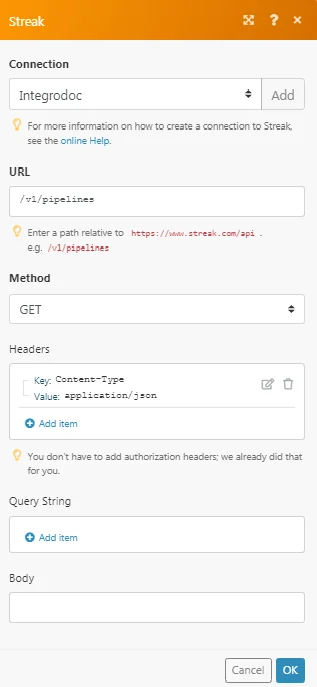
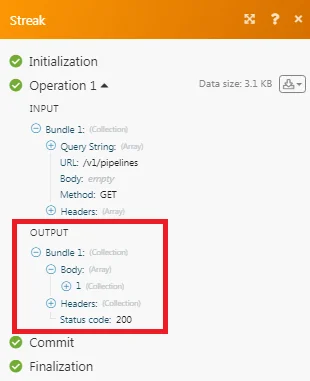
Matches of the search can be found in the module’s Output under Bundle > Body > pipeline. In our example, 1 event is returned:
Legacy article, imported from the original Boost.space knowledge base (/knowledge-base/applications/crm-and-sales-tools/streak/).

