Teachable
With Teachable modules in Make, you can manage students and monitor events that occur in your Teachable account.
To get started with Teachable, create an account at teachable.com.
Connect Teachable to Boost.space Integrator
-
Log in to your Teachable account.
-
Copy the domain URL to your clipboard. For example,
https://{your_domain_name}.teachable.com. -
Go to your Boost.space Integrator scenario and select the Teachable module you want to use.
-
Under Connection, click Add.
-
Give your new connection a name.
-
Paste your domain URL in the field provided.
-
Enter your Teachable username and password.
-
Click Save.
You have successfully established the connection.
Event
Watch Events
Triggers when a following event occurs.
You must be on a paid Teachable plan to use webhooks.
Follow the Setting up a Teachable webhook guide below to set up this module.
Student
Search Students
Searches for students by email.
Connection
Establish a connection to your Teachable account.
Student’s Email
Enter the email address of the students you want to search for.
Limit
Enter the maximum number of students Boost.space Integrator returns during one scenario execution cycle.
Get a Student
Gets a specific student.
Connection
Establish a connection to your Teachable account.
Student ID
Enter or select the ID of the student you want to retrieve.
Create a Student
Creates a new student’s account.
Connection
Establish a connection to your Teachable account.
Email address
Enter the email address.
Name
Enter the name.
Subject
Enter the subject of the notification email for the student to receive.
Signup Source
Enter the source attribution you would like to assign to the student.
Update a Student
Updates an existing student.
Connection
Establish a connection to your Teachable account.
Student ID
Enter or select the ID of the student you want to update.
Email address
Enter the email address.
Name
Enter the name.
Delete a Student
Deletes a student.
Connection
Establish a connection to your Teachable account.
Student ID
Enter or select the ID of the student you want to delete.
Other
Make an API Call
Performs an arbitrary authorized API call.
For the list of available endpoints, refer to the Teachable API documentation.
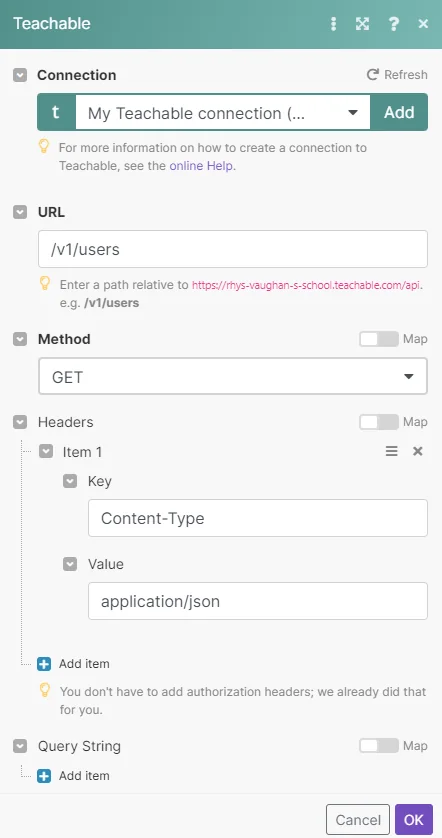
Example of use – List users
The following API call returns a list of users in your Teachable account.
URL: /v1/users
Method: GET
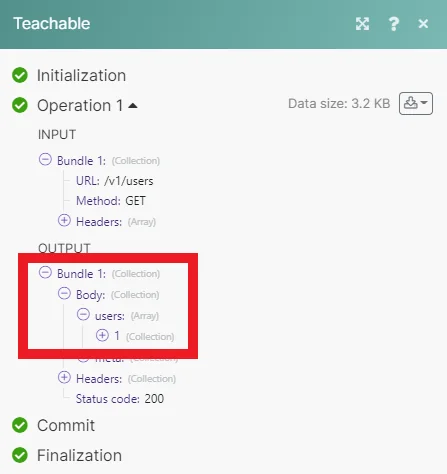
Matches of the search can be found in the module’s Output under Bundle > Body > users. Our example returned 1 user:
Setting up a Teachable webhook
You must be on a paid Teachable plan to use webhooks.
-
In your Boost.space Integrator scenario, open the Teachable Watch Events module.
-
Click Add.
-
Give your new webhook a name, then select the connection you want to use.
-
Select the type of event you want to watch for.
-
Click Save. Boost.space Integrator should then attach this webhook to your Teachable account automatically. If for some reason this does not happen, follow the steps below.
-
Click Show address, then copy the URL to your clipboard.
-
Log in to your Teachable account.
-
Click Setting, then Webhooks.
-
Click Add webhook.
-
Paste the URL in the box provided, then select the type of events the webhook will watch for.
-
Click Save.
You have successfully set up your new webhook.
Legacy article, imported from the original Boost.space knowledge base (/knowledge-base/applications/education/teachable/).

