Thinkific
The Thinkific modules allow you to monitor, create, update, list, retrieve, and delete the orders, enrollments, users, instructors, categories, coupons, and promotions in your Thinkific account.
To get started with Thinkific, create an account at thinkific.com.
Refer to the Thinkific API documentation for a list of available endpoints.
Connect Thinkific to Boost.space Integrator
To connect your Thinkific account to Boost.space Integrator you need to obtain the API Key from your Thinkific account and insert it in the Create a connection dialog in the Boost.space Integrator module.
-
Log in to your Thinkific account.
-
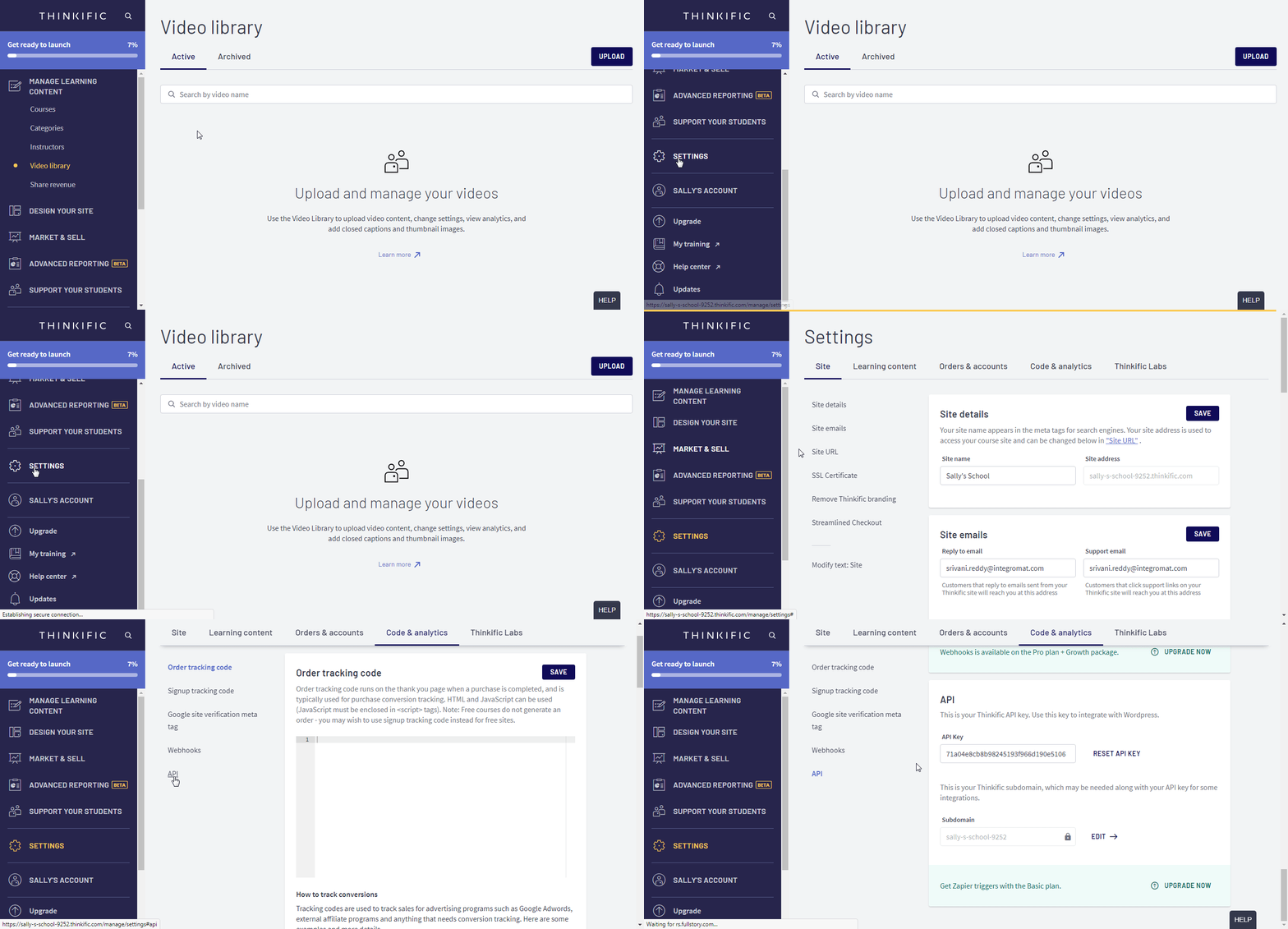
Click Settings > Code & Analytics > API..
-
Log in to your Boost.space Integrator account, add a Thinkific module to your scenario, and click Create a connection.
-
Optional: In the Connection name field, enter a name for the connection.
-
In the Subdomain field, enter your Thinkific account’s subdomain. You can find subdomain details at in your Thinkific account at Settings > Code & Analytics > API.
-
Click Save.
You have successfully established the connection. You can now edit your scenario and add more Thinkific modules. If your connection requires reauthorization at any point, follow the connection renewal steps here.
Instant Triggers
You do not have to configure the webhooks in your Thinkific account as it is automatically done for you once you add and save an instant trigger module to your scenario.
Watch Order Created
Triggers when order created.
Webhook Name
Enter a name for the webhook.
Connection
Establish a connection to your Thinkific account.
Watch Enrollment Created
Triggers when an enrollment creates.
Webhook Name
Enter a name for the webhook.
Connection
Establish a connection to your Thinkific account.
Watch Enrollment Completed
Triggers when enrollment is completed.
Webhook Name
Enter a name for the webhook.
Connection
Establish a connection to your Thinkific account.
Watch Enrollment Progress
Triggers when an enrollment new progress.
Webhook Name
Enter a name for the webhook.
Connection
Establish a connection to your Thinkific account.
Watch Enrollment Trial
Triggers when enrollment trial.
Webhook Name
Enter a name for the webhook.
Connection
Establish a connection to your Thinkific account.
User
You do not have to configure the webhooks in your Thinkific account as it is automatically done for you once you add and save an instant trigger module to your scenario.
Watch New User
Triggers when registering a new user.
Webhook Name
Enter a name for the webhook.
Connection
Establish a connection to your Thinkific account.
Get a User
Retrieves a user identified by the provided ID.
Connection
Establish a connection to your Thinkific account.
User
Select or map the User ID whose details you want to retrieve.
Create a User
Creates a user object in Thinkific under the specified data source.
Connection
Establish a connection to your Thinkific account.
First Name
Enter (map) the user’s first name.
Last Name
Enter (map) the user’s last name.
Enter (map) the user’s email address.
Password
Enter (map) the user’s login password.
Roles
Enter (map) user’s role. For example, Site Admin. You can add multiple roles.
Bio
Enter (map) the user’s biodata. For example, date of birth.
Company
Enter (map) the user’s company name.
Headline
Enter (map) the user’s job position. For example, Software Engineering Manager.
Affiliate Program
Select whether the user is an affiliate. For example, the user enrolled here through a third-party company.
Affiliate Commission
Enter (map) the commission payable to the third party. This is only applicable if the user is an affiliate.
Affiliate Payout Email
Enter (map) the email address of the user. This is only applicable if the user is an affiliate. For example, bob@example.com
Affiliate Code
Enter (map) the user’s affiliate code. For example, abce123.
Affiliate Commission Type
Select or map the commission type applicable to the user:
-
% for percentage
-
$ for a fixed amount
Send Welcome Mail
Select whether you want to send the welcome mail to the user on successful registration.
External ID
Enter (map) the user’s External ID to identify the user in an external system.
Update a User
Updates the user specified by the provided ID.
Connection
Establish a connection to your Thinkific account.
User ID
Select or map the User ID whose details you want to update.
First Name
Enter (map) the user’s first name.
Last Name
Enter (map) the user’s last name.
Enter (map) the user’s email address.
Password
Enter (map) the user’s login password.
Roles
Enter (map) user’s role. For example, Site Admin. You can add multiple roles.
Bio
Enter (map) the user’s biodata. For example, date of birth.
Company
Enter (map) the user’s company name.
Headline
Enter (map) the user’s job position. For example, Software Engineering Manager.
Affiliate Program
Select whether the user is an affiliate. For example, the user enrolled through a third-party company.
Affiliate Commission
Enter (map) the commission payable to the third party. This is only applicable if the user is an affiliate.
Affiliate Payout Email
Enter (map) the email address of the user. This is only applicable if the user is an affiliate. For example, bob@example.com
Affiliate Code
Enter (map) the user’s affiliate code. For example, abce123.
Affiliate Commission Type
Select or map the commission type applicable to the user:
-
% for percentage
-
$ for a fixed amount
Send Welcome Mail
Select whether you want to send the welcome mail to the user on successful registration.
External ID
Enter (map) the user’s External ID to identify the user in an external system.
Delete a User
Deletes a user identified by the provided ID.
Connection
Establish a connection to your Thinkific account.
User
Select or map the User ID you want to delete.
Search Users
Retrieve a list of users.
Connection
Establish a connection to your Thinkific account.
Limit
Set the maximum number of users Boost.space Integrator should return during one execution cycle.
Enter (map) the user’s email address you want to search.
Role
Enter (map) the user’s role to search for the users that match the specified role.
External Source
Enter (map) the external source to search the users that match the specified source.
Custom Profile Field
Select or map the custom profile field and its values to search the user that matches the specified fields.
Group ID
Enter (map) the Group ID to search the users that match the specified ID.
Instructor
Get an Instructor
Returns the instructor identified by the provided ID.
Connection
Establish a connection to your Thinkific account.
Instructor
Select or map the instructor whose details you want to retrieve.
Create an Instructor
Creates a new instructor in Thinkific under the specified data source.
Connection
Establish a connection to your Thinkific account.
First Name
Enter (map) the instructor’s first name.
Last Name
Enter (map) the instructor’s last name.
Slug
Enter (map) slug page URL address of the instructor. For example, bob
User
Select or map the User ID who owns the instructor.
Title
Enter (map) the title of the instructor. For example, Mr..
Bio
Enter (map) the instructor’s biodata. For example, date of birth.
Avatar URL
Enter (map) the instructor profile image’s URL address. For example, https://example.com/avatar.png.
Enter (map) the instructor’s email address.
Update an Instructor
Updates the instructor identified by the provided ID.
Connection
Establish a connection to your Thinkific account.
Instructor ID
Select or map the Instructor ID whose details you want to update.
First Name
Enter (map) the instructor’s first name.
Last Name
Enter (map) the instructor’s last name.
Slug
Enter (map) slug page URL address of the instructor. For example, bob.
User
Select or map the User ID who owns the instructor.
Title
Enter (map) the title of the instructor. For example, Mr..
Bio
Enter (map) the instructor’s biodata. For example, date of birth.
Avatar URL
Enter (map) the instructor profile image’s URL address. For example, https://example.com/avatar.png.
Enter (map) the instructor’s email address.
Delete an Instructor
Deletes the instructor identified by the provided ID.
Connection
Establish a connection to your Thinkific account.
Instructor
Select or map the instructor you want to delete.
List Instructors
Retrieves a list of instructors.
Connection
Establish a connection to your Thinkific account.
Limit
Set the maximum number of instructors Boost.space Integrator should return during one execution cycle.
Category
Get a Category
Retrieves a category identified by the provided ID.
Connection
Establish a connection to your Thinkific account.
Category
Select or map the category whose details you want to retrieve.
Create a Category
Creates a new category in Thinkific under the specified data source.
Connection
Establish a connection to your Thinkific account.
Name
Enter (map) the category name.
Description
Enter (map) the details of the category.
Slug
Enter (map) the details of the slug for the category. For example, my-category.
Update a Category
Updates the category identified by the provided ID.
Connection
Establish a connection to your Thinkific account.
Name
Enter (map) the category name.
Description
Enter (map) the details of the category.
Slug
Enter (map) the details of the slug for the category. For example, my-category
Delete a Category
Deletes the category identified by the provided ID.
Connection
Establish a connection to your Thinkific account.
Category
Select or map the category you want to delete.
List Categories
Retrieves a list of categories.
Connection
Establish a connection to your Thinkific account.
Limit
Set the maximum number of categories Boost.space Integrator should return during one execution cycle.
Coupon
Get a Coupon
Retrieves a coupon identified by the provided ID.
Connection
Establish a connection to your Thinkific account.
Promotion
Select or map the promotion whose coupon details you want to retrieve.
Coupon
Select or map the coupon whose details you want to retrieve.
Create a Coupon
Creates a new coupon in Thinkfic under the specified data source.
Connection
Establish a connection to your Thinkific account.
Promotion
Select or map the promotion for which you want to create the code.
Code
Enter (map) the coupon code. The coupon code can contain alphanumeric and special characters.
Note
Enter any additional information about the coupon code. For example, coupon validity.
Quantity
Enter (map) the number of times the coupon can be used. If left blank, the coupon can be used for an unlimited number of times. For example, 10.
Update a Coupon
Updates an existing coupon.
Connection
Establish a connection to your Thinkific account.
Promotion
Select or map the promotion for which you want to create the code.
Coupon
Select or map the coupon whose details you want to update.
Code
Enter (map) a new coupon code. The coupon code can contain alphanumeric and special characters.
Note
Enter any additional information about the coupon code. For example, applicable only to students.
Quantity
Enter (map) the number of times the coupon can be used. If left blank, the coupon can be used an unlimited number of times. For example, 10.
Delete a Coupon
Deletes a coupon identified by the provided ID.
Connection
Establish a connection to your Thinkific account.
Promotion
Select or map the promotion whose coupon details you want to delete.
Coupon
Select or map the coupon you want to delete.
List Coupons
Retrieves a list of all coupons.
Connection
Establish a connection to your Thinkific account.
Promotion
Select or map the promotion whose details you want to list.
Limit
Set the maximum number of coupons Boost.space Integrator should return during one execution cycle.
Promotions
Get a Promotion
Gets a promotion by the provided ID.
Connection
Establish a connection to your Thinkific account.
Promotion
Select or map the promotion whose details you want to list.
Create a Promotion
Creates a new promotion in Thinkific under the specified data source.
Connection
Establish a connection to your Thinkific account.
Name
Enter (map) the name of the promotion.
Discount Type
Select or map the discount type you want to apply to the promotion:
-
Fixed
-
Percentage
Amount
Enter (map) fixed discount amount or percentage of discount you want to provide for the promotion. For example, 10 Base on the option selected for Discount Type, the value is considered either as an amount or percentage.
Description
Enter the details of the promotion.
Starts At
Enter (map) the date when the promotion begins. See the list of supported date and time formats.
Expires At
Enter (map) the date when the promotion ends. See the list of supported date and time formats.
Products
Add the product to which you want to apply for the promotion.
Duration
Enter (map) the duration for which the Promotion is applied. This value only applies to promotions set on the products that are set as subscriptions or Payment Plans. For example, 3.
Update a Promotion
Updates a promotion by the provided ID.
Connection
Establish a connection to your Thinkific account.
Name
Enter (map) the name of the promotion.
Discount Type
Select or map the discount type you want to apply to the promotion:
-
Fixed
-
Percentage
Amount
Enter (map) fixed discount amount or percentage of discount you want to provide for the promotion. For example, 10 Base on the option selected for Discount Type, the value is considered either as an amount or percentage.
Description
Enter the details of the promotion.
Starts At
Enter (map) the date when the promotion begins. See the list of supported date and time formats.
Expires At
Enter (map) the date when the promotion ends. See the list of supported date and time formats.
Products
Add the product to which you want to apply for the promotion.
Duration
Enter (map) the duration for which the Promotion is applied. This value only applies to promotions set on the products that are set as subscriptions or Payment Plans. For example, 3.
Delete a Promotion
Deletes a promotion by the provided ID.
Connection
Establish a connection to your Thinkific account.
Promotion
Select or map the promotion you want to delete.
List Promotions
Retrieves a list of all promotions.
Connection
Establish a connection to your Thinkific account.
Limit
Set the maximum number of promotions Boost.space Integrator should return during one execution cycle.
Other
Make an API Call
Performs an arbitrary authorized API call.
Connection
Establish a connection to your Thinkific account.
URL
Enter a path relative to https://api.thinkific.com/api/public. For example: /v1/users
For the list of available endpoints, refer to the Thinkific API documentation.
Method
Select the HTTP method you want to use:
GET
to retrieve information for an entry**.**
POST
to create a new entry.
PUT
to update/replace an existing entry.
PATCH
to make a partial entry update.
DELETE
to delete an entry.
Headers
Enter the desired request headers. You don’t have to add authorization headers; we already did that for you.
Query String
Enter the request query string.
Body
Enter the body content for your API call.
Example of Use – List Instructors
The following API call returns all the instructors from your Thinkific account:
URL:
/v1/instructors?limit=10
Method:
GET
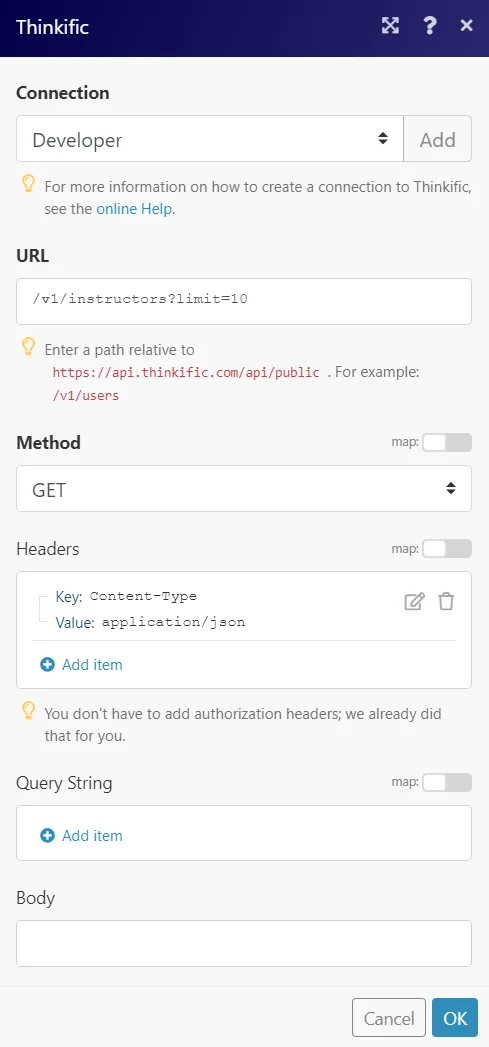
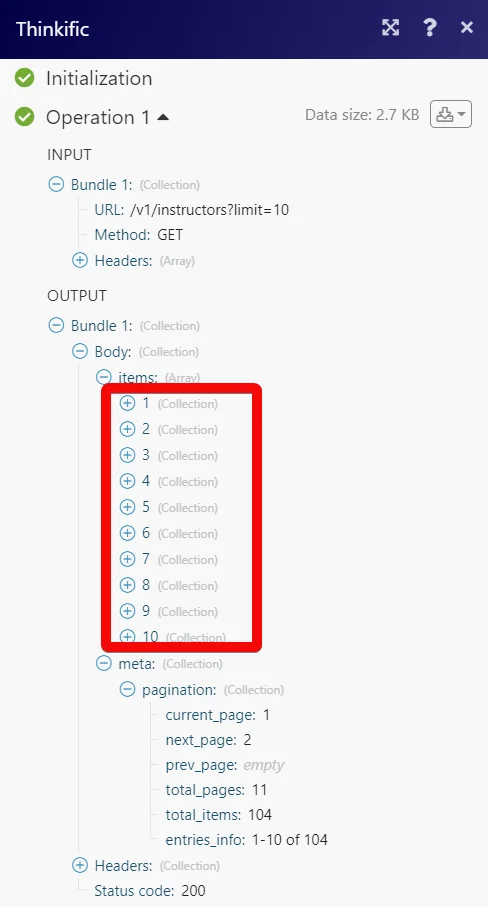
Matches of the search can be found in the module’s Output under Bundle > Body > data.
In our example, a total of 104 instructors was returned of which the first 10 instructors were displayed on page 1:
Legacy article, imported from the original Boost.space knowledge base (/knowledge-base/applications/education/thinkific/).

