Evernote
Any references to third-party products or services do not constitute Boost.space Product Documentation nor do they create any contractual obligations. This material is for informational purposes only and is subject to change without notice.
Boost.space does not warrant the availability, accuracy, reliability, completeness, or usefulness of any information regarding the subject of third-party services or systems.
Getting Started with Evernote
Prerequisites
- An Evernote account
In order to use Evernote with Boost.space Integrator, it is necessary to have an Evernote account. If you do not have one, you can create an Evernote account at evernote.com.
Connecting Evernote to Boost.space Integrator
To connect Evernote to Boost.space Integrator you must connect your Evernote account to Boost.space Integrator.
After you click the Continue button, Boost.space Integrator will redirect you to the Evernote website where you will be prompted to grant Boost.space Integrator access to your account.
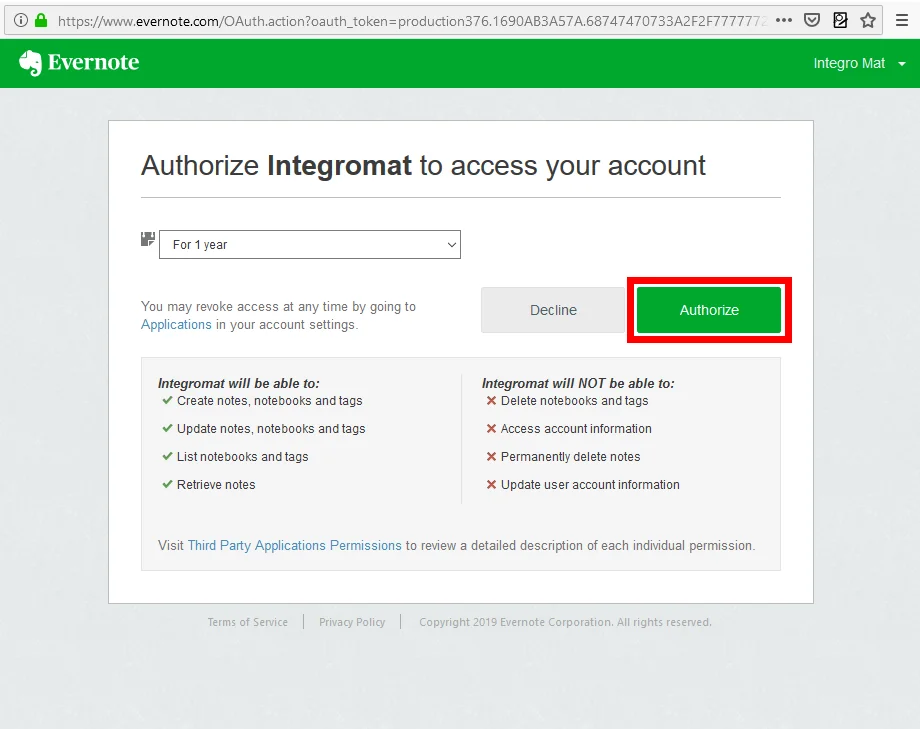
Confirm the dialog by clicking the Authorize button.
Templates
You can find over 60 predefined Evernote sample templates at www.make.com/en/templates/evernote
Triggers
Watch Notes
This module is triggered when a note is created or updated in a selected notebook.
Connection
Establish a connection to your Evernote account.
Notebook
Select the notebook you want to watch for new or updated notes.
Tags
Select the tags of the notes you want to retrieve.
Maximum number of returned notes
Enter the maximum number of notes that Boost.space Integrator will work with during one cycle (the number of repetitions per scenario run). If the value is set too high, the connection may be interrupted on the side of the given third-party service (timeout). Boost.space Integrator has no influence on this.
Watch
Select whether you want to retrieve new notes or new notes and all changes.
Only notes with reminders
Enable this option if you want to retrieve only notes that contain a reminder.
Actions
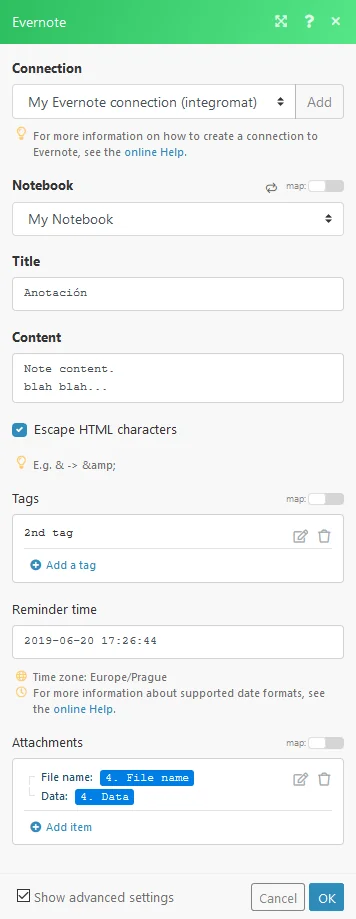
Create a Note
Creates a new note in a selected notebook.
Connection
Establish a connection to your Evernote account.
Notebook
Select the notebook you want to create a note in.
Title
Enter the title for the note.
Content
Enter the desired note content.
Escape HTML characters
If this option is disabled you must use HTML character entity, e.g.
&
Tags
Add a tag to the new note if needed.
Reminder time
If you want to set the reminder for this note enter the date and time for the reminder.
Attachments
Attach a file to the note. More information about working with files.
Update a Note
Updates a selected note.
Connection
Establish a connection to your Evernote account.
Notebook
Select the notebook you want to update the note in.
Select a note
Select the note you want to update. If you want to enter the ID manually you can use the Watch notes module or Search for notes module to retrieve the Note ID. Otherwise, select a note from the Note drop-down menu.
Title
Enter the title for the note. This field is mandatory.
Content
Enter the desired content of the note. This field is mandatory.
Escape HTML characters
If this option is disabled you must use HTML character entity, e.g.
&
Tags
Add a tag to the new note if needed.
Update a reminder
Choose whether you want to Update or Clear a reminder.
Reminder time
If you want to set a reminder for this note enter the date and time for the reminder.
Attachments
Attach a file to the note. More information about working with files.
Append Content to a Note
Adds content to a note.
Connection
Establish a connection to your Evernote account.
Select a note
Select the note you want to update. If you want to enter the ID manually you can use the Watch notes module or Search for notes module to retrieve the Note ID. Otherwise, select a note from the Note drop-down menu.
Content
Enter the content you want to add to the note. It will be appended to the end of the note content.
Escape HTML characters
If this option is disabled you must use HTML character entity, e.g.
&
Attachments
Attach a file to the note. More information about working with files.
Delete a Note
Deletes a selected note.
Connection
Establish a connection to your Evernote account.
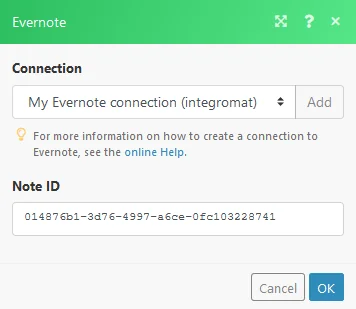
Note ID
Enter the Note ID. You can use, for example, the Watch notes module or Search for notes module to retrieve the ID.
Get a Note
Retrieves information about a selected note.
Connection
Establish a connection to your Evernote account.
Select a note
Select a note you want to update. If you want to enter the ID manually you can use the Watch notes module or Search for notes module to retrieve the Note ID. Otherwise, select a note from the Note drop-down menu.
Create a Notebook
Creates a new notebook.
Connection
Establish a connection to your Evernote account.
Name
Enter the name for the new notebook.
Search for Notes
Connection
Establish a connection to your Evernote account.
Search query
Enter the search term. To perform a more detailed search, refer to Evernote’s advanced search syntax.
Notebook
Select the notebook you want to search for notes.
Tags
Select the tags of the note you want to search for.
Maximum number of returned notes
Enter the maximum number of notes that Boost.space Integrator will work with during one cycle (the number of repetitions per scenario run). If the value is set too high, the connection may be interrupted on the side of the given third-party service (timeout). Boost.space Integrator has no influence on this.
Continue the execution of the route even if the module returns no results
If enabled, the scenario will not be stopped by this module.
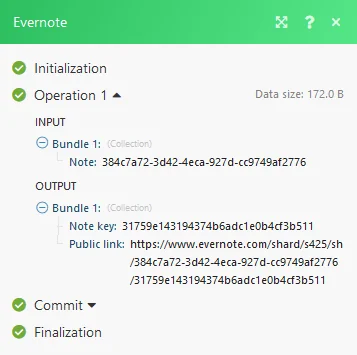
Share a Note
The module provides you with a public link to a selected note.
Connection
Establish a connection to your Evernote account.
Select a note
Select the note you want to update. If you want to enter the ID manually you can use the Watch notes module or Search for notes module to retrieve the Note ID. Otherwise, select a note from the Note drop-down menu.
Iterators
Retrieve Note Attachments
Extracts attachments from a note and provides them to the following module.
Source module
Select the source module that contains an attachment(s).
Example

Use the following modules to extract attachments from the Evernote note and upload it to the Dropbox folder.
-
Evernote > Get a Note module to retrieve the note with attachments.
-
Evernote > Retrieve Note Attachments module to iterate the attachments.
-
_Dropbox > Upload a File_module to upload retrieved attachments to the Dropbox folder.
Legacy article, imported from the original Boost.space knowledge base (/knowledge-base/applications/file-and-document-management/evernote/).

