Google Drive
Any references to third-party products or services do not constitute Celonis Product Documentation nor do they create any contractual obligations. This material is for informational purposes only and is subject to change without notice.
Celonis does not warrant the availability, accuracy, reliability, completeness, or usefulness of any information regarding the subject of third-party services or systems.
With Google Drive modules in Boost.space Integrator, you can manage your files, folder, or shared drives in your Google Drive account.
To use the Google app modules, you must have a Google account .You can create an account at http://account.google.com.
Refer to the Google Drive API documentation for a list of available endpoints.
Boost.space Integrator‘s use and transfer of information received from Google APIs to any other app will adhere to Google API Services User Data Policy.
Connect Google Drive to Boost.space Integrator
NOTE:
You can connect to Google Drive using our public OAuth2 connection, which is verified by Google and ready for use. Simply follow the general guide to get started.
If you’d prefer to use your own private credentials for greater control or privacy, follow the step-by-step guide below to create your own Google Drive connection.
Step-by-step guide
By following this tutorial you will be able to create your private credentials for Google Drive.
NOTE! – In the field “authorised domains” type: boost.space and celonis.com + Fill in those redirect URLs: https://integrator.boost.space/oauth/cb/google-restricted, https://integrator.boost.space/oauth/cb/google.
Gmail serves as an example in this tutorial.
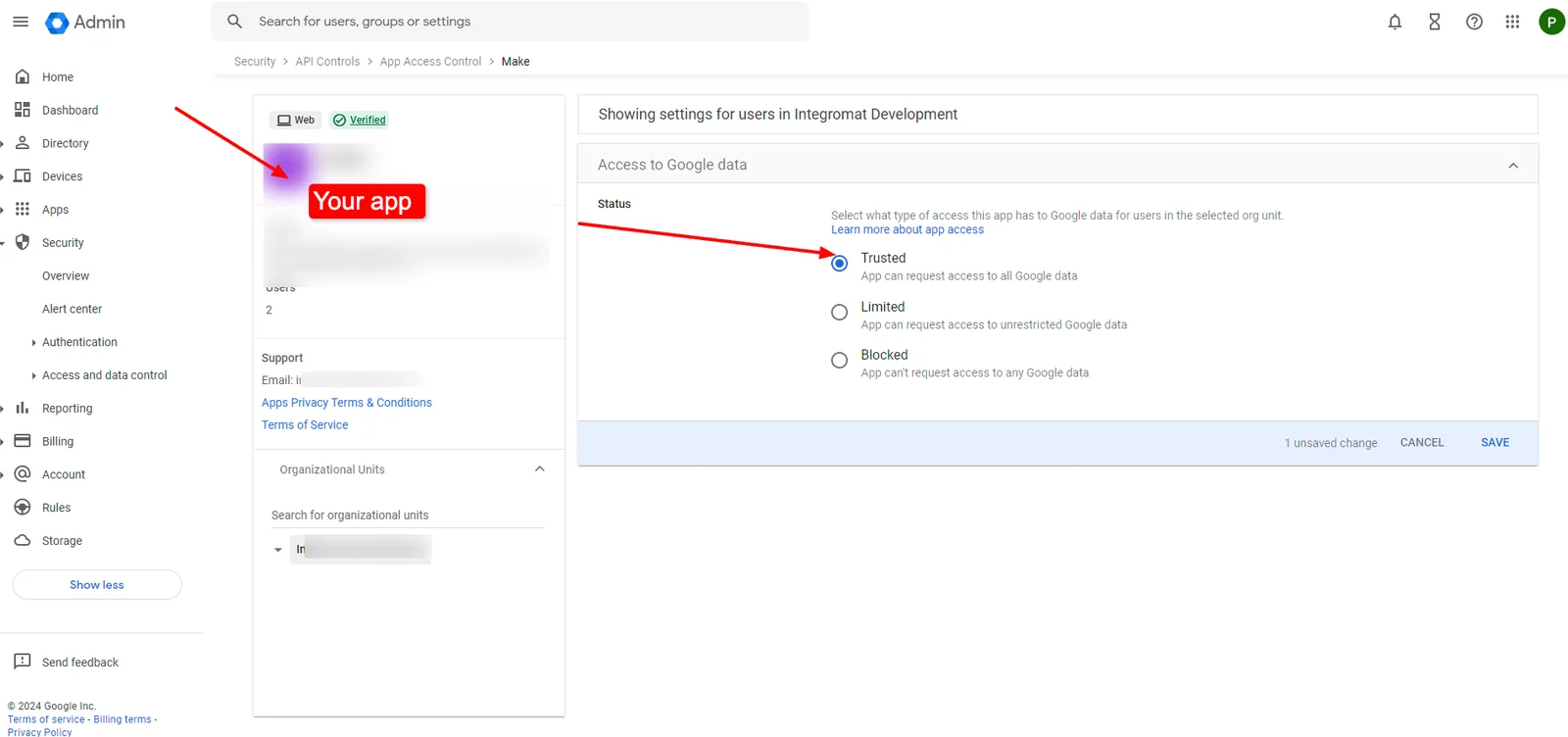
NOTE: In some cases, for modules that use sensitive or restricted scopes, you may encounter issues with the privacy policy not being properly configured. This is affecting users who have an active workspace (admin console). You can change those permissions as instructed below.
File/Folder
Watch Files In a Folder
Retrieves file details when a file is added or modified in the specified folder.
In order to retrieve the Share Link and Web Content Link, please use the Get a Share Link module.
To download a retrieved file, please use the Download a File module in your scenario.
Connection
Establish a connection to your Google Drive.
Watch Files
Select whether you want to watch new files in the folder (By Created Time), or modified files (By Modified Time).
Choose a Drive
Select whether you want to watch files in one of the following locations:
- My Drive
- Shared With Me
- Google Shared Drive (**This option is available for G Suite users only!**Other users will get the
Invalid Valueerror)
Select the Folder to be Watched
Navigate to the folder you want to watch.
File Types to Watch
Select file type to filter watched files by.
Limit
Set the maximum number of files Boost.space Integrator will return during one execution cycle.
Watch All Files
Retrieves file details when a file in your Google Drive is added or modified.
In order to retrieve the Share Link and Web Content Link, please use the Get a Share Link module.
To download a retrieved file, please use the Download a File module in your scenario.
Connection
Establish a connection to your Google drive.
Watch Files
Select whether you want to watch new files in the folder (By Created Time), or modified files (By Modified Time).
Choose a Drive
Select whether you want to watch files in one of the following locations:
- My Drive
- Shared With Me
- Google Shared Drive (**This option is available for G Suite users only!**Other users will get the
Invalid Valueerror)
File Types to Watch
Select file type to filter watched files by.
Limit
Set the maximum number of files Boost.space Integrator will return during one execution cycle.
Watch Folders
Retrieves folder details when a new folder is created or the existing one is modified.
Connection
Establish a connection to your Google drive.
Watch Files
Select whether you want to watch new folders (By Created Time), or modified folders (By Modified Time).
Choose a Drive
Select whether you want to watch folders in one of the following locations:
- My Drive
- Shared With Me
- Google Shared Drive (**This option is available for G Suite users only!**Other users will get the
Invalid Valueerror)
Choose a Folder
Navigate to the folder you want to watch for the folders.
Limit
Set the maximum number of folders Boost.space Integrator will return during one execution cycle.
Search for Files/Folders
Searches for files or folders based on search criteria.
Connection
Establish a connection to your Google Drive.
Choose a Drive
Select the location where you want to search for files or folders:
- My Drive
- Shared With Me
- Google Shared Drive (**This option is available for G Suite users only!**Other users will get the
Invalid Valueerror)
Choose a Folder
Navigate to the folder you want to search for the files or folders.
Retrieve
Select whether you want to search for files, folders, or both.
Search
Select the type of the search you want to perform.
- Search within file/folder names
- Fulltext search
- Enter custom search query
Query
Enter the query (differs based on the search type selected in the Search field above).
Search within file/folder names
Enter a part of the file name or full file name (including the suffix) you want to search.
Select whether you want to search exact term or search the file/folder name that contains the entered term in the Search Options field below.
Fulltext search
Enter any search term you want search in your Google Drive.
Enter custom search query
Enter the custom search query.
Add the folder selected above to the query Searches for the folder n the parents collection. This finds all files and folders located directly in the folder selected above.
Limit
Set the maximum number of files or folders Boost.space Integrator will return during one execution cycle.
Download a File
Downloads a file from your Google Drive.
Connection
Establish a connection to your Google drive.
Choose a Drive
Select the location where you want to download a file from:
- My Drive
- Shared With Me
- Google Shared Drive (**This option is available for G Suite users only!**Other users will get the
Invalid Valueerror)
Enter a File ID
Select whether you want to enter (map) the file ID manually or select the file using the menu.
File ID
Enter (map) the file ID of the file you want to download.
Convert Google Documents/Spreadsheets/Slides/Drawings Files to Format
Select the file type of the file you want to download and target file type you want convert to the file to.
Create a File From Text
Creates a file in the selected Google Drive folder.
Connection
Establish a connection to your Google drive.
Choose a Drive
Select the location where you want to create the file at:
- My Drive
- Shared With Me
- Google Shared Drive (**This option is available for G Suite users only!**Other users will get the
Invalid Valueerror)
New Text File Location
Select the target location where you want to create the new file.
File Name
Enter the name for the new file.
File Content
Enter the plain text content of the new file.
Convert the File to Google Docs Document
Enable this to set the file’s _mimeType_to _application/vnd.google-apps.document_instead of text/plain.
Create a Folder
Creates a folder in the specified location.
Connection
Establish a connection to your Google drive.
Choose a drive
Select the drive where you want to create the folder:
- My Drive
- Shared With Me
- Google Shared Drive (**This option is available for G Suite users only!**Other users will get the
Invalid Valueerror)
New Folder Location
Select the target location where you want to create the new folder.
New Folder’s Name
Enter the name for the new folder.
Share Folder
If enabled, the folder is shared to anyone with the link of the folder (Web View Link). Otherwise the Web View Link works for the owners only.
Type
Select permission for the folder. A permission grants a user, group, domain, or the world access to a folder hierarchy.
Role
Select the role to define what users can do with a file or folder. For the list of operations users can perform for each role please refer to the Roles documentation.
Create a File/Folder Shortcut
Creates a new file or folder shortcut.
Connection
Establish a connection to your Google drive.
Original File’s Drive
Select the original drive:
- My Drive
- Shared With Me
- Google Shared Drive (This option is available for G Suite users only! Other users will get the
Invalid Valueerror)
Select File/Folder
Select whether you want to create a shortcut for a file or folder.
File ID/ Folder ID
Select the File ID (or Folder ID) of the file (or folder) whose shortcut you want to create.
Use Domain Admin Access
Select whether to issue the request as a domain administrator. (This option is available for G Suite users only! Other users will get the Invalid Value error).
Shared Drive
Select the shared drive to create a file or folder shortcut. (This option is available for G Suite users only! Other users will get the Invalid Value error).
New Drive Location
Select the new drive location:
- My Drive
- Shared With Me
- Google Shared Drive (This option is available for G Suite users only! Other users will get the
Invalid Valueerror).
New Folder Location
Select the target folder where you want to create a shortcut to the file or folder.
Use Domain Admin Access
Select whether to issue the request as a domain administrator. (This option is available for G Suite users only! Other users will get the Invalid Value error).
Shared Drive
Select the shared drive to create a file or folder shortcut. (This option is available for G Suite users only! Other users will get the Invalid Value error).
Copied File Name
Enter a new name for the file or folder.
Leave blank if you do not want to change the original file name.
Upload a File
Uploads a file to your Google Drive.
Connection
Establish a connection to your Google drive.
Enter a Folder ID
Select whether you want to enter (map) the folder ID manually or select the folder using the menu.
Folder ID
Enter (map) the folder ID of the folder you want to upload the file to.
New Drive Location
Select the new drive location:
- My Drive
- Shared With Me
- Google Shared Drive (This option is available for G Suite users only! Other users will get the Invalid Value error)
New Folder Location
Select the target location where you want to upload a file.
Use Domain Admin Access
Select whether to issue the request as a domain administrator.
If set to Yes, then all shared drives of the domain in which the requester is an administrator are returned.
Shared Drive
Select the shared drive whose file you want to upload.
New File Name
Enter the new file name if you want to change the name of the file.
File
Enter the file’s details:
File Name
Enter a name for the file including the extension, for example, invoice.xml.
Data
Enter the file data manually.
Convert a File
Select whether to convert the file.
Update a File
Updates a file’s metadata or content.
Connection
Establish a connection to your Google drive.
Enter a File ID
Select whether you want to enter (map) the file ID manually or select the file using the menu.
Choose a Drive
Select the location where you want to update the files:
- My Drive
- Shared With Me
- Google Shared Drive (This option is available for G Suite users only! Other users will get the
Invalid Valueerror)
File ID
Enter (map) the File ID of the file you want to update.
Use Domain Admin Access
Select whether to issue the request as a domain administrator.
If set to Yes, then all shared drives of the domain in which the requester is an administrator are returned.
Shared Drive
Select the shared drive to update a file.
New Updated File Name
Enter the new file name if you want to change the name of the file.
File Description
Enter the new file description.
Change File Content
Enable this option to change the file content. The new file must have the same mimeType as the original file.
Source File
Map the file you want to upload from the previous module (e.g. HTTP > Get a File or Dropbox > Get a file), or enter the file name and file data manually.
Keep Revision Forever
Select whether to retain the revision.
You can retain only 200 revisions for the file forever. If the limit is reached, you need to delete pinned revisions.
Rename a Folder
Renames an existing folder.
Connection
Establish a connection to your Google Drive.
Enter a File ID
Select whether you want to enter (map) the file ID manually or select the file using the menu.
Folder ID
Enter the Folder ID which you want to rename.
Choose a Drive
Select the location:
- My Drive
- Shared With Me
- Google Shared Drive (This option is available for G Suite users only! Other users will get the
Invalid Valueerror)
New Folder Location
Select the new location for the folder.
Use Domain Admin Access
Select whether to issue the request as a domain administrator.
If set to Yes, then all shared drives of the domain in which the requester is an administrator are returned.
Shared Drive
Select the new location in the shared drive for the folder.
Folder Name
Enter a new name for the folder.
Folder Description
Enter a description for the folder.
Move a File/Folder to Trash
Moves a file or folder to the trash.
Connection
Establish a connection to your Google drive.
Enter a File/Folder ID
Select whether you want to enter (map) the file or folder ID manually or select the file or folder using the menu.
Select File/Folder
Select whether you want to move the file or folder to the trash.
File ID / Folder ID
Enter (map) the File ID (or folder ID) of the file (or folder) you want to move to the trash.
Delete a File/Folder.
Permanently deletes a file or folder.
Connection
Establish a connection to your Google drive.
Enter a File/Folder ID
Select whether you want to enter (map) the file or folder ID manually or select the file or folder using the menu.
Select File/Folder
Select whether you want to permanently delete a file or folder.
File ID / Folder ID
Enter (map) the File ID (or folder ID) of the file (or folder) you want to permanently delete.
Copy a File
Copies a file to the new location.
Connection
Establish a connection to your Google drive.
Original File’s Drive
Select the drive you want to copy the file from:
- My Drive
- Shared With Me
- Google Shared Drive (**This option is available for G Suite users only!**Other users will get the
Invalid Valueerror)
Original File ID
Enter (map) the File ID of the original file you want to copy.
New Drive Location
Select the target drive you want to copy the file to:
- My Drive
- Shared With Me
- Google Shared Drive (**This option is available for G Suite users only!**Other users will get the
Invalid Valueerror)
New Folder Location
Select the target folder you want to copy the file to.
Copied File Name
Enter the new file name if you want to change the name of the file in the target location.
Move a File/Folder
Moves a file or folder to the new target location.
Connection
Establish a connection to your Google drive.
Choose a Drive
Select the drive you want to move the file or folder from:
- My Drive
- Shared With Me
- Google Shared Drive (**This option is available for G Suite users only!**Other users will get the
Invalid Valueerror)
Select File/Folder
Select whether you want to move a file or folder.
File ID/ Folder ID
Enter (map) the File ID (or Folder ID) of the file (or folder) you want to move.
New Drive Location
Select the target drive you want to move the file or folder to:
- My Drive
- Shared With Me
- Google Shared Drive (**This option is available for G Suite users only!**Other users will get the
Invalid Valueerror)
New Folder Location
Select the target folder you want to move the file or folder to.
File/Folder Access
Get a Share Link
Retrieves and sets up permissions and sends share link for a file or folder.
Connection
Establish a connection to your Google drive account.
Choose a Drive
Select the drive that contains the file or folder you want to share:
- My Drive
- Shared With Me
- Google Shared Drive (**This option is available for G Suite users only!**Other users will get the
Invalid Valueerror)
Use Domain Admin Access
Select whether to issue the request as a domain administrator.
If set to Yes, then all shared drives of the domain in which the requester is an administrator are returned.
Select File/Folder
Select whether you want to share a file or folder.
File ID/ Folder ID
Enter (map) the File ID (or Folder ID) of the file (or folder) you want to share.
Role
Select the role granted by this permission to define what users can do with a file or folder.
- Owner
- Writer
- Commenter
- Reader
- Organizer
- File Organizer
For the list of operations users can perform for each role, please refer to the Roles documentation.
Type
Select permission for the file or folder. Permission grants a user, group, domain, or the anyone access to a folder hierarchy or to the file.
Email address / Organization Domain
Enter the email address or organization domain you want to restrict access to the file or folder to.
Send notification email
The notification email with the link will be sent to the specified email address.
Send Notification Email
Enter the expiration time. The expiration time must be future and cannot be more than a year in the future.
Allow File Discovery
Enable to define whether the permission allows the file to be discovered through search.
Update a File/Folder Access
Updates an existing file or folder access.
Connection
Establish a connection to your Google drive.
Choose a Drive
Select the drive whose access you want to update:
- My Drive
- Shared With Me
- Google Shared Drive (This option is available for G Suite users only! Other users will get the Invalid Value error).
Select
Select whether you want to move a file or folder.
File ID
Select the File ID whose access you want to update.
Folder ID
Select the Folder ID whose access you want to update.
Use Domain Admin Access
Select whether to issue the request as a domain administrator.
If set to Yes, then all shared drives of the domain in which the requester is an administrator are returned.
Shared Drive
Select the shared drive whose file or folder access you want to update.
Role
Select the role:
- Owner
- Writer
- Commenter
- Reader
Revoke a File/Folder Access
Revokes a file or folder access.
Connection
Establish a connection to your Google drive.
Choose a Drive
Select the drive whose access you want to update:
- My Drive
- Shared With Me
- Google Shared Drive (This option is available for G Suite users only! Other users will get the Invalid Value error).
Select
Select whether you want to revoke access from a file or folder.
File ID
Select the File ID whose access you want to update.
Folder ID
Select the Folder ID whose access you want to update.
Use Domain Admin Access
Select whether to issue the request as a domain administrator.
If set to Yes, then all shared drives of the domain in which the requester is an administrator are returned.
Shared Drive
Select the shared drive whose file or folder access you want to update.
Permission Name
Select the permission you want to revoke.
Google Shared Drive (FOR G SUITE USERS ONLY)
Watch Shared Drives
Triggers when a shared drive is created.
The G Suite administrator privilege (Services > Drive and Docs > Settings) is required in order to use this module.
Connection
Establish a connection to your Google drive account.
Search
Select whether you want to filter returned drives by custom search query or query filter.
Query filter
Set the filter to filter returned shared drives by name, organizer count, or member count. You can also use AND and OR operators to combine the filter.
Query
Enter your custom search query. For example:name contains 'Boost.space Integrator' and memberCount >= 20 For more info, see the documentation.
Limit
Set the maximum number of drives Boost.space Integrator will return during one execution cycle.
Search for Shared Drives
Searches for the Google shared drive.
The G Suite administrator privilege (Services > Drive and Docs > Settings) is required in order to use this module.
Connection
Establish a connection to your Google drive account.
Search
Select whether you want to filter returned drives by custom search query or query filter.
Query filter
Set the filter to filter returned shared drives by name, organizer count, _member count,_or created time. You can also use AND and OR operators to combine the filter.
Query
Enter your custom search query. For example:name contains 'Boost.space Integrator' and memberCount >= 20 For more info, see the documentation.
Limit
Set the maximum number of drives Boost.space Integrator will return during one execution cycle.
Create a Shared Drive
Creates a new shared drive.
Connection
Establish a connection to your Google drive account.
New Shared Drive’s Name
Enter the name for the new shared drive.
Get a Shared Drive
Retrieves shared drive details.
The G Suite administrator privilege (Services > Drive and Docs > Settings) is required in order to use this module.
Connection
Establish a connection to your Google drive account.
Shared Drive ID
Enter (map) the ID or select the drive you want to retrieve details about.
Update a Shared Drive
Updates an existing drive’s name and/or restrictions.
The G Suite administrator privilege (Services > Drive and Docs > Settings) is required in order to use this module.
Connection
Establish a connection to your Google drive account.
Shared Drive ID
Enter (map) the ID or select the drive you want to update.
Name
Enter the new name for the shared drive.
Restrictions
Enable or disable restrictions that apply to this shared drive or items inside this shared drive.
Admin Managed Restrictions
Select whether administrative privileges on this shared drive are required to modify restrictions.
Copy Requires Writer Permission
Select whether the options to copy, print, or download files inside this shared drive, should be disabled for readers and commenters. When this restriction is enabled, it will override the similarly named field to true for any file inside this shared drive.
Domain Users Only
Select whether access to this shared drive and items inside this shared drive is restricted to users of the domain to which this shared drive belongs. This restriction may be overridden by other sharing policies controlled outside of this shared drive.
Drive Members Only
Select whether access to items inside this shared drive is restricted to its members.
Delete a Shared Drive
Permanently deletes a shared drive for which the user is an organizer. The shared drive cannot contain any untrashed items.
The G Suite administrator privilege (Services > Drive and Docs > Settings) is required in order to use this module.
Connection
Establish a connection to your Google drive account.
Shared Drive ID
Enter (map) the ID or select the drive you want to delete.
File Revision
List File Revision
Retrieves a list of file’s revisions.
Connection
Establish a connection to your Google drive account.
Enter a File ID
Select whether you want to enter (map) the file ID manually or select the file using the menu.
Choose a Drive
Select the location:
- My Drive
- Shared With Me
- Google Shared Drive (This option is available for G Suite users only! Other users will get the
Invalid Valueerror)
Use Domain Admin Access
Select whether to issue the request as a domain administrator.
If set to Yes, then all shared drives of the domain in which the requester is an administrator are returned.
Shared Drive
Select or map the shared drive whose file revisions you want to list.
File ID
Select the File ID whose revisions you want to list.
File ID
Enter the File ID whose revisions you want to list.
Limit
Set the maximum number of revisions Boost.space Integrator will return during one execution cycle. The default value is 10.
Get a File Revision
Gets a specified file’s revision.
Connection
Establish a connection to your Google drive account.
Enter a File ID
Select whether you want to enter (map) the file ID manually or select the file using the menu.
Choose a Drive
Select the location:
- My Drive
- Shared With Me
- Google Shared Drive (This option is available for G Suite users only! Other users will get the
Invalid Valueerror)
Use Domain Admin Access
Select whether to issue the request as a domain administrator.
If set to Yes, then all shared drives of the domain in which the requester is an administrator are returned.
Shared Drive
Select or map the shared drive whose file’s revision you want to retrieve.
File ID
Select the File ID whose revision you want to retrieve.
File ID
Enter the File ID whose revision you want to retrieve.
Revision ID
Enter the Revision ID to retrieve.
Acknowledge Abuse
Select whether the user knowledges the risk of downloading known malware or other abusive files.
Update a File Revision
Updates an existing file’s revision.
Connection
Establish a connection to your Google drive account.
Enter a File ID
Select whether you want to enter (map) the file ID manually or select the file using the menu.
Choose a Drive
Select the location:
- My Drive
- Shared With Me
- Google Shared Drive (This option is available for G Suite users only! Other users will get the
Invalid Valueerror)
File ID
Select the File ID whose revision you want to update.
Use Domain Admin Access
Select whether to issue the request as a domain administrator.
If set to Yes, then all shared drives of the domain in which the requester is an administrator are returned.
Shared Drive
Select or map the shared drive whose file’s revision you want to update
File ID
Enter the File ID whose revision you want to update.
Revision ID
Enter the Revision ID you want to update.
Keep Forever
Select whether to keep this revision forever, even if it is no longer the head revision. If not set, the revision will automatically purge 30 days after newer content is uploaded. You can set a maximum of 200 revisions for a file. This applies only to files with binary content in Drive.
Publish Auto
Select whether to republish subsequent revisions automatically. This is only applicable to Docs Editors files.
Published
Select whether this revision is published. This is only applicable to Docs Editors files.
Published Outside Domain
Select whether this revision is published outside the domain. This is only applicable to Docs Editors files.
Delete a File Revision
Deletes a file’s revision.
Connection
Establish a connection to your Google drive account.
Enter a File ID
Select whether you want to enter (map) the file ID manually or select the file using the menu.
Choose a Drive
Select the location:
- My Drive
- Shared With Me
- Google Shared Drive (This option is available for G Suite users only! Other users will get the
Invalid Valueerror)
Use Domain Admin Access
Select whether to issue the request as a domain administrator.
If set to Yes, then all shared drives of the domain in which the requester is an administrator are returned.
Shared Drive
Select or map the shared drive whose file’s revision you want to delete.
File ID
Select the File ID whose revision you want to delete.
File ID
Enter the File ID whose revision you want to delete.
Revision ID
Enter the Revision ID you want to delete.
Other
Watch Comments
Triggers when a comment is added or modified on the selected file.
Connection
Establish a connection to your Google drive account.
Watch Comments
Select whether you want to watch new comments (By Created Time), or modified comments (By Modified Time).
Choose a Drive
Select whether you want to watch comments in one of the following locations:
- My Drive
- Shared With Me
- Google Shared Drive (**This option is available for G Suite users only!**Other users will get the
Invalid Valueerror)
File ID
Navigate to and select the file you want to watch for comments.
Limit
Set the maximum number of comments Boost.space Integrator will return during one execution cycle.
Get a Folder ID for a Path
Retrieves a folder ID for a folder path
Connection
Establish a connection to your Google drive account.
Folder Path
Enter the folder path whose Folder ID you want to retrieve. For example, abc/xyz.
It is not recommended to have subfolders with the same name inside one folder.
Get a File/Folder Path for an ID
Retrieves a file or folder path for an ID.
Connection
Establish a connection to your Google drive account.
Enter a File/Folder ID
Select whether you want to enter (map) the File/Folder ID manually or select the file using the menu.
Choose a Drive
Select the location:
- My Drive
- Shared With Me
- Google Shared Drive (This option is available for G Suite users only! Other users will get the
Invalid Valueerror)
Select File/Folder
Select the file/folder whose path you want to retrieve.
File ID
Enter the File ID whose path you want to retrieve
Folder ID
Enter the Folder ID whose path you want to retrieve.
Use Domain Admin Access
Select whether to issue the request as a domain administrator.
If set to Yes, then all shared drives of the domain in which the requester is an administrator are returned.
Shared Drive
Select the shared drive of the file/folder whose path you want to retrieve.
Make an API Call
Allows you to perform a custom API call.
Connection
Establish a connection to your Google drive account.
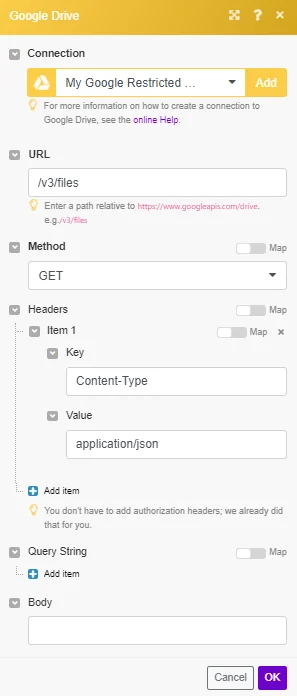
URL
Enter a path relative to https://www.googleapis.com/drive. e.g. /v3/files.
For the list of available endpoints, refer to the Google Drive API Documentation.
Method
Select the HTTP method you want to use:
- GET to retrieve information for an entry.
- POST to create a new entry.
- PUT to update/replace an existing entry.
- PATCH to make a partial entry update.
- DELETE to delete an entry.
Headers
Enter the desired request headers. You don’t have to add authorization headers; we already did that for you.
Query String
Enter the request query string.
Body
Enter the body content for your API call.
Example of Use – List All Files
The following API call returns all files in your Google Drive:
URL:
/v3/files
Method:
GET
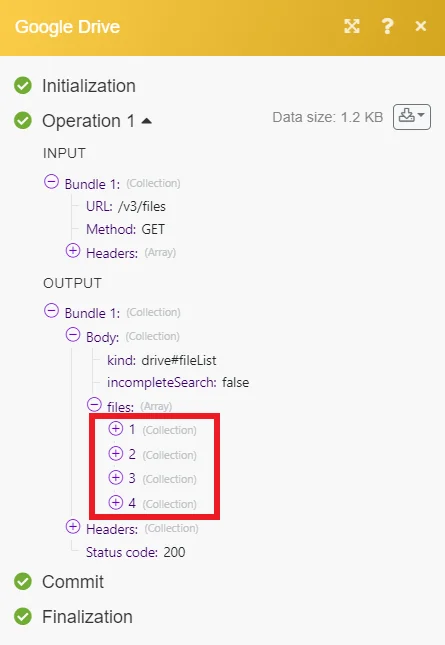
The result can be found in the module’s Output under Bundle > Body > files. In our example, 30 files were returned:
Search For Files
In the module Search for Files/Folders you can use your own query which consists of these parts:
Field – Attribute of the file that is being searched, e.g. the attribute name of the file.
Operator – Test that is performed on the data to provide a match, e.g. contains.
Value – The content of the attribute that is tested, e.g. the name of the file My cool document.
Combine clauses with the conjunctions and or or, and negate the query with not.
Fields
Term
Valid operators
Usage
name
contains 1, =, !=
Name of the file. Surround with single quotes '. Escape single quotes in queries with \', e.g., 'Valentine\'s Day'.
fullText
contains 2 3
Full text of the file including name, description, content, and indexable text. Whether the ‘title’, ‘description’, or ‘indexableText‘ properties, or the content of the file matches. Surround with single quotes '. Escape single quotes in queries with \', e.g., 'Valentine\'s Day'.
mimeType
contains, =, !=
MIME type of the file. Surround with single quotes '. Escape single quotes in queries with \', e.g., 'Valentine\'s Day'.
modifiedTime
<=, <, =, !=, >, >=
Date of the last modification of the file. RFC 3339 format, default timezone is UTC, e.g., 2012-06-04T12:00:00-08:00. Fields of type date are not currently comparable to each other, only to constant dates.
viewedByMeTime
<=, <, =, !=, >, >=
Date that the user last viewed a file. RFC 3339 format, default timezone is UTC, e.g., 2012-06-04T12:00:00-08:00. Fields of type date are not currently comparable to each other, only to constant dates.
trashed
=, !=
Whether the file is in the trash or not. Can be either true or false.
starred
=, !=
Whether the file is starred or not. Can be either true or false.
parents
in
Whether the parents collection contains the specified ID.
owners 4
in
Users who own the file.
writers 4
in
Users or groups who have permission to modify the file. See Permissions resource reference.
readers 4
in
Users or groups who have permission to read the file. See Permissions resource reference.
sharedWithMe
=, !=
Files that are in the user’s “Shared with me” collection. All file users are in the file’s access control list (ACL). Can be either true or false.
properties
has
Public custom file properties.
appProperties
has
Private custom file properties.
visibility
=, ‘!=’
The visibility level of the file. Valid values are anyoneCanFind, anyoneWithLink, domainCanFind, domainWithLink, and limited. Surround with single quotes '. Escape single quotes in queries with \', e.g., 'Valentine\'s Day'.
[1] The contains operator only performs prefix matching for a name. For example, the name “HelloWorld” would match for name contains 'Hello' but not name contains 'World'.
[2] The contains operator only performs matching on entire string tokens for fullText. For example, if the full text of a doc contains the string “HelloWorld” only the query fullText contains 'HelloWorld' returns a result. Queries such as fullText contains 'Hello' do not return results in this scenario.
[3] The contains operator matches on an exact alphanumeric phrase if it is surrounded by double quotes. For example, if the fullText of a doc contains the string “Hello there world”, then the query fullText contains '"Hello there"' returns a result, but the query fullText contains '"Hello world"' doesn’t. Furthermore, since the search is alphanumeric, if the fullText of a doc contains the string “Hello_world”, then the query fullText contains '"Hello world"' returns a result.
[4] The owners, writers and readers properties are indirectly reflected in the list and refer to the role on the permission.
Value types
Value Type
Notes
String
Surround with single quotes '. Escape single quotes in queries with \', e.g., 'Valentine\'s Day'.
Boolean
true or false.
Date
RFC 3339 format, default timezone is UTC, e.g., 2012-06-04T12:00:00-08:00.
Operators
Operator
Usage
contains
The content of one string is present in the other.
=
The content of a string or boolean is equal to the other.
!=
The content of a string or boolean is not equal to the other.
<
A value is less than another.
<=
A value is less than or equal to another.
>
A value is greater than another.
>=
A value is greater than or equal to another.
in
An element is contained within a collection.
and
Return items that match both queries.
or
Return items that match either query.
not
Negates a search query.
has
A collection contains an element matching the parameters.
For compound clauses, you can use parentheses to group clauses together. For example:
modifiedTime > '2019-06-04T12:00:00' and (mimeType contains 'image/' or mimeType contains 'video/')
This search returns all files with an image or video MIME type that their last modification was after June 4, 2019. Because and and or operators are evaluated from left to right, without parentheses, the above example would return only images modified after June 4, 2019, but would return all videos, even those before June 4, 2019.
Examples
Files with the name “hello”
name = 'hello'
Files with a name containing the words “hello” and “goodbye”
name contains 'hello' and name contains 'goodbye'
Files with a name that does not contain the word “hello”
not name contains 'hello'
Folders that are Google apps or have the folder MIME type
mimeType = 'application/ vnd. google-apps. folder'
Files that are not folders
mimeType != 'application/ vnd. google-apps. folder'
Files that contain the text “important” and in the trash
fullText contains 'important' and trashed = true
Files that contain the word “hello”
fullText contains 'hello'
Files that do not have the word “hello”
not fullText contains 'hello'
Files that contain the exact phrase “hello world”
fullText contains '"hello world"'
Files with a query that contains the “” character (e.g., “\authors”)
fullText contains '\\authors'
Files with ID within a collection, e.g. parents collection
'1234567' in parents
Files in an Application data folder in a collection
'appDataFolder' in parents
Files for which user “test@example.org” has write permission
'test@example. org' in writers
Files for which members of the group “group@example.org” have write permission
'group@example. org' in writers
Files modified after a given date
modifiedTime > '2012-06-04T12:00:00' / / default time zone is UTC
Files shared with the authorized user with “hello” in the name
sharedWithMe and name contains 'hello'
Files that have not been shared with anyone or domains (only private, or shared with specific users or groups)
visibility = 'limited'
Image or video files modified after a specific date
modifiedTime > '2012-06-04T12:00:00' and (mimeType contains 'image/ ' or mimeType contains 'video/ ')
(Reference: Google Drive API v3 – Search for files and folders, Google Drive API v3 – Search query terms)
Possible problems
Unable to upload or update a file
There are several situations when uploading or updating a file fails:
- The uploaded file is too big and exceeds the maximum file size limit allowed for your Google Drive plan or you have exceeded your Google Drive storage limit. You can either upgrade your storage plan or delete existing files from the Google Drive service.
The selected folder where the file was to be uploaded to no longer exists. The scenario stops and it is then necessary to select a target folder again.
Failed to verify connection ‘My Google Restricted connection’. Status Code Error: 400
Your connection has expired and is no longer valid. You need to reauthorize the connection.
This error affects non-Gsuite Google accounts. For more details please refer to the Google OAuth documentation.
Solution
Our tests have shown that it is currently possible to set your Publishing Status to In Production to avoid this weekly re-authentication.
In the Google Console click API & Services > OAuth consent screen. Under Publishing status, click Publish App and then Confirm.
Reauthorize your Google connection.
1. Log in to Boost.space Integrator.
2. Navigate to Connections.
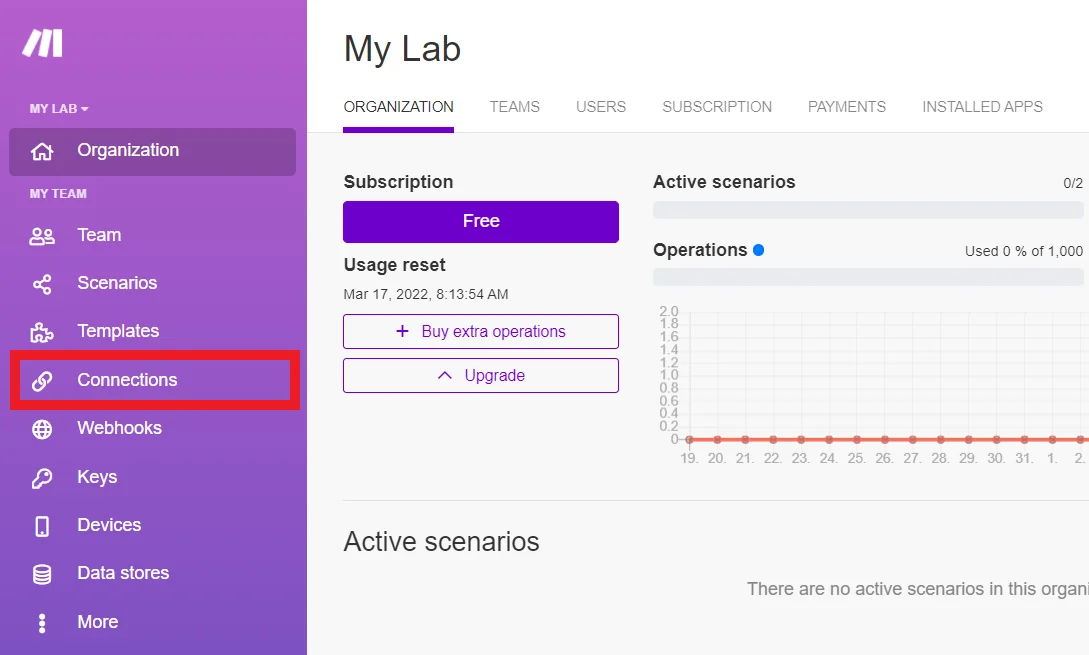
3. Find your Google connection and click Reauthorize button.

To prevent the expiration of your Google connection, we suggest you to reauthorize the connection every week or update the project publishing status according to the information below.
Publishing statuses Testing: If you keep your project in the Testing status, you will be required to reauthorize your connection in Boost.space Integrator every week. To avoid weekly reauthorization, update the project status to In production.
In production: If you update your project to the In production status, you will not be required to reauthorize the connection weekly. To update your project’s status, go to the OAuth consent screen and click Publish app. If you see the notice Needs verification, you can choose whether to go through the Google verification process for the app or to connect to your unverified app. Currently connecting to unverified apps works in Boost.space Integrator, but we cannot guarantee the Google will allow connections to unverified apps for an indefinite period.
For more information regarding publishing statuses, refer to the Publishing status section of Google’s Setting up your OAuth consent screen help.
Changelog for Google Drive App
last update: 2020-06-08
-
All modules now support all instances – My Drive, Shared With Me, Google Shared Drive (G Suite). The app Google Team Drive is not available as the Google Drive app now supports the same methods. The group of modules Google Shared Drive(for G Suite users) has been newly added:
- Watch Shared Drives
- Search for Shared Drives
- Get a Shared Drive
- Update a Shared Drive
- Delete a Shared Drive
- Create a Shared Drive
-
Watch Files in a Folder – The new module helps the user to control used data and operations by not downloading the files. If needed, the file can be downloaded using the separate Download a File module.
-
Watch All Files – The new module helps the user to control used data and operations by not downloading the files. If needed, the file can be downloaded using the separate Download a File module.
-
U_pload a File/Update a File_ – advanced feature Convert a File – the solution working with a MIME type.
-
All modules – Use the separate Recognize a Folder Path module to retrieve the folder ID.
-
Get a Share Link – supports advanced modifications of rights for the share link.
-
Download a File – formerly Get a File. Now you can manually select the file you want to download.
-
Copy a File/Move a File – all instances are supported, e.g. you may copy/move a file from “My Drive” to “G Shared Drive”.
-
Create a Folder – the_Share folder_ feature – supports advanced modifications of rights for the Share link.
-
Create a File from Text – a new module
-
Move a File/Folder to Trash – legacy module could trash only files. The new one supports also empty folders.
-
Delete a File/Folder – legacy module could delete only files. The new one supports also empty folders.
-
Make an API Call – universal module
-
Watch Shared Files – deprecated, now the modules Watch All Files or Watch Files in a Folder may be used.
Legacy article, imported from the original Boost.space knowledge base (/knowledge-base/applications/file-and-document-management/google-drive/).

