Weekdone

With Weekdone modules in Boost.space Integrator, you can watch, create, update, list, and delete:
-
items
-
objectives
To get started with Weekdone, create an account at weekdone.com.
Connect Weekdone to Boost.space Integrator
To connect Weekdone app, you need to obtain the credentials from your Weekdone account and insert them in the Weekdone module scenario.
-
Log in to your Weekdone account.
-
Log in to your Boost.space Integrator account, insert a Weekdone module scenario and click the Add button next to the Connection field.
-
In the Connection name field, enter a name for the connection.
-
Optional: Click Show Advanced Settings and enter the client credentials from your application.
-
Click Save.
-
Confirm the access by clicking Allow access.
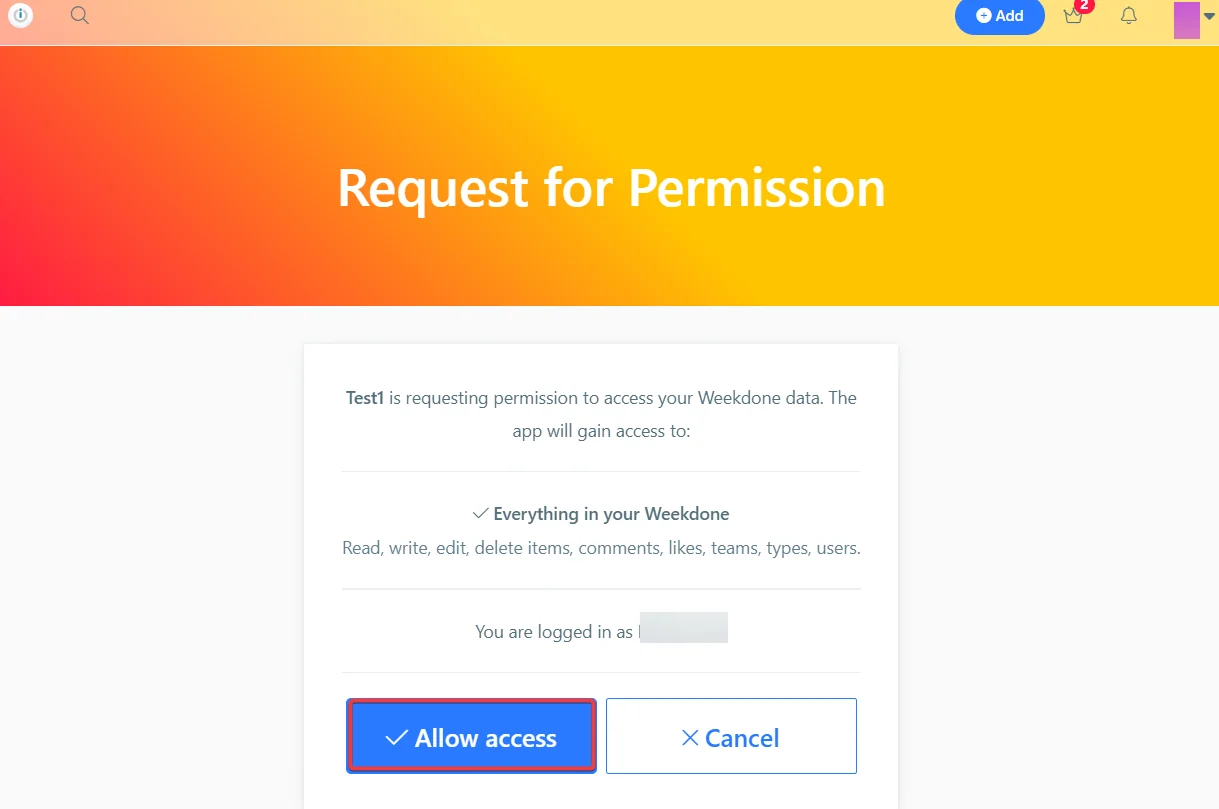
You have successfully established the connection. You can now begin editing your scenario and adding more Weekdone modules. If your connection needs reauthorization at any point, follow the connection renewal steps here.
Create your own app and client credentials
To create your own app:
-
Log in to your Weekdone account.
-
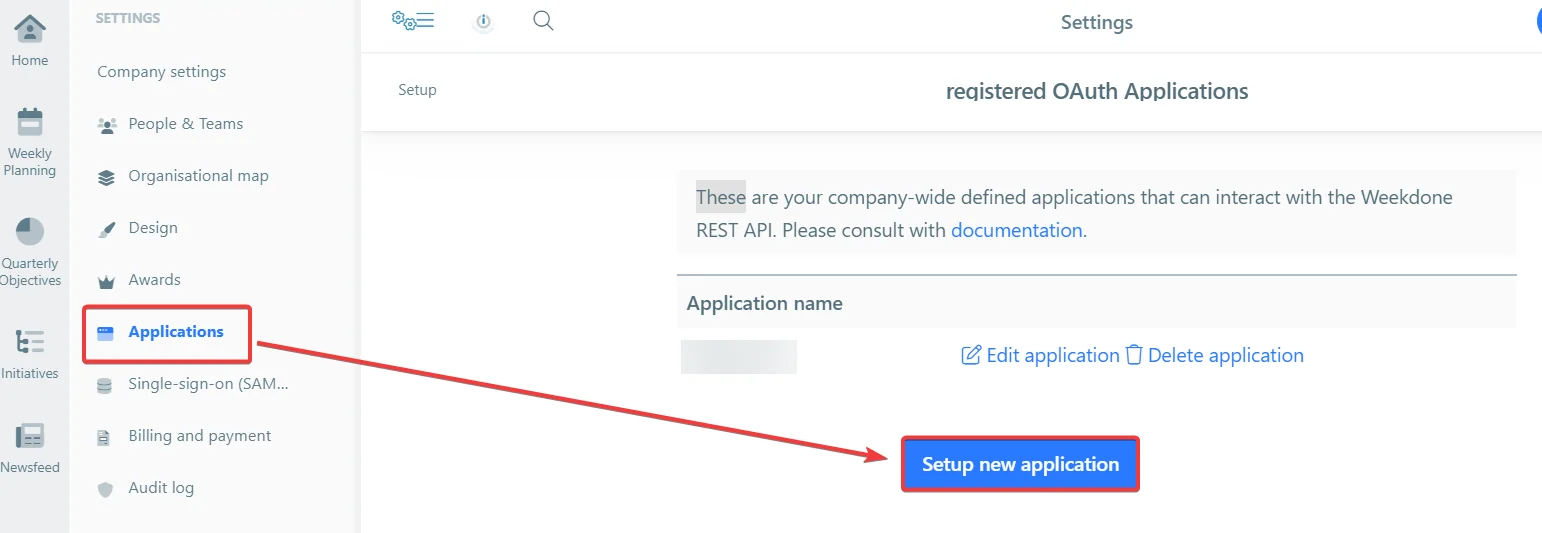
Click Your Profile Icon > Company Settings > Applications > Setup Application.
-
In the Application name field, enter a name for the application, and in the Redirect URI field, enter
https://integrator.boost.space/oauth/cb/weekdone.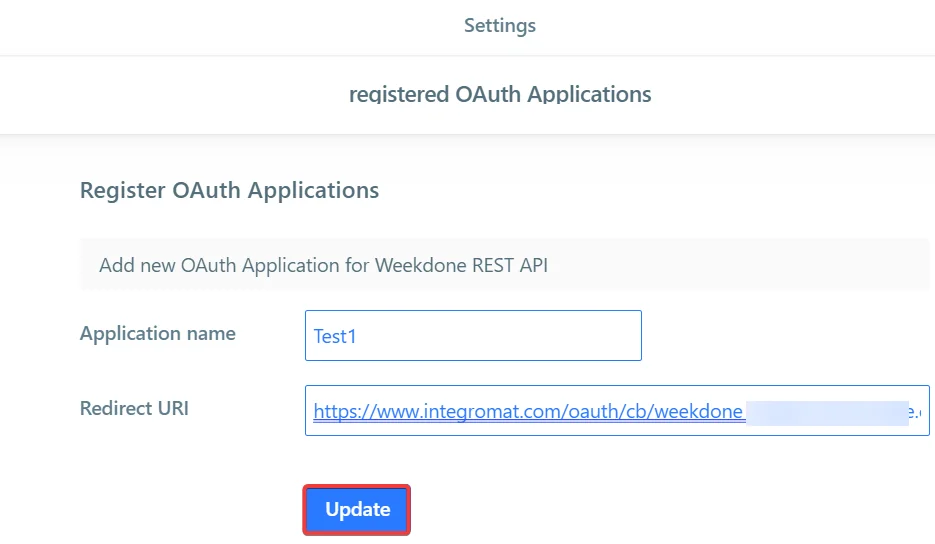
-
Copy the Client ID and Client Secret values to a safe place.
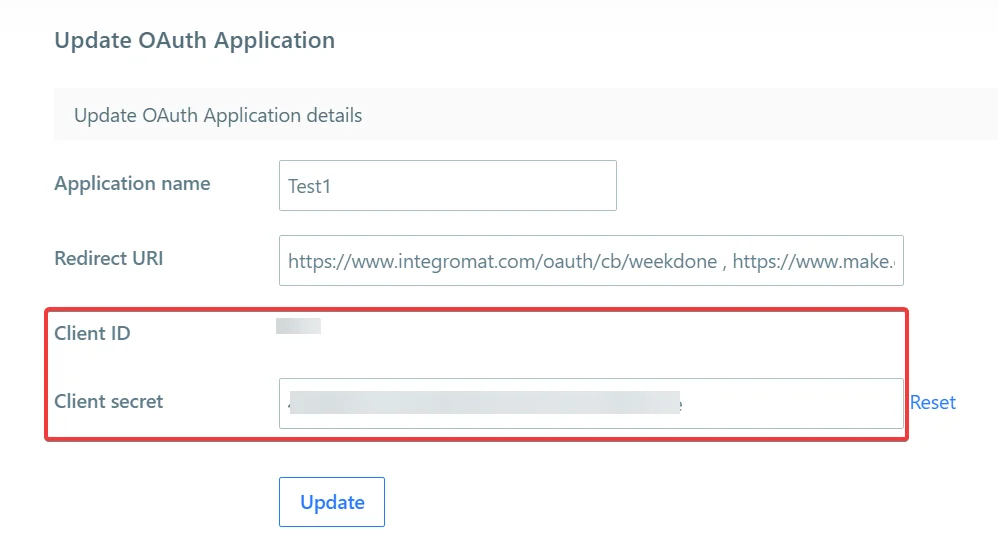
You have successfully created the client credentials.
Items
You can watch, create, update, list, and delete items using the following modules.
Watch Items
Triggers when a new item is created.
Connection
Establish a connection to your Weekdone account.
User ID
Select or map the User ID whose items you want to watch.
Team ID
Select or map the Team ID whose items you want to watch.
Limit
Set the maximum number of items Boost.space Integrator will return during one execution cycle. The default value is 2.
List Items
Lists all items.
Connection
Establish a connection to your Weekdone account.
Limit
Set the maximum number of items Boost.space Integrator will return during one execution cycle. The default value is 10.
For field descriptions, see the Weekdone Items API reference.
Create an Item
Creates a new item.
Connection
Establish a connection to your Weekdone account.
For field descriptions, see the Weekdone Items API reference.
Update an Item
Updates an item.
Connection
Establish a connection to your Weekdone account.
Item ID
Select or map the Item ID whose details you want to update.
For field descriptions, see the Weekdone Items API reference.
Delete an Item
Deletes an item.
Connection
Establish a connection to your Weekdone account.
Item ID
Select or map the Item ID you want to delete.
Objectives
You can watch, create, update, list, and delete objectives using the following modules.
Watch Objectives
Triggers when a new objective is created.
Connection
Establish a connection to your Weekdone account.
Type
Select the object type you want to watch. For example, company.
Department ID
Select or map the Department ID whose objectives you want to watch.
Team ID
Select or map the Team ID whose objectives you want to watch.
User ID
Select or map the User ID whose objectives you want to watch.
Limit
Set the maximum number of objectives Boost.space Integrator will return during one execution cycle. The default value is 2.
List Objectives
Lists all objectives.
Connection
Establish a connection to your Weekdone account.
Limit
Set the maximum number of objectives Boost.space Integrator will return during one execution cycle. The default value is 10.
For field descriptions, see the Weekdone Objectives API reference.
Create an Objective
Creates a new objective.
Connection
Establish a connection to your Weekdone account.
For field descriptions, see the Weekdone Objectives API reference.
Update an Objective
Updates an objective.
Connection
Establish a connection to your Weekdone account.
Objective ID
Select or map the Objective ID whose details you want to update.
Description
Enter the objective details.
Delete an Objective
Deletes an objective.
Connection
Establish a connection to your Weekdone account.
Objective ID
Select or map the Objective ID you want to delete.
Legacy article, imported from the original Boost.space knowledge base (/knowledge-base/applications/hr-management/weekdone/).

