Alexa Internet
Any references to third-party products or services do not constitute Boost.space Product Documentation nor do they create any contractual obligations. This material is for informational purposes only and is subject to change without notice.
Boost.space does not warrant the availability, accuracy, reliability, completeness, or usefulness of any information regarding the subject of third-party services or systems.

The Alexa Internet modules allow you to get, and list the URL info, traffic history, category browse, category listings, site linkings in your Alexa Internet account.
Prerequisites
-
An Alexa Internet account
-
An AWS account
In order to use Alexa Internet with Boost.space Integrator, it is necessary to have an Alexa Internet account. If you do not have one, you can create an Alexa Internet account at https://alexa.com/signup.
The module dialog fields that are displayed in bold (in the Boost.space Integrator scenario, not in this documentation article) are mandatory!
Connecting Alexa Internet to Boost.space Integrator
To connect your Alexa Internet account to Boost.space Integrator, you need to obtain your API Key.
-
Access the Alexa Internet website, https://www.alexa.com/.
-
Click the API link at the bottom of the website page.
-
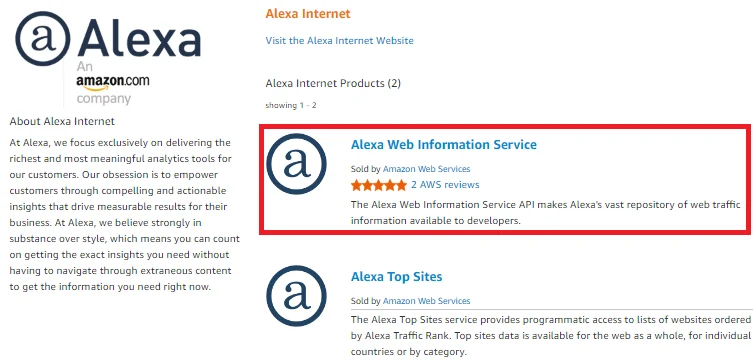
Click Alexa Web Information Service.
-
Click Continue to Subscribe.

-
Enter your AWS account credentials to subscribe.
-
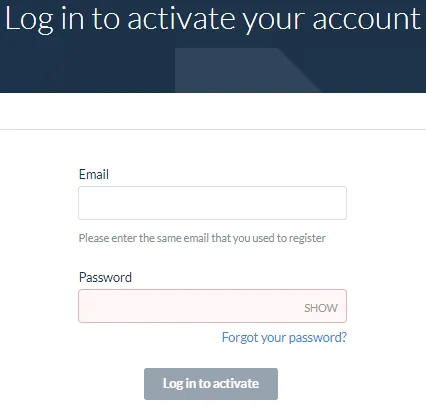
You will receive an activation link to your email ID. Click the link to activate and login to your API account.
-
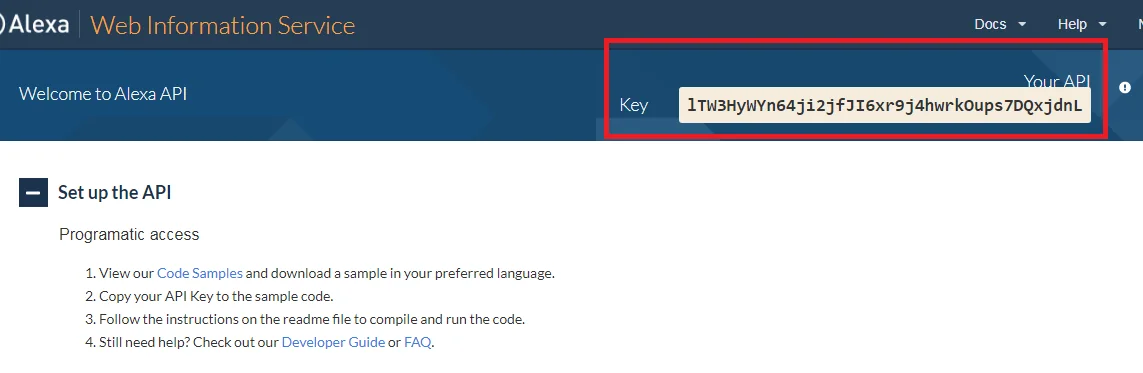
Once you log in, copy the API Key to your clipboard.
-
Go to Boost.space Integrator and open the Alexa Internet module’s Create a connection dialog.
-
In the Connection name field, enter a connection name.
-
In the API Key field, enter the API Key you have copied in step 7 and click Continue.
You have successfully established the connection.
Get
Get URL Info
Retrieves information about the given URL.
Connection
Establish a connection to your Alexa Internet account.
Website Address
Enter the website URL address whose details you want to retrieve.
Get Traffic History
Get the details of the URL’s traffic history.
Connection
Establish a connection to your Alexa Internet account.
Website Address
Enter the website URL address whose details you want to retrieve.
Start at
Enter the date in YYYYMMDD format for which you want to retrieve the traffic history details.
Get a Category Browse
Gets the details of category browse by path.
Connection
Establish a connection to your Alexa Internet account.
Path
Enter the path of the category browse whose details you want to retrieve. For example, Top/Arts.
List
List Category Listings
Retrieves a list of all category listings by path.
Connection
Establish a connection to your Alexa Internet account.
Path
Enter the path of the category browse whose details you want to retrieve. For example, Top/Arts.
Sort By
Select the option to sort the category listings:
-
Popularity
-
Title
-
Average Review
Limit
The maximum number of category listings Boost.space Integrator should return during one scenario execution cycle.
List Site Linkings
Retrieves a list of all websites linking to a given website.
Connection
Establish a connection to your Alexa Internet account.
Website Address
Enter the website URL address whose site links you want to list.
Limit
The maximum number of site links Boost.space Integrator should return during one scenario execution cycle.
Make an API Call
Performs an arbitrary authorized API call.
Connection
Establish a connection to your Alexa Internet account.
Method
Select the HTTP method you want to use:
GET
to retrieve information for an entry
POST
to create a new entry.
PUT
to update/replace an existing entry.
PATCH
to make a partial entry update.
DELETE
to delete an entry.
Headers
Enter the desired request headers. You don’t have to add authorization headers; we already did that for you.
Query String
Enter the request query string.
Body
Enter the body content for your API call.
For the list of available endpoints, refer to the Alexa Internet API Documentation.
Example – Get details from the Site
Following API call returns the information requested from the site:
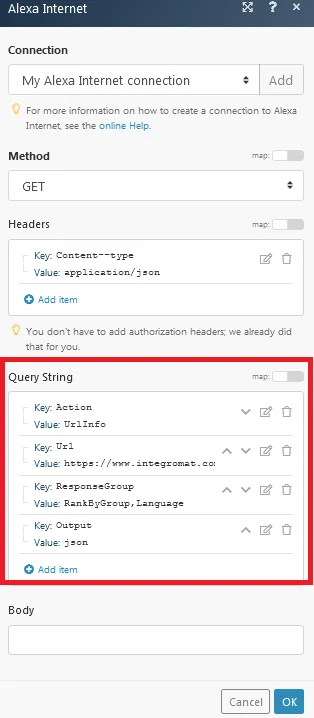
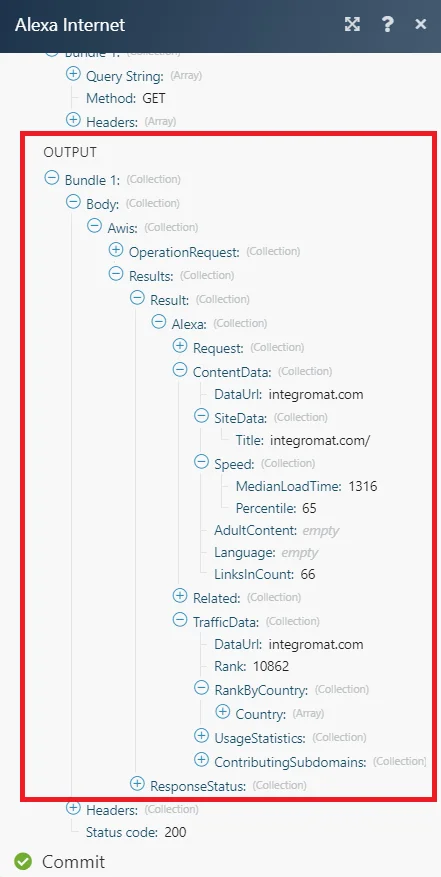
Matches of the search can be found in the module’s Output under Bundle > Body.
Legacy article, imported from the original Boost.space knowledge base (/knowledge-base/applications/internet-of-things/alexa-internet/).

