Arlo
The Arlo modules allow you to create, monitor, and update your contacts, organisations, events, orders, and registrations in your Arlo account.
Getting Started with Arlo
Prerequisites
- An Arlo account
In order to use Arlo with Boost.space Integrator, you must have an Arlo account. If you do not have one, you can create one at arlo.co/register.
The module dialog fields that are displayed in bold (in the Boost.space Integrator scenario, not in this documentation article) are mandatory.
Connecting Arlo to Boost.space Integrator
To connect your Arlo account to Boost.space Integrator, you need your subdomain and login credentials.
-
Log in to your Arlo account.
-
Go to your Boost.space Integrator scenario and choose the Arlo module you want to use.
-
Next to Connection, click Add.
-
Enter a name for your new connection.
-
Enter the subdomain from your Arlo account URL.
If your Arlo domain is https://your-company.arlo.co, then use “
your-company” as a subdomain.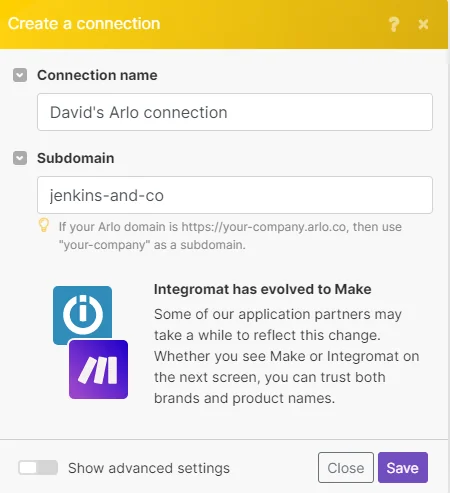6. Click Save.
If you are not already logged in to your Arlo account, do so now in the pop up window.
Configure all the relevant permissions on the OAuth screen, then click Yes, Allow.
You have successfully established the connection.
Contacts
Watch Contact Updated
Triggers when an existing contact is updated.
Webhook
Create a new webhook or select an existing one.
Connection
Establish a connection to your Arlo account.
See Setting Up Arlo Webhooks to add the webhook to your Arlo account.
Watch Contact Created
Triggers when a new contact is created.
Webhook
Create a new webhook or select an existing one.
Connection
Establish a connection to your Arlo account.
See Setting Up Arlo Webhooks to add the webhook to your Arlo account.
Search Contacts
Searches for contacts or lists them all.
Connection
Establish a connection to your Arlo account.
Filter
Select the type of filter you want to use.
Expand
Select the contact details you want Boost.space Integrator to retrieve.
Limit
Enter the maximum number of contacts Boost.space Integrator returns during one scenario execution cycle.
Get a Contact
Retrieves an existing contact.
Connection
Establish a connection to your Arlo account.
Contact ID
Select the the ID of the contact you want to retrieve.
Create a Contact
Creates a new contact.
Connection
Establish a connection to your Arlo account.
First Name
Enter the contact’s first name.
Last Name
Enter the contact’s last name.
Enter the contact’s email address
Code Primary
Enter the internal (primary) code used to reference this contact.
This property is useful for storing and managing identifier values from external systems.
Phone Work
Enter the contact’s work phone number.
Phone Home
Enter the contact’s home phone number.
Phone Mobile
Enter the contact’s mobile phone number.
Employment
Organisation ID
Select the ID or the organisation the contact belongs to.
Position
Enter the contact’s position within the organisation.
Department
Enter the department the contact is associated with in the organisation.
Branch
Enter the branch of the organisation that employs this contact.
Business Region
Enter the business region this contact is associated with.
Business Location
Enter the location of the business this contact is associated with.
Business Area
Enter the area of the business this contact is associated with.
Employment Status
Enter the contact’s type of employment/ For example, Contractor or Consultant.
Postal Address
Street Line 1
Enter the first street line.
Street Line 2
Enter the second street line.
Suburb or Region
Enter the suburb or region.
City
Enter the city.
State or Province
Enter the state or province
Postal Code
Enter the postal code.
Country
Enter the country.
Marketing
Newsletter Subscriber
Select whether the contact is a newsletter subscriber.
Suppress Bulk Post
Select whether the contact has opted out of bulk post marketing.
Suppress Bulk Email
Select whether the contact has opted out of bulk email marketing.
Time Zone ID
Enter or select the time zone the contact is in.
Region ID
Enter or select the region the contact is based in.
Roles
Select the role of the contact.
Custom Fields
Age Group
Enter the age group of the contact.
Birth Date
Enter the contact’s birth date. See the list of supported date examples.
Gender
Enter the contact’s gender.
Information
Enter any additional information about the contact.
Preferred Name
Enter the contact’s preferred name.
Resident
Select whether the contact is a resident of New Zealand.
Special Diet
Enter any special dietary requirements for the contact.
Website
Enter the contact’s website.
Update a Contact
Updates an existing contact.
Connection
Establish a connection to your Arlo account.
First Name
Enter the contact’s first name.
Last Name
Enter the contact’s last name.
Enter the contact’s email address
Code Primary
Enter the internal (primary) code used to reference this contact.
This property is useful for storing and managing identifier values from external systems.
Phone Work
Enter the contact’s work phone number.
Phone Home
Enter the contact’s home phone number.
Phone Mobile
Enter the contact’s mobile phone number.
Status
Select the status of the contact.
-
Active
-
Inactive
-
Unknown
Employment
Organisation ID
Select the ID or the organisation the contact belongs to.
Position
Enter the contact’s position within the organisation.
Department
Enter the department the contact is associated with in the organisation.
Branch
Enter the branch of the organisation that employs this contact.
Business Region
Enter the business region this contact is associated with.
Business Location
Enter the location of the business this contact is associated with.
Business Area
Enter the area of the business this contact is associated with.
Employment Status
Enter the contact’s type of employment/ For example, Contractor or Consultant.
Postal Address
Street Line 1
Enter the first street line.
Street Line 2
Enter the second street line.
Suburb or Region
Enter the suburb or region.
City
Enter the city.
State or Province
Enter the state or province
Postal Code
Enter the postal code.
Country
Enter the country.
Marketing
Newsletter Subscriber
Select whether the contact is a newsletter subscriber.
Suppress Bulk Post
Select whether the contact has opted out of bulk post marketing.
Suppress Bulk Email
Select whether the contact has opted out of bulk email marketing.
Time Zone ID
Enter or select the time zone the contact is in.
Region ID
Enter or select the region the contact is based in.
Roles
Select the role of the contact.
Custom Fields
Age Group
Enter the age group of the contact.
Birth Date
Enter the contact’s birth date. See the list of supported date examples.
Gender
Enter the contact’s gender.
Information
Enter any additional information about the contact.
Preferred Name
Enter the contact’s preferred name.
Resident
Select whether the contact is a resident of New Zealand.
Special Diet
Enter any special dietary requirements for the contact.
Website
Enter the contact’s website.
Organisations
Search Organisations
Searches for organisations or lists them all.
Connection
Establish a connection to your Arlo account.
Filter
Select the type of filter you want to use.
Expand
Select the organisation details you want Boost.space Integrator to retrieve.
Limit
Enter the maximum number of organisations Boost.space Integrator returns during one scenario execution cycle.
Get an Organisation
Retrieves an existing organisation.
Connection
Establish a connection to your Arlo account.
Organisation ID
Select the ID of the organisation you want to retrieve.
Create an Organisation
Create a new organisation.
Connection
Establish a connection to your Arlo account.
Name
Enter the name of the organisation.
Legal Name
Enter the legal name of the organisation.
Enter the email of the organisation.
Code Primary
Enter the internal (primary) code used to reference the organisation.
This property is useful for storing and managing identifier values from external systems.
Code Secondary
Enter the internal (secondary) code used to reference the organisation.
Phone Primary
Enter the main (primary) contact phone number for the organisation.
Phone Secondary
Enter an alternate (secondary) contact phone number for the organisation.
Website URL
Enter the website URL for the organisation.
Key Contact ID
Select the ID number for the key contact within the organisation.
Child Organisation ID
Select the ID number of the child organisation.
Parent Organisation ID
Select the ID number of the parent organisation.
Account Manager ID
Select the ID number of the individual managing the account for this organisation.
Physical Address
Street Line 1
Enter the first street line.
Street Line 2
Enter the second street line.
Suburb or Region
Enter the suburb or region.
City
Enter the city.
State or Province
Enter the state or province
Postal Code
Enter the postal code.
Country
Enter the country.
Postal Address
Street Line 1
Enter the first street line.
Street Line 2
Enter the second street line.
Suburb or Region
Enter the suburb or region.
City
Enter the city.
State or Province
Enter the state or province
Postal Code
Enter the postal code.
Country
Enter the country.
Custom Fields
Annual Turnover
Enter the annual turnover of the organisation.
Company Start Date
Enter the start date of the organisation. See the list of supported date examples.
Fax
Enter the organisation’s fax number.
Industry
Enter the industry.
Industry Category
Enter the industry category.
Industry Code
Enter the industry code.
Information
Enter any additional information about the organisation.
Last Campaign Date
Enter the date of the organisation’s last campaign. See the list of supported date examples.
Other Phone Number
Enter any other phone numbers associated with the organisation.
Referred By
Enter the referrer.
Update an Organisation
Update an existing organisation.
Connection
Establish a connection to your Arlo account.
Organisation ID
Select the ID of the organisation you want to update.
Name
Enter the name of the organisation.
Legal Name
Enter the legal name of the organisation.
Enter the email of the organisation.
Code Primary
Enter the internal (primary) code used to reference the organisation.
This property is useful for storing and managing identifier values from external systems.
Code Secondary
Enter the internal (secondary) code used to reference the organisation.
Phone Primary
Enter the main (primary) contact phone number for the organisation.
Phone Secondary
Enter an alternate (secondary) contact phone number for the organisation.
Status
Select the status of the organisation.
-
Active
-
Inactive
Website URL
Enter the website URL for the organisation.
Key Contact ID
Select the ID number for the key contact within the organisation.
Child Organisation ID
Select the ID number of the child organisation.
Parent Organisation ID
Select the ID number of the parent organisation.
Physical Address
Street Line 1
Enter the first street line.
Street Line 2
Enter the second street line.
Suburb or Region
Enter the suburb or region.
City
Enter the city.
State or Province
Enter the state or province
Postal Code
Enter the postal code.
Country
Enter the country.
Postal Address
Street Line 1
Enter the first street line.
Street Line 2
Enter the second street line.
Suburb or Region
Enter the suburb or region.
City
Enter the city.
State or Province
Enter the state or province
Postal Code
Enter the postal code.
Country
Enter the country.
Custom Fields
Annual Turnover
Enter the annual turnover of the organisation.
Company Start Date
Enter the start date of the organisation. See the list of supported date examples.
Fax
Enter the organisation’s fax number.
Industry
Enter the industry.
Industry Category
Enter the industry category.
Industry Code
Enter the industry code.
Information
Enter any additional information about the organisation.
Last Campaign Date
Enter the date of the organisation’s last campaign. See the list of supported date examples.
Other Phone Number
Enter any other phone numbers associated with the organisation.
Referred By
Enter the referrer.
Events
Watch Event Created
Triggers when a new event is created.
Webhook
Create a new webhook or select an existing one.
Connection
Establish a connection to your Arlo account.
See Setting Up Arlo Webhooks to add the webhook to your Arlo account.
Watch Event Updated
Triggers when an existing event is updated.
Webhook
Create a new webhook or select an existing one.
Connection
Establish a connection to your Arlo account.
See Setting Up Arlo Webhooks to add the webhook to your Arlo account.
Search Events
Searches for events or lists them all.
Connection
Establish a connection to your Arlo account.
Filter
Select the type of filter you want to use.
Expand
Select the event details you want Boost.space Integrator to retrieve.
Limit
Enter the maximum number of events Boost.space Integrator returns during one scenario execution cycle.
Orders
Watch Order Created
Triggers when a new order is created.
Webhook
Create a new webhook or select an existing one.
Connection
Establish a connection to your Arlo account.
See Setting Up Arlo Webhooks to add the webhook to your Arlo account.
Watch Order Updated
Triggers when an existing order is updated.
Webhook
Create a new webhook or select an existing one.
Connection
Establish a connection to your Arlo account.
See Setting Up Arlo Webhooks to add the webhook to your Arlo account.
Search Orders
Searches for orders or lists them all.
Connection
Establish a connection to your Arlo account.
Filter
Select the type of filter you want to use.
Expand
Select the order details you want Boost.space Integrator to retrieve.
Limit
Enter the maximum number of orders Boost.space Integrator returns during one scenario execution cycle.
Online Activities (E-Learning)
Watch Online Activity Created
Triggers when a new online activity (e-learning) is created.
Webhook
Create a new webhook or select an existing one.
Connection
Establish a connection to your Arlo account.
See Setting Up Arlo Webhooks to add the webhook to your Arlo account.
Watch Online Activity Updated
Triggers when an existing online activity (e-learning) is updated.
Webhook
Create a new webhook or select an existing one.
Connection
Establish a connection to your Arlo account.
See Setting Up Arlo Webhooks to add the webhook to your Arlo account.
Registrations
Watch Registration Created
Triggers when a new registration is created.
Webhook
Create a new webhook or select an existing one.
Connection
Establish a connection to your Arlo account.
See Setting Up Arlo Webhooks to add the webhook to your Arlo account.
Watch Registration Updated
Triggers when an existing registration is updated.
Webhook
Create a new webhook or select an existing one.
Connection
Establish a connection to your Arlo account.
See Setting Up Arlo Webhooks to add the webhook to your Arlo account.
Watch Elearning Registration Created
Triggers when a new elearning registration is created.
Webhook
Create a new webhook or select an existing one.
Connection
Establish a connection to your Arlo account.
Limit
Enter the maximum number of results Boost.space Integrator returns during one scenario execution cycle.
See Setting Up Arlo Webhooks to add the webhook to your Arlo account.
Watch Elearning Registration Updated
Triggers when an existing elearning registration is updated.
Webhook
Create a new webhook or select an existing one.
Connection
Establish a connection to your Arlo account.
Limit
Enter the maximum number of results Boost.space Integrator returns during one scenario execution cycle.
See Setting Up Arlo Webhooks to add the webhook to your Arlo account.
Watch Basic Registration Created
Triggers when a new basic registration is created.
Webhook
Create a new webhook or select an existing one.
Connection
Establish a connection to your Arlo account.
Limit
Enter the maximum number of results Boost.space Integrator returns during one scenario execution cycle.
See Setting Up Arlo Webhooks to add the webhook to your Arlo account.
Watch Basic Registration Updated
Triggers when an existing basic registration is updated.
Webhook
Create a new webhook or select an existing one.
Connection
Establish a connection to your Arlo account.
Limit
Enter the maximum number of results Boost.space Integrator returns during one scenario execution cycle.
See Setting Up Arlo Webhooks to add the webhook to your Arlo account.
Watch Multi-Session Registration Created
Triggers when a new multi-session registration is created.
Webhook
Create a new webhook or select an existing one.
Connection
Establish a connection to your Arlo account.
Limit
Enter the maximum number of results Boost.space Integrator returns during one scenario execution cycle.
See Setting Up Arlo Webhooks to add the webhook to your Arlo account.
Watch Multi-Session Registration Updated
Triggers when an existing multi-session registration is updated.
Webhook
Create a new webhook or select an existing one.
Connection
Establish a connection to your Arlo account.
Limit
Enter the maximum number of results Boost.space Integrator returns during one scenario execution cycle.
See Setting Up Arlo Webhooks to add the webhook to your Arlo account.
Search Basic Registrations
Searches for basic registrations or lists them all.
Connection
Establish a connection to your Arlo account.
Filter
Select the type of filter you want to use.
Expand
Select the basic registration details you want Boost.space Integrator to retrieve.
Limit
Enter the maximum number of basic registrations Boost.space Integrator returns during one scenario execution cycle.
Search Multi-Session Registrations
Searches for multi-session registrations or lists them all.
Connection
Establish a connection to your Arlo account.
Filter
Select the type of filter you want to use.
Expand
Select the multi-session registration details you want Boost.space Integrator to retrieve.
Limit
Enter the maximum number of multi-session registrations Boost.space Integrator returns during one scenario execution cycle.
Search Elearning Registrations
Searches for elearning registrations or lists them all.
Connection
Establish a connection to your Arlo account.
Filter
Select the type of filter you want to use.
Expand
Select the elearning registration details you want Boost.space Integrator to retrieve.
Limit
Enter the maximum number of elearning registrations Boost.space Integrator returns during one scenario execution cycle.
Get a Registration
Retrieves an existing registration.
Connection
Establish a connection to your Arlo account.
Registration ID
Select the the ID of the registration you want to retrieve.
Update a Registration
Updates an existing registration.
Connection
Establish a connection to your Arlo account.
Registration ID
Select the the ID of the registration you want to update.
Attendance
Select the attendance type for a contact that registered to attend an event.
-
Attended
-
Did Not Attend
-
Unknown
Outcome
Select the outcome of the registration.
-
Pass
-
Fail
Status
Select the current state of this registration.
-
Pending Approval
-
Approved
-
Cancelled
-
Completed
Grade
Enter the grade of the registration.
This may be any readable text representing the level of achievement, including letters, numbers, or both.
Last Activity Date Time
Enter the time when there was some activity in an external system associated with this registration. Most relevant for registrations associated with e-learning. See the list of supported date examples.
Progress Status
Enter the progress status of the registration. Most relevant for registrations associated with e-learning.
Progress Percent
Enter the progress percentage of the registration as a decimal value. Most relevant for registrations associated with e-learning.
Setting this value to 100 will not change the status of the registration to Completed.
Certificate Sent Date Time
Enter the date when a certificate was last sent to the registrant. See the list of supported date examples.
Contact ID
Select the ID of the contact registering for the event.
Comments
Enter any additional comments.
Custom Fields
Enter any custom text.
Other
Make an API Call
Performs an arbitrary authorized API call.
Connection
Establish a connection to your Arlo account.
URL
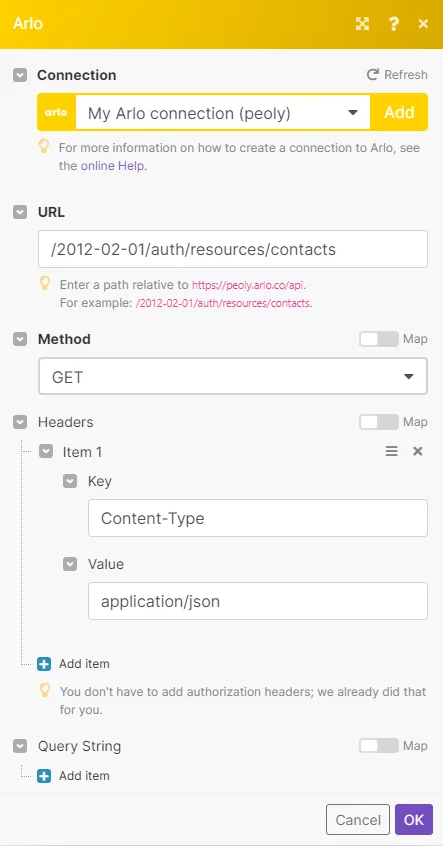
Enter a path relative to https://your-company.arlo.co/api. For example: /2012-02-01/auth/resources/contacts
For the list of available endpoints, refer to the Arlo API Documentation.
Method
Select the HTTP method you want to use:
GET
to retrieve information for an entry.
POST
to create a new entry.
PUT
to update/replace an existing entry.
PATCH
to make a partial entry update.
DELETE
to delete an entry.
Headers
Enter the desired request headers. You don’t have to add authorization headers; we already did that for you.
Query String
Enter the request query string.
Body
Enter the body content for your API call.
Example of Use – List Contacts
The following API call returns all the contacts from your Arlo account:
URL: /2012-02-01/auth/resources/contacts
Method: GET
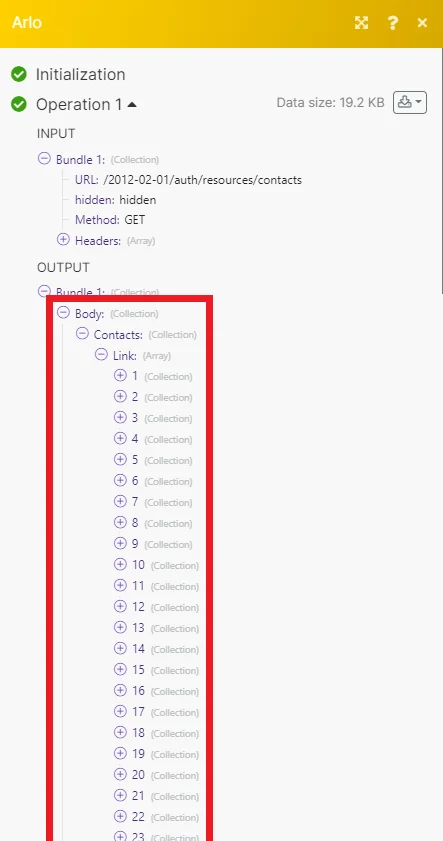
Matches of the search can be found in the module’s Output under Bundle > Body > Contacts > Link. Our example returned 102 contacts.
Setting Up Arlo Webhooks
-
In your Boost.space Integrator scenario, open any Watch Arlo webhook module.
-
Click Add.
-
Give your new webhook a name, then select the connection you want to use.
-
Click Save.
-
Copy the webhook URL address to your clipboard.
-
Log in to your Arlo account.
-
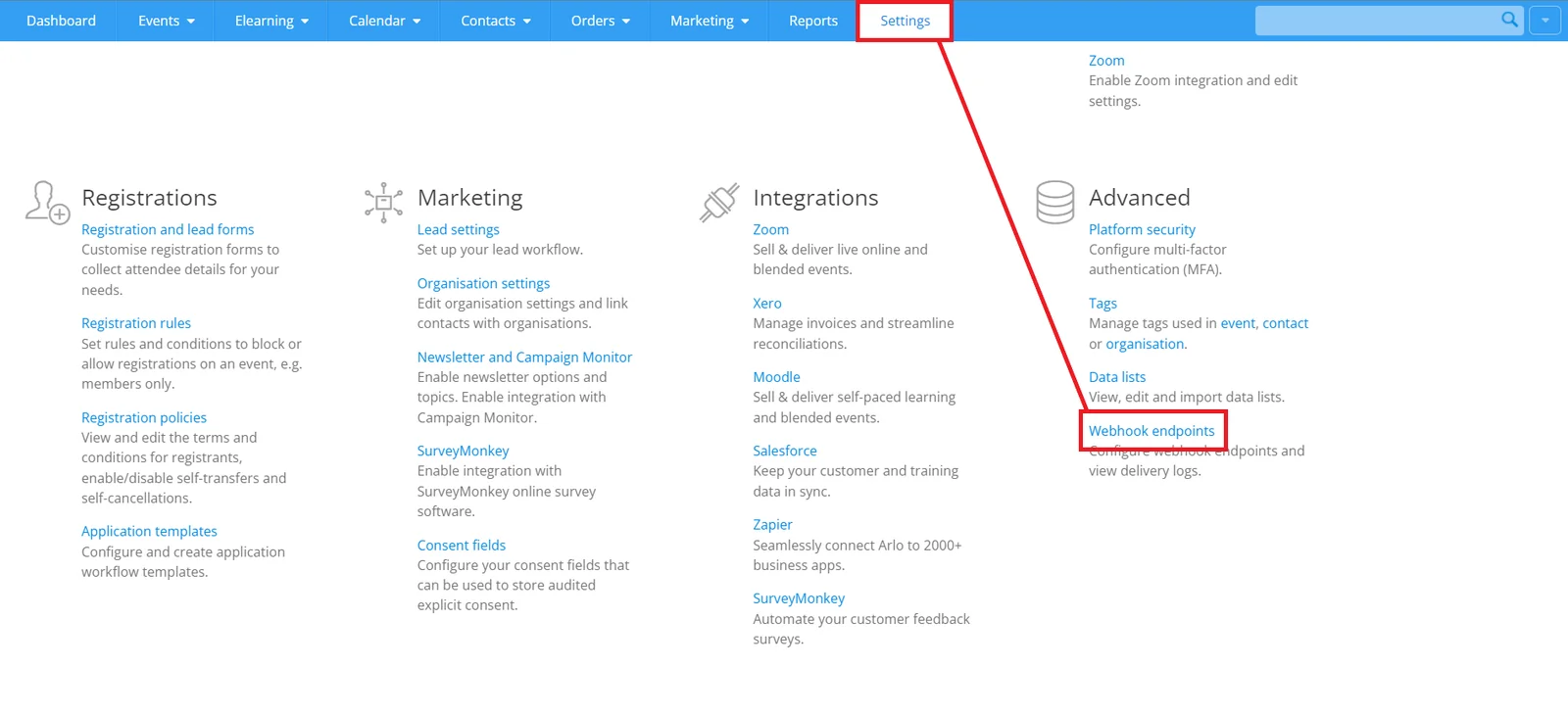
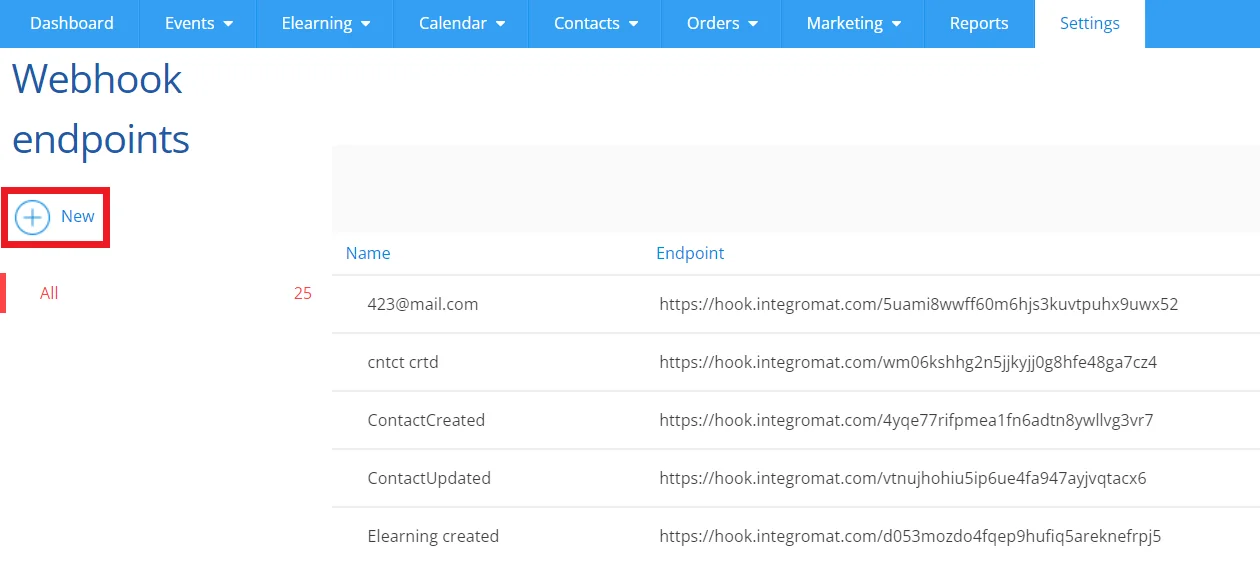
From the top menu, click Settings. Under Advanced, click Webhook endpoints.
-
Click New.
-
Enter the details for your new webhook.
Name
Enter a name for your webhook.
Status
Select the desitred status of your webhook.
Endpoint
Enter the webhook endpoint URL that you copied from the scenario module in Boost.space Integrator.
Format
We reccommend leaving the format as JSON.
Technical contact (email)
Enter a contact email address.
Select the event associated with the webhook.
-
Click Save.
You have successfully set up the webhook.
Legacy article, imported from the original Boost.space knowledge base (/knowledge-base/applications/internet-of-things/arlo/).

