Boost Note
With Boost Note modules in Boost.space Integrator, you can create and modify both folders and documents in your Boost Note account.
To get started with Boost Note, create an account at boostnote.io.
Connect Boost Note to Boost.space Integrator
-
Log in to your Boost Note account.
-
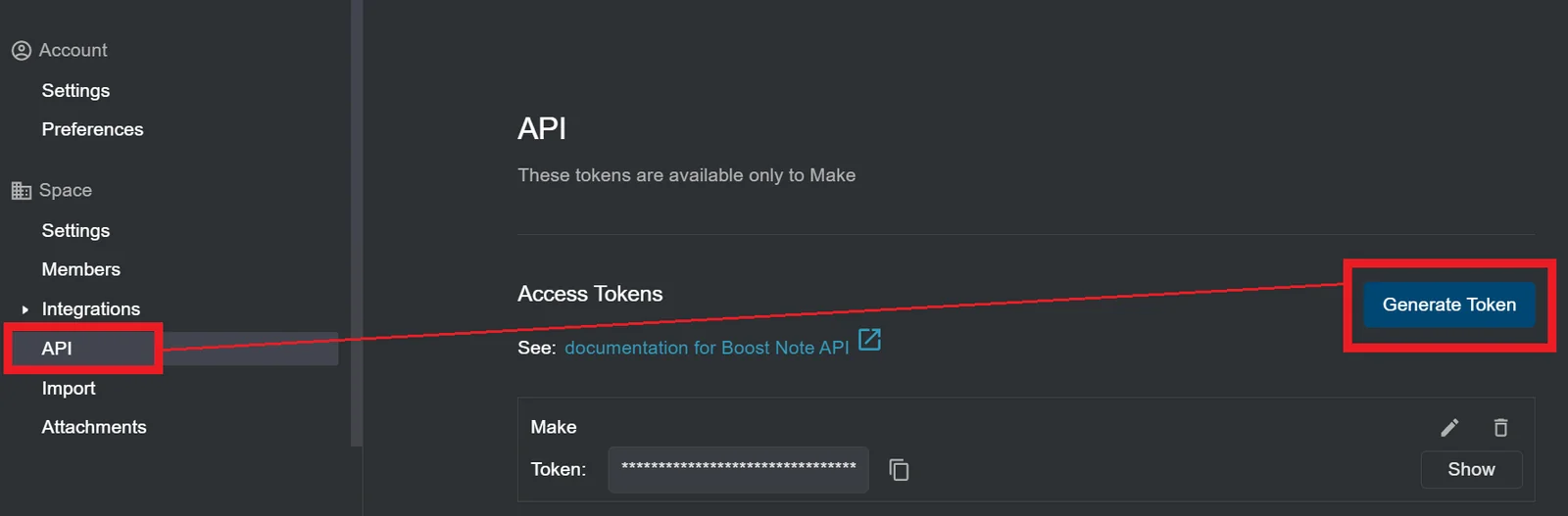
In the left menu, click Settings & Members > API > Generate Token.
-
Enter a name for the API token, click Create, and copy the token to your clipboard.
-
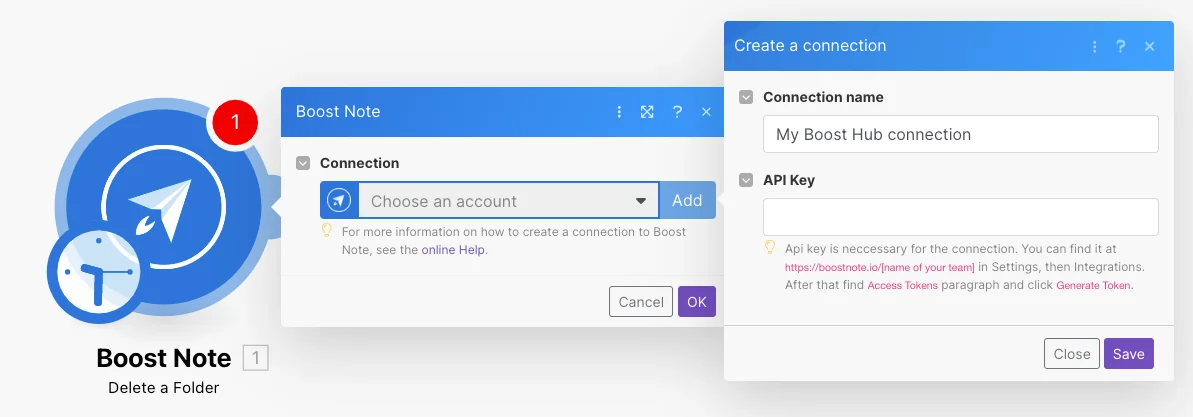
Log in to your Boost.space Integrator account, add any Boost Note module into a scenario, and click the Add button next to the Connection field.
-
Optional: In the Connection name field, enter a name for the connection.
-
In the API Token field, enter the token in Step 4 and click Save.
You have successfully connected the Boost Note app and can now create scenarios.
Folders
You can create, list, retrieve, and delete folders with the following modules.
List Folders
Gets a list of folders.
Connection
Establish a connection to your Boost Note account.
Workspace ID
Enter the Workspace ID whose folders you want to list.
Parent Folder ID
Select or map the Parent Folder ID whose folders you want to list.
Order By
Select or map the option to order the search results. For example, created at.
Limit
Set the maximum number of folders Boost.space Integrator will return during one execution cycle.
Get a Folder
Gets information about the folder.
Connection
Establish a connection to your Boost Note account.
Folder ID
Select or map the Folder ID whose details you want to retrieve.
Create a Folder
Creates a folder.
Connection
Establish a connection to your Boost Note account.
Name
Enter a name for the folder.
Emoji
Enter the emoji applicable to the folder.
Workspace ID
Enter the Workspace ID in which you want to create the folder. You can enter either Workspace ID or Parent Folder ID.
Parent Folder ID
Enter the Parent Folder ID in which you want to create the folder. If you are providing a Workspace ID, the parent folder must be in that workspace.
Delete a Folder
Deletes a folder.
Connection
Establish a connection to your Boost Note account.
Folder ID
Select or map the Folder ID you want to delete.
Force
Select Yes if you want to delete the folder and its contents. (This is not recoverable).
Documents
You can create, update, list, retrieve, and delete documents with the following modules.
List Documents
Returns a list of available documents.
Connection
Establish a connection to your Boost Note account.
Title
Enter the document name to list the documents that match the specified name.
Archived
Select whether you want to list only the archived documents.
Workspace ID
Enter the Workspace ID whose documents you want to list.
Parent Folder
Select or map the parent folder whose documents you want to list.
Order By
Select or map the option to sort the results. For example, created at.
Limit
Set the maximum number of documents Boost.space Integrator will return during one execution cycle.
Get a Document
Gets a document.
Connection
Establish a connection to your Boost Note account.
Document ID
Select or map the Document ID whose details you want to retrieve.
Create a Document
Create a document.
Connection
Establish a connection to your Boost Note account.
Title
Enter a name for the document.
Content
Enter the initial content of the document to be created.
Workspace ID
Enter the workspace to create the document. If left blank, the document will be created in the team’s default workspace.
Parent Folder ID
Enter the folder to create the document. If you have provided the Workspace ID value, then the folder must be in that workspace.
Tags
Add the tags applicable to the document.
Update a Document
Updates a document.
Connection
Establish a connection to your Boost Note account.
Document ID
Select or map the Document ID whose details you want to update.
Emoji
Enter a new emoji for the document.
Title
Enter a new name for the document.
Content
Enter the content for the document.
Workspace ID
Enter the workspace to which you want to move the document.
Parent Folder
Enter the folder to which you want to move the document. If you have provided the Workspace ID, then the folder must be in that workspace.
Delete a Document
Deletes a document.
Connection
Establish a connection to your Boost Note account.
Document ID
Select or map the Document ID you want to delete.
Other
You can call APIs with the following module.
Make an API Call
Performs an authorized arbitrary call.
Connection
Establish a connection to your Boost Note account.
URL
Enter a path relative to https://www.boostnote.io/api. For example, /docs.
Method
Select the HTTP method you want to use:
GET
to retrieve information for an entry.
POST
to create a new entry.
PUT
to update/replace an existing entry.
PATCH
to make a partial entry update.
DELETE
to delete an entry.
Headers
Enter the desired request headers. You don’t have to add authorization headers; we already did that for you.
Query String
Enter the request query string.
Body
Enter the body content for your API call.
Legacy article, imported from the original Boost.space knowledge base (/knowledge-base/applications/it-and-development/boost-note/).

