Datadog
The Datadog modules enable you to post time-series data that can be graphed on Datadog’s dashboards or make a custom API call.
Getting Started with Datadog
Prerequisites
- A Datadog account
In order to use Datadog with Boost.space Integrator, it is necessary to have a Datadog account. If you do not have one, you can create a Datadog account at www.datadoghq.com.
The module dialog fields that are displayed in bold (in the Boost.space Integrator scenario, not in this documentation article) are mandatory!
Connect Datadog to Boost.space Integrator
To connect your Datadog account to Boost.space Integrator you need to retrieve an API Key from your Datadog account.
-
Log in to your Datadog account.
-
In the menu on the left, open Integrations > APIs.
-
Click the API Keys option and then copy the provided API Key (point the mouse over the rectangle in the Key column to unhide your API Key).
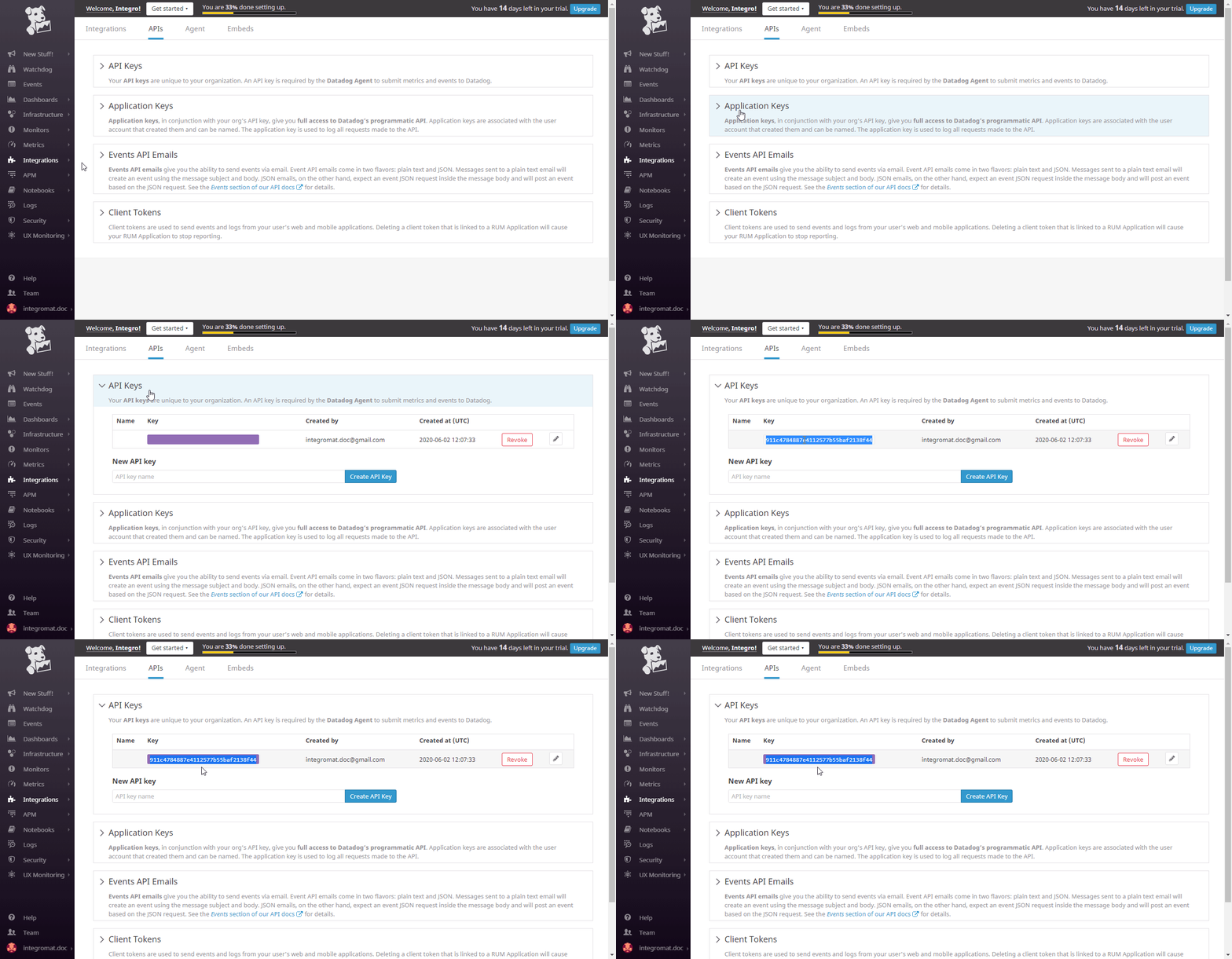
-
Repeat the same for the Application Keys option to retrieve the Application Key.
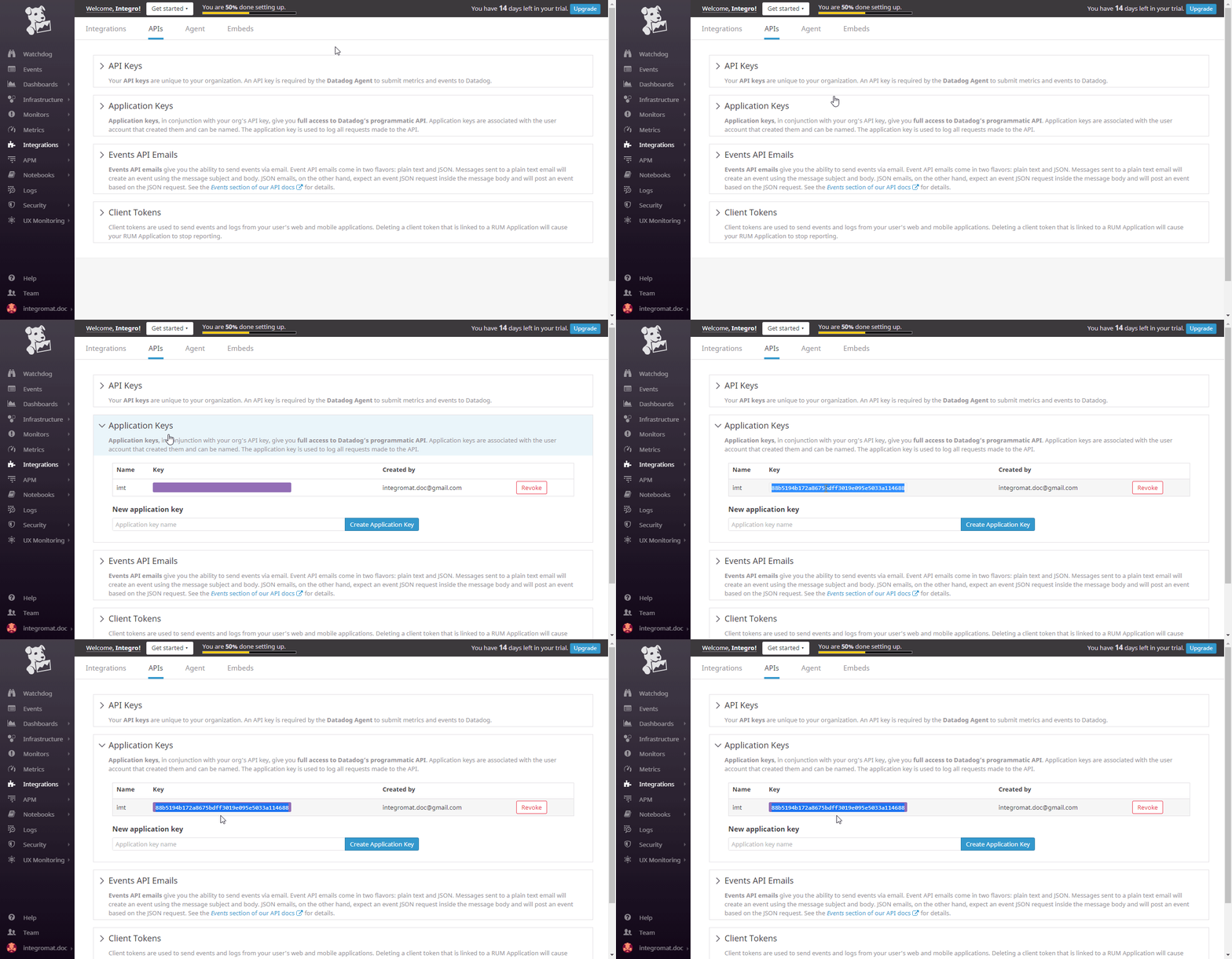
-
Go to Boost.space Integrator and open the Datadog module’s Create a connection dialog.
Fill the module’s fields as follows:
Connection Type
Select the Datadog Application option to get full access to Datadog API.
Connection Name
Enter the desired name for the connection.
Domain
Select your domain (US site or EU site).
API Key
Enter the API Key you have copied in step 3 (above).
Application Key
Enter the Application Key you have copied in step 4 (above).
-
To the respective field and click the Continue button to establish the connection.
The connection has been established. You can proceed with setting up the module.
Actions
Post Timeseries Points
The module allows you to post time-series data that can be graphed on Datadog’s dashboards. The limit for compressed payloads is 3.2 megabytes (3200000), and 62 megabytes (62914560) for decompressed payloads.
Connection
Establish a connection to your Datadog account.
Series
Add time series you want to submit to Datadog.
Metric
Enter the name of the timeseries.
Type
Select the type of the metric.
Interval
If the type of the metric is rate or count, define the corresponding interval.
Points
Add points relating to a metric.
A JSON array of points. Each point is of the form: [[POSIX_timestamp, numeric_value], ...] Note: The timestamp should be in seconds, current. The numeric value format should be a float value. Current is defined as not more than 10 minutes in the future or more than 1 hour in the past.
- Must contain at least 1 item(s).
Host
Enter the name of the host that produced the metric.
Make an API Call
Allows you to perform a custom API call.
Connection
Establish a connection to your Datadog account.
URL
Enter a path relative to https://api.datadoghq.com/api/. For example: /v1/org.
For the list of available endpoints, refer to the Datadog API Documentation.
Method
Select the HTTP method you want to use:
GET
to retrieve information for an entry**.**
POST
to create a new entry.
PUT
to update/replace an existing entry.
PATCH
to make a partial entry update.
DELETE
to delete an entry.
Headers
Enter the desired request headers. You don’t have to add authorization headers; we already did that for you.
Query String
Enter the request query string.
Body
Enter the body content for your API call.
Example of Use – List Dashboards
The following API call returns the all dashboards in your Datadog account:
URL:
/v1/dashboard
Method:
GET
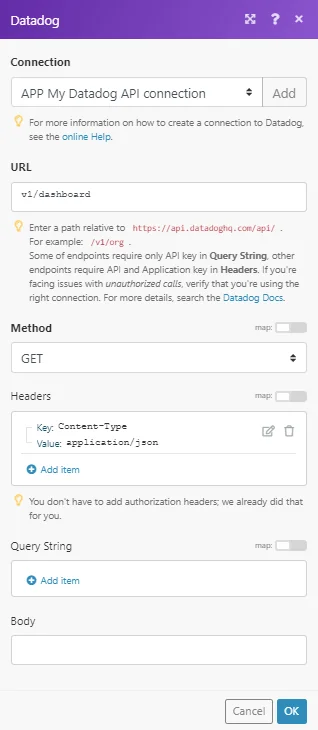
The result can be found in the module’s Output under Bundle > Body > dashboards.
In our example, 3 dashboards were returned:
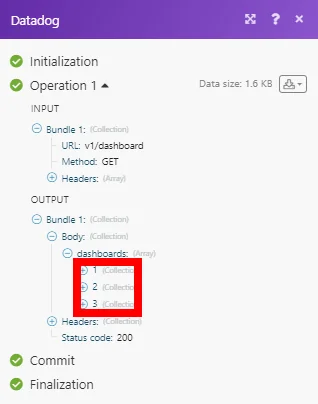
Legacy article, imported from the original Boost.space knowledge base (/knowledge-base/applications/it-and-development/datadog/).

