RudderStack
The RudderStack modules allow you to identify, track, and group users in your RudderStack account.
Getting Started with RudderStack
Prerequisites
- A RudderStack account
In order to use RudderStack with Boost.space Integrator, you must have a RudderStack account. If you do not have one, you can create one at rudderstack.com.
The module dialog fields that are displayed in bold (in the Boost.space Integrator scenario, not in this documentation article) are mandatory!
Connect RudderStack to Boost.space Integrator
-
Log in to your RudderStack account.
-
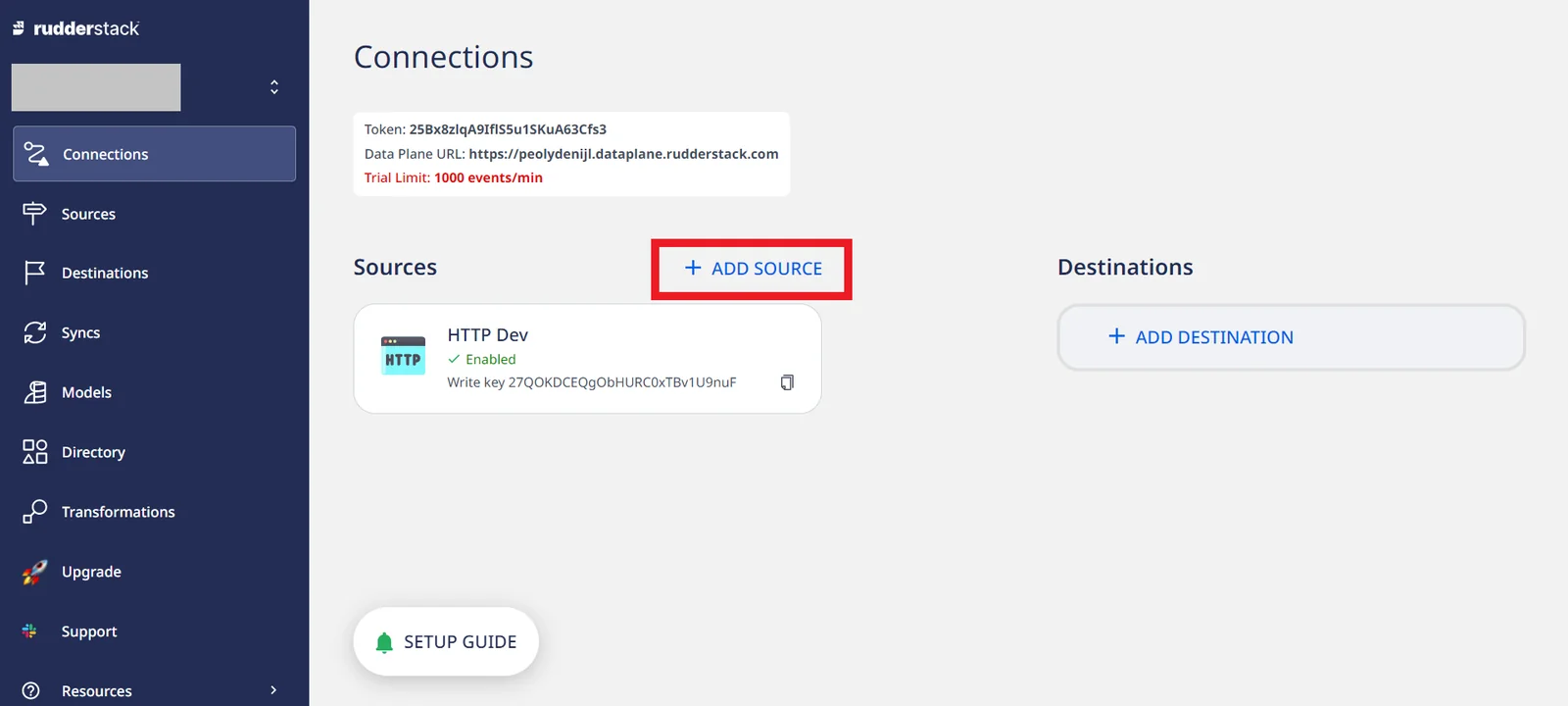
Navigate to Connections, then click Add Source.
-
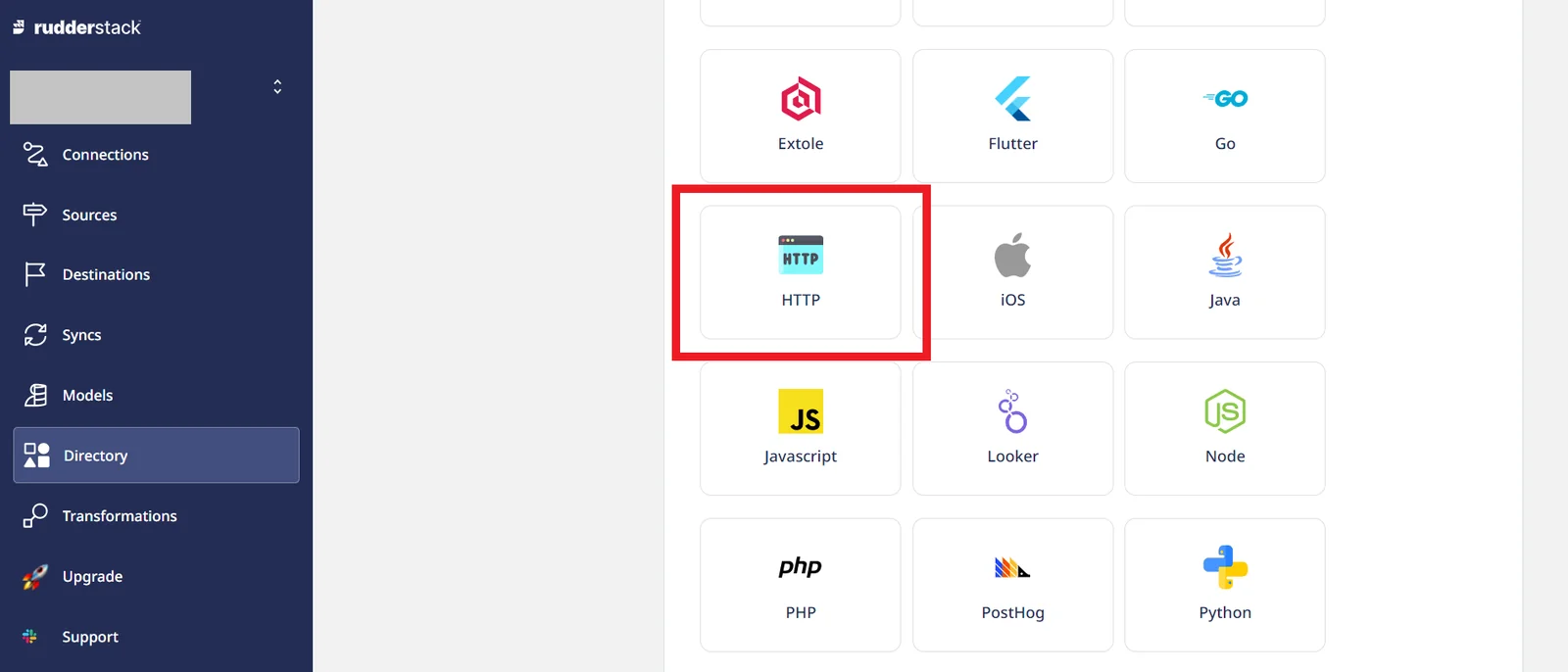
Select HTTP from the list of sources.
-
Name your new source.
-
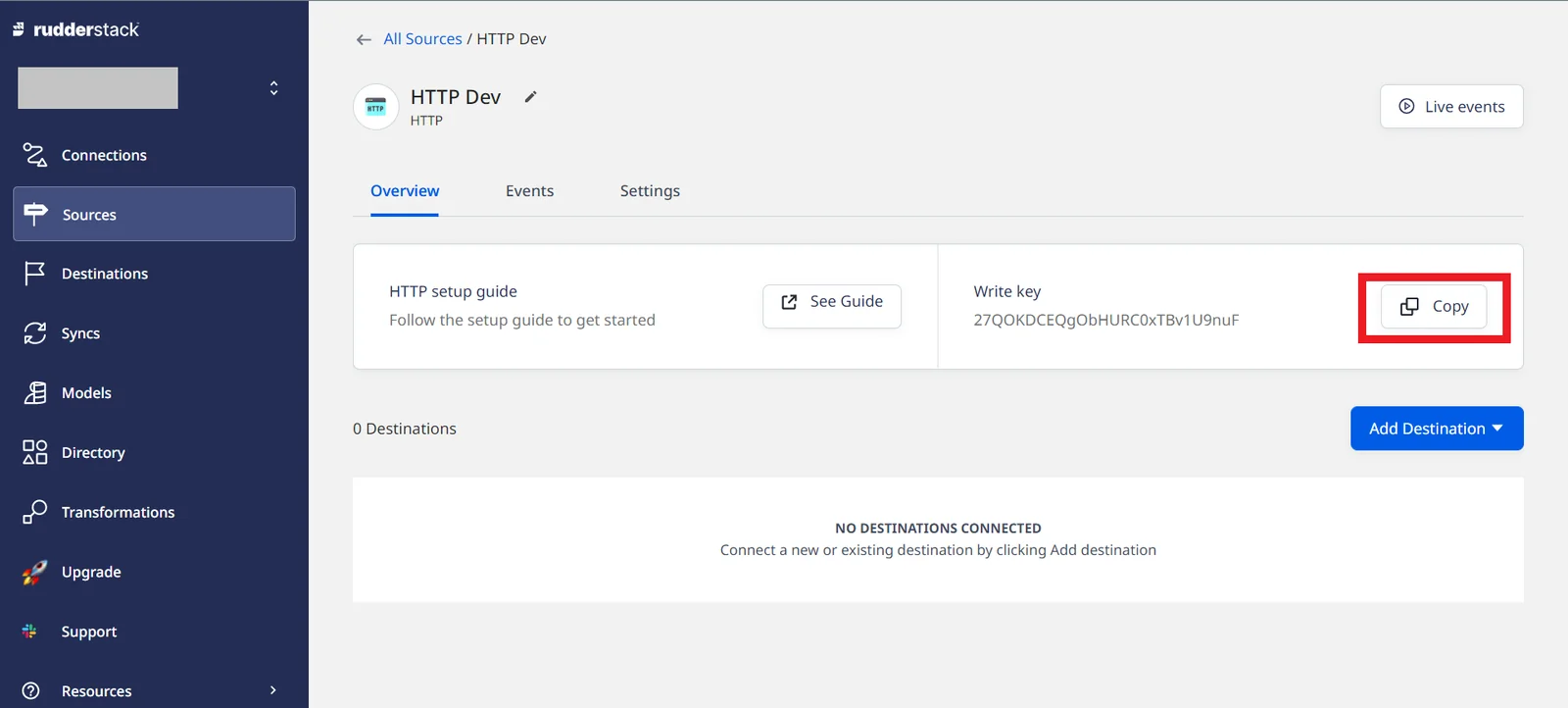
Copy the source Write key to your clipboard.
-
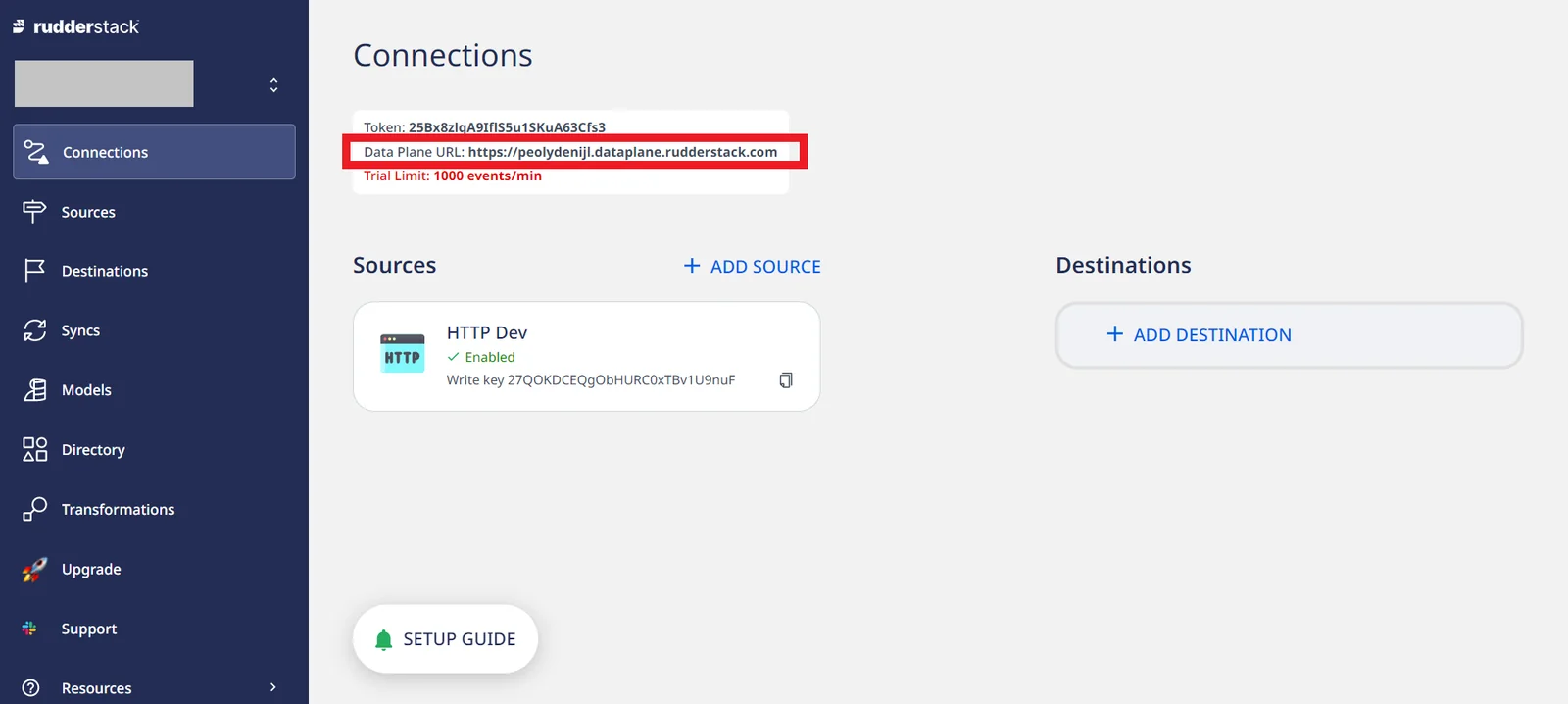
Go back to Connections, and copy the Data Plane URL to your clipboard.
-
Go to Boost.space Integrator and choose the RudderStack module you want to use.
-
Next to Connection, click Add.
-
Name your connection, then enter the Data Plane URL and Source Write Key in their respective fields.
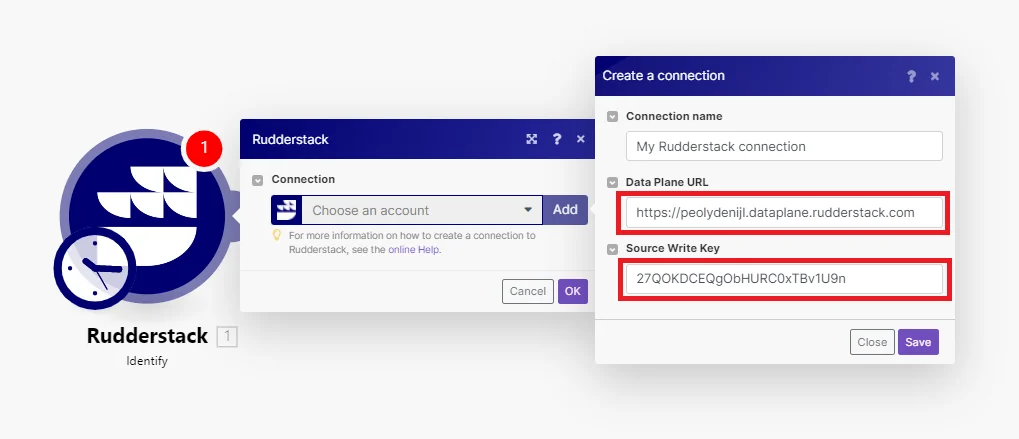
You have successfully established the connection.
Actions
Identify
Identifies a user.
Connection
Establish a connection to your RudderStack account.
User ID
Enter the id for a particular user in your database.
Required, if Anonymous ID is not present.
Anonymous ID
Enter the user id for cases where there is no unique identifier for the user.
Timestamp
Enter the timestamp of the message’s arrival. See the list of supported date and time formats.
Traits
Add any additional traits of the user.
Address
Enter the user’s street address.
-
City
-
Country
-
Postal Code
-
State
-
Street
Age
Enter the user’s age.
Avatar
Enter the URL of the user’s avatar image.
Birthday
Enter the user’s date of birth. See list of supported date formats.
Company
Enter the user’s company details.
-
Name
-
Company ID
-
Employee Count
-
Industry
-
Plan
Created At
Enter the date of user’s account creation. See list of supported date formats.
Description
Enter the user’s description.
Enter the user’s email address.
First Name
Enter the user’s first name.
Gender
Enter the user’s gender.
ID
Enter the user’s unique id.
Last Name
Enter the user’s last name.
Phone
Enter the user’s phone number.
Title
Enter the user’s title related to their position in their company.
Username
Enter the user’s username. This should be unique for every user.
Website
Enter the user’s website.
Custom Traits
Add any custom traits.
The custom trait names should not match the trait names above.
Write Key
Enter the write key of the source. This will override the write key in the connection for this module.
Track
Records a user’s actions.
Connection
Establish a connection to your RudderStack account.
Event Name
Enter the name of the user action.
User ID
Enter the id for a particular user in your database.
Required, if Anonymous ID is not present.
Anonymous ID
Enter an id for cases where there is no unique identifier for the user.
Timestamp
Enter the timestamp of the event. See the list of supported date and time formats.
Properties
Enter any additional properties associated with the event.
Currency
Enter the currency of the revenue as a result of the event, set in ISO 4127 format. If this is not set, the default value is USD.
Revenue
Enter the revenue amount as a result of an event. For example, a product worth $20.00 would be 20.00.
Value
Enter an abstract value associated with the event.
Custom Properties
Add any custom properties.
The custom property names should not match the property names above.
Context
Select whether to activate any additional contextual fields. These fields give additional useful context about a particular event.
App
Enter information related to your app.
-
Name
-
Version
-
Build
Campaign
Enter information about your campaign.
-
Name
-
Source
-
Medium
-
Term
-
Content
Device
Enter information about the device from which you are capturing the event.
-
ID
-
Advertising ID
-
Manufacturer
-
Model
-
Name
-
Type
-
Version
IP
Enter the user’s IP address.
Library
Enter details about the RudderStack SDK you are using.
-
Name
-
Version
Locale
Enter the language of the device. For example, en-US.
Location
Enter the location.
-
City
-
Country
-
Latitude
-
Logitude
-
Region
-
Speed
Network
Enter information about the reachability of the device.
-
Bluetooth
-
Carrier
-
Cellular
-
WiFi
OS
Enter the operating system details of the device you are tracking.
-
Name
-
Version
Page
Enter any page information.
-
Path
-
Referrer
-
Search
-
Title
-
URL
Referrer
Enter any details about the referrer.
-
Type
-
Name
-
URL
-
Link
Screen
Enter the screen dimensions of the device.
-
Density
-
Height
-
Width
Timezone
Enter the timezone of the user you are tracking. For example, America/New_York.
Group or Account ID
Enter the group or account ID.
This is useful in B2B use cases where you need to attribute your non-group calls to a company or account. It is relied on by several Customer Success and CRM tools.
Traits
Add any additional traits of the user.
Address
Enter the user’s street address.
-
City
-
Country
-
Postal Code
-
State
-
Street
Age
Enter the user’s age.
Avatar
Enter the URL of the user’s avatar image.
Birthday
Enter the user’s date of birth. See list of supported date formats.
Company
Enter the user’s company details.
-
Name
-
Company ID
-
Employee Count
-
Industry
-
Plan
Created At
Enter the date of user’s account creation. See list of supported date formats.
Description
Enter the user’s description.
Enter the user’s email address.
First Name
Enter the user’s first name.
Gender
Enter the user’s gender.
ID
Enter the user’s unique id.
Last Name
Enter the user’s last name.
Phone
Enter the user’s phone number.
Title
Enter the user’s title related to their position in their company.
Username
Enter the user’s username. This should be unique for every user.
Website
Enter the user’s website.
User Agent
Enter the user agent of the device you are tracking.
Write Key
Enter the write key of the source. This will override the write key in the connection for this module.
Group
Associates an individual user with a group.
Connection
Establish a connection to your RudderStack account.
Group ID
Enter the id of the group, as present in your database.
User ID
Enter the id for a particular user in your database.
Required, if Anonymous ID is not present.
Anonymous ID
Enter the user id for cases where there is no unique identifier for the user.
Timestamp
Enter the timestamp of the message’s arrival. See the list of supported date and time formats.
If the event just happened, leave it out and we’ll use the server’s time. If you’re importing data from the past, make sure you to provide a timestamp.
Traits
Add any additional traits of the group.
Address
Enter the group’s street address.
-
City
-
Country
-
Postal Code
-
State
-
Street
Avatar
Enter the URL of the group’s avatar image.
Created At
Enter the date of the group’s account creation. See list of supported date formats.
Description
Enter the group’s description.
Enter the group’s email address.
Employees
Enter the number of employees in the group. This is typically used for companies.
ID
Enter the group’s id.
Industry
Enter the name of the industry that the group is a part of.
Name
Enter the group’s name.
Phone
Enter the phone number associated with the group.
Plan
Enter the plan that the group is subscribed to.
Website
Enter the group’s website.
Custom Traits
Add any custom traits.
The custom trait names should not match the trait names above.
Write Key
Enter the write key of the source. This will override the write key in the connection for this module.
Legacy article, imported from the original Boost.space knowledge base (/knowledge-base/applications/it-and-development/rudderstack/).

