Sentry
With the Sentry modules, you can do the following in your Sentry account.
-
Watch events
-
Update, retrieve, list organizations, list organizations’ repositories, and list users in the organizations.
-
Create, update, retrieve, list, and delete the teams.
-
Retrieve and list a project’s events in events.
-
Retrieve, update, list an issue’s events, list a project’s issues, and delete an issue in issues.
-
Update, retrieve, list, delete, list a project’s users, and list a tag’s values in projects.
To get started with the Sentry, create an account at sentry.io
The module dialog fields that are displayed in bold (in the Make scenario, not in this documentation article) are mandatory!
Connect Sentry to Boost.space Integrator
To connect the Sentry app with the Boost.space Integrator:
-
Log in to your Sentry account.
-
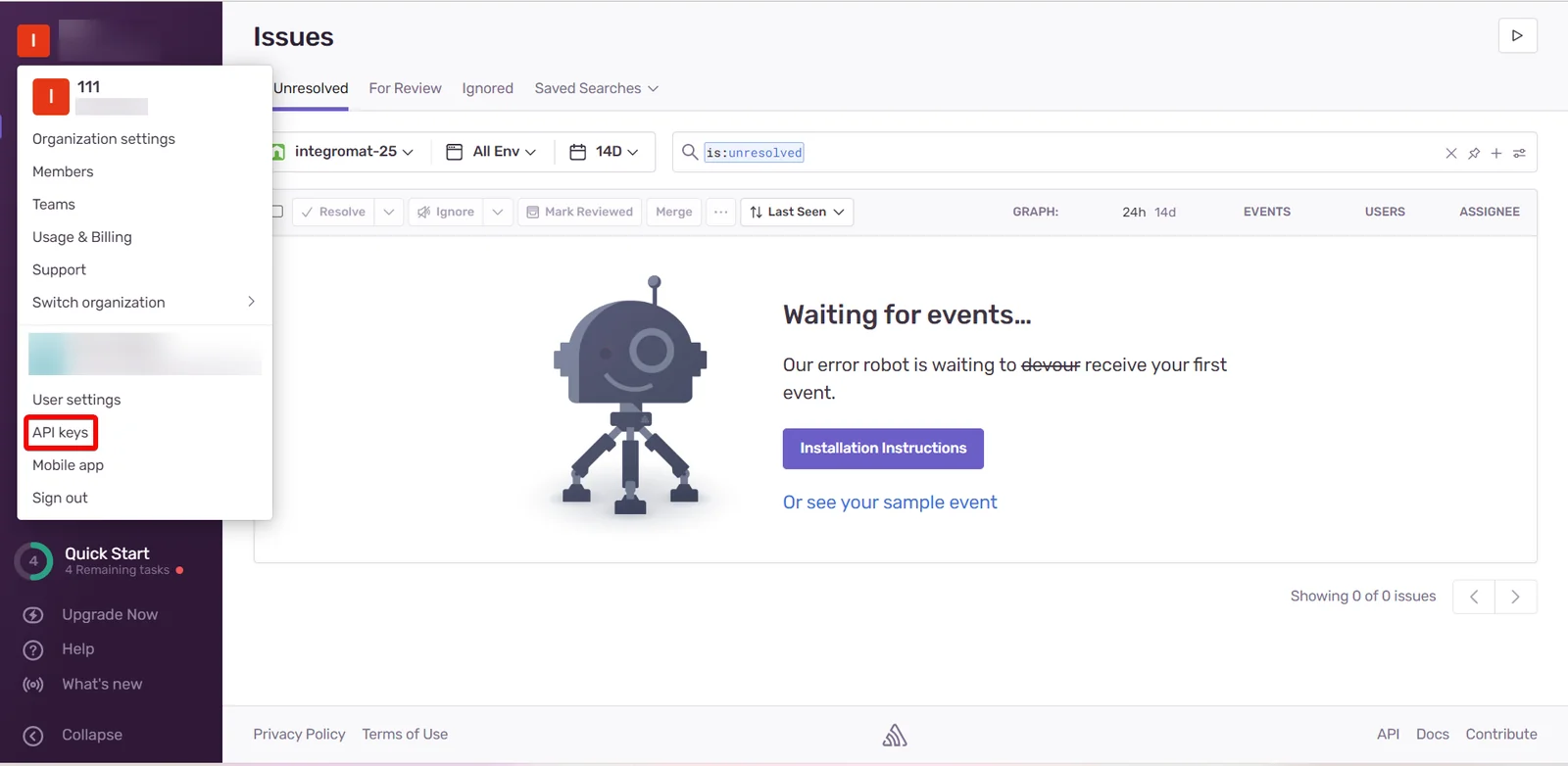
Click Profile > API Keys.
-
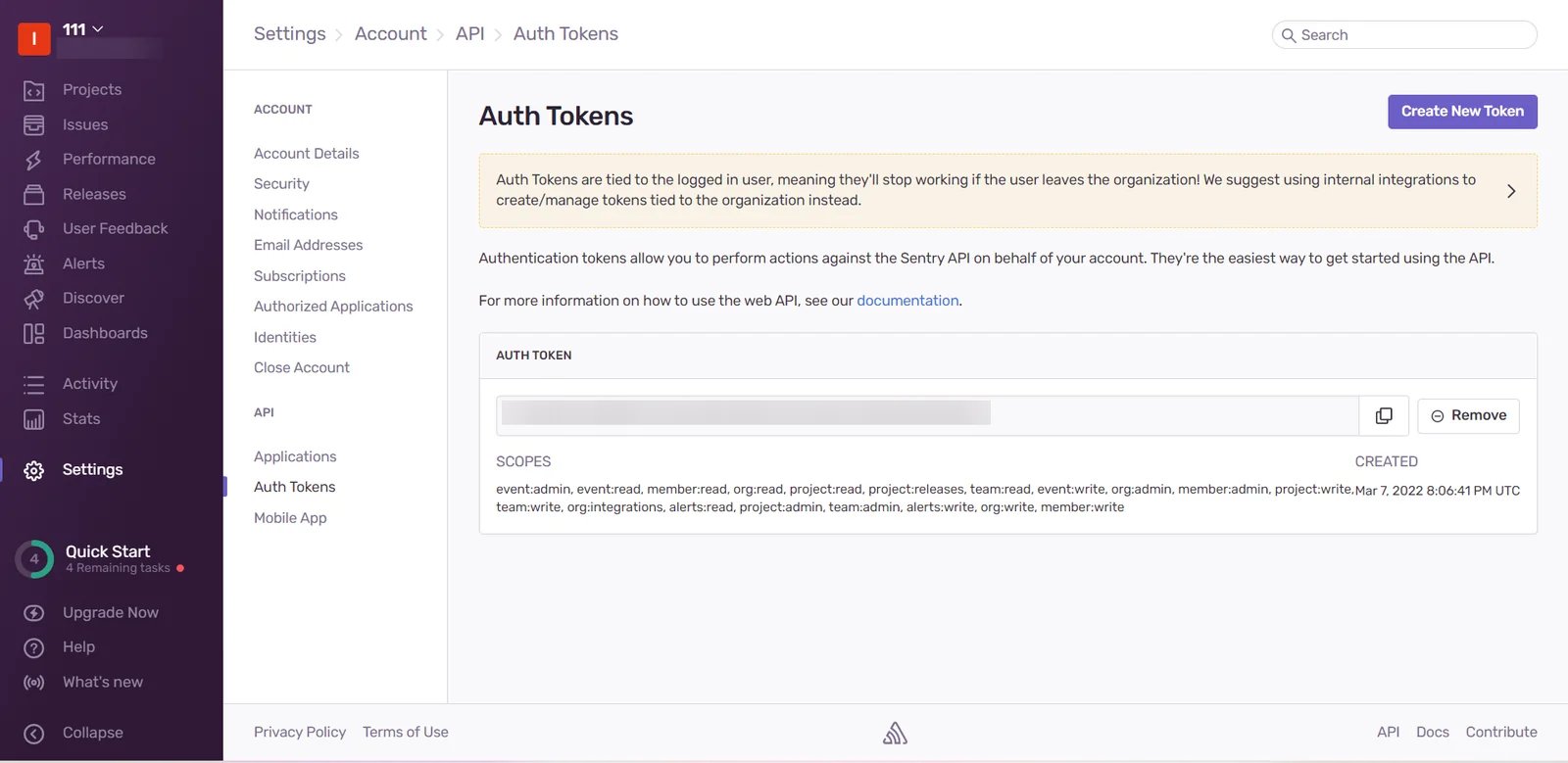
Copy the AUTH TOKEN and store it in a safe place.
-

Log in to your Boost.space Integrator and add a module from the Sentry into a Boost.space Integrator scenario.
-
Click Add next to the Connection field.
-
In the Connection name field, enter a name for the connection.
-
In the Auth Token fields, enter the details copied in step 3 and click Save.
You have successfully connected the Sentry app with Boost.space Integrator and can now build scenarios
Triggers
You can watch the events using the following modules.
Watch Events
Watches events.
Webhook Name
Enter a name for the webhook.
Connection
Establish a connection to your Sentry account.
For setting up event webhooks, see the section, Setting Up Sentry Webhooks.
Organizations
You can update, retrieve, and list the organization and organization users using the following modules.
Update an Organization
Updates various attributes and configurable settings for the given organization.
Connection
Establish a connection to your Sentry account.
Organization Slug
Select or map the slug of the organization whose details you want to update.
Name
Enter (map) a new name for the organization.
Slug
Enter (map) a unique, available, and new slug for the organization.
Get an Organizations
Returns details on an individual organization including various details such as membership access, features, and teams.
Connection
Establish a connection to your Sentry account.
Organization Slug
Select or map an organization slug whose organization details you want to retrieve.
List Organizations
Returns a list of organizations available to the authenticated session.
Connection
Establish a connection to your Sentry account.
Owner
Select whether list organizations in which you are an organization owner.
Limit
Set the maximum number of organizations Boost.space Integrator should return during one execution cycle. The default value is 10.
List an Organization’s Repositories
Returns a list of version control repositories for a given organization.
Connection
Establish a connection to your Sentry account.
Organization Slug
Select or map an organization slug whose repositories you want to list.
Limit
Set the maximum number of organizations Boost.space Integrator will return during one execution cycle. The default value is 10.
List an Organization’s Users
Returns a list of users that belong to a given organization.
Connection
Establish a connection to your Sentry account.
Organization Slug
Select or map an organization slug to list the users of the specified organization.
Project ID
Select or map a Project ID of the organization whose users you want to list.
Limit
Set the maximum number of organizations Boost.space Integrator will return during one execution cycle. The default value is 10.
Teams
You can create, update, retrieve, list, and delete the team and team projects using the following modules.
Create a Team
Creates a new team bound to an organization.
Connection
Establish a connection to your Sentry account.
Organization Slug
Select or map an organization slug of the team you want to create.
Name
Enter (map) the team name.
Slug
Enter (map) the optional slug for this team. If not provided, it will be auto-generated from the name.
Create a Project
Creates a new project bound to a team.
Connection
Establish a connection to your Sentry account.
Organization Slug
Select or map the organization slug of the team for which you want to create the project.
Team Slug
Select or map the slug of the team for which you want to create a new project.
Name
Enter (map) the project name.
Slug
Enter (map) an optional slug for the new project. If not provided a slug is generated from the name.
Update a Team
Updates various attributes and configurable settings for the given team.
Connection
Establish a connection to your Sentry account.
Organization Slug
Select or map the organization slug of the organization the team belongs to.
Team Slug
Select or map the slug of the team to get.
Name
Enter (map) a new name for the team.
Slug
Enter (map) a unique and available slug for the team.
Get a Team
Returns details on an individual team.
Connection
Establish a connection to your Sentry account.
Organization Slug
Select or map an organization slug of the team whose details you want to retrieve.
Team Slug
Select or map the slug of the team whose details you want to retrieve.
List an Organization’s Teams
Returns a list of teams bound to an organization.
Connection
Establish a connection to your Sentry account.
Organization Slug
Select or map an organization slug of the organization whose teams you want to list.
Limit
Set the maximum number of organization’s teams Boost.space Integrator should return during one execution cycle. The default value is 10.
List a Team’s Projects
Returns a list of projects bound to a team.
Connection
Establish a connection to your Sentry account.
Organization Slug
Select or map an organization slug of the team whose projects you want to list.
Team Slug
Select or map a team slug of the team whose projects you want to list.
Limit
Set the maximum number of team projects Boost.space Integrator should return during one execution cycle. The default value is 10.
Delete a Team
Schedules a team for deletion.
Deletion happens asynchronously and therefore is not immediate. However, once deletion has begun the state of a project changes and will be hidden from most public views.
Connection
Establish a connection to your Sentry account.
Organization Slug
Select or map an organization slug of the team you want to delete.
Team Slug
Select or map a team slug you want to delete.
Events
You can retrieve, and list the project’s events using the following modules.
Get an Event
Returns details on an individual event.
Connection
Establish a connection to your Sentry account.
Organization Slug
Select or map an organization slug whose event you want to retrieve.
Project Slug
Select or map a project slug whose event you want to retrieve.
Event ID
Select or map an Event ID of an event to retrieve.
List a Project’s Events
Returns a list of events bound to a project.
Connection
Establish a connection to your Sentry account.
Organization Slug
Select or map an organization slug whose events you want to list.
Project Slug
Select or map a project slug whose events you want to list.
Full
Select whether to include the full event body of the event payload including the stack trace.
Limit
Set the maximum number of events Boost.space Integrator should return during one execution cycle. The default value is 10.
Issues
Get an Issue
Returns details on an individual issue. This returns the basic stats for the issue (title, last seen, first seen), some overall numbers (number of comments, user reports) as well as the summarized event data.
Connection
Establish a connection to your Sentry account.
Organization Slug
Select or map an organization slug whose issues you want to retrieve.
Project Slug
Select or map a project slug whose issues you want to retrieve.
Issue ID
Select or map an Issue ID of an issue to retrieve.
Update an Issue
Updates an individual issue’s attributes.
Connection
Establish a connection to your Sentry account.
Organization Slug
Select or map an organization slug whose issue details you want to update.
Project Slug
Select or map a project slug of a project whose issue you want to update.
Issue ID
Select or map an Issue ID whose details you want to update.
Status
Select the status of the issue:
-
Resolved
-
Resolved In Next Release
-
Unresolved
-
Ignored
Assigned To
Enter (map) the ID (or username) of the user or team that should be assigned to this issue.
Format should be type
Has Seen
Select whether to include the events seen by the user.
Is Bookmarked
Select whether to change the bookmark flag.
Is Public
Select whether to set the issue as public or private.
List an Issue’s Events
Returns an issue’s events.
Connection
Establish a connection to your Sentry account.
Organization Slug
Select or map an organization slug whose issues events you want to list.
Project Slug
Select or map a project slug whose issue’s events you want to list.
Issue ID
Select or map an Issue ID whose events you want to list.
Full
Select whether the event payload should include the entire event body, including the stack trace.
Limit
Set the maximum number of events Boost.space Integrator will return during one execution cycle. The default value is 10.
List a Project’s Issues
Returns a list of issues (groups) bound to a project.
Connection
Establish a connection to your Sentry account.
Organization Slug
Select or map an organization slug whose project’s issues you want to list.
Project Slug
Select or map a project slug of a project whose project issue’s you want to list.
Stats Period
Select the timeline stats:
-
24 hours
-
14 Days
Short ID Lookup
Select whether this function looks up the Short IDs.
This can cause the function’s return value to return an event issue of a different project, which is why this is opt-in.
Query
Enter (map) an optional Sentry structured search query. If not provided an implied is
Limit
Set the maximum number of events Boost.space Integrator will return during one execution cycle. The default value is 10.
Delete an Issue
Removes an individual issue.
Connection
Establish a connection to your Sentry account.
Organization Slug
Select or map an organization slug whose issues you want to delete.
Project Slug
Select or map a project slug whose project issue’s you want to list.
Issue ID
Select or map an Issue ID you want to delete.
Projects
You can update, retrieve, list, retrieve, and delete the projects, and project tag values using the following modules.
Update a Project
Updates various attributes and configurable settings for the given project. Only supplied values are updated.
Connection
Establish a connection to your Sentry account.
Organization Slug
Select or map an organization slug whose project details you want to update.
Project Slug
Select or map a project slug to update.
Name
Enter (map) the new name for the project.
Slug
Enter (map) the new slug for the project.
Team Slug
Enter (map) the slug of new team for the project.
Note, will be deprecated soon when multiple teams can have access to a project.
Platform
Enter (map) the new platform for the project.
Is Bookmarked
Select whether to invoke an API call with a user context this allows changing of the bookmark flag.
Get a Project
Returns details on an individual project.
Connection
Establish a connection to your Sentry account.
Organization Slug
Select or map an organization slug whose project you want to retrieve.
Project Slug
Select or map a project slug of a project to retrieve.
List a Project’s Users
Returns a list of users seen within the specified project.
Connection
Establish a connection to your Sentry account.
Organization Slug
Select or map an organization slug whose project’s users you want to list.
Project Slug
Select or map a project slug to list the users.
Query
Enter (map) a query to limit results to users matching the given query. Prefixes should be used to suggest the field to match on the id, email, username, ip . For example, query=email:foo@example.com
Limit
Set the maximum number of projects Boost.space Integrator will return during one execution cycle.
List Projects
Returns a list of projects available to the authenticated.
Connection
Establish a connection to your Sentry account.
Limit
Set the maximum number of projects Boost.space Integrator will return during one execution cycle. The default value is 10.
List a Tag’s Values
Returns a list of values associated with this key. The query parameter can be used to perform a “contain” match on values.
Connection
Establish a connection to your Sentry account.
Organization Slug
Select or map an organization slug whose project’s tag values you want to list.
Project Slug
Select or map a project slug whose tag values you want to list.
Tag
Enter (map) a tag key to search.
Limit
Set the maximum number of projects Boost.space Integrator will return during one execution cycle. The default value is 10.
Delete a Project
Schedules a project for deletion. Deletion happens asynchronously and therefore is not immediate. However, once deletion has begun the state of a project changes and will be hidden from most public views.
Connection
Establish a connection to your Sentry account.
Organization Slug
Select or map an organization slug whose project values you want to delete.
Project Slug
Select or map a project slug you want to delete.
Other
You can call the APIs using the following module.
Make an API Call
Performs an arbitrary authorized API call.
Connection
Establish a connection to your Sentry account.
URL
Enter a path relative to https://sentry.io/api . For example, /0/projects/.
For the list of available endpoints, refer to the Sentry API Documentation.
Method
GET
to retrieve information for an entry.
POST
to create a new entry.
PUT
to update/replace an existing entry.
PATCH
to make a partial entry update.
DELETE
to delete an entry.
Headers
Enter the desired request headers. You don’t have to add authorization headers; we already did that for you.
Query String
Enter the request query string.
Body
Enter the body content for your API call.
Example of Use – List an Organization’s Teams
The following API call returns the teams from an organization in your Sentry account:
URL:
/0/organizations/intwrgeregrgereg/teams/
Method:
GET
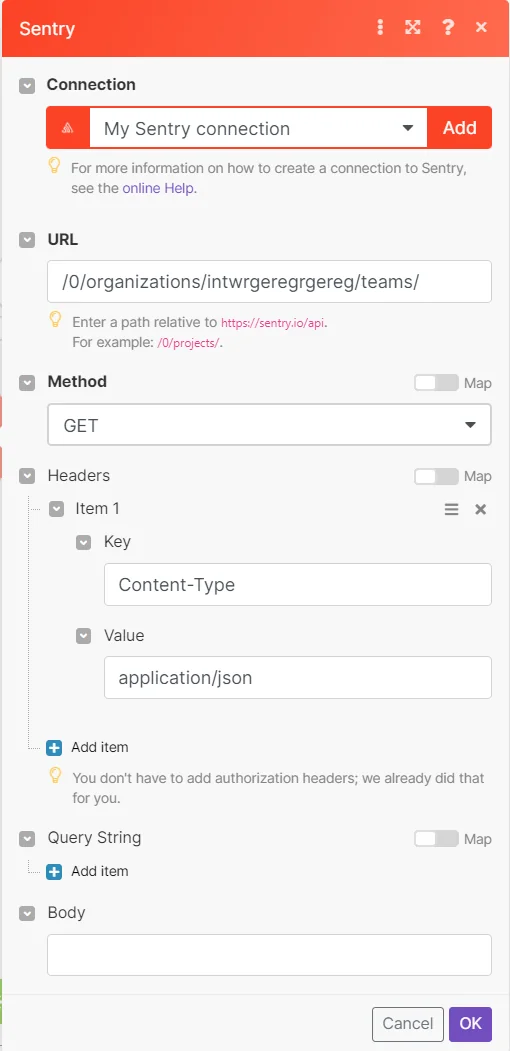
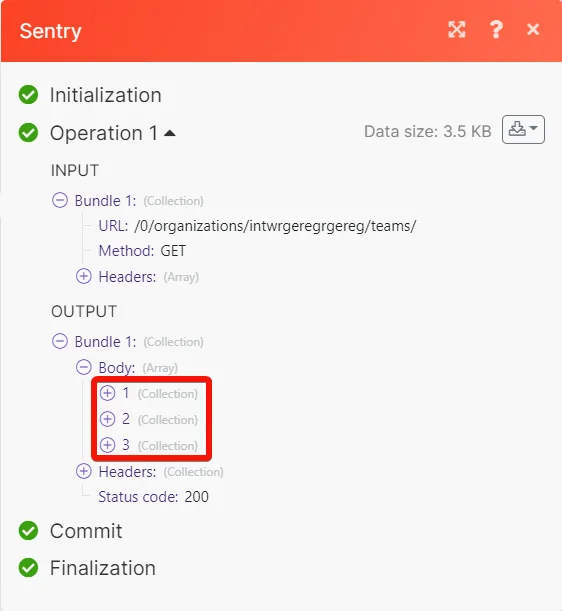
Matches of the search can be found in the module’s Output under Bundles > Body.
In our example, 3 teams were returned:
Setting Up Sentry Webhooks
To set up Sentry webhooks:
-

Open the Watch Events module, enter a name for the webhook, establish a connection, click Save, and copy the URL address to your clipboard.
-
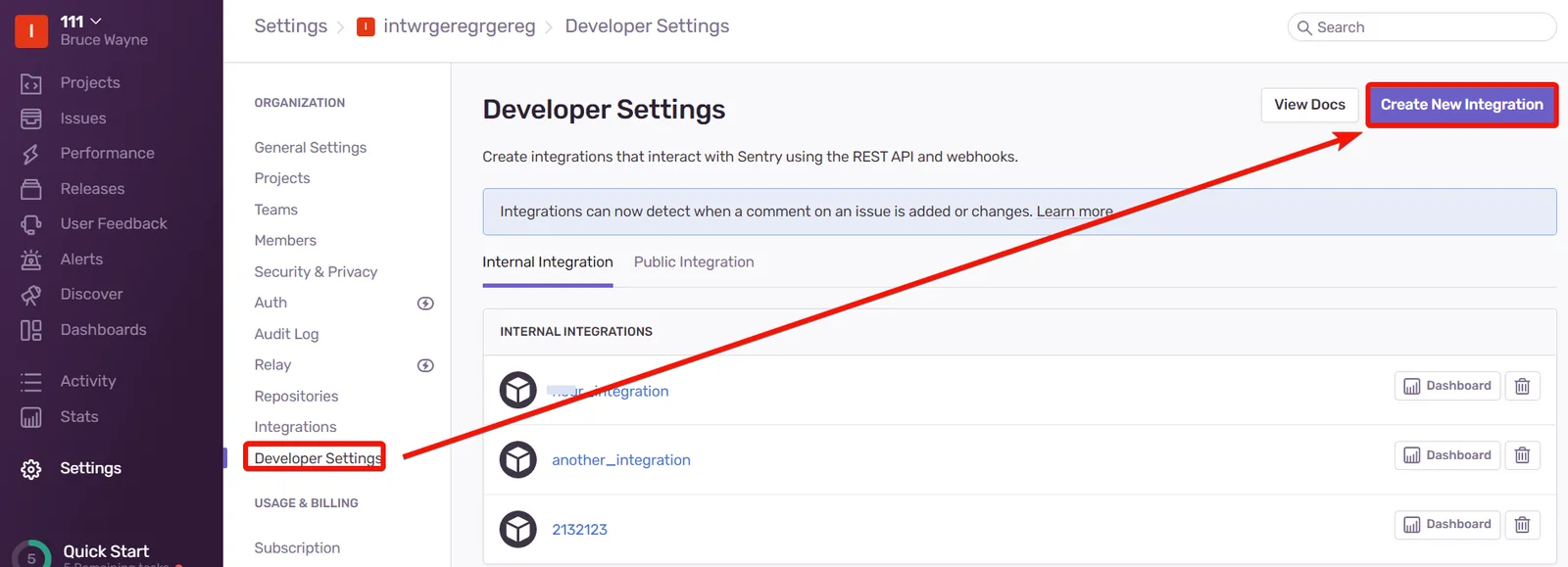
Log in to your Sentry account, and open the organization for which you want to add the webhooks.
-
Click Developer Settings > Create New Integration.
-
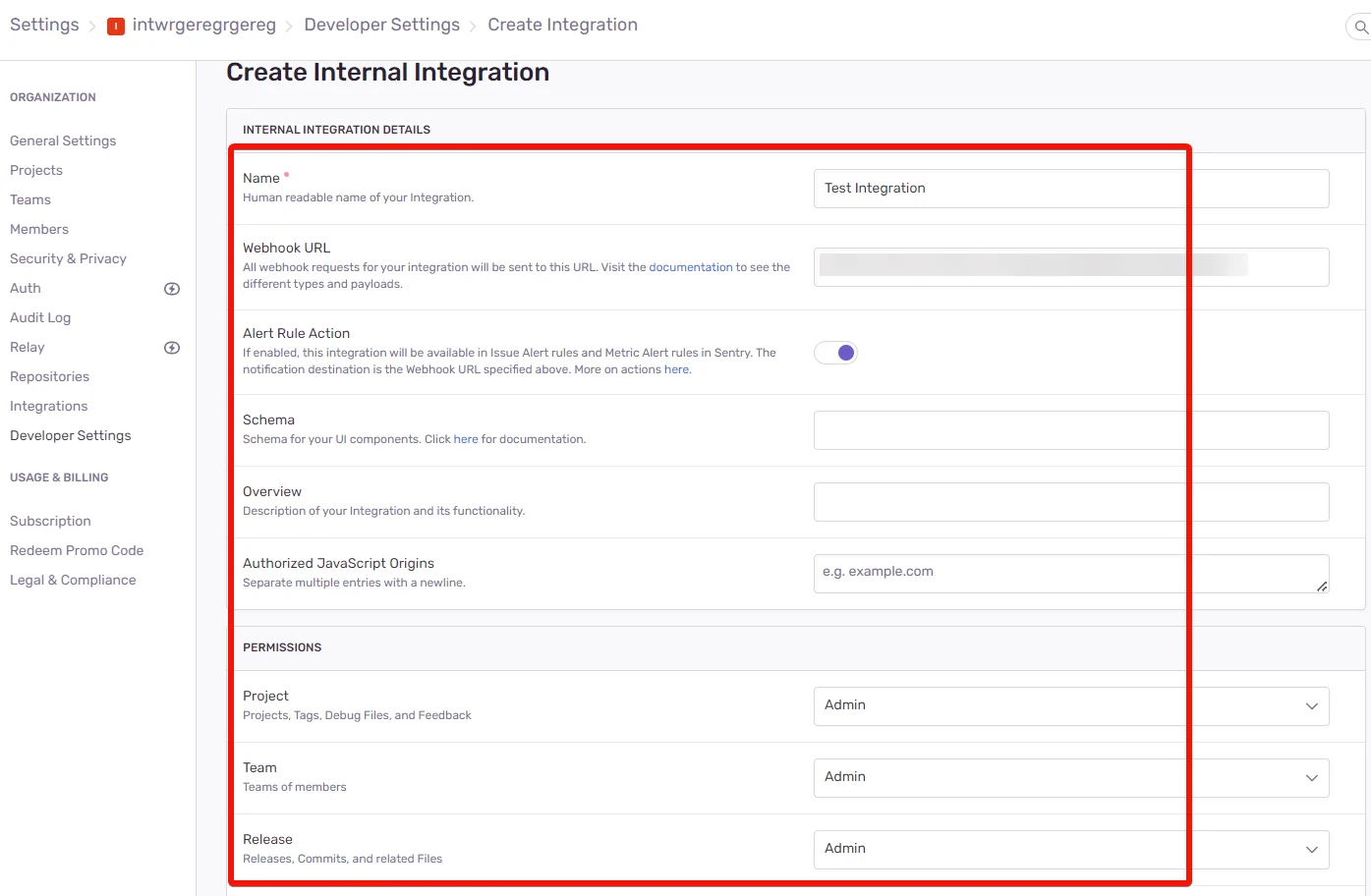
In the Name field, enter a name for the webhook, in the Webhook URL field, enter the URL address copied in step 1, select the permissions, and click Save Changes.
The webhook is successfully added and will receive alerts when the specified events occurs.
Legacy article, imported from the original Boost.space knowledge base (/knowledge-base/applications/it-and-development/sentry/).

