ActiveDEMAND
The ActiveDEMAND modules allow you to watch, create, update, list, retrieve, and delete the contacts, and histories in your ActiveDEMAND account.
Getting Started with ActiveDEMAND
Prerequisites
- An ActiveDEMAND account
In order to use ActiveDEMAND with Boost.space Integrator, it is necessary to have an ActiveDEMAND account. If you do not have one, you can create an ActiveDEMAND account at activedemand.com.
The module dialog fields that are displayed in bold (in the Boost.space Integrator scenario, not in this documentation article) are mandatory!
Connecting ActiveDEMAND to Boost.space Integrator
To connect your ActiveDEMAND account to Boost.space Integrator you need to obtain the API Key from your ActiveDEMAND account and insert it in the Create a connection dialog in the Boost.space Integrator module.
-
Log in to your ActiveDEMAND account.
-

From the Dashboard, click Your Profile Icon > Account Settings.
-
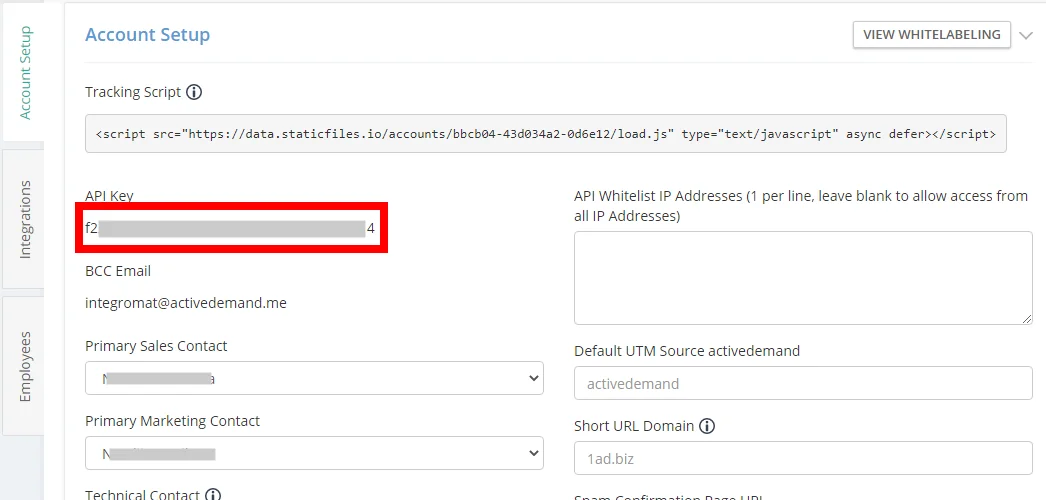
Copy the API Key to your clipboard.
-

Go to Boost.space Integrator and open the Create a connection dialog.
-
In the Connection name field, enter a name for the connection.
-
In the API Key field, enter the API key copied in step 3, and click Continue.
The connection has been established.
Contacts
You do not have to add the webhooks in the ActiveDEMAND as it is automatically done for you once you add and save an instant trigger module to your scenario.
Watch New Contacts
Triggers when a new contact is created.
Webhook Name
Enter a name for the webhook.
Connection
Establish a connection to your ActiveDEMAND account.
Watch Updated Contacts
Triggers when a contact is updated.
Webhook Name
Enter a name for the webhook.
Connection
Establish a connection to your ActiveDEMAND account.
Search Contacts
Returns a list of contacts.
Connection
Establish a connection to your ActiveDEMAND account.
Search
Enter the text or phrase to search the contacts based on the specified query.
List ID
Select the List ID whose contacts you want to search.
Tag
Enter the tags to searches the contacts based on specified tags.
Order
Select the order in which you want to list the contacts:
-
Ascending
-
Descending
Order by
Select the option to list the contacts:
-
Created
-
Updated
-
Company
-
Lead Score
Created Not Later Than
Enter the date to list the contacts created on or before the specified date.
Updated Not Later Than
Enter the date to list the contacts updated on or before the specified date.
Include Timeline
Select whether to include the contact’s timeline in the results.
History Type
Select the history type to list contacts with the specified history. For example, sent messages.
Limit
Set the maximum number of contacts Boost.space Integrator should return during one scenario execution cycle.
Get a Contact
Returns information about a specified contact.
Connection
Establish a connection to your ActiveDEMAND account.
Contact ID
Select the Contact ID whose details you want to retrieve.
Create a Contact
Creates a new contact.
Connection
Establish a connection to your ActiveDEMAND account.
Email Address
Enter the contact’s email address.
Contact Click To Call Link
Enter the contact’s link to use it for calling the contact with a click.
Contact Lead Score
Enter the contact’s lead score.
First Name
Enter the contact’s first name.
Last Name
Enter the contact’s last name.
Full Name
Enter the contact’s full name.
Title
Enter the contact’s job position title.
DOB
Enter the contact’s date of birth. See the list of supported date and time formats.
Contact Source
Select the source from where you got the contact’s details. For example, webinar registration.
Contact Source Description
Enter the details of the contact’s source.
Industries
Enter the industries that the contact or contact’s organization associated with. For example, Education.
Tags
Add the tags for the contact.
Opted In
Select whether the contacted opted-in for marketing emails.
Cookie Accepted
Select whether the contact has accepted cookies with the ActiveDEMAND website.
Unsubscribed
Select whether the contact has unsubscribed from the system to receive marketing emails or calls.
Contact Manager Email
Enter the contact’s contact manager’s email address.
DNI Replace For Contact
Select whether there is a DNI replacement for the contact.
Gender
Enter the contact’s gender details. For example, Female.
Seniority
Enter the contact’s seniority details.
Bio
Enter the contact’s bio details.
Avatar
Enter the URL address to the contact’s avatar.
Suite No
Enter the contact’s suite number.
Street Address
Enter the street address.
City
Enter the city name.
Province/State
Enter the state name.
Postal/Zip Code
Enter the area postal code.
Country
Enter the contact’s country details.
Latitude
Enter the contact’s location’s latitude details.
Longitude
Enter the contact’s location’s longitude details.
Phone Number
Enter the contact’s phone number.
Contact Edit Link
Enter the URL address to the contact’s edit.
Website
Enter the contact’s website details.
Twitter Handle
Enter the contact’s Twitter details.
LinkedIn Handle
Enter the contact’s LinkedIn details.
Facebook Handle
Enter the contact’s Facebook details.
Crunchbase Handle
Enter the contact’s Crunchbase details.
Github Handle
Enter the contact’s GitHub details.
Google+ Handle
Enter the contact’s Google+ details.
AboutMe Handle
Enter the details of the contact’s AboutMe.
Employer Organization
Enter the name of the organization with which the contact is associated with.
Organization Blocked
Enter whether the organization is blocked.
Organization Suite No
Enter the contact’s organization’s suite number.
Organization Street Address
Enter the contact’s organization’s street address.
Organization City
Enter the contact’s organization’s city name.
Organization Province/State
Enter the contact’s organization’s state name.
Organization Postal/Zip Code
Enter the contact’s organization’s area postal code.
Organization Country
Enter the contact’s organization country name.
Organization Latitude
Enter the contact’s organization’s location latitude address.
Organization Longitude
Enter the contact’s organization’s location longitude details.
Organization Phone Number
Enter the contact’s organization’s phone number.
Organization Email Address
Enter the contact’s organization email address.
Organization Website
Enter the contact’s organization website URL address.
Organization Logo (URL)
Enter the URL address for the contact’s organization company logo.
Organization Contact Manager Email
Enter the contact’s organization’s contact manager’s email address.
Organization Employee Count
Enter the number of employees in the contact’s organization. For example, 500.
Organization Employee Range
Enter the number of employees range in the contact’s organization. For example, 500 - 1000.
Organization Annual Revenue
Enter the contact’s organization’s annual revenue income details.
Organization Description
Enter the details of the contact’s organization.
Organization Industries
Enter the industries in which contact’s organization does business. For example, Education.
Organization Tags
Enter the tags for the contact’s organization.
Organization Technologies
Enter the contact’s organization’s technology details they deal with.
Organization Twitter Handle
Enter the contact’s organization’s Twitter details.
Organization LinkedIn Handle
Enter the contact’s organization’s LinkedIn details.
Organization Facebook Handle
Enter the contact’s organization’s Facebook details.
Organization Crunchbase Handle
Enter the contact’s organization’s Crunchbase details.
Organization Github Handle
Enter the contact’s organization’s GitHub details.
Organization Google+ Handle
Enter the contact’s organization’s Google+ details.
Update a Contact
Updates contact.
Connection
Establish a connection to your ActiveDEMAND account.
Contact ID
Select the Contact ID whose details you want to update.
Contact Edit Link
Enter the contact’s edit link’s URL address.
Update the details as provided in the Create a contact module.
Forget a Contact
Forgets a contact.
Connection
Establish a connection to your ActiveDEMAND account.
Contact ID
Select the Contact ID you want to mark as forget.
Histories
You do not have to add the webhooks in the ActiveDEMAND as it is automatically done for you once you add and save an instant trigger module to your scenario.
Watch New Histories
Triggers when a new history is created.
Webhook Name
Enter a name for the webhook.
Connection
Establish a connection to your ActiveDEMAND account.
List Histories
Returns a list of histories.
Connection
Establish a connection to your ActiveDEMAND account.
Campaign ID
Select the Campaign ID whose histories you want to list.
Contact ID
Select the Contact ID whose histories you want to list.
History Type
Select the history type to list the histories with the specified history. For example, sent messages.
Start Date
Enter the start date of the histories you want to list.
End Date
Enter the end date of the histories you want to list.
Contact Group
Select the contact group whose histories you want to list.
Search
Enter the text or phrase to search the histories based on the specified query.
Order
Select the order in which you want to list the contacts:
-
Ascending
-
Descending
Email GUID
Enter the email GUID whose histories you want to list.
Limit
Set the maximum number of histories Boost.space Integrator should return during one scenario execution cycle.
Create a History
Creates a new history
Connection
Establish a connection to your ActiveDEMAND account.
History Type
Select the history type you want to create:
-
Won Deal
-
Sales Note
-
Custom Event
Email Address
Enter the contact’s email address for the deal, or sales notes, or customer event history you want to create.
Description
Enter the deal or event, or sales note details.
Comments
Enter the sales note text.
Value
Enter the deal amount.
Phone Number
Enter the contact’s phone number.
Name
Enter the custom event name.
Custom Event Items
Add the custom event items name and details.
Website
Enter the contact’s or contact’s company website URL address.
Contact Date of Birth
Enter the contact’s date of birth. See the list of supported date and time formats.
City
Enter the contact’s or contact’s company’s city name.
State/Province
Enter the contact’s or contact’s company’s state name.
Address
Enter the contact’s or contact’s company’s address.
Zip/Postal Code
Enter the contact’s or contact’s company’s area postal or ZIP code.
Company Name
Enter the contact’s company’s name.
Title
Enter the deal name.
Country
Enter the contact’s or contact’s company’s country name.
Full Name
Enter the contact’s full name.
Contact Manager Email
Enter the contact’s contact manager’s email address.
Contact ID
Select the Contact ID assigned to this deal, sales note, or event.
Country Select
Select the country in which deal, sales, or event occurred.
Last Name
Enter the contact’s last name.
First Name
Enter the contact’s first name.
Created At
Enter the date when the deal, sale, or event occurred. See the list of supported date and time formats.
Forms
Create a Form Submit
Creates a new form submission.
Connection
Establish a connection to your ActiveDEMAND account.
Form ID
Select the Form ID you want to create and enter the details in the specific form fields.
Other
Make an API Call
Performs an arbitrary authorized API Call
Connection
Establish a connection to your ActiveDEMAND account.
URL
Enter a path relative to https://api.activedemand.com/. For example, /v1/campaigns.json
For the list of available endpoints, refer to the ActiveDEMAND API Documentation.
Method
Select the HTTP method you want to use:
GET
to retrieve information for an entry.
POST
to create a new entry.
PUT
to update/replace an existing entry.
PATCH
to make a partial entry update.
DELETE
to delete an entry.
Headers
Enter the desired request headers. You don’t have to add authorization headers; we already did that for you.
Query String
Enter the request query string.
Body
Enter the body content for your API call.
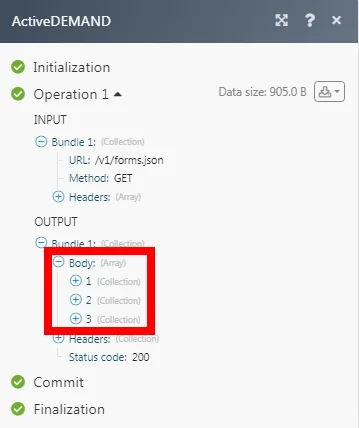
Example of Use – List Forms
The following API call returns all the forms from your ActiveDEMAND account:
URL:
/v1/forms.json
Method:
GET
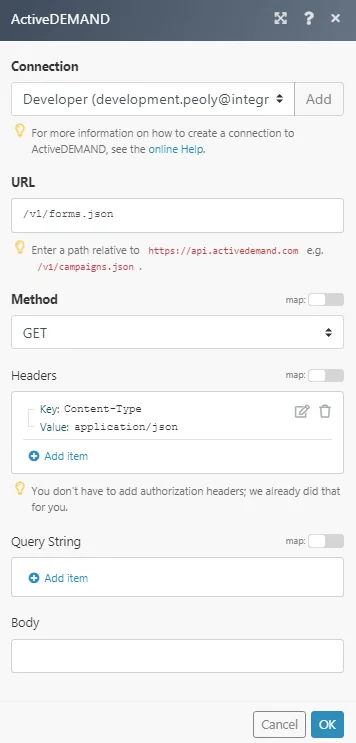
Matches of the search can be found in the module’s Output under Bundle > Body.
In our example, 3 forms were returned:
Legacy article, imported from the original Boost.space knowledge base (/knowledge-base/applications/marketing/activedemand/).

