Facebook Offline Conversions
With the Facebook Offline Conversions module in Boost.space Integrator, you can upload offline event data to your Facebook account.
To get started with Facebook Offline Conversions, you must have a Facebook account, Facebook Business Manager account, and an offline event data set.
Refer to the Facebook Offline Conversions API documentation for the list of available endpoints.
Connect Facebook Offline Conversions to Boost.space Integrator
-
Log in to your Facebook Business Manager, go to the Business Settings page, and select your business.
-
In the left sidebar, click Data Sources > Offline event sets.
-
Click Add to create a new Offline Event Set.
-
Enter a Name (required) and Description (optional) for the Offline Event Set and click Create.
-
Select the Ad Account to use the offline event with and click Next > OK.
All campaigns in the selected ad accounts will be associated with your offline event set and the offline event data you upload will be attributed to your ads starting from this date. You can also enable auto-tracking for selected accounts by switching the Automatically Assign For New Ad Accounts button on.
In the Add people and set permissions window, select users, turn on/off their access, and click Assign.
You can now start sending offline event data using the module.
We are trying to make the connections for you as easy as possible. You can establish a connection with some modules by following the general process here.
Unfortunately, for some modules you need to create your own connection by following the guide below.
Modules: Send Offline Event
You can find out how to create your own connection in the guide below. This guide is for Lead Ads, but the setup works the same way for this application.
+ You will need a Developer Account
_Ensure that you create a connection with the same profile you are logged into on Facebook. If you are making a connection with another account, it won’t work for you and you will see this error: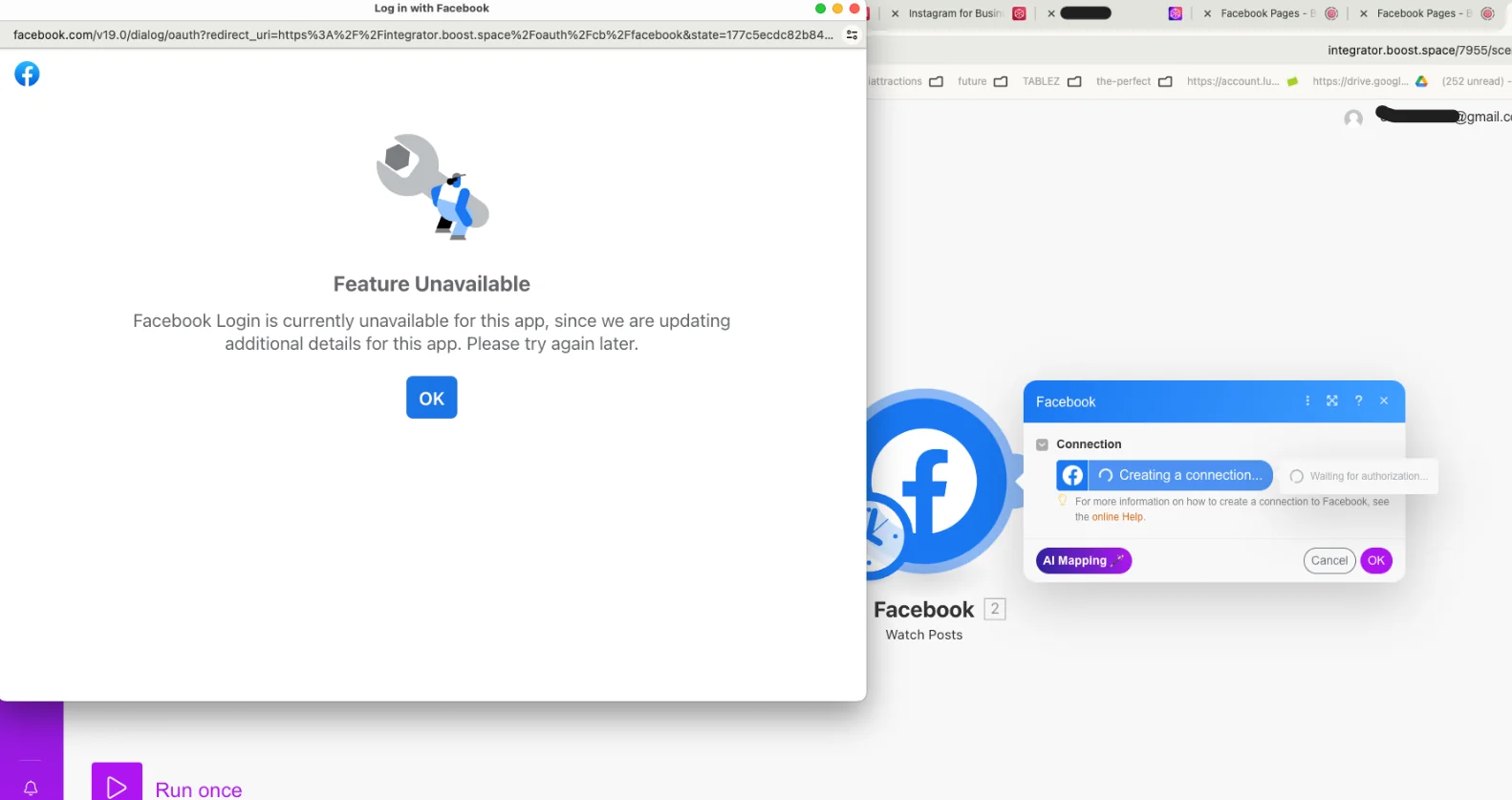
If this happens, you need to add another administrator to your application. Follow our step-by-step guide HERE.
Actions
Send Offline Event
Sends offline event data.
Connection
Establish a connection to your Facebook account.
Business Manager
Select the Facebook Business Manager you want to use.
Data Set
Select the offline event set you want to send data to.
Data
Specify the data you want to send to the offline event set data source.
Event name
Select the type of event.
Event time
Enter the date and time of the conversion event. The list of supported date and time formats. E.g.2019-06-20 17:26:44
Value
Enter the value of the conversion event. Required for Purchase events.
Currency
Enter the three-letter ISO 4217 currency code. E.g. EUR. Download the list of currency codes in XLS or XML format.
Add an email address as an identifier to match people for attribution.
Phone
Enter a phone number as a person’s identifier. You should prefix the country code if the Country field is not specified.
First name
Enter the first name of the person you want to match for attribution.
Last name
Enter the last name of the person you want to match for attribution.
First name initial
Enter the first name initial.
City
Enter the city of the person you want to match for attribution
US States
Enter the 2-character US state code of the person. The list of codes.
ZIP codes
Enter the ZIP code. Use lowercase, no white space. Use only the first 5 digits for U.S. Use Area/District/Sector format for the UK.
Country
Enter the 2-letter country code (lowercase) in ISO 3166-1 alpha-2.
Year of birth
Enter the birth year in YYYY format from 1900 to the current year.
Month of birth
Enter the birth month in _MM_format. 01 to 12.
Day of birth
Enter the birthday in _DD_format. 01 to 31.
Gender
Use these values: m for male and f for female.
Lead ID
Enter the Lead ID from Lead Ads.
Apple Advertising Identifier or Android Advertising ID
Enter the mobile advertiser’s ID. Use all lowercase and keep hyphens.
Third-party user ID
Enter the external user ID.
Client IP Address
Enter the IP address of the client’s browser corresponding to the event. It must be a valid IPV4 or IPV6 address.
Client User Agent
Enter the user agent for the client’s browser corresponding to the event.
Order ID
Enter the unique identifier for each transaction or order in an offline event set. For example, for retail, this can be a receipt ID.
Example: ATN10001, 123456
Item Number
Enter the unique identifier to distinguish events within the same order or transaction.
Example: 1, a
Content type
Enter any valid Add dynamic content type. E.g. product.
Contents
Add products from your Facebook Catalog if you want to integrate the catalog with your ads.
Custom Data
Enter the name-value information about this conversion event.
Example:
Name: Category
Value: ICECREAM
Enable Limited Data Use
Select if you would like to enable limited data use.
Troubleshooting
Invalid parameter (100, OAuthException)
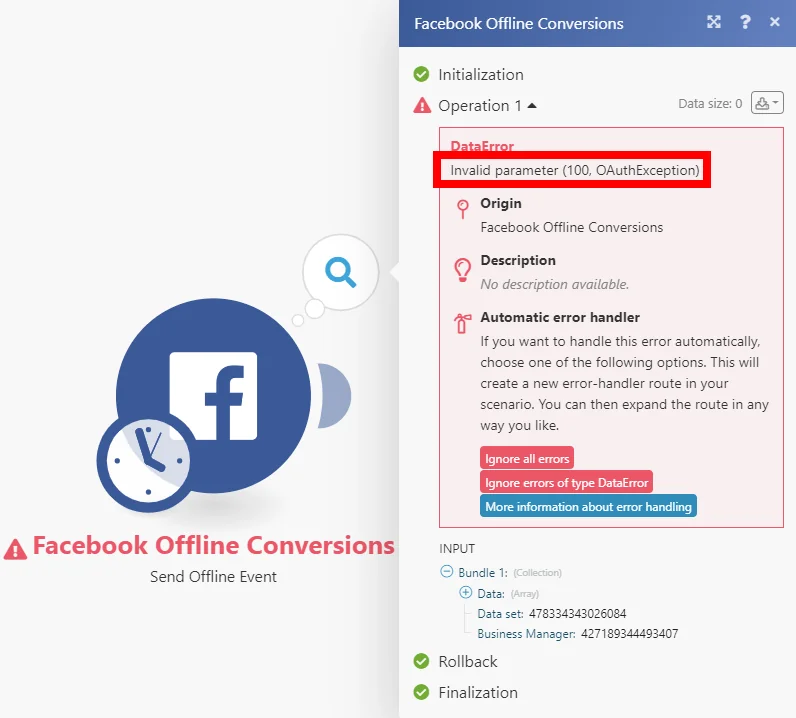
The module throws this error when no match keys are provided.
Match keys are a set of identifiers to match people for attribution.
Solution: Please provide email, phone number, name and/or other match keys.
My Offline Event Has Not Been Received by Facebook
It takes up to 15 minutes until Facebook processes the received event and creates an output.
Useful Links
Best Practices for Preparing Customer Information
Legacy article, imported from the original Boost.space knowledge base (/knowledge-base/applications/marketing/facebook-offline-conversions/).

