Mailgun
This is the documentation for the new Mailgun app. Here is the documentation for the legacy Mailgun (legacy) app.
Getting Started with Mailgun
The Mailgun modules allow you to monitor delivery messages, clicks, opens, temporary failure, permanent failure, spam complaints, and unsubscribe events, as well as send an email and add, delete, list and retrieve mailing lists in your Mailgun account.
Prerequisites
- A Mailgun account
In order to use Mailgun with Boost.space Integrator, it is necessary to have a Mailgun account. If you do not have one, you can create a Mailgun account at mailgun.com.
The module dialog fields that are displayed in bold (in the Boost.space Integrator scenario, not in this documentation article) are mandatory!
Connecting Mailgun to Boost.space Integrator
To connect your Mailgun account to Boost.space Integrator you need to obtain the API Key from your Mailgun account.
-
Log in to your Mailgun account.
-

Open Settings > API Security.
-
Show and copy the Private API Key.
-
Go to Boost.space Integrator, open the Create a connection dialog of your Mailgun module.
-
Enter the API Key you have copied in step 3 to the respective field.
Please ensure that you have selected the correct Base URL (displayed after clicking the Show advanced settings button).
Events
New Event: Delivery Messages
Triggers when the message is successfully delivered to the intended recipient.
Webhook Name
Enter the name for the webhook. E.g. Message Delivered.
Connection
Establish a connection to your Mailgun account.
Domain
Select your Mailgun domain.
New Event: Clicks
Triggers when a recipient clicks on links in your message.
Webhook Name
Enter the name for the webhook. E.g. Message Clicked.
Connection
Establish a connection to your Mailgun account.
Domain
Select your Mailgun domain.
New Event: Opens
Triggers when a recipient opens your message.
Opens are tracked by including a transparent .png file, which will only work if there is an HTML component to the email (i.e., text only emails will not track opens). You should note that many email service providers disable images by default, so this data will only show up if the recipient clicks on the display images button in his/her email.
Webhook Name
Enter the name for the webhook. E.g. Message Opened.
Connection
Establish a connection to your Mailgun account.
Domain
Select your Mailgun domain.
New Event: Temporary Failure
Triggers when an email is not delivered because the mailbox is full or for other reasons. These addresses are not added to the “Bounces” table.
Webhook Name
Enter the name for the webhook. E.g. Soft Bounce.
Connection
Establish a connection to your Mailgun account.
Domain
Select your Mailgun domain.
New Event: Permanent Failure
Triggers when the recipient is not found and the recipient email server specifies that the recipient does not exist.
Mailgun stops attempting delivery to invalid recipients after one Hard Bounce. These addresses are added to the “Bounces” table.
Webhook Name
Enter the name for the webhook. E.g. Hard Bounce.
Connection
Establish a connection to your Mailgun account.
Domain
Select your Mailgun domain.
New Event: Spam Complaints
Triggers when a recipient complains that an email message is spam.
Webhook Name
Enter the name for the webhook. E.g. Spam complaint received.
Connection
Establish a connection to your Mailgun account.
Domain
Select your Mailgun domain.
New Event: Unsubscribed
Triggers when a recipient requests to be unsubscribed from your mailings.
Webhook Name
Enter the name for the webhook. E.g. The recipient unsubscribed.
Connection
Establish a connection to your Mailgun account.
Domain
Select your Mailgun domain.
Send an Email
Sends an email message to the specified email address or mailing list.
Connection
Establish a connection to your Mailgun account.
Domain
Select your Mailgun domain.
Template
Select the template you want to use.
Type of recipient
Select whether to send a message to the email address or the mailing list.
To
Add the email addresses of the recipients.
Mailing List
Select the mailing list you want to send the message to.
From
Enter the email address of the sender (for the From header).
Subject
Enter the subject for the message.
Format
Select whether you want to send the message in the HTML format or as a plaintext.
When you select the HTML format, you can use HTML tags for formatting the message content.
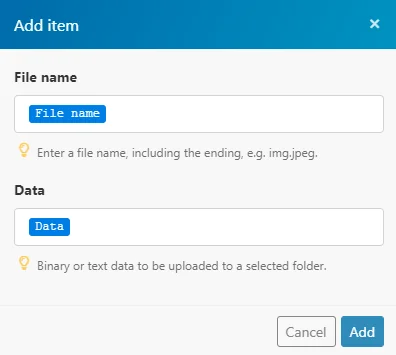
Attachments
Add a file attachment. You can attach more files.
You can you use, for example, the Dropbox > _Get a file_module to provide the file name and file data for the attachment.
CC
Carbon Copy. Add the email address you want to send the copy to.
BCC
Blind Carbon Copy. Add the email address you want to send the blind copy to.
Tag
Enter a tag in order to tag the message. For detailed information about tags refer to the Tags Explained article.
Enable DKIM
Select the Yes option to enable DKIM signatures on per-message basis.
Delivery Time
Enter the time of delivery.The list of supported date formats. E.g. 2019/08/20
Messages can be scheduled for a maximum of 3 days in the future.
Enable tracking
Select whether to enable tracking on a per-message basis. For more details please refer to the Mailgun API documentation.
Enable click tracking
Select whether to enable click tracking on a per-message basis.
This is a test message
If enabled the message is sent in the test mode. Mailgun will accept the message but will not send it. This is useful for testing purposes.
Custom Headers
h: prefix followed by an arbitrary value allows to append a custom MIME header to the message (X-My-Header in this case). For example, h:Reply-To to specify Reply-To address.
Mailing Lists
Add a Mailing List Member
Adds or updates an emails address in the selected mailing list.
Connection
Establish a connection to your Mailgun account.
Mailing List
Select the mailing list you want to add a member to.
Email Address
Enter the email address of the member that you want to add to the mailing list selected above.
Name
Enter the member name.
Member is subscribed
Select the Yes option to add the member as subscribed, or No as unsubscribed. Default: Subscribed.
Update member if exist
Select the Yes option to update an existing member, or No to return an error if the member already exists.
Vars
Enter JSON-encoded dictionary string with arbitrary parameters, e.g. {"gender":"female","age":27}
Delete a Mailing List Member
Removes an email address from the selected mailing list.
Connection
Establish a connection to your Mailgun account.
Mailing List
Select the mailing list you want to remove a member from.
Email Address
Enter the email address of the member that you want to remove from the mailing list selected above.
Get a Mailing List Member
Retrieves information about a mailing list member.
Connection
Establish a connection to your Mailgun account.
Mailing List
Select the mailing list you want to retrieve a member’s details from.
Email Address
Enter the email address of the member you want to retrieve information about.
List Mailing List Members
Retrieves a list of a mailing list’s members.
Connection
Establish a connection to your Mailgun account.
Mailing List
Select the mailing list you want to retrieve members from.
Limit
Set the maximum number of members Boost.space Integrator will return during one execution cycle.
Other
List Domains
Returns a list of domains in your account with details.
Connection
Establish a connection to your Mailgun account.
Limit
Set the maximum number of domains Boost.space Integrator will return during one execution cycle.
Validate an Email Address
Requires a paid Mailgun account!
Validates the email address based on Mailbox detection Syntax checks (RFC defined grammar), DNS validation, spell checks, Email Service Provider (ESP), specific local-part grammar (if available).
Connection
Establish a connection to your Mailgun account.
Email Address
Enter the email address you want to validate.
Make an API Call
Allows you to perform a custom API call.
Connection
Establish a connection to your Mailgun account.
URL
Enter a path relative to https://api.mailgun.net (for non EU customers) or https://api.eu.mailgun.net (for EU customers). E.g. /v3/lists/{{MailingList}}/members/pages
For the list of available endpoints, refer to the Mailgun API Documentation.
Method
Select the HTTP method you want to use:
GET
to retrieve information for an entry.
POST
to create a new entry.
PUT
to update/replace an existing entry.
PATCH
to make a partial entry update.
DELETE
to delete an entry.
Headers
Enter the desired request headers. You don’t have to add authorization headers; we already did that for you.
Query String
Enter the request query string.
Body
Enter the body content for your API call.
Example of Use – List Mailing List Members
The following API call returns a list of all the members of the specified mailing list:
URL:/v3/lists/list_test@sandboxba21aa9e939f42198f86f89f76e101eb.mailgun.org/members/pages
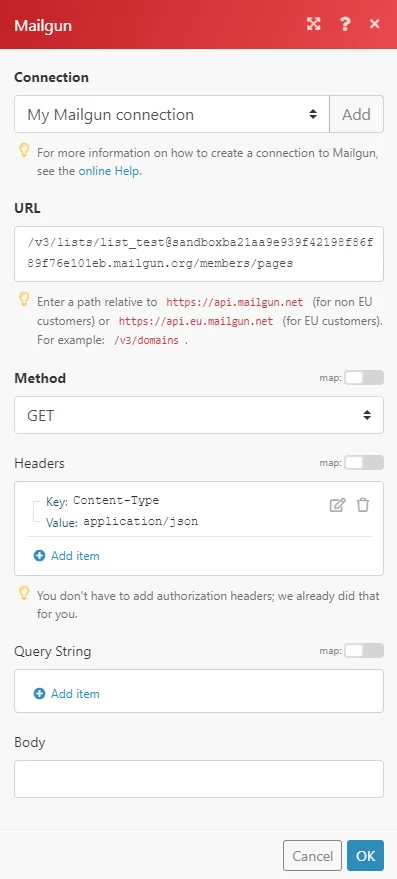
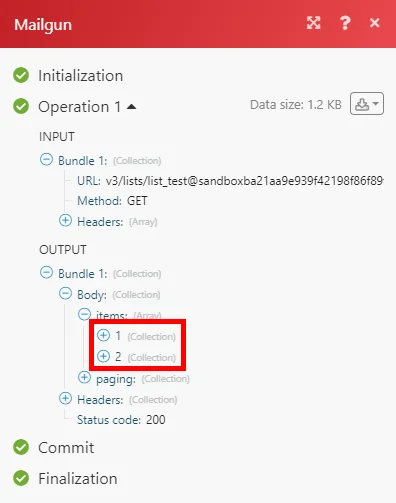
Matches of the search can be found in the module’s Output under Bundle > Body > items.
In our example, 2 members were returned:
Sending emails from sandbox
If you use sandbox (if you haven’t set up any domain) and want to send emails, you need to verify the recipients’ email addresses in your Mailgun account’s settings first.For more information, please read the Mailgun documentation.
Sender email address
If you send emails from a verified domain, the email address of the sender must include this domain. If you use, for example, a domain @example.com, you can set up example@example.com ( but not example@abc.com) as the sender email address.
Legacy article, imported from the original Boost.space knowledge base (/knowledge-base/applications/marketing/mailgun/).

