Mailjet
The Mailjet modules allow you to monitor, create, update, send, retrieve, list, and delete the contacts, events, draft campaigns, messages, send SMS, and sent campaigns in your Mailjet account.
Getting Started with Mailjet
Prerequisites
- A Mailjet account – can create a Mailjet account at https://www.mailjet.com/.
The module dialog fields that are displayed in bold (in the Boost.space Integrator scenario, not in this documentation article) are mandatory!
Connecting Mailjet to Boost.space Integrator
To connect your Mailjet account to Boost.space Integrator you need to obtain the API Key, and Secret Key from your Mailjet account and insert them in the Create a connection dialog in the Boost.space Integrator module.
-
Log in to your Mailjet account.
-
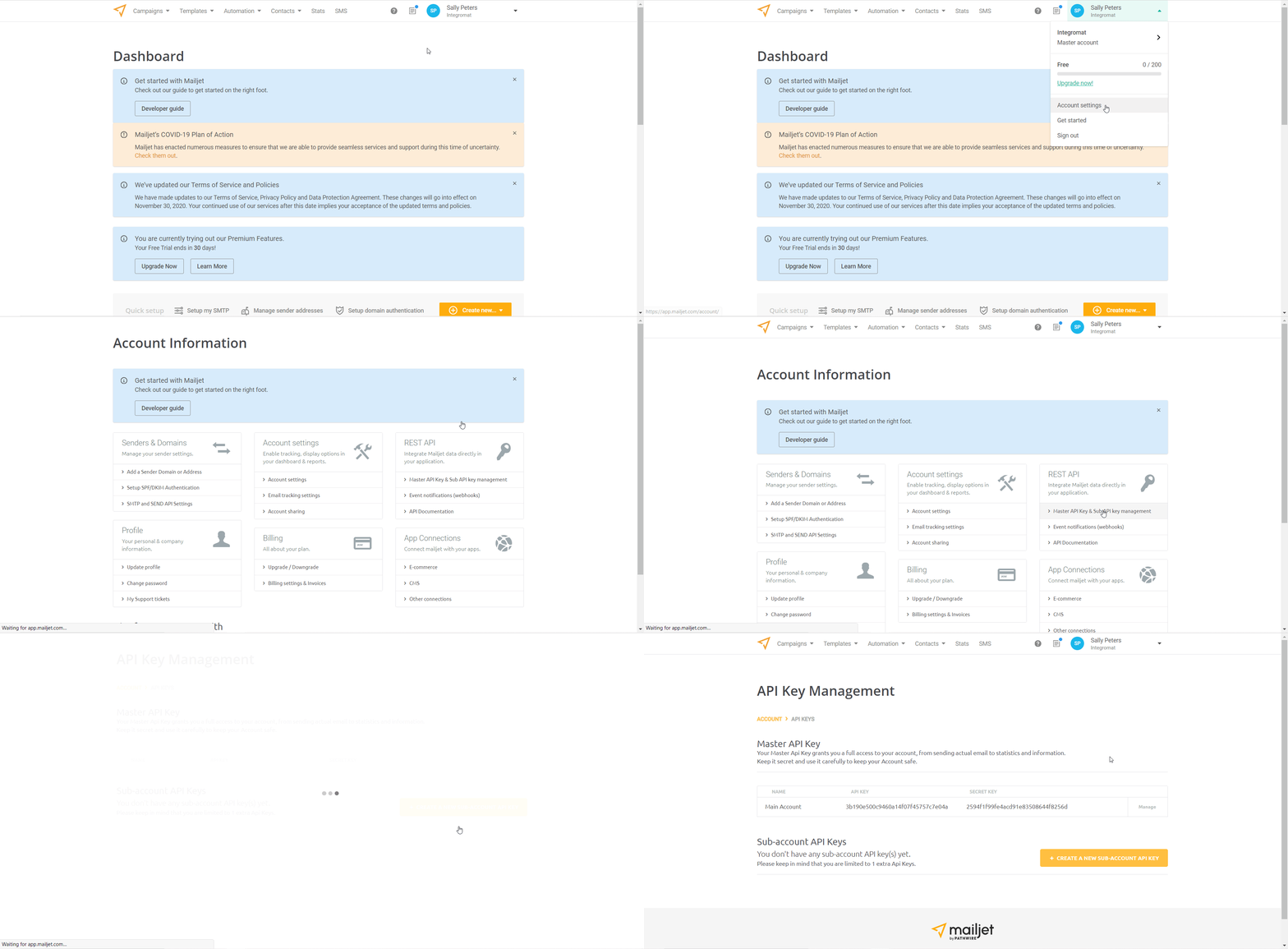
From the Dashboard, click Your Account Name > Account Settings > Master API Key & Sub API key management.
-
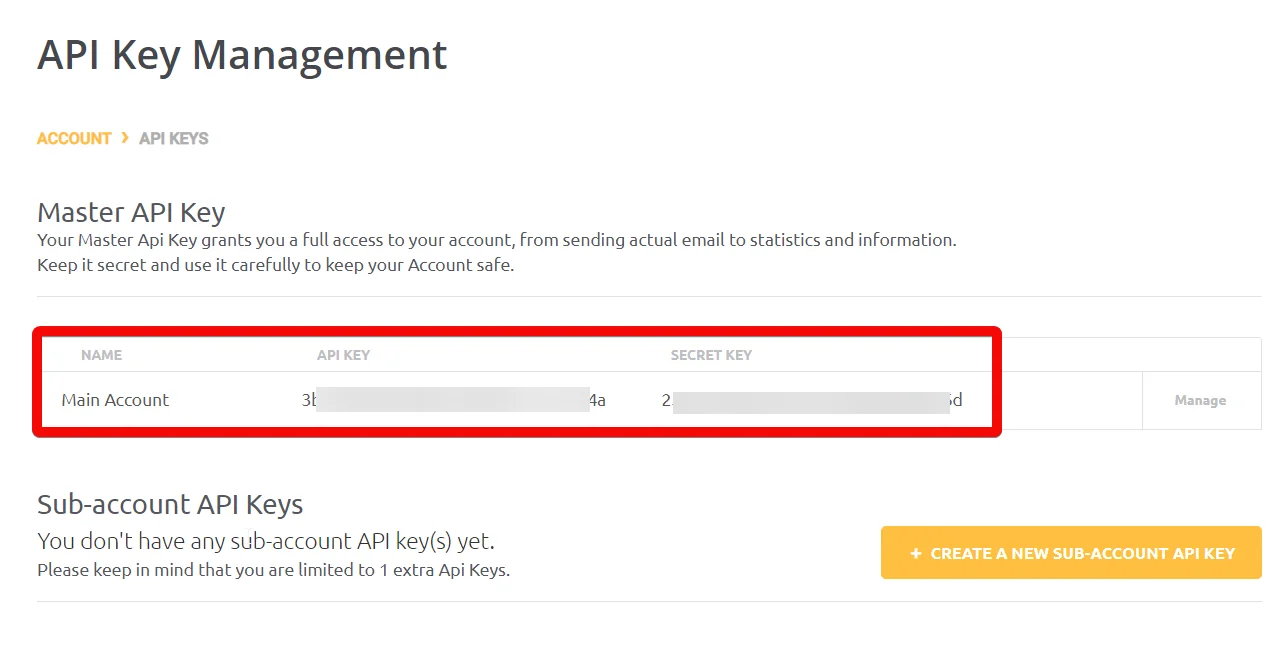
Copy the API Key and Secret Key values to a safe place.
-

Go to Boost.space Integrator and open the Mailjet module’s Create a connection dialog.
-
In the Connection name field, enter a name for the connection.
-
In the API Key and Secret Key fields, enter the details copied in step 3 respectively, and click Continue.
The connection has been established.
Event
Watch Events
Triggers when an event given in its type parameter occurs.
You do not have to add the webhooks in the Mailjet as it is automatically done for you once you add and save an instant trigger module to your scenario.
Webhook Name
Enter a name for the webhook.
Connection
Establish a connection to your Mailjet account.
Events
Select or map the events you want to watch. For example, sent email.
Draft Campaign
List Draft Campaigns
Retrieves a list of all draft campaigns.
Connection
Establish a connection to your Mailjet account.
Contact List ID
Select or map the Contact List ID whose campaign you want to list.
Delivered at
Enter (map) the date to list the draft campaigns that were delivered on the specified date.
Edit Mode
Select or map the edit mode of the campaign:
-
Passport drag-and-drop template editor
-
HTML editor in Passport
-
MJML editor in Passport
Select One of Boolean Parameters
Select or map the parameter with which you want to mark the campaign:
-
Is Archived
-
Is Campaign
-
Is Deleted
-
Is Handled
-
Is Modified
-
Is Starred
Status
Select or map the status of the campaigns you want to list.
Subject
Select the subject line of the campaign you want to list.
Template ID
Select or map the Campaign Template ID to list the campaigns that match the specified ID.
Limit
Set a maximum number of draft campaigns Boost.space Integrator should return during one execution cycle.
Get a Draft Campaign
Retrieves a specified draft campaign.
Connection
Establish a connection to your Mailjet account.
Campaign ID
Select or map the Campaign ID whose details you want to retrieve.
Create a Draft Campaign
Creates a new draft campaign.
Connection
Establish a connection to your Mailjet account.
Sender’s Email
Select or map the email address from which the campaign will be sent.
Sender’s Name
Select or map the name that appears in the campaign email.
Reply Email
Enter (map) the email address to which the recipient can reply to the campaign email.
Contact List ID
Select or map the Contact List ID to whose contacts you want to send the campaign.
Title
Enter (map) the campaign name.
Subject
Enter (map) the subject line of the campaign email.
Message Content Type
Select or map the option to enter the message text for the campaign email:
-
HTML Body
-
Plain Text
HTM Body
Enter (map) the email body message.
Plain Text
Enter (map) the email body message.
Update a Draft Campaign
Update an existing draft campaign.
Connection
Establish a connection to your Mailjet account.
Campaign ID
Select or map the Campaign ID whose draft campaign you want to update.
Sender’s Email
Select or map the email address from which the campaign will be sent.
Sender’s Name
Select or map the name that appears in the campaign email.
Reply Email
Enter (map) the email address to which the recipient can reply to the campaign email.
Contact List ID
Select or map the Contact List ID to whose contacts you want to send the campaign.
Title
Enter (map) the campaign name.
Subject
Enter (map) the subject line of the campaign email.
Message Content Type
Select or map the option to enter the message text for the campaign email:
-
HTML Body
-
Plain Text
HTM Body
Enter (map) the email body message.
Plain Text
Enter (map) the email body message.
Sent Campaign
List Sent Campaigns
Retrieves a list of all sent campaigns.
Connection
Establish a connection to your Mailjet account.
Contact List ID
Select or map the Contact List-ID whose sent campaigns you want to list.
From
Enter (map) the email address to list the sent campaigns from the specified email address.
From Type
Select or map the type of sent campaigns that you want to list:
-
Transactional
-
Marketing
-
Unknown
Campaign Sent Since
Enter (map) the date to list the campaigns that were sent on or after the specified date. See the list of supported date and time formats.
Campaigns Sent Until
Enter (map) the date to list the campaigns that were sent on or before the specified date. See the list of supported date and time formats.
Is Deleted
Select whether you want to list only the deleted sent campaigns.
Is Newsletter Tool
Select whether you want to list only the sent campaign created by the Newsletter tool.
Is Starred
Select whether you want to list only the sent campaigns that were marked as starred.
Period
Select or map the duration to list the sent campaign from the specified period.
Sort
Select or map the option to sort the campaigns.
Get a Sent Campaign
Retrieves a specified sent campaign.
Connection
Establish a connection to your Mailjet account.
Campaign ID
Select or map the Campaign ID whose details you want to retrieve.
Contacts
Watch Contacts
Triggers when a contact is created or updated.
Connection
Establish a connection to your Mailjet account.
Watch Contacts
Select or map the option to watch the contacts:
-
By Created Time
-
By Last Updated Time
Campaign ID
Select or map the Campaign ID you want to watch.
Contact List ID
Select or map the Contact List ID whose contacts you want to watch.
Is Excluded from Campaigns
Select whether you want to watch contacts that are added to excluding list for campaigns.
Limit
Set the maximum number of contacts Boost.space Integrator should return during one execution cycle.
List Contacts
Retrieves a list of all contacts.
Connection
Establish a connection to your Mailjet account.
Campaign ID
Select or map the Campaign ID whose associated contacts you want to search.
Contact List ID
Select or map the Contact List ID whose contacts you want to search.
Is Excluded from Campaigns
Select whether you want to list the contacts that were added to teh excluding list for campaigns.
Limit
Set the maximum number of contacts Boost.space Integrator should return during one execution cycle.
Get a Contact
Gets the data of a specified contact.
Retrieves a list of all contacts.
Connection
Establish a connection to your Mailjet account.
Contact ID
Select or map the Contact ID whose details you want to retrieve.
Create a Contact
Creates a new contact.
Connection
Establish a connection to your Mailjet account.
Enter (map) the email address of the contact.
Name
Enter (map) the contact’s name.
Is Excluded from Campaigns
Select whether the contact is added to the excluded list for campaigns.
Update Contact Properties
Updates the existing contact properties.
Connection
Establish a connection to your Mailjet account.
Enter (map) the email address of the contact.
Name
Enter (map) the contact’s name.
Is Excluded from Campaigns
Select whether the contact is added to the excluded list for campaigns.
Subscribe/Unsubscribe a Contact
Subscribes/Unsubscribes a contact into a specified contact list.
Connection
Establish a connection to your Mailjet account.
Contact List ID
Select or map the Contact List ID whose contact you want to subscribe to or unsubscribe.
Contact’s Email
Enter (map) the email address of the contact.
Action
Select or map the action you want to perform:
-
Add the contact to this list and subscribe all of them
-
Add the contact to this list and subscribe them to it
-
Remove the contact from the list
-
Unsubscribe the contact from this list
Name
Enter (map) the contact’s name
Properties
Add the details of the properties of the contact.
Message
List Messages
Retrieves a list of all messages.
Connection
Establish a connection to your Mailjet account.
Campaign ID
Select or map the Campaign ID whose messages you want to list.
Contact ID
Select or map the Contact ID whose messages you want to list.
From
Enter (map) the date to list the messages created on or after the specified date.
To
Enter (map) the date to list the messages created on or before the specified date.
From Type
Select the message sent type:
-
Transactional
-
Marketing
-
Unknown
Message State
Select or map the state of the message you want to list. For example, Policy Issue (spam).
Message Status
Select or map the status of the messages you want to list:
-
Processed
-
Queued
-
Sent
-
Opened
-
Clicked
-
Bounce
-
Spam
-
Unsubscribed
-
Blocked
-
Soft Bounce
-
Hard Bounce
-
Deferred
Limit
Set the maximum number of messages Boost.space Integrator should return during one execution cycle.
Send a Message
Sends a new message.
Connection
Establish a connection to your Mailjet account.
Sender’s Email
Select or map the Campaign ID whose messages you want to list.
Sender’s Name
Enter (map) the sender’s name.
Recipients
Add the recipients to whom you want to send the message:
Recipient’s Email
Enter (map) the recipient’s email address.
Recipient’s Name
Enter (map) the name of the recipient.
CCs
Add the email addresses of the contacts to whom you want to add in the CC field of the message:
BCCs
Add the email addresses of the contacts to whom you want to add in the BCC field of the message:
Message Content Type
Select or map the message content-type:
-
Text
-
HTML
-
Template
Subject
Enter (map) the subject line of the message.
Text Content
Enter (map) the message text.
Attachment
Add the attachments to the message:
File Name
Enter (map) the file including the extension. For example, invoice.xml.
Data
Enter (map) the file data.
Other
Make an API Call
Performs an arbitrary authorized API call.
Connection
Establish a connection to your Mailjet account.
URL
Enter a path relative to https://api.mailjet.com For example: /v3/REST/contact
For the list of available endpoints, refer to the Mailjet API Documentation.
Method
Select the HTTP method you want to use:
GET
to retrieve information for an entry.
POST
to create a new entry.
PUT
to update/replace an existing entry.
PATCH
to make a partial entry update.
DELETE
to delete an entry.
Headers
Enter the desired request headers. You don’t have to add authorization headers; we already did that for you.
Query String
Enter the request query string.
Body
Enter the body content for your API call.
Example of Use – List Draft
The following API call returns all the draft campaigns from your Mailjet account:
URL:
/v3/REST/campaigndraft
Method:
GET
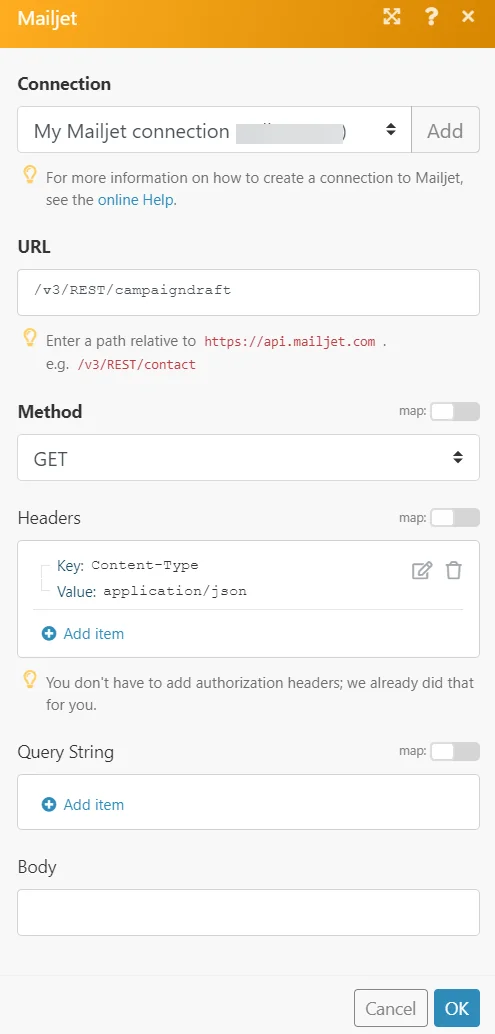
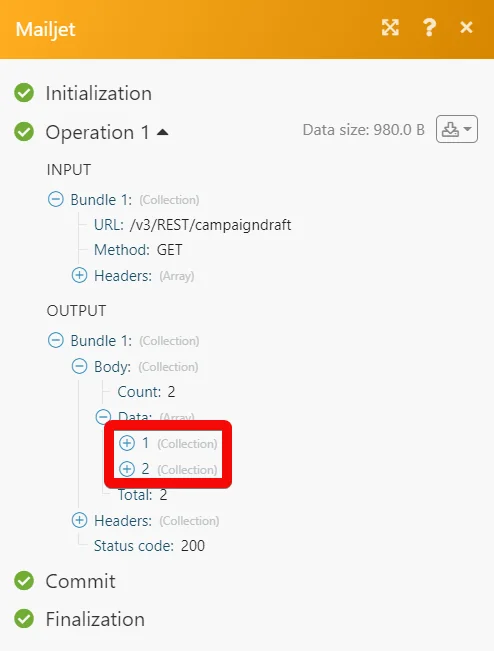
Matches of the search can be found in the module’s Output under Bundle > Body > data.
In our example, 2 campaigns were returned:
Send an SMS
Sends a new SMS.
To send an SMS, you need to establish a new connection with Boost.space Integrator using SMS API Token from your Mailjet account.
Connecting Mailjet to Boost.space Integrator using SMS API Token
-
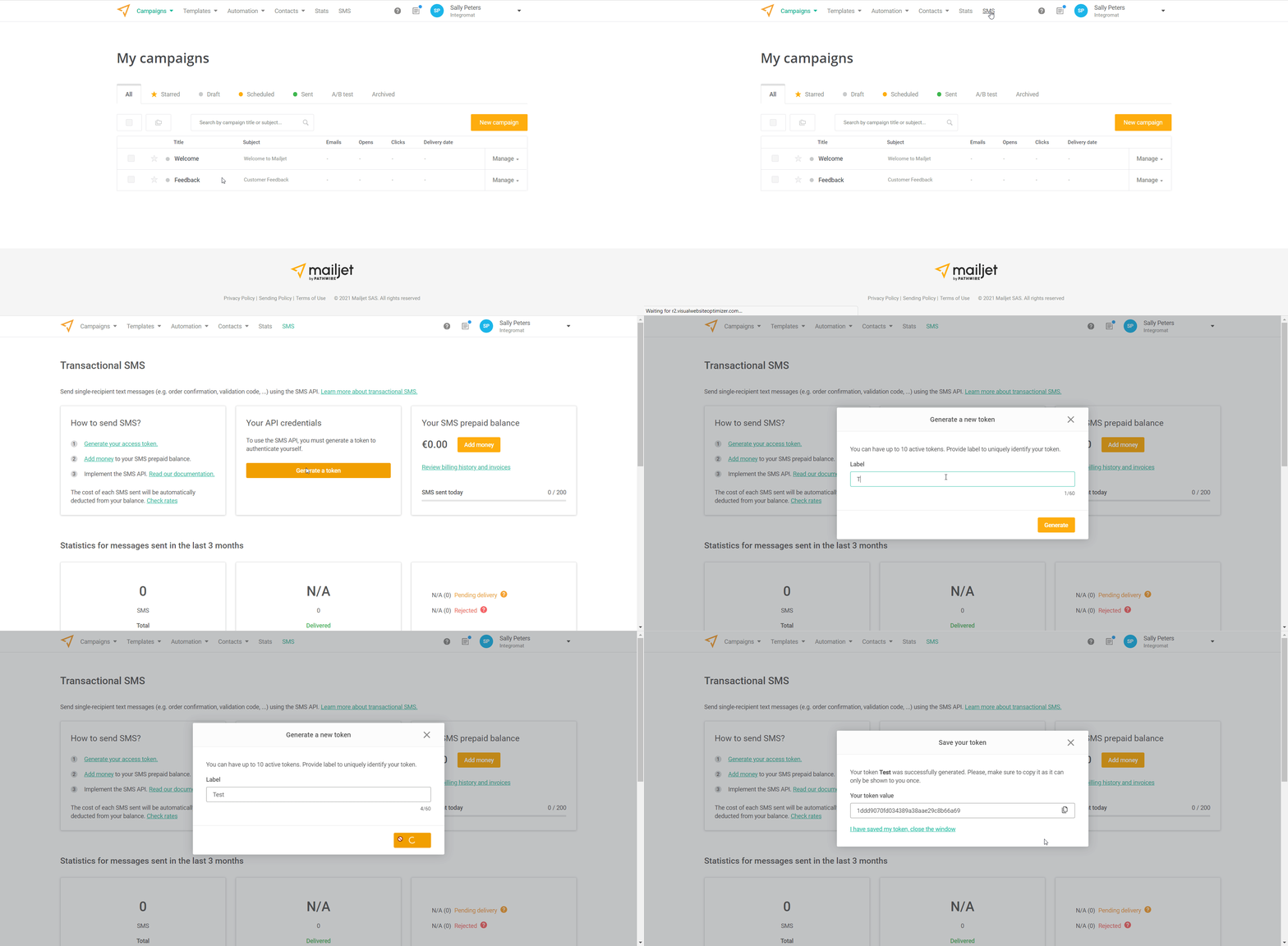
Log in to your Mailjet account, click SMS > Generate API Token > Enter a name for the API > Generate.
-
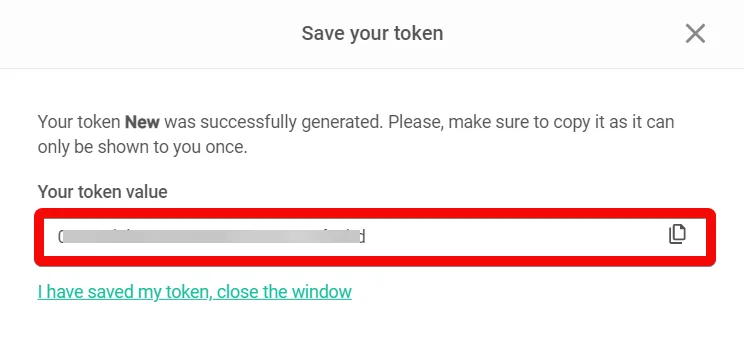
Copy the API Token to your clipboard.
-

Go to Boost.space Integrator and open the Send an SMS module’s Create a connection dialog.
-
In the Connection name field, enter a name for the connection.
-
In the SMS API Token field, enter the token copied in step 2 and click Continue.
The connection has been established. You can now set up the scenario.
Connection
Establish a connection to your Mailjet account.
From
Enter (map) an alphanumeric Sender ID that can be customized for your convenience. For example, InfoSMS.Note: Depending on the local mobile carrier policy it may be converted to a shortcode. For more information, see Country Specific Limitations.
To
Enter (map) the phone number of the recipient. The phone number must comply with the E.164 international telephone numbering standard. The phone number should start with a +, followed by the country code, and then followed by the phone number itself. For example, +33600000000.
Text
Enter (map) the content of the SMS message.For more information on the allowed length and message encoding, see the Concatenation & Encoding.
Legacy article, imported from the original Boost.space knowledge base (/knowledge-base/applications/marketing/mailjet/).

