Tallyfy
Getting Started with Tallyfy
The Tallyfy modules allow you to create, update, manage, and delete tasks, processes, and comments in your Tallyfy account.
Prerequisites
- A Tallyfy account
In order to use Tallyfy with Boost.space Integrator, it is necessary to have a Tallyfy account. You can use your Google or Microsoft accounts or create a Tallyfy account at tallyfy.com.
The module dialog fields that are displayed in bold (in the Boost.space Integrator scenario, not in this documentation article) are mandatory!
Connect Tallyfy to Boost.space Integrator
To connect your Tallyfy account to Boost.space Integrator you need to obtain the API Key from your Tallyfy account and insert it in the Create a connection dialog in the Boost.space Integrator module.
-
Log in to your Tallyfy account.
-
Click your Profile Icon > Settings > Integrations.
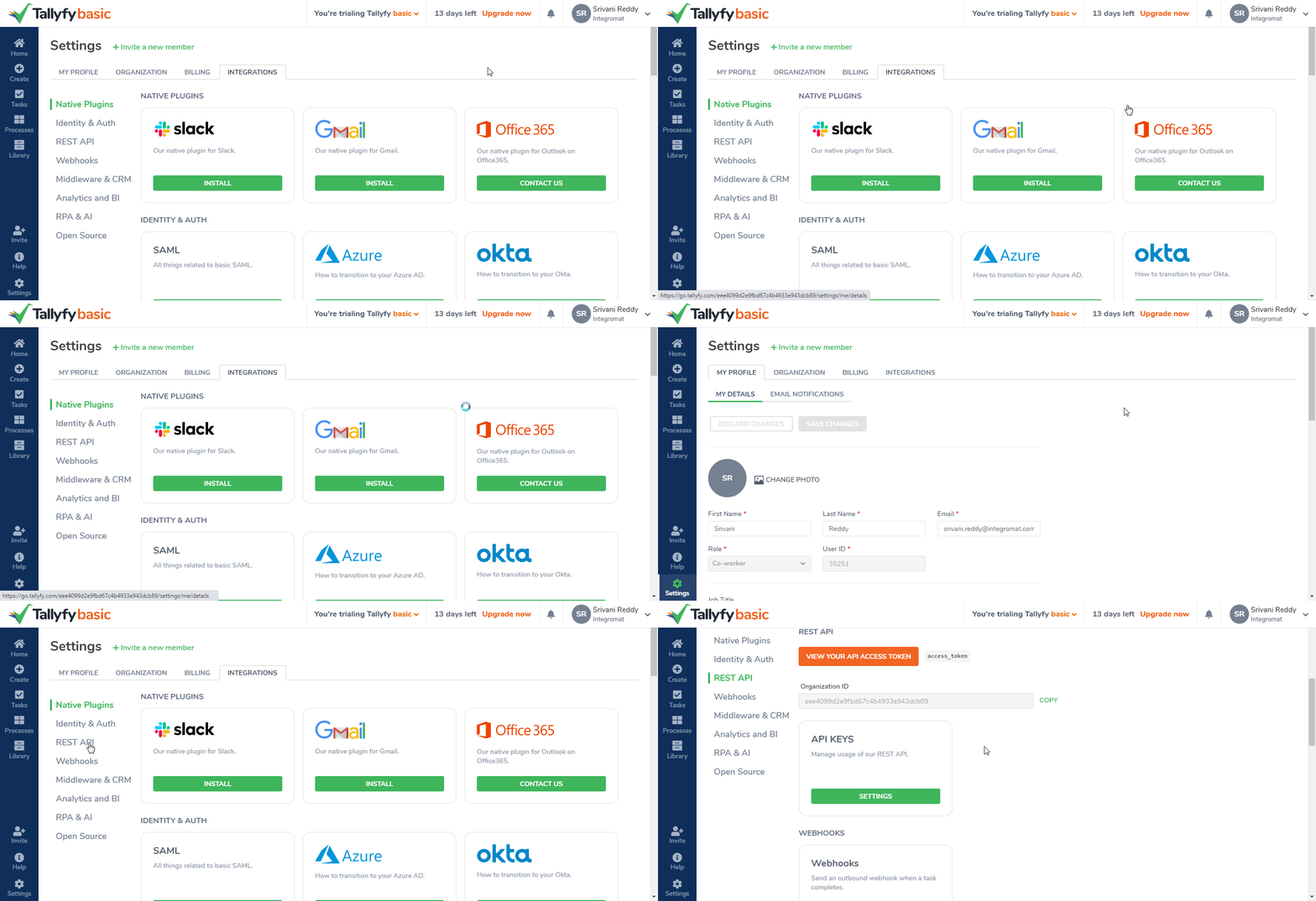
-
Click VIEW YOUR API ACCESS TOKEN.
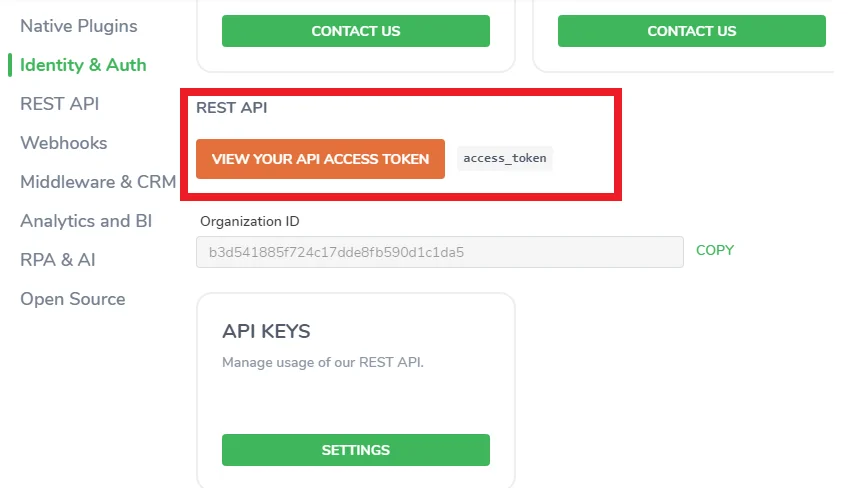
-
Copy the Acess Token and Organization ID to your clipboard.
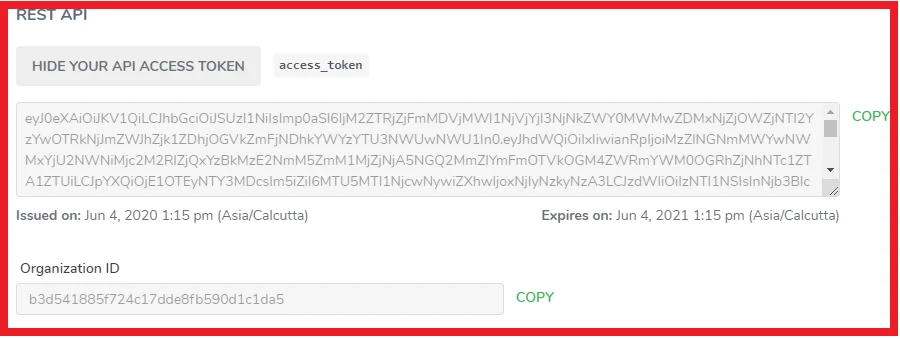
-
Go to Boost.space Integrator and open the Tallyfy module’s Create a connection dialog.

-
In the Connection name field, enter the connection name.
-
In the Access Token field, enter the access token copied in step 4.
-
In the Organization ID field, enter the organization ID copied in step 4 and click Continue.
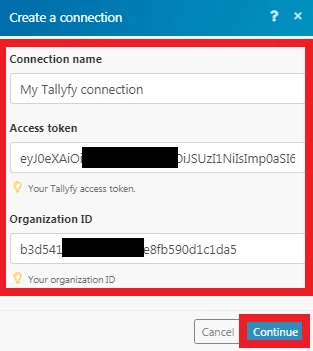
The connection has been established.
Process
Launch a Process
Creates a new process.
Connection
Establish a connection to your Tallyfy account.
Name of the Process
Enter the name of the process.
Blueprint
Select the category appropriate for the process you want to create.
Partner Onboarding
Prospect Name
Enter the partner name.
Company Name
Enter the company name associated with the partner.
Job Title/Position
Enter the position of the partner in the company.
Users
Add the users to whom the task is assigned:
Value
Select users.
Guests
Add the guests who will be watching the task:
Value
Select the guest.
Step Deadline: Determine the channel of inquiry
Enter the date by when you should decide the mode of inquiry with the partner.
Channel of inquiry
Select the inquiry mode of the partner:
-
Partner inquiry form on website
-
Email/Phone call
Enter link to the partner application form
Enter the URL address of the partner’s application.
Notes from inquiry
Enter the information received from the partner’s inquiry.
Users
Add the users to whom the task is assigned:
Value
Select users.
Guests
Add the guests who will be watching the task:
Value
Select the guests.
Step Deadline: Send partner application form
Enter the date by when the partner application should be sent.
Insert link to filled-in application form
Enter the link to the partner’s application form.
Users
Add the users to whom the task is assigned:
Value
Select users.
Guests
Add the guests who will be watching the task:
Value
Select the guests.
Step Deadline: Review Applications
Enter the date by when the partner’s application must be reviewed.
Tentative meeting date and time
Enter the tentative date to meet the partner for discussing the application.
Points/questions to discuss in the meeting
Enter the questions to discuss in the meeting with the partner.
Users
Add the users to whom the task is assigned:
Value
Select users.
Guests
Add the guests who will be watching the task:
Value
Select the guests.
Step Deadline: Schedule meeting to determine fit for the partnership
Enter the date on which the meeting a meeting will be scheduled with the partner for discussing the possibility of partnership.
Date and time of the meeting
Enter the date and time of the meeting in YYYY-MM-DD HH:MM
Enter the Meeting Link
Enter the URL address to join the meeting.
Users
Add the users to whom the task is assigned:
Value
Select users.
Guests
Add the guests who will be watching the task:
Value
Select the guests.
Step Deadline: Approve the application
Enter the date by when the partner’s application must be approved for onboarding.
Does this prospect fit the requirements
Select the option:
-
Yes – please prepare the partner agreement
-
No – can’t accept as a partner, see the notes below
Notes
Enter any additional information you want to notify about the partner’s application.
Users
Add the users to whom the task is assigned:
Value
Select users.
Guests
Add the guests who will be watching the task:
Value
Select the guests.
Step Deadline: Send email to prospect stating reason rejection
If the partner’s application is rejected, enter the reasons for rejection.
Users
Add the users to whom the task is assigned:
Value
Select users.
Guests
Add the guests who will be watching the task:
Value
Select the guests.
Step Deadline: Send partner agreement to partner
Enter the date by when the partner’s agreement should send to the partner.
Upload link to partner agreement
Add the URL address link to the partner agreement.
User
Add the users to whom the task is assigned:
Value
Select users.
Guests
Add the guests who will be watching the task:
Value
Select the guests.
Step Deadline: Request approval on partner agreement
Enter the date by when you should request the partner’s approval on the agreement.
Enter approval information
Select the approval information:
-
Approve
-
Request Changes
Notes
Enter any additional information you want to notify about the partner’s approval on the agreement.
Users
Add the users to whom the task is assigned:
Value
Select users.
Guests
Add the guests who will be watching the task:
Value
Select the guests.
Step Deadline: Review feedback and update agreement
Enter the date by when the assignee should review the partner’s feedback on the agreement and update it.
Users
Add the users to whom the task is assigned:
Value
Select users.
Guests
Add the guests who will be watching the task:
Value
Select the guests.
Step Deadline: Send agreement to partner for signature
Enter the date by when you should send the agreement to the partner for his/her signature.
Users
Add the users to whom the task is assigned:
Value
Select users.
Guests
Add the guests who will be watching the task:
Value
Select the guests.
Step Deadline: Send signed agreement to Director for signature
Enter the date by when you should send the partner’s signed agreement to the Director for signature.
Users
Add the users to whom the task is assigned:
Value
Select users.
Guests
Add the guests who will be watching the task:
Value
Select the guests.
Step Deadline: Send introduction and reference material to partner
Enter the date by when the onboarding introduction and reference material should be sent to the partner.
Checklist for task
Select the checklist for the task.
Users
Add the users to whom the task is assigned:
Value
Select users.
Guests
Add the guests who will be watching the task:
Value
Select the guests.
Step Deadline: Setup tool access for new partner
Enter the date by when the partner should be given access to the required tools.
Checklist for task
Select the checklist for the task.
Users
Add the users to whom the task is assigned:
Value
Select users.
Guest
Add the guests who will be watching the task:
Value
Select the guests.
Step Deadline: Complete 1 month check-in with a partner.
Enter the date by when you should complete the one-month onboarding process with the partner.
Checklist
Select the checklist options for the task.
Notes
Enter any additional information about the partner’s onboarding process that you want to notify.
Employee Onboarding
Employee First Name
Enter the employee’s first name.
Employee Last Name
Enter the employee’s second name.
Hiring Manager
Enter the name of the hiring manager.
Department
Enter the department name to which the employee belongs to.
Users
Add the users to whom the task is assigned:
Value
Select users.
Guests
Add the guests who will be watching the task:
Value
Select the guests.
Step Deadline: HR-Setup employee on HR and payroll systems and send welcome email
Enter the date by when the employee’s data should be set up on the company’s HR and payroll system and should send a welcome email to the employee.
Employee ID
Enter the Employee ID.
Personal Email
Enter the employee’s personal email address.
Address
Enter the employee’s residential address.
Phone
Enter the employee’s phone number.
Date of Birth
Enter the employee’s date of birth in YYYY-MM-DD format.
SSN
Enter the employee’s Social Security Number.
Immigration Status
Select the immigration status of the employee:
-
US Citizen
-
Foreign National
Gender
Select the gender of the employee:
-
Male
-
Female
Emergency Contact Name
Enter the emergency contact person name for the employee.
Emergency Contact Phone
Enter the employee’s emergency contact phone number.
Other Information
Enter any additional information about the employee.
Users
Add the users to whom the task is assigned:
Value
Select users.
Guests
Add the guests who will be watching the task:
Value
Select the guests.
Step Deadline: IT Department – order, provision IT, and telephone equipment
Enter the date by when the employee’s IT equipment and telephone equipment must be ordered.
Please select what has been setup
Select the equipment that has already been set up for the employee.
Users
Add the users to whom the task is assigned:
Value
Select users.
Guests
Add the guests who will be watching the task:
Value
Select the guests.
Step Deadline: Office Manager – provision desk, car parking and office keys
Enter the date by when employee provisions such as desk, car parking, and office keys must be provisioned.
Please mark what has been done
Select the options that were already been provisioned.
What is the assigned car parking post
Enter the details of the employee car parking post.
Users
Add the users to whom the task is assigned:
Value
Select users.
Guests
Add the guests who will be watching the task:
Value
Select the guests.
Step Deadline: IT Department – Create user accounts
Enter the date by when the employee user account must be created.
Select the accounts that have been set up
Select the accounts that have already been set up. For example, email.
Users
Add the users to whom the task is assigned:
Value
Select users.
Guests
Add the guests who will be watching the task:
Value
Select the guests.
Step Assignees: HR – Welcome employee and run induction
Enter the date by when the employee induction program must be completed.
Start Date
Enter the employee joining data.
Employee Bio
Enter the details of the employee biodata.
Employee Resume for Database
Enter the details of the employee resume in the company’s database.
HR Induction Schedule
Enter the details of the employee HR induction schedule.
Users
Add the users to whom the task is assigned:
Value
Select users.
Guests
Add the guests who will be watching the task:
Value
Select the guests.
Step Deadline: IT Department – Train employee on IT systems
Enter the date by when the IT department must complete the IT systems training for the employee.
IT Onboarding
Select the IT courses completed for the employee.
Users
Add the users to whom the task is assigned:
Value
Select users.
Guests
Add the guests who will be watching the task:
Value
Select the guests.
Step Deadline: Hiring Manager – Job Role and Roadmap
Enter the date by when the HR manager should define the job role and roadmap for the employee.
First Week Tasks
Select the first-week tasks for the employee.
Users
Add the users to whom the task is assigned:
Value
Select users.
Guests
Add the guests who will be watching the task:
Value
Select the guests.
Step Deadline: HR – Close Onboarding
Enter the date by when the HR must close the employee onboarding process.
HR and IT onboarding sign-off complete
Select whether HR and IT teams have completed the employee onboarding:
-
Yes
-
No
Hiring Manager onboarding sign-off complete
Select whether the hiring manager has completed employee onboarding:
-
Yes
-
No
Leasing – Tenant Onboarding
Property Name
Enter the property name.
Property Address
Enter the property address.
Property Manager Name
Enter the property manager’s name.
Tenant Name
Enter the tenant name.
Tenant Contact Number
Enter the tenant’s contact number.
Tenant Contact Mail
Enter the tenant’s mail address.
Users
Add the users to whom the task is assigned:
Value
Select users.
Guests
Add the guests who will be watching the task:
Value
Select the guests.
Step Deadline: Enter property details
Enter the date by which the assignee must enter the property details.
Property Code/ID
Enter the Property ID.
Sqft
Enter the property area in Sq. ft.
Rent per Sq.ft.
Enter the rent of the property per Sq. ft.
Amount for security deposit
Enter the security deposit amount for the property.
Availability from date
Enter the date from when the property is available for rent.
Users
Add the users to whom the task is assigned:
Value
Select users.
Guests
Add the guests who will be watching the task:
Value
Select the guests.
Step Deadline: Enter tenant details
Enter the date by which the assignee must enter the tenant details.
Tenant Address
Enter the tenant address.
Expected Move-In Date
Enter the date when the tenant is expected to move into the property.
Occupation
Enter the tenant’s profession.
Employer Name
Enter the tenant employer’s name.
Employer Address
Enter the tenant employer address.
Emergency Contact Name
Enter the tenant’s emergency contact name.
Relationships
Enter the relationship of emergency contact with the tenant.
Emergency Contact Number
Enter the tenant’s emergency contact number.
Users
Add the users to whom the task is assigned:
Value
Select users.
Guests
Add the guests who will be watching the task:
Value
Select the guests.
Step Deadline: Complete background check for tenant
Enter the date by which the assignee must complete the background check of the tenant.
Upload background check report
Enter the link to the tenant’s background check report.
Notes
Enter any additional information about the tenant’s background information.
Users
Add the users to whom the task is assigned:
Value
Select users.
Guest
Add the guests who will be watching the task:
Value
Select the guests.
Step Deadline: Provide information to create lease agreement
Enter the date by when the assignee must provide the information for preparing the tenant’s lease agreement.
Lease Type
Select the lease type:
-
Residential
-
Commercial
Lease Start Date
Enter the lease start date.
Lease Duration
Enter the duration of the lease.
Option to Review
Select the lease review option:
-
Non-renewable
-
Renewable
Rent Amount per Month
Enter the rent of the property of the month.
Notice period for move out (in days)
Enter the notice period to provide before moving out of the property.
Clauses
Enter any clauses mentioned in the lease agreement.
Changes/Repairs Required?
Select whether there are changes or repairs required for the property:
-
Yes
-
No
Notes
Enter any additional information in the lease agreement.
Users
Add the users to whom the task is assigned:
Value
Select users.
Guests
Add the guests who will be watching the task:
Value
Select the guests.
Step Deadline: Create lease agreement
Enter the date by when the assignee must create the lease agreement.
Link to Lease Agreement
Enter the URL address link to access the lease agreement.
Users
Add the users to whom the task is assigned:
Value
Select users.
Guest
Add the guests who will be watching the task:
Value
Select the guests.
Step Deadline: Review lease (internal)
Enter the date by when the lease agreement must be reviewed internally.
Approve Lease?
Select whether the lease agreement is approved:
-
Yes
-
No
Notes
Enter any additional information about lease agreement approval.
Users
Add the users to whom the task is assigned:
Value
Select users.
Guests
Add the guests who will be watching the task:
Value
Select the guests.
Step Deadline: Update lease agreement
Enter the date by when the assignee must update the lease agreement with any changes suggested.
Users
Add the users to whom the task is assigned:
Value
Select users.
Guests
Add the guests who will be watching the task:
Value
Select the guests.
Step Deadline: Send lease agreement to tenant
Enter the date by when the assignee must send the lease agreement to the tenant.
Notes
Enter the additional information which you want to notify about the lease agreement.
Users
Add the users to whom the task is assigned:
Value
Select users.
Guests
Add the guests who will be watching the task:
Value
Select the guests.
Step Deadline: Collect security deposit and 1st month’s rent
Enter the date by when the assignee must collect the security deposit and first-month rent.
Check Number for Reference
Enter the check number.
Reference ID for First Month Rent
Enter the Reference ID for the first month’s rent amount.
Users
Add the users to whom the task is assigned:
Value
Select users.
Guests
Add the guests who will be watching the task:
Value
Select the guests.
Step Deadline: Issue work order for changes/repairs and installations
Enter the date by when the assignee must issue an order to perform the changes, repairs, or installations.
Input work order
Enter the details of the input work order.
Users
Add the users to whom the task is assigned:
Value
Select users.
Guests
Add the guests who will be watching the task:
Value
Select the guests.
Step Deadline: Complete work order
Enter the date by when the assignee must complete the work order.
Users
Add the users to whom the task is assigned:
Value
Select users.
Guests
Add the guests who will be watching the task:
Value
Select the guests.
Step Deadline: Prepare for move-in
Enter the date by when the assignee must complete the preparation for the tenant’s move-in.
Checklist for task
Select the checklist for the task.
Users
Add the users to whom the task is assigned:
Value
Select users.
Guests
Add the guests who will be watching the task:
Value
Select the guests.
Step Deadline: Conduct a post move-in check in and feedback visit
Enter the date by when the assignee must complete the post move-in check-in feedback visit.
Feedback Notes
Enter the feedback notes collected from the tenant.
Client Onboarding
Company Name
Enter the company name.
Users
Add the users to whom the task is assigned:
Value
Select users.
Guests
Add the guests who will be watching the task:
Value
Select the guests.
Step Deadline: Gather Basic Information
Enter the date by when the assignee must collect the basic information of the client.
Primary Contact First Name
Enter the contact’s first name.
Primary Contact Last Name
Enter the contact’s last name.
Primary Contact E-Mail Address
Enter the contact’s email address.
Primary Contact Phone Number
Enter the contact’s phone number.
Preferred Method of Communication:
Enter the contact’s preferred mode of communication:
-
E-mail
-
Phone
Users
Add the users to whom the task is assigned:
Value
Select users.
Guests
Add the guests who will be watching the task:
Value
Select the guests.
Step Deadline: Send Welcome E-Mail
Enter the date by when the assignee must send a welcome e-mail.
Include the following in the welcome E-Mail
Select the information to include in the e-mail.
Users
Add the users to whom the task is assigned:
Value
Select users.
Guests
Add the guests who will be watching the task:
Value
Select the guests.
Step Deadline: Conduct a Kick-Off Call
Enter the date by when the assignee must conduct a kick-off call for onboarding.
What are the required outcomes?
Enter the details of the outcome of the call.
What are the primary use cases?
Enter the use cases for onboarding.
What are some successful milestones we should keep in mind?
Enter the details of the important milestones for the onboarding.
Other notes
Enter any additional information about the onboarding
Date of the first-month follow-up call
Enter the date of the first month’s onboarding follow-up call.
Phone Number For Follow-Up Call
Enter the phone number to reach out for the follow-up.
Users
Add the users to whom the task is assigned:
Value
Select users.
Guests
Add the guests who will be watching the task:
Value
Select the guests.
Step Deadline: Conduct a first-month check-in Call
Enter the date by when the assignee must conduct a first-month check-in call.
Have the milestones been successfully met?
Select whether the milestones were successfully met:
-
Yes
-
No
Notes from the follow-up call
Enter the information from the follow-up call.
User
Add the users to whom the task is assigned:
Value
Select users.
Guests
Add the guests who will be watching the task:
Value
Select the guests.
Step Deadline: Request Feedback
Enter the date by when the assignee must request feedback from the client.
On a scale of 1 (poor) to 5 (excellent), how would you rate your user experience?
Select the rating provided by the client.
Would you recommend our product to others?
Select whether the client would like to recommend the product to others:
-
Yes
-
No
Do you have any other feedback or feature requests you would like to see implemented in the future?
Enter the details of the recommendation and suggestions from the client.
Users
Add the users to whom the task is assigned:
Value
Select users.
Guests
Add the guests who will be watching the task:
Value
Select the guests.
Step Deadline: Request a Customer Testimonial
Enter the date by when the assignee must request a customer testimonial.
Include the following in the testimonial request email:
Select the options to include the testimonial request email.
Issue Tracking
Reported By (Name)
Enter the name of the person who reported the issue.
Contact Email
Enter the reporter’s email address.
What is the issue?
Enter the details of the issue.
Notes
Enter the additional information about the issue.
Users
Add the users to whom the task is assigned:
Value
Select users.
Guests
Add the guests who will be watching the task:
Value
Select the guests.
Step Deadline: Determine channel of reporting
Enter the date by when the assignee must determine the mode of reporting.
Who reported the issue?
Select appropriate for the reporter:
-
Internal Employee (QA/Employee)
-
External Agent (Client/Partner)
When was this issue reported?
Enter the date of the issue reported.
Summarize the issue
Enter the summary of the issue.
Users
Add the users to whom the task is assigned:
Value
Select users.
Guests
Add the guests who will be watching the task:
Value
Select the guests.
Step Deadline: Check for duplicate/similar bugs
Enter the date by when the assignee must check for any duplicate or similar bugs to the reported one.
Is this is a new bug?
Select whether this is a new bug?
-
Yes – New issue
-
No – Old issue/troubleshooting topic
Users
Add the users to whom the task is assigned:
Value
Select users.
Guests
Add the guests who will be watching the task:
Value
Select the guests.
Step Deadline: Send helpful notification to client
Enter the date by when the assignee must send a notification to the client about the issue.
Body of the email to be sent
Enter the email message sent to the client.
Screenshot for reference
Enter the link to the screenshot of the issue for reference.
Links to related support article(s)
Enter the URL address of the support articles related to the issue.
Users
Add the users to whom the task is assigned:
Value
Select users.
Guests
Add the guests who will be watching the task:
Value
Select the guests.
Step Deadline: Create a new ticket
Enter the date by when the assignee must create a ticket for the issue.
Describe the issue in detail
Enter the details of the issue.
Enter issue number/URL
Enter the Issue ID or URL link of the issue ticket.
Users
Add the users to whom the task is assigned:
Value
Select users.
Guests
Add the guests who will be watching the task:
Value
Select the guests.
Step Deadline: Prioritize and assign
Enter the date by when the assigned must prioritize the issue and assign it to fix.
Priority
Select the priority of the issue.
Owner
Enter the details of the assignee to whom the ticket is assigned.
Severity
Enter the severity of the issue.
Status
Enter the status of the issue.
Version to fix it in
Enter the version of the product in which the issue fix is available.
Application
Enter the application details.
Module
Enter the module where the issue is fixed.
Category
Enter the category details of the issue.
Users
Add the users to whom the task is assigned:
Value
Select users.
Guests
Add the guests who will be watching the task:
Value
Select the guests.
Step Deadline: Send confirmation to client
Enter the date by when the assignee must send the confirmation to the client about the fix.
Expected turn around time (in days)
Enter the number of days required to fix the issue.
Users
Add the users to whom the task is assigned:
Value
Select users.
Guests
Add the guests who will be watching the task:
Value
Select the guests.
Step Deadline: Fix issue
Enter the date by when the assignee must fix the issue.
Notes
Enter any additional information about the issue.
Users
Add the users to whom the task is assigned:
Value
Select users.
Guests
Add the guests who will be watching the task:
Value
Select the guests.
Step Deadline: Send to QA team for testing
Enter the date by when the assignee must send the fix to the QA team for testing.
Why was the issue occurring and how was it fixed?
Enter the details information about the causes for the issue and method to fix it.
Users
Add the users to whom the task is assigned:
Value
Select users.
Guests
Add the guests who will be watching the task:
Value
Select the guests.
Step Deadline: Review and approve fix
Enter the date by when the assignee must review and approve the fix.
Is the issue resolved?
Select whether the issue is resolved:
-
Yes – issue resolved
-
Not yet – please see the notes
Approval Notes
Enter the details about the issue fix and reasons if it is not fixed.
Users
Add the users to whom the task is assigned:
Value
Select users.
Guests
Add the guests who will be watching the task:
Value
Select the guests.
Step Deadline: Review feedback and fix issue
Enter the date by when the assignee must review the feedback and fix the issue.
Users
Add the users to whom the task is assigned:
Value
Select users.
Guests
Add the guests who will be watching the task:
Value
Select the guests.
Step Deadline: Send notification to the client
Enter the date by when the assignee must send the notification to the client about the fix.
Users
Add the users to whom the task is assigned:
Value
Select users.
Guests
Add the guests who will be watching the task:
Value
Select the guests.
Step Deadline: Send notification to team member/QA
Enter the date by when the assignee must send the notification to the team members or QA.
Users
Add the users to whom the task is assigned:
Value
Select users.
Guests
Add the guests who will be watching the task:
Value
Select the guests.
Step Deadline: Close ticket
Enter the date by when the assignee must close the ticket.
Feedback from client/team member
Enter the feedback from the client or the team member about the service.
Link to updated support article for this issue
Enter the URL address link to the updated support article related to the issue.
Internal Support Request
Request By: Full Name
Enter the full name of the requestor.
Users
Add the users to whom the task is assigned:
Value
Select users.
Guests
Add the guests who will be watching the task:
Value
Select the guests.
Step Deadline: Describe IT support request
Enter the date by when the assignee must provide the details of the IT support request.
Request by: Full Name
Enter the full name of the requestor.
What is this request about?
Select the option for the request:
-
Access to a system
-
New hardware or software
-
Troubleshoot
Please describe your request
Enter the details of the request.
Users
Add the users to whom the task is assigned:
Value
Select users.
Guests
Add the guests who will be watching the task:
Value
Select the guests.
Step Deadline: IT manager – review support request and confirm priority
Enter the date by when the assignee must review the request and provide the severity of the request.
What is the SLA response?
Select the priority of the request.
Users
Add the users to whom the task is assigned:
Value
Select users.
Guests
Add the guests who will be watching the task:
Value
Select the guests.
Step Deadline: IT manager – review access to a system request
Enter the date by when the assignee must review the access to a system request.
Users
Add the users to whom the task is assigned:
Value
Select users.
Guests
Add the guests who will be watching the task:
Value
Select the guests.
Step Deadline: IT manager – review new hardware or software request
Enter the date by when the assignee must review the hardware or software request.
Users
Add the users to whom the task is assigned:
Value
Select users.
Guests
Add the guests who will be watching the task:
Value
Select the guests.
Step Deadline: IT manager – review troubleshooting request
Enter the date by when the assignee must review the troubleshooting request.
Users
Add the users to whom the task is assigned:
Value
Select users.
Guests
Add the guests who will be watching the task:
Value
Select the guests.
Step Deadline: Priority 1 support request – 1 hour response
Enter the date when the assignee must complete the priority 1 request and respond to the requestor.
Users
Add the users to whom the task is assigned:
Value
Select users.
Guests
Add the guests who will be watching the task:
Value
Select the guests.
Step Deadline: Priority 2 support request – 4 hour response
Enter the date when the assignee must complete the priority 2 request and respond to the requestor.
Users
Add the users to whom the task is assigned:
Value
Select users.
Guests
Add the guests who will be watching the task:
Value
Select the guests.
Step Deadline: Priority 3 support request – 8 hour response
Enter the date when the assignee must complete the priority 3 request and respond to the requestor.
Users
Add the users to whom the task is assigned:
Value
Select users.
Guests
Add the guests who will be watching the task:
Value
Select the guests.
Step Deadline: Configure access to system and inform user(s)
Enter the date by when the assignee must configure the access to a system and inform the user.
Please provide details of what was configured
Enter the details of the configuration.
Users
Add the users to whom the task is assigned:
Value
Select users.
Guests
Add the guests who will be watching the task:
Value
Select the guests.
Step Deadline: Order new hardware/software and inform user(s)
Enter the date by when the assignee must order the new hardware or the software and inform the requestor.
Please provide details of hardware/software ordered
Enter the details of the hardware or software ordered.
Users
Add the users to whom the task is assigned:
Value
Select users.
Guests
Add the guests who will be watching the task:
Value
Select the guests.
Step Deadline: Assign IT personnel to troubleshooting request
Enter the date by when the assignee must assign an IT person to troubleshoot the request.
Pricing Discount Approval
Client/Account Name
Enter the client’s name or account name.
Name of account manager requesting approval
Enter the name of the account manager who approves the request.
Type of discount requested
Enter the details of the discount requested.
Users
Add the users to whom the task is assigned:
Value
Select users.
Guests
Add the guests who will be watching the task:
Value
Select the guests.
Step Deadline: Submit account information
Enter the date by when the assignee must submit the client or account information.
Account information
Enter the details of the account information.
Proposed discount
Enter the discount amount proposed by the client.
Users
Add the users to whom the task is assigned:
Value
Select users.
Guests
Add the guests who will be watching the task:
Value
Select the guests.
Step Deadline: Proposed discount amount
Enter the date when the assignee must propose a new discount amount to the client.
What is the total discount?
Enter the total discount amount.
What is the percentage discount?
Select the percentage of the discount amount.
Discount Type
Select the discount type:
-
Referral
-
Trail
-
Customer application
-
Other
Discount information if any
Add any additional information about the discount.
Users
Add the users to whom the task is assigned:
Value
Select users.
Guests
Add the guests who will be watching the task:
Value
Select the guests.
Step Deadline: Manager – review proposed discount
Enter the date by when the assignee must review the proposed discount.
Manager, do you approve the discount?
Select whether the discount is approved:
-
Yes
-
No
Users
Add the users to whom the task is assigned:
Value
Select users.
Guests
Add the guests who will be watching the task:
Value
Select the guests.
Step Deadline: Senior Manager – review proposed discount
Enter the date by when the assignee must review the proposed discount.
Senior manager, do you approve the discount amount?
Select whether the discount is proposed:
-
Yes
-
No
If not approved, please include notes here
Enter the reasons for not approving the discount.
Users
Add the users to whom the task is assigned:
Value
Select users.
Guests
Add the guests who will be watching the task:
Value
Select the guests.
Step Deadline: Discount was approved!
Enter the date by when the assignee must approve the proposed discount.
Users
Add the users to whom the task is assigned:
Value
Select users.
Guests
Add the guests who will be watching the task:
Value
Select the guests.
Step Deadline: Sorry, discount not approved.
Enter the date by when the assignee must send a note to the client that the proposed discount is not approved.
Expense Claim Request
First name
Enter the first name of the employee.
Last name
Enter the last name of the employee.
Employee number
Enter the employee number.
Users
Add the users to whom the task is assigned:
Value
Select users.
Guests
Add the guests who will be watching the task:
Value
Select the guests.
Step Deadline: File your claim
Enter the date by when the assignee must file the expense claim.
First name
Enter the first name of the employee.
Last name
Enter the last name of the employee.
Date of purchase/expense
Enter the date when the item was purchased for which the expense claim is being submitted.
Add more details here
Enter the details of the expenses.
Attach receipt
Enter the URL address link to the receipt.
How much is the total claim for?
Select the option for the expense amount:
-
<=$1000
-
>$1000
Users
Add the users to whom the task is assigned:
Value
Select users.
Guests
Add the guests who will be watching the task:
Value
Select the guests.
Step Deadline: Select your department
Enter the date by when the assignee must select the employee department.
Which department do you work in?
Select the department to which the employee belongs to.
Users
Add the users to whom the task is assigned:
Value
Select users.
Guests
Add the guests who will be watching the task:
Value
Select the guests.
Step Deadline: Sales manager approval
Enter the date by when the assignee must approve the expense claim.
Do you Approve?
Select whether the expense is approved:
-
YES
-
NO
If not approved, please add notes here.
Enter the reason for not approving the expense claim request.
Users
Add the users to whom the task is assigned:
Value
Select users.
Guests
Add the guests who will be watching the task:
Value
Select the guests.
Step Deadline: IT manager approval
Enter the date by when the assignee must approve the expense claim request.
Do you approve?
Select whether the expense claim request is approved:
-
Yes
-
No
Notes
Enter the details for not approving the request.
Users
Add the users to whom the task is assigned:
Value
Select users.
Guests
Add the guests who will be watching the task:
Value
Select the guests.
Step Deadline: HR manager approval
Enter the date by when the assignee must approve the expense claim request.
Do you approve?
Select whether the request is approved:
-
Yes
-
No
If not approved, please add the details here.
Enter the reason for not approving the request.
Users
Add the users to whom the task is assigned:
Value
Select users.
Guests
Add the guests who will be watching the task:
Value
Select the guests.
Step Deadline: Claim not approved
Enter the date by when the assignee must send the note to the employee for not approving the expense claim reimbursement.
Users
Add the users to whom the task is assigned:
Value
Select users.
Guests
Add the guests who will be watching the task:
Value
Select the guests.
Step Deadline: Reimburse claim
Enter the date by when the assignee must reimburse the expense amount.
Payment confirmation number
Enter the payment confirmation number of the expense reimbursed.
Amount Reimbursed
Enter the amount reimbursed to the employee.
Proposal/Contract Review
Company Name
Enter the company name whose proposal or contract is being reviewed.
Users
Add the users to whom the task is assigned:
Value
Select users.
Guests
Add the guests who will be watching the task:
Value
Select the guests.
Step Deadline: Collect information
Enter the date by when the assignee must collect the information about the proposal.
First Name
Enter the first name of the contact person for the proposal.
Last Name
Enter the last name of the contact person.
Another Name
Enter if there is another name for the contact person.
Title
Enter a name for the proposal.
Enter the contact email address.
Mobile
Enter the contact mobile number.
Work Phone
Enter the work phone number.
Address
Enter the contact address of the company or contact person.
Reasons for a New System
Enter the reason for creating the proposal.
Current Pain Points
Enter the challenges in the present system.
Current Provider(s) If Any?
Enter details of the suppliers of the new system.
How will we help transition from old system?
Enter the process of the migration from the old system to the new system.
Date agreed with customer to present proposal
Enter the date when the proposal is presented to the customer.
Other information/notes on proposal request
Enter any other information about the proposal.
Users
Add the users to whom the task is assigned:
Value
Select users.
Guests
Add the guests who will be watching the task:
Value
Select the guests.
Step Deadline: Prepare quote/proposal
Enter the date by when the assignee must prepare a quote for the proposal.
Attach proposal here
Enter the URL link to the proposal.
Users
Add the users to whom the task is assigned:
Value
Select users
Guests
Add the guests who will be watching the task:
Value
Select the guests.
Step Deadline: Send Quote
Enter the date by when the quote must be sent to the client.
Email Sent?
Select whether the email has been sent:
-
Yes
-
No
Users
Add the users to whom the task is assigned:
Value
Select users
Guests
Add the guests who will be watching the task:
Value
Select the guests.
Step Deadline: Proposal meeting
Enter the date by when the assignee must complete the proposal meeting.
Date of the meeting
Enter the date of the meeting.
Is a proposal variation required?
Select whether any variations required in the variation:
-
Yes
-
No
Customer Response
Enter the response from the customer.
Users
Add the users to whom the task is assigned:
Value
Select users
Guests
Add the guests who will be watching the task:
Value
Select the guests.
Step Deadline: Quote Variation
Enter the date by when the assignee must complete the quote validation.
Attach updated proposal
Enter the URL address to the updated proposal.
Users
Add the users to whom the task is assigned:
Value
Select users.
Guests
Add the guests who will be watching the task:
Value
Select the guests.
Step Deadline: Proposal accepted/declined?
Enter the date by when the assignee must accept or reject the proposal.
Proposal accepted?
Select whether the proposal is accepted:
-
Yes
-
No
Users
Add the users to whom the task is assigned:
Value
Select users.
Guests
Add the guests who will be watching the task:
Value
Select the guests.
Step Deadline: Acceptance
Enter the date by when the assignee must send the signed proposal.
Attach signed and acknowledged proposal
Enter the URL address link to the signed and acknowledged proposal.
Users
Add the users to whom the task is assigned:
Value
Select users.
Guests
Add the guests who will be watching the task:
Value
Select the guests.
Step Deadline: Declined / No Indication
Enter the date when the assignee must send a note to the customer about declining the proposal
Reasons for declining the proposal
Enter the reason for declining the proposal.
Users
Add the users to whom the task is assigned:
Value
Select users.
Guests
Add the guests who will be watching the task:
Value
Select the guests.
Step Deadline: Close request
Enter the date by when the assignee must close the request.
Weekly/Monthly Reporting
Employee Name
Enter the name of the employee whose weekly or monthly reporting status is being created.
Report for
Enter the reporting mode of the employee. For example, Weekly.
Department
Enter the department name to which the employee belongs to.
Users
Add the users to whom the task is assigned:
Value
Select users.
Guests
Add the guests who will be watching the task:
Value
Select the guests.
Step Deadline: Weekly B2B Sales report
Enter the date by when the assignee must submit the weekly B2B report.
To be reviewed by (Manager name)
Enter the manager’s name who should review the sales report.
Report ‘from’ date
Enter the start date of the sales report.
Report ‘to’ date
Enter the end date of the sales report.
Number of outbound calls
Enter the number of outbound calls.
Sales volume by Channel
Enter the sales volume channel.
Revenue closed by rep
Enter the amount of deal closed by the sales representative.
Upsell and cross-sell rates
Enter the rate amount for upselling and cross-selling.
Avg. Customer lifetime value
Enter the customer lifetime value.
Client meetings attended by rep
Enter the representative name who attended the client meetings.
Lead-to-Opportunity ratio by rep for the week
Enter the lead-to-opportunity probability ratio for the week.
Opportunity-to-win ratio by rep for the week
Enter the opportunity-to-win probability ratio for the week.
Lead conversion ratio
Enter the conversation ratio with the lead.
Users
Add the users to whom the task is assigned:
Value
Select users.
Guests
Add the guests who will be watching the task:
Value
Select the guests.
Step Deadline: Review and sign-off weekly sales report
Enter the date by when the assignee must review and sign-off the weekly sales report.
Notes
Enter any additional information about the sales report review.
Users
Add the users to whom the task is assigned:
Value
Select users.
Guests
Add the guests who will be watching the task:
Value
Select the guests.
Step Deadline: Weekly Finance report
Enter the date by when the assignee must prepare the weekly finance report.
KPIs included in the report
Select the KPIs included in the report.
Report ‘From’ Date
Enter the start date of the report.
Report ‘To’ Date
Enter the end date of the report.
Upload link to weekly expense report
Enter the URL address to the weekly expense report.
Upload link to last week’s report
Enter the URL address to the previous week’s report.
Users
Add the users to whom the task is assigned:
Value
Select users.
Guests
Add the guests who will be watching the task:
Value
Select the guests.
Step Deadline: Review and sign-off weekly finance report
Enter the date bu when the assignee must review and sign-off the weekly finance report.
Notes
Enter any additional information about the finance report.
Users
Add the users to whom the task is assigned:
Value
Select users.
Guests
Add the guests who will be watching the task:
Value
Select the guests.
Step Deadline: Monthly B2B Sales report
Enter the date by when the assignee must prepare the monthly B2B sales report.
Report to be reviewed by
Enter the name of the person who reviewed the report.
Monthly Revenue
Enter the monthly revenue amount.
Demo/sales booking by rep
Enter the representative name who has performed the demo and dales booking.
Avg. new deal size
Enter the details of the deal.
Did we have churns this month?
Select whether there are any churns in the month:
-
Yes
-
No
If yes, please mention client names and account details
Enter the client names and their account details with churns.
New MMR
Enter the details of the new MMR.
Upload link to data visuals report
Enter the URL address to the data visuals report.
Expansion MRR (upsell, new RR from existing customers)
Enter the MRR details.
Users
Add the users to whom the task is assigned:
Value
Select users.
Guests
Add the guests who will be watching the task:
Value
Select the guests.
Step Deadline: Review and sign-off monthly sales report
Enter the date by when the assignee must review and sign-off the monthly sales report.
Notes
Enter any additional information about the sales report.
Users
Add the users to whom the task is assigned:
Value
Select users.
Guests
Add the guests who will be watching the task:
Value
Select the guests.
Step Deadline: Monthly Finance Report
Enter the date by when the assignee must prepare the monthly finance report.
Report ‘From’ date
Enter the start date of the report.
Report ‘To’ date
Enter the end date of the report.
Upload link to Income Statement
Enter the URL address to the income statement.
Upload link to Cash Flow Statement
Enter the URL address of the cash flow statement.
Upload link to Balance Sheet
Enter the URL address of the balance sheet.
Checklist of KPIs Reported for the Month
Select the KPIs for the sales report.
Users
Add the users to whom the task is assigned:
Value
Select users.
Guests
Add the guests who will be watching the task:
Value
Select the guests.
Step Deadline: Review and sign-off monthly finance report
Enter the date by when the assignee must review and sign off the finance report.
Notes
Enter any additional information about the finance report.
Plan Regular Events
Event Name
Enter the name of the event.
Tentative Event Date
Enter the tentative date when event is scheduled.
Notes
Enter the details of the event.
Users
Add the users to whom the task is assigned:
Value
Select users.
Guests
Add the guests who will be watching the task:
Value
Select the guests.
Step Deadline: Enter objective and category for event
Enter the date by when the assignee must enter the category and objective of the event. For example, Charity event.
Enter type of event
Select the event type:
-
Team lunch
-
Board meeting
-
Team retreat
-
Tradeshow
-
Fundraising
-
Company Holiday Party
-
Quarterly/Reporting Meet
-
Conference/Seminar
Objective of this event
Enter the purpose of the event.
Notes
Enter any additional information about the event.
Users
Add the users to whom the task is assigned:
Value
Select users.
Guests
Add the guests who will be watching the task:
Value
Select the guests.
Step Deadline: Create event management team
Enter the date by when the assignee must create a new event management team.
Names of team members
Enter the team member’s names.
Responsibilities
Enter the responsibilities of each team member.
Users
Add the users to whom the task is assigned:
Value
Select users.
Guests
Add the guests who will be watching the task:
Value
Select the guests.
Step Deadline: Decide event attributes
Enter the date by when the assignee must decide the attributes of the event.
Approximate capacity
Enter the approximate audience capacity expected in the event.
Location
Enter the place where the event is taking place.
Types of vendor, if required
Select the vendors for the event.
Allocated Budget
Enter the amount allocated for the budget.
Point of contact for event
Enter the contact person details for the event.
Hotel booking required?
Select whether the attendees need hotel booking for the event:
-
Yes
-
No
Notes
Enter any additional information about the event.
Users
Add the users to whom the task is assigned:
Value
Select users.
Guests
Add the guests who will be watching the task:
Value
Select the guests.
Step Deadline: Determine program schedule and details.
Enter the date by when the assignee must decide the program schedule and details.
Who will host this event?
Enter the company or person name who is hosting the event.
What material do we need to prepare for this event?
Enter the details of the materials or items required for the event.
Enter sample welcome speech here:
Enter the welcome speech for the event.
Notes
Enter any additional information about the event schedule.
Users
Add the users to whom the task is assigned:
Value
Select users.
Guests
Add the guests who will be watching the task:
Value
Select the guests.
Step Deadline: Send request to vendors, if applicable
Enter the date by when the assignee must send the event plan request to the vendors.
Task Checklist
Select the checklist tasks.
Users
Add the users to whom the task is assigned:
Value
Select users.
Guests
Add the guests who will be watching the task:
Value
Select the guests.
Step Deadline: Create event invitation
Enter the date when the assignee must create the event invitation.
Upload link to the document
Enter the URL address to the invitation document.
Users
Add the users to whom the task is assigned:
Value
Select users.
Guests
Add the guests who will be watching the task:
Value
Select the guests.
Step Deadline: Design print and promotional materials if required
Enter the date by when the assignee must print the brochures, and any other campaign materials.
Users
Add the users to whom the task is assigned:
Value
Select users.
Guests
Add the guests who will be watching the task:
Value
Select the guests.
Step Deadline: Confirm details with vendors
Enter the date by when the assignee must confirm the event details with the vendors.
Users
Add the users to whom the task is assigned:
Value
Select users.
Guests
Add the guests who will be watching the task:
Value
Select the guests.
Step Deadline: Get approval on all event details from Director/Group Head
Enter the date by when the assignee must get approvals for all the event details from the director or group head.
Feedback/Notes
Enter the feedback from the directors or group head about the event.
Users
Add the users to whom the task is assigned:
Value
Select users.
Guests
Add the guests who will be watching the task:
Value
Select the guests.
Step Deadline: Publish/send invitation to attendees
Enter the date by when the assignee must publish and send the invitation to the attendees.
Task Checklist
Select the tasks.
Users
Add the users to whom the task is assigned:
Value
Select users.
Guests
Add the guests who will be watching the task:
Value
Select the guests.
Step Deadline: Procure items required for the event
Enter the date by when the assignee must procure the items required for the event.
Item Details
Enter the details of the items procured.
Users
Add the users to whom the task is assigned:
Value
Select users.
Guests
Add the guests who will be watching the task:
Value
Select the guests.
Step Deadline: Send final invoices to accounting
Enter the date by when the assignee must send the final invoices to the accounting department.
Users
Add the users who is assigned the partner:
Value
Select users.
Guests
Add the guests who will be watching the task:
Value
Select the guests.
Step Deadline: Perform a complete check of set up pre-event
Enter the date by when the assignee must perform a complete check of the event preparations.
Notes
Enter any additional information about the pre-event check.
Users
Add the users who is assigned the partner:
Value
Select users.
Guests
Add the guests who will be watching the task:
Value
Select the guests.
Step Deadline: Create post-event report/write up
Enter the date by when the assignee must create a post-event report.
Upload link to document
Enter the URL address to the report.
Website Update
Webpage needed
Enter the webpage details.
Account name
Enter the account name whose website is being created or updated.
Client Contact
Enter the customer contact name.
Client Email Address
Enter the customer email address.
Users
Add the users to whom the task is assigned:
Value
Select users.
Guests
Add the guests who will be watching the task:
Value
Select the guests.
Step Deadline: Define business objective (Project Manager)
Enter the date by when the assignee must define the use case for the project.
Objective
Enter the objective of the website update.
Basic features and functionality
Enter the basic features and functionalities of the product to update the website.
Users
Add the users to whom the task is assigned:
Value
Select users.
Guests
Add the guests who will be watching the task:
Value
Select the guests.
Step Deadline: Approve plan for new webpage (Client)
Enter the date by when the assignee must approve the plan for the new webpage.
Notes
Enter any additional information about the webpage.
Upload any screenshots
Enter the URL address or link to the uploaded screenshots.
Approval?
Select whether the plan is approved:
-
Yes
-
No
Users
Add the users to whom the task is assigned:
Value
Select users.
Guests
Add the guests who will be watching the task:
Value
Select the guests.
Step Deadline: Consider clients feedback and update objective if needed (Project Manager)
Enter the date when the assignee must collect the feedback and update the objective of the project.
Users
Add the users to whom the task is assigned:
Value
Select users.
Guests
Add the guests who will be watching the task:
Value
Select the guests.
Step Deadline: Plan web page position in sitemap (Project Manager)
Enter the date by when the assignee must plan the webpage position on the website.
Consider and take notes of the following
Select the items for which the assignee must collect the feedback.
Notes for webpage sitemap
Enter any additional information on the website.
Final URL of page
Enter the URL address of the webpage.
Users
Add the users to whom the task is assigned:
Value
Select users.
Guests
Add the guests who will be watching the task:
Value
Select the guests.
Step Deadline: Determine SEO Strategy for Web Page (Project Manager)
Enter the date by when the assignee must define the SEO strategy for the webpage.
SEO Strategy
Enter the details of the SEO strategy for the webpage.
Users
Add the users to whom the task is assigned:
Value
Select users.
Guests
Add the guests who will be watching the task:
Value
Select the guests.
Step Deadline: Plan web page content and design elements (Project Manager)
Enter the date by when the assignee must plan the content and design elements plan for the webpage.
Link to content document
Enter the URL address to the webpage content document.
Design Elements
Enter the details of the webpage design elements.
Color Schemes
Enter the details fo the color schemes selected for the webpage.
Wireframe or Mockups
Enter the wireframes or mockups of the webpage.
Users
Add the users to whom the task is assigned:
Value
Select users.
Guests
Add the guests who will be watching the task:
Value
Select the guests.
Step Deadline: Draft webpage (Website designer)
Enter the date by when the assignee must complete the draft webpage.
Add link to draft web page
Enter the URL address to the draft webpage.
Users
Add the users to whom the task is assigned:
Value
Select users.
Guests
Add the guests who will be watching the task:
Value
Select the guests.
Step Deadline: Review draft webpage (Project Manager)
Enter the date by when the assignee must review the draft webpage.
Users
Add the users to whom the task is assigned:
Value
Select users.
Guests
Add the guests who will be watching the task:
Value
Select the guests.
Step Deadline: Approve webpage draft (Client)
Enter the date by when the assignee must approve the webpage draft.
Feedback
Enter the feedback on the webpage draft.
Upload any files or screenshots
Enter the link to the uploaded files or screenshots.
Approval?
Select whether the webpage is approved:
-
Yes
-
No
Product Idea
Idea/Feature Name
Enter the name for the idea or the feature.
Usecase
Enter the details of the use case.
Core team members
Enter the names of the core team members.
Tentative release date
Enter the tentative date when the new feature is being planned to release.
Users
Add the users to whom the task is assigned:
Value
Select users.
Guests
Add the guests who will be watching the task:
Value
Select the guests.
Step Deadline: Define product/feature opportunity, problems
Enter the date by when the assignee must define the feature problem, and the benefit opportunity.
Current problem in the market/product
Enter the details of the problem existing in the market.
Possible solutions to offer
Enter the possible solution to the problem.
Users
Add the users to whom the task is assigned:
Value
Select users.
Guests
Add the guests who will be watching the task:
Value
Select the guests.
Step Deadline: Define user stories
Enter the date by when the assignee must define the user stories.
User Profile 1
Enter the user profile details.
User Requirement 1
Enter the user requirements for the profile.
User Profile 2
Enter the user profile details.
User Requirement 2
Enter the user requirements for the profile.
User Profile 3
Enter the user profile details.
User Requirement 3
Enter the user requirements for the profile.
Enter link to user story reference document
Enter the URL address to the user story reference document.
Users
Enter the user profile details.
Guests
Add the guests who will be watching the task:
Value
Select the guests.
Step Deadline: Conduct market research
Enter the date bu when the assignee must conduct the market research for the feature.
Checklist of attributes to pick target audience
Select the items in the checklist for the target audience.
Enter link to survey questions
Enter the URL address of the survey.
Instructions for conducting focus groups
Enter the instructions for the focus groups to perform the survey.
Channels/Tools to use to conduct secondary research
Enter the details of the social media channels or tools used for conducting secondary research for the targeting audience.
Enter notes on competitive landscape/competitor products and features
Enter the details of the competitor products in the market similar to the new feature or product that is being planned.
Suggested price for product or feature update
Enter the price details decided for the product or the feature update.
Enter link to research report
Enter the URL address to the market research report.
Users
Add the users to whom the task is assigned:
Value
Select users.
Guests
Add the guests who will be watching the task:
Value
Select the guests.
Step Deadline: Brainstorm solutions and ideas to build
Enter the date by when the assignee must provide ideas to build the product or feature.
Priority 1 features list
Enter the first priority features list.
Priority 2 features list
Enter the second priority features list.
Priority 3 features list
Enter the third priority features list.
Users
Add the users to whom the task is assigned:
Value
Select users.
Guests
Add the guests who will be watching the task:
Value
Select the guests.
Step Deadline: Define MVP features
Enter the date by when the assignee must define the minimum viable product features of the product or the update.
Technical features
Enter the technical feature details.
UI/UX features
Enter the details of the UI/UX features required for the feature or the product.
Enter link to features document
Enter the URL address to the feature documents.
Users
Enter the first priority features list.
Guests
Add the guests who will be watching the task:
Value
Select the guests.
Step Deadline: Draft designs
Enter the date by when the assignee must complete the design draft of the feature.
Upload link to project folder or GitHub ticket
Enter GitHub ticket folder details of the project.
Users
Add the users to whom the task is assigned:
Value
Select users.
Guests
Add the guests who will be watching the task:
Value
Select the guests.
Step Deadline: Draft requirements
Enter the date by when the assignee must define the draft requirements.
Technical specifications – Functionalities
Enter the technical functionalities of the feature.
Technical specifications – UI/UX
Enter the details of UI/UX features.
Technical specifications – Servers
Enter the server details.
Users
Add the users to whom the task is assigned:
Value
Select users.
Guests
Add the guests who will be watching the task:
Value
Select the guests.
Step Deadline: Finalize user story, design,and requirements
Enter the date by when the assignee must finalize the user story, design, and requirements.
Final draft of user story
Enter the final draft of the user story.
Final design requirements
Enter the details fo the design requirements.
Team members assigned to this project
Enter the names fo the team members assigned to develop or build the feature.
Budget information
Enter the budget amount for the project.
Timeline and project milestones
Enter the important timelines and project milestone for the project.
Users
Add the users to whom the task is assigned:
Value
Select users.
Guests
Add the guests who will be watching the task:
Value
Select the guests.
Step Deadline: Conduct technical review
Enter the date by when the assignee must complete the technical review of the feature.
Approve technical requirements?
Select whether the requirements are approved:
-
Yes
-
No
Review Notes
Enter any additional information about the review.
Users
Add the users to whom the task is assigned:
Value
Select users.
Guests
Add the guests who will be watching the task:
Value
Select the guests.
Step Deadline: Update technical requirements as requested
Enter the date by when the assignee must update the changes in the technical requirements.
Users
Add the users to whom the task is assigned:
Value
Select users.
Guests
Add the guests who will be watching the task:
Value
Select the guests.
Step Deadline: Develop product/feature/fix
Enter the date by when the assignee must develop the feature.
Link to GitHub to track development
Enter the URL address of the GitHub for tracking the feature development.
Users
Add the users to whom the task is assigned:
Value
Select users.
Guests
Add the guests who will be watching the task:
Value
Select the guests.
Step Deadline: Test
Enter the date by when the assignee must test the feature.
Upload link to detailed QA/QC plan
Enter the URL address to the detailed QA plan.
Notes
Enter any additional information about the feature testing QA plan.
Users
Add the users to whom the task is assigned:
Value
Select users.
Guests
Add the guests who will be watching the task:
Value
Select the guests.
Step Deadline: Release and test
Enter the date by when the assignee must test and release the feature.
Upload link to test log
Enter the URL address to the test log.
Upload link to feature log
Enter the URL address to the feature log.
Users
Add the users to whom the task is assigned:
Value
Select users.
Guests
Add the guests who will be watching the task:
Value
Select the guests.
Step Deadline: Market product/feature update
Enter the date by when the assignee must create a market product or feature update.
Upload link to email sequence content
Enter the URL address to the file containing email content.
Upload link to social media content and schedule
Enter the URL address to the file or document containing social media content and the schedule.
Users
Add the users to whom the task is assigned:
Value
Select users.
Guests
Add the guests who will be watching the task:
Value
Select the guests.
Step Deadline: Inform Users
Enter the date by when the assignee must inform the users about the product.
Upload link to email content for feature update and announcement
Enter the URL address of the document or file containing email content for the feature update and the announcement.
Vacation Request
Employee Name
Enter the employee name.
Employee Type
Enter the employment type. For example, permanent.
Users
Add the users to whom the task is assigned:
Value
Select users.
Guests
Add the guests who will be watching the task:
Value
Select the guests.
Step Deadline: Submit leave request details
Enter the date by when the employee must submit the leave request.
Full name
Enter the employee’s full name.
Employee ID (if full-time)
Enter the Employee ID.
What type of leave request is this?
Select the leave request type:
-
Annual leave request
-
Extra leave request
First day of leave
Enter the start date of the leave.
Last day of leave
Enter the end date of the leave.
Total number of working days you will be off
Enter the total number of days leave.
Share reasons for your leave
Enter the reason for applying the leave.
Attach any support documentation
Enter the links to files or documents related to the leave.
Which department do you work in?
Enter the employee’s department name.
Users
Add the users to whom the task is assigned:
Value
Select users.
Guests
Add the guests who will be watching the task:
Value
Select the guests.
Step Deadline: Sales/Marketing Manager – Approve or reject leave request
Enter the date by when the assignee must approve or reject the leave request.
Approved?
Select whether the leave request is approved:
-
Yes
-
No
If ‘Yes’, please confirm you have done the following
Select the tasks performed on approval.
If ‘No’, please share reason and suggestions for next steps.
Enter the details of the next steps to perform on rejecting the leave request.
Users
Add the users to whom the task is assigned:
Value
Select users.
Guests
Add the guests who will be watching the task:
Value
Select the guests.
Step Deadline: IT Manager – Approve or reject leave request
Enter the date by when the assignee must approve or reject the leave request.
Approved?
Select whether the leave request is approved:
-
Yes
-
No
If ‘Yes’, please confirm you have done the following
Select the tasks performed on approval.
If ‘No’, please share reason and suggestions for next steps.
Enter the details of the next steps to perform on rejecting the leave request.
Users
Add the users to whom the task is assigned:
Value
Select users.
Guests
Add the guests who will be watching the task:
Value
Select the guests.
Step Deadline: HR Manager – Approve or reject leave request
Enter the date by when the assignee must approve or reject the leave request.
Approved?
Select whether the leave request is approved:
-
Yes
-
No
If ‘Yes’, please confirm you have done the following
Select the tasks performed on approval.
If ‘No’, please share reason and suggestions for next steps
Enter the details of the next steps to perform on rejecting the leave request.
Users
Add the users to whom the task is assigned:
Value
Select users.
Guests
Add the guests who will be watching the task:
Value
Select the guests.
Step Deadline: Leave request approved
Enter the date by when the assignee must send a notification to the employee that the leave request is approved.
Users
Add the users to whom the task is assigned:
Value
Select users.
Guest
Add the guests who will be watching the task:
Value
Select the guests.
Step Deadline: Leave request not approved
Enter the date by when the assignee must a notification to the employee that the leave request is not approved.
Sales Lead Qualification
Users
Add the users to whom the task is assigned:
Value
Select users.
Guests
Add the guests who will be watching the task:
Value
Select the guests.
Step Deadline: Enter prospect details
Enter the date by when the assignee must enter the lead prospect details.
First name
Enter the first name of the lead.
Last name
Enter the last name of the lead.
Phone number
Enter the phone number of the lead.
Enter the email address of the lead.
Company Name
Enter the company name to which the lead belongs to.
Industry
Select the industry to which the company belongs to.
If ‘Other’, please describe below
If you are selecting industry as others, enter the industry details of the company.
Use case / Requirement
Enter the use case or the requirement of the lead.
Users
Add the users to whom the task is assigned:
Value
Select users.
Guests
Add the guests who will be watching the task:
Value
Select the guests.
Step Deadline: Qualify prospect
Enter the date by when the assignee must qualify the prospect.
Select criteria application to the prospect
Select the criteria for the prospect.
What is the deal size?
Select the deal size.
Users
Add the users to whom the task is assigned:
Value
Select users.
Guests
Add the guests who will be watching the task:
Value
Select the guests.
Step Deadline: Does not qualify – Refer to partners
Enter the date by when the assignee must send a note to the prospect for not qualifying the criteria.
What is the annual contract value?
Enter the annual contract amount of the deal.
Users
Add the users to whom the task is assigned:
Value
Select users.
Guests
Add the guests who will be watching the task:
Value
Select the guests.
Step Deadline: Prospect qualifies – Call prospect
Enter the date by when the assignee must call the qualified prospect.
New Email Campaign
Client Name
Enter the client’s name.
Client Email Address
Enter the client’s email address.
Tentative Email Campaign Date
Enter the tentative date of the email campaign.
Users
Add the users to whom the task is assigned:
Value
Select users.
Guests
Add the guests who will be watching the task:
Value
Select the guests.
Step Deadline: Gather objective and requirements (Account Manager)
Enter the date by when the assignee must gather the requirements for the email campaign.
Campaign Objective
Enter the details of the campaign objective.
Content by
Enter the name of the person who will b providing the content for the email campaign.
How many emails will be sent in this campaign?
Enter the number of emails that will be sent in this campaign.
Email Management Tool Info
Enter the name of the email management tool.
Contact list to be use
Enter the email address mail list to which the campaign email must be send to.
Users
Add the users to whom the task is assigned:
Value
Select users.
Guests
Add the guests who will be watching the task:
Value
Select the guests.
Step Deadline: Prepare write up for the email campaign (Account Manager)
Enter the date by when the assignee must prepare the email content for the campaign.
Insert link to document for email content
Enter the URL address of the document containing email content.
OR upload email content here
Add the email content here.
Users
Add the users to whom the task is assigned:
Value
Select users.
Guests
Add the guests who will be watching the task:
Value
Select the guests.
Step Deadline: Obtain Email Copy (Account Manager)
Enter the date by when the assignee must obtain the email copy.
Insert link to document with email content
Enter the URL address to the email content document.
OR Upload file with email content
Enter the email content.
Users
Add the users to whom the task is assigned:
Value
Select users.
Guests
Add the guests who will be watching the task:
Value
Select the guests.
Step Deadline: Review Emails Internally (Account Manager)
Enter the date by when the assignee must review the emails internally.
Emails approved?
Select whether the emails are approved:
-
Yes
-
No
Notes for approval
Enter any additional information about the approval.
Users
Add the users to whom the task is assigned:
Value
Select users.
Guests
Add the guests who will be watching the task:
Value
Select the guests.
Step Deadline: Edit Emails (Account Manager)
Enter the date by when the assignee must edit the email addresses.
Users
Add the users to whom the task is assigned:
Value
Select users.
Guests
Add the guests who will be watching the task:
Value
Select the guests.
Step Deadline: Send for Client Approval (Account Manager)
Enter the date by when the assignee must send the campaign details to the client for approval.
Users
Add the users to whom the task is assigned:
Value
Select users.
Guests
Add the guests who will be watching the task:
Value
Select the guests.
Step Deadline: Edit Emails (Account Manager)
Enter the date by when the assignee must edit the emails.
Users
Add the users to whom the task is assigned:
Value
Select users.
Guests
Add the guests who will be watching the task:
Value
Select the guests.
Step Deadline: Resend for Client Approval (Account Manager)
Enter the date by when the assignee must resend the campaign details for client approval.
Notes
Enter any additional information about the approval.
Users
Add the users to whom the task is assigned:
Value
Select users.
Guests
Add the guests who will be watching the task:
Value
Select the guests.
Step Deadline: Get Client Final Approval (Account Manager)
Enter the date by when the assignee must get the client approval.
Emails approved?
Select whether the emails are approved:
-
Yes
-
No
Notes
Enter any additional information about the approval.
Users
Add the users to whom the task is assigned:
Value
Select users.
Guests
Add the guests who will be watching the task:
Value
Select the guests.
Step Deadline: Final internal review (Account Manager)
Enter the date by when the assignee must perform the final internal review for the email campaign.
Notes
Enter t eh additional information
Users
Add the users to whom the task is assigned:
Value
Select users.
Guests
Add the guests who will be watching the task:
Value
Select the guests.
Step Deadline: Setup email in tool (Account Manager)
Enter the date by when the assignee must set up the email in the tool.
Setting up the email campaign in tool
Select the options for setting up the email campaign in the tool.
Users
Add the users to whom the task is assigned:
Value
Select users.
Guests
Add the guests who will be watching the task:
Value
Select the guests.
Step Deadline: Send test email (Account Manager)
Enter the date by when the assignee must send a test mail.
Users
Add the users to whom the task is assigned:
Value
Select users.
Guests
Add the guests who will be watching the task:
Value
Select the guests.
Step Deadline: Schedule email campaign (Account Manager)
Enter the date by when the assignee must schedule the email campaign.
What date did we finalize on?
Enter the details or schedule of the email campaign.
Users
Add the users to whom the task is assigned:
Value
Select users.
Guests
Add the guests who will be watching the task:
Value
Select the guests.
Step Deadline: Launch email campaign on scheduled date (Account Manager)
Enter the date by when the assignee must launch the email campaign.
Social Media Posting
Post Topic
Enter the topic name which you want to post.
Post type
Enter the post details.
Users
Add the users to whom the task is assigned:
Value
Select users.
Guests
Add the guests who will be watching the task:
Value
Select the guests.
Step Deadline: Share content
Enter the date by when the assignee must share the post content.
What is the objective of sharing this content?
Enter the objective or the purpose for sharing this content.
What will be the content?
Enter the content of the post.
Attach any files
Enter any reference links to document or files related to the post.
Users
Add the users to whom the task is assigned:
Value
Select users.
Guests
Add the guests who will be watching the task:
Value
Select the guests.
Step Deadline: Select platforms you would like to publish it on
Enter the date by when the assignee must select the platforms to publish the post. For example, Instagram.
Which platforms would you like to post on?
Select the platforms for publishing the post.
Users
Add the users to whom the task is assigned:
Value
Select users.
Guests
Add the guests who will be watching the task:
Value
Select the guests.
Step Deadline: LinkedIn
Enter the date by when the assignee must enter the details to publish the post on LinkedIn.
Paid advertising?
Select whether this post is paid advertising:
-
Yes
-
No
Budget?
Enter the budget details for publishing the post.
When should this be published?
Enter the date when this post must be published on LinkedIn.
Users
Add the users to whom the task is assigned:
Value
Select users.
Guests
Add the guests who will be watching the task:
Value
Select the guests.
Step Deadline: Twitter
Enter the date by when the assignee must enter the details to publish the post on Twitter.
Paid advertising?
Select whether this post is paid advertising:
-
Yes
-
No
Budget?
Enter the budget details for publishing the post.
When should this be published?
Enter the date when this post must be published on Twitter.
Users
Add the users to whom the task is assigned:
Value
Select users.
Guests
Add the guests who will be watching the task:
Value
Select the guests.
Step Deadline: Facebook
Enter the date by when the assignee must enter the details to publish the post on Facebook.
Paid advertising?
Select whether this post is paid advertising:
-
Yes
-
No
Budget?
Enter the budget details for publishing the post.
When should this be published?
Enter the date when this post must be published on Facebook.
Users
Add the users to whom the task is assigned:
Value
Select users.
Guests
Add the guests who will be watching the task:
Value
Select the guests.
Step Deadline: Instagram
Enter the date by when the assignee must enter the details to publish the post on Instagram.
Paid advertising?
Select whether this post is paid advertising:
-
Yes
-
No
Budget?
Enter the budget details for publishing the post.
When should this be published?
Enter the date when this post must be published on Instagram.
Users
Add the users to whom the task is assigned:
Value
Select users.
Guests
Add the guests who will be watching the task:
Value
Select the guests.
Step Deadline: Publish on LinkedIn
Enter the date by when the assignee must publish the post on LinkedIn.
Screenshot
Enter the link to the screenshot of the published post.
Users
Add the users to whom the task is assigned:
Value
Select users.
Guests
Add the guests who will be watching the task:
Value
Select the guests.
Step Deadline: Publish on Twitter
Enter the date by when the assignee must publish the post on Twitter.
Screenshot
Enter the link to the screenshot of the published post.
Users
Add the users to whom the task is assigned:
Value
Select users.
Guests
Add the guests who will be watching the task:
Value
Select the guests.
Step Deadline: Publish on Facebook
Enter the date by when the assignee must publish the post on Facebook.
Screenshot
Enter the link to the screenshot of the published post.
Users
Add the users to whom the task is assigned:
Value
Select users.
Guests
Add the guests who will be watching the task:
Value
Select the guests
Step Deadline: Publish on Instagram
Enter the date by when the assignee must publish the post on Instagram.
Screenshot
Enter the link to the screenshot of the published post.
Daily/Weekly Tasks
Office Location/Center Name
Enter the office location or name.
Employee Name
Enter the employee name whose weekly or daily tasks you are creating.
Date (mm-dd-yyyy)
Enter the date for which you are creating tasks.
Users
Add the users to whom the task is assigned:
Value
Select users.
Guests
Add the guests who will be watching the task:
Value
Select the guests.
Step Deadline: Select your department function
Enter the department work or function details.
Department Name
Enter the department name.
Users
Add the users to whom the task is assigned:
Value
Select users.
Guests
Add the guests who will be watching the task:
Value
Select the guests.
Step Deadline: Daily tasks – Office Admin
Enter the date by when the assignee must enter the daily tasks for the employee.
Task checklist
Select the tasks.
Notes
Enter any additional information about the tasks.
Users
Add the users to whom the task is assigned:
Value
Select users.
Guests
Add the guests who will be watching the task:
Value
Select the guests.
Step Deadline: Daily tasks – Accounting
Enter the date by when the assignee must enter the daily tasks for the employee.
Task checklist
Select the tasks.
Notes
Enter any additional information about the tasks.
Users
Add the users to whom the task is assigned:
Value
Select users.
Guests
Add the guests who will be watching the task:
Value
Select the guests.
Step Deadline: Daily tasks – Marketing (Social Media)
Enter the date by when the assignee must enter the daily tasks for the employee.
Task checklist
Select the tasks.
Any cases/negative reviews to escalate?
Enter the details of the negative reviews to escalate.
Notes
Enter any additional information about the tasks.
Users
Add the users to whom the task is assigned:
Value
Select users.
Guests
Add the guests who will be watching the task:
Value
Select the guests.
Step Deadline: Daily tasks – HR
Enter the date by when the assignee must enter the daily tasks for the employee.
Task checklist
Select the tasks.
Notes
Enter any additional information about the tasks.
Users
Add the users to whom the task is assigned:
Value
Select users.
Guests
Add the guests who will be watching the task:
Value
Select the guests.
Step Deadline: Weekly tasks – Office Admin
Enter the date by when the assignee must enter the weekly tasks for the employee.
Task checklist
Select the tasks.
Notes
Enter any additional information about the tasks.
Users
Add the users to whom the task is assigned:
Value
Select users.
Guests
Add the guests who will be watching the task:
Value
Select the guests.
Step Deadline: Weekly tasks – Accounting
Enter the date by when the assignee must enter the weekly tasks for the employee.
Task checklist
Select the tasks.
Notes
Enter any additional information about the tasks.
Users
Add the users to whom the task is assigned:
Value
Select users.
Guests
Add the guests who will be watching the task:
Value
Select the guests.
Step Deadline: Weekly tasks – HR
Enter the date by when the assignee must enter the weekly tasks for the employee.
Task checklist
Select the tasks.
Enter link to weekly SEO report here
Enter the URL address to the weekly SEO report.
Update notes from weekly sales and marketing meeting
Enter the notes from the weekly sales and the marketing meeting.
Other notes
Enter any additional information about the tasks.
Users
Add the users to whom the task is assigned:
Value
Select users.
Guests
Add the guests who will be watching the task:
Value
Select the guests.
Step Deadline: Weekly tasks – HR
Enter the date by when the assignee must enter the weekly tasks for the employee.
Task checklist
Select the tasks.
Notes
Enter any additional information about the tasks.
Internal Purchase Order Request
Employee Name
Enter the employee name.
Employee Department
Enter the department name to which the employee belongs to.
Employee Email Address
Enter the employee email address.
Users
Add the users to whom the task is assigned:
Value
Select users.
Guests
Add the guests who will be watching the task:
Value
Select the guests.
Step Deadline: Submit the request for purchase order (Employee)
Enter the date by when the assigned must submit the request.
PO Date
Enter the purchase order date.
Date of requested delivery for item/s
Enter the date when the order items were requested for delivery.
Location for delivery
Enter the address for delivery.
Purpose of this purchase
Enter the purpose for purchasing the items.
Vendor name
Enter the vendor name from whom you are purchasing the order.
Vendor ID in the system
Enter the Vendor ID available in the system.
Vendor contact name
Enter the contact person’s name of the vendor.
Vendor address
Enter the vendor’s address.
Vendor contact email
Enter the email address of the vendor.
Vendor contact phone
Enter the phone number of the vendor.
Purchase Items
Enter the details of purchasing items.
PO total value
Enter the total amount of the purchase.
Payment terms
Enter the terms agreed for the payment.
Delivery terms
Enter the terms agreed for delivering the items.
Users
Add the users to whom the task is assigned:
Value
Select users.
Guest
Add the guests who will be watching the task:
Value
Select the guests.
Step Deadline: Review PO request (<10000)(Finance Manager)
Enter the date by when the assignee must review the purchase order.
Approve PO
Select whether the purchase order was approved:
-
Approve
-
Reject
Approval notes
Enter any notes for approving the purchase order.
Users
Add the users to whom the task is assigned:
Value
Select users.
Guests
Add the guests who will be watching the task:
Value
Select the guests.
Step Deadline: Update PO status in the system to ‘Rejected’ (Finance Manager)
Enter the date by when the assignee must update the purchase order status as rejected in the system.
Users
Add the users to whom the task is assigned:
Value
Select users.
Guests
Add the guests who will be watching the task:
Value
Select the guests.
Step Deadline: Email employee about PO application ‘Rejected’ status (Finance Manager)
Enter the date by when the assignee must send an email to the employee about the purchase order status.
Users
Add the users to whom the task is assigned:
Value
Select users.
Guests
Add the guests who will be watching the task:
Value
Select the guests.
Step Deadline: Generate PO (Finance Manager)
Enter the date by when the assignee must generate the PO.
PO Number
Enter the purchase order number.
Users
Add the users to whom the task is assigned:
Value
Select users.
Guests
Add the guests who will be watching the task:
Value
Select the guests.
Step Deadline: Enter the required information into the Procurement System (Finance Manager)
Enter the date by when the assignee must enter the information in the procurement system.
Users
Add the users to whom the task is assigned:
Value
Select users.
Guests
Add the guests who will be watching the task:
Value
Select the guests.
Step Deadline: Update PO status in the system to ‘Approved’ (Finance Manager)
Enter the date by when the assignee must update the purchase order status as rejected in the system.
Users
Add the users to whom the task is assigned:
Value
Select users.
Guests
Add the guests who will be watching the task:
Value
Select the guests.
Step Deadline: Send email to employee about PO application ‘Approved’ status
Enter the date by when the assignee must send an email to the employee about the purchase order status.
Users
Add the users to whom the task is assigned:
Value
Select users.
Guests
Add the guests who will be watching the task:
Value
Select the guests.
Step Deadline: Send request to CFO for PO approval (>10000)
Enter the date by when the assignee must send the purchase order st to the CFO for approval.
Approve PO request
Select whether the purchase order was approved:
-
Approve
-
Reject
Notes
Enter any notes for approving the purchase order.
Users
Add the users to whom the task is assigned:
Value
Select users.
Guests
Add the guests who will be watching the task:
Value
Select the guests.
Step Deadline: Update PO status in the system to ‘Rejected’
Enter the date by when the assignee must update the purchase order status as rejected in the system.
Users
Add the users to whom the task is assigned:
Value
Select users.
Guests
Add the guests who will be watching the task:
Value
Select the guests.
Step Deadline: Send email to employee about PO application ‘Rejected’ status
Enter the date by when the assignee must send an email to the employee about the purchase order status.
Users
Add the users to whom the task is assigned:
Value
Select users.
Guests
Add the guests who will be watching the task:
Value
Select the guests.
Step Deadline: Generate PO (Finance Manager)
Enter the date by when the assignee must generate the PO.
PO Number
Enter the PO number.
Users
Add the users to whom the task is assigned:
Value
Select users.
Guests
Add the guests who will be watching the task:
Value
Select the guests.
Step Deadline: Enter the required information into the Procurement System (Finance Manager)
Enter the date by when the assignee must enter the information in the procurement system.
Users
Add the users to whom the task is assigned:
Value
Select users.
Guests
Add the guests who will be watching the task:
Value
Select the guests.
Step Deadline: Update PO status in the system to ‘Approved’ (Finance Manager)
Enter the date by when the assignee must update the purchase order status as approved in the system
Users
Add the users to whom the task is assigned:
Value
Select users.
Guests
Add the guests who will be watching the task:
Value
Select the guests.
Step Deadline: Send email to employee about PO application ‘Approved’ status
Enter the date by when the assigned must send an approval email to the employee.
Process Notes
Enter any additional information about the process that you want to notify.
Update a Process
Updates the selected process.
Connection
Establish a connection to your Tallyfy account.
Blueprint
Select the process category you want to update.
Process
Select the process you want to update and update the required fields.
Archive a Process
Archives a process.
Connection
Establish a connection to your Tallyfy account.
Process to archive
Select the process you want to archive.
Get a Process
Returns process data.
Connection
Establish a connection to your Tallyfy account.
Process
Select the process whose details you want to retrieve.
Task
Create a Task
Creates a task.
Connection
Establish a connection to your Tallyfy account.
Task Name
Enter a name for the task.
Users
Add the users to whom you want to assign the task.
Deadline
Enter the date by when the task should be completed.
Description
Enter the details of the task.
Guests
Add the guests:
Value
Enter the email address ofthe guest.
Change a Task’s Assignees
Changes a task’s assignees.
Connection
Establish a connection to your Tallyfy account.
Process
Select the process whose task assignee’s you want to change.
Task
Select the task whose assignees you want to change.
Users
Add the users to whom you want to assign the task:
Value
Select users.
Guests
Add the guest whom you want to watch the task:
Value
Enter the guest’s email address.
Change a Task’s Deadline
Changes a task’s deadline.
Connection
Establish a connection to your Tallyfy account.
Process
Select the process whose task deadline you want to change.
Task
Select the task whose deadline you want to change.
New deadline
Enter a new date by which the task must be completed.
Complete a Task in a Process
Completes a task in a process.
Connection
Establish a connection to your Tallyfy account.
Process
Select the process whose task you want to mark as complete.
Task
Select the task you want to mark as complete.
Delete a Task
Deletes a task.
Connection
Establish a connection to your Tallyfy account.
Delete a Task
Select the task you want to delete.
Get a Task
Reads a task’s information.
Connection
Establish a connection to your Tallyfy account.
Get a Task Information
Select the task whose information you want to retrieve.
Find a Task in a Process
Finds a task in a process.
Connection
Establish a connection to your Tallyfy account.
Process
Select the process whose task you want to find.
Status
Select the status of the task you want to find:
-
Complete
-
Has Problem
-
Overdue
-
Due Soon
-
Active
-
Active and Visible
-
Incomplete
-
Inprogress
-
Not Started
Sort
Select the option to sort the tasks:
-
Position
-
Reversed Position
-
Deadline
-
Reversed Deadline
Owners
Add the owners of the task you want to find:
Value
Select users.
Guests
Add the guests of the task you want to find:
Value
Enter the email address of the guests.
Limit
Enter the maximum number of tasks Boost.space Integrator should return during one scenario execution cycle.
Comment
Add a Comment
Adds a comment, issue, or resolves issue.
Connection
Establish a connection to your Tallyfy account.
Task
Select the task to which you want to add a comment.
Action
Select the appropriate option:
-
Add comment
-
Add issue
-
Resolve issue
Content
Add the comment text, issue details, or issue resolving comments.
Update a Comment
Updates comment’s content.
Connection
Establish a connection to your Tallyfy account.
Task
Select the task to which you want to add a comment.
Comment
Select the comment you want to update.
Content
Add the comment text, issue details, or issue resolving comments.
Delete a Comment
Deletes a comment from the task.
Connection
Establish a connection to your Tallyfy account.
Task
Select the task to which you want to add a comment.
Comment
Select the comment you want to delete.
Other
Make an API Call
Performs an arbitrary authorized API call.
Connection
Establish a connection to your Tallyfy account.
URL
Enter a path relative to https://api.tallyfy.com/. For example: /me
For the list of available endpoints, refer to the Tallyfy API Documentation.
Method
Select the HTTP method you want to use:
GET
to retrieve information for an entry**.**
POST
to create a new entry.
PUT
to update/replace an existing entry.
PATCH
to make a partial entry update.
DELETE
to delete an entry.
Headers
Enter the desired request headers. You don’t have to add authorization headers; we already did that for you.
Query String
Enter the request query string.
Body
Enter the body content for your API call.
Example of Use – Get Tasks
The following API call returns all the tasks from your Tallyfy account:
URL:
/organizations/{org_id}/tasks
Method:
GET
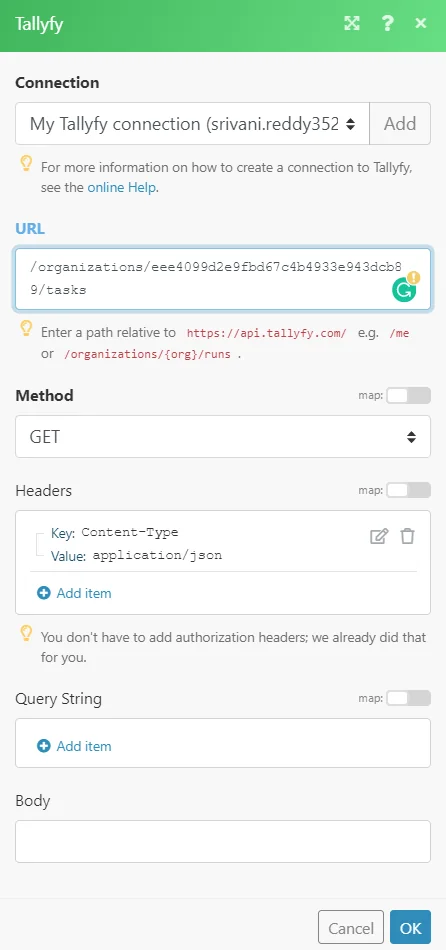
Matches of the search can be found in the module’s Output under Bundle > Body > data.
In our example, 2 tasks were returned:
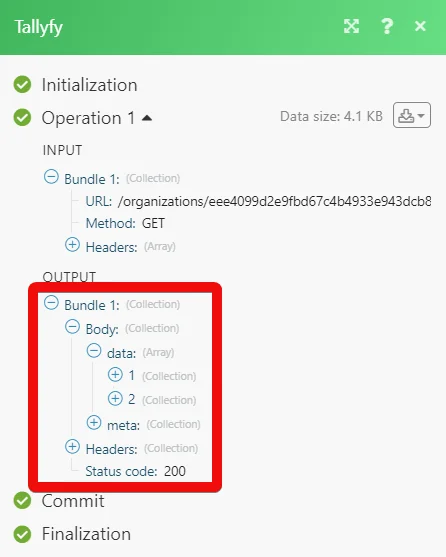
Legacy article, imported from the original Boost.space knowledge base (/knowledge-base/applications/process-management/tallyfy/).

