Tookan
Getting Started with Tookan
The Tookan modules allow you to watch, create, update, retrieve, list, and delete the customers, teams, agents, tasks, managers, and notifications in your Tookan account.
Prerequisites
- A Tookan account
In order to use Tookan with Boost.space Integrator, it is necessary to have a Tookan account. If you do not have one, you can create a Tookan account at demo.tookanapp.com/#/page/register.
The module dialog fields that are displayed in bold (in the Boost.space Integrator scenario, not in this documentation article) are mandatory!
Connect Tookan to Boost.space Integrator
To connect your Tookan account to Boost.space Integrator you need to obtain the API Key from your Tookan account and insert it in the Create a connection dialog in the Boost.space Integrator module.
-
Log in to your Tookan account.
-

Click Settings > API Keys> Generate Key. Copy the API key to your clipboard.
-

Go to Boost.space Integrator and open the Tookan module’s Create a connection dialog.
-
In the Connection name field, enter a name for the connection.
-
In the API Key field, enter the API key copied in step 2, and click Continue.
The connection has been established.
Team
Get a Team
Retrieves a team object from your Tookan account.
Connection
Establish a connection to your Tookan account.
Create a Team
Creates a new team in Tookan under the specified data source.
Connection
Establish a connection to your Tookan account.
Team Name
Enter a name for the team.
Battery Usage
Select the usage of the battery for the team:
-
Low
-
Medium
-
High
Tags
Enter the keywords for the team.
Update a Team
Updates a team object in your Tookan account.
Connection
Establish a connection to your Tookan account.
Team
Select the team whose details you want to update.
Team Name
Enter a name for the team.
Battery Usage
Select the usage of the battery for the team:
-
Low
-
Medium
-
High
Tags
Enter the keywords for the team.
Delete a Team
Deletes the specified team object and all its associated data.
Connection
Establish a connection to your Tookan account.
Team
Select the team you want to delete.
List Teams
Returns all team items
Connection
Establish a connection to your Tookan account.
Limit
Set the maximum numbers of teams Boost.space Integrator should return during one scenario execution cycle.
Customer
Create a Customer
Creates a new customer in Tookan under the specified data source.
Connection
Establish a connection to your Tookan account.
Name
Enter the name of the customer.
Phone
Enter the phone number of the customer.
Enter the email address of the customer.
Address
Enter the contact address of the customer.
Latitude
Enter the latitudes of the customer’s location.
Longitude
Enter the longitudes of the customer’s location.
Update a Customer
Updates a customer object in your Tookan account.
Connection
Establish a connection to your Tookan account.
Customer
Select the customer whose details you want to update.
Name
Enter the name of the customer.
Phone
Enter the phone number of the customer.
User Type
Select the customer type. It should be the Default User Type.
Enter the email address of the customer.
Address
Enter the contact address of the customer.
Latitude
Enter the latitudes of the customer’s location.
Longitude
Enter the longitudes of the customer’s location.
Delete a Customer
Deletes the specified customer object and all its associated data.
Connection
Establish a connection to your Tookan account.
Customer
Select the customer you want to delete.
List Teams
Returns all team items.
Connection
Establish a connection to your Tookan account.
Customer Username
Enter the customer username to list only the customers with the specified username.
Customer Phone
Enter the phone number to list only the customers with the specified phone number.
Vendor
Select the vendor whose customers you want to list.
Limit
Set the maximum number of customers Boost.space Integrator should return during one scenario execution cycle.
Task
Create a Delivery Task
Creates a new delivery task in Tookan.
Connection
Establish a connection to your Tookan account.
Order ID
Select the Order ID whose delivery task you want to create.
Job Pickup Phone
Enter the contact phone number from whether the order must be picked up for delivery.
Job Description
Enter the details of the delivery task.
Customer Phone
Enter the customer’s phone number.
Customer Address
Enter the customer’s address to which you have to deliver the order.
Job Delivery Date Time
Enter the date and time by when the order must be delivered.
Tracking Link
Enter the URL address at which the order delivery status can be tracked.
timezone
Enter the timezone of the delivery task difference with UTC in minutes. For example,
-
for PST:
+480(PDT:+420) -
for MST
+420(MDT:+360) -
for EST:
+300(EDT:+240) -
for AEST:
-600(AEDT:-660) -
for IST:
-330
Auto Assignment
Select the auto-assignment option for the task:
-
Auto Assigned: Creates the task by assigning it to one of the members of the team.
-
Unassigned Task: Creates the task without assigning to any members of the team.
Notify
Select whether to enable or disable the notifications about the task.
Geofence
Select whether to enable or disable the geofencing for the task.
Customer Email
Enter the email address of the customer to whom the order must be delivered.
Customer Username
Enter the customer’s username.
Latitude
Enter the latitudes of the customer’s location.
Longitude
Enter the longitudes of the customer’s location.
Custom Field Template
Enter the template details used to custom fields for the task.
Metadata
Add the label and data for the task.
Team ID
Select the Team ID which is associated with the task.
Fleet ID
Select the user Fleet ID to whom the task is assigned.
Tags
Add the tags for the tasks.
Reference Image
Enter the URL address of the image for the delivery task.
Create a Pickup Task
Creates a new pickup task in Tookan.
Connection
Establish a connection to your Tookan account.
Order ID
Select the Order ID whose pickup task you want to create.
Job Pickup Phone
Enter the contact phone number from whether the order must be picked up for delivery.
Job Description
Enter the details of the pickup task.
Job Pickup Address
Enter the address from where the order must be picked up.
Job Pickup Date Time
Enter the date and time by when you must pick up the order.
Tracking Link
Select whether you want to enable the tracking link for the pickup:
-
Track: Enables the tracking link for the pickup
-
Do Not Track: No tracking link will be available for the pickup
Timezone
Enter the timezone of the pickup task difference with UTC in minutes. For example,
-
for PST:
+480(PDT:+420) -
for MST
+420(MDT:+360) -
for EST:
+300(EDT:+240) -
for AEST:
-600(AEDT:-660) -
for IST:
-330
Auto Assignment
Select the auto-assignment option for the task:
-
Auto Assigned: Creates the task by assigning it to one of the members of the team.
-
Unassigned Task: Creates the task without assigning to any members of the team.
Notify
Select whether to enable or disable the notifications about the task.
Geofence
Select whether to enable or disable the geofencing for the task.
Job Pickup Latitude
Enter the latitudes of the pickup location.
Job Pickup Longitude
Enter the longitudes of the pickup location.
Pickup Custom Field Template
Enter the template details used to custom fields for the task.
Pickup Metadata
Add the label and data for the task.
Job Pickup Name
Enter a name for the job pickup.
Team ID
Select the Team ID which is associated with the task.
Fleet ID
Select the user Fleet ID to whom the task is assigned.
Tags
Add the tags for the task.
Reference Image
Enter the URL address of the image for the delivery task.
Get a Task
Returns agent’s task details.
Connection
Establish a connection to your Tookan account.
Job Type
Select the job type whose job details you want to retrieve:
-
Pickup
-
Delivery
-
Appointment
-
FOS
Job
Select the job whose details you want to retrieve.
Include Task History
Select whether you want to include task history in the task details.
Update a Task
Used to force update the status of a task.
Connection
Establish a connection to your Tookan account.
Job Type
Select the job type whose job details you want to update:
-
Pickup
-
Delivery
-
Appointment
-
FOS
Job
Select the job whose details you want to update.
Job Status
Select the status of the job:
-
Assigned
-
Started
-
Successful
-
Failed
-
In Progress
-
Unassigned
-
Accepted
-
Decline
-
Cancel
-
Deleted
Delete a Task
Deletes the specified task object and all its associated data.
Connection
Establish a connection to your Tookan account.
Job
Select the job whose details you want to delete.
List Tasks
Returns all the order items.
Connection
Establish a connection to your Tookan account.
Job Type
Select the job type whose job details you want to update:
-
Pickup
-
Delivery
-
Appointment
-
FOS
Job Status
Enter (map) the status of the job you want to list. For example, Started.
Start Date
Enter the date to list only those tasks started on the specified date.
End Date
Enter the date to list only those tasks that ended on the specified date.
Custom Fields
Select whether you want to enable or disable the custom fields for the tasks you want to list.
Customer
Select the customers whose related tasks you wan to list.
Agent
Select the agents whose assigned tasks you want to list.
Jobs
Add the jobs whose tasks you want to list.
Order ID
Add the Order IDs whose related tasks you want to list.
Team
Select the team whose tasks you want to list.
Limit
Set the maximum number of tasks you Boost.space Integrator should
Start a Task
This module is used to change the status of a task that has already been created to “start”.
Connection
Establish a connection to your Tookan account.
Job Type
Select the job type whose job you want to start:
-
Pickup
-
Delivery
-
Appointment
-
FOS
Job
Select the job you want to start.
Cancel a Task
Used to assign/reassign an unassigned/assigned task that has already been created or “canceled”.
Connection
Establish a connection to your Tookan account.
Job Type
Select the job type whose job you want to cancel:
-
Pickup
-
Delivery
-
Appointment
-
FOS
Job
Select the job you want to cancel.
Assign a Task
Used to assign/reassign an unassigned/assigned task or an assigned task to the Agent.
Connection
Establish a connection to your Tookan account.
Job Type
Select the job type:
-
Pickup
-
Delivery
-
Appointment
-
FOS
Job Status
Select the status of the job you want to assign:
-
Assigned
-
Unassigned
Team
Select the team to whose agent you want to assign the task.
Agent
Select the agent to whom you want to assign the task.
Auto Assign a Task
Used to auto-assign an unassigned/assigned task.
Connection
Establish a connection to your Tookan account.
Job Type
Select the job type whose job you want to auto-assign:
-
Pickup
-
Delivery
-
Appointment
-
FOS
Job
Select the job you want to auto-assign.
Assign an Agent to a Task
Used to assign an agent to your task.
Connection
Establish a connection to your Tookan account.
Job Type
Select the job type:
-
Pickup
-
Delivery
-
Appointment
-
FOS
Job
Select the job to which you want to assign an agent.
Job Status
Select the status of the job you want to assign:
-
Assigned
-
Unassigned
Team
Select the team to whose agent you want to assign the task.
Agent
Select the agent to whom you want to assign the task.
Notify
Select whether you want to enable the notifications for the job.
Geofence
Select whether you want to enable the geofencing for the job.
Agent
Get an Agent’s Profile
Returns the agent’s profile.
Connection
Establish a connection to your Tookan account.
Agent
Select the agent whose profiles you want to retrieve.
Update an Agent’s Tags
Used to update the agent’s tags.
Connection
Establish a connection to your Tookan account.
Agent
Select the agent whose tags you want to retrieve.
Tags
Enter the new tags for the agent.
Block/Unlock an Agent
Used to block/unblock the Agent in your account.
Connection
Establish a connection to your Tookan account.
Agent
Select the agent whom you want to block or unblock.
Block Status
Select the status of the agent:
-
Block
-
Unblock
Unblock on Date
Enter the date on which you want to unblock the agent. If no date is provided, the agent will remain blocked.
Get an Agent’s Stripe Details
Returns agent’s stripe account details.
Connection
Establish a connection to your Tookan account.
Agent
Select the agent whose stripe details you want to retrieve.
List an Agent’s Tags
Returns the list of agent tags.
Connection
Establish a connection to your Tookan account.
Limit
Set the maximum number of tags Boost.space Integrator should return during one scenario execution cycle.
Agent
Select the agent whose tags you want to list.
Team
Select the team whose agent’s tags you want to list.
List an Agent’s Logs
Returns agent logs.
Connection
Establish a connection to your Tookan account.
Date
Enter the date for which you want to retrieve the agent logs.
Limit
Set the maximum number of logs Boost.space Integrator should return during one scenario execution cycle.
Team
Select the team whose agent’s logs you want to retrieve.
Get an Agent’s Location
Returns agent’s location details.
Connection
Establish a connection to your Tookan account.
Agent
Select the agent whose location details you want to retrieve.
List an Agent’s Activity
Returns agent’s daily activity timeline.
Connection
Establish a connection to your Tookan account.
Limit
Set the maximum number of activities Boost.space Integrator should return during one scenario execution cycle.
Agent
Select the agent whose activity details you want to list.
Date
Enter the date for which you want to retrieve the agent’s activity.
Timezone
Enter the timezone in which you want to list the agent activity.
Start Date
Enter the date from which you want to list the agent’s activity.
End Date
Enter the date to which you want to list the agent’s activity.
List an Agent’s Ratings
Returns the agent’s overall rating and reviews are given by customers.
Connection
Establish a connection to your Tookan account.
Agent
Select the agents whose ratings you want to list.
Limit
Set the maximum number of activities Boost.space Integrator should return during one scenario execution cycle.
List Agents Near a Customer
Returns available agents near customers.
Connection
Establish a connection to your Tookan account.
Customer
Select the customer to find agents near to the specific customer.
Radius In Meters
Enter the distance in meters to find the agents with in the specified distance.
Limit
Set the maximum number of agents Boost.space Integrator should return during one scenario execution cycle.
List Agents
Returns all the agent items.
Connection
Establish a connection to your Tookan account.
Limit
Set the maximum number of agents Boost.space Integrator should return during one scenario execution cycle.
Tags
Enter the tags to list only agents with the specified tags.
Name
Enter the name of the agent whose details you want to list.
Fleet IDs
Add the Fleet IDs to list the agents with only those IDs.
Include any Tag
Select whether to include any tags with the agents in the result.
Status
Select whether to include the status of the agent in the result.
Fleet Type
Select whether to include the agent’s fleet type in the result.
Manager
Create a Manager
Creates a new manager in Tookan under the specified data source.
Connection
Establish a connection to your Tookan account.
Email Address
Enter the manager’s email address.
Password
Enter the password details.
First Name
Enter the first name of the manager.
Last Name
Enter the last name of the manager.
Phone
Enter the phone number of the manager.
Timezone
Enter the timezone of the manager in three-characters. For example, UTC.
Dispatcher Teams
Enter the dispatching team of the manager.
Task Access
Select whether to provide access to the manager.
Add Driver Access
Select whether to provide driver access to the manager.
Delete a Manager
Deletes the specified manager object and all its associated data.
Connection
Establish a connection to your Tookan account.
Manager
Select the manager you want to delete.
List Managers
Returns all the manager items.
Connection
Establish a connection to your Tookan account.
Limit
Set the maximum number of managers Boost.space Integrator should return during one scenario execution cycle.
Team
Select the team whose manager you want to list.
Form ID
Enter the Form ID to list the managers associated with it.
Name
Enter the name of the manager whose details you want to list.
Others
Send Notification
Used to send push notifications to the logged-in agents(s).
Connection
Establish a connection to your Tookan account.
Agent
Select the agent to whom you want to send the notification.
Message
enter the message text you want to send. The message must be between 4 and 160 characters.
Make an API Call
Performs an arbitrary authorized API call.
Connection
Establish a connection to your Tookan account.
URL
Enter a path relative to https://api.tookanapp.com/. For example: /v2/order-items
For the list of available endpoints, refer to the Tookan API Documentation.
Method
Select the HTTP method you want to use:
GET
to retrieve information for an entry**.**
POST
to create a new entry.
PUT
to update/replace an existing entry.
PATCH
to make a partial entry update.
DELETE
to delete an entry.
Headers
Enter the desired request headers. You don’t have to add authorization headers; we already did that for you.
Query String
Enter the request query string.
Body
Enter the body content for your API call.
Example of Use – Get Agents
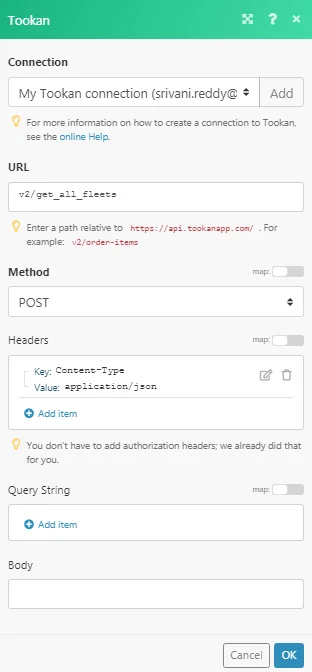
The following API call returns all the agents from your Tookan account:
URL:
/v2/get-all-fleets
Method:
POST
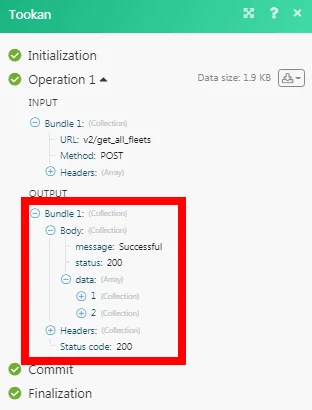
Matches of the search can be found in the module’s Output under Bundle > Body > data.
In our example, 2 agents were returned:
Legacy article, imported from the original Boost.space knowledge base (/knowledge-base/applications/process-management/tookan/).

