Attendance GIRITON
The Attendance GIRITON modules allow you to create, update, list, and/or delete attendance events, projects, shift subscriptions, users, in your Attendance GIRITON account.
Prerequisites
- An Attendance GIRITON account
In order to use Attendance GIRITON with Boost.space Integrator, it is necessary to have an Attendance GIRITON account. If you do not have one, you can create an Attendance GIRITON account at https://is.giriton.com/#register.
Connecting Attendance GIRITON to Boost.space Integrator
To connect your Attendance GIRITON account to Boost.space Integrator, you need to get your API Key.
1. Log into your Attendance GIRITON Account.
2. From the left menu, click Paired Device –> REST API TOKEN.

3. Click Save Changes. The REST API Token generates.
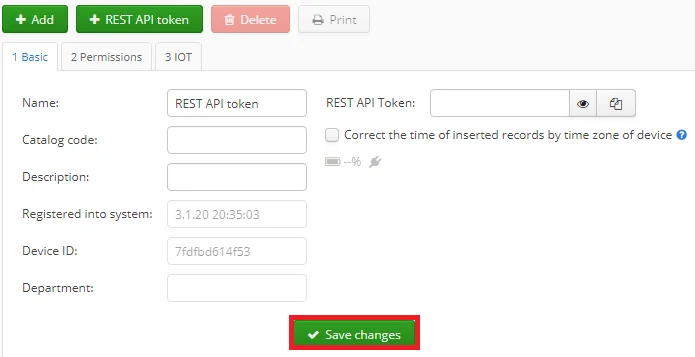
4. Click the eye icon (
 ) to view the REST API Token.
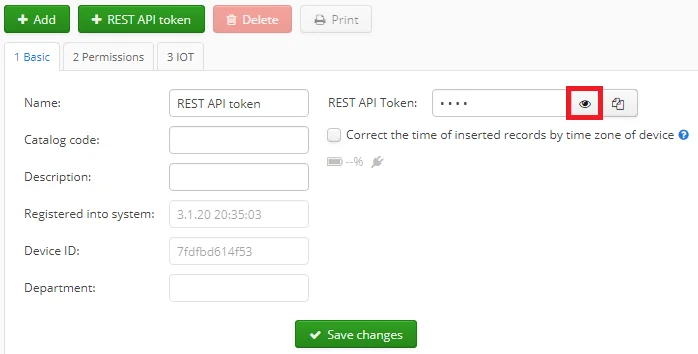
5. Copy the REST API Token to the clipboard.
6. Go to Boost.space Integrator and open the Attendance GIRITON module’s Create a connection dialog.

7. Enter the Connection name and the API Token you have copied in step 5 to the respective field.
8. Click Continue.
The connection has been established.
Actions
Create Attendance Event
Creates a new attendance event of the user.
Connection
Establish a connection to your Attendance GIRITON account.
ID of User
Enter the User ID whose attendance event you want to create.
Number of User
Enter the user number.
Attendance Card ID of User
Enter the Attendance Card ID of the user.
ID of Inserted Attendance Activity
Enter the Inserted Attendance Activity ID.
Date Time of Attendance Event
Enter the date and time of the attendance event.
True for Start, False for Stop
Select if you want to set true for the start of the event and false when the event stops.
Project ID
Enter the Project ID for which you are creating the attendance event.
Project Number
Enter the project number.
Create or Update Project
Creates a new project or updates an existing one if shortcut matches.
Connection
Establish a connection to your Attendance GIRITON account.
Project Name
Enter the project name.
Project Shortcut
Enter the shortcut details for the project.
Project Description
Enter the details of the project.
Project Color
Enter a color for the project.
Active Project
Select Yes if this is an active project:
-
Yes
-
No
-
Not defined
Comma separated list of department IDs
Enter the Department IDs separated by comma to associate with the project.
Start date of the project, empty for today
Enter the start date of the project.
End date of the project, empty if not limited
Enter the end date of the project.
Create or Update User
Creates new or updates an existing user.
Connection
Establish a connection to your Attendance GIRITON account.
First Name
Enter the first name of the user.
Last Name
Enter the second name of the user.
User Number
Enter the user number of the user.
Date of Birth
Enter the date of birth of the user.
Email Address
Enter the email address of the user.
Phone Number
Enter the phone number of the user.
Job Position
Enter the position of the user.
Employment Contract
Enter the details of the employment contract.
Hired From
Enter the date of hiring.
Hired To
Enter the date of leaving.
Hour Salary
Enter the hourly wages of the user.
Hour Salary Currency
Enter the currency in which the user is paid.
Get User Profile Picture
Returns profile picture of the requested user.
Connection
Establish a connection to your Attendance GIRITON account.
User ID
Enter the User ID whose profile picture details you want to retrieve.
Searches
Get Attendance Activities
Returns active attendance activities that can be used to insert attendance records.
Connection
Establish a connection to your Attendance GIRITON account.
Get Shift Subscriptions
Returns shift subscriptions published in the selected time period.
Connection
Establish a connection to your Attendance GIRITON account.
Date From
Enter the start date from which you want to retrieve the details of the shift subscriptions.
Date To
Enter the end date until which you want to retrieve the details of the shift subscriptions.
Department IDs
Enter the Department ID whose shift subscriptions details you want to retrieve.
Include Subscribed Persons
Select if you want to include the subscribed person details.
Get Projects
Returns a list of projects active in selected day. Currently, active project will be returned if no day is passed.
Connection
Establish a connection to your Attendance GIRITON account.
Valid on Day
Enter the date to retrieve the valid projects for the day.
Department IDs
Enter the Department IDs whose project details you want to retrieve.
Get Users
Returns a list of users from the Human Resources agenda employed on a selected day. If no day is passed, currently employed users will be returned.
Connection
Establish a connection to your Attendance GIRITON account.
Employed on Day
Enter the date to retrieve the details of the employed users as on that specific day.
Get User Activity
Returns current user activity on a selected day. Today’s activity will be returned if day is not passed.
Connection
Establish a connection to your Attendance GIRITON account.
ID
Enter the User ID whose activity details you want to retrieve.
First Name
Enter the first name of the user.
Last Name
Enter the second name of the user.
Number
Enter the user number of the user.
Date of Birth
Enter the date of birth of the user.
Enter the email address of the user.
Phone Number
Enter the phone number of the user.
Job Position
Enter the position of the user.
Employment Contract
Enter the details of the employment contract.
Employment Start Date
Enter the start date of the user.
Employment End Date
Enter the end date of the user.
Hour Salary
Enter the hourly wages of the user.
Address
Enter the address details of the user.
Departments
Add the departments:
-
ID
Enter the Department ID.
-
Name
Enter the name of the department.
-
Name Complete
Enter the complete name of the user.
-
In Graph ID
Enter the In Graph ID of the department.
-
Hierarchy
Enter the hierarchy details for the department.
Tags
Add the tags:
-
Value
Enter the keywords as tags to filter the data when searching.
Presence Card IDs
Add Presence Card IDs:
-
Text
Enter the Presence Card ID.
Entry Time Stamp
Enter the time for which you want to retrieve the user activity details.
Legacy article, imported from the original Boost.space knowledge base (/knowledge-base/applications/productivity/attendance-giriton/).

