Avaza
With Avaza modules in Boost.space Integrator, you can create and manage all your companies, invoices, tasks, projects, and contacts in your Avaza account.
To get started with Avaza, create an account at avaza.com.
The module dialog fields that are displayed in bold (in the Boost.space Integrator scenario, not in this documentation article) are mandatory.
Connecting Avaza to Boost.space Integrator
To connect Avaza to Boost.space Integrator you need an access token.
-
Log in to you Avaza account.
-
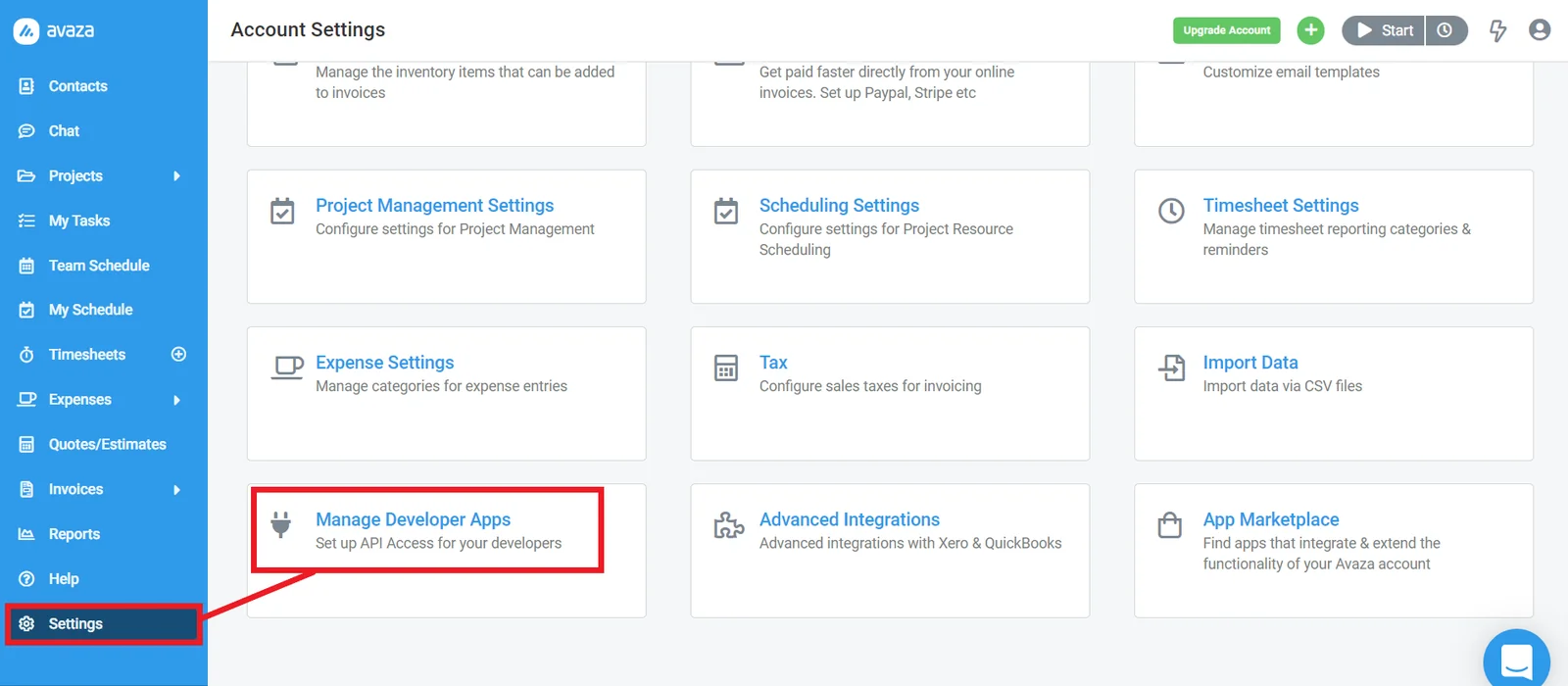
Click Settings, then click Manage Developer Apps.
-
Click Add Personal Access Token.
-
Give your new token a name
-
Select the access scopes you want to enable.
-
Copy your new access token string to your clipboard. You won’t see this again.
-
Go to your Boost.space Integrator scenario and choose the Avaza module you want to use.
-
Under Connection, click Add.
-
Give your new connection a name.
-
Paste your new access token in the field provided.
-
Click Save.
You have successfully established the connection.
Companies
List Companies
Returns a list of companies.
Connection
Establish a connection to your Avaza account.
Updated After
Enter the earliest date the companies were last updated. See the list of supported date and time formats.
Sort
Select how you want to sort the results.
-
Date Updated
-
Date Created
-
Company Name
-
Date Updated (descending)
-
Date Created (descending)
-
Company Name (descending)
Limit
Enter the maximum number of companies Boost.space Integrator returns during one scenario execution cycle.
Get a Company
Returns a specified company.
Connection
Establish a connection to your Avaza account.
Company ID
Enter or select the ID of the company you want to retrieve.
Create a Company
Creates a new company.
Connection
Establish a connection to your Avaza account.
Company Name
Enter the name of the company.
Currency Code
Enter the currency code.
Billing Address Line
Enter the first line of the address.
Billing Address City
Enter the city.
Billing Address State
Enter the state.
Billing Address Post Code
Enter the post code.
Billing Country Code
Enter the country code.
Billing Address
Enter the address.
Phone
Enter a phone number.
Fax
Enter a fax number.
Website
Enter the company’s website.
Tax Number
Enter the tax number.
Comments
Enter any comments.
Update a Company
Updates a specified company.
Connection
Establish a connection to your Avaza account.
Company ID
Enter or select the ID of the company you want to update.
Company Name
Enter the name of the company.
Currency Code
Enter the currency code.
Billing Address Line
Enter the first line of the address.
Billing Address City
Enter the city.
Billing Address State
Enter the state.
Billing Address Post Code
Enter the post code.
Billing Country Code
Enter the country code.
Billing Address
Enter the address.
Phone
Enter a phone number.
Fax
Enter a fax number.
Website
Enter the company’s website.
Tax Number
Enter the tax number.
Comments
Enter any comments.
Invoices
List Invoices
Returns a list of invoices.
Connection
Establish a connection to your Avaza account.
Updated After
Enter the earliest date the invoices were last updated. See the list of supported date and time formats.
Company IDFK
Select the ID of the company associated with the invoices.
Sort
Select how you want to sort the results.
-
Date Updated
-
Date Created
-
Date Updated (descending)
-
Date Created (descending)
Limit
Enter the maximum number of invoices Boost.space Integrator returns during one scenario execution cycle.
Get an Invoice
Returns a specified invoice.
Connection
Establish a connection to your Avaza account.
Company ID
Enter or select the ID of the invoice you want to retrieve.
Create an Invoice
Creates a new invoice.
Connection
Establish a connection to your Avaza account.
Company IDFK
Select the ID of the company associated with the invoice.
Line Items
Inventory Item IDFK
Select the type of item.
-
Expense
-
Product
-
Service
-
Timesheet
Quantity
Enter the quantity for the line item.
Unit Price
Enter the unit price for the line item.
Tax IDFK
Select the tax information.
Description
Enter a description in plain text.
Tax Percent
Enter the tax percent.
The tax percent will only be used if a new tax is being created.
Discount
Enter a discount.
Enter 10.5 to give a 10.5% discount.
Project IDFK
Select the project ID of an Avaza Project that belongs to this customer, so line item is attributed to that Project for reporting.
Transaction Prefix
Enter the transaction prefix.
A prefix for the Invoice number. e.g. INV. If left blank it will be set to the account default.
Invoice Number
Enter the invoice number.
If left blank it will use the next number in the auto incrementing sequence. If an integer is passed then the largest integer will be use as the seed to auto generate the next invoice number in the sequence.
First Name
Enter the first name.
Specified value will be used to create a new customer contact only if a new customer is being created.
Last Name
Enter the last name.
Specified value will be used to create a new customer contact only if a new customer is being created.
Enter the email address.
Specified value will be used to create a new customer contact only if a new customer is being created.
Currency Code
Select the currency code.
Exchange Rate
Enter the exchange rate.
Exchange rate is only valid for invoices in currency other than default account currency. If not specified it will get the market rate based on the Date Issued.
Invoice Template IDFK
Enter the invoice template ID.
If left blank the account default invoice template will be used.
Subject
Enter the subject in plain text.
Customer PO Number
Enter the customer PO number.
Date Issued
Enter the date the invoice was issued. See the list of supported date formats.
If not specified it will use today’s date.
Payment Terms
Select the payment terms.
If left blank we will set it to customer default. If specified then it must match one of your existing pre configured payment term periods.
Due Date
Enter the invoice due date. See the list of supported date formats.
It will be auto calculated based on the payment term and issue date. Due Date must be greater than or equal to Issue Date. If the Due Date is specified then Payment Terms will be set to -1.
Transaction Tax Config Code
Select the transaction tax configuration code.
-
Tax Exclusive
-
Tax Inclusive
Notes
Enter any additional notes in plain text.
Tasks
List Tasks
Returns a list of tasks.
Connection
Establish a connection to your Avaza account.
Updated After
Enter the earliest date the tasks were last updated. See the list of supported date and time formats.
Is Complete
Select whether to only display complete or incomplete tasks.
Project ID
Select the ID of the project the tasks are associated with.
Sort
Select how you want to sort the results.
-
Date Updated
-
Date Created
-
Title
-
Date Updated (descending)
-
Date Created (descending)
-
Section Title
Limit
Enter the maximum number of tasks Boost.space Integrator returns during one scenario execution cycle.
Get a Task
Returns a specified task.
Connection
Establish a connection to your Avaza account.
Company ID
Enter or select the ID of the task you want to retrieve.
Create a Task
Creates a new task.
Connection
Establish a connection to your Avaza account.
Title
Enter the title of the task.
Project IDFK
Select the ID of the project associated with the task.
Account Task Type IDFK
Select the type of task.
Description
Enter a description of the task.
Assigned to User IDFK
Select any assigned users.
Task Priority Code
Enter the task priority code.
Date Start
Enter the start date. See the list of supported date and time formats.
Date Due
Enter the due date. See the list of supported date and time formats.
Estimated Effort
Enter the estimated amount of time in decimal hours.
Tags
Add any tags to the task.
Update a Task
Updates a specified task.
Connection
Establish a connection to your Avaza account.
Task ID
Select the ID of the task you want to update.
Title
Enter the title of the task.
Project IDFK
Select the ID of the project associated with the task.
Account Task Type IDFK
Select the type of task.
Description
Enter a description of the task.
Assigned to User IDFK
Select any assigned users.
Task Priority Code
Enter the task priority code.
Date Start
Enter the start date. See the list of supported date and time formats.
Date Due
Enter the due date. See the list of supported date and time formats.
Estimated Effort
Enter the estimated amount of time in decimal hours.
Tags
Add any tags to the task.
Delete a Task
Deletes a specified task.
Connection
Establish a connection to your Avaza account.
Company ID
Enter or select the ID of the task you want to delete.
Projects
List Projects
Returns a list of projects.
Connection
Establish a connection to your Avaza account.
Updated After
Enter the earliest date the projects were last updated. See the list of supported date and time formats.
Include Archived
Select whether to include archived projects in the list.
Timesheet User ID
Select the ID of the timesheet user the projects are associated with.
Sort
Select how you want to sort the results.
-
Date Updated
-
Date Created
-
Date Updated (descending)
-
Date Created (descending)
Limit
Enter the maximum number of projects Boost.space Integrator returns during one scenario execution cycle.
Get a Project
Returns a specified project.
Connection
Establish a connection to your Avaza account.
Project ID
Enter or select the ID of the project you want to retrieve.
Create a Project
Creates a new project.
Connection
Establish a connection to your Avaza account.
Project Title
Enter the title of the project.
Company IDFK
Select or enter the ID of company.
Currency Code
Enter the currency code.
Project Notes
Enter any notes for the project.
Timesheet Approval Required by Default
Select whether to require timesheet approval by default.
Populate Default Project Members
Select whether to populate default project members.
Is Task Required on Timesheet
Select whether a tas is required on the timesheet.
Start Date
Enter the start date. See the list of supported date and time formats.
End Date
Enter the end date. See the list of supported date and time formats.
Budget Amount
Enter a budget amount.
Budget Hours
Enter the budget hours.
Project Status Code
Enter the project status code.
Project Category IDFK
Enter the project category ID.
Contacts
List Contacts
Returns a list of contacts.
Connection
Establish a connection to your Avaza account.
Updated After
Enter the earliest date the contacts were last updated. See the list of supported date and time formats.
Company IDFK
Select the ID of the comapny the contacts are associated with.
Sort
Select how you want to sort the results.
-
Date Updated
-
Date Created
-
Date Updated (descending)
-
Date Created (descending)
Limit
Enter the maximum number of contacts Boost.space Integrator returns during one scenario execution cycle.
Get a Contact
Returns a specified contact.
Connection
Establish a connection to your Avaza account.
Contact ID
Enter or select the ID of the contact you want to retrieve.
Create a Contact
Creates a new contact.
Connection
Establish a connection to your Avaza account.
Contact Email
Enter the email address of the contact.
First Name
Select the first name.
Last Name
Enter the last name.
Company IDFK
Enter the ID of the company.
Position Title
Enter the position title.
Mobile
Enter the mobile phone number.
Phone
Enter another phone number.
Update Existing
Select whether to update an existing contact.
Currency Code
Enter the currency code.
Company Billing Address
Enter the first line of the address.
Company Billing Address Line
Enter the next line of the address.
Company Billing Address City
Enter the city.
Company Billing Address State
Enter the state.
Company Billing Address Post Code
Enter the post code.
Company Billing Address Country Code
Enter the country code.
Other
Make an API Call
Performs an arbitrary authorized API call.
Connection
Establish a connection to your Avaza account.
URL
Enter a path relative to https://api.avaza.com. For example: /api/inventory
For the list of available endpoints, refer to the Avaza API documentation.
Method
Select the HTTP method you want to use:
GET to retrieve information for an entry.
POST to create a new entry.
PUT to update/replace an existing entry.
PATCH to make a partial entry update.
DELETE to delete an entry.
Headers
Enter the desired request headers. You don’t have to add authorization headers; we already did that for you.
Query String
Enter the request query string.
Body
Enter the body content for your API call.
Example of use – List inventory
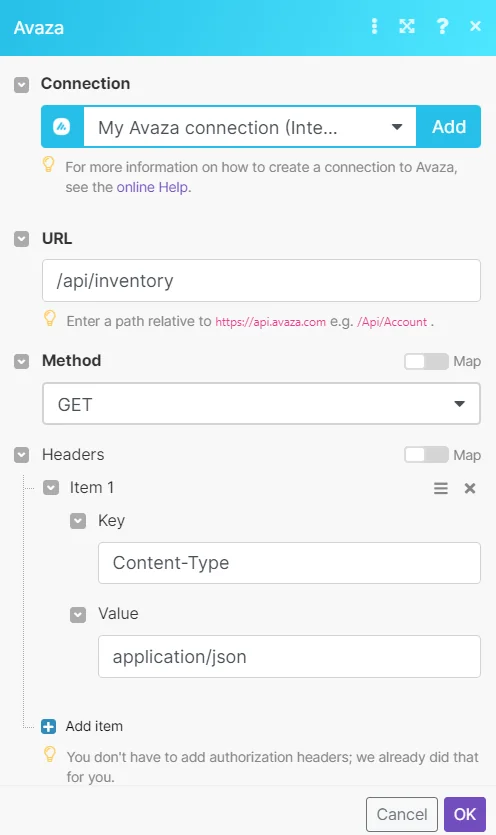
The following API call returns a list of inventory from your Avaza account.
URL: /api/inventory
Method: GET
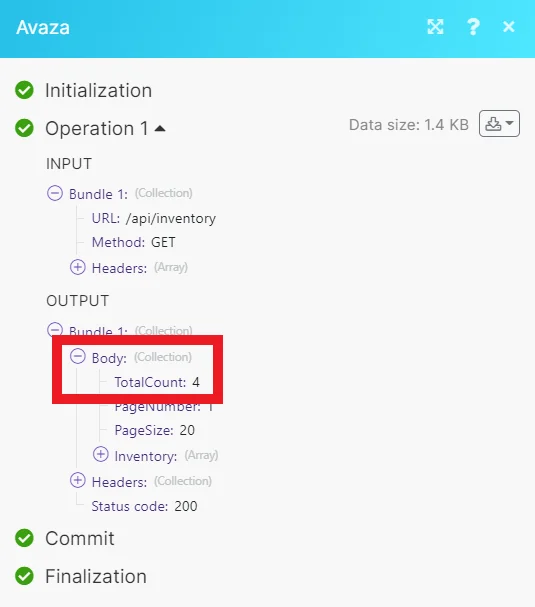
Matches of the search can be found in the module’s Output under Bundle > Body. Our example returned 4 results:
Legacy article, imported from the original Boost.space knowledge base (/knowledge-base/applications/productivity/avaza/).

