LastPass
The LastPass modules allow you to manage users, set password requirements, watch for new reports, and make API calls.
Getting Started with LastPass
Prerequisites
- A LastPass Business account – create one at lastpass.com/products/business
The module dialog fields displayed in bold (in the Boost.space Integrator scenario, not in this documentation article) are mandatory.
Connecting LastPass to Boost.space Integrator
To connect your LastPass Business account to Boost.space Integrator you must obtain your account number and provisioning hash.
-
Log in to your LastPass Business account.
-
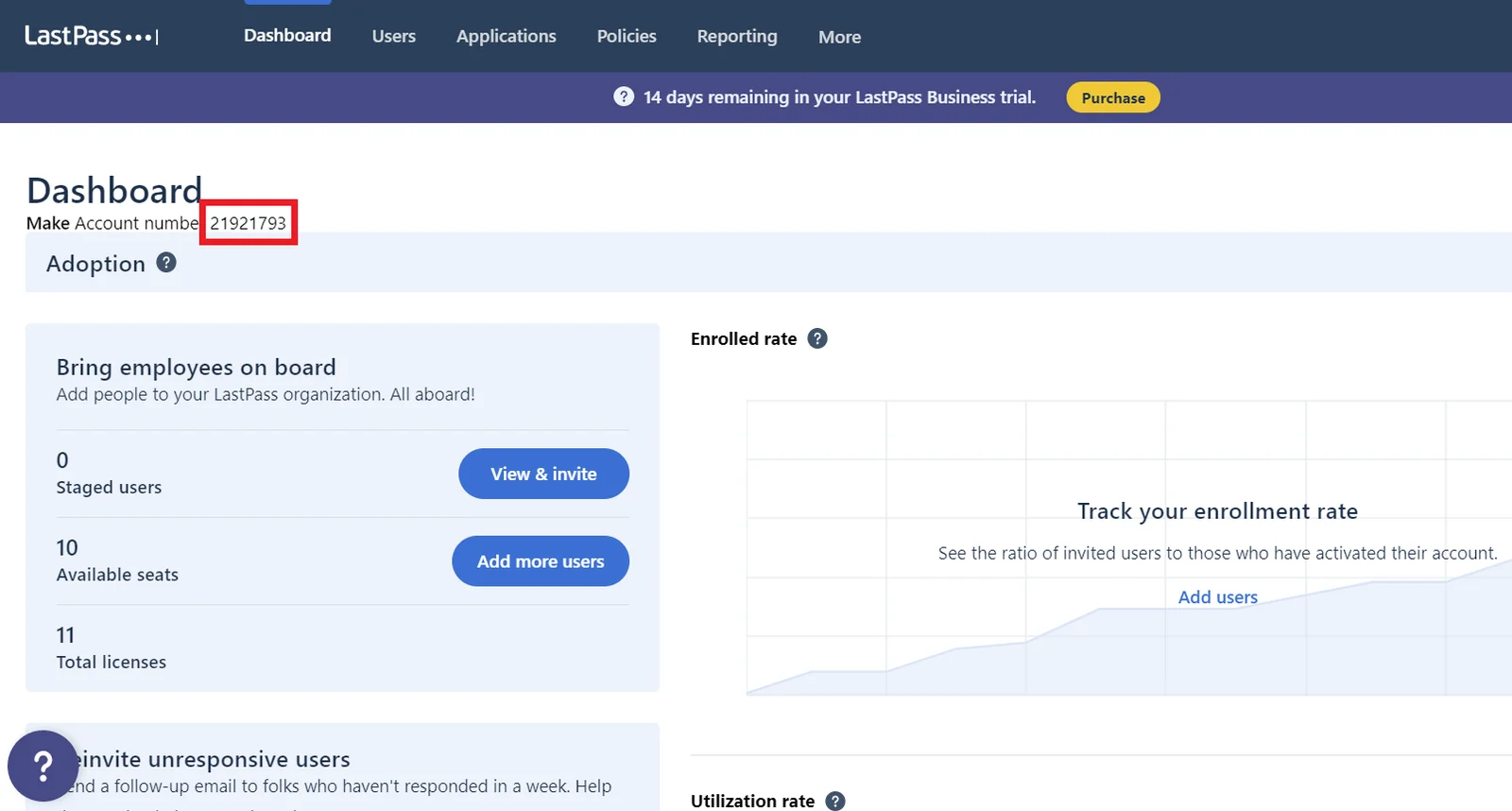
On the dashboard, copy your account number to your clipboard.
-
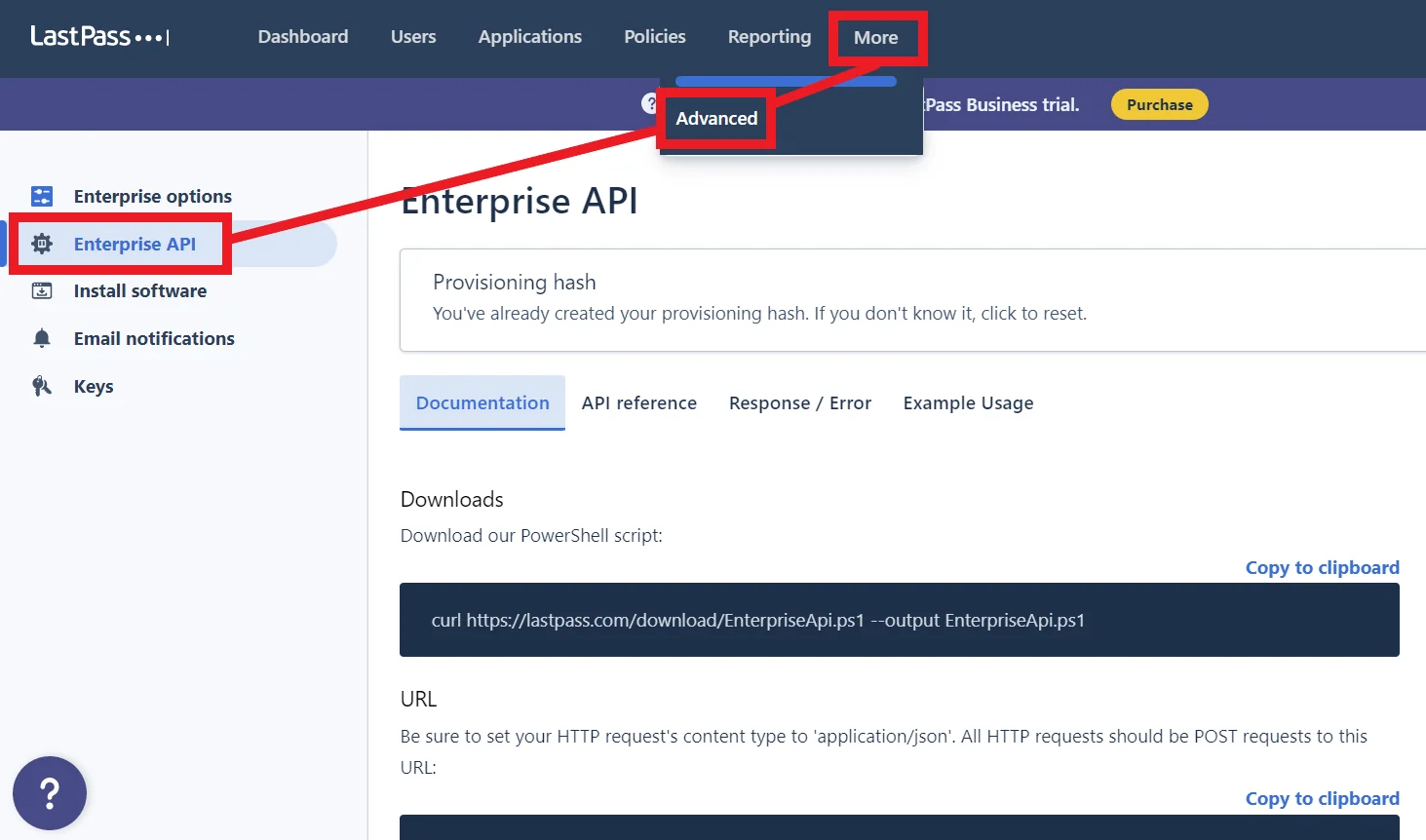
Click More > Advanced, then click Enterprise API.
-
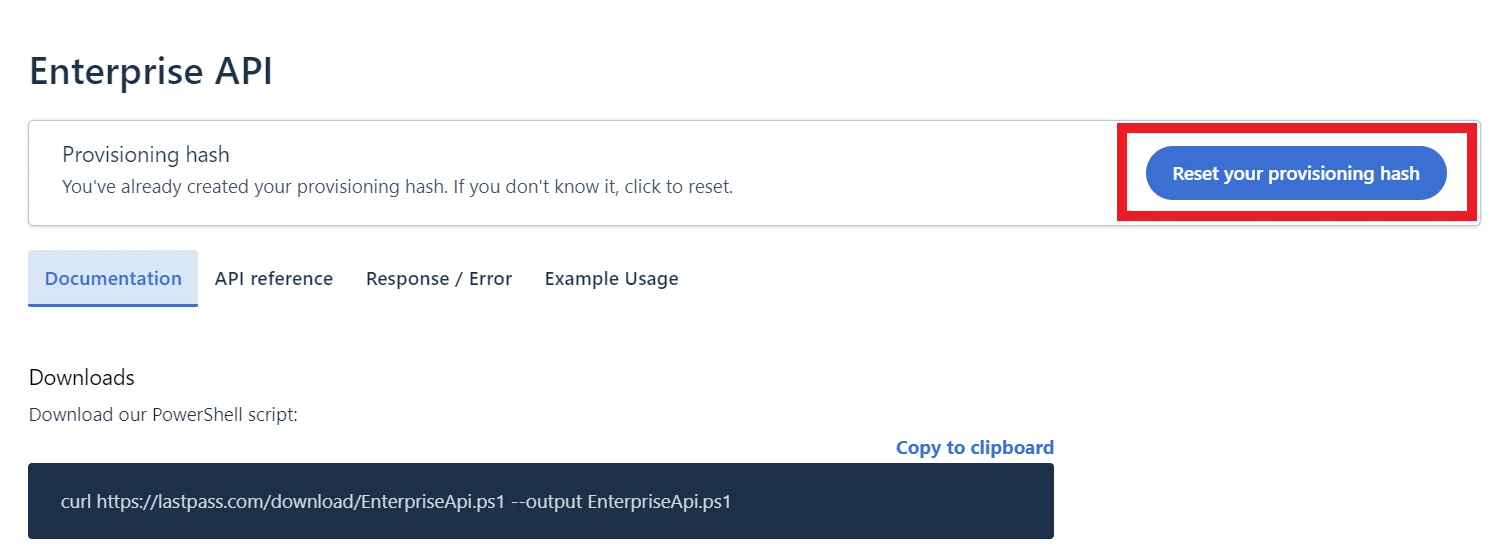
You need to create a provisioning hash. Whether you’re resetting a hash or creating a new one, click the large blue button.
-
Copy the long provisioning hash to your clipboard.
Make sure not to include the quotation marks
""when you copy the hash.
Go to your Boost.space Integrator scenario and choose the LastPass module you want to use.
Next to Connection, click Add.
Choose a name for your connection.
Enter the account number and provisioning hash you copied earlier in their respective fields, then click Save.
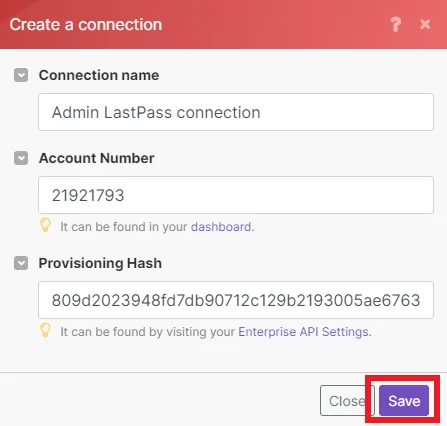
You have now successfully established the connection.
User
Invite a User
Invites a new user.
Connection
Establish a connection to your LastPass Business account.
User Email
Enter the email of the user you want to invite.
Full Name
Enter the full name of the user.
This must not match an existing user.
Default Password
Define a default password for the new user. This could be temporary or permanent based on the Password Reset Required field below.
Password Reset Required
Select whether a password reset is required from the user.
Update User Email
Updates user email and sends an email to a user for confirmation of the change.
Connection
Establish a connection to your LastPass Business account.
Old Email
Enter the user’s current/old email address.
A user account must be activated at first. It’s not possible to change the email of an unactivated account.
New Email
Enter the user’s new email address.
Reinvite a User
Reinvites a specific user.
Connection
Establish a connection to your LastPass Business account.
User Email
Enter the email address of the user you want to reinvite.
List User Info
Lists information about users.
Connection
Establish a connection to your LastPass Business account.
User Email
Enter the email addresses of the users you want to retrieve.
Return
Select the account status of the users to retrieve.
-
Only active accounts
-
Only disabled accounts
Admin
Select the admin level of the users you want to retrieve.
-
Only non-admin accounts
-
Only admin accounts
Limit
Enter the maximum number of results Boost.space Integrator returns during one scenario execution cycle.
To prevent details from being omitted from the results, avoid retrieving more than 2000 users at a time.
Delete a User
Deactivates/Removes/Deletes a user account
Connection
Establish a connection to your LastPass Business account.
User Email
Enter the email address of the user you want to delete.
Choose
Select the specific delete action you want to take.
-
Deactivate user – Block login but retain data and LastPass Business membership
-
Remove user – Remove the user from your LastPass Business account but keep the account itself active
-
Delete user – Delete the account entirely
Manage
Push Sites to Users
Pushes sites to users.
A user that receives the pushed site must install and log in to the LastPass web browser extension at least once. If the user logs in via the LastPass website, the site will not be pushed.
Connection
Establish a connection to your LastPass Business account.
Push to
Enter the user LastPass email to whom the site is shared. To share with all users, type all. To share to a group, enter the group name.
It may take LastPass a few minutes to process your request.
Site URL
Enter the site’s URL.
Site Label
Enter the name you would like the site entry to have in the users’ vaults.
Site Username Type
Define how the site’s username is populated.
-
Email sets the site username as the user’s LastPass account email address (local-part@domain.com)
-
Custom allows you to set a custom username in the Custom Username field below
Site Password
Enter the site’s password.
Notes
Enter an notes for the site.
Folder Name
Enter the name of the folder you’d like this site to be added to in the users’ vaults.
Mark as Favourite
Select whether or not to mark the site as a favorite.
Make It Persistent
Select whether or not to set a site as persistent to include it in the vault of each user added to your company or a group. When Yes, the site will be included to the vault of each user added to your company or a group.
Works only when the site is pushed to all users or a group.
Shared Folder ID
Enter the ID of the shared folder with the key used to encrypt the data. Leave blank if the data isn’t encrypted.
Add/Remove a User in Groups
Adds/Removes a user in groups.
Connection
Establish a connection to your LastPass Business account.
User Email
Enter the email address of the user you want to add or remove.
Add
Enter the name of any groups you want to add a user to.
If an unknown group name is provided, a new group will be created.
Remove
Enter the name of any groups you want to remove a user from.
Require a Master Password Change
Sends an email to a user requiring them to change their master password.
The user will be prompted to change their master password upon the next login.
Connection
Establish a connection to your LastPass Business account.
User Email
Enter the email address of the user you want to send a master password change prompt email to.
Disable Multifactor
Disables a user’s multifactor authentication.
Connection
Establish a connection to your LastPass Business account.
User Email
Enter the email address of the user whose multifactor authentication you want to disable.
Send a Password Reset Email
Sends a password reset email to a user.
Connection
Establish a connection to your LastPass Business account.
User Email
Enter the email address of the user you want to send a password reset email to.
Triggers
Watch Events
Triggers when a new report is created. For example, a user login, pushed site, etc.
Connection
Establish a connection to your LastPass Business account.
Date From
Enter the start date from which to pull reporting data. See the list of supported date examples.
If no value is entered, the current day is used, from 00:00.
Date To
Enter the end date to pull reporting data until. See the list of supported date examples.
If no value is entered, the current day is used, until 23:59:59.
Search
Enter a search string to filter the reporting data.
Admin
Select whether or not to only retrieve admin events.
Limit
Enter the maximum number of events Boost.space Integrator returns during one scenario execution cycle.
Other
Make an API Call
Performs an arbitrary authorized API call.
For the list of available endpoints, refer to the LastPass API Documentation.
Connection
Establish a connection to your LastPass account.
Method
Select the HTTP method you want to use:
GET
to retrieve information for an entry.
POST
to create a new entry.
PUT
to update/replace an existing entry.
PATCH
to make a partial entry update.
DELETE
to delete an entry.
Headers
Enter the desired request headers. You don’t have to add authorization headers; we already did that for you.
Query String
Enter the request query string.
API Command
Enter the API command you want to perform. Can be found as cmd in the API documentation. For example, getuserdata, reporting, etc.
Data
Fill in any data objects that will be sent inside the body.
Example of Use – List Event Reports
The following API call returns all the events from your LastPass Business account:
Method: POST
API Command: reporting
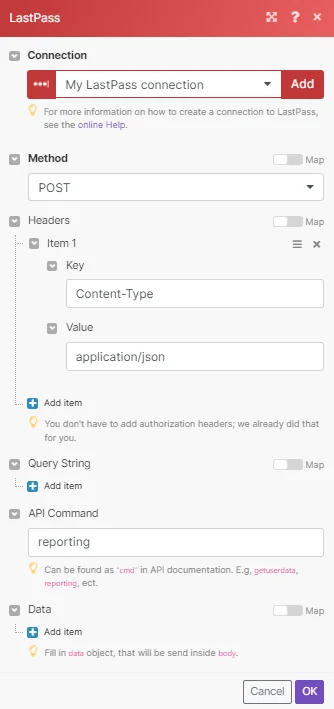
You can specify a timeframe of results by using the Data fields.
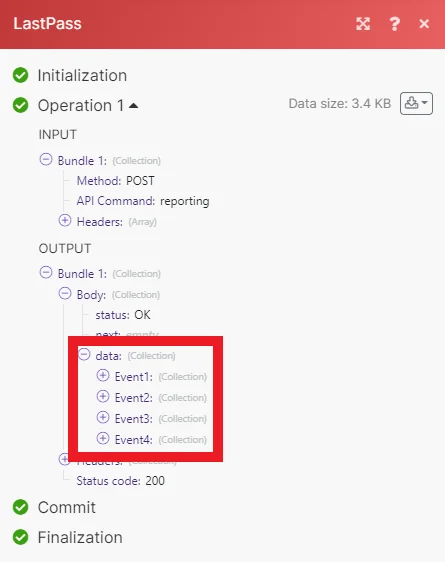
Matches of the search can be found in the module’s Output under Bundle > Body > Data. Our example returned 4 results:
Legacy article, imported from the original Boost.space knowledge base (/knowledge-base/applications/productivity/lastpass/).

