LimbleCMMS
The LimbleCMMS modules allow you to watch, create, update, retrieve, and delete the tasks, instructions, parts, and fields from your LimbleCMMS account.
Getting Started With LimbleCMMS
Prerequisites
- A LimbleCMMS account – create an account at limblecmms.com/.
Connecting LimbleCMMS to Boost.space Integrator
To connect your LimbleCMMS account to Boost.space Integrator you need to obtain the Client ID and Client Secret from your LimbleCMMS account and insert it in the Create a connection dialog in the Boost.space Integrator module.
1. Log in to your LimbleCMMS account.
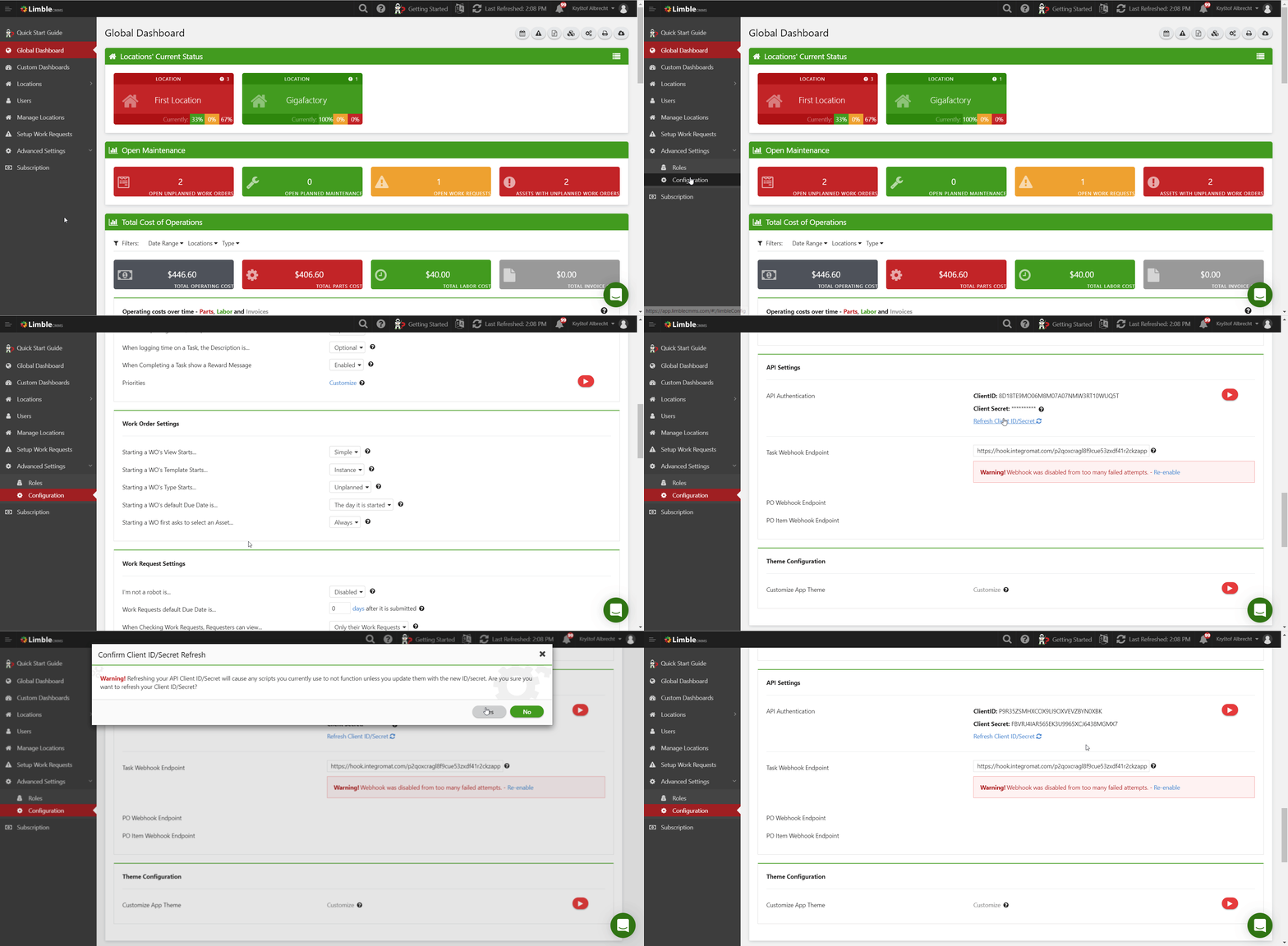
2. Click Advanced Settings > Configuration > Navigate to API Settings Section > Refresh Client ID/Secret.
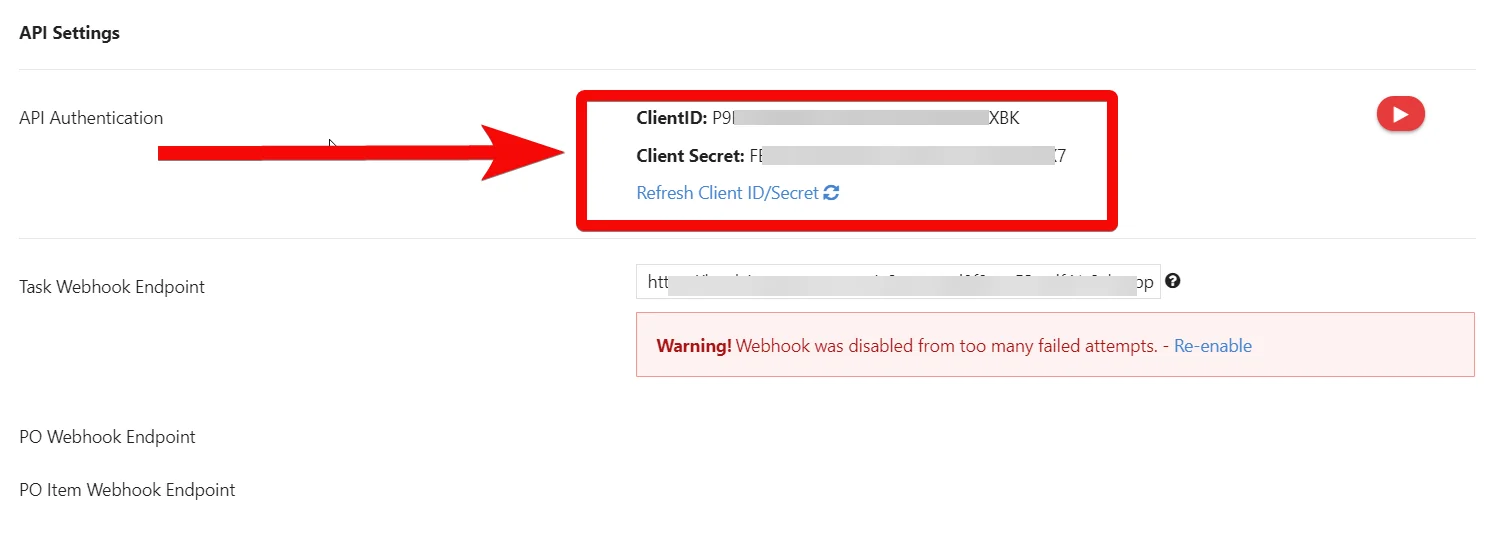
3. Copy the Client ID and Client Secret to a safe place.

4.Go to Boost.space Integrator, and open the LimbleCMMS module’s Create a connection dialog.
5. In the Connection name field, enter a name for the connection.
6. In the Client ID and Client Secret fields, enter the details copied in step 3 and click Continue.
The connection has been established.
Task
Watch Task Changes
Triggers for the specified task-related events.
Webhook Name
Enter a name for the webhook.
Connection
Establish a connection to your LimbleCMMS account.
List Tasks
Retrieves a filtered list of tasks (work orders).
Connection
Establish a connection to your LimbleCMMS account.
Limit
Set the maximum number of tasks Boost.space Integrator should return during one execution cycle.
Name
Enter (map) the task name to list the tasks that match the specified name.
Status
Select or map the status of the tasks you want to search.
Type
Select or map the task Type IDs to search for the tasks that match the specified IDs.
Task IDs
Select or map the Task IDs to search the tasks that match the specified IDs.
Asset IDs
Select or map the Asset IDs to search the tasks that match the specified IDs.
Location IDs
Select or map the Location IDs to search the tasks that match the specified IDs.
Last Edited
After
Enter (map) the time and date to search the tasks edited on or after the specified time.
Before
Enter (map) the time and date to search the tasks edited on or before the specified time.
Completed
After
Enter (map) the time and date to search the tasks completed on or after the specified time.
Before
Enter (map) the time and date to search the tasks completed on or before the specified time.
Last Edited by IDs
Select or map the User IDs whose last edited tasks you want to search.
Metadata
Add the metadata of the task you want to search.
Create a Task
Creates a new task (work order).
Connection
Establish a connection to your LimbleCMMS account.
Location ID
Select or map the Location ID where you want to create the task.
Name
Enter (map) the task name.
Due Date
Enter (map) the date by which you want the task to complete.
Type
Select or map the task type:
-
Planned Work Order (WO)
-
Preventive Maintenance
-
Unplanned Work Order (WO)
-
Work Request (WR)
Description
Enter (map) the details of the task.
Priority
Select or map the task priority:
-
1 – Low Priority
-
2 – Medium Priority
-
3 – High Priority
-
0 – On Hold
Asset ID
Select or map the Asset ID to which you want to assign the task.
Assignment Type
Select or map the assignment type of the task:
-
User
-
Team
User ID
Select or map the User ID to whom you want to assign the task.
Team ID
Select or map the Team ID to which you want to assign the task.
Batch ID
Enter (map) the Batch ID applicable to the task.
This field is not applicable if the task type is set to Work Request (WR).
Template
Select or map the template applicable to the task.
Work Request
Add the work request details for the task:
Requestor Name
Enter (map) the person’s or client’s name who has requested to create the task.
Requestor Email
Enter (map) the contact email address of the requestor.
Requestor Phone number
Enter (map) the requestor’s contact phone number.
Requestor Description
Enter (map) the task details provided by the requestor.
Metadata
Enter (map) the metadata of the task.
Update a Task
Updates a task (work order).
Connection
Establish a connection to your LimbleCMMS account.
Task ID
Enter (map) the Task ID whose details you want to update.
Location ID
Select or map the Location ID where you want to create the task.
Name
Enter (map) the task name.
Due Date
Enter (map) the date by which you want the task to be completed.
Type
Select or map the task type:
-
Planned Work Order (WO)
-
Preventive Maintenance
-
Unplanned Work Order (WO)
-
Work Request (WR)
Description
Enter (map) the details of the task.
Priority
Select or map the task priority:
-
1 – Low Priority
-
2 – Medium Priority
-
3 – High Priority
-
0 – On Hold
Asset ID
Select or map the Asset ID to which you want to assign the task.
Assignment Type
Select or map the assignment type of the task:
-
User
-
Team
User ID
Select or map the User ID to whom you want to assign the task.
Team ID
Select or map the Team ID to which you want to assign the task.
Batch ID
Enter (map) the Batch ID applicable to the task.Note: This field is not applicable if the task type is set to Work Request (WR).
Template
Select or map the template applicable to the task.
Work Request
Add the work request details for the task:
Requestor Name
Enter (map) the person’s or client’s name who has requested to create the task.
Requestor Email
Enter (map) the contact email address of the requestor.
Requestor Phone number
Enter (map) the requestor’s contact phone number.
Requestor Description
Enter (map) the task details provided by the requestor.
Metadata
Enter (map) the metadata of the task.
Delete a Task
Deletes a task (work order).
Connection
Establish a connection to your LimbleCMMS account.
Task ID
Set the maximum number of tasks Boost.space Integrator should return during one execution cycle.
Instructions
List Instructions
Retrieves the list of instructions on a task.
Connection
Establish a connection to your LimbleCMMS account.
Limit
Set the maximum number of instructions Boost.space Integrator should return during one execution cycle.
Task ID
Select or map the Task ID whose instructions you want to list.
Add an Instruction
Adds an instruction to a task.
Connection
Establish a connection to your LimbleCMMS account.
Task ID
Select or map the Task ID to which you want to add the instructions.
Type
Select or map the instruction type. For example, Text Box.
Instruction Text
Enter (map) the instruction text information.
Parent Instruction ID
Select or map the Parent Instruction ID under which you want to add this instruction.
Attach Instructional Message
Select the checkbox if you would like to add or attach an image to the instruction.
Name
Enter (map) the image file name including the extension. For example, image.png.
Data
Enter (map) the data of the image file.
Update an Instruction
Updates an instruction on a task.
Connection
Establish a connection to your LimbleCMMS account.
Instruction ID
Enter or search the Instruction ID you want to update.
Instruction Text
Enter (map) the instruction text information.
Parent Instruction ID
Select or map the Parent Instruction ID under which you want to add this instruction.
Attach Instructional Message
Select the checkbox if you would like to add or attach an image to the instruction.
Name
Enter (map) the image file name including the extension. For example, image.png.
Data
Enter (map) the data of the image file.
Remove an Instruction
Removes an instruction from a task.
Connection
Establish a connection to your LimbleCMMS account.
Instruction ID
Enter or search the Instruction ID you want to delete.
Part
List Parts Usage
Retrieves part usage history for the specified parts or tasks.
Connection
Establish a connection to your LimbleCMMS account.
Limit
Set the maximum number of parts usage Boost.space Integrator should return during one execution cycle.
Part Name
Enter (map) the part name whose usage history you want to list.
Part IDs
Select or map the Part IDs whose usage history you want to list.
Task IDs
Select or map the Task IDs associated with the parts whose usage history you want to list.
Last Edited
After
Enter (map) the date and time to list the part usage history on or after the specified time.
Before
Enter (map) the date and time to list the part usage history on or before the specified time.
List Parts
Retrieves a filtered list of parts.
Connection
Establish a connection to your LimbleCMMS account.
Limit
Set the maximum number of parts Boost.space Integrator should return during one execution cycle.
Part Name
Enter (map) the part name whose details you want to list.
Part IDs
Select or map the Part IDs you want to list.
Location IDs
Select or map the Location IDs associated with the parts you want to list.
Last Edited
After
Enter (map) the date and time to list the parts added on or after the specified time.
Before
Enter (map) the date and time to list the parts added on or before the specified time.
Create a Part
Creates a new part.
Connection
Establish a connection to your LimbleCMMS account.
Location ID
Select or map the Location ID where you want to create the new part.
Name
Enter (map) the part name.
Part Number
Enter (map) the part number.
Quantity
Enter (map) the number of parts being added.
Price
Enter (map) the price of the part.
Supplier
Enter (map) the supplier name who is providing the part.
Location
Enter (map) the place name where the part is precisely located. For example, box.
Category ID
Select or map the Category ID of the part. For example, electronics.
Stale Threshold
Enter (map) the number of days this part should be stored before being considered for sale.
Restocking
Minimum Quantity Threshold
Enter (map) the least quantity required to be considered for restocking the part.
Maximum Quantity Threshold
Enter (map) the maximum quantity required to be considered for restocking the part.
Assignment Type
Select or map the option for the assignment type and select the User ID or Team ID to which the part is assigned:
-
User
-
Team
Attach Image
Select the checkbox to add any images applicable to the part.
Name
Enter (map) the image name including the extension. For example, image.png.
Data
Enter (map) the image file data.
Update a Part
Updates information about a part (for example, quantity).
Connection
Establish a connection to your LimbleCMMS account.
Location ID
Select or map the Location ID where you want to create the new part.
Name
Enter (map) the part name.
Part Number
Enter (map) the part number.
Quantity
Enter (map) the number of parts being added.
Price
Enter (map) the price of the part.
Supplier
Enter (map) the supplier name who is providing the part.
Location
Enter (map) the place name where the part is precisely located. For example, box.
Category ID
Select or map the Category ID of the part. For example, electronics.
Stale Threshold
Enter (map) the number of days this part should be stored before being considered for sale.
Restocking
Minimum Quantity Threshold
Enter (map) the least quantity required to be considered for restocking the part.
Maximum Quantity Threshold
Enter (map) the maximum quantity required to be considered for restocking the part.
Assignment Type
Select or map the option for the assignment type and select the User ID or Team ID to which the part is assigned:
-
User
-
Team
Attach Image
Select the checkbox to add any images applicable to the part.
Name
Enter (map) the image name including the extension. For example, image.png.
Data
Enter (map) the image file data.
Delete a Part
Deletes a part.
Connection
Establish a connection to your LimbleCMMS account.
Part ID
Select or map the Part ID you want to delete.
Field
List Fields
Retrieves the fields of an asset or part.
Connection
Establish a connection to your LimbleCMMS account.
Limit
Set the maximum number of fields Boost.space Integrator should return during one execution cycle.
Object Type
Select or map the object type whose part field details you want to list.
Field Name
Enter (map) the part field name you want to list.
Field Value
Enter (map) the part field value you want to list.
Last Edited
After
Enter (map) the date to list the part fields that were created or edited on or after the specified date.
Before
Enter (map) the date to list the part fields that were created or edited on or before the specified date.
Attach a Field
Attaches a suggested field to an asset or part.
Connection
Establish a connection to your LimbleCMMS account.
Location ID
Select or map the Location ID to which field belongs to.
Object Type
Select or map the object type to which you want to attach the part field.
Asset ID
Select or map the Asset ID to which you want to attach the field.
Part ID
Select or map the Part ID to which you want to attach the field.
Field ID
Select or map the Field ID you want to attach to the asset or part.
Update a Field
Updates the value of an asset (or part) field.
Connection
Establish a connection to your LimbleCMMS account.
Object Type
Select or map the object type whose field you want to update.
Asset ID
Select or map the Asset ID whose field details you want to update.
Part ID
Select or map the Part ID whose field details you want to update.
Field ID
Enter (map) the Field ID you want to update.
Value
Enter (map) the value you want to update.
Other
List Teams
Retrieves a filtered list of teams.
Connection
Establish a connection to your LimbleCMMS account.
Limit
Set the maximum number of teams Boost.space Integrator should return during one execution cycle.
Name
Enter (map) the name of the team you want to list.
Team IDs
Select or map the Team IDs you want to list.
List Users
Retrieves a filtered list of users.
Connection
Establish a connection to your LimbleCMMS account.
Limit
Set the maximum number of users Boost.space Integrator should return during one execution cycle.
Name
Enter (map) the name of the user you want to list.
User IDs
Select or map the User IDs you want to list.
Team IDs
Select or map the Team IDs whose users you want to list.
Make an API Call
Performs an arbitrary authorized API call.
Connection
Establish a connection to your LimbleCMMS account.
URL
Enter a path relative to https://api.limblecmms.com For example: /v2/tasks
For the list of available endpoints, refer to the LimbleCMMS API Documentation.
Method
Select the HTTP method you want to use:
GET to retrieve information for an entry.
POST to create a new entry.
PUT to update/replace an existing entry.
PATCH to make a partial entry update.
DELETE to delete an entry.
Headers
Enter the desired request headers. You don’t have to add authorization headers; we already did that for you.
Query String
Enter the request query string.
Body
Enter the body content for your API call.
Example of Use – List Assets
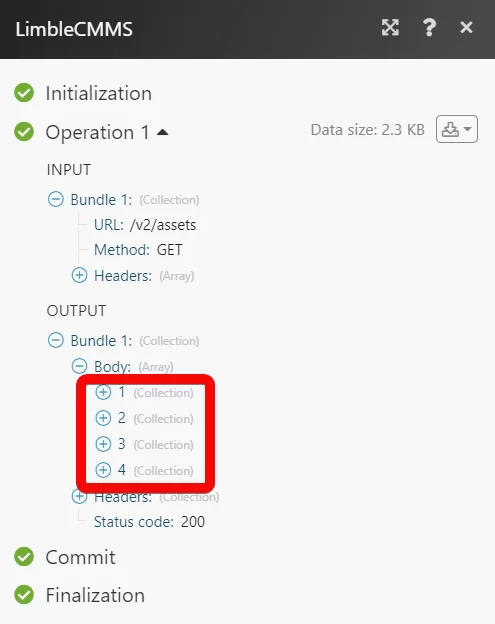
The following API call returns all the assets from your LimbleCMMS account:
URL:
/v2/assets
Method:
GET
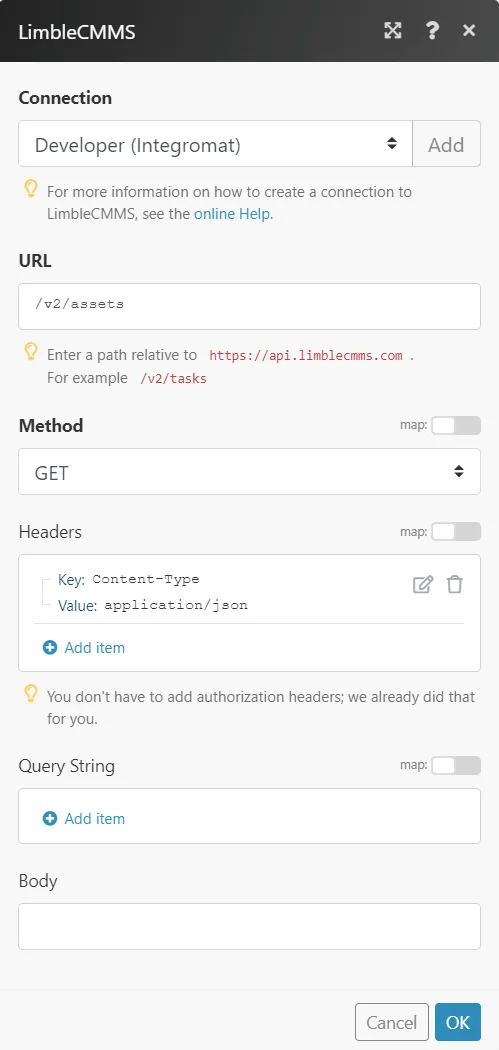
Matches of the search can be found in the module’s Output under Bundle > Body.
In our example, 4 assets were returned:
Setting Up LimbleCMMS Webhooks

1. Open the Watch module, establish the connection, select the events you want to watch, click Save, and copy the URL address to your clipboard.
2. Log in to your LimbleCMMS account.
3. Click Advanced Settings > Configurations > Navigate to the API Settings section.
4. Against the _Task Webhook Endpoint_field, click Add and enter the URL address copied in step 1.
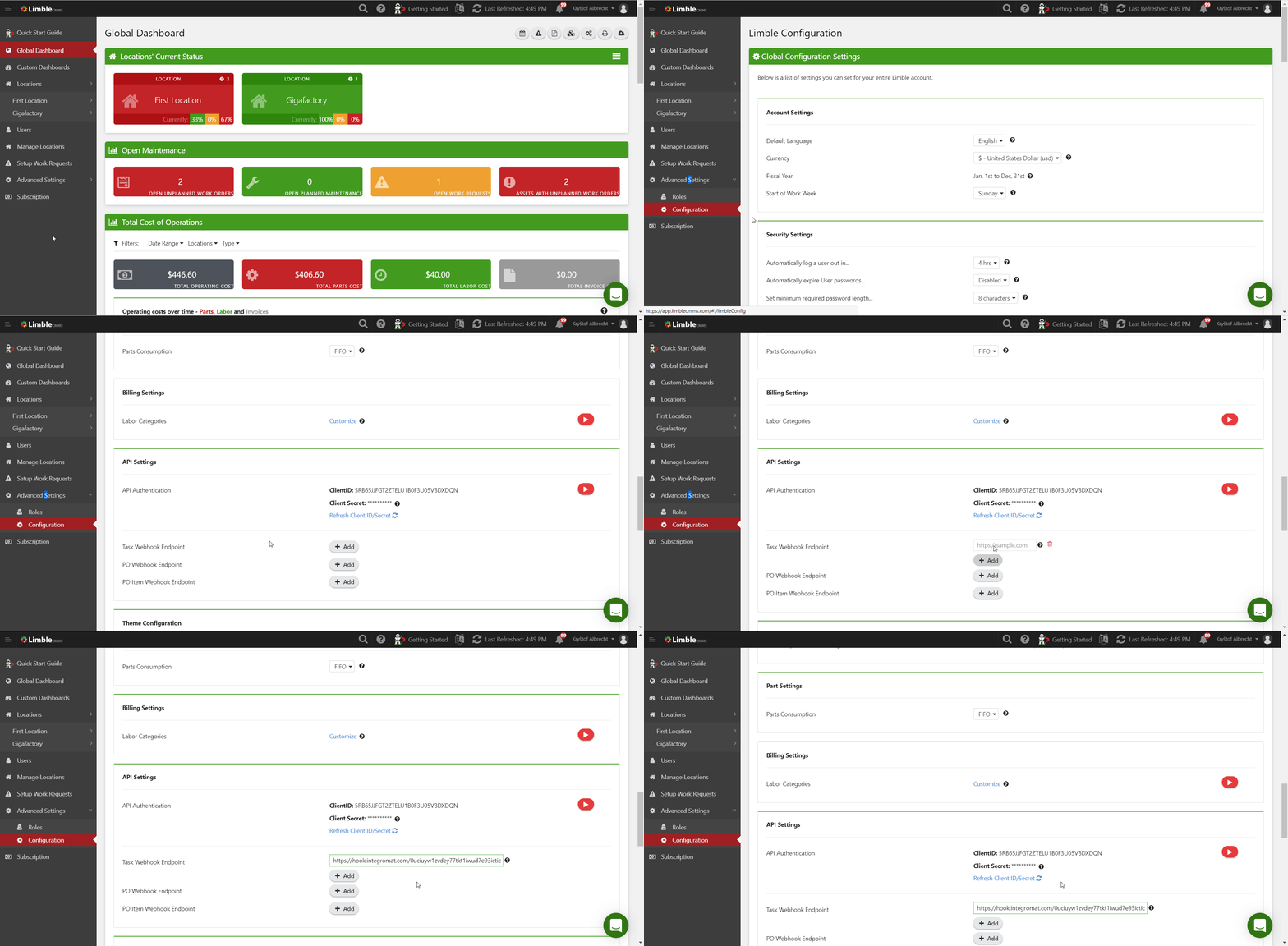
You have successfully added the webhook. Go to Boost.space Integrator and run the webhook to receive alerts when a task is updated.
Legacy article, imported from the original Boost.space knowledge base (/knowledge-base/applications/productivity/limble-cmms/).

