LiquidPlanner
The LiquidPlanner modules allow you to create, update, list, retrieve, and delete the estimates, treeitems, clients, tasks, projects, packages, comments, checklist items for a task, timesheets, timer, events, milestones, folders, partial day events, dependencies, links, commands, and notes for items in your LiquidPlanner account.
Getting Started with LiquidPlanner
Prerequisites
- A LiquidPlanner account
In order to use LiquidPlanner with Boost.space Integrator, it is necessary to have a LiquidPlanner account. If you do not have one, you can create a LiquidPlanner account at liquidplanner.com/.
Connect LiquidPlanner to Boost.space Integrator
1. Go toBoost.space Integrator and open the LiquidPlanner module’s Create a connection dialog.

2. In the Connection name field, enter a name for the connection.
3. In the Email and Password field, enter your LiquidPlanner account login credentials.
4. In the Workspace ID field, enter your account workspace details. You can find Workspace ID at Your Profile Icon > Settings > Workspace Summary.

5. Click Continue.
The connection has been established.
Estimates
Create an Estimate for Task
Creates an estimate for a task.
Connection
Establish a connection to your LiquidPlanner account.
Task ID
Select or map the Task ID whose estimate you want to create.
Work
Enter the number of hours worked on the selected task. For example, 4h, 0.5d.
Activity ID
Select or map the Activity ID whose estimate you want to create. Mandatory when providing low, high, and member ID.
Member ID
Select or map the Member ID to whom the activity is assigned. Mandatory when providing activity ID, low, and high values.
Low
Enter the minimum of hours estimated to complete the activity. If you are providing low values, it is mandatory to provide activity ID, member ID, and high values. For example, 4h, 0.5d.
High
Enter the maximum number of hours estimated to complete the activity. If you are providing low values, it is mandatory to provide activity ID, member ID, and high values. For example, 4h, 0.5d.
Is Done
Select whether the task is done.
Done On
Enter the date when the task is completed. See the list of supported date and time formats.
Work Performed On
Enter the date when the work on the task is performed on. See the list of supported date and time formats.
Comment
Enter the details of the work done or any other information about the task.
Create an Estimate for an Event
Creates an estimate for an event.
Connection
Establish a connection to your LiquidPlanner account.
Event ID
Select or map the Event ID whose estimate you want to create.
Work
Enter the number of hours worked on the selected event. For example, 4h, 0.5d.
Activity ID
Select or map the Activity ID whose estimate you want to create. Mandatory when providing low, high, and member ID.
Member ID
Select or map the Member ID to whom the activity is assigned. Mandatory when providing activity ID, low, and high values.
Low
Enter the minimum of hours or days estimated to complete the event. If you are providing low values, it is mandatory to provide activity ID, member ID, and high values. For example, 4h, 0.5d.
High
Enter the maximum number of hours or days estimated to complete the event. If you are providing low values, it is mandatory to provide activity ID, member ID, and high values. For example, 4h, 0.5d.
Is Done
Select whether the event is done.
Done On
Enter the date when the event is completed. See the list of supported date and time formats.
Work Performed On
Enter the date when the work on the event is performed on. See the list of supported date and time formats.
Comment
Enter the details of the work done or any other information about the event.
Create an Estimate for a Partial Day Event
Creates an estimate for a partial day event.
Connection
Establish a connection to your LiquidPlanner account.
Partial Day Event ID
Select or map the Partial Day Event ID whose estimate you want to create.
Work
Enter the number of hours worked on the selected Partial Day Event. For example, 4h, 0.5d.
Activity ID
Select or map the Activity ID whose estimate you want to create. Mandatory when providing low, high, and member ID.
Member ID
Select or map the Member ID to whom the activity is assigned. Mandatory when providing activity ID, low, and high values.
Low
Enter the minimum of hours estimated to complete the activity. If you are providing low values, it is mandatory to provide activity ID, member ID, and high values. For example, 4h, 0.5d.
High
Enter the maximum number of hours estimated to complete the activity. If you are providing low values, it is mandatory to provide activity ID, member ID, and high values. For example, 4h, 0.5d.
Is Done
Select whether the partial day event is done. See the list of supported date and time formats.
Done On
Enter the date when the partial day event is completed. See the list of supported date and time formats.
Work Performed On
Enter the date when the work on the partial day event is performed on. See the list of supported date and time formats.
Comment
Enter the details of the work done or any other information about the partial day event.
Create an Estimate for a Milestone
Creates an estimate for a milestone.
Connection
Establish a connection to your LiquidPlanner account.
Milestone ID
Select or map the Milestone ID whose estimate you want to create.
Work
Enter the number of hours worked on the selected milestone. For example, 4h, 0.5d.
Activity ID
Select or map the Activity ID whose estimate you want to create. Mandatory when providing low, high, and member ID.
Member ID
Select or map the Member ID to whom the activity is assigned. Mandatory when providing activity ID, low, and high values.
Low
Enter the minimum of hours estimated to complete the activity. If you are providing low values, it is mandatory to provide activity ID, member ID, and high values. For example, 4h, 0.5d.
High
Enter the maximum number of hours estimated to complete the activity. If you are providing low values, it is mandatory to provide activity ID, member ID, and low values. For example, 4h, 0.5d.
Is Done
Select whether all the items of the milestone are done.
Done On
Enter the date when all the items of the milestone are completed. See the list of supported date and time formats.
Work Performed On
Enter the date when the work on the milestone is performed on. See the list of supported date and time formats.
Comment
Enter the details of the work done or any other information about the milestone.
Treeitems
List Treeitems
Gets a list of all treeitems.
Connection
Establish a connection to your LiquidPlanner account.
Limit
Set the maximum number of treeitems Boost.space Integrator should return during one execution cycle.
Get a Treeitem
Gets info about specific treeitem by ID.
Connection
Establish a connection to your LiquidPlanner account.
Treeitem ID
Select or map the Treeitem ID whose details you want to retrieve.
Update a Treeitem
Updates a specific treeitem.
Connection
Establish a connection to your LiquidPlanner account.
Treeitem ID
Select or map the Treeitem ID whose details you want to update.
Name
Enter a new name for the Treeitem.
Activity ID
Select or map the Activity ID of the activity most recently used for tracking the time related to the item.
Custom Field Values
Add the custom fields and their values in JSON or XML format.
Done On
Select whether this item is completed.
Started On
Enter the date and time when the work on this item is started. See the list of supported date and time formats.
Delay Until
Enter the date and time until when the work on the Treeitem should be delayed. See the list of supported date and time formats.
Description
Enter the details of the item.
Is Done
Select whether the work on the item is completed
Is on Hold
Select whether the work on this item is on hold.
Is Shared
Select whether the task for this item is visible in the project.
Manual Alert
Enter the details to receive the manual alerts for any updates on this item.
Max Effort
Enter the number of hours limited to work on this item.
Assignments
Enter the assignment details related to this item.
Parent ID
Enter the parent task ID to which this item is a subtask.
Date
Enter the date by when the work on this item should be completed. See the list of supported date and time formats.
External Reference
Enter an external reference ID from an external system.
Package ID
Enter the package ID to which this task belongs to.
Work In Order
Select whether this task is a work in order.
Delete a Treeitem
Deletes specific treeitems from a workspace.
Connection
Establish a connection to your LiquidPlanner account.
Treeitem ID
Select or map the Treeitem ID you want to delete.
Clients
You do not have to add the webhooks in the LiquidPlanner as it is automatically done for you once you add and save an instant trigger module to your scenario.
Watch Clients
Triggers when a client has been created or updated.
Webhook Name
Enter a name for the webhook.
Connection
Establish a connection to your LiquidPlanner account.
Create a Client
Creates a client in a workspace.
Connection
Establish a connection to your LiquidPlanner account.
Name
Enter the name of the client.
Done On
Enter the date when a client is created in the workspace. See the list of supported date and time formats.
Description
Enter the details of the client.
Is Done
Select whether all the task of the client is done.
Is On Hold
Select whether any of the tasks of the client is on hold.
Manual Alert
Enter whether you want to receive manual alerts for client tasks.
Assignments
Add assignments:
Person ID
Enter (map) the Person ID to whom the assignment is assigned.
Team ID
Enter (map) the Team ID to whom the assignment is assigned.
Low Effort Remaining
Enter the minimum of hours estimated to complete the activity. For example, 4h, 0.5d.
High Effort Remaining
Enter the maximum number of hours estimated to complete the activity. For example, 4h, 0.5d.
Treeitem ID
Enter (map) the Treeitem ID associated with the assignment.
Space ID
Enter (map) the Space ID associated with the assignment.
Activity ID
Enter (map) the Activity ID associated with the assignment.
Is Done
Select whether the assignment is done.
Done On
Enter the date when the assignment is completed. See the list of supported date and time formats.
Daily Limit
Enter the daily number of work hours limited to work on this task.
Position
Enter the position number of this assignment in the total assignments list.
Hours Logged
Enter the number of hours logged for this assignment.
Expected Finish
Enter the date and time by which this assignment is expected to complete. See the list of supported date and time formats.
Expected Start
Enter the date and time by when the work on assignment is expected to start. See the list of supported date and time formats.
Can Destroy
Select whether this assignment is destroyable.
Is Owner
Select whether the assigned member is an owner of this assignment.
Type
Enter the assignment type. For example, installation.
ID
Enter the Assignment ID.
Contract Value
Enter the amount associated with the client’s contract.
External Reference
Enter the external reference ID of the client in an external system.
List Client
Gets a list of all clients.
Connection
Establish a connection to your LiquidPlanner account.
Limit
Set the maximum number of clients Boost.space Integrator should return during one execution cycle.
Get a Client
Gets info about specific clients.
Connection
Establish a connection to your LiquidPlanner account.
Client ID
Select or map the Client ID whose details you want to retrieve.
Update a Client
Updates information about the client.
Connection
Establish a connection to your LiquidPlanner account.
Client ID
Select or map the Client ID whose details you want to update.
Name
Enter the name of the client.
Done On
Enter the date when a client is created in the workspace. See the list of supported date and time formats.
Description
Enter the details of the client.
Is Done
Select whether all the task of the client is done.
Is On Hold
Select whether any of the tasks of the client is on hold.
Manual Alert
Enter whether you want to receive manual alerts for client tasks.
Assignments
Add assignments:
Person ID
Enter (map) the Person ID to whom the assignment is assigned.
Team ID
Enter (map) the Team ID to whom the assignment is assigned.
Low Effort Remaining
Enter the minimum of hours estimated to complete the activity. For example, 4h, 0.5d.
High Effort Remaining
Enter the maximum number of hours estimated to complete the activity. For example, 4h, 0.5d.
Treeitem ID
Enter (map) the Treeitem ID associated with the assignment.
Space ID
Enter (map) the Space ID associated with the assignment.
Activity ID
Enter (map) the Activity ID associated with the assignment.
Is Done
Select whether the assignment is done.
Done On
Enter the date when the assignment is completed. See the list of supported date and time formats.
Daily Limit
Enter the daily number of work hours limited for this task.
Position
Enter the position number of this assignment in the total assignments list.
Hours Logged
Enter the number of logged for this assignment.
Expected Finish
Enter the date and time by which this assignment is expected to complete. See the list of supported date and time formats.
Expected Start
Enter the date and time by when the work on assignment is expected to start. See the list of supported date and time formats.
Can Destroy
Select whether this assignment is destroyable.
Is Owner
Select whether the assigned member is an owner of this assignment.
Type
Enter the assignment type. For example, installation.
ID
Enter the Assignment ID.
Contract Value
Enter the amount associated with the client’s contract.
External Reference
Enter the external reference ID of the client in an external system.
Delete a Client
Deletes a specific client by ID.
Connection
Establish a connection to your LiquidPlanner account.
Client ID
Select or map the Client ID you want to delete.
Tasks
You do not have to add the webhooks in the LiquidPlanner as it is automatically done for you once you add and save an instant trigger module to your scenario.
Watch Tasks
Triggers when a task has been created or updated.
Webhook Name
Enter a name for the webhook.
Connection
Establish a connection to your LiquidPlanner account.
List Tasks
Gets a list of tasks.
Connection
Establish a connection to your LiquidPlanner account.
Limit
Set the maximum number of tasks Boost.space Integrator should return during one execution cycle.
Get a Task
Gets a specific task by ID.
Connection
Establish a connection to your LiquidPlanner account.
Task ID
Select or map the Task ID whose details you want to retrieve.
Create a Task
Creates a new task in LiquidPlanner.
Connection
Establish a connection to your LiquidPlanner account.
Name
Enter a name for the task.
Activity ID
Select or map the Activity ID related to the task.
Custom Field Name
Enter a custom field name.
Value
Enter the value for the custom field.
Done On
Enter the date when the task is completed. See the list of supported date and time formats.
Started On
Enter the date when the work on the task is started. See the list of supported date and time formats.
Delay Until
Enter the date and time until which you want to delay the work on this task. See the list of supported date and time formats.
Description
Enter the details of the task.
Is Done
Select whether the task is completed.
Is On Hold
Select whether the task is on hold.
Manual Alert
Enter whether you want to receive the manual alert for this task.
Is Shared
Select whether the task is visible on the project.
Max Effort
Enter the maximum number of hours allocated for the task. You will receive a trigger if the mentioned hours are exceeded.
Assignments
Add the assignments related to the task:
Person ID
Enter (map) the Person ID to whom the assignment is assigned.
Team ID
Enter (map) the Team ID to whom the assignment is assigned.
Low Effort Remaining
Enter the minimum of hours estimated to complete the activity. If you are providing low values, it is mandatory to provide activity ID, member ID, and high values. For example, 4h, 0.5d.
Max Effort Remaining
Enter the maximum number of hours estimated to complete the activity. If you are providing low values, it is mandatory to provide activity ID, member ID, and high values. For example, 4h, 0.5d.
Treeitem ID
Enter (map) the Treeitem ID associated with the assignment.
Space ID
Enter (map) the Space ID associated with the assignment.
Activity ID
Enter (map) the Activity ID associated with the assignment.
Is Done
Select whether the assignment is done.
Done On
Enter the date when the assignment is completed. See the list of supported date and time formats.
Daily Limit
Enter the daily number of work hours limited for the task.
Position
Enter the position number of this assignment in the total assignments list.
Hours Logged
Enter the number of hours logged for this assignment.
Expected Finish
Enter the date and time by which this assignment is expected to complete. See the list of supported date and time formats.
Expected Start
Enter the date and time by when the work on assignment is expected to start. See the list of supported date and time formats.
Can Destroy
Select whether this assignment is destroyable.
Is Owner
Select whether the assigned member is an owner of this assignment.
Type
Enter the assignment type. For example, installation.
ID
Enter the Assignment ID.
Parent ID
Enter the Parent Task ID if this task is a subtask.
Promise By
Enter the date by when the task is promised to complete. If the date is missed, you will receive an alert. See the list of supported date and time formats.
External Reference
Enter the task’s external reference number to identify the task from an external system.
Package IDs
Select the Package IDs related to the task.
Work On Order
Select whether the task is work on the order.
Update a Task
Updates specific tasks.
Connection
Establish a connection to your LiquidPlanner account.
Task ID
Select or map the Task ID whose details you want to update.
Name
Enter a new name for the task.
Activity ID
Select or map the Activity ID related to the task.
Custom Field Name
Enter a custom field name.
Value
Enter the value for the custom field.
Done On
Enter the date when the task is completed. See the list of supported date and time formats.
Started On
Enter the date when the work on the task is started. See the list of supported date and time formats.
Delay Until
Enter the date and time until which you want to delay the work on this task. See the list of supported date and time formats.
Description
Enter the details of the task.
Is Done
Select whether the task is completed.
Is On Hold
Select whether the task is on hold.
Manual Alert
Enter whether you want to receive the manual alert for this task.
Is Shared
Select whether the task details are visible on the project.
Max Effort
Enter the maximum number of hours allocated for the task. You will receive a trigger if the mentioned hours are exceeded.
Parent ID
Enter the Parent Task ID if this task is a subtask.
Promise By
Enter the date by when the task is promised to complete. If the date is missed, you will receive an alert. See the list of supported date and time formats.
External Reference
Enter the task’s external reference number to identify the task from an external system.
Package IDs
Add the Package IDs related to the task.
Work On Order
Select whether the task is work on the order.
Delete a Tasks
Deletes a specific task.
Connection
Establish a connection to your LiquidPlanner account.
Task ID
Select or map the Task ID you want to delete.
Projects
You do not have to add the webhooks in the LiquidPlanner as it is automatically done for you once you add and save an instant trigger module to your scenario.
Watch Projects
Triggers when a project has been created or updated.
Webhook Name
Enter a name for the webhook.
Connection
Establish a connection to your LiquidPlanner account.
List Projects
Gets a list of all projects.
Connection
Establish a connection to your LiquidPlanner account.
Limit
Set the maximum number of projects Boost.space Integrator should return during one execution cycle.
Get a Project
Gets a specific project by ID.
Connection
Establish a connection to your LiquidPlanner account.
Project ID
Select or map the Project ID whose details you want to retrieve.
Create a Project
Creates a new project.
Connection
Establish a connection to your LiquidPlanner account.
Name
Enter a name for the project.
Done On
Enter the date when the task related to the project are completed. See the list of supported date and time formats.
Description
Enter the project details.
Is Done
Select whether the tasks are related to the project.
Is on Hold
Select whether the tasks related to the project are on hold.
Manual Alert
Enter the details when you want to receive the manual alerts for any modifications in the project
Contract Value
Enter the amount involved in the project.
Assignments
Add the assignments related to the project.
External Reference
Enter the external reference number related to the project.
Update a Project
Updates a specific project.
Connection
Establish a connection to your LiquidPlanner account.
Project ID
Select or map the Project ID whose details you want to update.
Name
Enter a name for the project.
Done On
Enter the date when the task related to the project are completed. See the list of supported date and time formats.
Description
Enter the project details.
Is Done
Select whether the tasks are related to the project.
Is on Hold
Select whether the tasks related to the project are on hold.
Manual Alert
Enter the details when you want to receive the manual alerts for any modifications in the project.
Contract Value
Enter the amount involved in the project.
Assignments
Add the assignments related to the project.
External Reference
Enter the external reference number related to the project.
Delete a Project
Deletes a specific project from the workspace.
Connection
Establish a connection to your LiquidPlanner account.
Project ID
Select or map the Project ID you want to delete.
Packages
You do not have to add the webhooks in the LiquidPlanner as it is automatically done for you once you add and save an instant trigger module to your scenario.
Watch Packages
Triggers when a package has been created or updated.
Webhook Name
Enter a name for the webhook.
Connection
Establish a connection to your LiquidPlanner account.
List Packages
Gets a list of packages.
Connection
Establish a connection to your LiquidPlanner account.
Limit
Set the maximum number of treeitems Boost.space Integrator should return during one execution cycle.
Get a Package
Gets a specific package by ID.
Connection
Establish a connection to your LiquidPlanner account.
Package ID
Select or map the Package ID whose details you want to retrieve.
Create a Package
Creates a new package.
Connection
Establish a connection to your LiquidPlanner account.
Name
Enter the package name.
Done On
Enter (map) the date on which this item was completed. By default, it takes the present day, defaulted to today if the item is marked done today See the list of supported date and time formats.
Delay Until
Enter the date and time until which you want to delay the work on this item. See the list of supported date and time formats.
Description
Enter the details of the task.
Is Done
Select whether the items in the package are completed.
Is On Hold
Select whether the items in the package are on hold.
Manual Alert
Enter teh number of times you want to receive the alerts for any update on this item.
Max Effort
Enter the maximum number of hours allocated for this item. You will receive a trigger if the mentioned hours are exceeded.
Parent ID
Enter the Parent ID to which this item is a part.
Promise By
Enter the date by when the item is promised to complete. If the specified date is in past, you will receive an alert. See the list of supported date and time formats.
External Reference
Enter the item’s external reference number to identify the item from an external system.
Update a Package
Updates a specific package.
Connection
Establish a connection to your LiquidPlanner account.
Package ID
Select or map the Package ID whose details you want to update.
Name
Enter the package name.
Done On
Enter (map) the date on which this item was completed. By default, it takes the present day, defaulted to today if the item is marked done today. See the list of supported date and time formats.
Delay Until
Enter the date and time until which you want to delay the work on this item. See the list of supported date and time formats.
Description
Enter the details of the task.
Is Done
Select whether the items in the package are completed.
Is On Hold
Select whether the items in the package are on hold.
Manual Alert
Enter the number of times you want to receive the alerts for any update on this item.
Max Effort
Enter the maximum number of hours allocated for this item. You will receive a trigger if the mentioned hours are exceeded.
Parent ID
Enter the Parent ID to which this item is a part.
Promise By
Enter the date by when the item is promised to complete. If the specified date is in the past, you will receive an alert. See the list of supported date and time formats.
External Reference
Enter the item’s external reference number to identify the item from an external system.
Delete a Package
Deletes a specific package.
Connection
Establish a connection to your LiquidPlanner account.
Package ID
Select or map the Package ID you want to delete.
Comments
You do not have to add the webhooks in the LiquidPlanner as it is automatically done for you once you add and save an instant trigger module to your scenario.
Watch Comments
Triggers when a comment has been created or updated.
Webhook Name
Enter a name for the webhook.
Connection
Establish a connection to your LiquidPlanner account.
Get a Comment
Gets a comment by ID.
Connection
Establish a connection to your LiquidPlanner account.
Comment ID
Select or map the Comment ID whose details you want to retrieve.
Add a Comment to an Item
Adds a comment to an item.
Connection
Establish a connection to your LiquidPlanner account.
Treeitem ID
Select or map the Treeitem ID for which you want to add a comment.
Comment
Enter the comment text.
Item ID
Enter (map) the Item ID to which the comment belongs to.
Update a Comment
Updates a specific comment.
Connection
Establish a connection to your LiquidPlanner account.
Treeitem ID
Select or map the Treeitem ID for which you want to add a comment.
Comment ID
Select or map the Comment ID you want to update.
Comment
Enter the new comment text.
Item ID
Enter (map) the Item ID to which the comment belongs.
Delete a Comment
Deletes a comment from a specific item.
Connection
Establish a connection to your LiquidPlanner account.
Comment ID
Select or map the Comment ID you want to delete.
Checklist Item for Task
Get a Checklist item for a Task
Gets a checklist item for a specific task by ID.
Connection
Establish a connection to your LiquidPlanner account.
Task ID
Select or map the Task ID whose checklist item details you want to retrieve.
Checklist Item ID
Select or map the Checklist Item ID whose details you want to retrieve.
Create a Checklist Item for a Task
Creates a checklist item for a specific task.
Connection
Establish a connection to your LiquidPlanner account.
Task ID
Select or map the Task ID to which you want to create the checklist item.
Sort Order
Enter the order to sort the items in the task.
Name
Enter a name for the checklist.
Owner ID
Enter (map) the Owner ID of the checklist.
Completed
Select whether the checklist item for the task is completed.
Update a Checklist an Item for a Task
Updates checklist items for a specific task.
Connection
Establish a connection to your LiquidPlanner account.
Task ID
Select or map the Task ID to which you want to create the checklist item.
Checklist Item ID
Select or map the checklist Item ID whose details you want to update.
Sort Order
Enter the order to sort the items in the task.
Name
Enter a name for the checklist.
Owner ID
Enter (map) the Owner ID of the checklist.
Completed
Select whether the checklist item for the task is completed.
Delete a Checklist Item for a Task
Deletes a checklist item for a specific task.
Connection
Establish a connection to your LiquidPlanner account.
Task ID
Select or map the Task ID whose checklist item you want to delete.
Checklist Item ID
Select or map the checklist Item ID you want to delete.
Events
List Events
Gets a list of events.
Connection
Establish a connection to your LiquidPlanner account.
Limit
Set the maximum number of events Boost.space Integrator should return during one execution cycle.
Get an Event
Gets a specific event by ID.
Connection
Establish a connection to your LiquidPlanner account.
Event ID
Select or map the Event ID whose details you want to retrieve.
Create an Event
Creates a full-day event.
Connection
Establish a connection to your LiquidPlanner account.
Activity ID
Select or map the Activity ID of the task related to the event.
Custom Field Name
Enter the custom field name to add to the event.
Value
Enter the custom field value.
Start Date
Enter the date on which the event starts. See the list of supported date and time formats.
Description
Enter the details of the event.
Is Done
Select whether the tasks related to the event are completed.
Is On Hold
Select whether the task related to the event is on hold.
Is Shared
Select whether the tasks related to the event are visible in the project.
Manual Alert
Enter whether you want to receive the manual alert for this task.
Max Effort
Enter the maximum number of hours allocated for the task. You will receive a trigger if the mentioned hours are exceeded.
Assignments
Add the assignments related to the event:
Person ID
Enter (map) the Person ID to whom the assignment is assigned.
Team ID
Enter (map) the Team ID to whom the assignment is assigned.
Low Effort Remaining
Enter the minimum of hours estimated to complete the activity. If you are providing low values, it is mandatory to provide activity ID, member ID, and high values. For example, 4h, 0.5d.
High Effort Remaining
Enter the maximum number of hours estimated to complete the activity. If you are providing low values, it is mandatory to provide activity ID, member ID, and high values. For example, 4h, 0.5d.
Treeitem ID
Enter (map) the Treeitem ID associated with the assignment.
Space ID
Enter (map) the Space ID associated with the assignment.
Activity ID
Enter (map) the Activity ID associated with the assignment.
Is Done
Select whether the assignment is done.
Done On
Enter the date when the assignment is completed. See the list of supported date and time formats.
Daily Limit
Enter the daily number of work hours limited for the task.
Position
Enter the position number of this assignment in the total assignments list.
Hours Logged
Enter the number of hours logged for this assignment.
Expected Finish
Enter the date and time by which this assignment is expected to complete. See the list of supported date and time formats.
Expected Start
Enter the date and time by when the work on assignment is expected to start. See the list of supported date and time formats.
Can Destroy
Select whether this assignment is destroyable.
Is Owner
Select whether the assigned member is the owner of this assignment.
Type
Enter the assignment type. For example, installation.
ID
Enter the Assignment ID.
Parent ID
Enter the Parent ID of which this event is a part.
Finish Date
Enter the date by when the tasks related to the event are promised to complete. If the date is missed, you will receive an alert. See the list of supported date and time formats.
External Reference
Enter the event’s external reference ID to identify the event from an external system.
Package ID
Enter (map) the Package ID to which this event belongs.
Update an Event
Updates a specific event.
Connection
Establish a connection to your LiquidPlanner account.
Event ID
Select or map the Event ID whose details you want to update.
Activity ID
Select or map the Activity ID of the task related to the event.
Custom Field Name
Enter the custom field name to add to the event.
Value
Enter the custom field value.
Start Date
Enter the date on which the event starts. See the list of supported date and time formats.
Description
Enter the details of the event.
Is Done
Select whether the tasks related to the event are completed.
Is On Hold
Select whether the task related to the event is on hold.
Is Shared
Select whether the tasks related to the event are visible in the project.
Manual Alert
Enter whether you want to receive the manual alert for this task.
Max Effort
Enter the maximum number of hours allocated for the task. You will receive a trigger if the mentioned hours are exceeded.
Assignments
Add the assignments related to the event:
Person ID
Enter (map) the Person ID to whom the assignment is assigned.
Team ID
Enter (map) the Team ID to whom the assignment is assigned.
Low Effort Remaining
Enter the minimum of hours estimated to complete the activity. If you are providing low values, it is mandatory to provide activity ID, member ID, and high values. For example, 4h, 0.5d.
High Effort Remaining
Enter the maximum number of hours estimated to complete the activity. If you are providing low values, it is mandatory to provide activity ID, member ID, and high values. For example, 4h, 0.5d.
Treeitem ID
Enter (map) the Treeitem ID associated with the assignment.
Space ID
Enter (map) the Space ID associated with the assignment.
Activity ID
Enter (map) the Activity ID associated with the assignment.
Is Done
Select whether the assignment is done.
Done On
Enter the date when the assignment is completed. See the list of supported date and time formats.
Daily Limit
Enter the daily number of work hours limited for the task.
Position
Enter the position number of this assignment in the total assignments list.
Hours Logged
Enter the number of logged for this assignment.
Expected Finish
Enter the date and time by which this assignment is expected to complete. See the list of supported date and time formats.
Expected Start
Enter the date and time by when the work on assignment is expected to start. See the list of supported date and time formats.
Can Destroy
Select whether this assignment is destroyable.
Is Owner
Select whether the assigned member is the owner of this assignment.
Type
Enter the assignment type. For example, installation.
ID
Enter the Assignment ID.
Parent ID
Enter the Parent ID of which this event is a part.
Finish Date
Enter the date by when the tasks related to the event are promised to complete. If the date is missed, you will receive an alert. See the list of supported date and time formats.
External Reference
Enter the event’s external reference ID to identify the event from an external system.
Package ID
Enter (map) the Package ID to which this event belongs.
Delete an Event
Deletes a specific event.
Connection
Establish a connection to your LiquidPlanner account.
Event ID
Select or map the Event ID whose details you want to delete.
Milestones
List Milestones
Gets a list of milestones.
Connection
Establish a connection to your LiquidPlanner account.
Limit
Set the maximum number of milestones Boost.space Integrator should return during one execution cycle.
Get a Milestone
Gets detail about a specific milestone.
Connection
Establish a connection to your LiquidPlanner account.
Milestone ID
Select or map the Milestone ID whose details you want to retrieve.
Create a Milestone
Creates a new milestone.
Connection
Establish a connection to your LiquidPlanner account.
Name
Enter the name of the milestone.
Activity ID
Select or map the Activity ID related to the milestone.
Description
Enter the details of the milestone.
Is Done
Select whether the tasks related to the milestone are completed.
Is On Hold
Select whether the tasks related to the milestone are on hold.
Is Shared
Select whether the tasks related to the milestone are visible in the project.
Manual Alert
Enter the number of times you want to receive the manual alert for this task.
Max Effort
Enter the maximum number of hours allocated for the tasks of the milestone. You will receive a trigger if the mentioned hours are exceeded.
Parent ID
Enter the Parent ID of which this milestone is a part.
Date
Enter the date by when the milestone is promised t complete. You will receive a trigger if the milestone is not done and this date is in past. See the list of supported date and time formats.
External Reference
Enter the Reference ID to identify the milestone from an external system.
Package ID
Enter (map) the Package ID to which this milestone belongs.
Update a Milestone
Updates a specific milestone.
Connection
Establish a connection to your LiquidPlanner account.
Milestone ID
Select or map the Milestone ID whose details you want to update.
Name
Enter the name of the milestone.
Activity ID
Select or map the Activity ID related to the milestone.
Description
Enter the details of the milestone.
Is Done
Select whether the tasks related to the milestone are completed.
Is On Hold
Select whether the tasks related to the milestone are on hold.
Is Shared
Select whether the tasks related to the milestone are visible in the project.
Manual Alert
Enter the number of times you want to receive the manual alert for this task.
Max Effort
Enter the maximum number of hours allocated for the tasks of the milestone. You will receive a trigger if the mentioned hours are exceeded.
Parent ID
Enter the Parent ID of which this milestone is a part.
Date
Enter the date by when the milestone is promised t complete. You will receive a trigger if the milestone is not done and this date is in past. See the list of supported date and time formats.
External Reference
Enter the Reference ID to identify the milestone from an external system.
Package ID
Enter (map) the Package ID to which this milestone belongs.
Delete a Milestone
Deletes a specific milestone.
Connection
Establish a connection to your LiquidPlanner account.
Milestone ID
Select or map the Milestone ID you want to delete.
Folders
List Folders
Gets a list of all folders.
Connection
Establish a connection to your LiquidPlanner account.
Limit
Set the maximum number of folders Boost.space Integrator should return during one execution cycle.
Get a Folder
Gets a specific folder by ID.
Connection
Establish a connection to your LiquidPlanner account.
Folder ID
Select or map the Folder ID whose details you want to retrieve.
Create a Folder
Creates a new folder in the workspace.
Connection
Establish a connection to your LiquidPlanner account.
Name
Enter a name for the folder.
Done On
Enter the date when the tasks of the folder are completed. See the list of supported date and time formats.
Delay Until
Enter the date until which the work on the tasks related to the folder should be delayed. See the list of supported date and time formats.
Description
Enter the details of the folder.
Is Done
Select whether the tasks of the folder are completed.
Is On Hold
Select whether the tasks of the folder are on hold.
Manual Alert
Enter the number to receive the manual alerts about the folder.
Max Effort
Enter the number of hours limited to work on the items of the folder. You will receive the triggers if the hours are exceeded.
Parent ID
Enter the parent ID to which the items of the folder are part.
Promise By
Enter the date by when the items of the folder are promised to complete. If the specified date is missed, you will receive an alert. See the list of supported date and time formats.
External Reference
Enter the reference ID from an external system for the folder.
Update a Folder
Updates a specific folder.
Connection
Establish a connection to your LiquidPlanner account.
Folder ID
Select or map the Folder ID whose details you want to update.
Name
Enter a name for the folder.
Done On
Enter the date when the tasks of the folder are completed. See the list of supported date and time formats.
Delay Until
Enter the date until which the work on the tasks related to the folder should be delayed. See the list of supported date and time formats.
Description
Enter the details of the folder.
Is Done
Select whether the tasks of the folder are completed.
Is On Hold
Select whether the tasks of the folder are on hold.
Manual Alert
Enter the number to receive the manual alerts about the folder.
Max Effort
Enter the number of hours limited to work on the items of the folder. You will receive the triggers if the hours are exceeded.
Parent ID
Enter the parent ID to which the items of the folder are part.
Promise By
Enter the date by when the items of the folder are promised to complete. If the specified date is missed, you will receive an alert. See the list of supported date and time formats.
External Reference
Enter the reference ID from an external system for the folder.
Delete a Folder
Deletes a specific folder.
Connection
Establish a connection to your LiquidPlanner account.
Folder ID
Select or map the Folder ID you want to delete.
Partial Day Events
List Partial Day Events
Gets a list of all partial day events.
Connection
Establish a connection to your LiquidPlanner account.
Limit
Set the maximum number of partial day events Boost.space Integrator should return during one execution cycle.
Get a Partial Day Event
Gets a specific partial-day event by ID.
Connection
Establish a connection to your LiquidPlanner account.
Partial Day Event ID
Select or map the Partial Day Event ID whose details you want to retrieve.
Create a Partial Day Event
Creates a partial-day event.
Connection
Establish a connection to your LiquidPlanner account.
Name
Enter a name for the partial day event.
Activity ID
Select or map the Activity ID associated with the event.
Custom Field Name
Enter a custom field name you are creating for the event. For example, event address.
Value
Enter the custom field value for the above.
Start Time
Enter the event’s start time.
Finish Time
Enter the event’s end time.
Description
Enter the event details.
Is Done
Select whether all the tasks related to the event are completed.
Is on Hold
Select whether all the tasks related to the event are on hold.
Is Shared
Select whether all the tasks related to the event are visible in the project.
Manual Alert
Enter the details if you want to receive the alerts for the event.
Max Effort
Enter the maximum number of hours allowed to work on this package. You will receive a trigger if the limited hours are exceeded.
Sharing Type
Select the option to specify the parent ID of the event for sharing:
-
Folders
-
Projects
-
Packages
Parent ID
Enter (map) the Parent ID of the folder or project or package as selected above for this event.
External Reference
Enter the external reference details of the event from an external system.
Package ID
Enter the Package ID to which this event belongs.
Update a Partial Day Event
Updates a specific partial-day event.
Connection
Establish a connection to your LiquidPlanner account.
Partial Day Event ID
Select the Partial Day Event ID whose details you want to update.
Name
Enter a name for the partial day event.
Activity ID
Select or map the Activity ID associated with the event.
Custom Field Values
Enter the custom field name and their values for the event. For example, event address.
Start Time
Enter the event’s start time.
Finish Time
Enter the event’s end time.
Description
Enter the event details.
Is Done
Select whether all the tasks related to the event are completed.
Is on Hold
Select whether all the tasks related to the event are on hold.
Is Shared
Select whether all the tasks related to the event are visible in the project.
Manual Alert
Enter the details if you want to receive the alerts for the event.
Max Effort
Enter the maximum number of hours allowed to work on this package. You will receive a trigger if the limited hours are exceeded.
Parent ID
Enter (map) the Parent ID of the folder or project or package to which the event belongs.
External Reference
Enter the external reference details of the event from an external system.
Package ID
Enter the Package ID to which this event belongs.
Delete a Partial Day Event
Deletes a specific partial-day event.
Connection
Establish a connection to your LiquidPlanner account.
Partial Day Event ID
Select or map the Partial Day Event ID you want to delete.
Dependencies
List Dependencies
Gets a list of dependencies.
Connection
Establish a connection to your LiquidPlanner account.
Limit
Set the maximum number of dependencies Boost.space Integrator should return during one execution cycle.
Get a Dependency
Gets a specific dependency by ID.
Connection
Establish a connection to your LiquidPlanner account.
Treeitem ID
Select or map the Treeitem ID whose dependency details you want to retrieve. For example, Inbox, active projects.
Prerequisite Item ID
Enter (map) the prerequisite Item ID that must be completed before starting this dependent item.
Wait Time Value
Enter the value of the wait time for this dependency. For example, 5 for the number of days or hours.
Wait Time Unit
Enter the unit of the wait time value. For example, hours, days.
Create a Dependency
Creates a dependency between two items.
Connection
Establish a connection to your LiquidPlanner account.
Treeitem ID
Select or map the Treeitem ID whose dependency you want to create. For example, Inbox, active projects.
Prerequisite Item ID
Enter (map) the prerequisite Item ID that must be completed before starting this dependent item.
Wait Time Value
Enter the value of the wait time for this dependency. For example, 5 for the number of days or hours.
Wait Time Unit
Enter the unit of the wait time value. For example, hours, days.
Delete a Dependency
Deletes a dependency for a specific item.
Connection
Establish a connection to your LiquidPlanner account.
Treeitem ID
Select or map the Treeitem ID whose dependency details you want to delete. For example, Inbox, active projects.
Dependency ID
Select or map the Dependency ID you want to delete.
Links
List Links
Gets a list of links.
Connection
Establish a connection to your LiquidPlanner account.
Limit
Set the maximum number of treeitems Boost.space Integrator should return during one execution cycle.
Get a Link
Gets a specific link by ID.
Connection
Establish a connection to your LiquidPlanner account.
Treeitem ID
Select or map the Treeitem ID whose link details you want to retrieve. For example, Inbox, active projects.
Link ID
Select or map the Link ID whose details you want to retrieve.
Create a Link
Creates a specific link for an item.
Connection
Establish a connection to your LiquidPlanner account.
Treeitem ID
Select or map the Treeitem ID whose link you want to create. For example, Inbox, active projects.
Description
Enter the item details.
URL
Enter the URL address for the item.
Update a Link
Updates a specific link for an item.
Connection
Establish a connection to your LiquidPlanner account.
Treeitem ID
Select or map the Treeitem ID whose link you want to update. For example, Inbox, active projects.
Description
Enter the item details.
Item ID
Enter (map) the item ID whose link you want to update.
URL
Enter the URL address for the item.
Delete a Link
Deletes a link from a specific item.
Connection
Establish a connection to your LiquidPlanner account.
Treeitem ID
Select or map the Treeitem ID whose link you want to delete. For example, Inbox, active projects.
Link ID
Select or map the Link ID you want to delete.
Notes for an Item
Get a note for an Item
Gets a specific not by ID.
Connection
Establish a connection to your LiquidPlanner account.
Treeitem ID
Select or map the Treeitem ID whose note details you want to retrieve. For example, Inbox, active projects.
Create a Note for an Item
Adds a note to the item.
Connection
Establish a connection to your LiquidPlanner account.
Treeitem ID
Select or map the Treeitem ID whose note you want to create. For example, Inbox, active projects.
Note
Enter the note text.
Update a Note for an Item
Updates a note for a specific item.
Connection
Establish a connection to your LiquidPlanner account.
Treeitem ID
Select or map the Treeitem ID whose note you want to create. For example, Inbox, active projects.
Note
Enter the new note text.
Delete a Note for an Item
Deletes a note for a specific item.
Connection
Establish a connection to your LiquidPlanner account.
Treeitem ID
Select or map the Treeitem ID whose note you want to delete. For example, Inbox, active projects.
Timer
Get a Timer
Gets a timer for a specific item.
Connection
Establish a connection to your LiquidPlanner account.
Treeitem ID
Select or map the Treeitem ID whose details you want to retrieve. For example, Inbox, active projects.
Start a Timer
Starts a timer for a specific item.
Connection
Establish a connection to your LiquidPlanner account.
Treeitem ID
Select or map the Treeitem ID whose timer you want to start:
-
Event
-
Partial Day Events
-
Milestones
-
Tasks
Event ID
Select or map the Event ID whose timer you want to start.
Partial Day Event ID
Select or map the Partial Day Event ID whose timer you want to start.
Milestone ID
Select or map the Milestone ID whose timer you want to start.
Task ID
Select or map the Task ID whose timer you want to start.
Stop a Timer
Stops a timer for a specific item.
Connection
Establish a connection to your LiquidPlanner account.
Treeitem ID
Select or map the Treeitem ID whose timer you want to stop:
-
Event
-
Partial Day Events
-
Milestones
-
Tasks
Event ID
Select or map the Event ID whose timer you want to stop.
Partial Day Event ID
Select or map the Partial Day Event ID whose timer you want to stop.
Milestone ID
Select or map the Milestone ID whose timer you want to stop.
Task ID
Select or map the Task ID whose timer you want to stop.
Clear a Timer
Clears the timer for a specific item.
Connection
Establish a connection to your LiquidPlanner account.
Treeitem ID
Select or map the Treeitem ID whose timer you want to clear:
-
Event
-
Partial Day Events
-
Milestones
-
Tasks
Event ID
Select or map the Event ID whose timer you want to clear.
Partial Day Event ID
Select or map the Partial Day Event ID whose timer you want to clear.
Milestone ID
Select or map the Milestone ID whose timer you want to clear.
Task ID
Select or map the Task ID whose timer you want to clear.
Timesheets
Accept a Timesheet
Accepts a specific timesheet.
Connection
Establish a connection to your LiquidPlanner account.
Timesheet ID
Select or map the Timesheet ID which you want to accept.
Submit a Timesheet
Submits a specific timesheet.
Connection
Establish a connection to your LiquidPlanner account.
Timesheet ID
Select or map the Timesheet ID which you want to submit.
Un-Accept a Timesheet
Unaccepts a specific timesheet.
Connection
Establish a connection to your LiquidPlanner account.
Timesheet ID
Select or map the Timesheet ID which you want to un-accept.
Un-Submit a Timesheet
Unsubmits a specific timesheet.
Connection
Establish a connection to your LiquidPlanner account.
Timesheet ID
Select or map the Timesheet ID which you want to un-submit.
Commands
Move Item After
Moves an item after another item.
Connection
Establish a connection to your LiquidPlanner account.
Treeitem ID
Select or map the Treeitem ID which you want to move after another item.
Other ID
Select or map the Treeitem ID after which you want to move the above-selected item.
Package Other ID
Select or map the Package ID of the Treeitem ID after which you want to move the selected item. This field is not required if you have selected the Other ID.
Move Item Before
Moves an item before another item.
Connection
Establish a connection to your LiquidPlanner account.
Treeitem ID
Select or map the Treeitem ID which you want to move before another item.
Other ID
Select or map the Treeitem ID before which you want to move the above-selected item.
Package Other ID
Select or map the Package ID of the Treeitem ID before which you want to move the selected item. This field is not required if you have selected the Other ID.
Documents
You do not have to add the webhooks in the LiquidPlanner as it is automatically done for you once you add and save an instant trigger module to your scenario.
Watch Documents
Triggers when a document has been created or updated.
Webhook Name
Enter a name for the webhook.
Connection
Establish a connection to your LiquidPlanner account.
Other
Make an API Call
Performs an arbitrary authorized API call.
Connection
Establish a connection to your LiquidPlanner account.
URL
Enter a path relative to https://app.liquidplanner.com/api. For example: /v1/workspaces
For the list of available endpoints, refer to the LiquidPlanner API Documentation.
Method
Select the HTTP method you want to use:
GET to retrieve information for an entry.
POST to create a new entry.
PUT to update/replace an existing entry.
PATCH to make a partial entry update.
DELETE to delete an entry.
Headers
Enter the desired request headers. You don’t have to add authorization headers; we already did that for you.
Query String
Enter the request query string.
Body
Enter the body content for your API call.
Example of Use – List Projects
The following API call returns all the projects from your LiquidPlanner account:
URL:
/v1/workspaces/{workspace_ID}/projects
Method:
GET
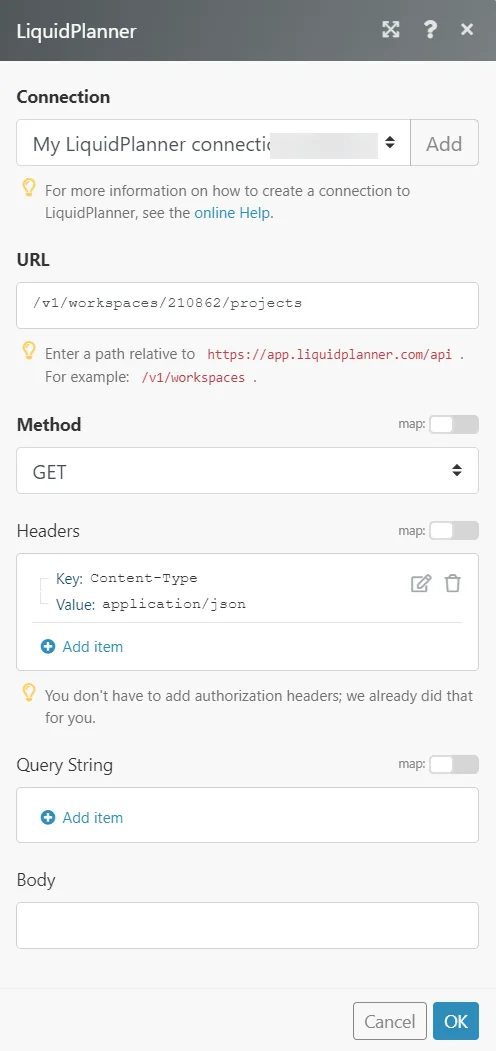
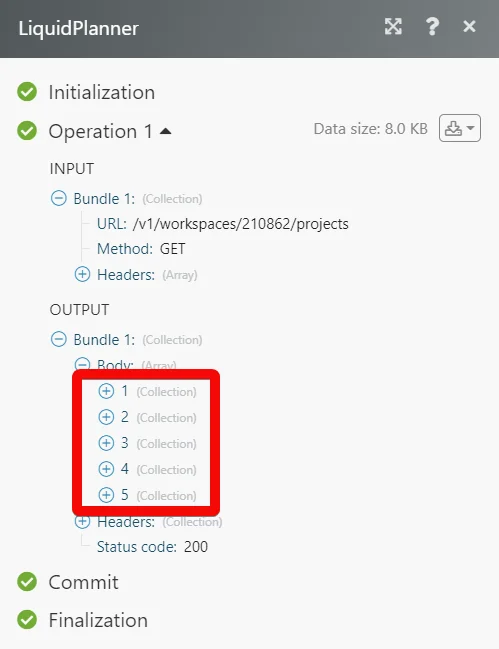
Matches of the search can be found in the module’s Output under Bundle > Body.
In our example, 5 projects were returned:
Legacy article, imported from the original Boost.space knowledge base (/knowledge-base/applications/productivity/liquidplanner/).

