Podio

The Podio modules allow you to watch, create, update, retrieve, comments, contacts, items, organizations, files, applications, status, and tasks in your Podio account.
Getting Started with Podio
Prerequisites
- A Podio account
In order to use Podio with Boost.space Integrator, it is necessary to have a Podio account. If you do not have one, you can create a Podio account at podio.com/signup.
Connecting Podio to Boost.space Integrator
1. Go to Boost.space Integrator and open the Podio module’s Create a connection dialog.
2. In the Connection name field, enter a name for the connection and click Continue.
3. Confirm the access by clicking the Grant Access.
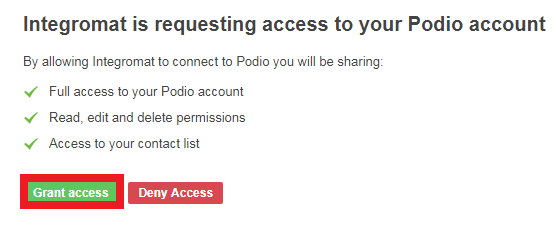
The connection has been established.
Triggers
Watch Apps
Triggers when a new application is created.
Connection
Establish a connection to your Podio account.
Organization ID
Select the Organization ID whose applications you want to watch.
Workspace
Select the workspace whose applications you want to watch.
Limit
Set the number of returned apps Boost.space Integrator will return during one execution cycle.
Watch Comments
Triggers when a new comment is created.
Connection
Establish a connection to your Podio account.
Object
Select the object whose comments you want to watch:
-
App item
-
Task
-
Status
ID
Select the App Item ID / Task ID / Status ID whose comments you want to watch.
Limit
Set the number of returned apps Boost.space Integrator will return during one execution cycle.
Watch Contacts
Triggers when a new contact is created.
Connection
Establish a connection to your Podio account.
Limit
Set the number of returned contacts Boost.space Integrator will return during one execution cycle.
Watch Files
Triggers when a new file is added.
Connection
Establish a connection to your Podio account.
Watch
Select the option to watch the files:
-
All files
-
App
-
Workspace
Limit
Set the number of returned files Boost.space Integrator will return during one execution cycle.
Attached to
Select the option whose attached files you want to watch:
-
Item
-
Status
-
Task
-
Workspaces
Watch Items
Triggers when a new item is created or an existing item updated.
Connection
Establish a connection to your Podio account.
Organization ID
Select the Organization ID whose applications you want to watch.
Workspace
Select the workspace whose applications you want to watch.
Application
Select the application whose items you want to watch:
-
Campaigns
-
Emails
-
Expenses
-
Inspiration
-
Leads & Clients
-
Meetings
-
Projects
Watch
Select the option to watch the items:
-
Only new items
-
New items and all changes
Limit
Set the number of returned items Boost.space Integrator will return during one execution cycle.
Watch Notifications
Triggers when a new notification is created.
Connection
Establish a connection to your Podio account.
Limit
Set the number of returned notifications Boost.space Integrator will return during one execution cycle.
Watch Organizations
Triggers when a new organization is created.
Connection
Establish a connection to your Podio account.
Limit
Set the number of returned organizations Boost.space Integrator will return during one execution cycle.
Watch Tasks
Triggers when a new task is created.
Connection
Establish a connection to your Podio account.
Organization ID
Select the Organization ID whose workspace tasks you want to watch.
Workspace
Select the workspace whose tasks you want to watch.
Limit
Set the number of returned tasks Boost.space Integrator will return during one execution cycle.
Watch Views
Triggers when a new view is created.
Connection
Establish a connection to your Podio account.
Limit
Set the number of returned views Boost.space Integrator will return during one execution cycle.
Watch Workspaces
Triggers when a new workspace is created.
Connection
Establish a connection to your Podio account.
Organization ID
Select the Organization ID whose workspaces you want to watch.
Limit
Set the number of returned workspaces Boost.space Integrator will return during one execution cycle.
Watch Events
Triggers as soon as a new event occurs.
You do not have to add the webhooks in the Podio as it is automatically done for you once you add and save an instant trigger module to your scenario.
Webhook Name
Enter a name for the webhook.
Connection
Establish a connection to your Podio account.
Watched Object
Select the object whose events you want to watch.
Organization ID
Select the Organization ID whose events you want to watch.
Workspace
Select the workspace of the organization whose events you want to watch.
Application
Select the applications whose events you want to watch.
Event Type
Select the event type:
-
item:create
-
item:update
-
item:delete
-
comment:create
-
comment:delete
-
file:change
-
app:update
-
app:delete
-
form:create
-
form:update
-
form:delete
Limit
Set the number of returned events Boost.space Integrator will return during one execution cycle.
Actions
Create an App Item
Creates an app item.
Connection
Establish a connection to your Podio account.
Organization
Select the Organization ID for whose applications you want to create an application.
Workspace
Select the workspace to which you want to create an application.
Application
Select the application type you want to create and the option auto-populates the related fields to fill:
-
Campaigns
-
Emails
-
Expenses
-
Inspiration
-
Leads & Clients
-
Meetings
-
Projects
Update an App Item
Updates an already existing app item.
Connection
Establish a connection to your Podio account.
Organization
Select the Organization ID for whose applications you want to create an application.
Workspace
Select the workspace to which you want to create an application.
Application
Select the application type you want to create and the option auto-populates the related fields to fill:
-
Campaigns
-
Emails
-
Expenses
-
Inspiration
-
Leads & Clients
-
Meetings
-
Projects
Item ID
Enter the Application’s Item ID you want to update.
Delete an App Item
Deletes an app item.
Connection
Establish a connection to your Podio account.
Item ID
Enter the application’s Item ID you want to delete.
Search for App Items
Returns app items matching the searched text.
Connection
Establish a connection to your Podio account.
Organization
Select the Organization ID whose application items you are searching for.
Workspace
Select the workspace whose application items you are searching for.
Searched Text
Enter the text or phrase to search item based on the specified text.
Continue the execution of the route even if the module returns no results
Select the checkbox to execute the scenario even if there are no results.
Maximum number of returned items
Set the number of returned items Boost.space Integrator will return during one execution cycle.
Filter App Items
Return items matching the specified criteria.
Connection
Establish a connection to your Podio account.
Organization
Select the Organization ID whose application items you are searching for.
Get App Item
Retrieves an app item with a given ID.
Connection
Establish a connection to your Podio account.
Organization
Select the Organization ID for whose application items details you want to retrieve.
Workspace
Select the workspace whose application items details you want to retrieve.
Application
Select the application type:
-
Campaigns
-
Emails
-
Expenses
-
Inspiration
-
Leads & Clients
-
Meetings
-
Projects
Item ID
Enter the Application’s Item ID whose details you want to retrieve.
Create a Task
Creates a new task.
Connection
Establish a connection to your Podio account.
Task Name
Enter a name for the task.
Description of the Task
Enter the details of the task.
Due Date
Enter a date by when the task must be complete.
ID of the user who is assigned to the task
Enter the User ID to whom you want to assign the task.
Edit a Task
Edits an existing task.
Connection
Establish a connection to your Podio account.
Task ID
Enter the Task ID whose details you want to update.
Task Name
Enter a name for the task.
Description of the Task
Enter the details of the task.
Due Date
Enter a date by when the task must be complete.
ID of the user who is assigned to the task
Enter the User ID to whom you want to assign the task.
Complete a Task
Completes a task.
Connection
Establish a connection to your Podio account.
Task ID
Enter the Task ID which you want to mark as complete.
Delete a Task
Deletes an existing task.
Connection
Establish a connection to your Podio account.
Task ID
Enter the Task ID you want to delete.
Create a Comment
Creates a new comment.
Connection
Establish a connection to your Podio account.
Object
Select the object for which you want to create a comment:
-
App item
-
Task
-
Status
ID
Select the App Item ID/ Task ID / Status ID to which you want to add a comment.
Comment
Enter the comment text.
Edit a Comment
Edits an existing comment.
Connection
Establish a connection to your Podio account.
Comment ID
Enter the Comment ID which you want to edit.
Comment
Enter the new comment text.
Delete a Comment
Deletes an existing comment.
Connection
Establish a connection to your Podio account.
Comment ID
Enter the Comment ID you want to delete.
Create a Status
Creates a new status.
Connection
Establish a connection to your Podio account.
Enter a Workspace
Select the option to choose the workspace:
-
Enter your ID Manually
-
Select
Organization ID
Select the Organization ID for which you want to create a status.
Workspace
Select the workspace for which you want to create a status.
Text
Enter the status text.
Edit a Status
Edits an existing status.
Connection
Establish a connection to your Podio account.
Status ID
Enter the Status ID you want to edit.
Text
Enter the status text.
Delete a Status
Deletes an existing status.
Connection
Establish a connection to your Podio account.
Status ID
Enter the Status ID you want to delete.
Attach a File
Attaches a file to a given object.
Connection
Establish a connection to your Podio account.
Object
Select the object type to which you want to attach the file.
Object ID
Enter the Object ID.
File Name
Enter the file name. For example, sample.doc
Data
Enter the file data to the field or map the source of the file.
Get App Field
Gets an app dropdown field and its values.
Connection
Establish a connection to your Podio account.
Organization
Select the Organization ID whose application items you are searching for.
Workspace
Select the workspace whose application field details you want to retrieve.
Application
Select the application whose field details you want to retrieve.
Field
Select the field whose details you want to retrieve.
Get Contacts
Retrieves a list of contacts.
Connection
Establish a connection to your Podio account.
Limit
Set the number of returned contacts Boost.space Integrator will return during one execution cycle.
Make an API Call
Makes a raw API call. The module allows you to make an arbitrary call using the existing connection.
Connection
Establish a connection to your Podio account.
URL
Enter a path relative to https://api.podio.com/. For example: /contact
For the list of available endpoints, refer to the Podio API Documentation.
Method
Select the HTTP method you want to use:
GET to retrieve information for an entry.
POST to create a new entry.
PUT to update/replace an existing entry.
PATCH to make a partial entry update.
DELETE to delete an entry.
Headers
Enter the desired request headers. You don’t have to add authorization headers; we already did that for you.
Query String
Enter the request query string.
Body
Enter the body content for your API call.
Example of Use – Get Task
The following API call returns the specified task details from your Podio account:
URL:/task/{{task_id}}
Method:GET
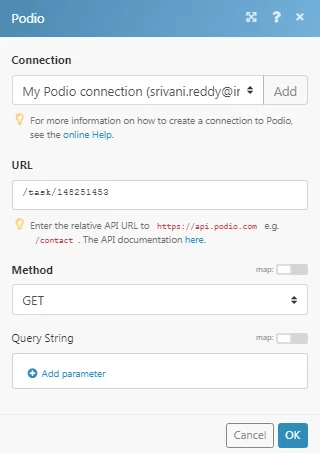
Matches of the search can be found in the module’s Output under Bundle > _Body > Response._In our example, task details were returned:
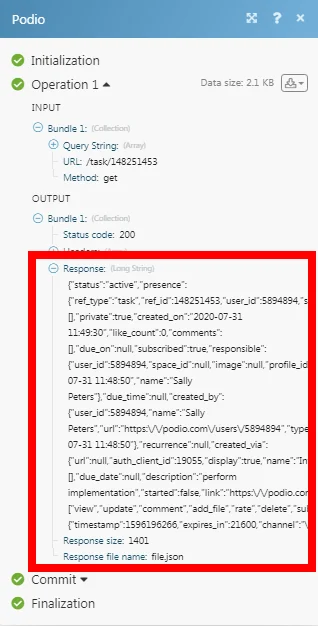
To convert the response details into standard JSON format, please map the response to the _Parse JSON_module.
Legacy article, imported from the original Boost.space knowledge base (/knowledge-base/applications/productivity/podio/).

