Process Street
With Process Street modules in Boost.space Integrator, you can:
-
watch, create, update, retrieve, and search workflow runs
-
update form fields in a workflow run, list workflow run form fields, and list task form fields
-
watch checked tasks, retrieve and list tasks
-
assign and unassign assignees from a task
To get started with Process Street, create an account at process.st
Connecting Process Street to Boost.space Integrator
To connect Process Street app, you need to obtain the API Key and Workflow ID values from your Process Street account and insert them in the Process Street module scenario.
-
Log in to your Process Street account.
-
Click Profile > Settings > Integrations.
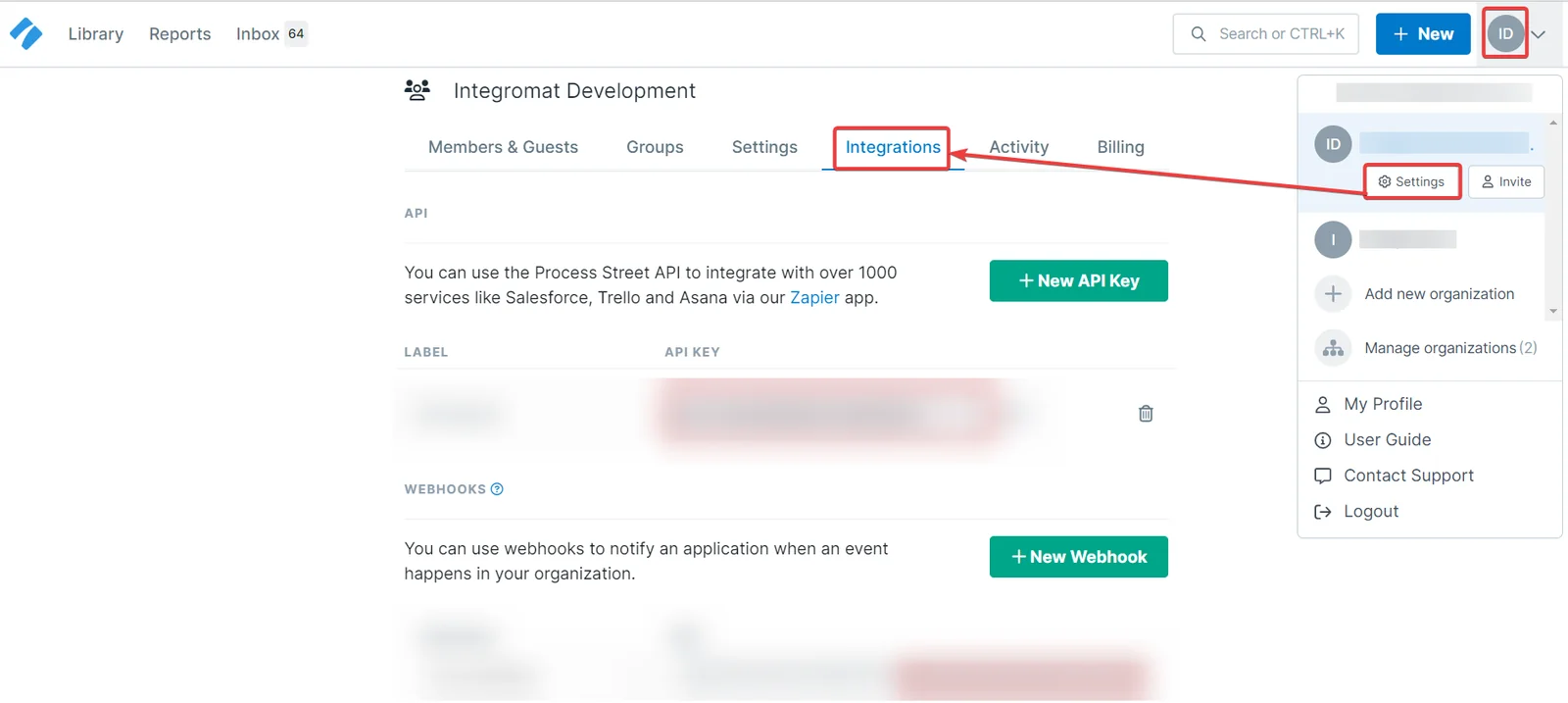
-
Click New API Key and copy the API Key generated.
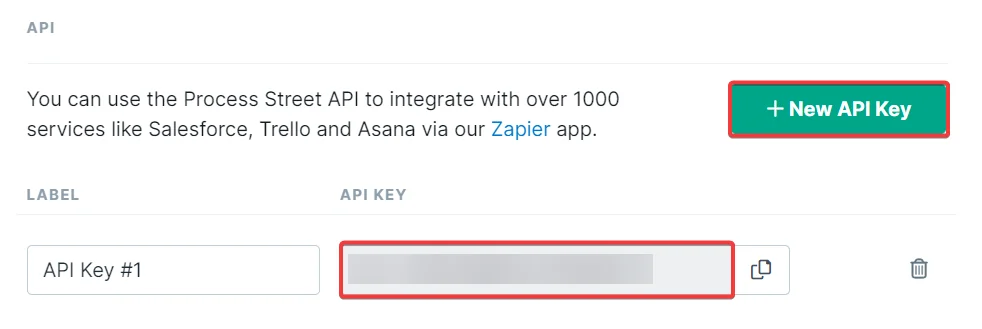
-
Click New Webhook and copy the Workflow ID from the URL generated.
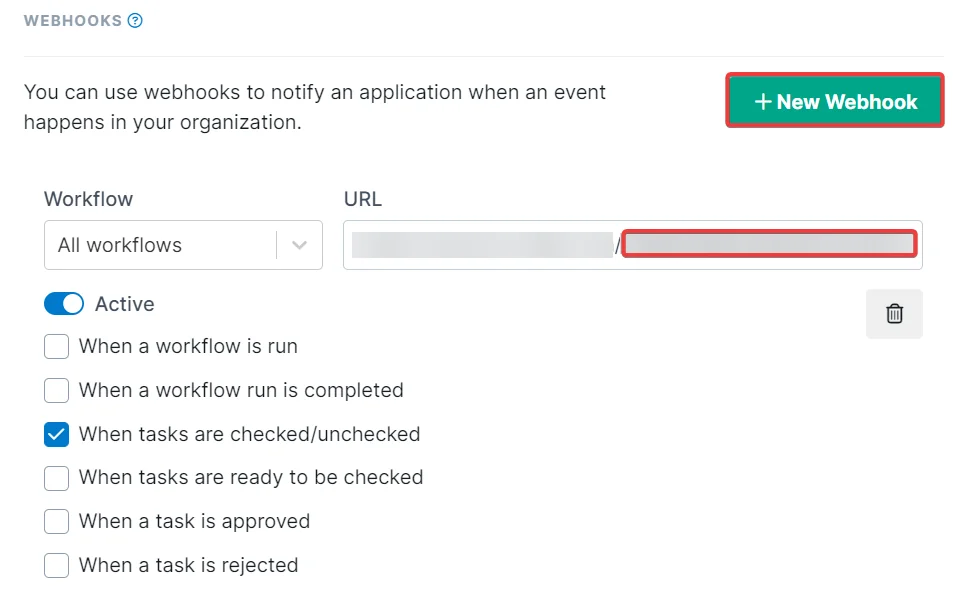
-
Log in to your Boost.space Integrator account, insert a Process Street module, scenario and click the Add button next to the Connection field.
-
In the Connection name field, enter a name for the connection.
-
In the API Key and Workflow ID fields, enter the details copied in steps 3 and 4 and click Save.
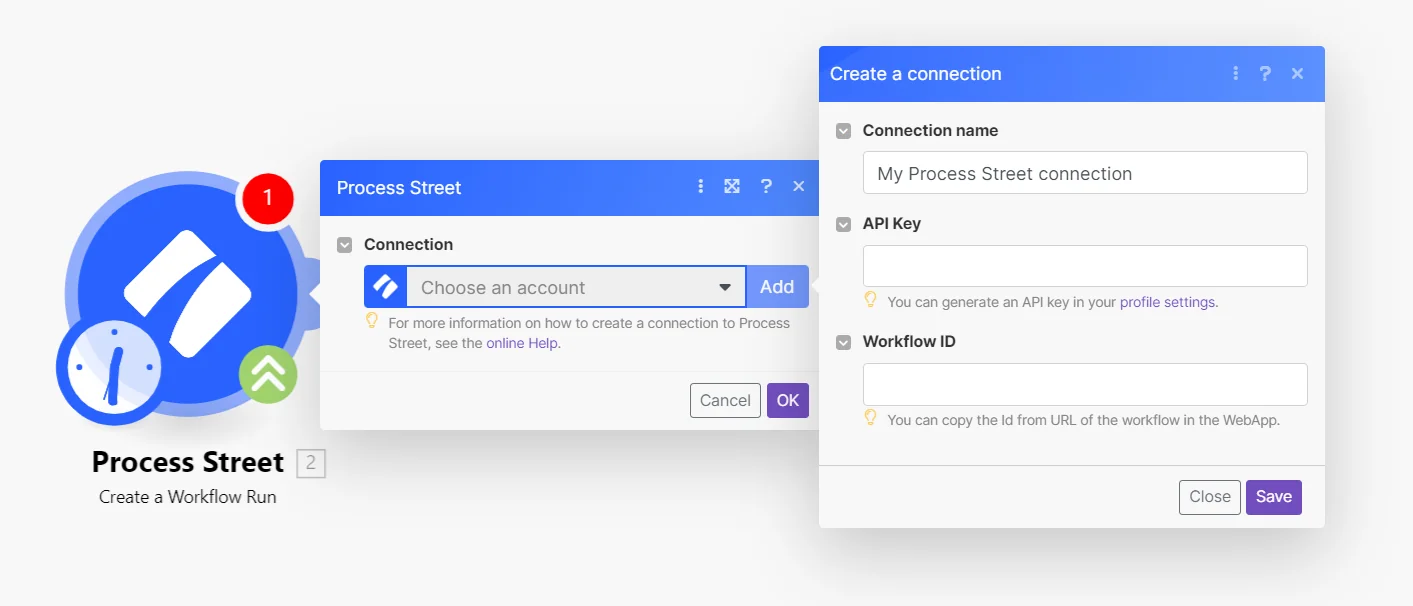
You have successfully established the connection. You can now begin editing your scenario and adding more Process Street modules. If your connection needs reauthorization at any point, follow the connection renewal steps here.
For all the endpoints, please see the Process Street API Documentation.
Workflow Runs
Using the following modules, you can watch, create, update, retrieve, and search workflow runs.
Boost.space Integrator automatically creates a webhook in Process Street once you add an instant trigger to your scenario.
Watch Workflow Runs
Triggers when a new workflow run is created.
Webhook Name
Enter a name for the webhook.
Connection
Establish a connection to your Process Street account.
Create a Workflow Run
Creates a new workflow run.
Connection
Establish a connection to your Process Street account.
Workflow ID
Enter (map) the Workflow ID in which you want to create the workflow run.
Name
Enter (map) a name for the workflow run.
Due Date
Enter the date on which the workflow run is due.
Shared
Select whether this is a shared workflow run.
Update a Workflow Run
Updates an existing workflow run.
Connection
Establish a connection to your Process Street account.
Workflow ID
Enter (map) the Workflow ID whose workflow run you want to update.
Name
Enter a new name for the workflow run.
Status
Select the status of the workflow run. For example, Active.
Due Date
Enter the date on which the workflow run is due.
Get a Workflow Run
Retrieves an existing workflow run.
Connection
Establish a connection to your Process Street account.
Workflow ID
Enter (map) the Workflow ID whose details you want to retrieve.
Search Workflow Runs
Searches for workflow runs or lists them all.
Connection
Establish a connection to your Process Street account.
Workflow ID
Enter (map) the Workflow ID whose runs you want to list.
Name
Enter (map) the Workflow name whose runs you want to search.
Limit
Set the maximum number of workflow runs Boost.space Integrator will return during one execution cycle.
Form Fields
Using the following modules, you can update and list form fields, and list task form fields of a workflow run.
Update Form Fields in a Workflow Run
Updates form fields of a workflow run.
Connection
Establish a connection to your Process Street account.
Workflow ID
Enter (map) the Workflow ID whose form fields you want to update.
List Workflow Run Form Fields
Retrieves a list of all form fields of a workflow.
Connection
Establish a connection to your Process Street account.
Workflow ID
Enter (map) the Workflow ID whose form fields you want to list.
Limit
Set the number of form fields Boost.space Integrator will return during one execution cycle.
List Task Form Fields
Retrieves a list of all form fields of a task.
Connection
Establish a connection to your Process Street account.
Workflow ID
Enter (map) the Workflow ID whose task form fields you want to list.
Limit
Set the maximum number of task form fields Boost.space Integrator will return during one execution cycle.
Tasks
Using the following modules, you can watch checked tasks, and retrieve and list tasks.
Watch Checked Tasks
Triggers when a task is checked.
Boost.space Integrator automatically creates a webhook in Process Street once you add an instant trigger to your scenario.
Webhook
Enter a name for the webhook.
Connection
Establish a connection to your Process Street account.
Get a Task
Retrieves an existing tas.
Connection
Establish a connection to your Process Street account.
Workflow ID
Enter (map) the Workflow ID whose task details you want to retrieve.
List Tasks
Creates a new comment on a checklist.
Connection
Establish a connection to your Process Street account.
Workflow ID
Enter (map) the Workflow ID whose tasks you want to list.
Limit
Set the maximum number of tasks Boost.space Integrator will return during one execution cycle.
Assignees
Using the following modules, you can assign and unassign tasks.
Assign to a Task
Assigns a member to a certain task of a workflow run.
Connection
Establish a connection to your Process Street account.
Workflow ID
Enter the Workflow ID whose task you want to assign.
Task ID
Enter the Task ID you want to assign.
Enter the user email address to whom you want to assign the task.
Unassign from a Task
Unassigns a member from a certain task of a workflow run.
Connection
Establish a connection to your Process Street account.
Workflow ID
Enter the Workflow ID whose task user you want to unassign.
Task ID
Enter the Task ID from which you want to unassign from a user.
Enter the user’s email address whom you want to unassign from the task.
Legacy article, imported from the original Boost.space knowledge base (/knowledge-base/applications/productivity/process-street/).

