ProdPad

The ProdPad modules allow you to watch, create, update, list, retrieve, and delete the feedbacks, ideas, and user stories in your ProdPad account.
Getting Started with ProdPad
Prerequisites
- A ProdPad account
In order to use ProdPad with Boost.space Integrator, it is necessary to have a ProdPad account. If you do not have one, you can sign in using your Google, Slack, or create a ProdPad account at app.prodpad.com/signup.
Connecting ProdPad to Boost.space Integrator
To connect your ProdPad account to Boost.space Integrator you need to obtain the API Key from your ProdPad account and insert it in the Create a connection dialog in the Boost.space Integrator module.
1. Log in to your ProdPad account.
2. Click Your Profile Icon > Profile Settings > API Keys. Copy the generated API Key.

3. Go to Boost.space Integrator and open your ProdPad module’s Create a connection dialog.
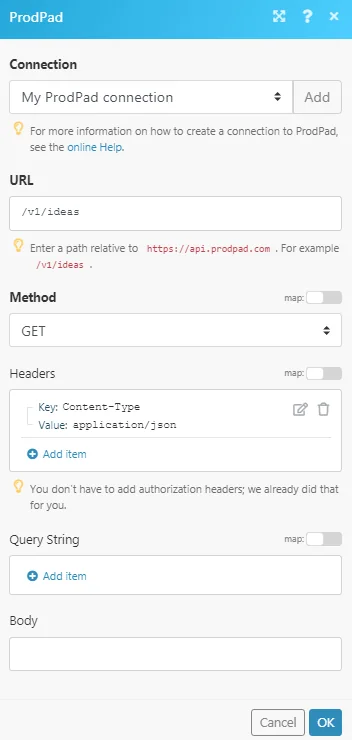
4. In the Connection name field, enter a name for the connection.
5. In the API Key field, enter the API Key copied in step 2 and click Continue.
The connection has been established.
Feedback
Create Feedback
Creates new feedback in ProdPad.
Connection
Establish a connection to your ProdPad account.
Contact ID
Select the Contact ID for whom you are reporting the feedback.
Feedback
Enter the feedback you want to provide.
Name
Enter the name of the customer who is providing feedback.
Enter the email address of the contact to whom the feedback is being provided. If the contacts exist, the feedback will be added to the contact or a new contact will be created.
About
Enter the details of the contact.
Ideas
Add the ideas related to the feedback. The ideas must be created in your ProdPad account.
Tags
Add the tags appropriate for the idea.
Personas
Add the personas associated with the feedback.
Type
Select the option to choose a method to add the persons:
-
Name
-
Person ID
Product
Add the products related to the feedback.
Source
Select the source from where the feedback was gathered. For example, Social Media.
External Links
Add any external links associated with the feedback.
Get Feedback
Fetches individual feedback.
Connection
Establish a connection to your ProdPad account.
Feedback ID
Select the Feedback ID whose details you want to retrieve.
Update Feedback
Updates existing feedback in ProdPad.
Connection
Establish a connection to your ProdPad account.
Feedback ID
Select the Feedback ID whose details you want to update.
Feedback
Enter the feedback you want to provide.
State
Select the Feedback state:
-
Archived
-
Active
External Links
Add any external links associated with the feedback.
List Feedback
Fetches a list of feedback associated with the account.
Connection
Establish a connection to your ProdPad account.
Limit
Set the maximum number of feedbacks Boost.space Integrator should return during one scenario execution cycle.
Watch Feedback
Triggers when new feedback is added to your ProdPad account.
Connection
Establish a connection to your ProdPad account.
Group By
Enter the value to group the feedbacks with the specified value. For example, customer.
State
Select the state of the feedback you want to list:
-
All
-
Active
-
Archived
-
Unsorted
Limit
Set the maximum number of feedbacks Boost.space Integrator should return during one scenario execution cycle.
Idea
Create an Idea
Creates a new idea in ProdPad.
Connection
Establish a connection to your ProdPad account.
Type of Naming
Select an option for naming the idea:
-
Description
-
Name
Description
Enter the details of the idea.
Title
Enter a name for the idea.
Creator
Select the creator who is creating the idea.
Problem
Enter the problem details for which you are creating the idea.
Value
Enter the problem value.
Functional
Enter the functional specifications for the idea.
Notes
Enter any additional information about the idea you would like to mention.
User Stories
Add the user stories for the idea:
Story
Enter the story’s name and details.
Acceptance Criteria
Enter the acceptance criteria details for the story.
Comments
Add comments for the idea:
Comment
Enter the comment about the idea.
User ID
Select the User ID for whom you are giving the comment.
Products
Add the products for which you are creating the idea.
Personas
Add the persons associated with the idea.
Tags
Add the tags for the idea.
External Links
Add the external links:
External ID
Enter the External ID for the idea.
Title
Enter a name for the external ID.
URL
Enter the link to the URL address.
Status ID
Select the status of the idea. For example, reviewing, In Progress.
State
Select the idea’s state:
-
Active
-
Active Public
-
Archived
Get an Idea
Fetches an individual idea,
Connection
Establish a connection to your ProdPad account.
Idea ID
Select the Idea ID whose details you want to retrieve.
Update an Idea
Updates an existing idea in ProdPad.
Connection
Establish a connection to your ProdPad account.
Idea ID
Select the Idea ID whose details you want to update.
Description
Enter the details of the idea.
Title
Enter a name for the idea.
Problem
Enter the problem details for which you are creating the idea.
Value
Enter the problem value.
Functional
Enter the functional specifications for the idea.
Notes
Enter any additional information about the idea which you would like to mention.
State
Select the idea’s state:
-
Active
-
Active Public
-
Archived
List Ideas
Fetches a list of ideas associated with an account.
Connection
Establish a connection to your ProdPad account.
Tags
Add the tags for ideas you want to list.
Product
Select the product whose ideas you want to list.
Persona
Select the persons whose associated ideas you want to list.
Status
Select the status of the ideas you want to list.
By Project ID
Select the checkbox to retrieve the data using the project ID instead of the unique ID. The project ID is the one seen in the UI.
State
Select the state of the idea you want to list.
Limit
Set the maximum number of ideas Boost.space Integrator should return during one scenario execution cycle.

Watch Ideas
Triggers when a new idea is added to your ProdPad account.
Connection
Establish a connection to your ProdPad account.
Limit
Set the maximum number of ideas Boost.space Integrator should return during one scenario execution cycle.
Watch Pushed Ideas
Triggers when an idea in your ProdPad account is pushed to development.
Webhook Name
Enter a name for the webhook.
Connection
Establish a connection to your ProdPad account.
See the Connecting to ProdPad Webhook Using Boost.space Integratorto add a webhook in your ProdPad account.
User Story
Watch Pushed User Stories
Triggers when a user story in your ProdPad account is pushed to development.
Webhook Name
Enter a name for the webhook.
Connection
Establish a connection to your ProdPad account.
See the Connecting to ProdPad Webhook Using Boost.space Integratorto add a webhook in your ProdPad account.
Watch User Stories
Triggers when a new user story is added to your ProdPad account.
Connection
Establish a connection to your ProdPad account.
Limit
Set the maximum number of new user stories Boost.space Integrator should return during one scenario execution cycle.
Other
Make an API Call
Performs an arbitrary authorized API call.
Connection
Establish a connection to your ProdPad account.
URL
Enter a path relative to https://api.prodpad.com/. For example: /v1/ideas
For the list of available endpoints, refer to the ProdPad AP-I Documentation.
Method
Select the HTTP method you want to use:
GETto retrieve information for an entry**.**
POSTto create a new entry.
PUTto update/replace an existing entry.
PATCHto make a partial entry update.
DELETEto delete an entry.
Headers
Enter the desired request headers. You don’t have to add authorization headers; we already did that for you.
Query String
Enter the request query string.
Body
Enter the body content for your API call.
Example of Use – List Ideas
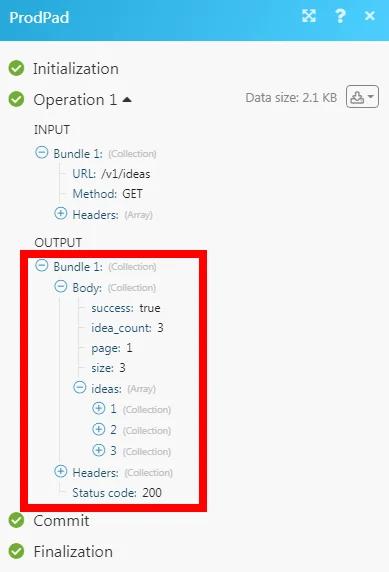
The following API call returns all the ideas from your ProdPad account:
URL:/v1/ideas
Method:GET
Matches of the search can be found in the module’s Output under Bundle > _Body > ideas._In our example, 3 ideas were returned:
Connecting to ProdPad Webhook Using Boost.space Integrator
1. Open any Watch Module, enter the details as mentioned in the respective module descriptions, click Save, and copy address to your clipboard.
2. Log in to your ProdPad account. Click Your Profile Icon > Integrations > Create Webhook Integration. Enter a name for the webhook, the URL address copied in step 1, and click Create.
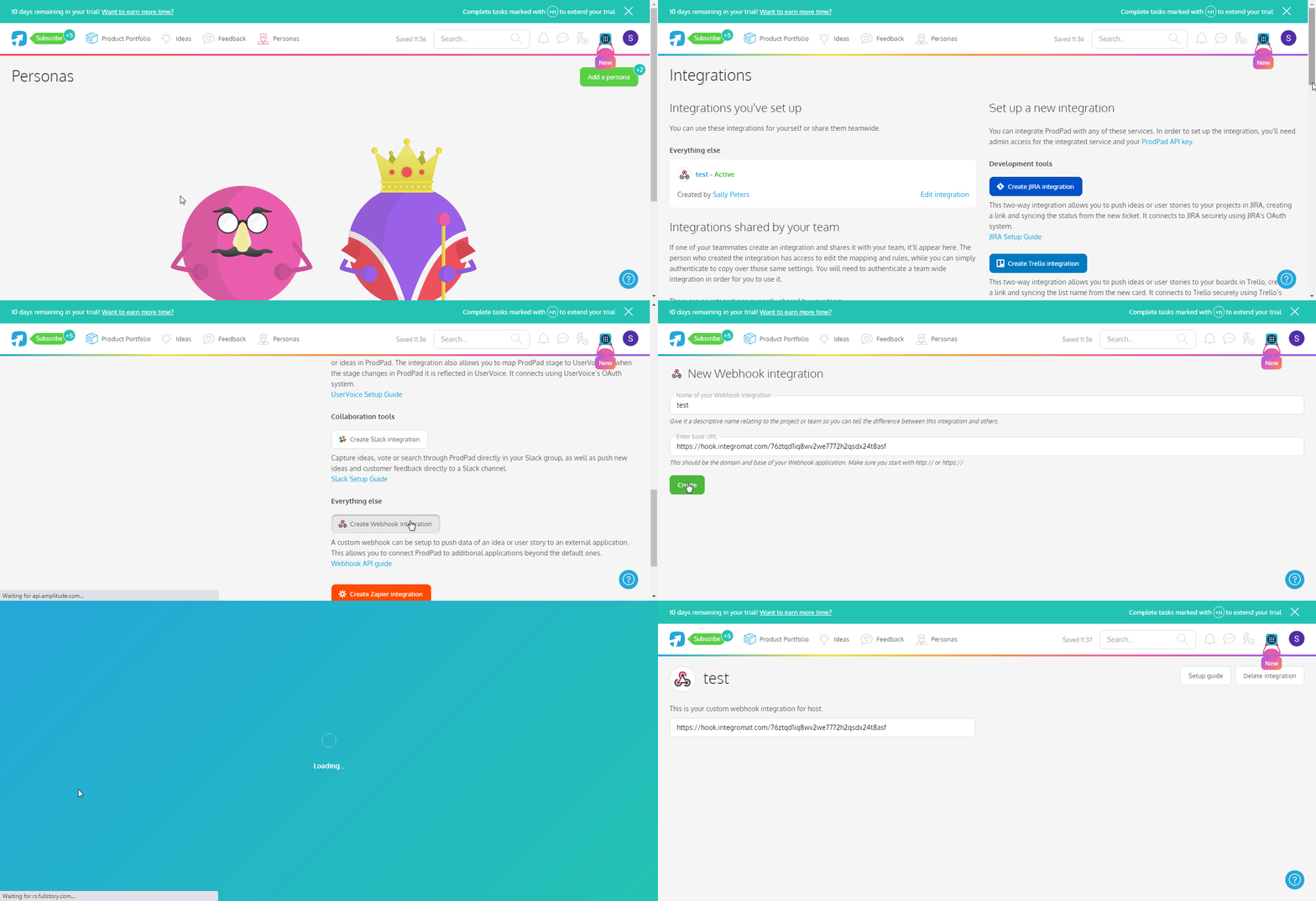
The webhook is successfully created.
Legacy article, imported from the original Boost.space knowledge base (/knowledge-base/applications/productivity/prodpad/).

