Toggl
The Toggl modules enable you to monitor, create, edit, delete, and retrieve clients, projects, reports, tasks, tags, users, workspaces, and time entries in your Toggl account.
Getting Started with Toggl
Prerequisites
- A Toggl account – create an account at Toggl.
Connecting Toggl to Boost.space Integrator
To connect your Toggl account to Boost.space Integrator you need to obtain an API Token from your Toggle account.
1. Log in to your Toggl account.
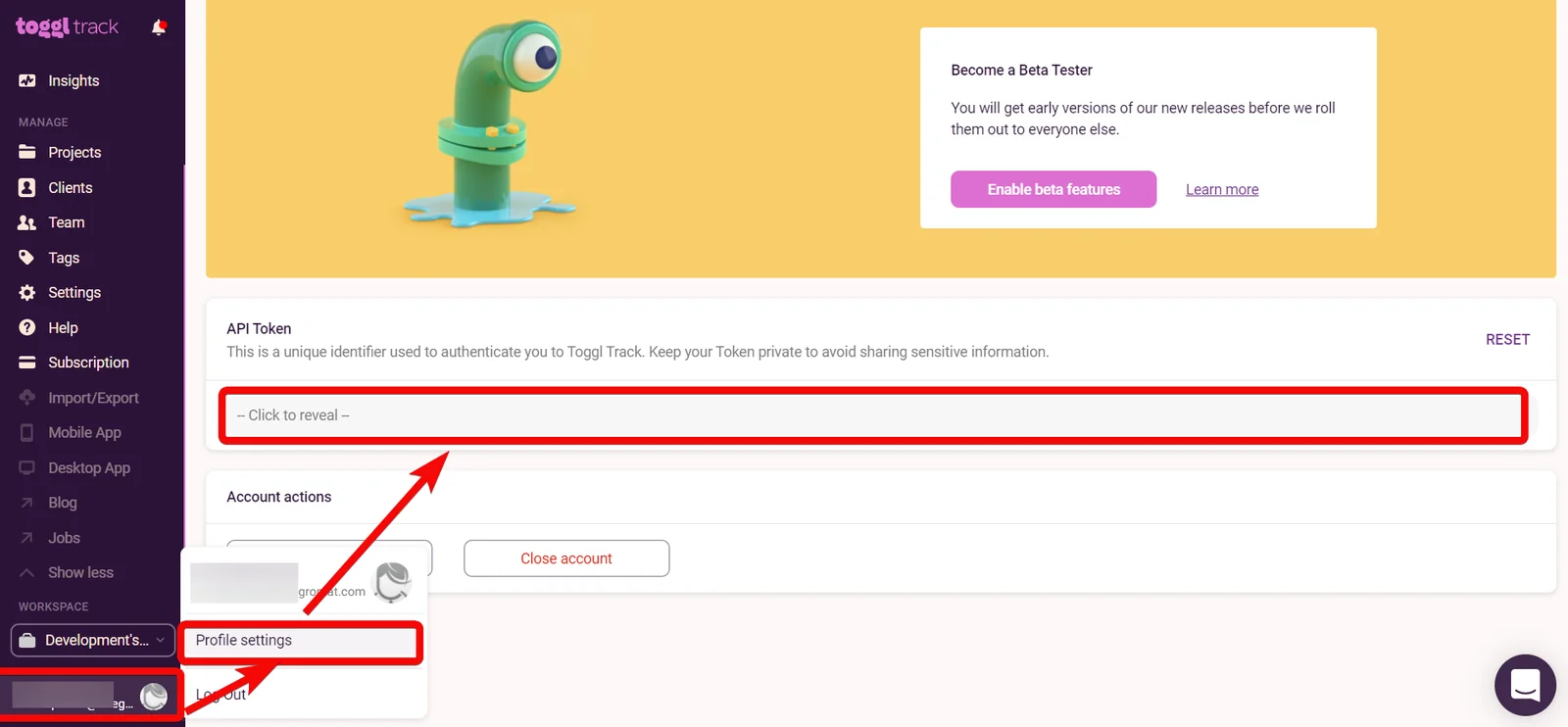
2. In the bottom-left corner, click your profile icon > Profile settings.
3. In the API Token section, click and copy the token to your clipboard.

4. Log in to your Boost.space Integrator account and add a module from the Toggl app into an Boost.space Integrator scenario.
5. Click Add module next to the connection field.
6. In the Connection name field, enter a name for the connection.
7. In the API Token field, enter the token copied in step 3, and click Continue.
The connection has been established.
Projects
Watch Projects
Triggers when a new project has been created.
Connection
Establish a connection to your Toggl account.
Workspace ID
Select or map the Workspace ID whose projects you want to watch.
Limit
Set the maximum number of projects Boost.space Integrator should return during one execution cycle.
Create a Project
Creates a new project.
Connection
Establish a connection to your Toggl account.
Name
Enter (map) a name for the project.
Workspace ID
Select or map the Workspace ID to which you want to add the project.
Client ID
Select or map the Client ID to which the project belongs.
Active
Select whether the project is active.
Is Private
Select whether the project is accessible for only project users or for all workspace users.
Template
Select whether the project can be used as a template.
Template ID
Enter (map) the ID of the template project used on the current project’s creation.
Billable
Select whether the project is billable.
This field is available as part of premium functionality.
Auto Estimates
Select whether the estimated hours are automatically calculated based on task estimations or manually fixed based on the value of estimated_hours. This is a premium functionality.
Estimated Hours
Enter (map) the number of hours estimated to complete the project. If auto_estimates is true then the sum of task estimations is returned, otherwise, the user inserted hours. Premium functionality.
Recurring
Select whether the project is recurring.
This field is available as part of premium functionality.
Rate
Enter (map) the hourly rate for the project.
Color
Enter (map) the color selected for the project.
Update a Project
Updates an existing project.
Connection
Establish a connection to your Toggl account.
Workspace ID
Select or map the Workspace ID whose project details you want to update.
Project ID
Select or map the Project ID whose details you want to update.
Name
Enter (map) a name for the project.
Workspace ID
Select or map the Workspace ID to which you want to add the project.
Client ID
Select or map the Client ID to which the project belongs.
Active
Select whether the project is active.
Is Private
Select whether the project is accessible for only project users or for all workspace users.
Template
Select whether the project can be used as a template.
Template ID
Enter (map) the ID of the template project used on the current project’s creation.
Billable
Select whether the project is billable.
This field is available as part of premium functionality.
Auto Estimates
Select whether the estimated hours are automatically calculated based on task estimations or manually fixed based on the value of estimated_hours. This is a premium functionality.
Estimated Hours
Enter (map) the number of hours estimated to complete the project. auto_estimates is true then the sum of task estimations is returned, otherwise, the user inserted hours. Premium functionality.
Recurring
Select whether the project is recurring.
This field is available as part of premium functionality.
Rate
Enter (map) the hourly rate for the project.
Color
Enter (map) the color selected for the project.
Add a User to a Project
Adds an existing user to a project.
Connection
Establish a connection to your Toggl account.
Workspace ID
Select or map the Workspace ID to whose project you want to add a user.
Project ID
Select or map the Project ID to which you want to add a user.
User ID
Select or map the User ID you want to add to the project.
Manager
Select whether the user has admin permissions to the project.
Rate
Enter (map) the hourly rate for the project in the currency of the project’s client or in the workspace default currency.
Get a Project
Gets a project.
Connection
Establish a connection to your Toggl account.
Workspace ID
Select or map the Workspace ID whose project details you want to retrieve.
Project ID
Select or map the Project ID whose details you want to retrieve.
Search Projects
Searches for projects or lists them all.
Connection
Establish a connection to your Toggl account.
Workspace ID
Select or map the Workspace ID whose projects you want to search.
Active
Select whether to search for active projects.
Actual Hours
Select whether to add the completed hours per project.
Only Templates
Select whether to search only for templates.
Limit
Set the maximum number of projects Boost.space Integrator will return during one execution cycle. The default value is 2.
Delete a Project
Deletes a project.
Connection
Establish a connection to your Toggl account.
Workspace ID
Select or map the Workspace ID whose project you want to delete.
Project ID
Select or map the Project ID you want to delete.
Time Entries
Watch Time Entries
Triggers when a time entry has been created or updated.
Connection
Establish a connection to your Toggl account.
Start Date
Start date to return the time entries from. See the list of supported date and time formats.
End Date
End date to return the time entries to. See the list of supported date and time formats.
Limit
Set the maximum number of time entries Boost.space Integrator should return during one execution cycle.
Get a Running Time Entry
Gets a current running time entry.
Connection
Establish a connection to your Toggl account.
Create a Time Entry
Creates a new time entry.
Connection
Establish a connection to your Toggl account.
Description
Enter (map) the details of the time entry.
Start
Enter (map) the start time of the time entry.
Start Date
Time entry start date. If provided during creation, the date part will take precedence over the date part of start.
Duration
Enter (map) the time entry duration in seconds. If the time entry is currently running, the duration attribute contains a negative value, denoting the start of the time entry in seconds since the epoch (Jan 1, 1970). The correct duration can be calculated as current time_+ duration, where the current time_ is the current time in seconds since the epoch.
Created With
Enter (map) the client app.
Workspace ID
Select or map the Workspace ID to which the time entry is associated.
Project ID
Select or map the Project ID to which you want to associate the time entry.
Task ID
Select or map the Task ID to which you want to associate the time entry.
Tags
Select or map the tags for the time entry.
Stop
Enter (map) the time at which the time entry stopped.
Duration Only
Select whether you want to display the start and stop times of the time entry.
Billable
Select whether this time entry is billable.
Stop a Time Entry
Stops a time entry.
Connection
Establish a connection to your Toggl account.
Workspace ID
Select or map the Workspace ID whose time entry you want to stop.
Time Entry ID
Select or map the Time Entry ID you want to stop.
Update a Time Entry
Updates an existing time entry.
Connection
Establish a connection to your Toggl account.
Workspace ID
Select or map the Workspace ID whose time entry details you want to update.
Time Entry ID
Select or map the Time Entry ID whose details you want to update.
Description
Enter (map) the details of the time entry.
Start
Enter (map) the start time of the time entry.
Start Date
Time entry start date. If provided during creation, the date part will take precedence over the date part of start.
Duration
Enter (map) the time entry duration in seconds. If the time entry is currently running, the duration attribute contains a negative value, denoting the start of the time entry in seconds since the epoch (Jan 1, 1970). The correct duration can be calculated as current time_+ duration, where the current time_ is the current time in seconds since the epoch.
Created With
Enter (map) the client app.
Project ID
Select or map the Project ID to which you want to associate the time entry.
Task ID
Select or map the Task ID to which you want to associate the time entry.
Tags
Select or map the tags for the time entry.
Stop
Enter (map) the time at which the time entry stopped. Can be omitted if it’s still running or created with duration. If stop and duration are provided, values must be consistent (start + duration == stop)
Duration Only
Select whether the Toggle should show the start and stop time for this time entry
Billable
Select whether the time entry is billable.
Delete a Time Entry
Deletes a time entry.
Connection
Establish a connection to your Toggl account.
Workspace ID
Select or map the Workspace ID whose time entry you want to delete.
Time Entry ID
Select or map the Time Entry ID you want to delete.
Reports
Get a Summary Report
Returns a summary report matching specific criteria. The summary report can be organized according to the grouping and subgrouping parameters you specify.
Connection
Establish a connection to your Toggl account.
User Agent
Enter (map) the name of your application or your email address to get in touch if you’re doing something wrong.
Workspace ID
Select or map the Workspace ID whose summary report you want to retrieve.
Since
Enter (map) the date from which you want to retrieve the summary report. You can download the detailed reports for up to a maximum of six days.
Until
Enter (map) the date until which you want to retrieve the summary report.
Note: Maximum date span (until – since) is one year. By default, the report is shown for today unless since is in the future or more than a year ago, in this case until is since + 6 days.
Grouping
Select or map the grouping for the summary report. For example, Clients.
Subgrouping
Select or map the subgrouping option for the report.
Subgrouping IDs
Select whether the return items should contain ids key containing comma-separated Group Item ID values.
Grouped Time Entry IDs
Select whether the return items should contain time_entry_ ids key containing comma-separated Time Entry ID values for a given item.
Client IDs
Enter (map) a list of Client IDs separated by a comma. Use 0 if you want to filter out time entries without a client.
Project IDs
Enter (map) a list of project IDs separated by a comma. Use 0 if you want to filter out time entries without a project.
User IDs
Enter (map) a list of user IDs separated by a comma whose reports you want to download.
Members of Group IDs
Enter (map) a list of group IDs separated by a comma. This limits provided user_ids to the members of the given groups.
Or Members of Group IDs
Enter (map) a list of group IDs separated by a comma. This extends provided user_ids with the members of the given groups.
Tag IDs
Enter (map) a list of tag IDs separated by a comma. Use 0 if you want to filter out time entries without a tag.
Task IDs
Enter (map) a list of task IDs separated by a comma. Use 0 if you want to filter out time entries without a task.
Time Entry IDs
Enter (map) a list of Time Entry IDs separated by a comma to include in the report.
Description
Enter (map) the details of the summary report.
Without Description
Select whether you want to include the time entries without the description in the detailed report.
Order Field
Select or map the field to sort the report:
-
Title
-
Amount
-
Duration
Order Desc
Select or map the order to arrange the report. For example, Ascending.
Distinct Rates
Select or map the option to display the distinct rates.
Display Hours
Select or map the option to display the hours in decimal or in minutes.
Billable
Select whether you want to download the time entries that are billable in the report.
Rounding
Select whether you want to round off the time entries in the report.
Get a Detailed Report
Gets a detailed report for a specific time period.
Connection
Establish a connection to your Toggl account.
User Agent
Enter (map) the name of your application or your email address to get in touch in case you’re doing something wrong.
Workspace ID
Select or map the Workspace ID whose detailed report you want to retrieve.
Since
Enter (map) the date from which you want to retrieve the detailed report. You can download the detailed reports for up to a maximum of six days.
Until
Enter (map) the date until which you want to retrieve the summary report.
Note: Maximum date span (until – since) is one year. By default, the report is shown for today unless since is in the future or more than a year ago, in this case until is since + 6 days.
Billable
Select whether you want to retrieve the billable time entries report.
Client IDs
Enter (map) a list of Client IDs separated by a comma. Use 0 if you want to filter out time entries without a client.
Project IDs
Enter (map) a list of project IDs separated by a comma. Use 0 if you want to filter out time entries without a project.
User IDs
Enter (map) a list of user IDs separated by a comma whose reports you want to download.
Members of Group IDs
Enter (map) a list of group IDs separated by a comma. This limits provided user_ids to the members of the given groups.
Or Members of Group IDs
Enter (map) a list of group IDs separated by a comma. This extends provided user_ids with the members of the given groups.
Tag IDs
Enter (map) a list of tag IDs separated by a comma. Use 0 if you want to filter out time entries without a tag.
Task IDs
Enter (map) a list of task IDs separated by a comma. Use 0 if you want to filter out time entries without a task.
Time Entry IDs
Enter (map) a list of Time Entry IDs separated by a comma to include in the report.
Description
Enter (map) the details of the summary report.
Without Description
Select whether you want to include the time entries without the description in the detailed report.
Order Field
Select or map the field to sort the report:
-
Title
-
Amount
-
Duration
Order Desc
Select or map the order to arrange the report. For example, Ascending.
Distinct Rates
Select or map the option to display the distinct rates.
Display Hours
Select or map the option to display the hours in decimal or in minutes.
Rounding
Select whether you want to round off the time entries in the report.
Download a Detailed Report
Returns a detailed report in PDF or CSV format.
Connection
Establish a connection to your Toggl account.
Format
Select or map the format in which you want to download the detailed report.
User Agent
Enter (map) the name of your application or your email address to get in touch in case you’re doing something wrong.
Workspace ID
Select or map the Workspace ID whose report you want to download.
Since
Enter (map) the date from which you want to download the detailed report. You can download the report for up to a maximum of six days.
Until
Enter (map) the date from which you want to download the detailed report. You can download the report for up to a maximum of six days.
Clients IDs
Enter (map) a list of Client IDs separated by a comma. Use 0, if you want to filter out time entries without a client.
Project IDs
Enter (map) a list of project IDs separated by a comma. Use 0, if you want to filter out time entries without a project.
User IDs
Enter (map) a list of user IDs separated by a comma whose reports you want to download.
Members of Group IDs
Enter (map) a list of group IDs separated by a comma. This limits provided user_ids to the members of the given groups.
Or Members of Group IDs
Enter (map) a list of group IDs separated by a comma. This extends provided user_ids with the members of the given groups.
Tag IDs
Enter (map) a list of tag IDs separated by a comma. Use 0 if you want to filter out time entries without a tag.
Task IDs
Enter (map) a list of task IDs separated by a comma. Use 0 if you want to filter out time entries without a task.
Time Entry IDs
Enter (map) a list of Time Entry IDs separated by a comma to include in the report.
Description
Enter (map) the details of the detailed report.
Without Description
Select whether you want to include the time entries without the description in the detailed report.
Order Field
Select or map the field to sort the report:
-
Title
-
Amount
-
Duration
Order Desc
Select or map the order to arrange the report. For example, Ascending.
Distinct Rates
Select or map the option to display the distinct rates.
Display Hours
Select or map the option to display the hours in decimal or in minutes.
Billable
Select whether you want to download the time entries that are billable in the report.
Rounding
Select whether you want to round off the time entries in the report.
Download a Summary Report
Returns a detailed report in PDF or CSV format.
Connection
Establish a connection to your Toggl account.
Format
Select or map the format in which you want to download the report.
User Agent
Enter (map) the name of your application or your email address to get in touch in case you’re doing something wrong.
Workspace ID
Select or map the Workspace ID whose report you want to download.
Since
Enter (map) the date from which you want to download the summary report. You can download the summary report for up to a maximum of six days.
Until
Enter (map) the date from which you want to download the summary report. You can download the summary report for up to a maximum of six days.
Grouping
Select or map the grouping for the summary report. For example, Clients.
Subgrouping
Select or map the subgrouping option for the report.
Subgrouping IDs
Select whether the return items should contain ids key containing comma-separated Group Item ID values.
Grouped Time Entry IDs
Select whether the return items should contain time_entry_ids key containing comma-separated Time Entry ID values for a given item.
Clients IDs
Enter (map) a list of Client IDs separated by a comma. Use 0, if you want to filter out time entries without a client.
Project IDs
Enter (map) a list of Project IDs separated by a comma. Use 0, if you want to filter out time entries without a project.
User IDs
Enter (map) a list of User IDs separated by a comma whose reports you want to download.
Members of Group IDs
Enter (map) a list of Group IDs separated by a comma. This limits provided user_ids to the members of the given groups.
Or Members of Group IDs
Enter (map) a list of Group IDs separated by a comma. This extends provided user_ids with the members of the given groups.
Tag IDs
Enter (map) a list of Tag IDs separated by a comma. Use 0 if you want to filter out time entries without a tag.
Task IDs
Enter (map) a list of Task IDs separated by a comma. Use 0 if you want to filter out time entries without a task.
Time Entry IDs
Enter (map) a list of Time Entry IDs separated by a comma to include in the report.
Description
Enter (map) the details of the summary report.
Without Description
Select whether you want to include the time entries without the description in the summary report.
Order Field
Select or map the field to sort the report:
-
Title
-
Amount
-
Duration
Order Desc
Select or map the order to arrange the report. For example, Ascending.
Distinct Rates
Select or map the option to display the distinct rates.
Display Hours
Select or map the option to display the hours in decimal or in minutes.
Billable
Select whether you want to download the time entries that are billable in the report.
Rounding
Select whether you want to round off the time entries in the report.
Export Summary Report
Downloads summary report in the specified format: PDF, CSV, or XLSX.
Connection
Establish a connection to your Toggl account.
Extension
Select the extension:
-
PDF
-
CSV
-
XLSX
Start Date
Enter (map) the date from which you want to export the summary report. "2006-01-02".
Workspace ID
Select or map the Workspace ID whose report you want to export.
Project IDs
Enter (map) a list of project IDs separated by a comma. Use 0, if you want to filter out time entries without a project.
Clients IDs
Enter (map) a list of Client IDs separated by a comma. Use 0, if you want to filter out time entries without a client.
User IDs
Enter (map) a list of user IDs separated by a comma whose reports you want to download.
Tag IDs
Enter (map) a list of tag IDs separated by a comma. Use 0 if you want to filter out time entries without a tag.
Task IDs
Enter (map) a list of task IDs separated by a comma. Use 0 if you want to filter out time entries without a task.
Billable
Select whether you want to download the time entries that are billable in the report.
Collapse
Select whether you want to download the time entries that are collapsed in the report.
Description
Enter (map) the details of the export report.
Duration Format
Select the duration format:
-
Classical
-
Decimal
-
Improved
End Date
Enter (map) the date up to which you want to export the summary report. For example, "2006-01-02".
Grouping
Select or map the grouping for the summary report. For example, Clients.
Hide Amounts
Select whether to hide the amounts in the summary reports.
Hide Rates
Select whether to hide the rates in the summary reports.
Include Time Entry IDs
Select whether to include the time entry IDs in the summary reports.
Max Duration Seconds
Enter the maximum duration in seconds. This is valid for time audits only.
Min Duration Seconds
Enter the minimum duration in seconds. This is valid for time audits only.
Order by
Select the order field:
-
Title
-
Duration
Order Direction
Select the order direction:
-
ASC
-
DESC
Rounding
Select whether you want to round off the time entries in the report.
Rounding Minutes
Enter the rounding minutes value. This is an optional field, and the allowed values are 0, 1, 5, 6, 10, 12, 15, 30, 60, or 240.
Audit
Enter the audit details:
This is a premium feature.
Group Filter
Enter the group filter details:
Currency
Enter the audit currency. For example, USD.
Max Amount Cents
Enter the audit maximum amount in Cents.
Max Duration Seconds
Enter the audit duration in seconds.
Min Amount Cents
Enter the audit minimum amount in Cents.
Min Duration Seconds
Enter the audit duration in seconds.
Show Empty Groups
Select whether to display the empty groups.
Show Tracked Groups
Select whether to display the tracked groups.
Clients
Watch Clients
Triggers when a new client has been created.
Connection
Establish a connection to your Toggl account.
Workspace ID
Select or map the Workspace ID whose clients you want to watch.
Limit
Set the maximum number of clients Boost.space Integrator should return during one execution cycle.
List Clients
Returns a list of clients visible to the current user.
Connection
Establish a connection to your Toggl account.
Workspace ID
Select or map the Workspace ID whose client you want to list.
Limit
Set the maximum number of clients Boost.space Integrator should return during one execution cycle
Name
Enter the name of the client you want to list.
Status
Select the client status you want to list.
Get a Client
Gets a client.
Connection
Establish a connection to your Toggl account.
Workspace ID
Select or map the Workspace ID whose client details you want to retrieve.
Client ID
Select or map the Client ID whose details you want to retrieve.
Create a Client
Creates a new client.
Connection
Establish a connection to your Toggl account.
Workspace ID
Select or map the Workspace ID in which you want to create the client.
Name
Enter (map) a name for the client.
Update a Client
Updates a client’s data.
Connection
Establish a connection to your Toggl account.
Workspace ID
Select or map the Workspace ID whose client details you want to update.
Client ID
Select or map the Client ID whose details you want to update.
Name
Enter (map) a new name for the client.
Delete a Client
Deletes a client.
Connection
Establish a connection to your Toggl account.
Workspace ID
Select or map the Workspace ID whose client you want to delete.
Client ID
Select or map the Client ID you want to delete.
Tasks
Watch Tasks
Triggers when a new task has been created.
Connection
Establish a connection to your Toggl account.
Workspace ID
Select or map the Workspace ID whose tasks you want to watch.
Limit
Set the maximum number of tasks Boost.space Integrator should return during one execution cycle.
Get a Task
Gets a task.
Connection
Establish a connection to your Toggl account.
Workspace ID
Select or map the Workspace ID whose project’s tasks details you want to retrieve.
Project ID
Select or map the Project ID whose task details you want to retrieve.
Task ID
Select or map the Task ID whose details you want to retrieve.
Create a Task
Creates a new task.
Connection
Establish a connection to your Toggl account.
Name
Enter (map) a name for the task.
Workspace ID
Select or map the Workspace ID in which you want to create the task.
Project ID
Select or map the Project ID for which you want to create the task.
User ID
Select or map the User ID to whom the task is assigned.
Estimated Seconds
Enter (map) the time in seconds estimated for the task.
Active
Select whether the task is completed or due.
Update a Task
Updates an existing task.
Connection
Establish a connection to your Toggl account.
Workspace ID
Select or map the Workspace ID whose tasks details you want to update.
Task ID
Select or map the Task ID whose details you want to update.
Project ID
Select or map the Project ID to which you want to associate the task.
User ID
Select or map the User ID to whom the task is assigned.
Name
Enter (map) a new name for the task.
Estimated Seconds
Enter (map) the time in seconds estimated for the task.
Active
Select whether the task is completed or due.
Tracked Seconds
Enter (map) the total time tracked in seconds for the task.
Delete a Task
Deletes a task.
Connection
Establish a connection to your Toggl account.
Workspace ID
Select or map the Workspace ID whose project’s tasks you want to delete.
Project ID
Select or map the Project ID whose task you want to delete.
Task ID
Select or map the Task ID you want to delete.
Tags
Create a Tag
Creates a new tag.
Connection
Establish a connection to your Toggl account.
Workspace ID
Select or map the Workspace ID in which you want to create the new tag.
Name
Enter (map) a name for the tag.
Update a Tag
Updates a tag.
Connection
Establish a connection to your Toggl account.
Workspace ID
Select or map the Workspace ID in which you want to update.
Tag ID
Select or map the Tag ID whose details you want to update.
Name
Enter (map) a new name for the tag.
Delete a Tag
Deletes a tag.
Connection
Establish a connection to your Toggl account.
Workspace ID
Select or map the Workspace ID whose tags you want to delete.
Tag ID
Select or map the Tag ID you want to delete.
Triggers
Watch Users
Triggers when a new user has been created.
Connection
Establish a connection to your Toggl account.
Workspace ID
Select or map the Workspace ID whose users you want to watch.
Limit
Set the maximum number of users Boost.space Integrator should return during one execution cycle.
Watch Workspaces
Triggers when a new workspace has been created.
Connection
Establish a connection to your Toggl account.
Limit
Set the maximum number of workspaces Boost.space Integrator should return during one execution cycle.
Watch Tasks
Triggers when a new task has been created.
Connection
Establish a connection to your Toggl account.
Workspace ID
Select or map the Workspace ID whose tasks you want to watch.
Limit
Set the maximum number of tasks Boost.space Integrator should return during one execution cycle.
Watch Projects
Triggers when a new project has been created.
Connection
Establish a connection to your Toggl account.
Workspace ID
Select or map the Workspace ID whose projects you want to watch.
Limit
Set the maximum number of projects Boost.space Integrator should return during one execution cycle.
Other
Watch Event
Triggers when an event has been created, updated, or deleted.
Webhook name
Enter a name for the webhook.
Connection
Establish a connection to your Toggl account.
Workspace ID
Select or map the Workspace ID whose events you want to watch.
Entity
Select an entity you want to watch.
Action
Select the action:
-
Created
-
Updated
-
Deleted
-
All
Description
Enter a unique description among all subscriptions for the given Workspace ID.
Get an Object Name
Returns the name of the object with the given ID.
Connection
Establish a connection to your Toggl account.
Workspace ID
Select or map the Workspace ID whose object name you want to retrieve.
Type of the Object
Select or map the type of object:
-
Client
-
Project
-
_Tas_k
Object ID
Enter (map) the Object ID whose details you want to retrieve.
Make an API Call
Performs an arbitrary authorized API call.
Connection
Establish a connection to your Toggl account.
URL
Enter a path relative to https://api.track.toggl.com For example: /api/v8/workspaces
For the list of available endpoints, refer to the Toggl API Documentation.
Method
Select the HTTP method you want to use:
GET to retrieve information for an entry.
POST to create a new entry.
PUT to update/replace an existing entry.
PATCH to make a partial entry update.
DELETE to delete an entry.
Headers
Enter the desired request headers. You don’t have to add authorization headers; we already did that for you.
Query String
Enter the request query string.
Body
Enter the body content for your API call.
Example of Use – Get Workspace Projects
The following API call returns all the projects of the specified workspace from your Toggl account:
URL:/api/v8/workspaces/workspace_id/projects
Method:GET
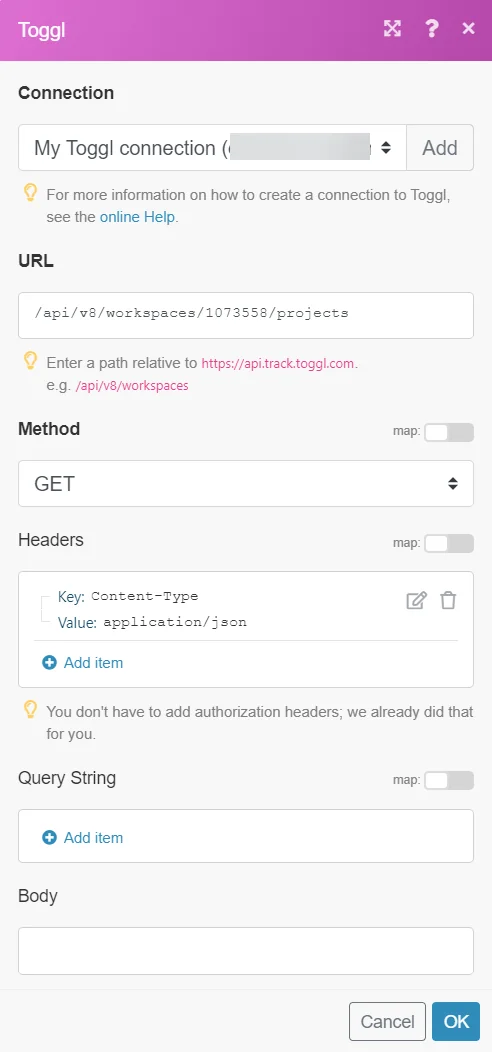
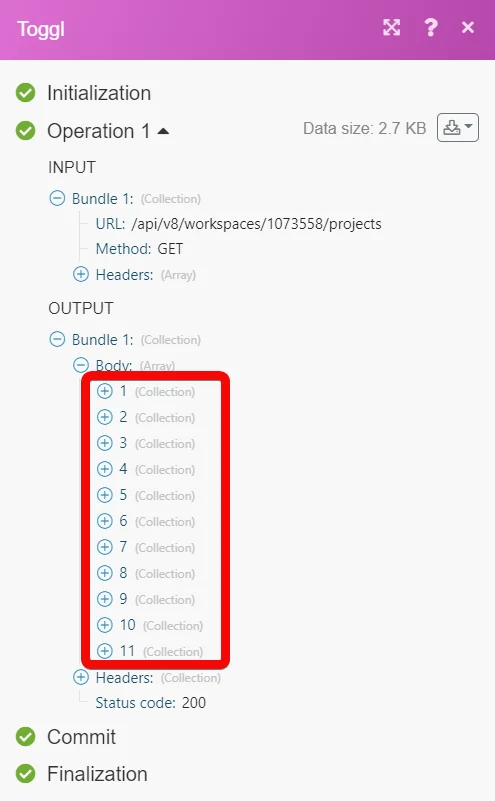
Matches of the search can be found in the module’s Output under Bundle > _Body._In our example, 11 projects were returned:
Create a Subscription
Creates a new subscription.
Connection
Establish a connection to your Toggl account.
Workspace ID
Select or map the Workspace ID for which you want to create a new subscription.
URL Callback
Enter the callback URL address to redirect the user after the subscription.
Event Filters
Add the filters for the subscription by selecting the entity and action. For example, client, created.
Description
Enter the details of the subscription, which is unique for its workspace.
Has pending Events
Select whether there are events pending to be delivered to this subscription.
Enabled
Select whether the subscription is enabled to notify events.
Secret
Enter the secret value that allows you to validate whether the received events have been sent by Toggl.
Validate a Subscription
Sets the subscription as validated.
Connection
Establish a connection to your Toggl account.
Workspace ID
Select or map the Workspace ID whose subscription you want to validate.
Subscription ID
Select or map the Subscription ID you want to validate.
Validation Code
Enter the validation code.
Legacy article, imported from the original Boost.space knowledge base (/knowledge-base/applications/productivity/toggl/).

