Zoho Sheets
The Zoho Sheets modules allow you to create, update, list, and delete the worksheets and search the content in worksheets from your Zoho Sheets account.
Getting Started with Zoho Sheets
Prerequisites
- A Zoho Sheets account – create an account at zoho.com/sheet/.
Connecting Zoho Sheets to Boost.space Integrator
-
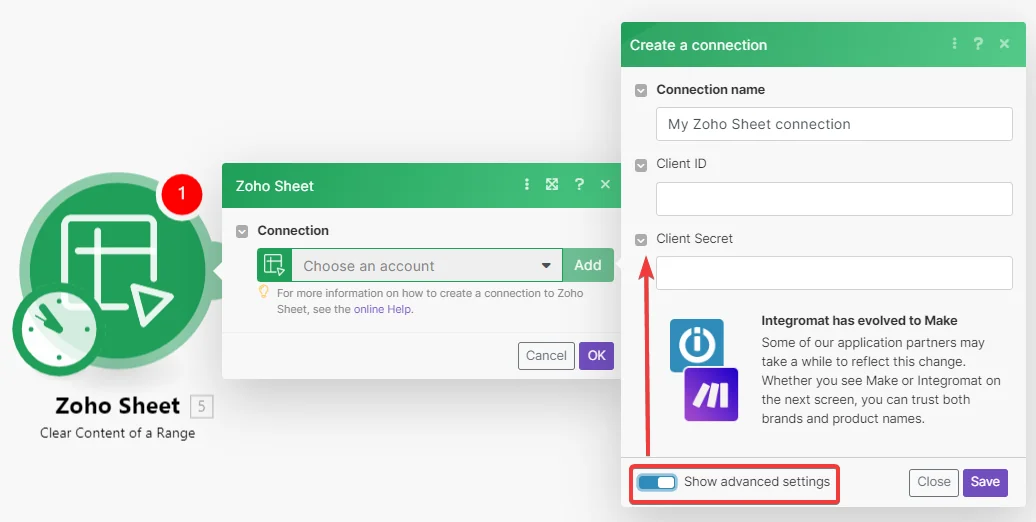
Log in to your Boost.space Integrator account, add a Zoho Sheets module, and click the Add button next to the Connection field.
-
In the Connection name field, enter a name for the connection.
-
Optional: Click Show Advanced Settings and enter the client credentials. See Create your own app and client credentials.
-
Click Save.
-
Confirm the access by clicking Accept.
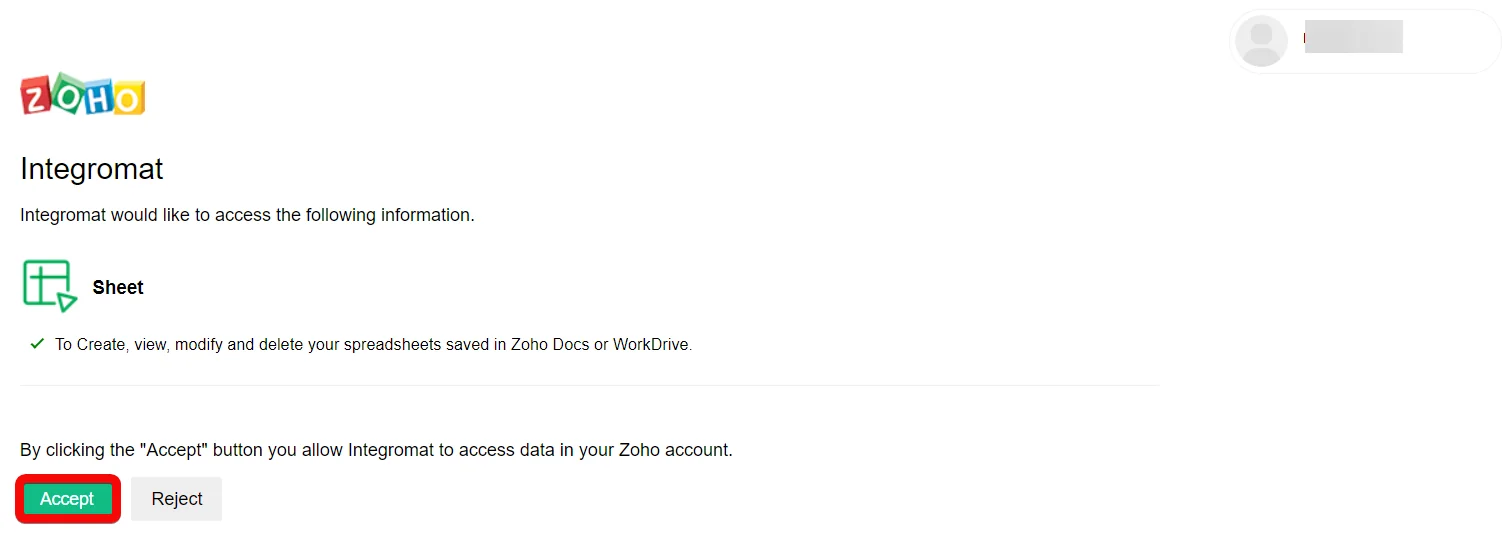
The connection has been established.
Create your custom app and client credentials
To create your own app:
-
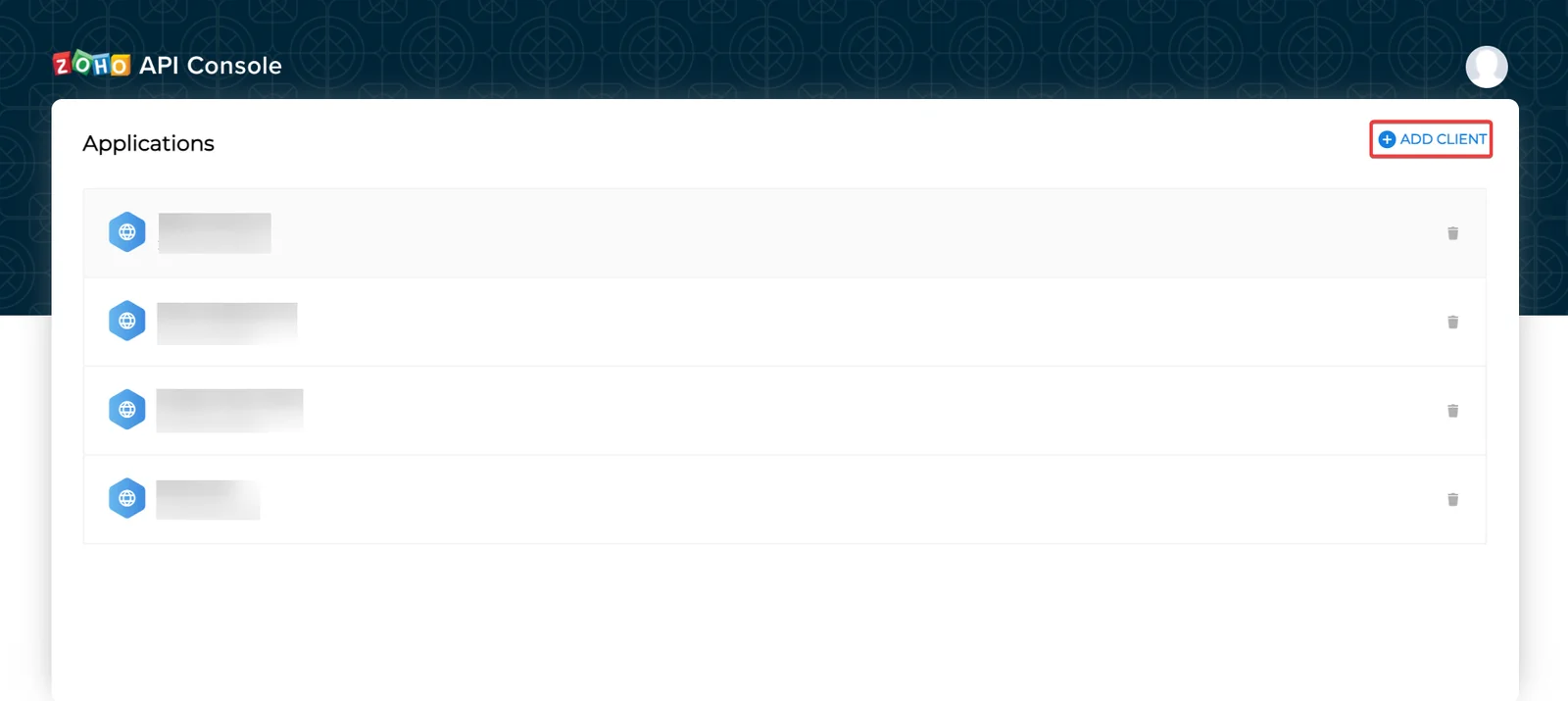
Log in to your Zoho Developer account.
-
Click ADD CLIENT and choose a client type.
-
Enter the app detail as described below and click CREATE.
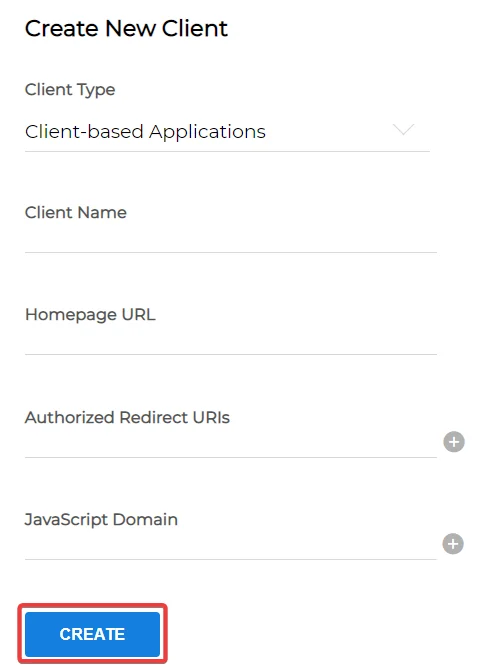
Client Name
Enter the application name you want to register with Zoho.
Homepage URL
Enter the homepage URL, for example,
https://www.make.com/en.Redirect URI
Add,
https://integrator.boost.space/oauth/cb/zohocrm2 -
Copy the Client ID and Client Secret to a safe place.
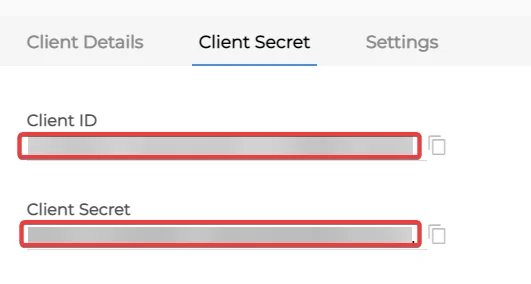
You have successfully retrieved the client credentials.
Worksheets

Using the following modules, you can create, copy, list, rename, and delete worksheets.
List Worksheets
Lists all worksheets.
Connection
Establish a connection to your Zoho Sheets account.
Resource / Workbook ID
Select or map the Workbook ID whose worksheets you want to list.
Limit
Set the maximum number of worksheets Boost.space Integrator should return during one execution cycle.
Create a Worksheets
Creates a new worksheet within a workbook.
Connection
Establish a connection to your Zoho Sheets account.
Resource / Workbook ID
Select or map the Workbook ID in which you want to create the worksheet.
Worksheet Name
Enter (map) a name for the worksheet.
Copy a Worksheet
Copies an existing worksheet.
Connection
Establish a connection to your Zoho Sheets account.
Resource / Workbook ID
Select or map the Workbook ID whose worksheet you want to copy.
Select Worksheet
Select or map the option to choose the worksheet:
- By ID
- By Name
Worksheet ID
Select or map the Worksheet ID you want to copy.
Worksheet Name
Select or map the worksheet you want to copy.
Insert after ID
Select or map the Worksheet ID after which you want to insert the copied worksheet.
New Worksheet Name
Enter (map) a new name for the worksheet you have copied. By default, the new worksheet name will be similar to _Sheet11, Sheet1_2, etc. Provide a unique name.
Rename a Worksheet
Renames a worksheet.
Connection
Establish a connection to your Zoho Sheets account.
Resource / Workbook ID
Select or map the Workbook ID whose worksheets you want to rename.
Old Name
Select or map the worksheet which you want to rename.
New Name
Enter (map) a new name for the worksheet.
Delete a Worksheet
Deletes a worksheet specified by ID or name.
Connection
Establish a connection to your Zoho Sheets account.
Resource / Workbook ID
Select or map the Workbook ID whose worksheet you want to delete.
Select Worksheet
Select or map the option to choose the worksheet:
- By ID
- By Name
Worksheet ID
Select or map the Worksheet ID you want to delete.
Worksheet Name
Select or map the worksheet you want to delete.
Contents
Using the following modules, you can search, set, and clear content.
Search Content of a Range
Searches for contents of the specified range.
Connection
Establish a connection to your Zoho Sheets account.
Resource / Workbook ID
Select or map the Workbook ID whose content you want to search.
Select Worksheet
Select or map the option to choose the worksheet whose content you want to search:
- By ID
- By Name
Worksheet ID
Select or map the Worksheet ID whose content you want to search.
Worksheet Name
Select or map the worksheet name whose content you want to search.
Start Row
Enter (map) the row number from which you want to search. Enter a value between 1 and 65536.
Start Column
Enter (map) the column number from which you want to search. Enter a value between 1 and 256.
End Row
Enter (map) the row number until which you want to search. Enter a value between 1 and 65536.
End Column
Enter (map) the column number until which you want to search. Enter a value between 1 and 256.
Limit
Set the maximum number of search results Boost.space Integrator should return during one execution cycle.
Set Content to Range
Sets the CSV content to the specified range.
Connection
Establish a connection to your Zoho Sheets account.
Resource / Workbook ID
Select or map the Workbook ID whose content you want to set for a specified range.
Select Worksheet
Select or map the option to choose the worksheet whose content you want to set:
- By ID
- By Name
Worksheet ID
Select or map the Worksheet ID whose content you want to set.
Worksheet Name
Select or map the worksheet name whose content you want to set.
Row
Enter (map) a row index of the cell from which the CSV data will start. Enter a value between 1 and 65536.
Column
Enter (map) a column index of the cell from which the CSV data will start. Enter a value between 1 and 256.
Data
Enter (map) the CSV data to be set to search the specified content.
Ignore Empty
Select whether you want to ignore the empty cells with no content.
Clear Content of a Range
Clears the content of the specified range.
Connection
Establish a connection to your Zoho Sheets account.
Resource / Workbook ID
Select or map the Workbook ID whose content you want to clear within the specified range.
Select Worksheet
Select or map the option to choose the worksheet whose content you want to clear:
- By ID
- By Name
Worksheet ID
Select or map the Worksheet ID whose content you want to clear.
Worksheet Name
Select or map the worksheet name whose content you want to clear.
Clear Method
Select or map the option to choose the method:
- Clear Content and Formatting
- Clear Content Only
Start Row
Enter (map) the row number from which you want to clear the content. Enter a value between 1 and 65536.
Start Column
Enter (map) the column number from which you want to clear the content. Enter a value between 1 and 256.
End Row
Enter (map) the row number until which you want to clear the content. Enter a value between 1 and 65536.
End Column
Enter (map) the column number from which you want to clear the content. Enter a value between 1 and 256.
Other
Make an API Call
Performs an arbitrary authorized API Call.
Connection
Establish a connection to your Zoho Sheets account.
URL
Enter a path relative to https://sheet.zoho.in/api For example: /v2/workbooks
For the list of available endpoints, refer to the Zoho Sheets Developer Documentation.
Method
Select the HTTP method you want to use:
GET
to retrieve information for an entry.
POST
to create a new entry.
PUT
to update/replace an existing entry.
PATCH
to make a partial entry update.
DELETE
to delete an entry.
Headers
Enter the desired request headers. You don’t have to add authorization headers; we already did that for you.
Query String
Enter the request query string.
Body
Enter the body content for your API call.
Example of Use – List Workbooks
The following API call returns all the workbooks from your Zoho Sheets account:
URL:
/v2/workbooks
Method:
GET
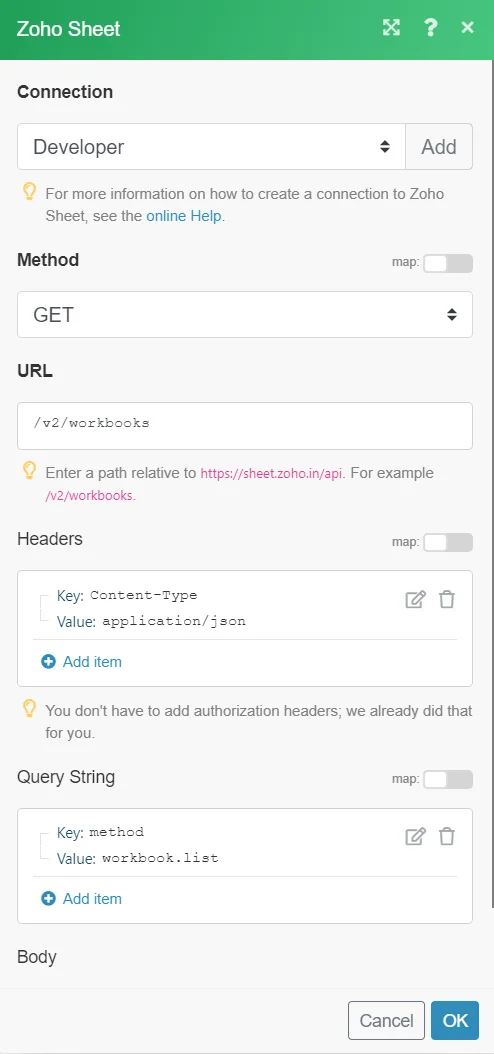
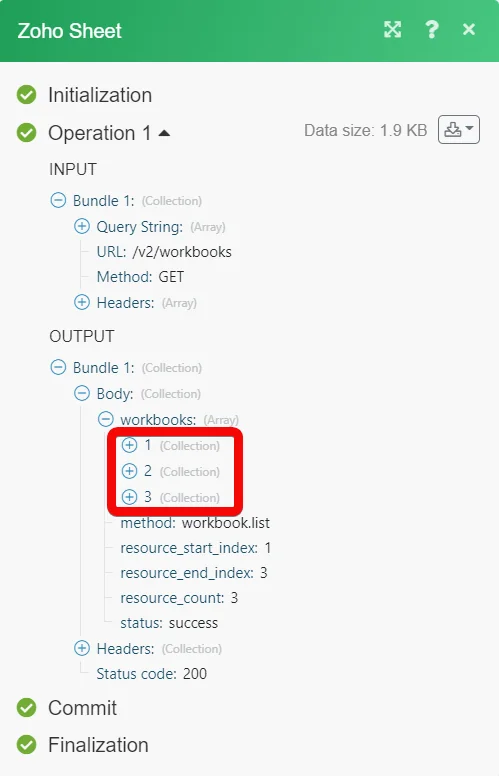
Matches of the search can be found in the module’s Output under Bundle > Body > workbooks.
In our example, 3 workbooks were returned:
Legacy article, imported from the original Boost.space knowledge base (/knowledge-base/applications/productivity/zoho-sheet/).

